Facebook IP Ban: How to Identify and Fix Facebook Access Problems

Sep 20, 2026 · Troubleshooting · 12 min read
TL;DR
A page that will not load, a verification request after login, or temporary recovery after switching to mobile data does not by itself prove that Facebook has banned your IP. First determine whether the issue is an account, feature, or business-asset restriction, or a failure on a particular network path. Only when there is no platform enforcement notice and no verification prompt should you run a single controlled network comparison.
Key Takeaways
| What You See | What to Do First | What Not to Do First |
|---|---|---|
| Disabled, suspended, security-locked, or identity-verification notice | Save the full notice and use the on-page verification or appeal path | Repeatedly change IPs or log in again and again |
| You can log in, but a feature or ad asset is unavailable | Check Account Status, Support Inbox, and the affected asset status | Immediately conclude that the IP was banned |
| No notice, only timeouts, blank pages, or connection resets | Check the browser, proxy, DNS, firewall, and ISP one at a time | Clear everything and change multiple variables at once |
| The same device fails on Wi-Fi but works on mobile data | Record the difference, then troubleshoot the original network path | Call the public IP permanently banned |
What Does “Facebook IP Ban” Actually Mean?
“Facebook IP ban” is usually a user-facing way to describe access problems that appear under a particular public internet connection. It is not a separate enforcement label that ordinary users can look up on an account page. A network address may be one signal in security decisions, but one failed login is not enough to identify the cause. Home broadband, office networks, and mobile carriers may also have many users sharing public addresses. An explicit platform notice is more useful evidence than a single network test.
First Separate Account, Feature, and Asset Restrictions
A feature restriction may affect only posting, commenting, Marketplace, or advertising actions. An account suspension or platform disablement usually comes with a login notice. A security lock may require a verification code, password reset, or identity confirmation. Pages and ad accounts can also be restricted separately from the personal login. Deactivating your own account is different from a suspension or disablement imposed by the platform.
| Restriction Type | Common Signs | Priority Action |
|---|---|---|
| Feature restriction | You can log in, but cannot post, comment, add friends, use Marketplace, or run ads | Open Account Status, Support Inbox, and the page for the affected feature |
| Account suspension or platform disablement | A suspension or disablement notice appears on the login page, Account Status, or registered email | Submit the requested information through the verification, appeal, or review path shown on the page |
| Voluntary deactivation | You deactivated the account yourself | Use the reactivation flow; do not use an enforcement appeal flow |
| Security lock or identity verification | You are asked to confirm recent activity, receive a code, change your password, or wait for a security review | Keep your usual device and network stable and complete the official verification |
| Page, ad account, or business-asset restriction | Your personal account works, but a Page, ad account, or business portfolio is unavailable | Review policy, payment, identity, or business-verification requirements for that asset |
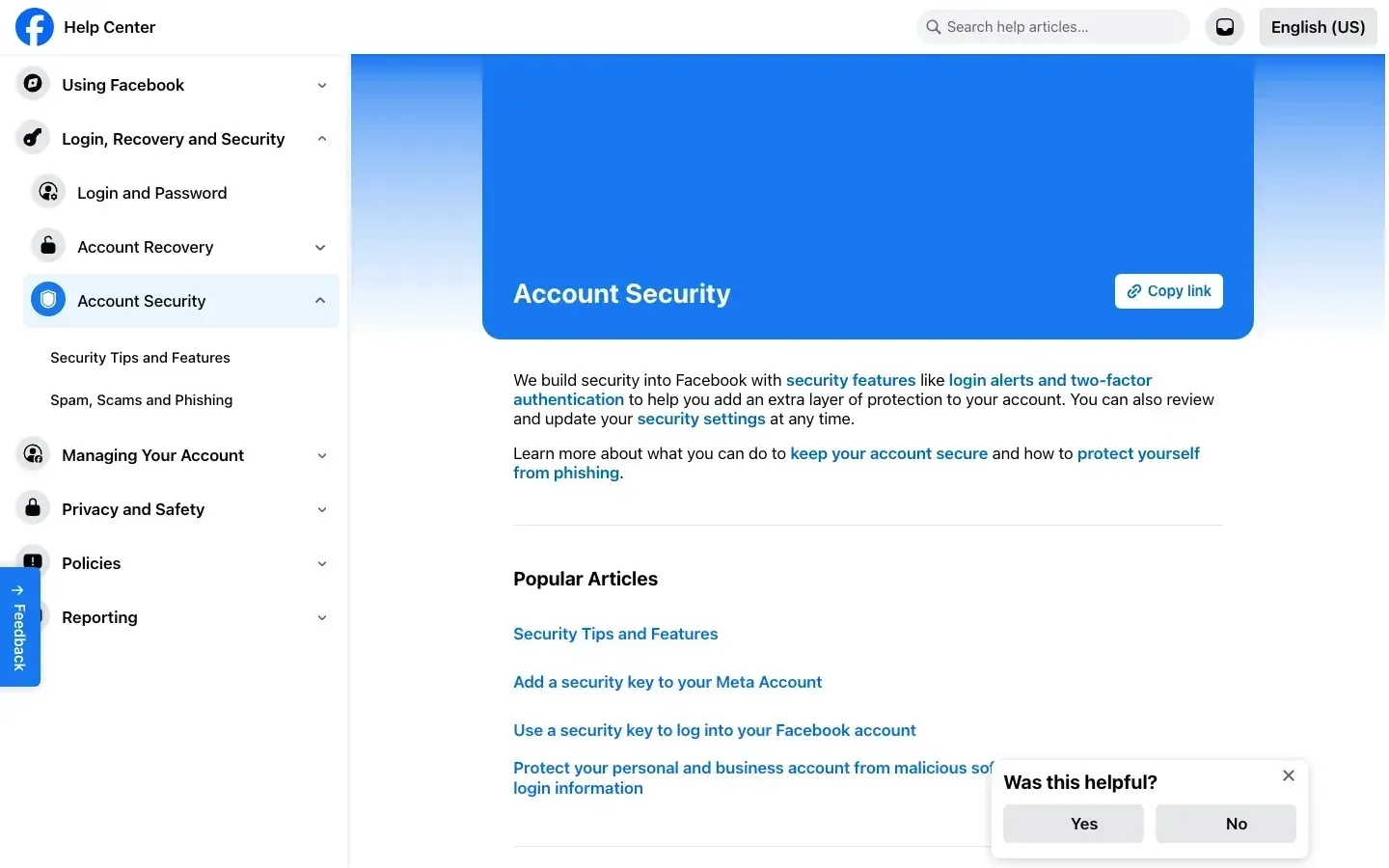
Figure 1. Facebook Help Center Account Security page. It is an informational page, not proof of the current status of your account.
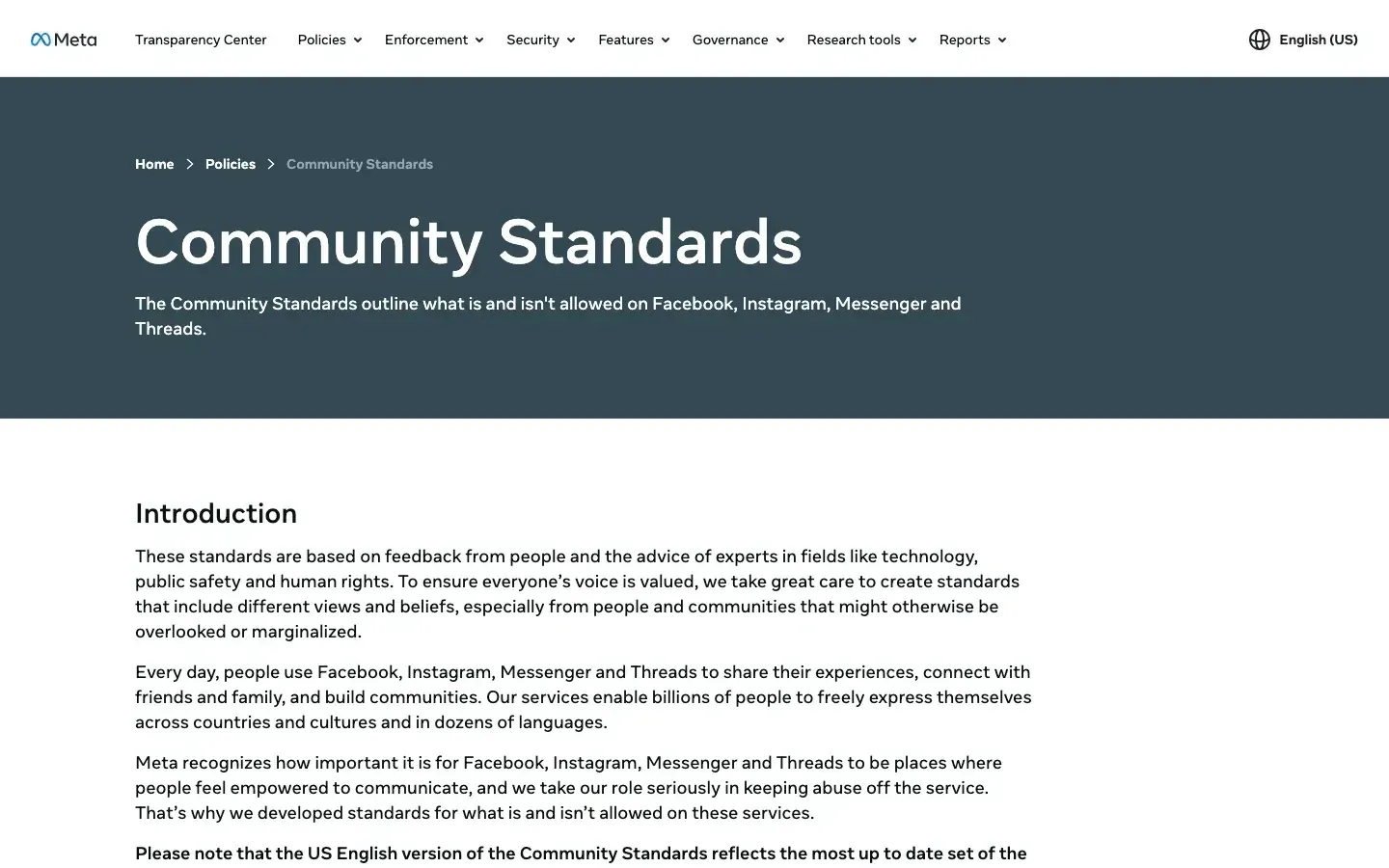
Figure 2. Meta Community Standards entry page. The specific reason should be determined from notices inside the account and any available review path.
Why Facebook May Restrict an Account or Access
Common causes include policy enforcement, account security, unusual behavior, business-asset risk, and ordinary browser or network failures. Changing an IP address changes at most one signal and cannot explain every restriction.
- Policy or content issues: Spam, impersonation, fraud, harassment, hateful content, and issues involving ads, payments, business activity, or identity verification can lead to content removal, feature restrictions, or account action. Use account notices and Meta Community Standards as the authoritative reference for the specific case.
- Login environment changes too quickly: Logging in across countries, devices, browsers, and networks in a short period may trigger verification codes, two-factor authentication, or identity confirmation. Legitimate teams should keep devices, regions, and network exits as stable as possible.
- High-frequency or unauthorized automation: Sending many friend requests, posts, or comments in a short period, or using unauthorized automation tools, may lead to feature restrictions. Do not treat fixed numbers from third-party anecdotes as official safety thresholds.
- Account takeover or third-party app abuse: Unknown logins, changed profile data, unfamiliar admins, abnormal ad spend, or content you did not publish should be handled first as a possible account takeover.
- Browser, DNS, firewall, or ISP failure: When there is no enforcement notice, extension conflicts, site data, system time, enterprise filtering, DNS, IPv6 routing, or carrier problems can cause timeouts or blank pages.
Which Signs Look More Like an Account Restriction, and Which Look More Like a Network Problem?
| What the User Sees | Initial Interpretation | Evidence Strength | Next Step |
|---|---|---|---|
| The same account shows suspended or disabled on both Wi-Fi and mobile data | Account enforcement | Strong | Read the notice and use the available appeal path |
| You can log in, but posting, commenting, friend requests, or ad actions are unavailable | Could be a feature restriction, permission issue, eligibility condition, or technical fault | Strong only when confirmed by a relevant platform notice | Check the affected feature or asset status first, then choose the recovery flow |
| You are asked to confirm identity, change your password, or complete a security review | Security lock | Strong | Keep the environment stable and complete official verification |
| Your personal account is normal, but a Page or ad account is restricted | Asset restriction | Strong | Review the affected asset page |
| Multiple otherwise-normal accounts and devices time out only on the same Wi-Fi | Network or egress-path problem | Medium | Check DNS, firewall, routing, and ISP |
| Only one browser fails | Browser problem | Medium | Update the browser and check extensions and site data |
| There is no enforcement notice, and switching to a hotspot temporarily restores access | Possible path difference | Weak | Continue troubleshooting the original network; do not call it an IP ban |
Diagnose the Problem in Evidence Order
Step 1: Save the Full Message
Record the time, original error text, affected account or asset, device, browser, and network. Before taking screenshots, hide verification codes, cookies, passwords, recovery codes, identity documents, and payment information.
Step 2: Confirm the Scope
Check whether you can log in, whether other features work normally, and whether a Page or ad account is restricted separately. If only one feature is unavailable, do not expand that into a claim that the whole account or public IP is banned.
Step 3: Check Official Notices First
After logging in to Facebook, open Account Status and Support Inbox. If an asset is restricted, also inspect the corresponding asset page. If you see a suspension, disablement, identity-verification, or security-lock notice, follow that notice. You do not need to keep changing networks to prove the restriction.
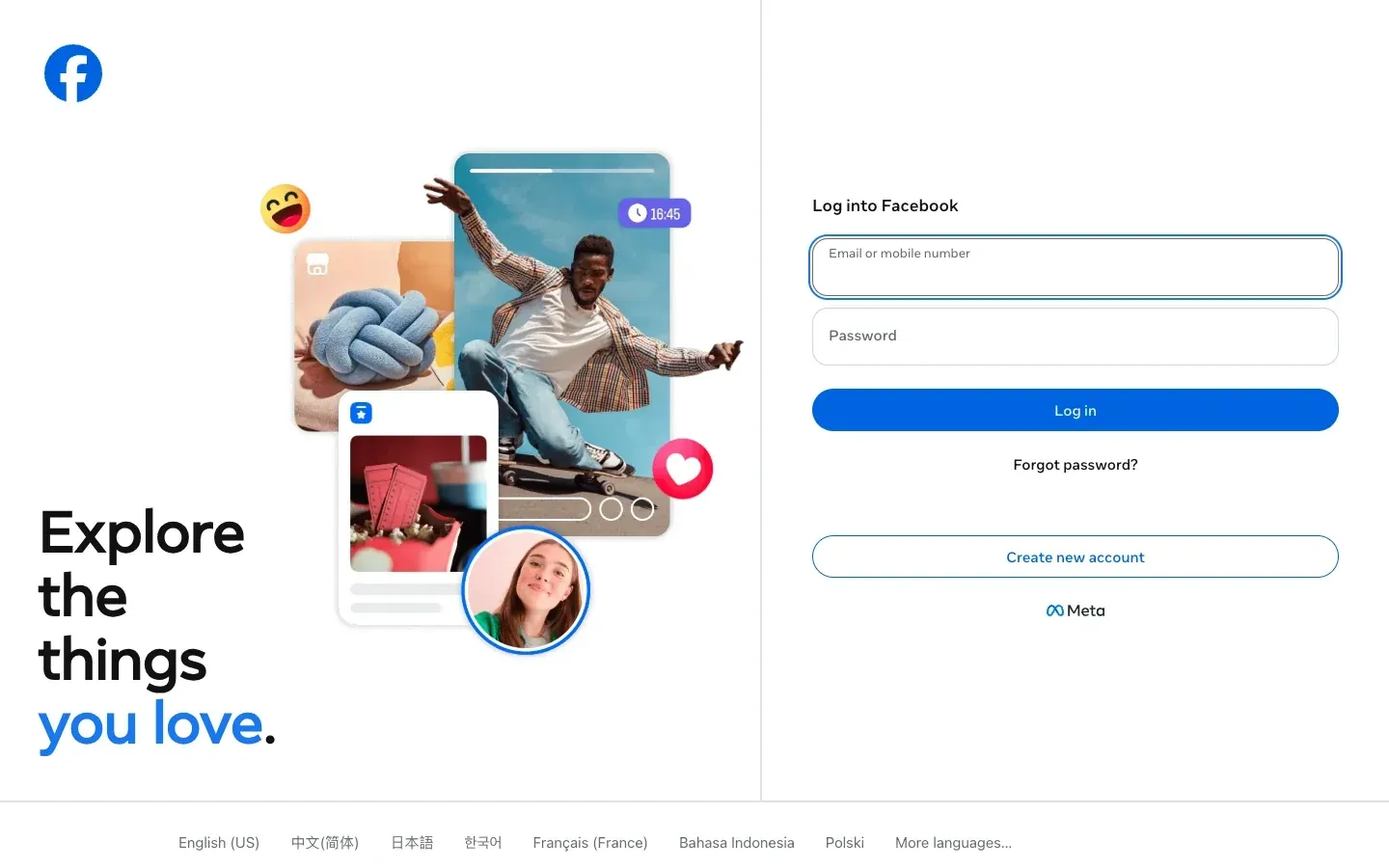
Figure 3. When Account Status is opened while logged out, the user is redirected to the login page. This image does not prove the account status after login and cannot replace Page or ad-asset status screenshots.
Step 4: Troubleshoot the Browser and Local Network
Check system time, browser updates, extensions, the system proxy, and whether a VPN and proxy are being layered together. If only one browser fails, troubleshoot that browser first. Clearing site data can sign you out, so confirm that your password and two-factor authentication method are still available before doing so.
Step 5: Make One Comparison Only When There Is No Notice
Keep the same device, browser, cookies, and account, and compare only the original Wi-Fi connection with mobile data. If both networks show the same enforcement notice, stop network testing. Only when the original Wi-Fi times out while mobile data works should you continue checking DNS, firewall rules, IPv4/IPv6 routing, and the carrier. That result is consistent with a network-path difference, but it does not isolate the cause to the public IP by itself.
| Comparison Result | More Reasonable Explanation | Correct Action |
|---|---|---|
| Both networks show the same enforcement or verification notice | Account or asset issue | Stop network testing and use the official flow |
| Wi-Fi fails, mobile data works, and there is no enforcement notice | Consistent with a network-path difference, but not conclusive | Check DNS, firewall, routing, and ISP |
| Only one account is affected on the same Wi-Fi | More like an account-specific issue | Check that account’s status |
| Multiple normal accounts and devices fail on the same Wi-Fi | Stronger network-layer suspicion | Contact the network administrator or ISP |
| Both networks recover later | Could be a temporary service change | Do not attribute it directly to an IP ban |
Step 6: Choose a Recovery Path Based on the Evidence, Then Stop Testing
If both networks show the same enforcement, identity-verification, or asset-restriction notice, stop network testing immediately and use the official process. Only if the original Wi-Fi has a connection failure while the same device and browser work normally on mobile data should you continue checking the router, DNS, firewall, IPv4/IPv6 path, and ISP. Do not repeatedly log in, clear cookies, switch devices, and rotate through multiple proxies “just to confirm once more.” That destroys the comparison conditions and may trigger new security checks.
Does Mobile Data Working Prove the IP Was Banned?
No. Switching networks can change the public IP, carrier, DNS resolver, NAT behavior, and IPv4 or IPv6 routing at the same time. Test timing and browser state can also affect the result. Mobile data working only shows that the network path differs; it does not isolate the cause to the IP address itself.
Restore Access Based on the Type of Problem
Method 1: Complete Security Verification and Protect the Account
When you see a security lock, suspicious-login notice, or identity-verification prompt, follow the on-screen instructions to confirm activity, receive a code, change the password, and enable two-factor authentication. A security check may require a waiting period; follow the timing shown on the page.
Method 2: Recover a Hacked Account
If profile information changed, unfamiliar admins appeared, ad spend is abnormal, or content was published without your authorization, use Facebook’s official hacked-account recovery flow, preferably from a device that has logged in to the account before. The priority is to regain control, review sessions, and revoke unfamiliar permissions—not to switch IPs first.
Method 3: Handle an Account Suspension or Platform Disablement
After logging in, read the full notice. If the page offers Appeal, Disagree with Decision, or Request Review, submit truthful and necessary information within the deadline shown. Do not repeatedly resubmit forms, and do not give passwords, verification codes, or payment information to “support” accounts contacting you through private messages.
Method 4: Reactivate an Account You Deactivated Yourself
If you deactivated the account yourself, use the reactivation flow or complete the process in Accounts Center. Voluntary deactivation is not the same as platform enforcement and should not use an enforcement appeal process.
Method 5: Handle a Page, Ad Account, or Business-Asset Restriction
On the affected asset’s status page, check policy, payment, identity, or business-verification requirements. Changing IPs does not remove advertising-policy records. Creating new assets to evade enforcement may broaden the restriction.
Method 6: Fix an Ordinary Browser or Network Failure
When there is no enforcement or verification notice, first update the browser, disable conflicting extensions, check system time, and confirm that a VPN and proxy are not layered together. Before clearing Facebook site data, confirm that your password, two-factor authentication, and recovery methods are available. Then check DNS, firewall, router, and ISP one factor at a time and record the result.
| Observation | Correct Handling |
|---|---|
| Security lock or identity verification | Keep your usual device and a stable environment; follow the on-screen verification steps and avoid repeatedly changing countries or proxies |
| Unknown login, admin, or ad spend | Use the official hacked-account recovery flow and review sessions and permissions |
| Account suspended or disabled | Use the appeal/review path and deadline shown in the notice and submit truthful information |
| You deactivated the account yourself | Use the reactivation flow rather than an enforcement appeal |
| Only a Page or ad account is restricted | Review policy, payment, and identity-document requirements for the affected asset |
| No notice, only a connection problem | Change one factor at a time in this order: browser, DNS, routing, firewall, ISP |
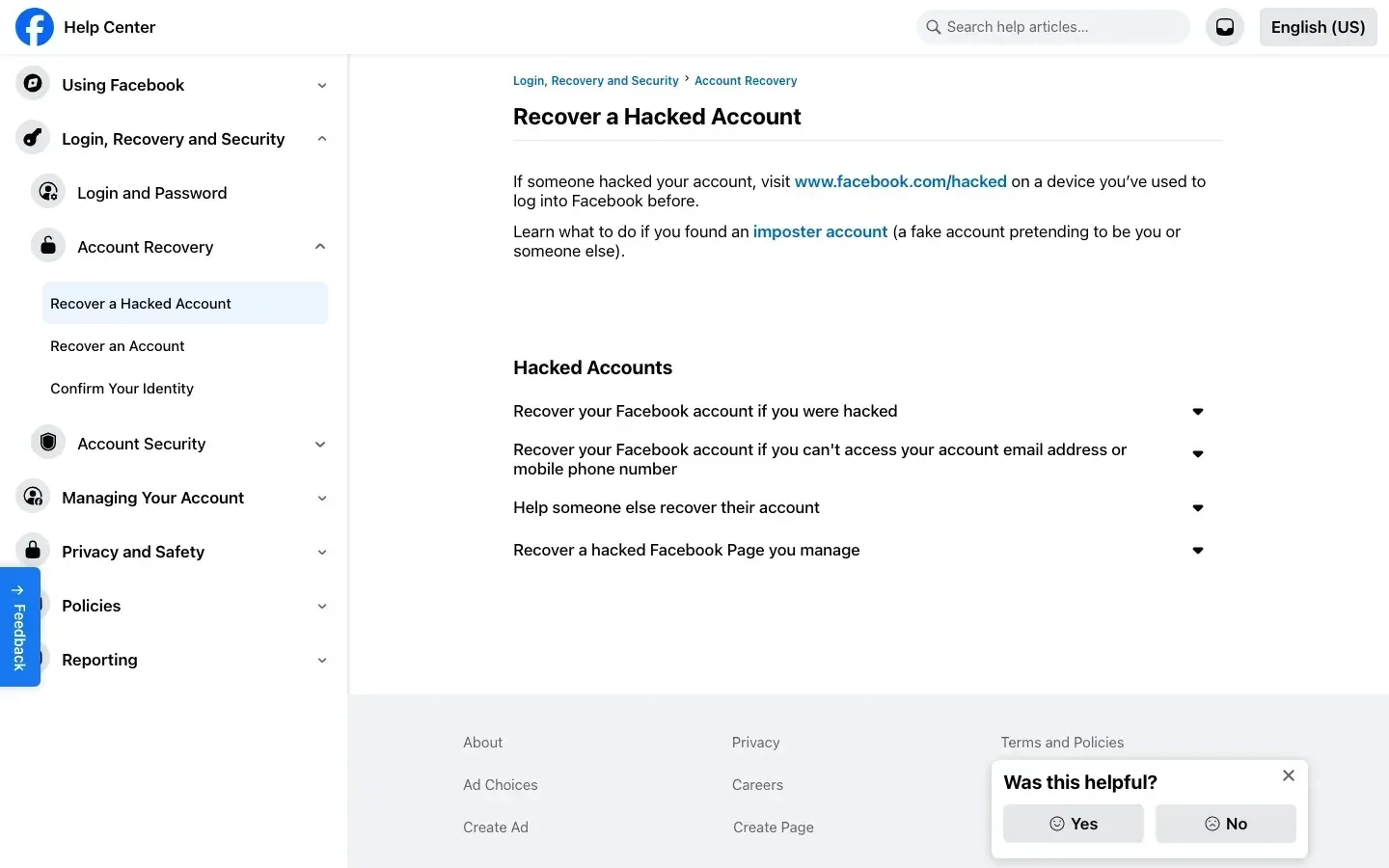
Figure 4. Facebook’s official “Recover a Hacked Account” Help Center page. If there are signs of account takeover, start with the official page.
Use Rola IP for One Controlled Network-Path Comparison
Use Rola IP for this comparison only during authorized troubleshooting when there is no enforcement notice, no security lock, and no identity-verification prompt. A proxy cannot remove an account penalty or bypass identity verification. When choosing a connection method, prioritize a stable region and session rather than automatically rotating the exit on every request. The browser path below assumes that the provider currently offers a compatible HTTP proxy address plus username/password authentication. If your plan provides only another protocol, follow the official instructions for that protocol and client.
If your authorized workflow requires a longer-term fixed exit, evaluate ISP proxies under the terms of your selected plan. A one-time network comparison does not necessarily require a static product.
Step 1: Get the Current Connection Parameters for Your Plan
Follow the proxy setup guide to find the connection details for your selected network in the Rola IP account console, then copy the Host, Port, Username, and Password. Verify the protocols and authentication method supported by your plan, and check the proxy parameters for its region and session rules.
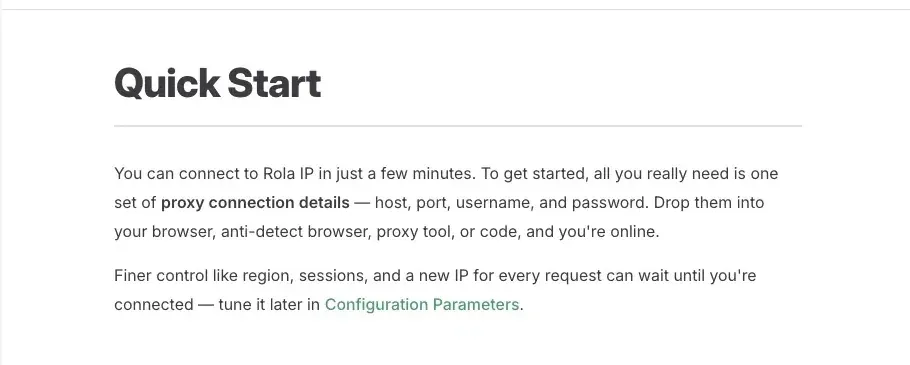
Figure 5. Rola IP Quick Start explains the four connection parameters.
Step 2: Configure the Same Firefox Browser
- On your computer, open Firefox menu → Settings → General → Network Settings → Settings. Menu names may vary slightly by version. Choose Manual proxy configuration.
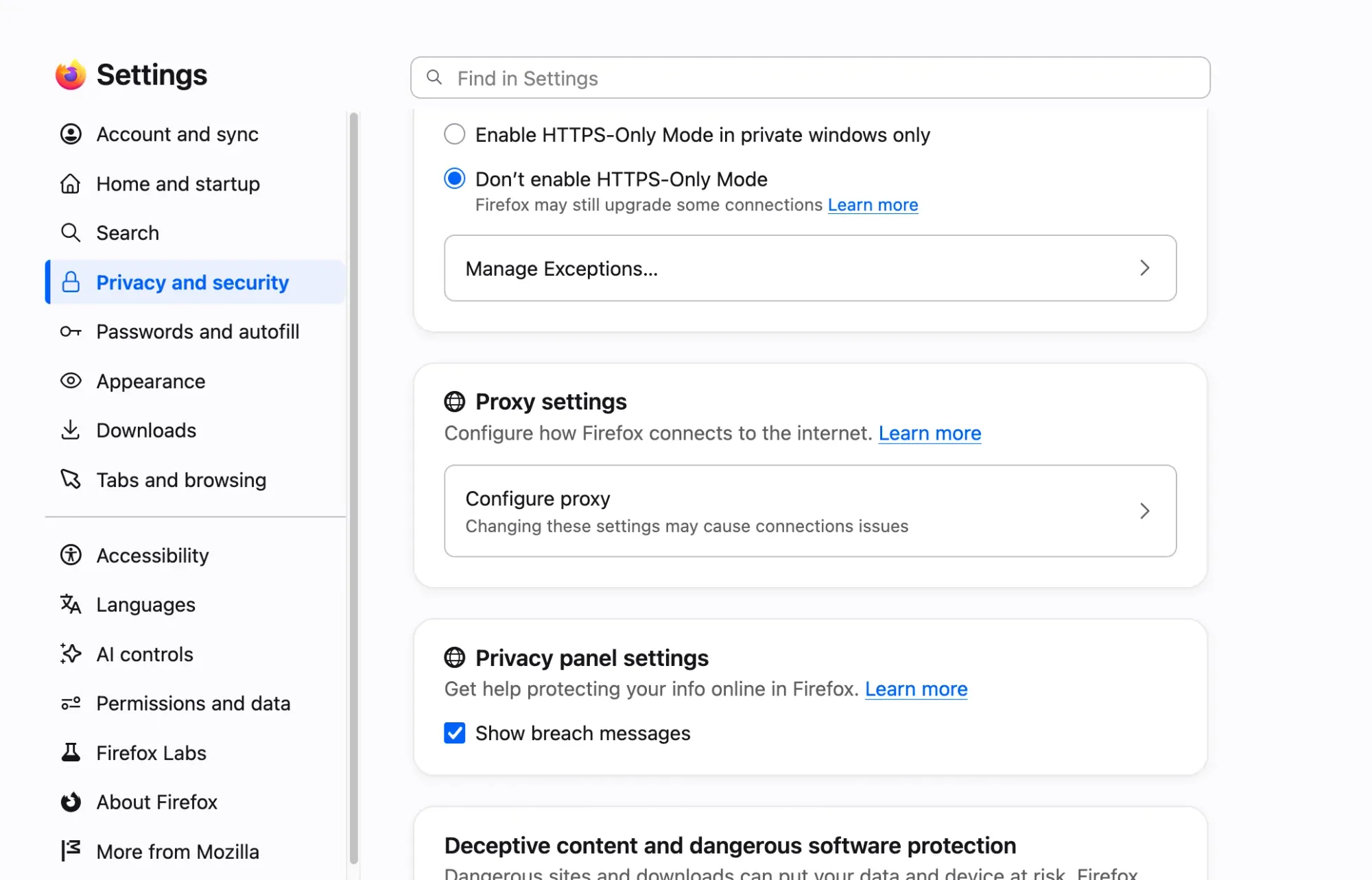
Figure 6. Firefox proxy settings.
- After confirming that your plan provides HTTP proxy access, enter Host in the HTTP Proxy field and Port in the Port field. If the same address and port are used for HTTPS, enable Also use this proxy for HTTPS (or fill the HTTPS Proxy fields separately). Do not mistake an HTTPS website URL for the proxy gateway.
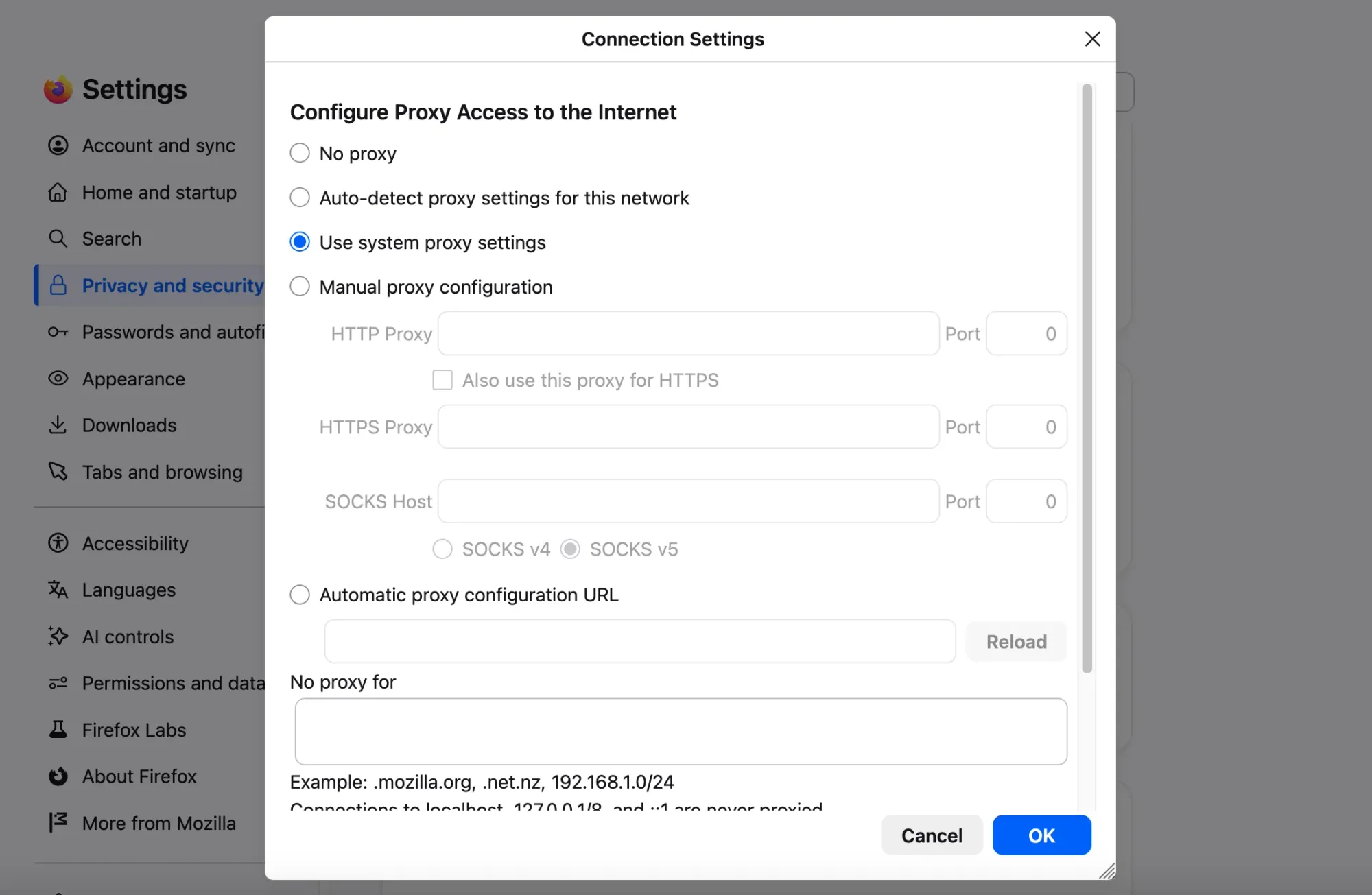
Figure 7. Firefox Rola IP proxy settings.
- Save the settings and, in that same Firefox window, open a test site. If Firefox shows a proxy-authentication dialog, enter the Rola IP Username and Password. If no dialog appears but you receive a 407 response, recheck the plan’s authentication method, credentials, and any IP allowlist.
- Check that the No proxy for exclusion list does not contain the test domain or
facebook.com. Make sure no extension, VPN, or system proxy overrides the current rule. Then perform the egress check in Step 3 in the same browser.
If the current product does not use HTTP, or Firefox cannot complete the required authentication, do not force the configuration into the form above. Use a client supported by the Rola IP documentation and verify its rules. Keep configuration, egress verification, and the Facebook access comparison in the same client.
If the client supports a socks5h URI, hostnames are resolved through the SOCKS5 proxy. That is a client convention; it does not mean every browser has an option with that exact name, and it does not mean the authentication path is automatically encrypted.
Step 3: Check the IPv4 Egress in the Same Browser
- With the proxy disabled, open https://api.ipify.org?format=json in Firefox and record the observed IPv4 egress. Do not publish the full address in the article.
- Enable the proxy and refresh the same URL in the same browser. If the returned IPv4 address changes, that shows this specific ipify request observed a different egress. If the address does not change or the page does not load, recheck proxy rules and authentication before logging in to Facebook.
- If you need to inspect IPv6 as well, open https://api64.ipify.org?format=json and use the client’s current routing rules to check whether another address family or direct domain route is involved. An IPv4 result cannot substitute for checking IPv6 and the route used for Facebook domains.
Figure 8. Example of the ipify browser interface.
Step 4: Verify Facebook Requests and Stop Testing
Only after the proxy is connected, the same client’s egress check behaves as expected, and Facebook shows no enforcement or verification notice should you run one access comparison. api.ipify.org reports only the public IPv4 observed for that request. It cannot verify Facebook account status or prove that another destination used the same route. Check the client’s proxy rules, bypass settings, and IPv4/IPv6 behavior. If the client provides connection logs, also inspect requests related to facebook.com. Without that evidence, record only what you observed; do not claim that Facebook traffic definitely went through the proxy. If a platform notice appears, stop switching exits immediately and return to the official recovery process.
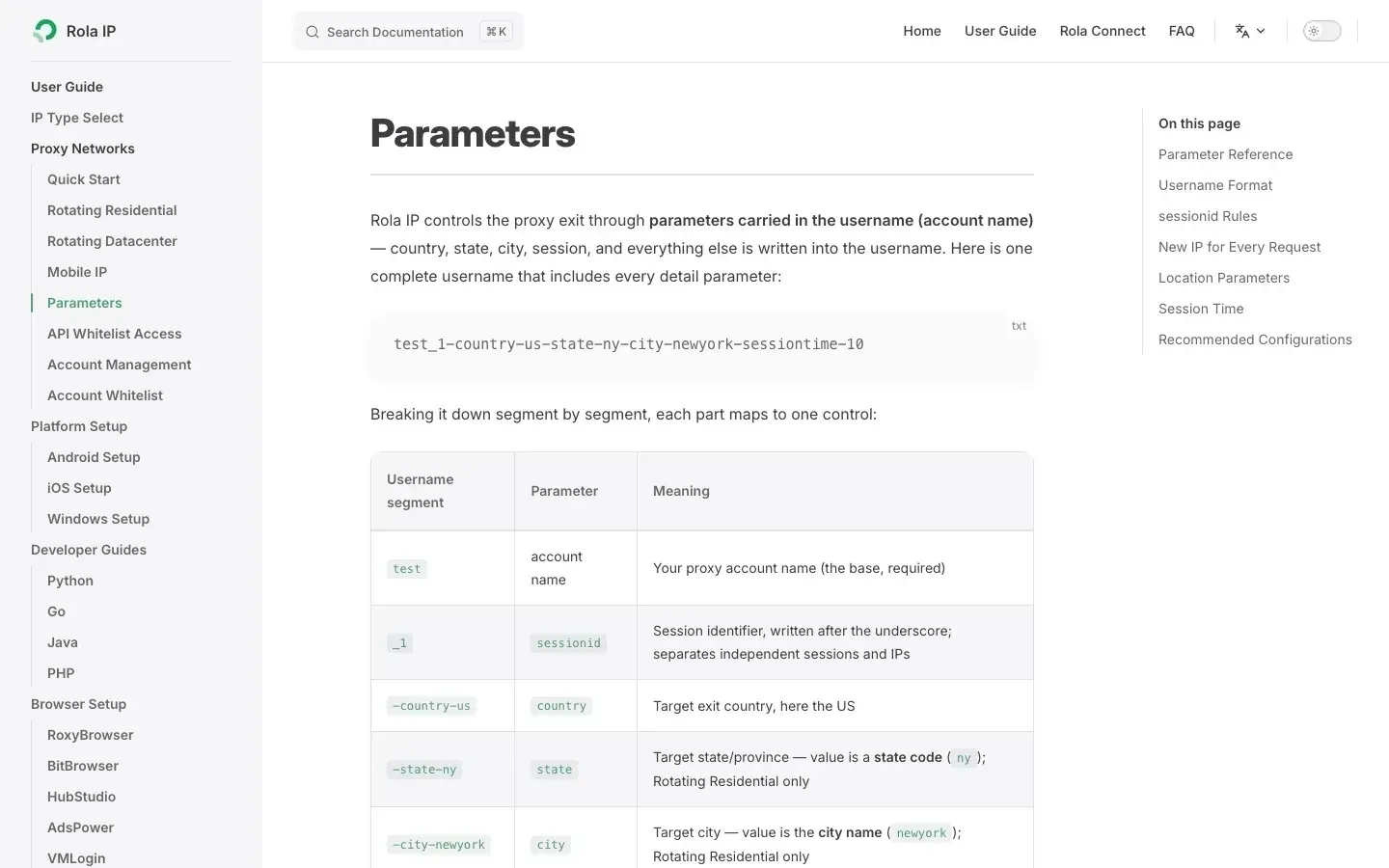
Figure 9. Rola IP parameter documentation. Region and session parameters vary by network type; use the rules for the current product.
| Test Result | What It Can Show | What It Cannot Show |
|---|---|---|
| Proxy connection or authentication fails | Check protocol, Host, Port, credentials, or plan status first | That Facebook banned the IP |
| ipify egress changes, but Facebook still shows the same enforcement | The diagnostic request path changed, while the account/asset notice still needs to be handled | That switching through a few more IPs will remove the enforcement |
| ipify succeeds and Facebook is accessible in this test with no restriction notice | This access attempt succeeded; client routing evidence is still needed before concluding the proxy was used | That the original IP was banned, that the proxy caused the recovery, or that every Facebook request used the proxy |
| A new security-verification prompt appears after switching | The environment change may have triggered a new check, so stop the comparison | That the platform proved the proxy address is unsafe |
Conclusion
When Facebook access fails, start with platform notices, confirm the scope of the problem, and then troubleshoot the browser and original network. Only when there is no enforcement or verification prompt should you run one explainable network-path comparison. Rola IP can provide a comparison path with explicit connection parameters, but it cannot reverse platform enforcement and cannot guarantee Facebook access results.