Google Unusual Traffic: Causes and Step-by-Step Fixes

Sep 21, 2026 · Use Cases · 13 min read
TL;DR
When you see the unusual traffic prompt on Google Search, first stop automated searching and continuous refreshing, then determine whether the problem comes from the current browser, the local machine, or a shared network exit. Don’t immediately clear all browser data, reset your router, or keep switching proxies one after another — doing so changes multiple conditions at once and makes the real cause harder to confirm.
This article walks through the troubleshooting steps using desktop Chrome’s English interface, covering shared Wi-Fi, VPN or proxy exits, extensions, automated tasks, and CAPTCHA-loading issues. The screenshots come from real settings pages, with red boxes marking the relevant controls. Properly completing the verification Google provides is part of the process for restoring normal human access — this article doesn’t cover CAPTCHA bypassing, answer services, or hiding automation.
What the Google Unusual Traffic Prompt Actually Means
The common message reads “Our systems have detected unusual traffic from your computer network.” What Google is evaluating may be the request activity from your entire network — not just the one search you just typed. Google’s official help page states that automated queries, other users on the same network, VPNs, and some tunneling services can all be related to this prompt.
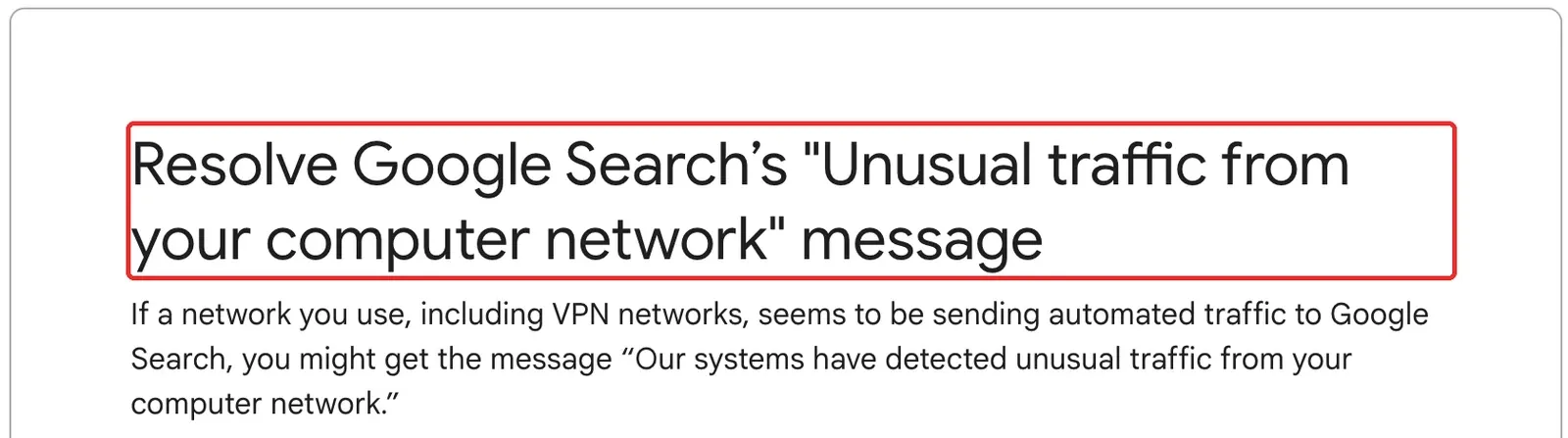
This is a search-access restriction prompt — it doesn’t mean your Google account has been suspended, and it can’t independently prove your computer is infected. Even if you’ve only run a small number of manual searches, you should still check any public exit shared by multiple people: an office, campus, or hotel Wi-Fi, or a shared VPN node, can all concentrate many people’s requests onto a similar network identity.
If the page presents a reCAPTCHA, first confirm the address genuinely belongs to Google, then complete it manually as prompted. No CAPTCHA appearing, a blank CAPTCHA, and the prompt reappearing after completion are different failure scenarios and need to be handled separately. Don’t intentionally generate a large volume of search requests just to screenshot or test something.
How Do You Distinguish the Common Causes of “Why Does Google Say Unusual Traffic”
| Observed Symptom | Priority Troubleshooting Direction | Conclusion You Can’t Draw Directly |
|---|---|---|
| Multiple devices show the prompt on the same Wi-Fi | The shared exit, or an automated task on the network | Every device is infected with a virus |
| Only appears when a VPN or proxy is on | That specific exit and proxy path | All VPNs can’t be used with Google |
| Only one browser profile is affected | Extensions, site permissions, session, or proxy differences | It must be a corrupted cookie |
| Still abnormal after switching networks on the same device | A local automated task or browser problem | The Google account is definitely banned |
| The CAPTCHA area is blank | JavaScript, resource blocking, or browser compatibility | Changing IP will definitely fix it |
| Still persists after you stop manual searching | Background software, another device, or another shared user | Continuing to complete CAPTCHAs will remove the cause |
These are only troubleshooting clues — not a confirmed diagnosis. The same result can have multiple explanations: for example, a new browser working normally could also be because it didn’t inherit the old browser’s proxy settings — not simply because it has fewer extensions installed. Log the actual exit, login state, and what changed for every comparison you run.
How Do You Fix Google Unusual Traffic — Check the Shared Exit First
Step 1: Record Your Current Network Instead of Immediately Switching Nodes
Keep a screenshot of the prompt, and note the time and time zone, the browser you’re using, whether a VPN or proxy is on, and whether other devices are also affected. When sharing the screenshot, blur out the complete public IP, your account, and search content; don’t send login cookies or a proxy password to anyone unrelated.
Open Rola IP’s What Is My IP tool in the same browser profile, and record the public exit at that time. If the Google prompt page also shows an IP, you can compare it locally. A mismatch between the two may involve split tunneling, IPv4 versus IPv6, or a proxy switch, and needs further checking — don’t apply the lookup page’s result to every request.
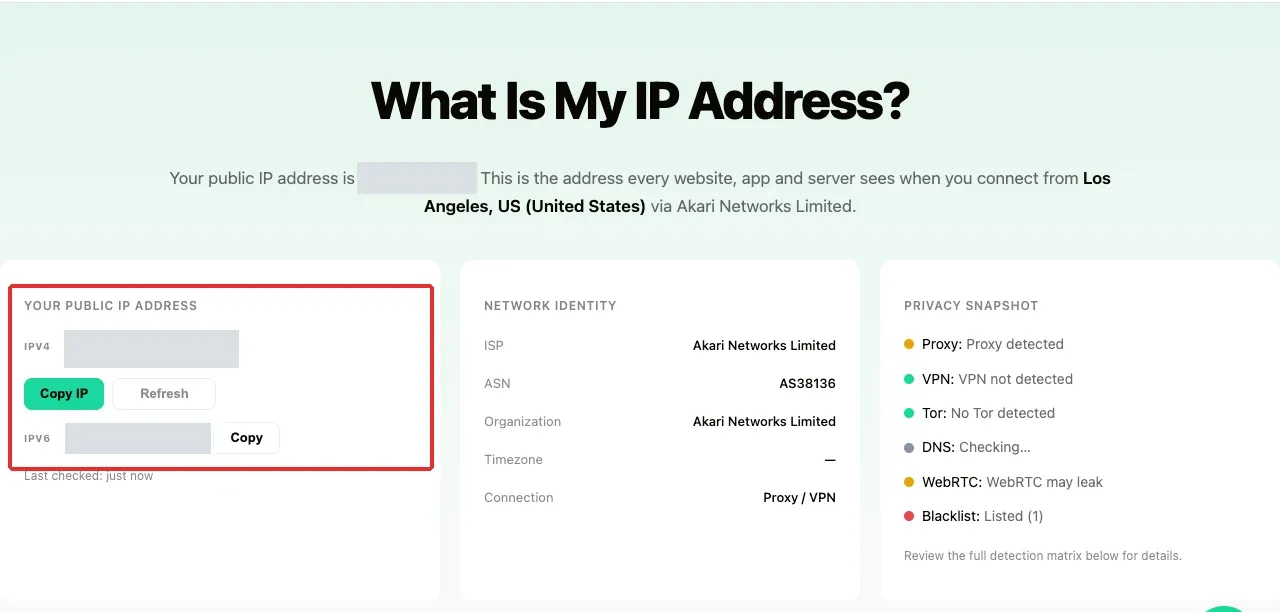
A third-party tool’s Proxy, Blacklist, or risk label isn’t the same thing as a Google ban record. An IP check is used to confirm network conditions — it can’t be used to prove Google has banned or lifted a restriction.
Step 2: Pause Your Personal Proxy and Run One Low-Frequency Comparison
If you use FoxyProxy, open the extension menu and choose Disable to temporarily stop it from controlling the proxy. This article’s screenshot only demonstrates where the toggle is — it doesn’t mean this extension itself causes unusual searches. Other VPN or proxy clients should use their own disconnect button; there’s no need to uninstall the software first.
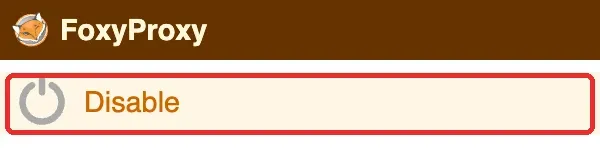
After disabling it, first confirm the exit path has actually changed, then run one ordinary manual search. Don’t submit a batch of keywords just to test whether it’s recovered. If your company requires all traffic to go through a security gateway, contact your administrator to arrange the comparison — don’t bypass company policy on your own.
If the issue only occurs on the proxy path, that suggests you should focus on investigating that particular route, but it still doesn’t prove IP reputation is the sole cause. If the problem persists on a direct connection too, keep checking local tasks and other shared users. Disabling the extension won’t automatically turn off a system-level VPN — “direct connection” should be judged by the actual network state.
Step 3: Check Whether There’s Another Layer of Proxy on the System
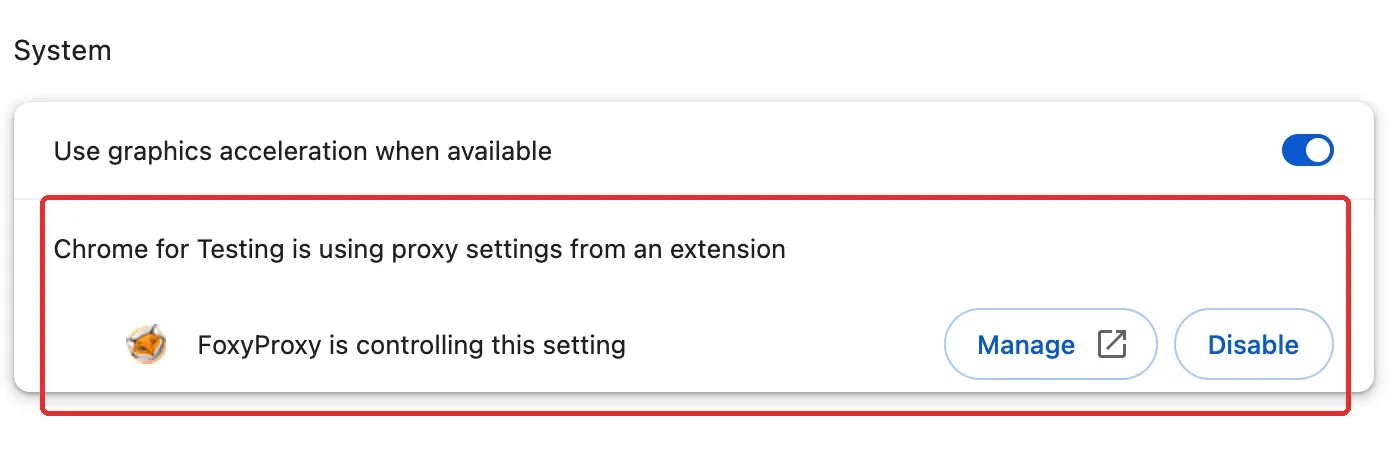
Type chrome://settings/system into Chrome’s address bar, and first check who controls the proxy setting. If it shows “FoxyProxy is controlling this setting,” that means the extension currently has control; click Manage to view that extension, or Disable to stop its control. If the page shows “Open your computer’s proxy settings,” you can go from there into the operating system’s proxy settings. Record the existing configuration first, then check whether a system VPN or proxy client is still running — don’t directly delete a configuration your company has issued.
If switching networks is an option, you can connect the same device to your own phone hotspot for one comparison, keeping the browser and task state unchanged; leave another trusted device on the original network for a separate check. If multiple devices are abnormal on the original network but normal on the hotspot, that strengthens the judgment of “a shared exit or an issue on the original network side” — but the cause still needs to be confirmed by an administrator or the provider.
A phone hotspot can also share the carrier’s public exit, so it isn’t naturally a “clean IP.” The purpose of a network comparison is to localize the problem — not to keep hunting for a route that lets automated requests keep running.
How Do You Troubleshoot the Automated Requests Behind “Google Detected Unusual Traffic”
Step 1: Pause Tasks That Actively Access Search Pages
Check any recently started rank-tracking software, browser automation, search-scraping scripts, auto-refresh tools, and scheduled tasks. First pause the task or turn off its scheduling within the software’s own interface, then check whether a background process or cloud task is still using the same exit. Closing just one search tab won’t necessarily stop automated requests.
If these tasks are run by a team, ask the person responsible whether they’re using the same VPN, proxy, or office exit. The direction to work toward is locating and stopping the anomalous source; if you have an ongoing data need, use an interface that permits that use, or an authorized service, and follow the applicable quota — rather than adding a proxy and continuing to hit the web search page.
Step 2: Review the Extension List in Chrome
Type chrome://extensions/ into the address bar, and look for recently installed extensions, ones with page-access permissions, or ones that auto-refresh pages. Note the name and version, then toggle off suspicious extensions one at a time. Disabling them first makes comparison easier — there’s no need to delete every extension right away.
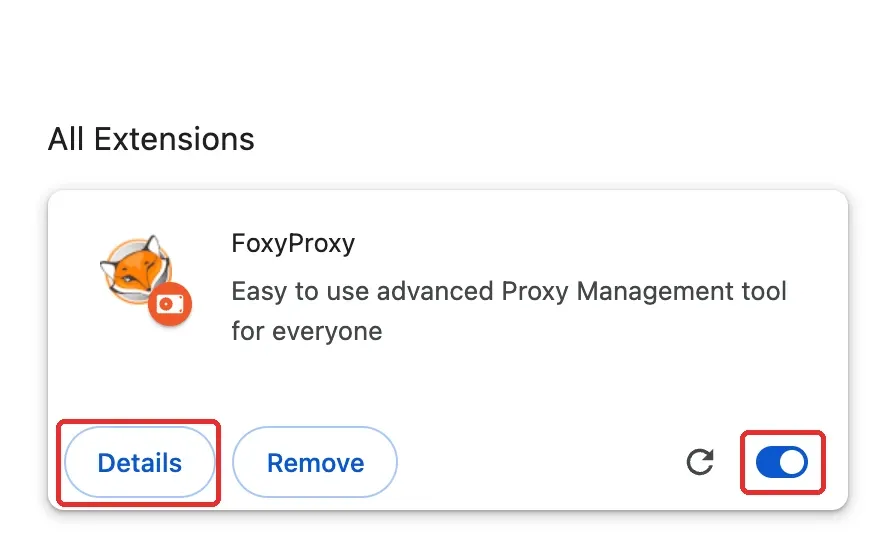
FoxyProxy appears in this figure only to demonstrate the real interface. It’s a proxy-management tool, and shouldn’t be judged as malicious just because it appears in a screenshot. If you disable a proxy extension, the exit may change at the same time, so treat that action as part of your network-path comparison; when troubleshooting for an auto-searching extension, try to keep the exit unchanged.
Step 3: Check Extension Details and Change Only One Thing at a Time
Click Details to view the extension’s description, permissions, and site-access scope. For an unfamiliar extension, first verify its source; don’t judge it malicious just because it requests more permissions, and don’t grant it more permissions just to troubleshoot. After disabling a suspected source, wait for background activity to stop before running a low-frequency check.
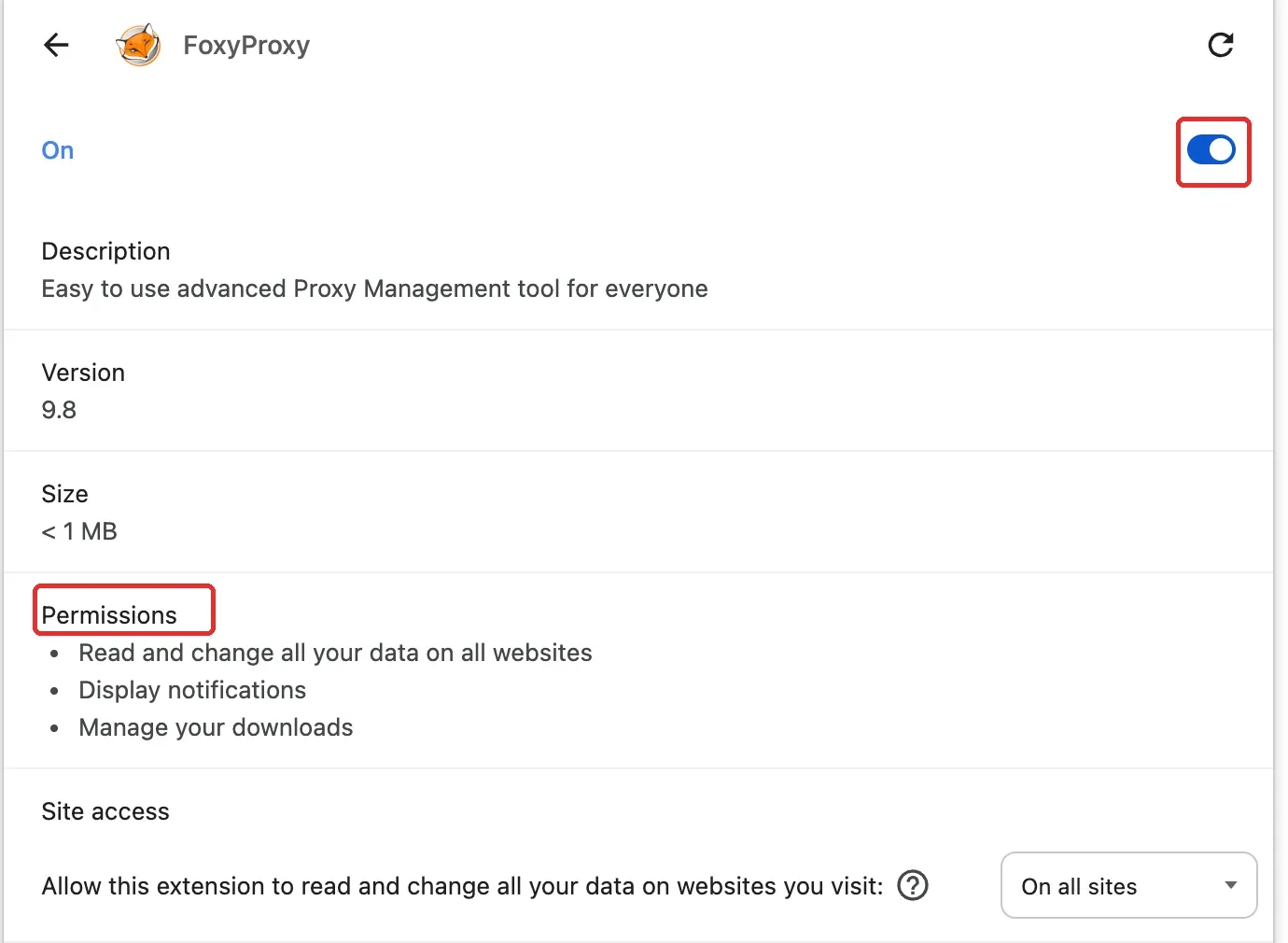
If the problem disappears, keep that extension disabled and contact the developer or administrator to confirm its behavior. Don’t repeatedly re-enable a feature that sends a large volume of requests just to “prove” it’s problematic. See Chrome’s official extension-management help for the management entry point and removal steps.
Step 4: Check Local Security and Other Connected Devices
Only run a security check once a single device stays abnormal after you’ve stopped every visible task. Windows users can go to Windows Security → Virus & threat protection, and run a scan following your current protection software’s prompts; check Scan options if you need broader coverage. On a device using third-party antivirus software, the scan entry point may be provided by that software — see Microsoft’s virus and threat protection guidance for details.
Mac users should keep system and security updates enabled, and check recently installed apps, browser extensions, and unusual sign-ins. macOS’s built-in protection includes XProtect, but it isn’t a scan button inside Chrome — see Apple’s malware-protection documentation for reference. Don’t install an unknown cleanup tool that claims to be “dedicated to fixing Google CAPTCHAs.”
The Chrome Cleanup Tool mentioned in older tutorials has been retired, and readers shouldn’t be asked to look for that button anymore. Google’s retirement announcement explicitly states the tool was removed starting with Chrome 111. A scan finding no threats also doesn’t mean other shared devices or network exits have been ruled out.
How Do You Handle It When the CAPTCHA Doesn’t Display for “Google CAPTCHA Unusual Traffic”
Step 1: Check Browser Compatibility and JavaScript
Use a supported, up-to-date browser. reCAPTCHA’s compatibility requirements follow Google’s official browser requirements. Type chrome://settings/content/javascript into the address bar, and check the default behavior and any site exceptions: JavaScript being allowed by default doesn’t mean Google hasn’t been separately added to a blocked list.
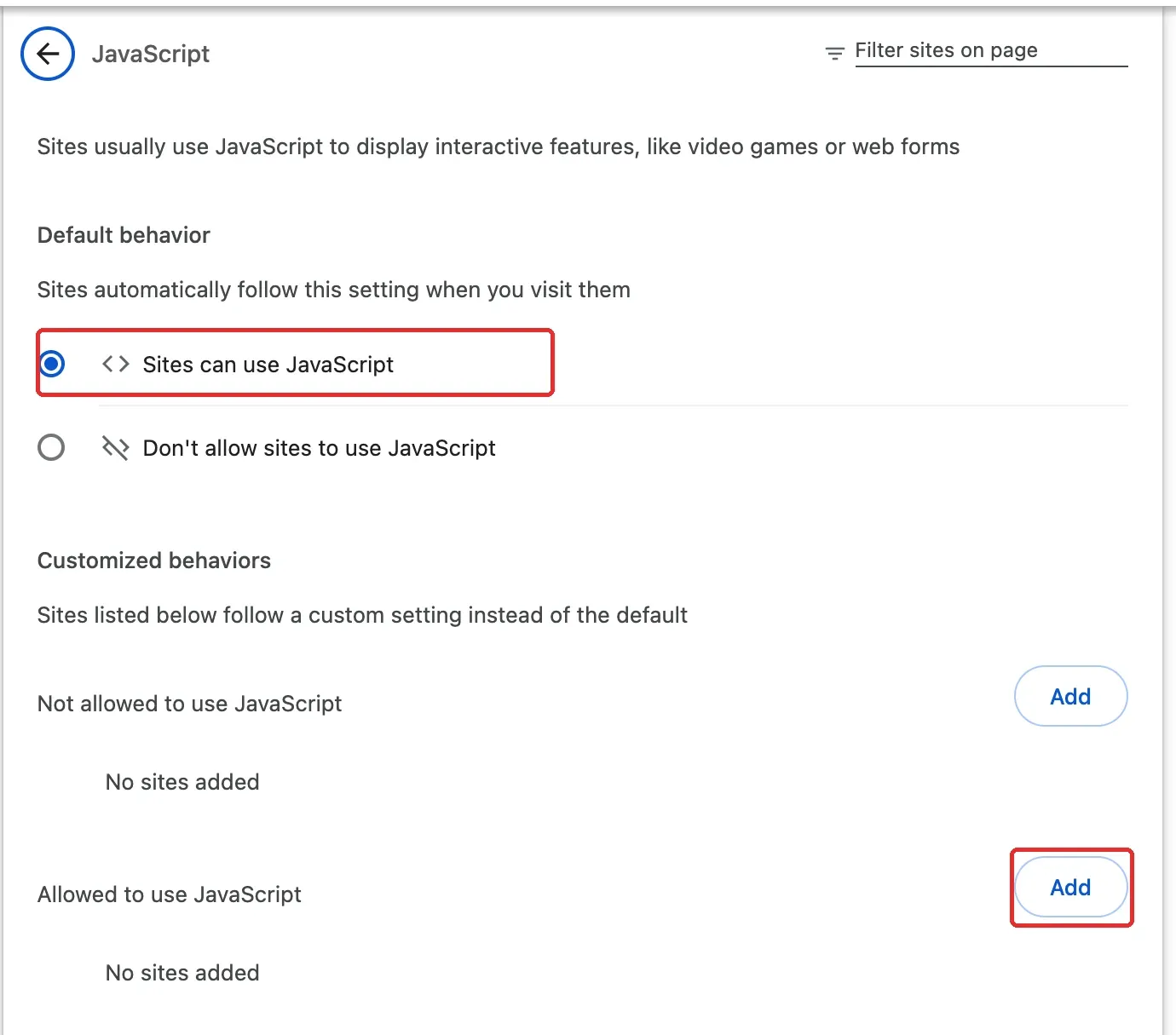
When JavaScript is already normally allowed, there’s no need to add a duplicate rule. If you’ve intentionally disabled JavaScript globally, you can add an exception just for the verified Google page, without broadly loosening your browser’s overall security policy.
Step 2: Add an Allow Exception for the Affected Google Site
Under the “Allowed to use JavaScript” section, click Add — be careful not to accidentally click Add under “Not allowed to use JavaScript” above it. In the popup’s Site field, enter the actual Google site currently affected, for example https://www.google.com, then click Add to save it.
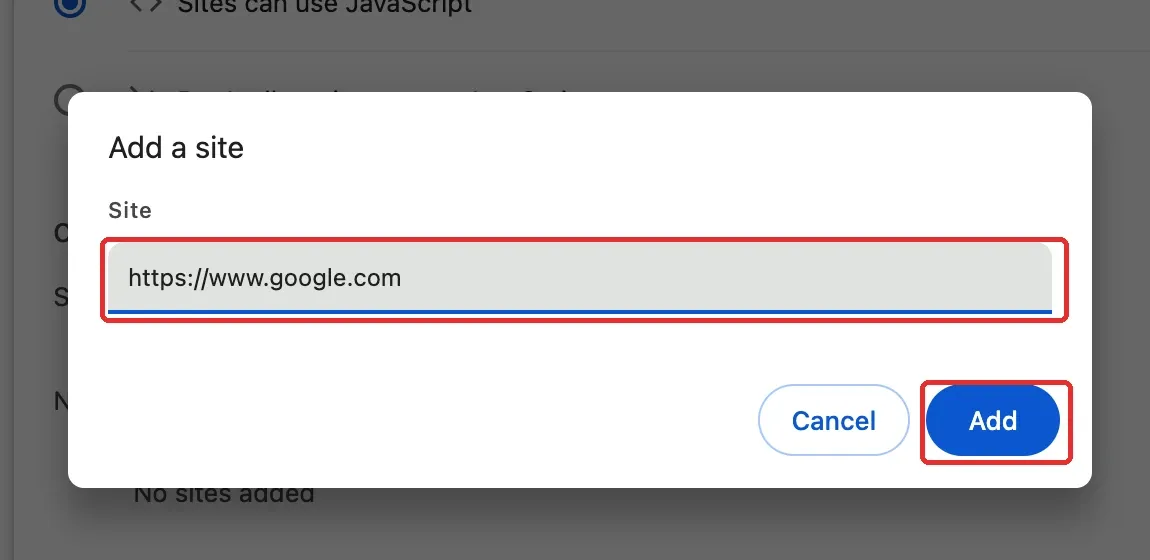
Go back to the original page and refresh it once. If there’s already a conflicting block rule, check and remove the incorrect rule first; a setting locked by enterprise policy should be handled by an administrator. This action only fixes the conditions for the page to execute — it doesn’t change Google’s judgment about request traffic.
Step 3: Check for Blocked Resources, Then Complete the Verification Normally
If the area is still blank, check whether a script blocker or content-filtering extension is blocking the CAPTCHA component. Only after confirming the address and resources are trustworthy should you troubleshoot through the extension’s own site-level settings — don’t turn off all network protection, and don’t download a so-called fix program that a CAPTCHA page asks you to install.
Once the official verification component displays, just complete it manually as prompted. If verification succeeds but “unusual traffic” keeps returning, go back to checking the shared exit and automated requests — don’t use an answering service, cookie transfer, or automation tool to repeatedly submit the verification.
How Can Rola IP Help With the Shared-Proxy Problem in Google Unusual Traffic
If the same device can search normally on a direct connection, but repeatedly hits Google Unusual Traffic once connected through a shared proxy — and you still need to keep the proxy connection — the next step should be evaluating whether that exit is suitable for long-term use. After completing the earlier checks on automated tasks and the local device, you can consider replacing a multi-person shared proxy route with a dedicated, fixed exit. This choice directly addresses the shared-resource problem, and also makes it easier to keep a consistent connection configuration going forward.
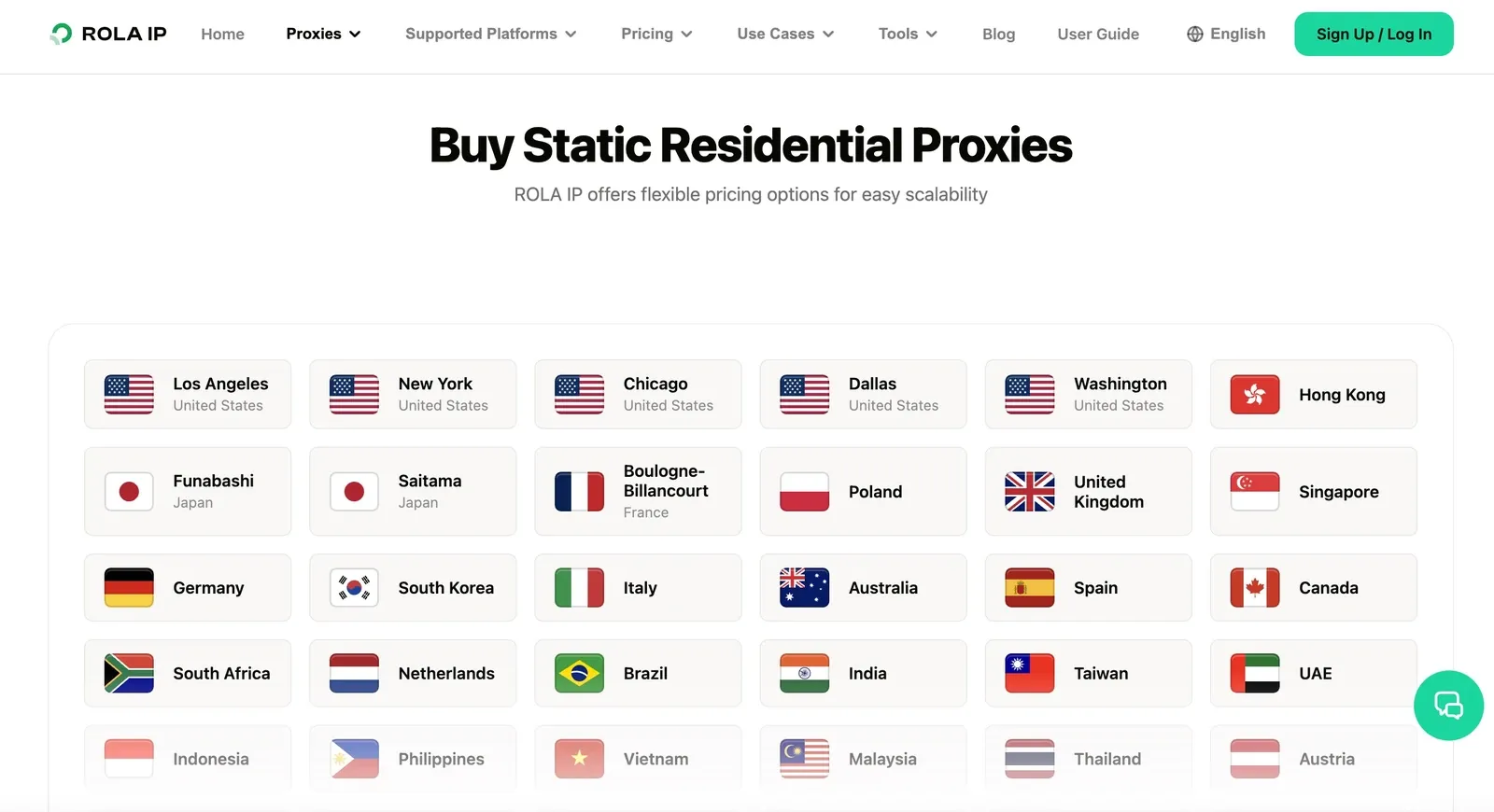
Rola IP’s static residential proxy provides a dedicated IP, a long-term fixed exit, and unlimited traffic usage within the validity period. For users who need to do everyday manual searches or cross-region business browsing through a proxy, these capabilities are more worth paying attention to than constantly switching nodes.
A Dedicated IP Reduces the Impact From Other Proxy Users
The difficulty with a shared proxy is that you can’t control what other people on the same exit are doing. Rola IP’s static IPs are independently allocated and not shared with other customers, which can reduce this kind of outside interference. You can also assign the route used for manual browsing separately from other authorized business tasks, avoiding having your own team’s different tasks mix onto the same exit again. Dedicated allocation solves the resource-sharing problem — it doesn’t mean that IP has no history at all.
A Fixed Exit Suits Continuous Use and Repeated Comparison
Rola IP’s static IP stays fixed for the duration of use, suiting a work environment that needs to keep the same network exit long-term. Your browser doesn’t need to repeatedly switch addresses following a rotation policy; when a problem occurs, you can also compare when it happened and the device state around the same single route. Choosing the region your business needs and then keeping the configuration stable is easier to trace the cause with than changing region, browser, and exit all at the same time. Confirm the renewal and resource-retention rules after expiry at the time of purchase.
Per-IP Billing Makes Long-Term Cost Easier to Estimate
Within the static residential proxy plans, Rola IP bills per IP and provides unlimited traffic usage within the validity period. If you need to keep a small number of fixed routes long-term, you can budget by IP count and usage period, without calculating traffic consumption for every page load. Verify compatibility with a single route that fits your needs first, then decide whether to add more resources; unlimited traffic doesn’t mean Google permits unlimited searches.
Compatible With Common Proxy Tools and Supports Access Authorization
Rola IP supports HTTP and SOCKS5 protocols, and can connect to compatible browser proxy tools and clients; username/password and IP-whitelist authentication are used to control who can use the route. Choose the protocol that matches your existing tools, and configure it using the actual delivered connection parameters — there’s no need to change your entire toolset just to use a proxy. Don’t share your proxy password with unrelated programs, and check authorization promptly whenever team members or devices change.
Verify the Connection First, Then Resume Normal Manual Searching
Once connected, open Rola IP’s public IP-check tool in the same browser you actually use for Google, confirm the exit and region match expectations, then run a small number of ordinary manual searches. An IP check only verifies that particular request’s exit; if your client uses split-tunneling rules, you should also confirm whether Google’s traffic follows the same path. Keep the route identifier, test time, and a redacted result on hand, so you have something to compare against for any future issue.
Rola IP offers 24/7 technical support. If a route’s connection is unstable or the exit doesn’t match what’s expected, you can submit the records above to support for review. It’s well suited to helping you establish an independent, stable, manageable proxy connection, but it can’t substitute for cleaning up malware, stopping unauthorized automated requests, or guarantee eliminating Google’s CAPTCHA. If you have no need for a proxy, continue troubleshooting your existing network as described earlier in this article.
How Do You Submit Effective Evidence When Google Unusual Traffic Keeps Recurring
First Compile a Minimal Troubleshooting Record
Organize the time and time zone it occurred, browser version, network type, whether a VPN or proxy is on, whether there’s an automated task, and the comparison result from changing one thing at a time, and give it to the responsible party. Contact your network administrator for enterprise Wi-Fi; contact your proxy provider if only that route is abnormal; contact your ISP if multiple devices on a home network are abnormal with no known task involved.
| Comparison Item | What to Record |
|---|---|
| Original conditions | Device, browser profile, network type, whether signed in |
| Exit information | Record the full address locally, provide it externally per security requirements |
| Single change | Which extension was disabled, which task was paused, or which network was switched |
| Observed result | Whether the prompt persists, whether the CAPTCHA loads, and the exact time |
| Scope of impact | One device, one browser, or multiple devices on the same network |
Only Collect a Network Log If Support Requests One
A network log is useful for further analyzing proxy connections and page-resource loading, and won’t expose Google’s risk-scoring internals. Following Chromium’s official NetLog process, type chrome://net-export/ into a new tab, keep the default “Strip private information” option, then choose “Start Logging to Disk” to save the file.
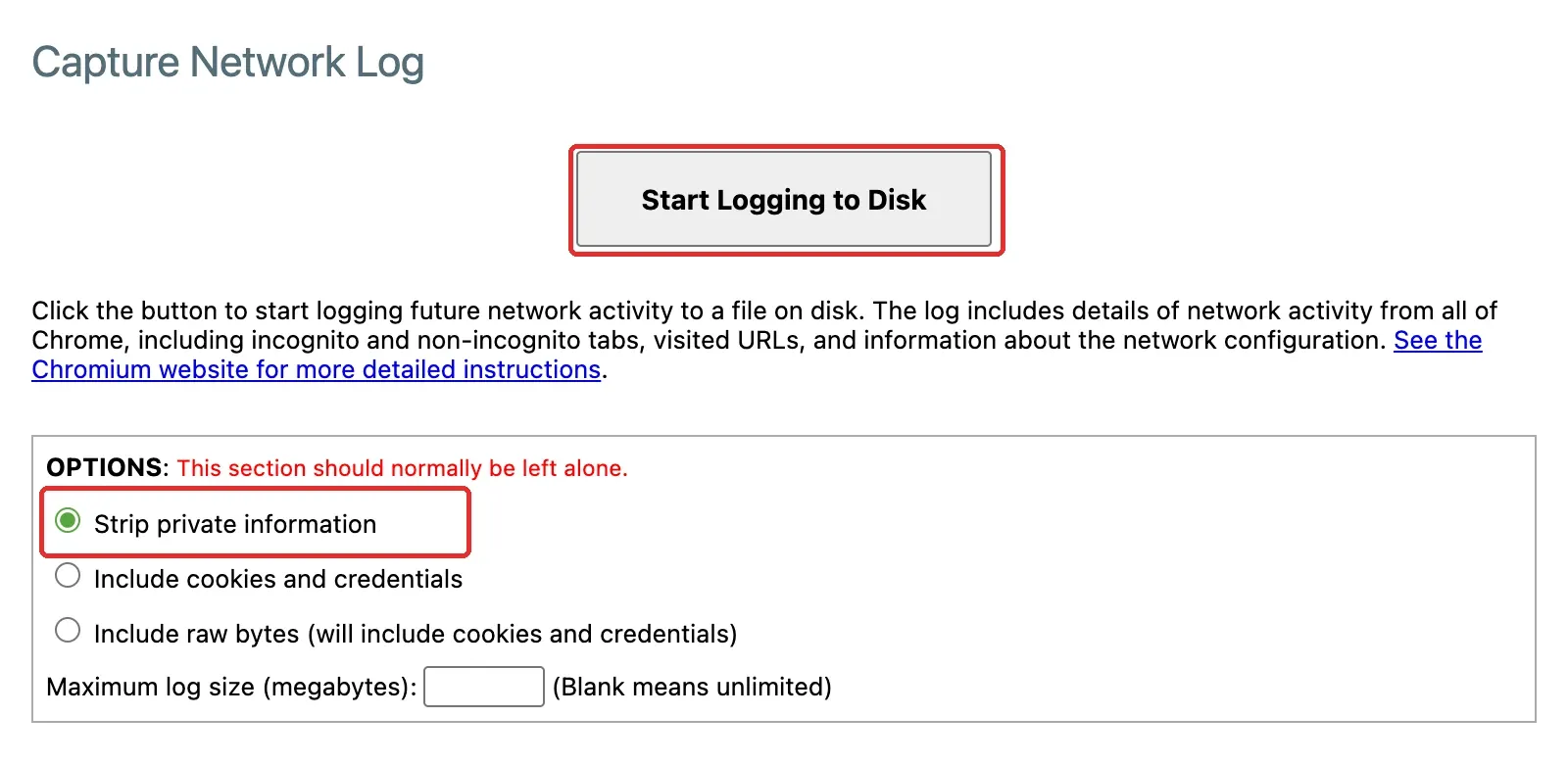
Keep the log page open, reproduce the existing problem once on another tab, then return to the log page and click Stop Logging. Don’t run a batch of searches just to generate a log, and don’t check “Include cookies and credentials” or “Include raw bytes.” Even in default mode, the log may still contain visited addresses and network information, so send it through the private channel support provides — don’t upload it to a public forum.
Conclusion
The key to solving google unusual traffic is finding the source of the anomalous requests or the shared exit. First stop any automated tasks, then check the network path, extensions, and the local device separately, and only handle JavaScript and resource blocking when the CAPTCHA itself fails to load. Change only one condition at a time and keep the comparison results. If you need a proxy, use a manageable resource with clear task ownership — don’t treat switching IPs as a universal fix. Restoring normal manual access should be based on actually addressing the cause — not on repeated refreshing or CAPTCHA bypassing.