
How to Bypass a Discord Ban in 2026: IP, Server & Account Fixes

Aug 17, 2026 · Guides · 12 min read
If you’re trying to bypass a Discord ban, first identify what is actually blocked. A server ban, Discord account suspension, IP/network problem, and regional access block require different fixes. Changing networks can help diagnose an IP- or ISP-related issue, but it cannot remove a server ban or reverse a Discord account action.
This guide shows you how to tell the difference, test a network restriction safely, and use the correct appeal path when the restriction is tied to your account or a specific server.
Is Discord Banned in the Philippines?
Discord was briefly blocked in the Philippines on September 23, 2026, after a government order, but the block was lifted on September 24 following talks between Philippine authorities and Discord. If Discord still does not load on a Philippine connection, do not assume your account or server is banned.
First check Discord Status, your ISP connection, DNS, and whether the same account works on another trusted network. If access changes only with the network, the issue is more likely related to routing, DNS, ISP filtering, or the network exit. A network change can help diagnose access problems, but it does not remove a Discord server ban or account suspension.
Before You Try to Bypass a Discord Ban
A Discord ban can affect one community, an entire account, or a network connection, so the first step is to identify which layer is actually blocking access. Changing an IP address is relevant only when the evidence points to the network path; it cannot overturn a moderator decision or a Discord account action.
How Does Discord Work?
Discord combines several layers: your user account, membership in individual servers, the desktop or web client, and the network used to reach Discord. A problem at any one of these layers can look like a ban, even though the correct solution is different.
For example, losing access to one community usually points to a server-level action. Being unable to use the account across every network is more consistent with an account restriction. If the same account works through a different, verified network exit, the original IP, shared-network reputation, ISP route, DNS, or regional path may be involved.
Why Does Discord Ban Users?
Discord and individual server moderators use bans and restrictions to enforce platform rules, protect communities, and respond to abuse or security risks.
- Violating a server’s published rules or ignoring moderator instructions.
- Spam, scams, harassment, harmful content, or coordinated abuse.
- Compromised accounts, suspicious login activity, or automated behavior that triggers security checks.
- Rate limits, a poor shared-IP reputation, or unusual traffic from the current network exit.
A network-related warning does not automatically mean that the account committed a violation. Users on offices, schools, public Wi-Fi, carrier-grade NAT, and shared VPN exits may appear behind the same public IP, which is why a controlled comparison is more useful than assuming the cause.
What Are the Main Types of Discord Bans?
The three most useful categories are server bans, Discord account actions, and IP- or network-related access problems.
- Server ban: A moderator removes or bans your account from one Discord server. Other servers, direct messages, and account settings may continue to work.
- Account or platform action: Discord restricts features, temporarily suspends the account, or permanently disables it. The problem generally follows the account across devices and networks.
- IP- or network-related restriction: Access changes with the public network exit. The cause may be an IP reputation signal, rate limit, routing failure, DNS issue, firewall rule, or regional path rather than a formal permanent IP ban.
Discord IP Ban vs. Server Ban: What’s the Difference?
Discord restrictions can appear at three different layers: the server, the account, or the network. A server ban is controlled by that server’s moderators, while a Discord account action follows the account across networks. IP and network signals may also affect access, rate limits, or anti-abuse checks, but a connection failure alone does not prove that Discord has permanently banned your IP.
Use the behavior of the same account to identify the likely cause: if only one server is unavailable, treat it as a server-level issue; if the restriction follows the account everywhere, check Account Standing and appeal; if access changes only when the network changes, investigate the original IP, ISP route, DNS, firewall, or shared-network reputation.
Discord’s official enforcement-actions guide lists content removal, feature restrictions, temporary account suspension, server removal, and permanent suspension. Individual server administrators can separately remove or ban a member account.
An IP address may contribute to security, rate-limit, or abuse controls.
However, recovery on another network proves only that the original path or exit mattered; it does not by itself prove a separate permanent Discord IP ban.
| Situation | Typical evidence | Is a network change enough? |
|---|---|---|
| IP or routing issue | The same account works on a new exit | Possibly; repair the original network |
| Single-server ban | Other servers work; the target server does not | No; administrators must unban |
| Discord account action | The same action appears on every network | No; submit an appeal |
| Service or client failure | Several networks fail with no action notice | No; troubleshoot status and client |
How Can You Tell Which Discord Ban You Have?
The fastest diagnosis is to compare account scope, server scope, official notices, and network behavior before changing several variables at once.
- Check whether the account can sign in and use direct messages or other servers.
- Open User Settings → My Account → Standing and review Discord emails or in-app notices.
- If only one server is missing, look for that community’s appeal channel or moderator contact.
- If Discord fails only on one Wi-Fi or ISP connection, record the error and compare a different verified network exit.
- Keep the account, device, client, and test time as consistent as possible so the result identifies the changing factor.
Can You Bypass a Discord Ban by Changing Your IP?
Changing the public IP can restore access only when the restriction or connection failure is tied to the original network exit; it cannot remove a server ban or reverse a Discord account suspension.
That distinction is why the first method below uses Rola IP as a controlled network test. If access returns while the account, device, and client stay unchanged, the original network path is more likely to be involved. If the same restriction remains, move to the supporting network comparison and the appropriate appeal process instead of repeatedly changing IPs.
How to Bypass a Discord Ban
Method 1: Test Whether the Problem Is IP- or Network-Related
Use a controlled network comparison before assuming you have a Discord IP ban. Keep the same account, device, client, and cookies, then compare the original connection with one verified alternative network exit. Rola IP can be used for this diagnostic test when you need a residential or static residential exit with more consistent location and session control.
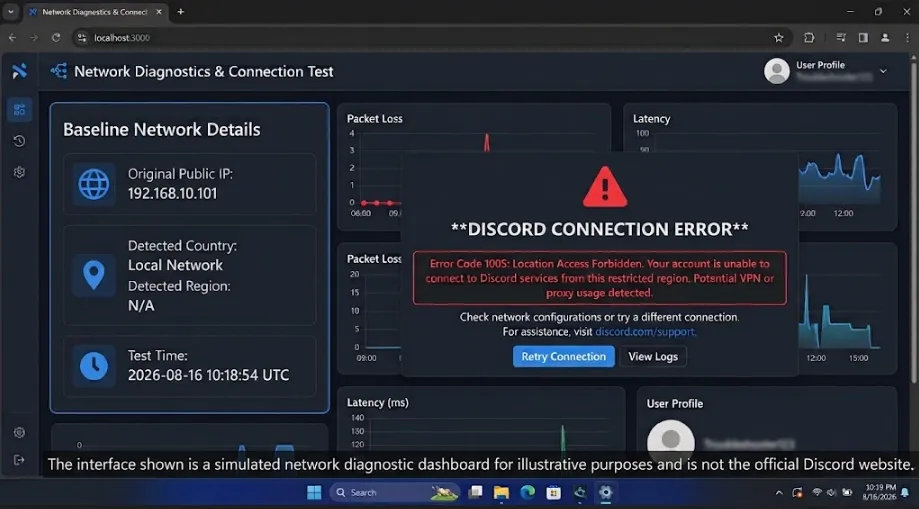
Step 1: Record the Original Network State
Record the baseline before switching networks so the comparison has meaning.
- Current public IP and detected country or region.
- The complete error shown in the Discord web app and desktop client.
- Whether the account can sign in and whether DMs, friends, and other servers work.
- Whether only one server is unavailable or all of Discord is affected.
- Test time, network type, and Discord Account Standing status.
Step 2: Choose the Right Rola IP Product
Use rotating residential proxies for a short comparison; choose static residential proxies when repeated tests must keep the same exit.
If you are unsure which network fits the test, review the proxy setup guide. A residential exit is the better starting point here than a shared datacenter exit.
| Testing need | Recommended product | Why |
|---|---|---|
| One-time check of the original IP | Rotating residential | Quick residential exit and location check |
| Repeated tests on one account | Static residential | Fixed dedicated IP |
| Compare countries or cities | Rotating residential | Location and session controls |
| Long-running enterprise QA | Static residential | Stable session and predictable usage |
Step 3: Configure and Verify the Rola IP Exit
Confirm that the public IP has changed before testing Discord.
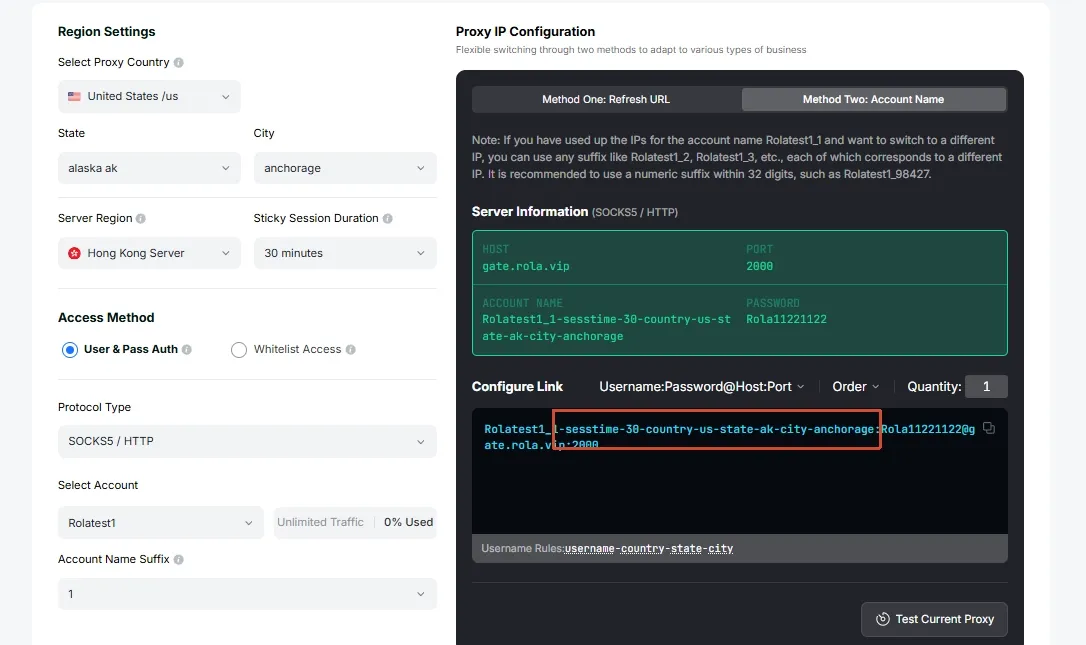
- Start with the proxy quick-start guide to generate connection details and set location or session parameters.
- Get the gateway, port, username, and password, or configure IP allowlisting.
- Enter the HTTP(S) or SOCKS5 settings in the approved browser, system, or test tool.
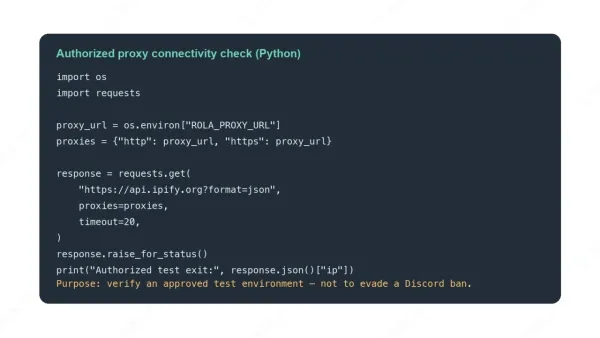
- Open an IP-check page and confirm that the exit differs from the original public IP.
- Use the Rola IP proxy checker for connectivity and What Is My IP to confirm the exit.
- Record the new exit IP, country, proxy type, and test time.
- Keep the same Discord account, device, client version, and cookie state.
Step 4: Retest Discord
Compare only three outcomes after Rola IP is active; do not change the account, device, and client at the same time.
- Can the web app or client sign in?
- Do DMs, friends, and other servers open normally?
- Is the original server still unavailable?
Do not clear cookies, reinstall the client, change devices, and create another account at once. If several variables change together, the result cannot identify what fixed the problem.
Step 5: Interpret the Rola IP Test
The test determines whether to repair the original network, gather another comparison, or proceed to an administrator or Discord appeal.
| Rola IP result | More likely cause | Next step |
|---|---|---|
| All access returns | Original IP, shared exit, ISP route, or regional path | Troubleshoot the original network |
| Discord works but one server does not | Server member ban | Use Method 3 and contact moderators |
| The same violation or suspension remains | Account or platform action | Appeal through Account Standing |
| Both networks fail | Client, firewall, service status, or platform action | Check Discord Status and notices |
| Only one Rola IP region fails | Regional routing or exit variation | Try another approved region and document it |
Method 1 takeaway: If Rola IP restores access, the network exit was an important variable. If the same account or server restriction remains, changing IPs is not an unban mechanism.
Method 2: Use a VPN or Another Network as a Supporting Test
A VPN, mobile hotspot, or another trusted network can provide a second comparison, but it cannot revoke a server or account action.
A VPN changes the public IP and is usually easy to use, but many users may share one exit. Reputation, congestion, and location mismatch can cause additional login checks. A VPN is useful for one supporting test; Rola IP provides better location and session control for repeatable comparisons.
| Comparison | Rola IP | VPN |
|---|---|---|
| Exit types | Residential, static residential, datacenter, mobile | Usually shared VPN servers |
| Session control | Rotating, sticky, or fixed IP | Usually manual server selection |
| Location control | Country and supported city targeting | Usually country or city nodes |
| Repeatability | Static residential keeps one IP | Exit may change after reconnecting |
| Can revoke Discord action? | No | No |
Can a VPN bypass a Discord ban? A VPN may improve a connection affected by the original network exit, but it cannot restore server membership or remove a Discord Account Standing violation.
Method 3: Request an Unban from Administrators or Discord
If the restriction follows the account or one server across Rola IP and VPN tests, ask the party with authority to review and change it.
Case A: How to Get Unbanned from a Discord Server
If only one server is unavailable, use that community’s official appeal channel and send one complete request to its moderators.
Read the server rules and look for ModMail, an appeal form, a website ticket, or a published moderator contact. Do not pressure moderators through friends or rejoin with an alternate account.
- Provide the Discord username, user ID, server name, and ban date.
- State the reason you understand and cite the relevant server rule.
- For a mistake, add message links or screenshots; for a real violation, explain a concrete correction.
- Submit once and respect the review time and final decision.
Server appeal template: Hello, my account [username/ID] was banned from [server] on [date]. I understand this may concern [rule/event]. The relevant context is [facts/evidence]. I will follow [specific corrective action]. Please review the decision when convenient; I will respect the outcome.
Case B: How to Appeal a Discord Platform Ban
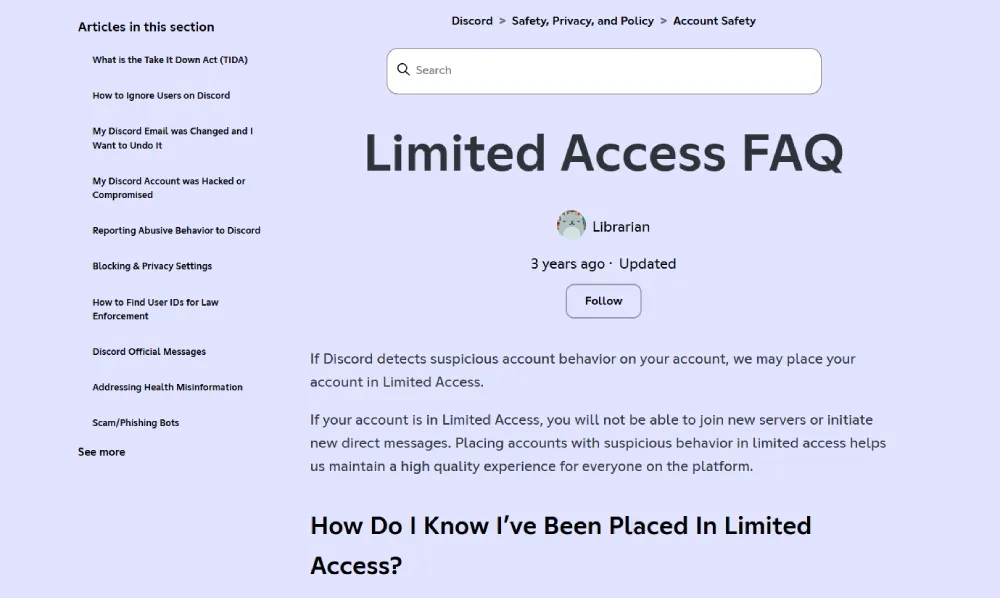
Go to User Settings → My Account → Standing, select the relevant violation, and choose “Let us know” to request a review.
Discord’s official appeal guidance says users may appeal account actions and that an action issued in error can be removed.
- Read the notice and identify the exact violation and date.
- Describe the facts chronologically and attach original evidence.
- If the account was compromised, explain the verifiable context and security changes.
- Submit one complete appeal and wait for the result.
- Review Discord’s Community Guidelines and Terms of Service before submitting.
What If None of the Three Methods Restores Access?
Check Discord service status, the client, DNS, firewall, system clock, parental controls, and enterprise network policy.
- Check Discord Status for a regional or global incident.
- Compare the browser and desktop client and save the exact error.
- Inspect DNS, firewall, system time, and managed-network rules.
- Retest the same account on an approved network without changing several variables.
The Rola IP official site can help identify the available IP-checking tools, but an IP-database result does not prove that Discord banned the address.
For failed connections, unexpected rotation, or location mismatches, use the Rola IP documentation for session and connectivity troubleshooting.
Summary
The practical workflow for how to bypass Discord ban is to test the network exit with Rola IP, add a VPN or other network comparison, and then request an unban from the server administrators or Discord when the restriction follows the account.