
Tor Proxy Server Refused Connection: 9 Fixes to Try

Aug 10, 2026 · Troubleshooting · 11 min read
A Tor proxy server refused connection error can make pages fail without revealing whether the browser, SOCKS port, Tor process, or network failed. Port changes can create a second problem.
It usually means Tor Browser could not reach the local SOCKS service carrying traffic into Tor. Causes include an unstarted process, a 9050/9150 mismatch, security software, a moved installation, or a network that needs a bridge.
For this guide, we use Tor Project documentation to separate browser, local SOCKS listener, Tor process, network connection, and destination-site failures.
This guide has two goals: first, identify which layer is failing; second, help Windows, macOS, Linux, and Android users apply the lowest-risk fix and verify the result.
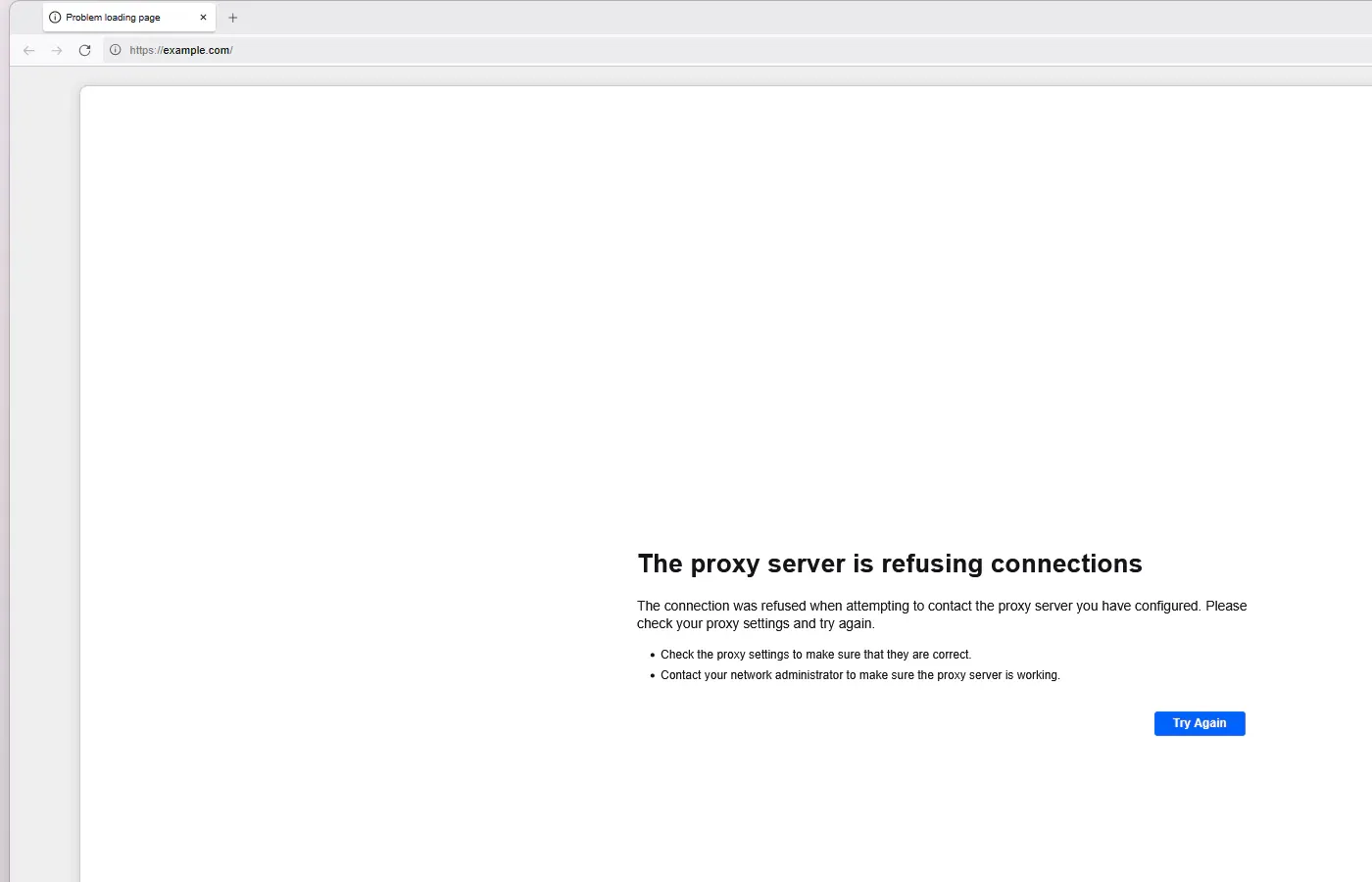
What the error means in Tor Browser
Tor Browser is a browser plus a Tor process. The browser sends requests to a local SOCKS proxy, and that local process builds circuits through the Tor network. A refusal occurs before the requested website can respond: the browser reached the configured local address and port, but the expected service was not listening or would not accept the request.
That is different from a timeout. It is also different from a website displaying “access denied,” a CAPTCHA, or an account-security check. Those responses can happen after a working Tor circuit reaches a public Tor exit.
The practical question is therefore not “Which proxy setting should I change?” It is “Which layer stopped working?”
Identify which connection layer failed
Use these observations to locate the failed layer before changing a setting.
| What you observe | Most likely layer | First useful check |
|---|---|---|
| Tor never connects and every page shows the refusal | Local Tor process or security software | Clock, running processes, antivirus, firewall |
| Tor reports connected, but the refusal appears immediately on every page | Local SOCKS listener or mismatched port | Check 9050/9150 listeners and Tor logs |
| Most pages work, but one domain fails | Website, exit policy, or site-side blocking | Try another normal site and a known onion service |
| The problem started after moving the Tor Browser folder | Installation path or damaged files | Return it to the original location or use a clean install |
| Android works briefly, then every page fails | App/process state or mobile network condition | Force-close, restart, reconnect, then review bridge need |
9 ways to fix the Tor proxy server refused connection error
Follow these steps in order. Test a normal webpage after each step so you know which change mattered.
1. Correct the system date, time, and time zone
Tor relies on time-sensitive network information. A badly wrong clock can prevent a clean connection. Enable automatic time synchronization, confirm the date and time zone, and then restart Tor Browser.
This check applies to Windows, macOS, Linux, and Android. It is quick, reversible, and specifically included in the Tor Project’s troubleshooting guidance.
2. Make sure only one Tor instance is running
A second Tor Browser instance or a stuck background process can leave the browser and its local proxy out of sync. Close every Tor Browser window and wait several seconds. If the process remains, end only the Tor/Tor Browser process through your operating system’s normal process manager, then launch one instance.
Do not terminate unrelated Firefox sessions just because Tor Browser is Firefox-based. If you are unsure which process belongs to Tor Browser, restart the device instead.
3. Restart after hibernation, sleep, or a network change
A stale connection can survive a long sleep, a Wi-Fi-to-mobile switch, a VPN change, or a router restart. Quit Tor Browser completely before changing networks, restart the device, reconnect, and then open Tor Browser again. Wait for the connection screen to finish before loading a page.
This step clears temporary state without changing Tor’s security configuration. If the refusal remains after a full restart, continue to the local process, security software, installation path, and listener checks rather than repeatedly switching networks.
4. Check antivirus and firewall interference
The Tor Project lists antivirus interference as a common cause. Review recent protection history, quarantine events, application-control rules, and firewall prompts for Tor Browser or its Tor component. If Tor starts only while protection is disabled, create the narrowest appropriate allow rule for the official Tor Browser files or ask the security-product administrator for help.
Disable a firewall only as a short diagnostic on a trusted network, and restore protection immediately. Leaving it disabled is not a repair.
5. Restore the original Tor Browser folder
Tor Browser is designed as a self-contained folder. Moving that folder after installation can break expected paths. If the error began after you moved, renamed, synced, or partially copied the folder, put it back where it worked.
Avoid launching a mixture of old and new files from different directories. If you no longer know which folder is complete, skip to the clean-install step rather than combining files.
6. Check ports 9050 and 9150 instead of guessing
The official proxy-error page recommends trying ports 9050 and 9150. They are common Tor SOCKS ports, but neither is universal. Port 9150 is commonly associated with Tor Browser’s bundled process, while 9050 is commonly used by a separate system Tor service. Custom setups can differ.
On Windows, open PowerShell while Tor Browser is supposed to be connected and run this read-only Get-NetTCPConnection check:
Get-NetTCPConnection `
  -LocalPort 9050, 9150 `
  -State Listen `
  -ErrorAction SilentlyContinue |
  Select-Object LocalAddress, LocalPort, OwningProcess
No output means Windows does not currently show a listener on either port. That points back to Tor startup, security software, or another configured port. Output identifies a local listener; it does not prove that a Tor circuit completed.
Do not switch Tor Browser to “No proxy.” Tor Browser needs its local proxy path. Also do not make a permanent manual port change until the listener and Tor logs agree.
7. Read Tor logs before making larger changes
Logs can separate “Tor never started” from “Tor started but could not bootstrap.” In current desktop Tor Browser documentation, open Settings, select Connection, and find View Logs. Look near the newest startup attempt for a repeated error, blocked executable, configuration parse problem, or bootstrap failure.
Record the exact message and time. Remove public IP addresses, local paths containing your username, bridge lines, and other sensitive information before sharing a log.
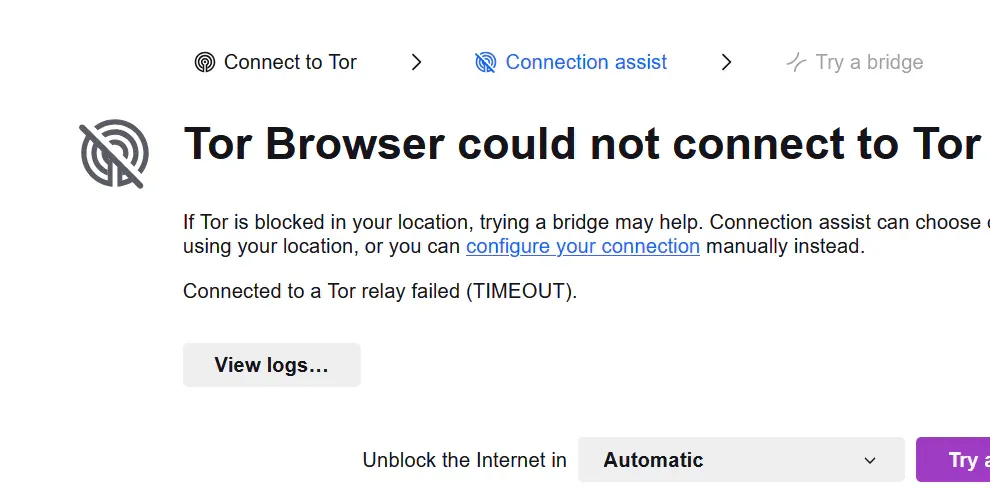
8. Use a bridge only when direct Tor access may be blocked
A bridge is an alternative entry point into Tor. It can help when a network recognizes and blocks direct Tor connections. It does not restart a missing local process, repair a damaged folder, or correct a browser pointed at the wrong port.
Use a bridge when Tor fails during connection or bootstrap and ordinary checks suggest censorship or network filtering. Follow the current Tor bridge instructions for your platform. Desktop and Android interfaces are different, so do not copy a desktop menu path into the Android app.
If Tor already says connected and only one website rejects you, a bridge is unlikely to fix the site’s decision about the public exit.
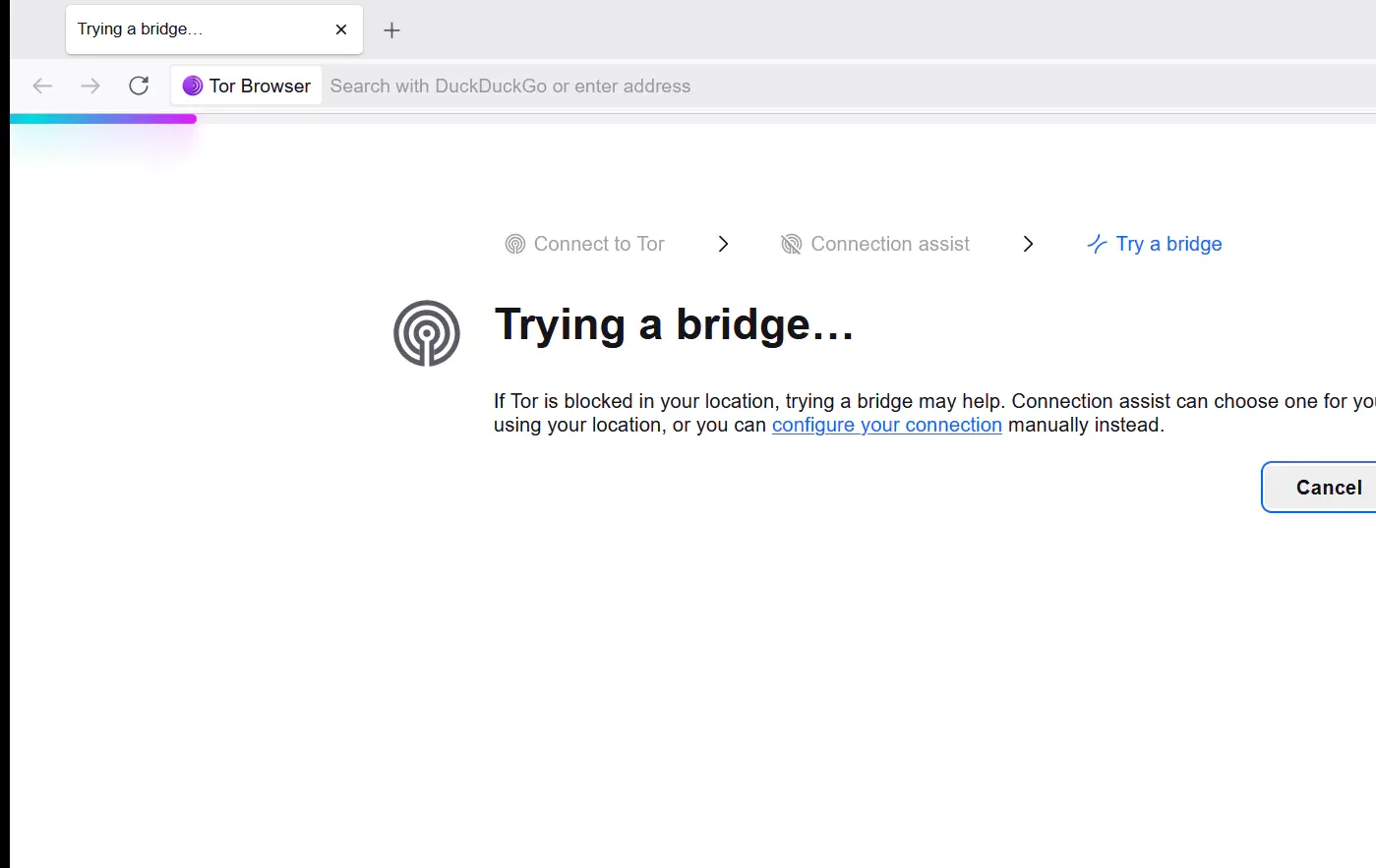
9. Reinstall cleanly into a new directory
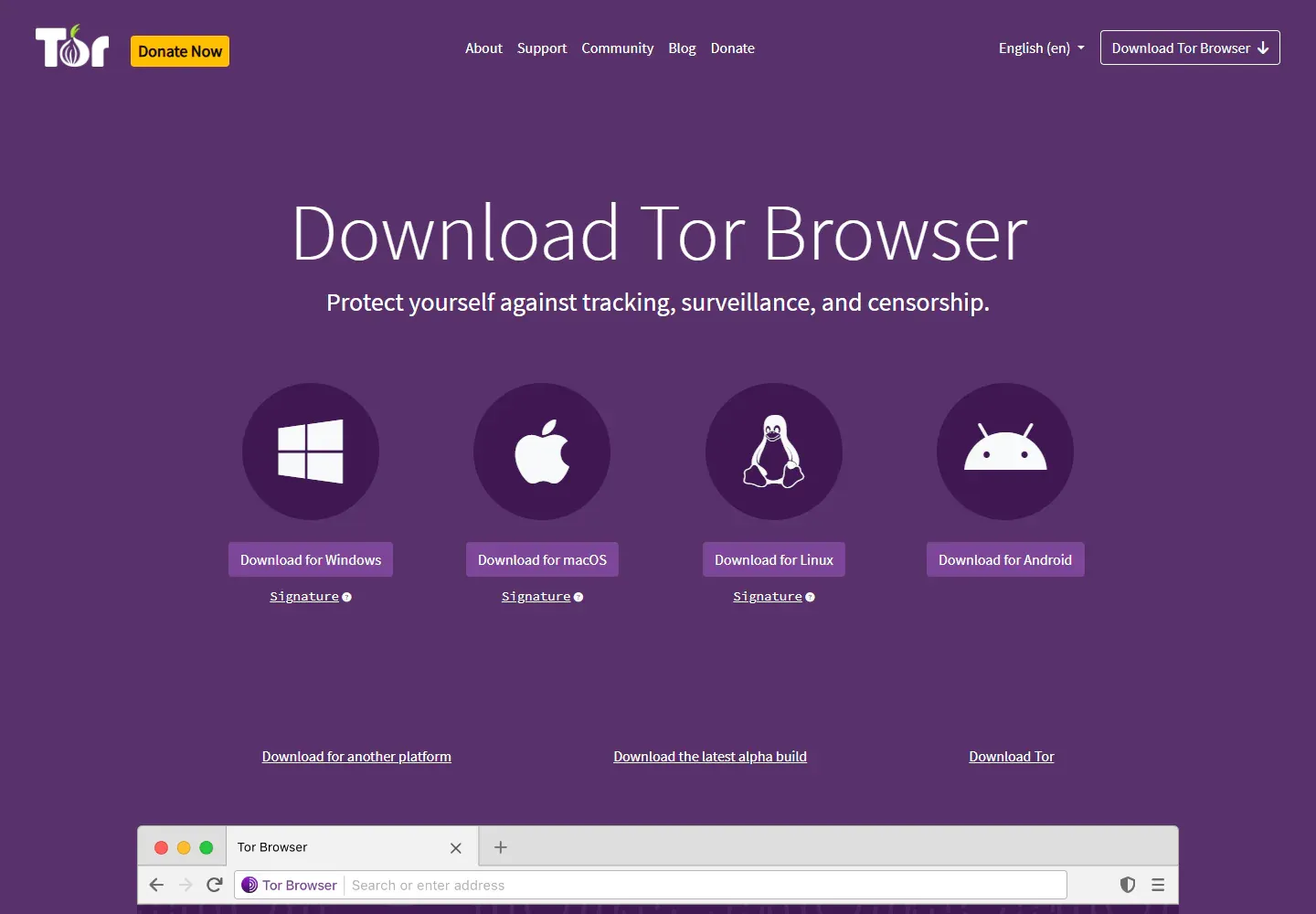
Reinstall last, after recording the useful log message. Download Tor Browser only from the official Tor Project site. Close the existing copy, preserve bookmarks only if needed, and install or extract the new copy into a different clean directory, as Tor’s proxy-error guidance recommends.
Do not overwrite the old folder and assume every damaged or stale file was replaced. Test the clean copy with default network and browser settings before importing data or changing anything. If the clean copy works, add back only what you need and retest.
The 9 fixes at a glance
Start with reversible state checks, use listener and log evidence before changing network behavior, and reinstall only after the earlier checks fail.
| Fix | What to verify |
|---|---|
| 1. Correct the clock | Date, time, and time zone are accurate |
| 2. Run one Tor instance | No duplicate or stuck Tor process remains |
| 3. Reset device and network state | Tor reconnects after a complete restart |
| 4. Review security software | A narrow allow rule works with protection enabled |
| 5. Restore the folder | The complete Tor Browser folder starts normally |
| 6. Check 9050/9150 | The listener and logs indicate the same port |
| 7. Read Tor logs | The newest entry identifies startup or bootstrap state |
| 8. Try a bridge | Tor bootstraps when direct access is filtered |
| 9. Install cleanly | A fresh default copy connects before importing data |
Platform-specific differences
Apply the same nine-step diagnostic order on every platform.
| Platform | What differs |
|---|---|
| Windows | Security suites and controlled-folder rules are common checkpoints; PowerShell can inspect local listeners |
| macOS | Confirm Tor Browser remains in its complete intended application/folder location and that only one copy is open |
| Linux | Distinguish Tor Browser’s bundled process from a separately installed Tor service; also check whether another application still points to 127.0.0.1:9050 after Tor is removed |
| Android | Desktop menu paths and process tools do not apply; fully close the app, restart the device, and use the Android bridge interface when censorship is plausible |
Old Vidalia answers may not match current installations.
How to confirm the repair worked
Do not treat a single page load or an open local port as proof of repair. Use more than one success signal in succession:
- Tor Browser says it is connected.
- More than one ordinary HTTPS website loads.
- A current, known
.onionaddress published by its owner opens in Tor Browser. - The latest Tor log has no unresolved startup or bootstrap error.
If ordinary sites work but a specific onion service does not, verify the onion address from an official source. If a known onion service works but a clearnet site blocks you, the local Tor proxy is not the problem.
When Tor works but a website still refuses access
Public Tor exits are identifiable, so a site may block one, require a CAPTCHA, limit requests, or lock an account while Tor works. If unrelated sites load, do not reinstall Tor for one rejected domain. Wait, request a new circuit where appropriate, use the site’s official onion service, or contact the site.
Tor trades speed for a privacy and censorship-resistance design. Traffic passes through multiple relays, so performance varies with relay load, network conditions, and the destination. Tor remains the tool for onion services and when its anonymity model or a bridge is central to censorship resistance.
A conventional proxy does not reproduce those properties. It creates a different trust model in which the provider supplies an ordinary internet exit. That can be more practical for legitimate clearnet work that needs regional control, consistent sessions, or separated browser profiles, but it remains an alternative workflow rather than a Tor repair.
A clearnet alternative: Rola IP with RoxyBrowser
For ordinary websites, one practical setup is to use Rola IP for the internet exit and RoxyBrowser to assign that proxy to an isolated browser profile. This is relevant to regional site checks, separate work environments, and accounts you are authorized to manage. It does not open .onion addresses, fix Tor Browser, guarantee access, or prevent platform enforcement.
Choose the proxy type based on the job. Rola IP supports country- and city-level targeting, which can help keep the exit region aligned with the profile. If the same authorized workflow needs longer IP continuity, a static residential IP may fit better than an automatically rotating endpoint. Those are product choices, not account-safety guarantees.
Configure Rola IP in RoxyBrowser
This workflow is intended for legitimate clearnet tasks you are authorized to perform. Complete its five stages in order, and stop if proxy testing or outbound IP verification fails. Do not sign in until the profile shows the intended exit and region.
1. Get and test the proxy connection
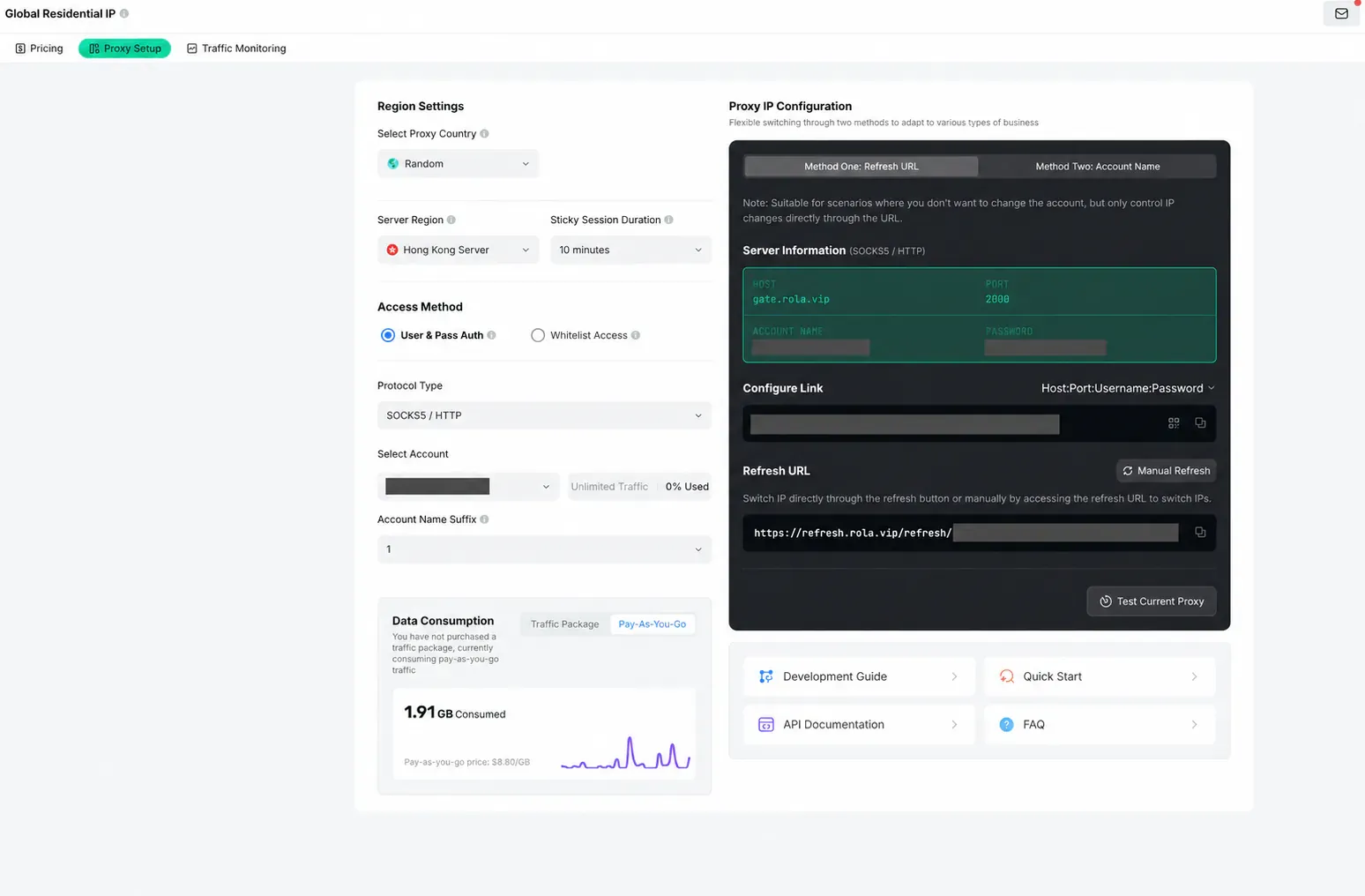
In your Rola IP dashboard, obtain the protocol plus Host, Port, Username, and Password. The Rola IP proxy quick start explains where these fields come from. Never paste real credentials into screenshots, public tickets, or shared articles.
In RoxyBrowser, open Proxy IP and choose Add Proxy. Select the protocol supplied by Rola IP, then enter the four connection fields. RoxyBrowser documents support for HTTP, HTTPS, SOCKS5, and SSH, but the selected protocol must match your endpoint.
Use Test Proxy before saving. A failed test does not prove the provider is down: recheck the protocol, host, port, username, password, validity period, and any IP-whitelist requirement first.
2. Create a profile and align its region
Create a profile, or choose an existing authorized work profile that has no proxy assigned. Select the saved Rola IP entry and save the profile. The official Rola IP × RoxyBrowser guide shows both the add-proxy screen and the profile assignment flow.
Use clear profile names that describe the project or region without containing login secrets. Avoid placing the same account in multiple profiles unless the platform and your operating policy explicitly allow it.
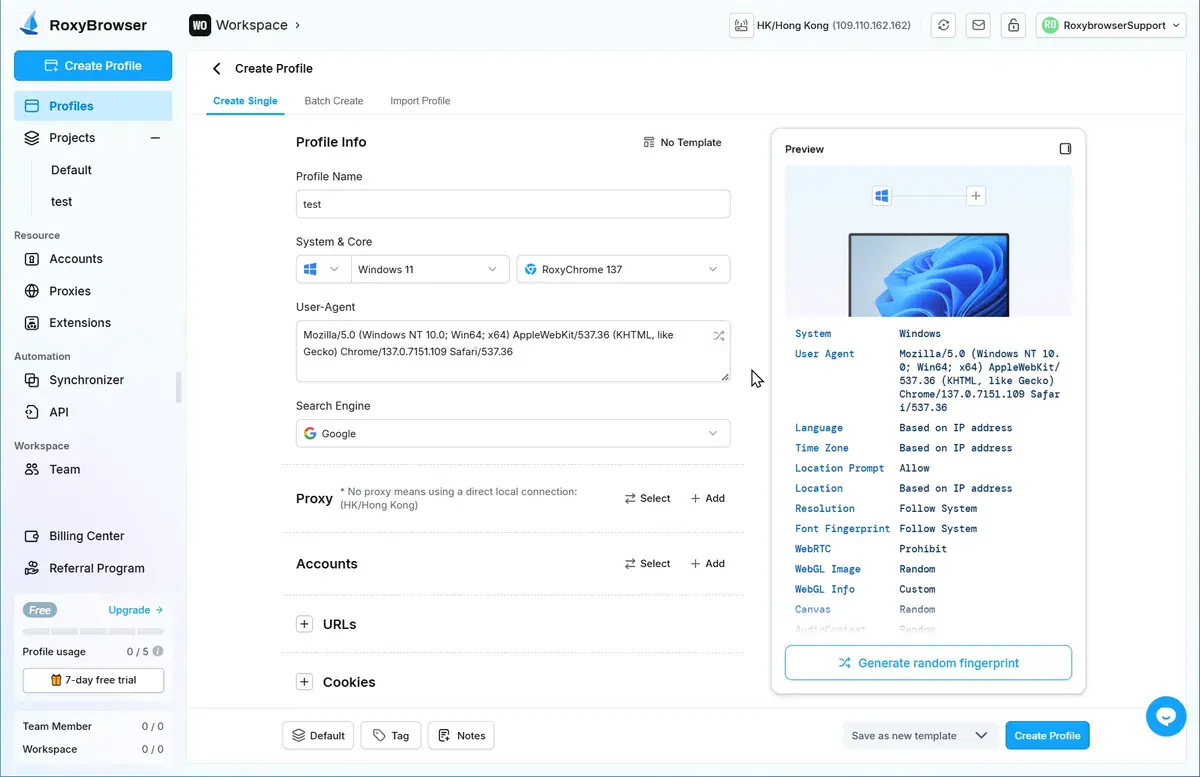
RoxyBrowser provides language, time-zone, and location controls and recommends auto-matching them to the IP unless a specific requirement exists. Keep these values consistent with the chosen exit region. Leave advanced fingerprint settings at their documented defaults unless you have a tested reason to change them.
3. Verify the outbound IP before signing in
Open the profile and visit a reputable IP-check page. Confirm that:
- the visible IP is the assigned proxy exit, not your direct connection;
- the country or city matches the selected Rola IP setting;
- the profile time zone and location are consistent with that region;
- a normal HTTPS site loads without a proxy error.
If any check fails, stop before signing in to an account. Retest the proxy, check credentials and whitelisting, and verify that the profile actually uses the saved proxy.
The verification step proves only that the profile is using the intended exit and that ordinary web access works. It does not prove that a website will accept an account, remove a CAPTCHA, or ignore its own security and platform rules.
Summary
The Tor proxy server refused connection error usually points to the local Tor process, SOCKS listener, installation, or security software. Work through the nine fixes in order: correct the clock, close duplicate processes, reset stale network state, review security software, restore the installation folder, verify the listener, read the logs, try a bridge when filtering is plausible, and reinstall cleanly only as the last step. Treat ports 9050 and 9150 as diagnostic clues rather than universal values. A conventional proxy cannot repair Tor or open .onion services. For compliant clearnet tasks that benefit from regional exits, session continuity, or separate browser profiles, Rola IP with RoxyBrowser is one alternative workflow to evaluate.