
Download a File Using curl: Save, Resume, and Verify

Aug 27, 2026 · Proxy Basics · 12 min read
Quick answer
To download a file using curl and choose the local filename, use --output or its short form, -o:
curl --fail --location --output "report.pdf" \
  "https://downloads.example.com/latest-report"
To use the filename from the URL path, use --remote-name or -O:
curl --fail --location --remote-name \
  "https://downloads.example.com/releases/app-4.2.0.zip"
For an unattended download, add timeouts, bounded retries, visible errors, and partial-file cleanup:
curl --fail --location --silent --show-error \
  --proto '=https' --proto-redir '=https' --max-redirs 10 \
  --connect-timeout 10 --max-time 300 \
  --retry 3 --retry-max-time 600 \
  --remove-on-error \
  --output "app-4.2.0.zip" \
  "https://downloads.example.com/releases/app-4.2.0.zip"
--remove-on-error requires curl 7.83.0 or later. It is ideal when a failed transfer should leave no output, but it cannot be combined with --continue-at for resume. Check your installed version with curl --version before adopting newer flags in a shared script.
Know what success looks like
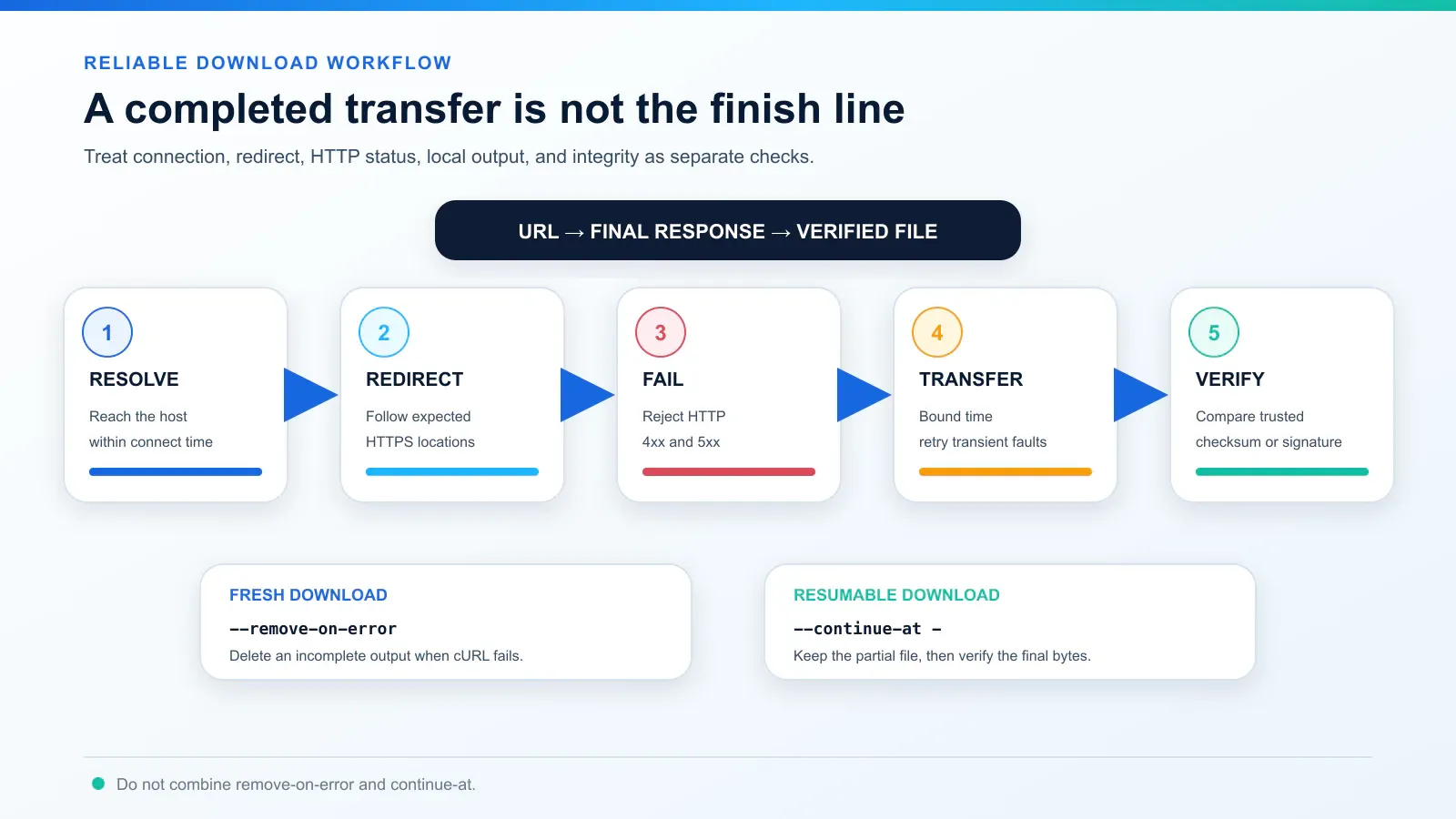
A finished progress bar is not the complete check. For an important download, require a successful curl exit code, the intended final response, the expected file type, and a matching publisher checksum. If the result is HTML, inspect whether the server returned a login or error page before accepting it as a ZIP, PDF, or other artifact.
Use the recipes below to choose filenames and failure behavior. The local verification lab at the end demonstrates saving and resuming the same bytes, so you can compare both paths before adapting the command to your own URL.
What curl does when no output option is set
curl transfers data identified by a URL. If you do not specify an output destination, it writes the response body to standard output. That is useful for a small text response, but it can fill a terminal with binary bytes when the response is a ZIP, image, PDF, or installer.
curl "https://example.com/readme.txt"
curl does not infer that a response “looks like a file,” parse its contents, or verify its integrity. Saving, naming, validating, and handling a failure are separate decisions. Quote the complete URL because shells may interpret characters such as &, ?, *, braces, or brackets.
Windows 10 and 11 include curl.exe, although its version and enabled features can differ from other curl builds. Windows PowerShell 5.1 defines curl as an alias for Invoke-WebRequest. Microsoft documents that PowerShell 7 and later do not define this alias by default, but a profile, module, or local configuration can still change command resolution. Check the active session before running these examples:
Get-Command curl -All
Get-Command curl.exe
curl.exe --version
If curl resolves to an Alias or Function instead of an Application, call curl.exe explicitly. See Microsoft’s curl on Windows documentation and Get-Command reference.
Choose the right filename option: -o, -O, or -OJ
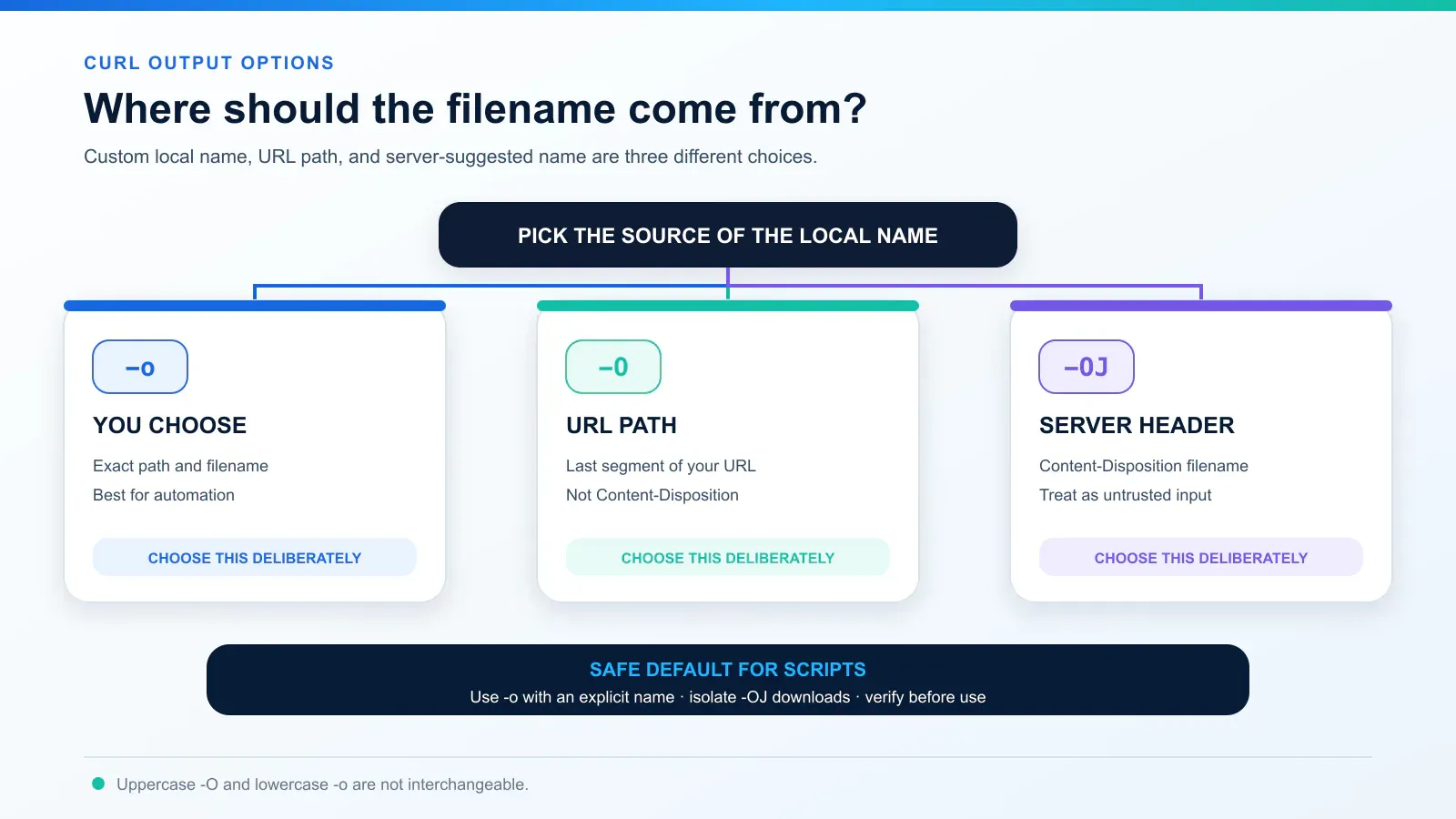
| Option | Filename source | Best use | Important behavior |
|---|---|---|---|
-o file |
You choose the exact local path | Scripts, predictable artifacts, renamed downloads | Existing files are overwritten unless you add a supported no-clobber policy |
-O |
Last filename segment in the URL path | Direct links with a trustworthy, useful path name | Does not use Content-Disposition; percent-encoded characters are not decoded |
-OJ |
Server Content-Disposition: filename when available |
Authorized endpoints that intentionally supply a download name | Treat the remote name as untrusted; compatibility and safety caveats apply |
| No output option | Standard output | Small text responses or pipelines | Binary output can corrupt the terminal display |
The lowercase -o accepts a following filename; uppercase -O does not. That one-character difference causes many accidental overwrites and strangely named files.
Example 1: Save the file with a custom name
curl --output "quarterly-report.pdf" \
  "https://downloads.example.com/files/7f2a9c"
Use -o when the URL has no useful filename, when a signed URL ends in a token, or when downstream automation expects a stable local path.
Example 2: Keep the filename from the URL path
curl --remote-name \
  "https://downloads.example.com/releases/tool-4.2.0.tar.gz"
This creates tool-4.2.0.tar.gz in the current directory. -O extracts the name from the URL you provide; it does not decode %20, and it does not automatically use a server-suggested filename. Current curl versions have fallback behavior for URLs ending in /, but an explicit -o remains clearer in automation.
Example 3: Follow redirects before saving
curl --location --output "manual.pdf" \
  "https://example.com/downloads/current-manual"
Many download links respond with 301, 302, 303, 307, or 308 and point to a CDN or signed object URL. curl does not follow HTTP redirects unless you add --location or -L. A redirect is not itself evidence of failure; the important result is the final response and curl exit status.
Example 4: Use a server-suggested filename carefully
curl --fail --location --remote-name --remote-header-name \
  --output-dir "downloads" --create-dirs \
  "https://downloads.example.com/export/8742"
-OJ combines --remote-name with --remote-header-name. When curl selects a usable Content-Disposition: filename= value, it uses that value locally; otherwise, normal -O naming applies. According to the current curl manual, curl strips path components from the supplied name, does not percent-decode it, and does not currently support the internationalized filename*= parameter. Naming is version-sensitive: curl 8.19.0 added fallback behavior that may use a filename found in the last redirect response when the final response does not provide one.
Treat every server-supplied filename as untrusted. RFC 6266 describes it as advisory and recommends guarding against unsafe extensions, control characters, special device names, and path traversal. Use -OJ only with a trusted endpoint, save into a dedicated directory, inspect the resulting name and file type, and prefer an explicit -o filename in production automation. Because filename*= support and redirect fallback behavior can vary by curl version, test the exact endpoint with the curl build used in production.
Example 5: Save into a directory and create it if needed
curl --fail --location --create-dirs \
  --output-dir "artifacts/2026-08" \
  --remote-name \
  "https://downloads.example.com/releases/checksums.txt"
--output-dir applies to -o and -O. The destination directory must already exist unless --create-dirs is present. In security-sensitive automation, create and permission the directory yourself so ownership and access rules are explicit.
Make a curl download fail correctly
A command can complete its network transfer and still download the wrong thing. By default, curl does not treat an HTTP 404 or 500 as a command failure if it successfully receives the response body. That body might be a polished HTML error page saved under a .zip or .pdf name.
Example 6: Return a nonzero exit status on HTTP errors
curl --fail --location --output "dataset.csv" \
  "https://downloads.example.com/dataset.csv"
For HTTP status codes 400 or greater, --fail normally returns curl exit code 22 and suppresses the error response body. The curl manual notes that authentication cases such as 401 and 407 can be exceptions, so examine the final HTTP code when an authentication workflow requires stronger validation.
--write-out can log http_code, url_effective, size_download, or filename_effective, but reporting a code does not turn it into a failure. Let --fail and the process exit status control the job, then use --write-out for observability.
Example 7: Use a reliable command for unattended downloads
curl --fail --location --silent --show-error \
  --proto '=https' --proto-redir '=https' --max-redirs 10 \
  --connect-timeout 10 \
  --max-time 300 \
  --retry 3 \
  --retry-max-time 600 \
  --remove-on-error \
  --write-out "status=%{http_code} bytes=%{size_download} url=%{url_effective}\n" \
  --output "dataset.csv" \
  "https://downloads.example.com/dataset.csv"
Each flag has a separate job:
--failconverts most HTTP errors into a nonzero exit status.--locationfollows redirects to the actual object.--proto '=https' --proto-redir '=https'keeps both the original and redirected transfer on verified HTTPS, while--max-redirs 10prevents an unexpectedly long chain.--silent --show-error, often written-sS, hides the progress meter but still displays curl errors.-salone also hides those errors; it does not make a job run in the background.--connect-timeoutbounds the connection phase.--max-timelimits one transfer attempt.--retry 3retries transient failures such as timeouts and selected HTTP responses, including408,429, and several5xxcodes. curl uses backoff and honorsRetry-Afterwhen present.--retry-max-timecaps the retry window. An attempt begun before that limit can still run longer, so retain--max-timeas well.--remove-on-errordeletes the local output if curl returns an error, preventing another step from consuming a partial artifact.
Do not put --retry-all-errors in a general-purpose curlrc. The curl manual calls it a “sledgehammer” because retrying every error can duplicate data or produce unexpected results, especially around redirected input or output.
Example 8: Keep an HTTP error body for diagnostics
curl --fail-with-body --location --silent --show-error \
  --output "diagnostic-response.txt" \
  "https://api.example.com/export/8742"
--fail-with-body also returns exit code 22 for HTTP errors but preserves the response body. Use it when a trusted API returns useful structured error details. Do not save that body over the intended production artifact, and do not combine --fail-with-body with --fail; they are mutually exclusive. The option was added in curl 7.76.0.
Resume and verify a large file
Example 9: Resume from the size of a partial local file
curl --fail --location --continue-at - \
  --output "linux-image.iso" \
  "https://downloads.example.com/images/linux-image.iso"
-C - tells curl to inspect the existing local file and request the remaining bytes. Resume works only if the destination is the same object and the server supports byte ranges in a compatible way. A changed remote file, a server that ignores ranges, or an expired signed URL can make a resumed result invalid.
Do not combine --continue-at with --remove-on-error or --no-clobber; curl treats those pairs as incompatible. For valuable artifacts, store the partial file in a controlled location and verify the finished result.
Example 10: Verify a trusted SHA-256 checksum
Download the checksum from a trusted source independent of the artifact when possible, then compare it locally. curl moves the bytes; it does not automatically prove that the file is complete, authentic, or expected.
# Linux
sha256sum "linux-image.iso"

# macOS
shasum -a 256 "linux-image.iso"

# Windows PowerShell
Get-FileHash "linux-image.iso" -Algorithm SHA256
Compare the full hexadecimal value, not a short prefix. A checksum published beside a compromised file on the same compromised channel may detect an incomplete transfer but cannot establish publisher authenticity; use a verified signature when the publisher provides one.
Control transfer behavior
Example 11: Limit bandwidth and stop a persistently slow transfer
curl --fail --location \
  --limit-rate 5M \
  --speed-limit 100K --speed-time 30 \
  --output "archive.tar.zst" \
  "https://downloads.example.com/archive.tar.zst"
--limit-rate 5M caps the average transfer rate. --speed-limit 100K --speed-time 30 stops the transfer if it remains below the specified speed threshold for the configured period. These controls solve different problems: one protects shared bandwidth; the other prevents a stalled job from occupying a worker indefinitely.
If the origin publishes a useful modification time, add --remote-time to make curl attempt to apply it to the local file. Do not use a timestamp as an integrity check.
Download an authenticated file without publishing a secret
Example 12: Prompt for an HTTP password instead of typing it
For an endpoint you are authorized to access, give curl only the username. It prompts for the password without echoing it, so the secret is not typed into the command itself.
curl --fail --location \
  --user "YOUR_USERNAME" \
  --output "private-export.csv" \
  "https://downloads.example.com/private/export.csv"
Never paste a real password, bearer token, signed URL, cookie, or proxy credential into a public article, screenshot, shell script, or support ticket. The curl manual warns that command-line credentials can be visible to another local process for a brief moment before curl hides them. For unattended jobs, retrieve secrets from a platform credential facility or secret manager and use a permission-restricted, short-lived curl configuration or header file when needed. A .netrc file stores credentials as plaintext, so it is not the default recommendation for valuable secrets.
Download through an authorized proxy
A proxy is optional. It changes the network route; it does not grant permission, bypass authentication, guarantee availability, or make an unsafe file trustworthy. Use the direct path when it already satisfies the job.
Example 13: Use an HTTP or SOCKS5 proxy for the transfer
If a corporate policy or approved workflow requires a proxy route, obtain the correct host, port, and authentication format from the proxy quick start before changing the command.
# HTTP proxy without credentials in the example
curl --fail --location \
  --proxy "http://proxy.example:8080" \
  --output "file.zip" \
  "https://downloads.example.com/file.zip"

# SOCKS5 with proxy-side DNS resolution
curl --fail --location \
  --proxy "socks5h://proxy.example:1080" \
  --output "file.zip" \
  "https://downloads.example.com/file.zip"
The h in socks5h asks the proxy to resolve the destination hostname. Use one stable route for a single transfer and its resume attempts; rotating routes mid-file can conflict with range requests, signed URLs, or origin sessions.
Before transferring a large file, run a small request through the same approved settings and compare the visible address with what is my IP. If authentication is required, keep real proxy credentials in a protected configuration or credential facility rather than embedding them in the command.
Download multiple files
Example 14: Download several URLs sequentially
curl --fail-early --fail --location --remote-name-all \
  "https://downloads.example.com/file-a.csv" \
  "https://downloads.example.com/file-b.csv" \
  "https://downloads.example.com/file-c.csv"
Multiple URLs in one curl invocation are sequential unless --parallel is set. --remote-name-all applies -O to every URL. --fail-early matters because, without it, an earlier failure can be hidden when a later transfer succeeds. It does not imply --fail; use both when HTTP error codes should stop the batch.
curl 8.13.0 and later can also read one URL per line from a text file. Comment lines start with #, and URL-file mode implies --remote-name for each entry:
curl --fail-early --fail --location --url @download-urls.txt
Do not use that syntax on an older build. The supplied August 26, 2026 verification record reports that macOS curl 8.7.1 treated @download-urls.txt as a literal URL and returned exit code 6 instead of reading the file. On older versions, pass multiple quoted URLs explicitly or use a carefully checked shell loop. curl URL expansion is another option for predictable names, such as "https://downloads.example.com/file[001-010].csv"; quote the pattern so the shell does not expand it first.
Example 15: Download several files in parallel with a cap
curl --fail-early --fail --location \
  --parallel --parallel-max 4 \
  --remote-name-all \
  "https://downloads.example.com/file-a.csv" \
  "https://downloads.example.com/file-b.csv" \
  "https://downloads.example.com/file-c.csv"
--parallel or -Z enables concurrent transfers. Set --parallel-max deliberately instead of accepting a high default that may overload the origin, saturate your proxy, or trigger rate limits. More concurrency does not make one file faster, and retrying many 429 responses in parallel can make a rate-control problem worse.
curl download troubleshooting
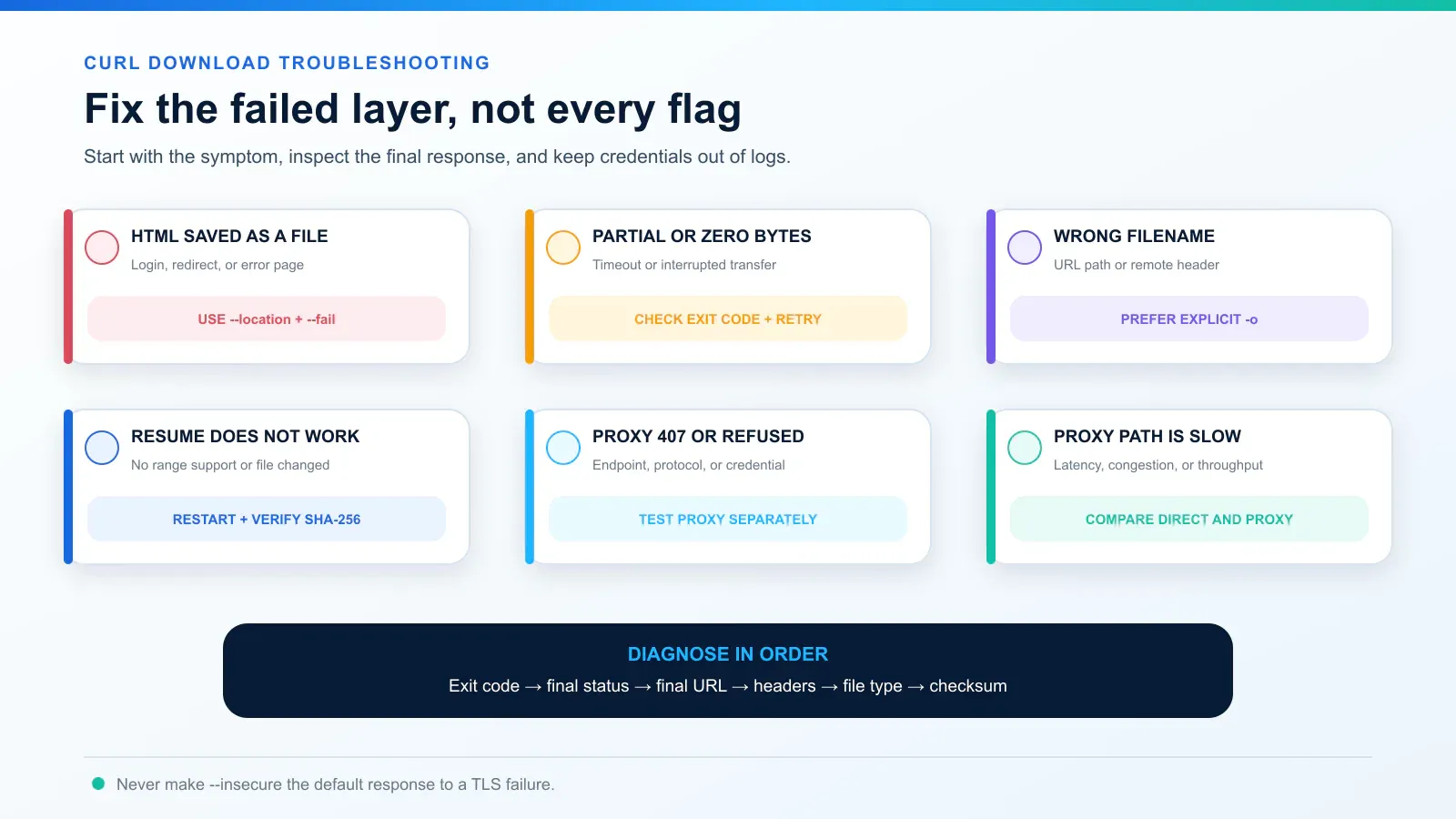
| Symptom | Likely cause | What to check or change |
|---|---|---|
A .pdf or .zip contains HTML |
Login page, consent page, redirect target, or HTTP error body | Add --location and --fail; inspect headers and the final URL; verify that the endpoint is a direct authorized download |
curl reports success on a 404 file |
HTTP status was received successfully and no fail option was set | Add --fail, check the process exit code, and use --write-out only as supplemental logging |
| File is missing after an error | --remove-on-error deleted an incomplete output |
This is expected; inspect stderr and the curl exit code before retrying |
| Resume restarts or corrupts the result | Server does not honor ranges, remote object changed, or signed URL expired | Confirm range support, restart cleanly when identity changed, and verify a trusted checksum |
| Output filename is strange | -O used a URL path token, or -OJ received an encoded/unsupported name |
Use explicit -o; inspect Content-Disposition; treat remote filenames as untrusted |
407 Proxy Authentication Required |
Wrong endpoint, protocol, username format, or expired credentials | Confirm the approved configuration and isolate endpoint reachability with the proxy checker |
| Direct transfer is normal but proxy transfer is slow | Route latency, proxy throughput, congestion, or distant exit | Compare the routes and use the proxy speed test before changing origin timeouts |
| TLS verification fails | Wrong system clock, missing CA trust, interception policy, or certificate problem | Correct trust configuration; do not make -k or --insecure the default fix |
| PowerShell says a curl flag is unknown | curl resolved to an alias, function, or another command instead of the expected executable |
Run Get-Command curl -All and curl.exe --version; call curl.exe explicitly when command resolution is ambiguous |
For deeper inspection, add --verbose temporarily or save response headers with --dump-header headers.txt. Verbose logs may contain sensitive URLs, cookies, or headers, so redact them before sharing and delete diagnostic material according to your retention policy.
Conclusion
To download a file using curl reliably, choose the output name deliberately, handle redirects and HTTP errors, and verify the saved artifact before using it. Start with -o for a predictable filename, add timeouts and bounded retries for unattended jobs, and check both the curl exit status and the resulting file. A successful transfer alone does not prove that you downloaded the intended content.
For large files, resume only when the remote object is unchanged and the server supports byte ranges, then compare the completed file against a trusted checksum or verify the publisher’s signature. Keep credentials out of commands and logs, retain TLS verification, and use an authorized proxy only when the workflow requires that route. Test the smallest suitable command with your installed curl version before scaling to batch or parallel downloads.