
10 Best Proxy Browsers in 2026: Native and Anti-Detect Options

Aug 27, 2026 · Comparisons · 9 min read
The best proxy browsers are not one product category. A proxy browser can be a regular browser with a proxy setting, a browser with its own VPN-style route, a browser paired with a switching extension, or an anti-detect browser that assigns a proxy to each isolated profile. The useful question is not “Which browser is best?” It is “Which browser and proxy arrangement fits the job I am authorized to do?”
That distinction changes the shortlist. Firefox belongs in the conversation because it has native connection settings. Opera belongs because it can use the operating system proxy settings and offers a browser VPN feature in supported versions. RoxyBrowser belongs because it is an anti-detect (fingerprint) browser with manual proxy controls, a Proxy Store, its own Roxy IP service, and third-party choices such as Rola IP. These products solve different parts of the same setup.
This guide covers legitimate QA, localization, and approved research workflows. A proxy or profile does not grant access to a website, make a prohibited action acceptable, or guarantee that a destination will accept a session.
What “proxy browser” actually means
“Proxy browser” is a functional description, not a synonym for an anti-detect (fingerprint) browser. It describes a browser setup in which traffic can be routed through a proxy. There are four common ways that happens.
- Native browser settings. Firefox, Opera, Chrome, and Microsoft Edge can use manual, system, automatic, or managed proxy settings, depending on the browser and operating system.
- A browser-supplied route. Some browsers offer a built-in VPN or proxy-like browsing route. That feature is separate from entering the credentials for a configurable residential or SOCKS5 proxy.
- A proxy-switching extension. An extension can apply configured proxy rules inside a regular browser. It is an add-on, not a separate browser category, and it still needs an approved proxy endpoint.
- An anti-detect (fingerprint) browser. These tools add separate profiles, proxy assignment, and often team controls. Their proxy supply model varies: some offer an in-app proxy service, while others focus on connection management or partner integrations. “Anti-detect browser” is an industry label for this profile-isolation category; it does not make an activity authorized.
Firefox is a clear example of the first category. Its Connection Settings screen supports no proxy, auto-detect, system settings, manual server details, and a PAC URL. The browser gives you the configuration surface; your organization or proxy provider supplies the endpoint. Mozilla’s Firefox documentation describes those choices.
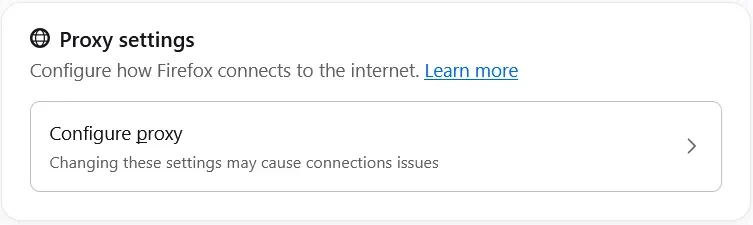
Firefox Help Center screenshot. It shows the native Proxy settings panel rather than a proxy inventory.
10 proxy-browser options: ordinary browsers and anti-detect browsers
People searching for “10 best proxy browsers” usually need a shortlist across several operating models, not ten copies of the same type of product. The list below starts with ordinary browsers and then covers anti-detect (fingerprint) browsers. It is a discovery and selection aid, not a performance ranking. The first five entries are ordinary browsers; the remaining entries are anti-detect browsers with profile-level proxy controls.
| # | Proxy-browser option | Category and proxy role | What to check before using it |
|---|---|---|---|
| 1 | Firefox | Native connection settings | Whether you need manual servers, the system proxy, or a PAC configuration. |
| 2 | Opera | System proxy settings plus a browser VPN feature in supported versions | Whether your task needs an external proxy endpoint or Opera’s browser-routing feature, which are different setups. |
| 3 | Chrome | Browser and enterprise proxy policy | Whether a system, fixed-server, auto-detect, or PAC policy matches the managed environment. |
| 4 | Microsoft Edge | System proxy by default, with managed overrides available | Whether the operating system or company policy already controls the route. |
| 5 | Brave | Chromium browser using system or managed proxy settings | Whether the operating system, enterprise policy, or extension supplies the route you need. |
| 6 | RoxyBrowser | Anti-detect (fingerprint) browser, manual proxy assignment, Proxy Store | Whether to use a manual external endpoint, Roxy IP, or an available third-party provider such as Rola IP. |
| 7 | AdsPower | Anti-detect browser with profile-level proxy configuration | Whether the protocol, host, port, and authentication fields match the provider’s current format. |
| 8 | GoLogin | Anti-detect browser with built-in and external proxy options | Whether its built-in proxy plan or a third-party connection is the approved fit. |
| 9 | Multilogin | Anti-detect browser with Multilogin proxy options | Whether the required location, session model, and billing model are available in the current plan. |
| 10 | Incogniton | Anti-detect browser with proxy integration and testing documentation | Whether its current plan and documentation support the workflow your team needs. |
The table also shows why saying “the best proxy browser” without context is misleading. Firefox can be the right answer for a simple, approved test with one proxy configuration. An anti-detect browser can make more sense when a team needs isolated test profiles and a repeatable proxy assignment. Neither answer says anything about whether a proxy endpoint is included.
Native browser settings and browser-supplied routing are different
Firefox’s native controls are for choosing how the browser connects. In a manual configuration, you enter a server name and port supplied by your administrator or proxy provider. That makes Firefox a proxy-capable browser, but the settings screen is not a marketplace for proxy IPs.
Opera makes the distinction especially visible. Its desktop documentation explains how to open the computer’s proxy settings and specify a protocol, address, and port. Opera also documents a browser VPN feature that routes browser traffic through its service in supported countries and versions. A built-in browser VPN route is not the same thing as a configurable third-party residential proxy, and its availability can vary by country and version. See Opera’s proxy settings guidance and VPN FAQ.
Chrome and Edge belong in this category too. Chrome’s current enterprise policy supports system, fixed-server, auto-detect, and PAC modes. Edge uses system network settings, including proxy settings, by default and documents managed overrides. These options are useful when an organization needs a normal browser to follow an approved network policy. They are not a replacement for profile-level proxy management.
Anti-detect browsers: connection management and proxy supply are separate decisions
An anti-detect browser, also called a fingerprint browser, manages the browser-side environment: separate local state, profile settings, proxy assignment, and, depending on the product, team or automation controls. These labels describe product capabilities, not permission to evade a site’s rules. It does not follow that every anti-detect browser supplies its own proxy inventory. You need to check that point in the current documentation and plan.
RoxyBrowser is a useful example because its public documentation covers both sides. You can manually add a proxy with a protocol, host, port, username, and password. Its Proxy Store also lists Roxy IP as RoxyBrowser’s official self-operated IP service and Rola IP as a selected third-party provider. In other words, RoxyBrowser can manage a provider you already use, offer its own proxy option, or present an integrated third-party option. Those are different purchasing and configuration choices. RoxyBrowser’s Proxies documentation is the source for those current product claims.
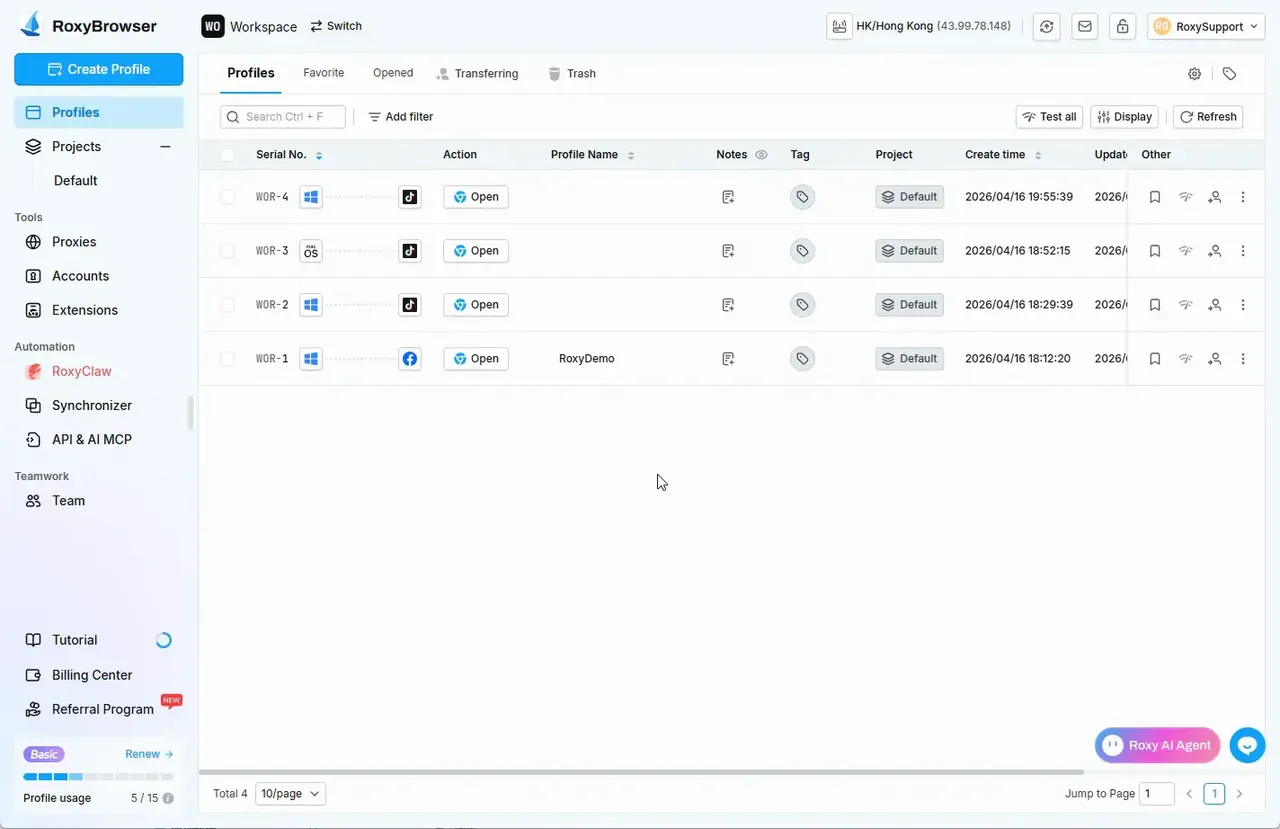
RoxyBrowser documentation screenshot showing its profile dashboard. Separate profiles and proxy routing are related but distinct layers.
GoLogin and Multilogin also document built-in proxy options alongside support for other proxy choices. AdsPower and Incogniton document profile proxy configuration and testing. Do not infer a bundled proxy service simply because a product has host, port, username, and password fields. Check the vendor’s current Proxy Store, billing page, or integration documentation before you choose a plan.
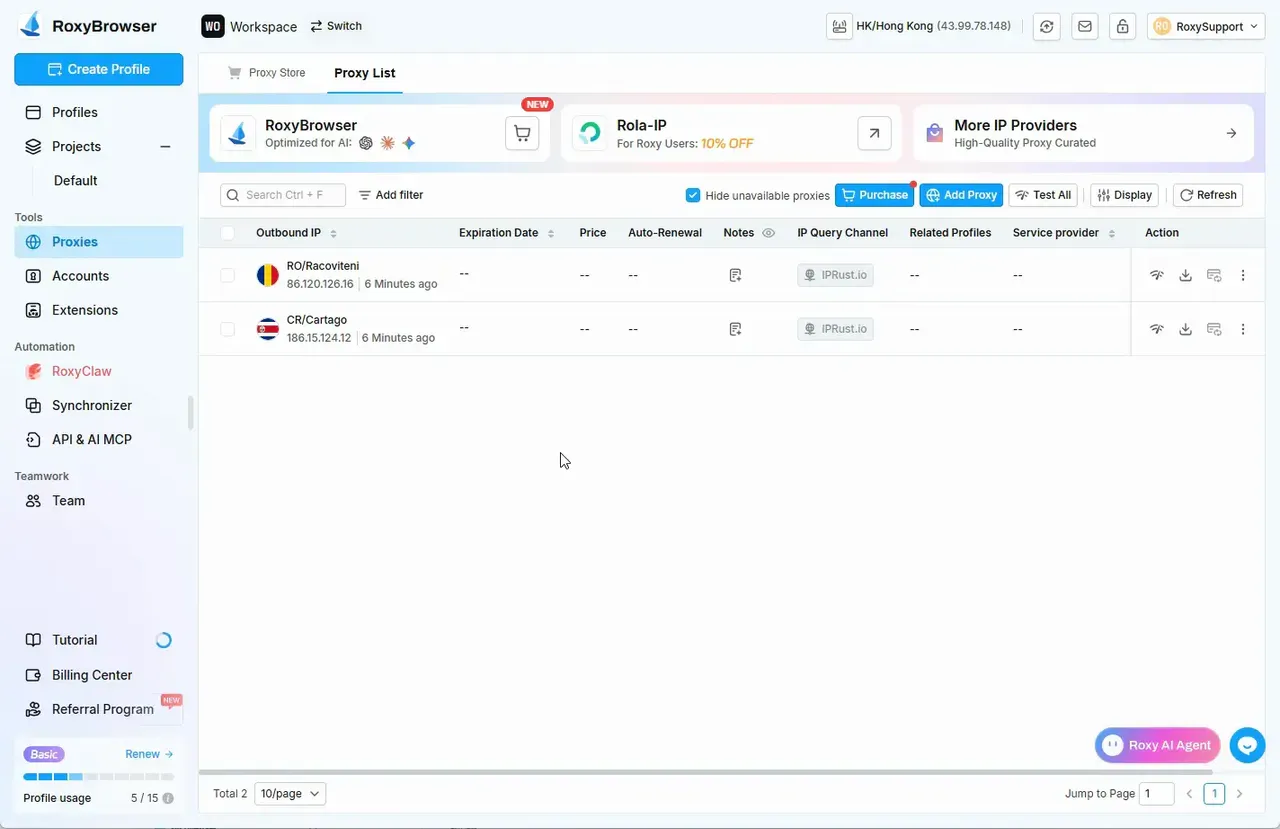
RoxyBrowser documentation screenshot showing the Proxy List, a Rola IP provider card, and proxy controls. The listing indicates an integration, not a guarantee of access to any destination.
How a browser and proxy work together
The browser handles the local environment. The proxy handles the network route. In a straightforward, authorized setup, keep those decisions separate:
- Choose the browser model: native settings, an extension, or isolated profiles.
- Choose the proxy connection model: a provider’s external endpoint, a browser’s own proxy service, or an integrated third-party service.
- Confirm the protocol, host, port, and authentication format before entering anything.
- Test the route in a clean browser profile that has no personal cookies, saved passwords, or production accounts.
- Check the observed exit IP and broad location on a destination you own or are authorized to test.
A passing connection test proves that the application reached the proxy. It does not prove that a third-party website will allow the activity, that every IP-location database will agree, or that the activity meets the destination’s rules.
Choosing the proxy behind the browser
The browser does not tell you whether you need a rotating or a stable connection. Start with the approved task.
| Need | Proxy characteristic to evaluate | Rola IP starting point |
|---|---|---|
| A short, authorized regional check | A controlled location and session behavior that fits the test plan | Residential proxies |
| A documented session that needs the same assigned exit | A stable endpoint that can be recorded and retested | Static residential proxies |
| A normal browser that must use company-provided connection details | A matching protocol and authentication method | Rola IP Quick Start |
| A compatible local application that accepts a local host and port | A local forwarding workflow, with the desktop client running | Rola Connect port forwarding |
For an authorized workflow, record the intended target, permission, region, traffic limits, and test result before expanding beyond a controlled check. Residential, static residential, and browser-supplied routing are network choices. They do not change a site’s terms or authentication requirements.
Setting up a proxy browser safely
The screen sequence changes by product, but a reliable setup process is simple.
- Get connection details from an approved provider. Use the provider dashboard or current documentation, not a public screenshot or a copied proxy list.
- Pick the correct entry point. Use Firefox or Opera settings for a native browser setup, a proxy-switching extension such as FoxyProxy for extension-based routing, or the proxy panel in an anti-detect browser.
- Match the protocol exactly. Do not change the protocol, region, password, and browser profile at the same time when troubleshooting.
- Run the browser or profile’s connection test, then check the exit on a site you own or can test.
- Save only the minimum documentation needed to reproduce the approved test. Remove test credentials and sensitive browser data when the task ends.
Rola Connect provides a local port-forward option for compatible applications. The official port-forward guide shows the sequence: select proxy instances, create the local forwards, then open the Port Forward List. The client has to remain running for that local connection to work.
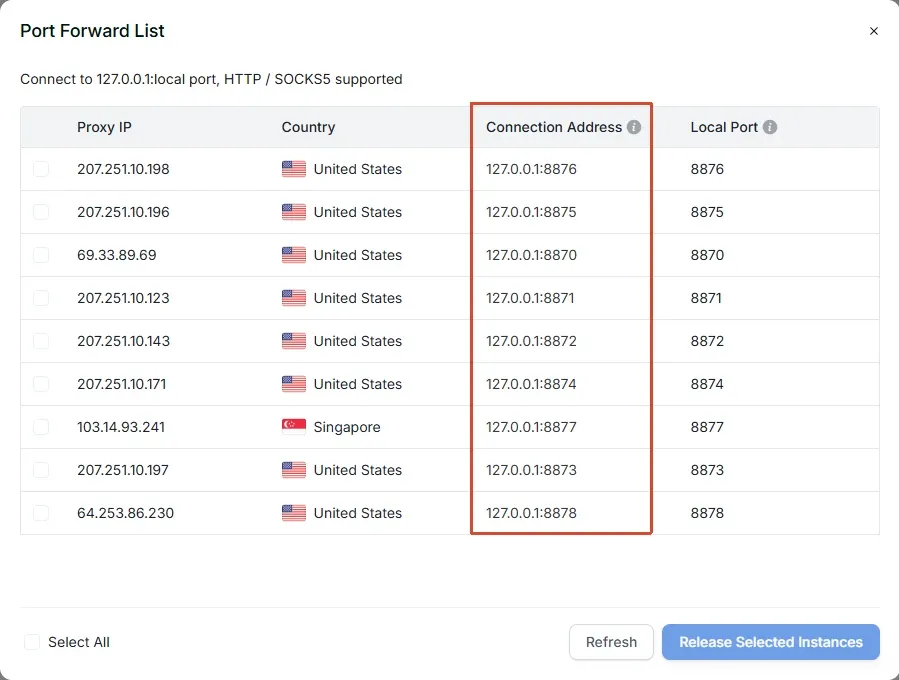
Rola Connect documentation screenshot showing the Port Forward List and local connection addresses. Use the current guide for the exact interface and connection details.
How to assess “best residential proxies for anti-detect browsers 2026”
The phrase “best residential proxies for anti-detect browsers 2026” often combines three separate decisions: an anti-detect browser, a source of proxy endpoints, and the authorized business task. Review them separately.
- Does the browser accept the protocol and authentication format your provider offers?
- Does the task need a stable assigned endpoint or a short, controlled session?
- Is the location available in the provider’s current service and appropriate for the test?
- Can the team test the connection without placing customer data or production logins in the first profile?
- Does the client, employer, and destination site permit the work?
No vendor can answer those questions with a generic “best” label. A useful comparison uses the same task, region, session duration, protocol, price basis, and written permission. Do not treat marketing claims, a passing IP test, or another buyer’s use case as proof that a setup is appropriate for yours.
Choose the model first, then test the connection
For a one-off, authorized routing test, start with the native browser controls you already have. Add a proxy-switching extension when switching rules are the missing piece. Use an anti-detect browser when isolated profiles and profile-level proxy assignment solve a real operational need. Then choose the proxy service independently, or use a browser-supplied service only after reviewing its current plan and permitted use.
If RoxyBrowser is the anti-detect browser you select, its own documentation shows the three routes clearly: manual configuration, Roxy IP, and selected third-party providers including Rola IP. If you are connecting a Rola IP endpoint, use the current Rola IP Quick Start and perform the first test in a non-sensitive profile.