
World of Warcraft High Latency: How to Diagnose and Fix It

Nov 6, 2026 · Guides · 13 min read
If you are dealing with World of Warcraft high latency, the stutter may come from network delay, or it may come from a drop in frame rate. Start by checking the game service status, then record your in-game Home latency, World latency, and FPS, changing only one condition at a time. This guide walks you through the checks in order. Comparing proxy routes is worth the effort only after you have confirmed that the game connection really passes through the candidate route and that repeated tests give stable results.
TL;DR: What to Do First
-
Check the Blizzard service status and outage announcements. If players in the same region report problems at the same time, note the time and the region.
-
In the same game scene, record Home, World, FPS, and the symptoms you actually see. Pause downloads and retest over a wired connection.
-
Use Windows commands to check your local gateway. Trace external routes only after you have confirmed the target address.
-
DNS, DHCP, and proxies solve different problems. Do not change them all at once; record the result after each adjustment.
What Home, World, and FPS Mean
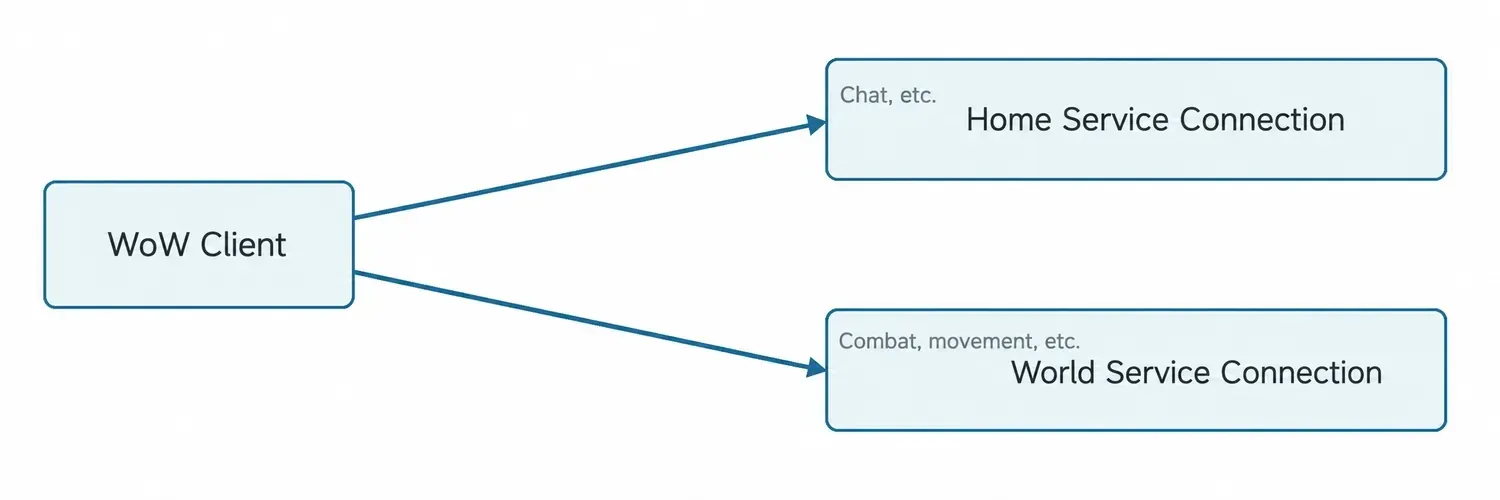
In a 2021 explanation, a Blizzard staff member described Home and World as separate connections that are active at the same time but carry different services. Home generally involves features such as chat, while World handles real-time activity such as movement and combat. Home does not measure latency to your home router, and you cannot add the two values together to get the latency of a single connection.
Official explanation: Blizzard forum staff reply (2021).
FPS is frames per second. If FPS drops while Home and World latency stay relatively stable, check add-ons, graphics load, and background programs first. If World latency rises while FPS stays stable, continue by checking the network path and the game service.
How to View These Values in the Game
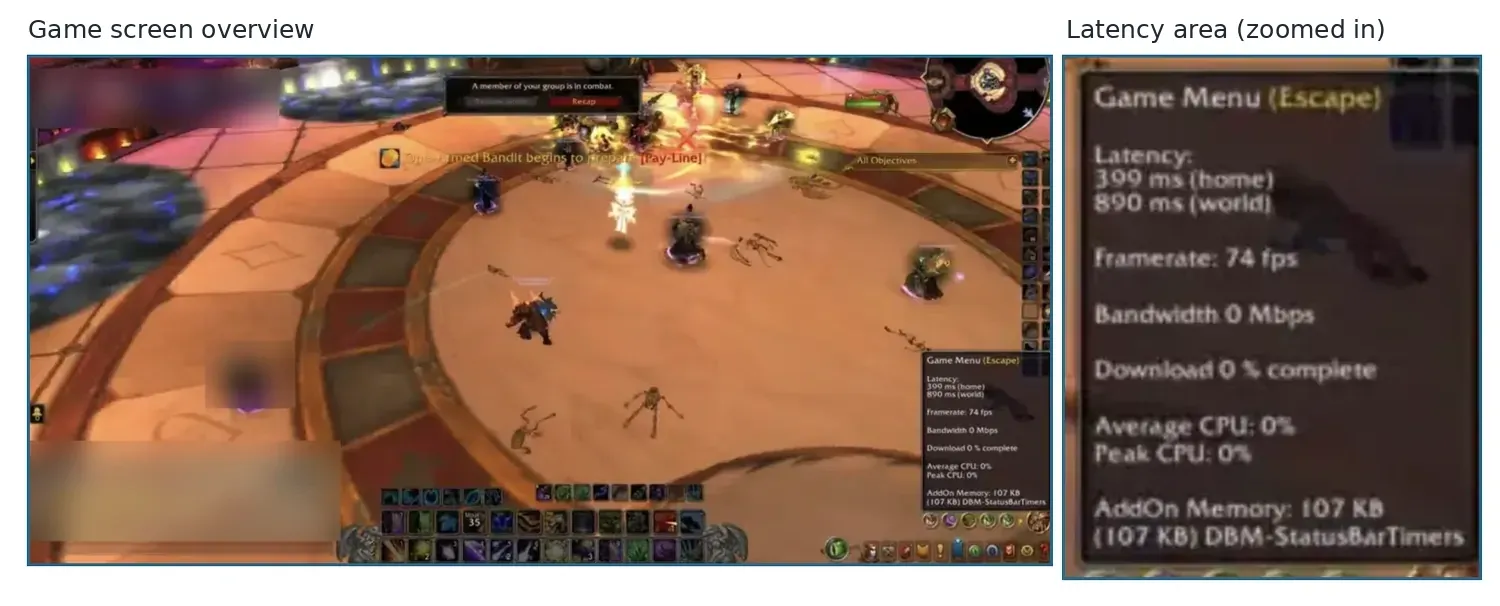
Log in with the affected character, go to the scene where the problem occurs, and hover over the network/latency status icon in the game interface to see the Home and World values. The icon’s position varies with your interface layout, game version, and add-ons. If you cannot find it, check the status bar and network information display options in the interface editor or system settings, and consult the instructions for your current client version. FPS has to be checked separately: some clients let you toggle an FPS counter with Ctrl+R, but this is not a universal switch for Home and World.
Record the game version, region, scene, time, and any relevant interface settings. If your client does not show Home and World separately, record the values you can see along with the symptoms, and do not invent the missing metrics.
Why WoW Latency Can Be High Even With Fast Internet
Speed tests usually measure throughput and response time to a particular test server. They do not represent the complete network path to a specific WoW region. Wi-Fi interference, congested home upload, congestion at your ISP or on interconnect links, physical distance, and game service outages can all cause high latency, even when your broadband download speed looks normal.
| What you observe | Check first | Next step |
|---|---|---|
| Wi-Fi is unstable, but a wired connection is stable | Retest over a wired connection in the same scene | Check the wireless signal, band, and interference |
| Lag when someone at home is uploading files | Pause the upload, then resume it and watch the result | Check home bandwidth contention and router queuing |
| Both Home and World are high | Gateway, external path, and service status | Separate local problems from external ones |
| World is high but FPS is stable | Region, time of day, and game service reports | Keep your results and investigate the relevant path |
| FPS drops but latency is relatively stable | Compare with add-ons disabled and check graphics load | Fix client performance first |
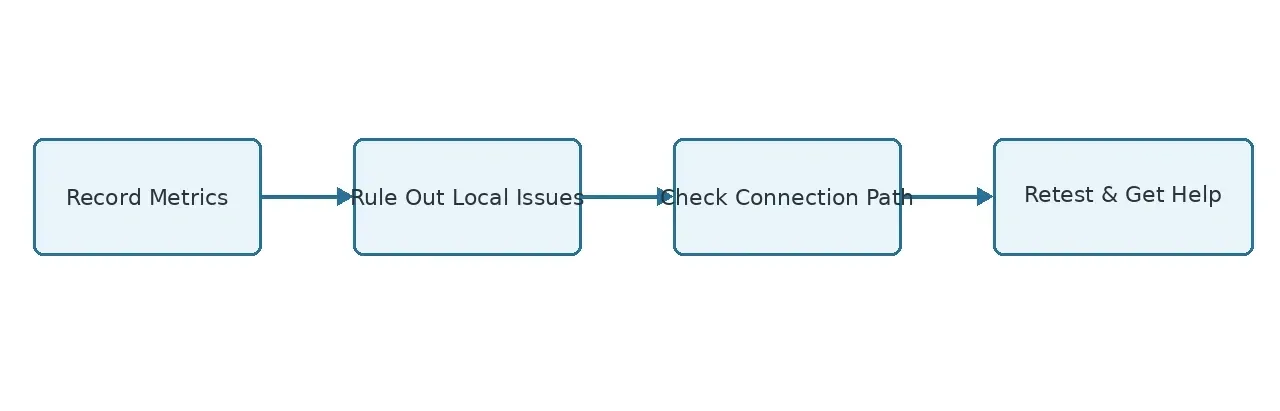
How to Troubleshoot WoW High Latency Step by Step
Step 1: Record a Comparable Baseline
Check for known service outages first. Then, using the same character, region, and a quiet in-game area, observe for 5 minutes. Once per minute, record Home latency, World latency, FPS, and any symptoms such as skill delay, rubber-banding, or disconnects. Repeat the same steps at a time of day when the connection is usually stable. Five manually recorded readings are only good for a rough comparison. They are not a measurement of in-game packet loss or jitter, and they cannot serve as a reliable P95.
Time and time zone |
Region / scene |
Connection |
Home (ms) |
World (ms) |
FPS |
Symptoms / disconnects |
|---|---|---|---|---|---|---|
To be filled in |
To be filled in |
Direct / candidate route |
To be measured |
To be measured |
To be measured |
To be filled in |
To be filled in |
To be filled in |
Direct / candidate route |
To be measured |
To be measured |
To be measured |
To be filled in |
Step 2: Pause Competing Traffic and Use a Wired Connection
Pause Battle.net and Steam downloads, cloud sync, live streaming, and heavy uploads from other devices. Go back to the same game scene and retest. If things improve, restore these activities one at a time. Home network congestion is worth investigating only if you see the same change repeatedly; a single improvement does not prove that your ISP is throttling you. If you normally use Wi-Fi, repeat the test over a wired connection. If the wired connection is stable, check your wireless network first.
Step 3: Check the Connection From Your PC to the Gateway
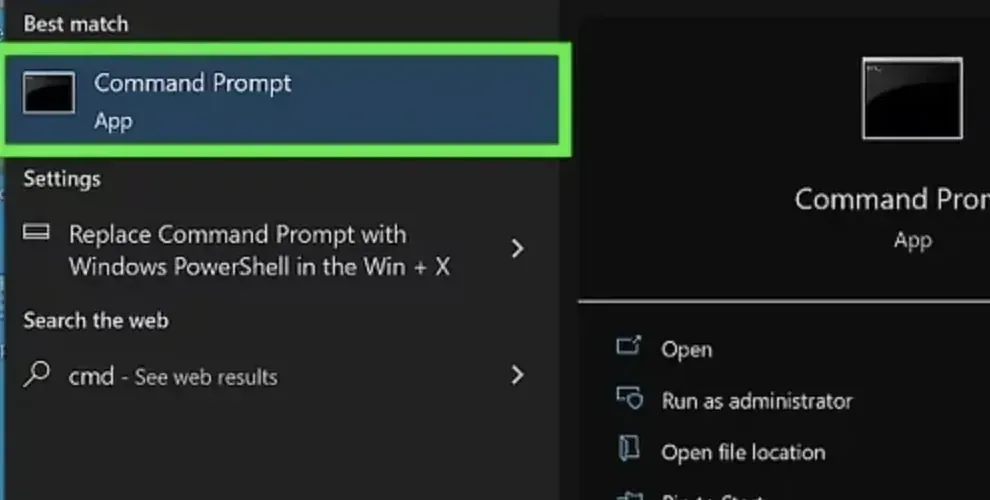
Open Command Prompt from Windows search and run ipconfig. Under the adapter you are currently using (Ethernet or Wi-Fi), find the IPv4 default gateway. Do not copy addresses from virtual adapters or disconnected adapters.
ipconfig
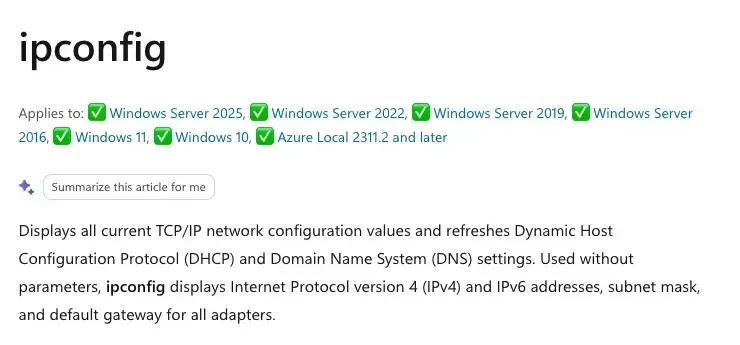
Enter the gateway address you found into the interactive command below, then run a 50-packet ICMP test. Record the target, the start time, the replies received or lost, and the minimum, maximum, and average round-trip times.
set /p "WOW_GATEWAY=Enter the IPv4 default gateway of the active adapter: "
ping /n 50 "%WOW_GATEWAY%"
If repeated tests show anomalies while the game is also stuttering, check your Ethernet cable, Wi-Fi connection, and router. Some gateways rate-limit or ignore ICMP, so a ping timeout alone does not prove game packet loss. A stable gateway response only means that no obvious problem was observed on the first segment of the path.
Command references: Microsoft ipconfig; Microsoft ping.
Step 4: Check DNS and DHCP Only When Appropriate
Consider flushing the local DNS cache only when you see domain name resolution failures or initial connection errors. It does not shorten the network path of a game connection that is already established. Record the command result and retest against the original DNS problem.
ipconfig /flushdns
Releasing and renewing a DHCP lease is a separate operation. It applies only to a confirmed address lease problem, and it can interrupt your connection. Do not release the lease casually on a computer you are accessing remotely; first record the adapter and the original configuration, and follow Windows permission requirements. Renewing your local IP does not guarantee that your public IP will change, and it does not guarantee that WoW latency will improve.
Step 5: Trace Only a Confirmed Target
Prefer the diagnostic targets currently provided by Blizzard support. If you must identify the target on your own machine, a technician should match active TCP connections to a process, a time, and a remote address while the problem is occurring. Login, updates, and game connections may exist at the same time; a remote address in the process list is not necessarily the World service endpoint, and tunnels can also hide the real destination. If you cannot confirm the target, do not attribute traceroute results to a specific game path. Give your in-game records to support instead.
After you confirm the target, enter only the hostname or IP address at the prompt, without a URL prefix or angle brackets. Tracing an ordinary website is no substitute for tracing the actual game target.
set /p "WOW_TRACE_TARGET=Enter the confirmed hostname or IP address: "
tracert /d "%WOW_TRACE_TARGET%"
Asterisks in the intermediate hops may simply mean those devices do not reply to diagnostic packets; they do not prove that the devices are dropping game traffic. When needed, save the time, the target, whether the final target was reachable, and any suspicious segments. When posting publicly, mask account information and unnecessary personal addresses. When submitting a private ticket to a trusted support channel, you can keep the diagnostic target and hop details as requested.
Related documentation: Microsoft tracert; Microsoft Get-NetTCPConnection.
Step 6: Rule Out Add-ons, Client Performance, and Server Problems
In the AddOns list on the character selection screen, temporarily disable all add-ons, then return to the same scene and retest. Afterward, re-enable them one by one from your original list to find the add-on that may be causing the FPS drop, and restore your intended configuration. If only FPS is dropping, you can also temporarily lower graphics options such as shadows and view distance and compare the frame rate before and after. Do not describe graphics adjustments as a network routing fix.
If players in the same region report problems at the same time, or the problem affects only certain servers or times of day, check the Blizzard service status and provide the time, region, and client version. Rule out server-side outages before you pay for a proxy.
Why Ping and Tracert Cannot Prove WoW Is Using a Proxy
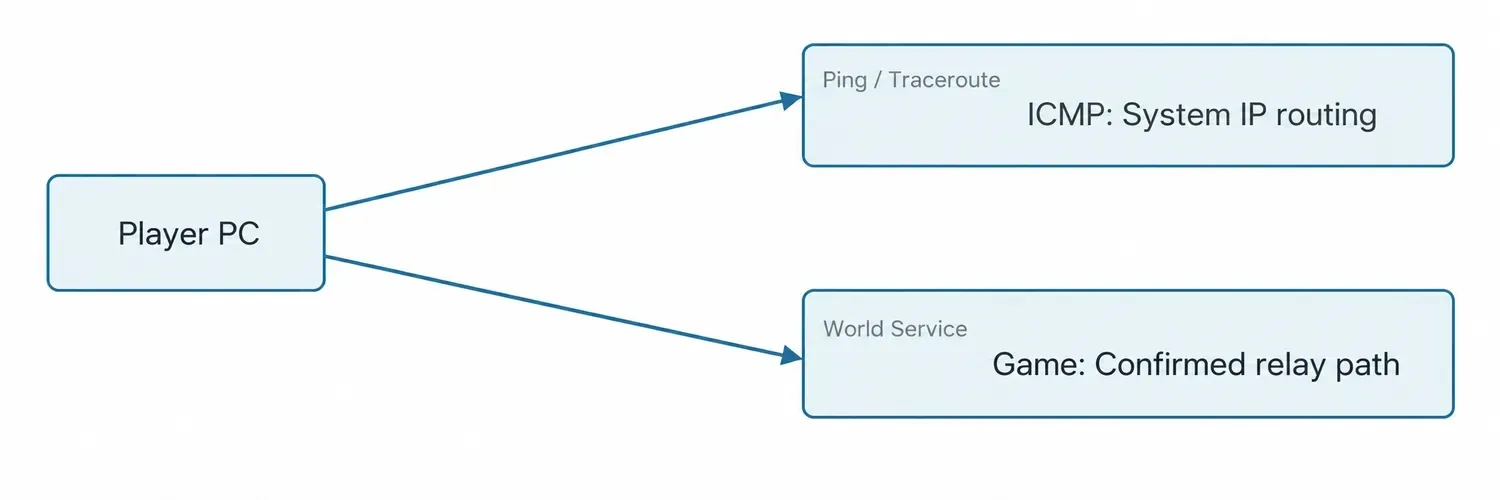
Windows ping and tracert use ICMP. The SOCKS5 protocol itself is not a network-layer gateway that can forward arbitrary ICMP traffic. As a result, system diagnostic packets and WoW application traffic may take different paths. Some system-level tunnels can forward ICMP, but you should verify this against your actual configuration and logs. A change in the public exit IP seen by your browser also does not prove that the game process is using the same exit.
When to Compare Another Route, and How ROLA IP Fits Into Troubleshooting
Testing another network route is worth it only when the service status is normal, your home network performs stably over a wired connection, FPS is not dropping at the same time, and World latency is still repeatedly high in a particular region or time window. A proxy or other alternative route is not a universal fix for WoW high latency: it may improve routing, but it may also add latency, disconnects, or extra cost. Before you start, confirm that your test tool can forward traffic per game process, that the required protocols are supported, and how you will return to a direct connection if something goes wrong.
ROLA IP’s World of Warcraft Proxy page and Static Residential IP page are available if you want to learn about the related products. A product page is not proof that a particular WoW client, proxy protocol, port, or forwarding tool has passed compatibility testing. Rely on the connection parameters shown in your account and on confirmation from the provider, and do not assume from names such as “residential” or “static” that the game will definitely connect or that latency will definitely drop.
Check the Connection Requirements Before Testing
| Item | What to confirm | If it is not confirmed |
|---|---|---|
| Game process | The actual name of the WoW game process, and whether the launcher and the game process are different | First confirm that the rule can match the game process; proxying only the browser or launcher does not mean game traffic goes through the proxy |
| Proxy parameters | The host, port, protocol, and authentication method provided by your ROLA IP account | Use only the parameters actually provided in your account; do not guess ports or protocols |
| Traffic type | Whether the forwarding tool supports the traffic types the game needs, especially UDP | Confirm with the tool’s vendor and the provider; until confirmed, do not treat a successful proxy handshake as WoW compatibility |
| Exit and session | The exit region, the session rules, and whether the exit changes after a reconnect or when the session expires | Record the exit and session state for every test round so the comparison conditions can be reproduced |
| Budget and rollback | The billing method, the test budget limit, and how to disable the rule and return to a direct connection | Set a budget and stop conditions first; do not start testing if you cannot return to a direct connection |
Configure and Verify: Confirm That Game Traffic Passes Through the Route
-
Record a direct-connection baseline. In a fixed character, region, and scene, record Home, World, FPS, disconnects, and the test time. Pause downloads and cloud sync, and keep your add-ons and graphics settings unchanged.
-
Check your account’s connection parameters. In your ROLA IP account, look up the proxy host, port, protocol, authentication method, and exit region currently provided. Keep credentials in the forwarding tool’s secure configuration; do not put them in public documents, screenshots, or command examples.
-
Set up a forwarding rule that matches only WoW. Choose a tool that explicitly supports the protocol your account provides and can forward per process. Point the rule at the proxy endpoint provided by your account, and confirm that the rule matches the actual game process, not just the browser or launcher. If the tool cannot handle the traffic types WoW needs, stop configuring and confirm compatibility first.
-
Test the proxy endpoint first, then the game process. You can first use a test address that you own or are permitted to use to check whether the endpoint connects, whether authentication passes, and whether the exit matches your expectation. This only proves that the test request works; it does not prove that WoW traffic is already going through the proxy.
-
Check the game process’s connection records. After launching WoW, use the forwarding tool’s connection list, its rule-hit log, or system-level network logs to check whether the game process hits the rule, and record the time, the process, and the connection state. If the tool cannot show or associate WoW’s connections, and in particular cannot verify the required UDP traffic, mark the result as “unverified” rather than “WoW is using the proxy.”
-
Run a same-conditions comparison. Once you have confirmed that the game connection hits the rule, compare using the A1 → B → A2 procedure below. In every round, use the same region, scene, test duration, and settings, and record latency, FPS, disconnects, and any change in the exit.
Ping, tracert, or a browser IP check can only tell you about the traffic of that particular test. None of them can, on its own, prove that the WoW game process is using the same proxy route.
Set Stop Conditions and Restore the Direct Connection
Stop testing if any of the following happens: the game disconnects frequently or you cannot log in; you cannot confirm that the game process hits the forwarding rule; the supported protocols are unclear; the cost reaches the preset limit; or an unusual login prompt appears. After stopping, disable the WoW-specific forwarding rule, remove any temporary credentials you no longer need, and confirm again that the game is back on a direct connection. Before sharing logs or screenshots, mask usernames, passwords, tokens, and the full proxy address.
A fixed exit helps reduce changes in test conditions, but neither “static” nor “residential” guarantees lower latency. How long a fixed IP is assigned, whether an established connection can persist, and whether you still get the same exit after reconnecting are different questions, and you should record them separately during testing. For session types, see ROLA IP’s Sticky Sessions vs. Rotating Proxies guide.
Use A1 → B → A2 to Decide Whether to Continue
Test each round for 5 minutes, recording once per minute. Run three rounds, keeping the character, region, scene, add-ons, graphics settings, and background network activity the same. After switching routes, wait until the WoW connection is stable before you start recording.
| Round | Connection | What to record |
|---|---|---|
| A1 | Direct connection | Home, World, FPS, stutter or disconnects, time |
| B | Candidate route confirmed to hit the WoW process | Same as above, plus rule hits, exit, and session state |
| A2 | Candidate rule turned off, direct connection restored | Same as above, and confirm that you are back on a direct connection |
It is worth continuing the evaluation only if the improvement in round B is reproducible, there are no new disconnects, the game traffic path has been verified, and the cost is within budget. A single comparison cannot prove a general cause and effect. If the results are unstable or you cannot verify the traffic path, stop testing, and do not draw conclusions from a successful proxy connection or a single drop in latency.
When to Contact Your ISP or Blizzard Support
If repeated tests over a wired connection, to your gateway, and to several external targets all show that the problem persists, you can give the incident times and route diagnostics to your ISP. If the problem affects only WoW or a particular region, you can provide your in-game records through Blizzard’s current support channels. None of these observations can, by itself, prove who is responsible.
-
Provide your WoW version/branch, region, scene, time and time zone, the Home/World/FPS values, and the symptoms.
-
State whether you used Ethernet or Wi-Fi, which high-traffic tasks were running at the time, what you tried, and the results before and after.
-
Provide the diagnostic target, the tools, the times, the gateway, and related external records, and say whether you used a proxy or tunnel.
-
When posting publicly, hide account details, credentials, and personal information; in a private ticket, keep the necessary routing information as the support staff request.
Conclusion
The key to troubleshooting World of Warcraft high latency is to first separate network latency from FPS, and then check, in order, the service status, your local network, external routing, and client performance. Comparing an alternative route is meaningful only after the relevant traffic, the supported protocols, and the rollback procedure have all been verified. When you make your decision, keep the retest records for both the successes and the failures.