
How to Configure a Google Sites Proxy (Complete 2026 Guide)

Nov 11, 2026 · Guides · 11 min read
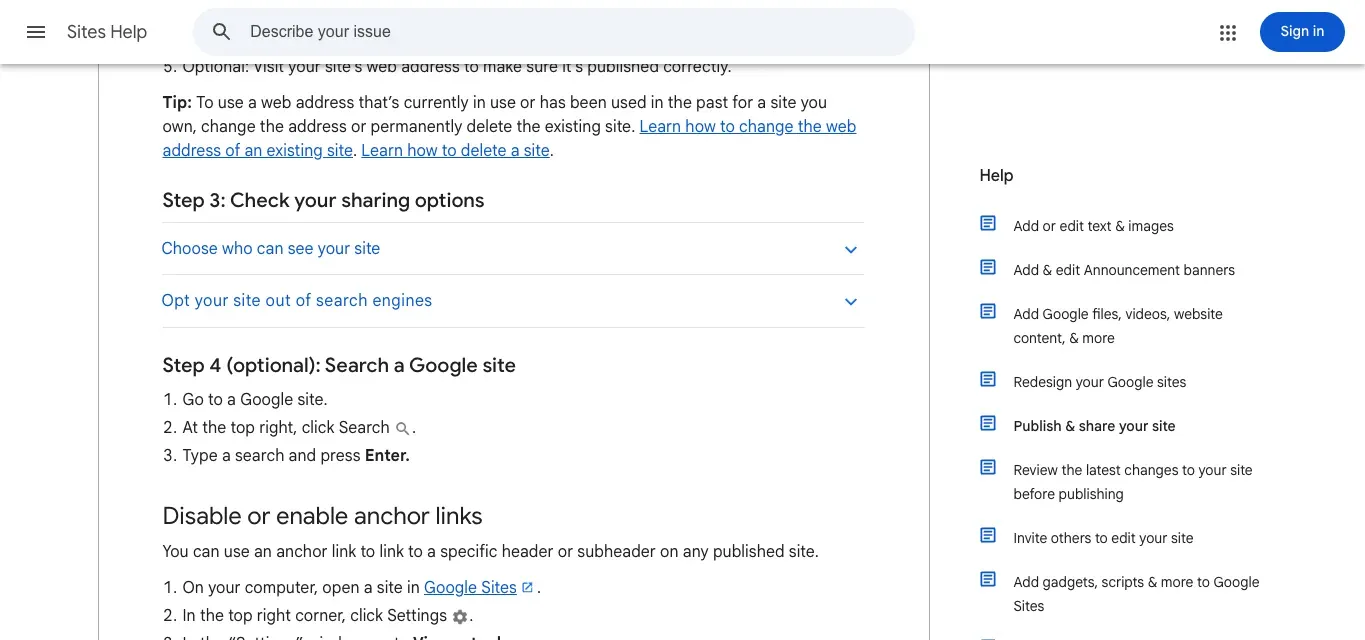
People searching for google sites proxy may be looking either for an online proxy webpage built with Google Sites or for a network proxy to access, manage, or test Google Sites. This guide focuses on the latter. A proxy changes the network exit point of a request, which can help test how public sites behave across regions or maintain a stable connection during authorized workflows. It does not change sharing permissions or guarantee Google Search indexing, CAPTCHA completion, or account security.
Key takeaways: (1) A proxy changes the network exit point, not site permissions; (2) both browsers and scripts should verify the actual exit IP before opening the same public page; and (3) the example results here come from a system-network test. Rola IP proxy performance must be verified separately using your own account credentials.
Before starting, check whether your site is public and who can view it using Google Sites official publishing and sharing instructions.
What Can a Google Sites Proxy Help You Do?
Test Public Pages Across Regions
The same public Google Site may differ in load speed, embedded content, or language display depending on the network exit. Keep the page URL, browser language, cookie state, and test window consistent, then switch exit regions and record the actual exit IP along with the page results. Proxy geolocation is only one variable; not every display difference can be attributed to IP location.
Maintain Authorized Administration Sessions
For teams maintaining their own Google Site, using a consistent exit IP can simplify the review of sign-in and editing workflows. When working across network environments, follow your organization’s account security policies and use legitimate authorization and two-factor authentication. Do not treat bulk account registration, browser fingerprint isolation, or account “warming” as reliable SEO benefits of a proxy.
Check Published Pages and Search Appearance
For pages you own or are authorized to study, you can inspect the page title, heading hierarchy, and links after publication. A Google Sites page and a Google Search results page are different targets. For local ranking analysis, design a separate SERP-testing process and consult Rola IP’s SEO proxy selection guide. Google’s spam policies address link manipulation and doorway pages; the Google Sites domain does not automatically give outbound links ranking value.
Choosing Between Datacenter, Rotating Residential, and Static Residential Proxies
No single IP type suits every task. First decide whether you need a fixed exit IP, a particular target region, and a particular session length; then weigh speed and cost. Verification challenges may also depend on request behavior, account status, and site permissions. IP type alone cannot predict them.
| Proxy type | Best suited for | Considerations |
|---|---|---|
| Datacenter proxy | Low-risk public-page prechecks and internal environment testing | Usually more affordable; verify compatibility with the actual target page. |
| Rotating residential proxy | Independent checks in different regions and regional public-page testing | Rotation frequency depends on the task; sticky sessions may support continuous work. |
| Static residential proxy | Authorized maintenance that needs a long-term consistent exit IP | A fixed exit does not guarantee account security or eliminate verification challenges. |
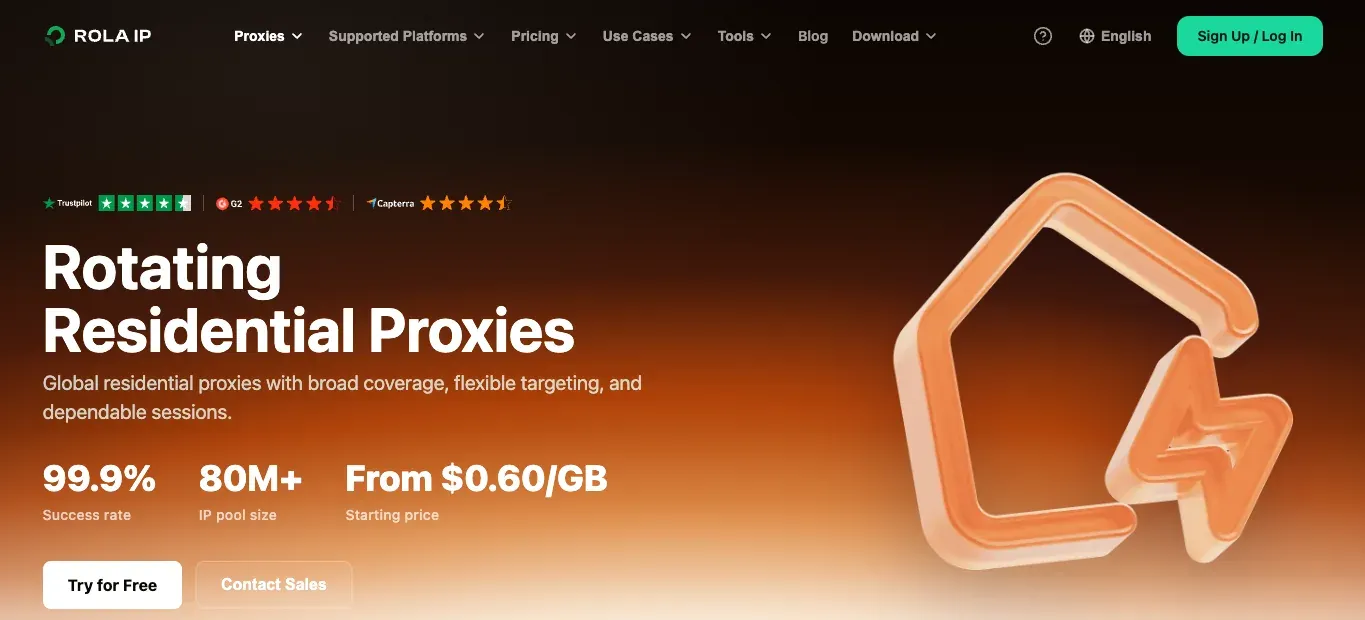
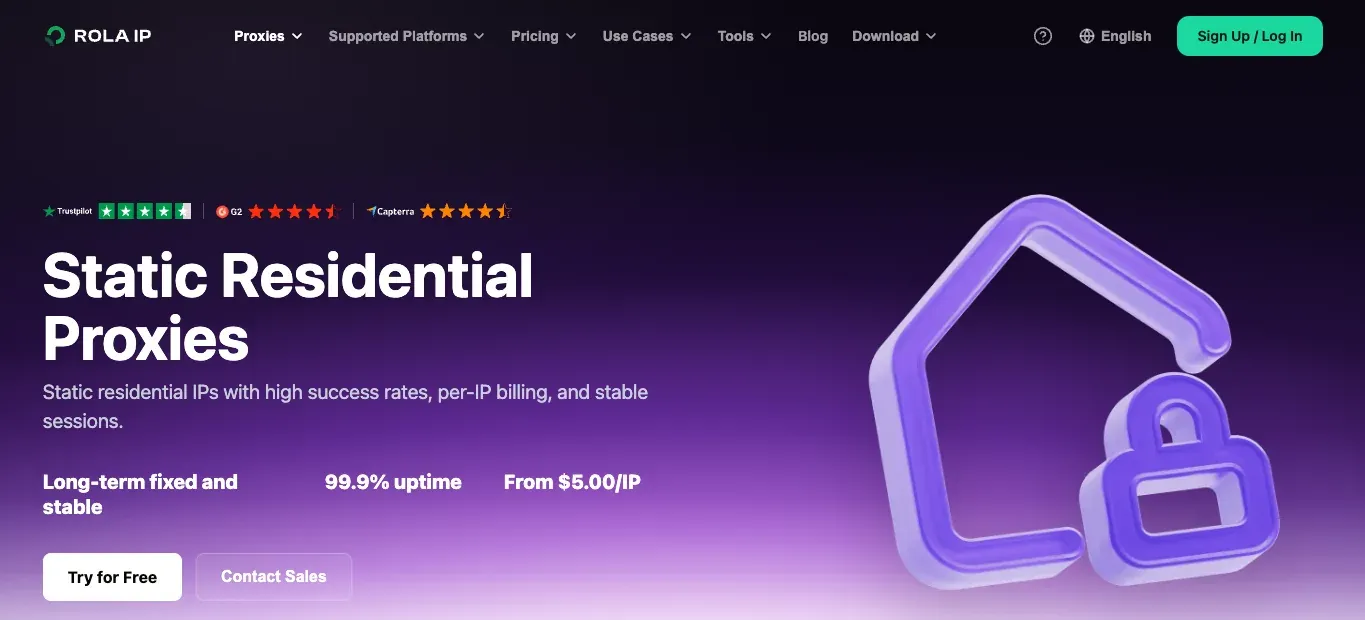
The Rola IP rotating residential proxy product page describes region selection and session capabilities and lists network coverage indicators. These are supplier claims, not measured Google Sites success rates, and the screenshots below cannot substantiate every metric. For long-term consistency, compare the static residential proxy option as well. Verify city-level availability, session parameters, and plans in the current dashboard.
Configure a Browser with Rola IP and Verify the Exit IP
Step 1: Select a Network and Get Your Connection Details
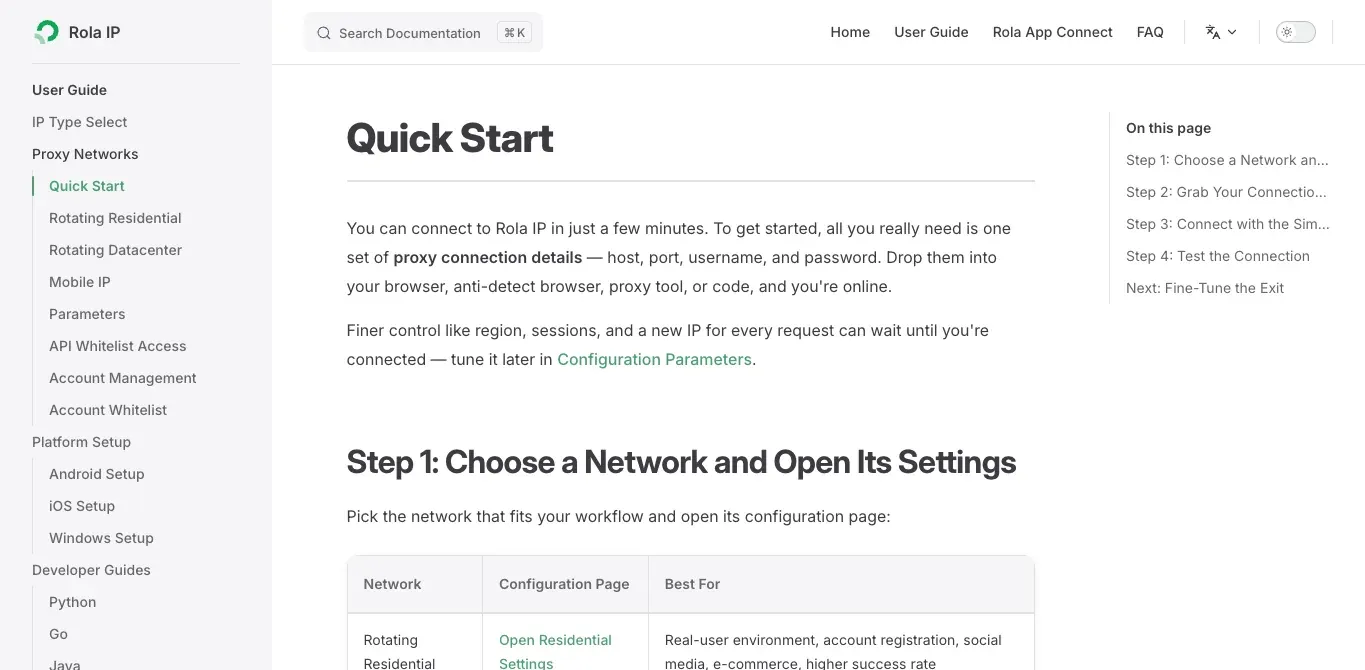
Choose a rotating or static residential network according to your task. Consult Rola IP Quick Start to locate the host, port, username, and password, then configure your country, region, and session parameters. Only the values in your account dashboard are valid connection settings; sample details shown in documentation are not working credentials.
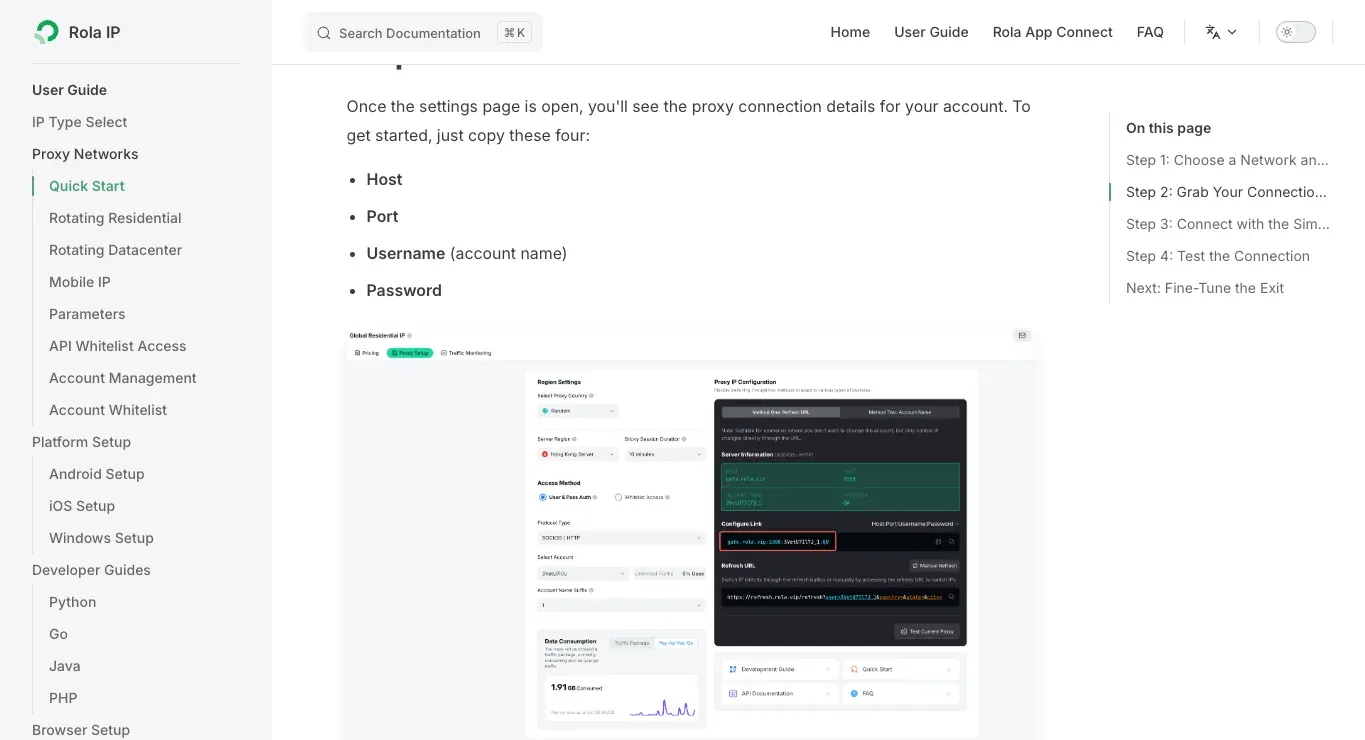
Step 2: Configure the Proxy in a macOS Browser Environment
The example environment is macOS Sonoma 14.6 with Chrome 157. Chrome uses macOS system proxy settings: open System Settings → Network → the current network service → Details → Proxies.
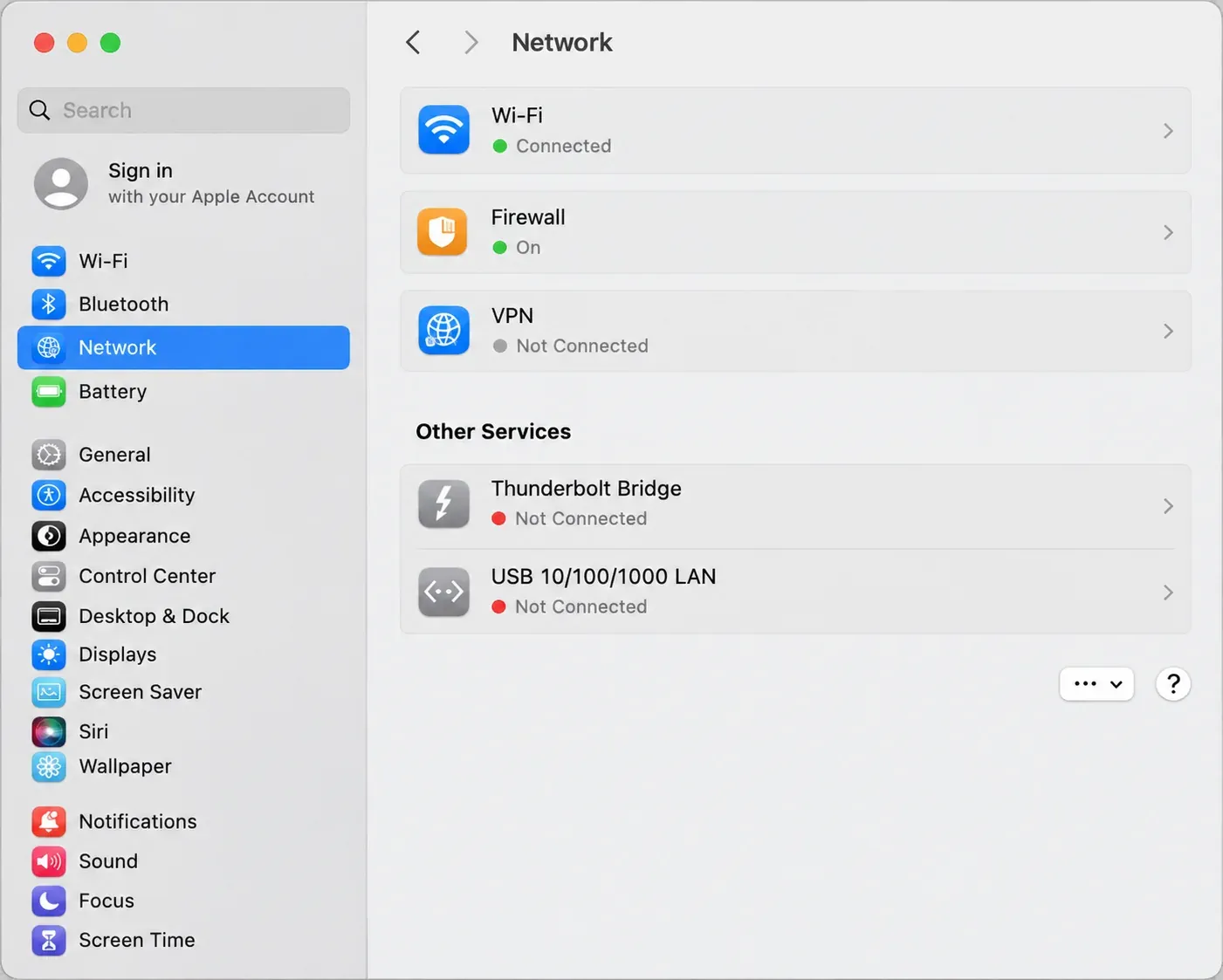
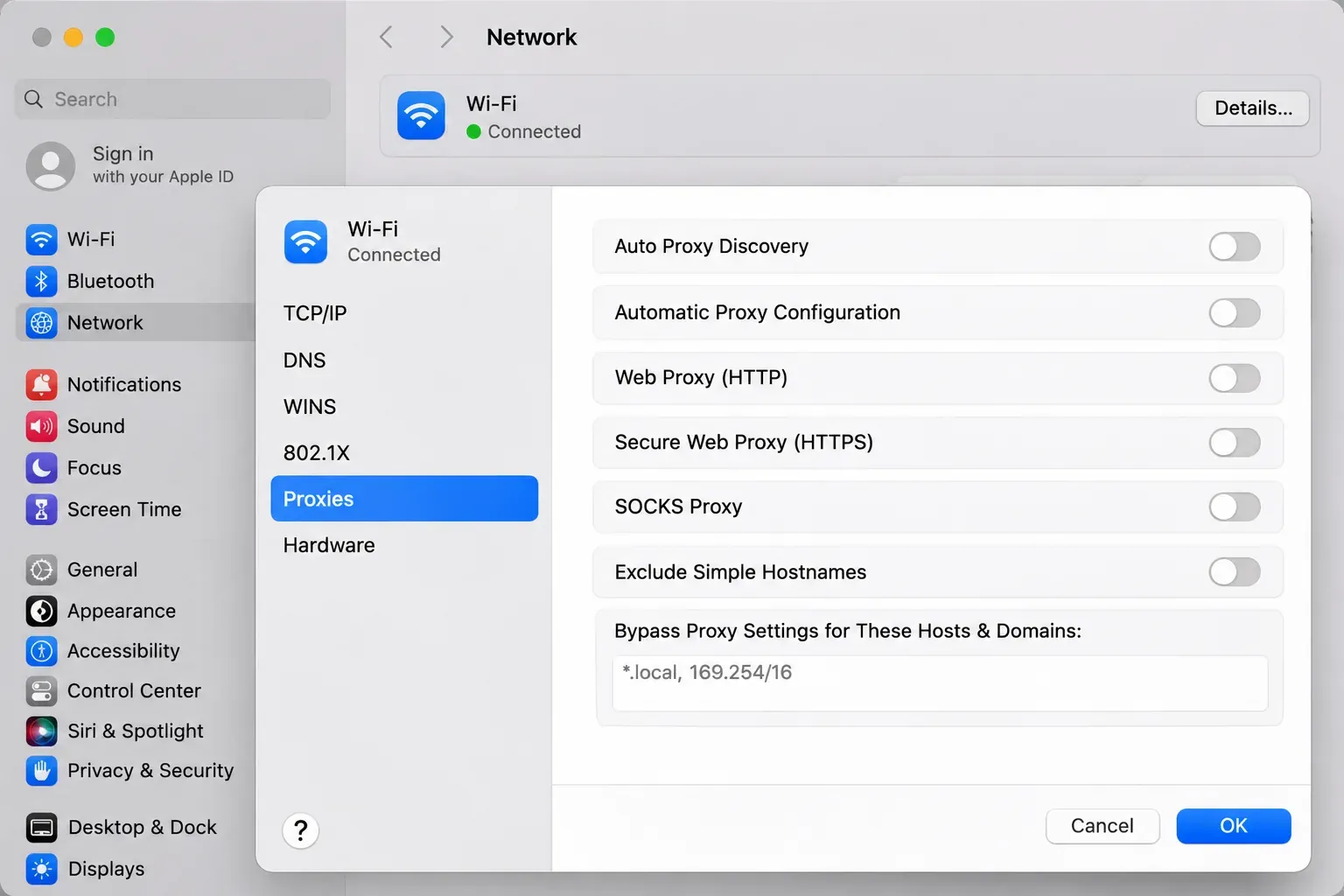
Choose Web Proxy (HTTP) or Secure Web Proxy (HTTPS) based on the protocol provided in your Rola dashboard, then enter the proxy server address and port. If authentication is required, enable Proxy server requires password and enter the username and password. If the dashboard supplies a SOCKS endpoint, select SOCKS Proxy instead. Never mix ports intended for different protocols. Refer to Apple’s macOS Sonoma proxy settings instructions and your Rola dashboard for the specific fields and interface.
System proxy settings may also affect other applications using that network service. Record your original settings before testing and restore them afterward if needed. If you use a separate proxy extension or application, confirm its scope and authentication behavior in Chrome. Entering connection parameters alone does not prove that the network exit has changed.
Step 3: Verify the Exit IP Before Opening the Target Site
In the same Chrome profile and window, first open a trusted IP-checking page. Record the exit IP, region, time, and network configuration, and then visit your own published Google Site. Keep screenshots of both the exit-IP result and the target page to support any claim that the page was accessed through a specified proxy. If the page cannot be viewed, first check its Google Sites sharing permissions and publication status. For regional comparisons, keep the URL, browser language, and cookies consistent to avoid confusing other factors with IP-related differences.

Check a Public Google Sites Page with Python
Step 1: Install Dependencies and Prepare the Target URL
The example makes a request to just one public page and reads its title, first-level headings, and number of links. It does not crawl subsequent pages or handle sign-in. Confirm you have permission to access and collect the page and follow the site’s access requirements. Install the dependencies:
python -m pip install requests beautifulsoup4
The script defaults to the public example URL in the source document. To check your own site, set GOOGLE_SITE_URL. To use Rola IP, supply all four variables: ROLA_PROXY_HOST, ROLA_PROXY_PORT, ROLA_PROXY_USER, and ROLA_PROXY_PASS. This script uses an HTTP proxy endpoint and does not work with a SOCKS port. Get the parameters from your dashboard and consult the official Rola IP Python integration documentation for an example.
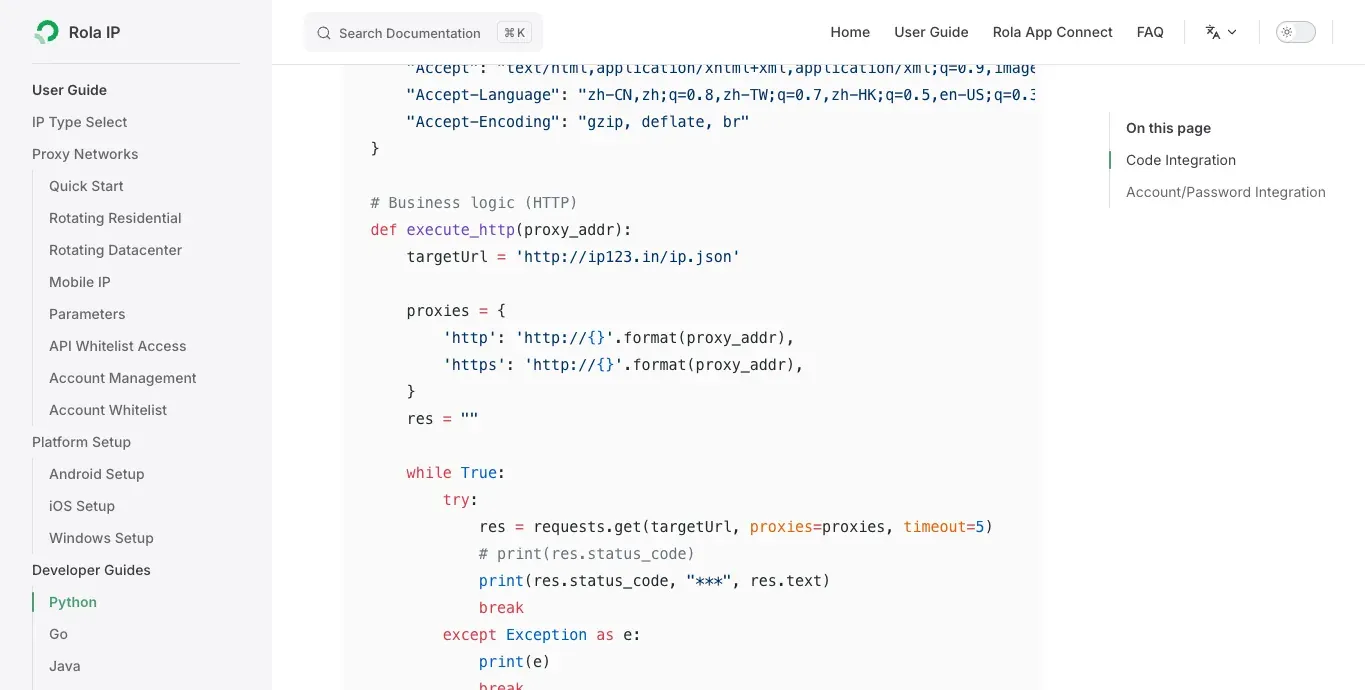
Step 2: Verify the Exit IP Before Checking the Target Page
The script checks that all four proxy variables are provided. Without Rola settings, it uses the system network, which may inherit macOS system proxy settings; this must not be described as a direct connection. With all variables set, the script disables environment proxy inheritance and uses the specified Rola endpoint for both the exit-IP service and the target page. Special characters in usernames and passwords are encoded, and output includes only a masked IP range—not credentials.
The following run took place on November 10, 2026, without Rola credentials. The target page returned HTTP 200, the title FCIK-IISER KOLKATA, five links, and no h1 elements. This only demonstrates that the system network reached the example page at that time; it does not demonstrate a successful Rola proxy connection.
{
  "route": "system route (no Rola proxy configured)",
  "exit_ip_network_masked": "156.246.88.0/24",
  "exit_country": "JP",
  "status": 200,
  "title": "FCIK-IISER KOLKATA",
  "h1": [],
  "links": 5
}
Step 3: Inspect Responses and Failure Conditions
The script retrieves exit information before accessing the target URL. If only some of the four settings are present, it quits. A 407 response prompts an authentication check; 403 or 429 causes it to stop and display Retry-After when available. Timeouts and connection failures are reported separately. Unexpected redirects, non-HTML responses, CAPTCHA pages, and login pages are not counted as target content. HTTP 200 indicates a response, but you must still verify the final URL, page title, and content fields.
Step 4: Run the Complete Script
The complete script is shown below and saved as google_sites_check.py in the archive. Run python google_sites_check.py to see the current system-network result. To test a specified proxy, first set all four ROLA_PROXY_* environment variables from your dashboard, then run the script and inspect route, the masked exit-IP network, and target-page results. Do not expose credentials in shared terminals or screenshots.
"""Check one public Google Site and report the actual network exit."""

import ipaddress
import json
import os
from urllib.parse import quote, urlparse

import requests
from bs4 import BeautifulSoup


TARGET_URL = os.getenv("GOOGLE_SITE_URL", "https://sites.google.com/view/steegle/")
IP_CHECK_URL = "https://ipinfo.io/json"
PROXY_KEYS = ("ROLA_PROXY_HOST", "ROLA_PROXY_PORT", "ROLA_PROXY_USER", "ROLA_PROXY_PASS")


def mask_ip(value):
    address = ipaddress.ip_address(value)
    prefix = 24 if address.version == 4 else 64
    return str(ipaddress.ip_network(f"{address}/{prefix}", strict=False))


def proxy_settings():
    present = [bool(os.getenv(key)) for key in PROXY_KEYS]
    if any(present) and not all(present):
        raise SystemExit("Incomplete proxy settings: provide all four ROLA_PROXY_* variables")
    if not all(present):
        return None

    host = os.environ["ROLA_PROXY_HOST"]
    port = os.environ["ROLA_PROXY_PORT"]
    if not port.isdigit():
        raise SystemExit("ROLA_PROXY_PORT must contain digits only")
    user = quote(os.environ["ROLA_PROXY_USER"], safe="")
    password = quote(os.environ["ROLA_PROXY_PASS"], safe="")
    proxy_url = f"http://{user}:{password}@{host}:{port}"
    return {"http": proxy_url, "https": proxy_url}


def get(session, url, proxies):
    try:
        return session.get(url, proxies=proxies, timeout=(10, 20), allow_redirects=True)
    except requests.exceptions.ProxyError as error:
        detail = str(error)
        if "407" in detail:
            raise SystemExit("HTTP 407: verify proxy credentials, allowlist and account status")
        raise SystemExit("Proxy connection failed; check protocol, host, port and credentials")
    except requests.exceptions.Timeout:
        raise SystemExit("Request timed out; check the proxy route and target availability")
    except requests.exceptions.ConnectionError:
        raise SystemExit("Connection failed; check the network, host and port")


def main():
    proxies = proxy_settings()
    session = requests.Session()
    session.trust_env = not bool(proxies)
    session.headers.update({"User-Agent": "SiteQA/1.0 (authorized public-page check)"})

    exit_response = get(session, IP_CHECK_URL, proxies)
    if exit_response.status_code == 407:
        raise SystemExit("HTTP 407 from exit-IP check: verify proxy authentication")
    if exit_response.status_code == 429:
        raise SystemExit(f"Exit-IP check HTTP 429; Retry-After={exit_response.headers.get('Retry-After', 'not provided')}")
    exit_response.raise_for_status()
    exit_data = exit_response.json()
    if not exit_data.get("ip"):
        raise SystemExit("Exit-IP service returned no IP address")

    response = get(session, TARGET_URL, proxies)
    if response.status_code == 407:
        raise SystemExit("HTTP 407: verify proxy authentication")
    if response.status_code in (403, 429):
        retry_after = response.headers.get("Retry-After", "not provided")
        raise SystemExit(f"HTTP {response.status_code}: stop and review access; Retry-After={retry_after}")
    response.raise_for_status()
    expected_host = urlparse(TARGET_URL).hostname
    actual_host = urlparse(response.url).hostname
    if actual_host != expected_host:
        raise SystemExit(f"Unexpected redirect to {actual_host}; expected {expected_host}")
    if "html" not in response.headers.get("Content-Type", "").lower():
        raise SystemExit("Target did not return HTML")

    soup = BeautifulSoup(response.text, "html.parser")
    title = soup.title.get_text(" ", strip=True) if soup.title else None
    if title and any(term in title.lower() for term in ("captcha", "unusual traffic", "sign in")):
        raise SystemExit("Challenge or sign-in page returned; do not treat it as target content")

    result = {
        "route": "Rola proxy" if proxies else "system route (no Rola proxy configured)",
        "exit_ip_network_masked": mask_ip(exit_data["ip"]),
        "exit_country": exit_data.get("country"),
        "url": response.url,
        "status": response.status_code,
        "title": title,
        "h1": [node.get_text(" ", strip=True) for node in soup.select("h1")],
        "links": len(soup.select("a[href]")),
    }
    print(json.dumps(result, ensure_ascii=False, indent=2))


if __name__ == "__main__":
    main()
Troubleshoot Common Problems by Error Layer
| Symptom | First check | Next step |
|---|---|---|
| 407 Proxy Authentication Required | Proxy authentication: username, password, allowlist, or account status | Copy settings again from the dashboard; see Rola’s 407 guide. |
| Connection timeout or refusal | Proxy host, port, protocol, and local network | Check the exit IP first, then visit the Google Site. |
| 403, 429, or CAPTCHA | Target-site limits, permissions, request rate, and account state | Stop retrying, record the response, and review permitted access. |
| Unexpected redirect, non-HTML response, or sign-in page | Final URL, site permissions, and returned content | Do not interpret HTTP 200 as successful target-content retrieval; verify the title. |
| Page loads but is not found in search | Publication, sharing, and search-engine visibility | Check official Google Sites settings instead of switching IP addresses. |
For HTTP 407 errors, consult Rola IP’s proxy authentication troubleshooting guide. For Google’s unusual-traffic message, see Rola IP’s explanation of Google unusual traffic. These issues arise at different stages, so record the actual status code and page content before troubleshooting.
Estimate Costs and Risks Before Choosing a Proxy
Test candidate exit networks using the same public target and time window. Record request counts, successful pages, average response time, valid session length, and reasons for failure. When comparing prices, verify whether billing is based on bandwidth or IPs, minimum purchase requirements, traffic expiration, charges for failures and retries, and your budget cutoff. Calculate success rates from your own authorized tests; do not treat a provider’s IP pool size as a Google Sites pass rate.
Conclusion
First confirm Google Sites publishing and sharing permissions, then choose Rola IP rotating residential or static residential proxies based on the task. Start with a single public page and one target region. Record the exit network, response, and costs before scaling up. A proxy cannot guarantee rankings, indexing, or successful access.