
Proxy Connection Refused: How to Fix It in Firefox and Chrome

Sep 20, 2026 · Troubleshooting · 16 min read
A proxy connection refused error usually means a connection attempt to the configured proxy was actively rejected. Common causes include an incorrect port, a stopped local proxy client, or a network rule rejecting the connection. The request may fail before it reaches the website.
This guide is for developers and SEO teams troubleshooting browser access, scheduled SEO checks, or authorized data collection through a proxy. Start by identifying the failing address and checking whether a service is listening there. The steps below explain the Firefox and Chrome messages and show how to verify both direct proxy access and local forwarding with Rola IP.
For browser settings, jump to Firefox or Chrome. For an unknown cause, follow the diagnostic sequence below.
Quick Answer
To fix a refused proxy connection, confirm the configured host, port, and protocol, check that the proxy service or local forwarding client is running, and test the port from the same device that runs the application. If TCP connects, move on to proxy authentication and browser configuration.
Choose the first check that matches your situation:
| Your situation | What to do first |
|---|---|
The proxy address is 127.0.0.1 or localhost |
Start the intended local proxy client, then confirm that its assigned port is listening. |
| You use a remote proxy hostname or IP | Compare the host and port with the issued details, then test TCP access from the affected device. |
| Only Firefox fails | Open Firefox’s connection settings and check its proxy mode, endpoint, and controlling extension. |
Chrome shows ERR_PROXY_CONNECTION_FAILED |
Check the effective proxy hostname and TCP port, then inspect any extension or PAC script selecting that endpoint. |
| The command-line proxy test works but the browser fails | Compare the browser’s protocol, authentication, and bypass rules with the working test. |
| You do not recognize the configured proxy | On a managed device, ask the administrator to confirm it. On a personal device, identify the app or extension that set it before changing the route. |
Keep these distinctions in mind:
- A refused TCP connection is different from an HTTP
407authentication response. - A timeout indicates that the connection did not complete within the deadline; it does not prove an active refusal.
- Chrome’s
ERR_CONNECTION_REFUSEDcan concern a website or local development server, not just a proxy. - Changing the exit IP does not repair a stopped local listener or an incorrect gateway port.
What Does Proxy Connection Refused Mean?
A proxy sits between your application and the destination. There are at least two connections to consider: the application connects to the proxy, and the proxy connects onward to the website.
A connection refused error normally indicates that a connection attempt was actively rejected, often because no service was listening on the requested address and port. A host or network security device can also reject the attempt. The error alone does not identify which device issued the rejection.
For example, a browser might still point to 127.0.0.1:8870 after its local proxy client has closed. The browser is now trying to contact a port on its own machine where the expected service may no longer be running.
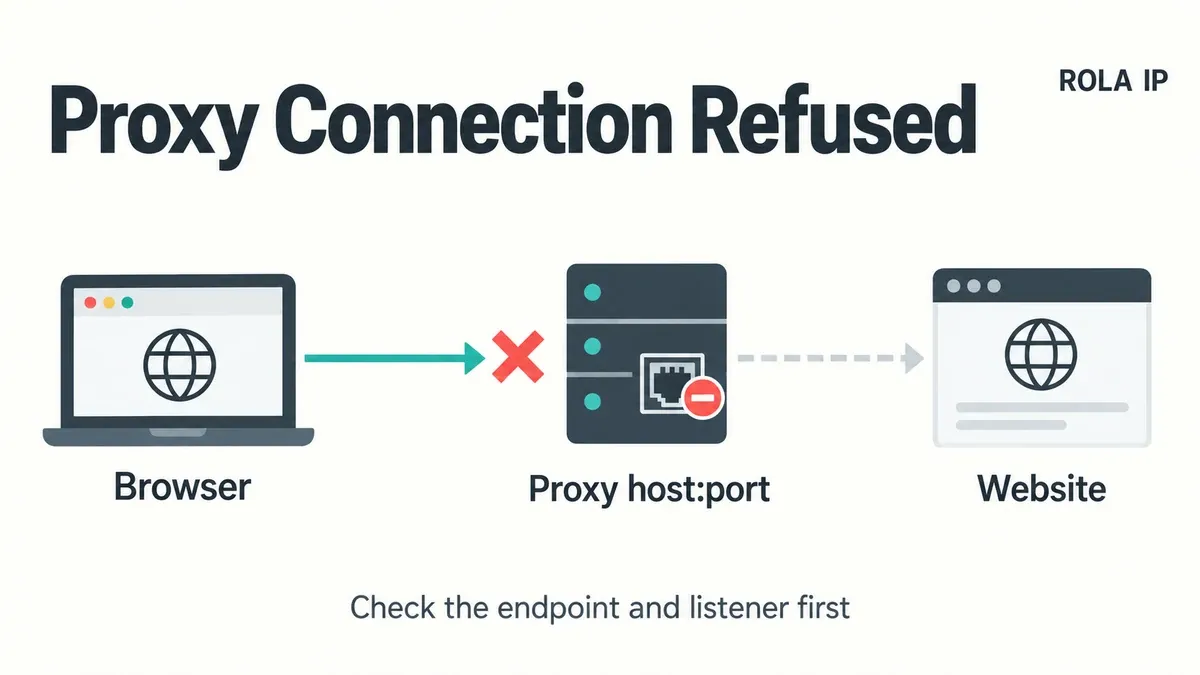
The cover illustration separates the client-to-proxy connection from the proxy-to-website connection. If the application reaches the proxy but the proxy cannot reach the destination, you may instead see an HTTP gateway response, a tunnel error, or a SOCKS reply. Read the full message and the failing endpoint before choosing a fix.
Compare the Error Messages
Similar browser pages can represent different failure stages. Use the message to choose the next test, rather than treating every failed request as a bad proxy IP.
| Message or result | What it indicates | First check |
|---|---|---|
| Firefox: “The proxy server is refusing connections” | Firefox is attempting to use a proxy and cannot complete the expected connection | Active proxy settings and the configured listener |
ERR_CONNECTION_REFUSED |
A connection attempt was refused | The destination of the failed request and its actual route |
net::ERR_CONNECTION_REFUSED |
The network error as reported for a browser request, often in developer tools | Failed request URL, hostname, and port |
ERR_PROXY_CONNECTION_FAILED |
Chromium could not resolve or connect to the proxy | Proxy DNS resolution and gateway reachability |
HTTP 407 Proxy Authentication Required |
An HTTP proxy is responding and requires acceptable authentication | Credentials and supported authentication method |
ERR_TUNNEL_CONNECTION_FAILED |
The proxy tunnel could not be established | Proxy response and destination access |
| Connection timeout | No successful connection before the deadline | Routing, filtering, reachability, and latency |
Chromium defines connection refusal, proxy connection failure, and tunnel failure separately in its network error definitions. A successful TCP test only establishes that something accepted the connection; it does not verify the entire proxy workflow.
Common Causes
| Cause | Typical clue | What to correct |
|---|---|---|
| Incorrect host or port | Settings differ from the issued connection details | Copy the current endpoint from the provider or local client |
| Local client is stopped | The proxy address is 127.0.0.1 or localhost |
Start the client and confirm its forwarding entry |
| Proxy service is not listening | A server or local port has no active listener | Start or repair the service you administer |
| Wrong bind address | A service listens on one interface or address family only | Align the client address with the intended listener |
| Active network rejection | Results change between approved networks | Investigate the specific outbound rule or route |
| Stale browser, extension, or PAC setting | Only one browser or profile fails | Identify which setting controls the request |
| Container or VM address mismatch | Host tests pass but the application still fails | Test from the application’s own network environment |
A protocol mismatch belongs in the next stage if TCP already connects. Sending TLS to a plain HTTP proxy port, for example, can cause a handshake failure or reset. Similarly, invalid credentials commonly produce an authentication response rather than a raw TCP refusal.
How to Fix Proxy Connection Refused
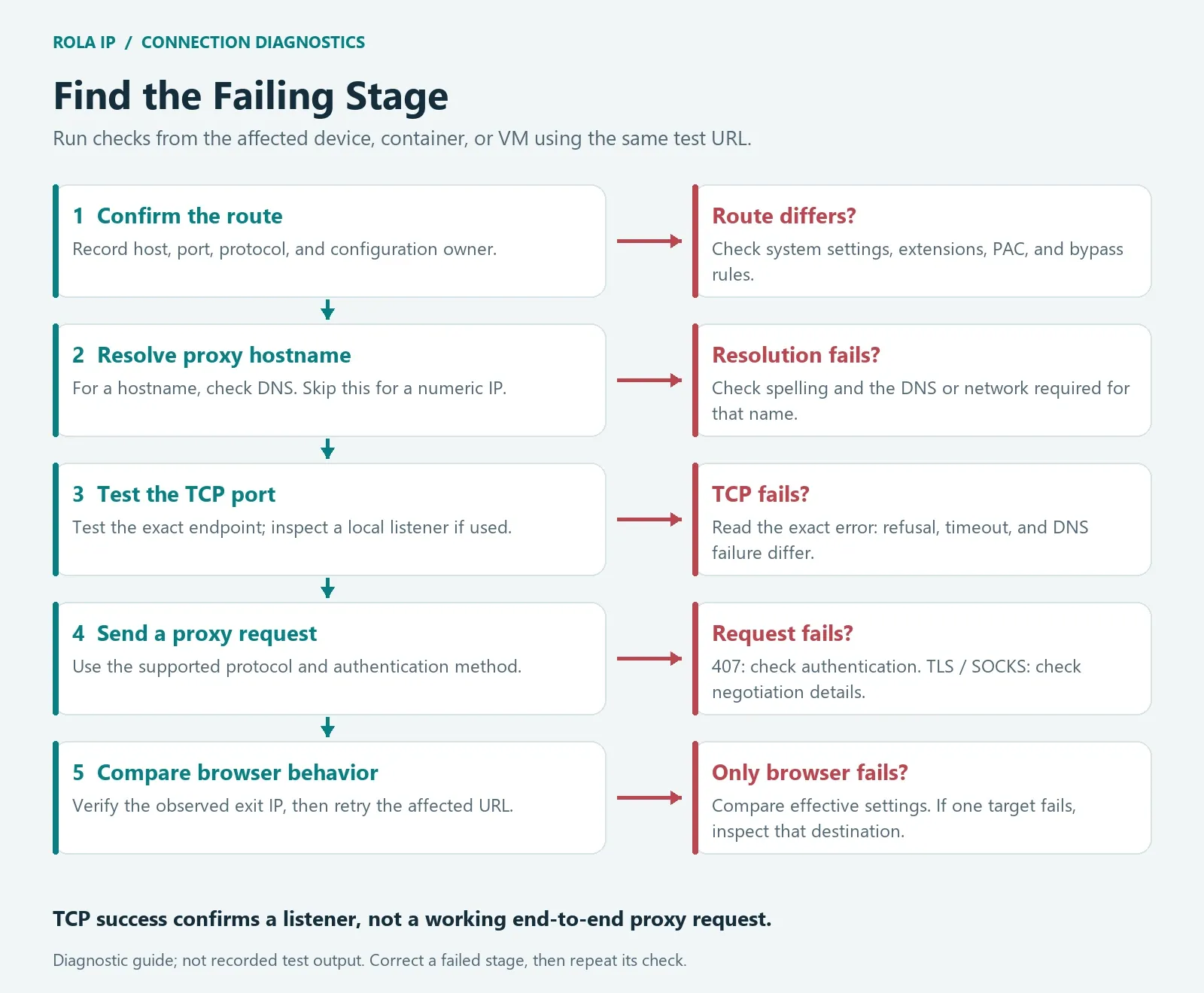
Follow the sequence below with one endpoint and one test URL. Have the issued connection details and a terminal available; these instructions cover desktop Windows, macOS, and Linux tools, with browser menu paths for Windows and macOS. Change one setting at a time so you can tell which change restored the connection.
1. Identify the Proxy the Application Actually Uses
Check the application’s proxy fields, operating-system configuration, proxy extension, and any automatic configuration script. For scripts, check supported proxy environment variables and their lowercase variants, such as http_proxy, HTTPS_PROXY, ALL_PROXY, and NO_PROXY. Support and precedence vary by client; curl, for example, accepts http_proxy but deliberately ignores uppercase HTTP_PROXY.
Write down the effective configuration without recording the password:
| Setting | What to record |
|---|---|
| Host | Issued proxy hostname, extracted IP, or local forwarding address |
| Port | Exact port assigned to that connection |
| Protocol | HTTP, HTTPS-to-proxy, or SOCKS5 as supported by the endpoint |
| Authentication | Username/password, approved source-IP access, or local forwarding |
| Configuration owner | Application, system setting, extension, or PAC script |
Do not put a dashboard URL in the proxy host field. If the application separates host and port, enter them separately. 127.0.0.1 refers to the application’s own machine or network namespace; it does not refer to Rola IP’s remote gateway.
2. Check Proxy DNS and Test the Exact TCP Port
Run this test on the device that has the problem. Replace the placeholder host and port with the values you actually configured.
If the proxy address is a hostname and the error mentions name resolution, check that hostname first. On Windows, use:
Resolve-DnsName YOUR_PROXY_HOST
On macOS or Linux, where nslookup is installed:
nslookup YOUR_PROXY_HOST
Use the proxy hostname only, without a scheme, path, or port. Skip this DNS check for a numeric proxy IP. If resolution fails, check spelling and the DNS service used by the affected environment. Corporate proxy names may require the organization’s network or VPN; changing to a public resolver is not a universal fix. These commands check the system’s DNS path, which may differ from an application’s resolver. A successful lookup does not prove the proxy port is reachable.
On Windows, use PowerShell:
$proxyHost = "YOUR_PROXY_HOST"
$proxyPort = 12345  # Replace with your issued numeric port.
Test-NetConnection -ComputerName $proxyHost -Port $proxyPort
Look at TcpTestSucceeded, not only the ping result. A server can ignore ICMP ping while accepting TCP connections. Microsoft’s Test-NetConnection documentation describes the TCP diagnostic output.
TcpTestSucceeded: True means the TCP connection succeeded. TcpTestSucceeded: False means the test failed, but does not by itself distinguish an active refusal from a timeout or another connection problem. Use the application’s exact error and additional diagnostic output to identify the failure.
On macOS with the built-in nc, use -G to limit the TCP connection attempt:
nc -vz -G 5 YOUR_PROXY_HOST YOUR_PROXY_PORT
On Linux with an nc implementation that supports -w:
nc -vz -w 5 YOUR_PROXY_HOST YOUR_PROXY_PORT
Replace YOUR_PROXY_PORT with the numeric port. Netcat options differ across implementations; check nc -h if an option is rejected.
Interpret explicit messages from the tool or application carefully; wording varies by operating system and nc version:
- Success: continue with an actual proxy request.
- Refused: recheck the address, listening service, and possible active rejection.
- Timed out: investigate routing and filtering; this result alone is not a refusal.
- Name resolution failed: check the hostname and DNS before testing authentication.
If a hostname has both IPv4 and IPv6 addresses, note which address failed. Different results between address families can explain why one client works and another does not.
3. Check the Local Listener or Service
For a local proxy, confirm that the program is running and has opened the expected port. These examples use port 8870 only as an illustration; substitute the port shown in your client.
Windows:
Get-NetTCPConnection -State Listen -LocalPort 8870
macOS:
lsof -nP -iTCP:8870 -sTCP:LISTEN
Linux:
ss -ltn
Match both the local address and port in the output. 127.0.0.1:8870 is an IPv4 loopback listener; [::1]:8870 is an IPv6 loopback listener. A client using the other address family may fail even when the port number matches. If no matching listener appears, review the client’s startup status and logs. If another process owns the port, correct the conflict in the relevant application’s settings.
A loopback listener is local to its network environment. Inside a container or VM, 127.0.0.1 points to that container or VM, not automatically to the host. Use a host address or forwarding arrangement supported by that environment; do not expose a proxy on every network interface just to make the test pass.
For a provider-managed remote gateway, you cannot inspect its process list. Compare your endpoint with the issued details, test from another approved network when appropriate, and give support the time and TCP result if it remains unreachable.
4. Test the Proxy Protocol and Authentication
Once TCP connects, test an HTTP request through the proxy outside the browser. This separates browser configuration from proxy protocol behavior.
For a username/password HTTP proxy, create a private local file named proxy-check.conf using the issued details:
proxy = "http://YOUR_PROXY_HOST:YOUR_PROXY_PORT"
proxy-user = "YOUR_PROXY_USERNAME:YOUR_PROXY_PASSWORD"
noproxy = ""
connect-timeout = 10
max-time = 25
silent
show-error
The configuration file stores credentials in plain text. Restrict it to your account, keep it outside source control, and remove it when testing is complete. If a value contains quotes or backslashes, follow curl’s configuration-file escaping rules. From the directory containing the file, run:
curl --disable --config proxy-check.conf "https://api.ipify.org?format=json"
On Windows, use curl.exe in place of curl to avoid a PowerShell alias. The first option ignores the default curl configuration; the explicit file supplies the test settings. Empty noproxy prevents a bypass list from turning this proxy test into a direct request.
For an issued SOCKS5 endpoint, change the proxy scheme to socks5h://. That requests destination-name resolution through the SOCKS proxy. For a local forward or an approved credential-free endpoint, omit proxy-user according to its connection instructions. See the curl manual for these options and credential handling.
The ipify endpoint returns the public IP observed by that service. Verify that the result matches the intended route; it is not a general test of every target website.
A successful response contains an ip field. Confirm that the address belongs to the expected proxy route; rotating services may return different exits across requests. If you receive an error page or no JSON response, use the error details below rather than treating the presence of any response as success.
For the HTTPS test above through an HTTP proxy, curl first asks the proxy to establish a CONNECT tunnel. An HTTP 407 response may appear as curl: (56) CONNECT tunnel failed, response 407; this is illustrative wording, not a recorded test. The proxy responded but did not establish the tunnel. Check credentials and the supported authentication method. Error 56 alone does not identify an authentication problem.
If the result is a TLS or SOCKS negotiation failure, check the protocol and client support. An HTTPS destination does not automatically require an https:// proxy endpoint: a supported HTTP proxy can tunnel an HTTPS request using CONNECT.
5. Check Access Rules and Conflicting Settings
If access is restricted by source IP, confirm the public outbound IP of the machine running the application. A VPN, cloud runner, or different network can change that address. A private LAN address such as 192.168.x.x is generally not the public address observed by a remote gateway.
Review the specific firewall or network rule affecting the proxy host and port. Keep required security controls in place and correct the relevant rule with the network administrator when necessary.
Also check whether two programs are competing to manage the system proxy. A local proxy client may set one address while a browser extension or VPN writes another. Choose the intended configuration owner and retest that route.
A PAC script can send one URL through a proxy and another directly. Browser bypass lists and, for clients that support it, NO_PROXY can also exclude destinations. Compare applications using the same test URL: an internal dashboard working directly does not prove that an external request selected a reachable proxy. Check the rule for the failing URL before changing a shared PAC script or bypass list.
6. Compare Browser and Command-Line Results
When the command-line test works but a browser still fails, compare their effective host, port, protocol, authentication method, and bypass rules. A working command does not prove the browser used the same connection.
For example, a scheduled SEO check may fail on a cloud runner even though the same URL opens through a proxy on your laptop. Run the TCP and proxy-request tests on the runner, then compare its proxy settings and public outbound IP with the allowed source IP. A successful laptop test does not verify the runner’s route.
Use the comparison to choose the next action:
| Result | Next action |
|---|---|
| Browser and terminal cannot reach the same proxy endpoint | Investigate the listener, endpoint details, and network path. |
| Terminal proxy request succeeds; browser fails | Compare the effective protocol, authentication, PAC selection, and bypass rules. |
| IP check succeeds; one target fails | Inspect the target’s response and the proxy’s onward connection. |
Request returns HTTP 403 |
Identify whether the proxy or destination rejected access, then check the relevant access policy. |
Request returns HTTP 429 |
Identify which service applied the rate limit, reduce request frequency and concurrency, and follow its retry instructions. |
An HTTP 429 Too Many Requests response is different from a raw TCP refusal. Pause requests to the service that issued it. If the response includes Retry-After, wait for the specified number of seconds or until the specified HTTP date before retrying. If the header is absent, follow the service’s documented retry policy; otherwise, use increasing delays with a small random variation and set a maximum attempt count and total retry time. Stop when either limit is reached or rate limiting persists. Do not rotate IPs to evade the limit. After the wait, send a single verification request before gradually resuming work at a lower rate.
The fix is verified when the affected application can complete its intended request through the required route. Recheck its observed exit IP where applicable and restore any proxy settings changed only for diagnosis.
Curl error 7 means it could not connect to the host or proxy; it is not a diagnosis of the underlying cause by itself. Error 5 concerns proxy-name resolution, and error 28 means the operation timed out. These are documented in the libcurl error reference.
Firefox: The Proxy Is Refusing Connections
Firefox may display “The proxy server is refusing connections.” Check its effective proxy configuration before changing the website URL. Mozilla identifies this message as a proxy-related connection problem in its website loading troubleshooting guide.
Check Firefox’s Active Proxy Mode
- Open the Firefox menu and select Settings.
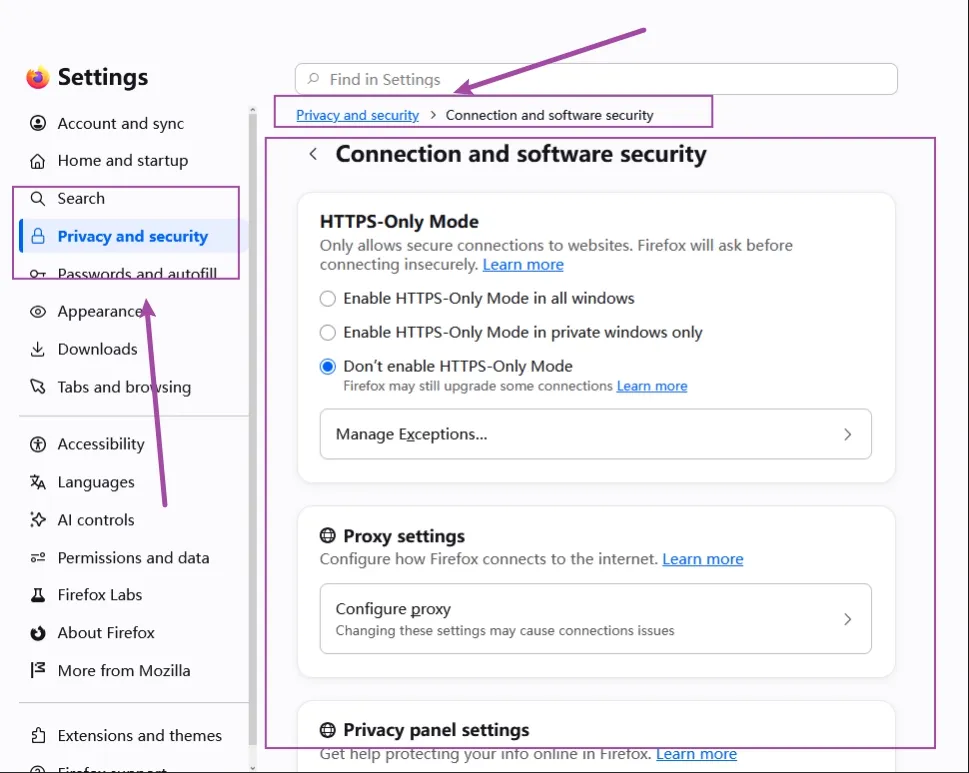
- In the layout shown below, select Privacy and security, open Connection and software security, then find Proxy settings and select Configure proxy. If your installed version uses a different layout, search Settings for proxy and open the matching configuration control.
- Note the selected proxy mode and any configured host, port, or automatic configuration URL before editing them.
- Use the table below to check that mode, save any correction with OK, and reload the affected page.
| Mode | What to verify |
|---|---|
| No proxy | Appropriate only when you intend and are permitted to connect directly |
| Use system proxy settings | The operating system points to the intended working endpoint |
| Manual proxy configuration | Host, port, protocol fields, and HTTPS routing match your endpoint |
| Automatic proxy configuration URL | The PAC script is current and selects a reachable proxy for the URL |
For manual configuration, use the HTTP fields for an HTTP proxy and the SOCKS fields for SOCKS. Select the supported SOCKS version. Check HTTPS routing separately when HTTP pages work but HTTPS pages fail. Firefox can also show which extension controls its connection settings. Consult Mozilla’s connection settings documentation for your version.
Check the Endpoint Behind That Mode
If the address is 127.0.0.1 or localhost, open the proxy client you intended to use and compare its active forwarding port with Firefox’s port. Correct a mismatch and keep the client running while browsing. If a direct HTTP proxy requests authentication, enter the proxy credentials through the supported authentication flow, not in the hostname field.
Firefox’s built-in manual SOCKS settings do not provide username/password fields for SOCKS authentication. A SOCKS5 endpoint that works with credentials in curl therefore may not work through that settings dialog. This limitation concerns the built-in manual settings dialog; extensions and external clients can provide different authentication capabilities. Check whether the chosen tool explicitly supports your endpoint’s authentication method.
For an endpoint that requires SOCKS5 username/password authentication, use a compatible client that authenticates upstream and exposes a local forwarding port. Configure Firefox with that client’s local address, assigned port, and supported protocol. Rola Connect’s local forwarding mode, described below, lets the application connect without entering the remote proxy credentials; keep the client running while using that route.
If you do not recognize the proxy, check whether Firefox identifies an extension controlling the setting. On a managed device, have the administrator confirm or correct the endpoint. On a personal device where you have confirmed that no proxy is required, select No proxy, save, and retry. If this is only a diagnostic comparison, restore the intended proxy mode before resuming proxy-dependent work.
Chrome: Proxy Connection Failed vs. Connection Refused
Chrome’s ERR_PROXY_CONNECTION_FAILED points to a failure resolving or connecting to the selected proxy. ERR_CONNECTION_REFUSED reports a refused connection whose endpoint and route still need to be identified. ERR_TUNNEL_CONNECTION_FAILED means tunnel establishment failed; inspect the proxy response rather than assuming its TCP port is closed.
The terms err_connection_refused and net::err_connection_refused refer to the same Chromium error family. The net:: form commonly appears beside a failed request in developer tools; it does not establish that the proxy is the failing component.
How to Fix ERR_PROXY_CONNECTION_FAILED
- Find the effective proxy. Use the settings paths below and note any extension, PAC script, or policy controlling the route. Record the host and port selected for the failing URL.
- Check hostname resolution and TCP access. Follow step 2 above on the affected device. For a local proxy, inspect its listener in step 3; for a remote proxy, compare the endpoint with the issued details.
- If TCP succeeds, make the proxy request in step 4. Investigate any protocol, authentication, or tunnel response before changing unrelated browser settings.
- If the proxy request works, compare Chrome’s route. Check its protocol, bypass rules, extension configuration, and PAC selection. Correct the controlling setting and reload the same URL.
Open Chrome’s Proxy Settings
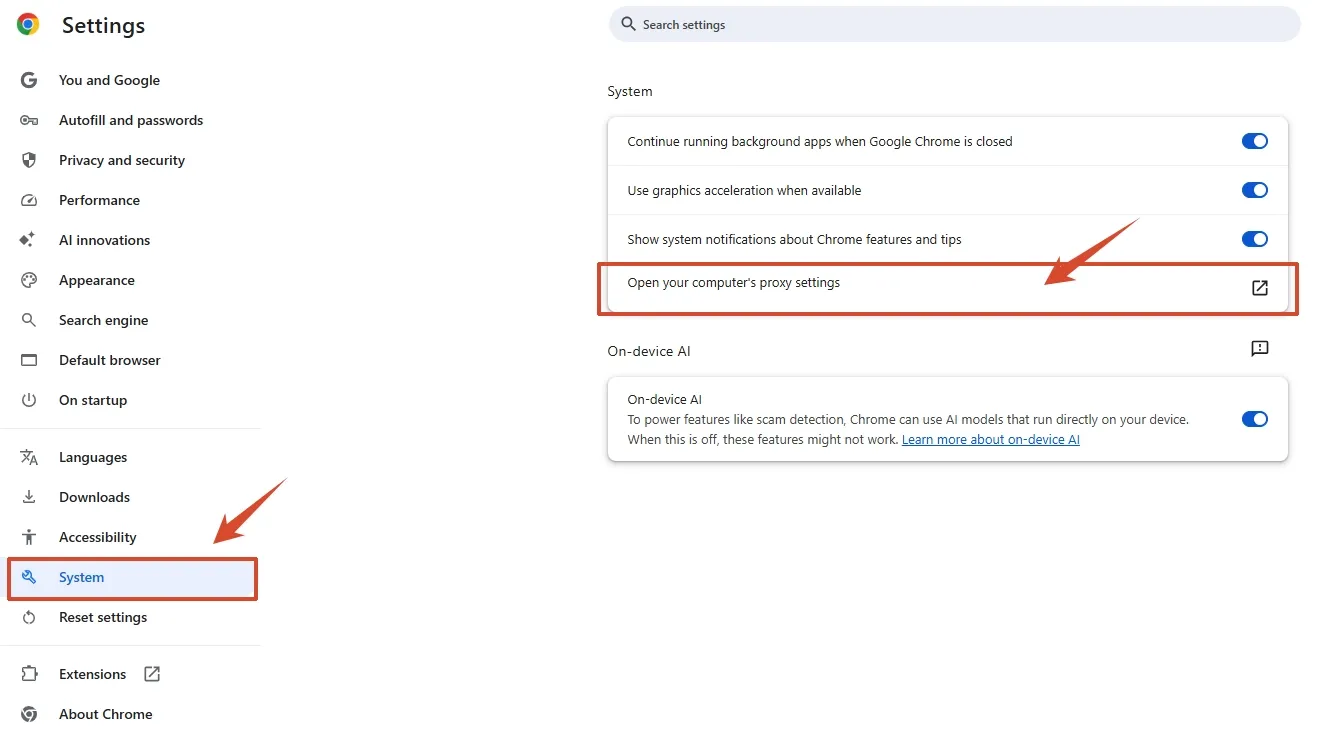
On Windows or macOS, open Chrome menu > Settings > System > Open your computer’s proxy settings. You can also enter chrome://settings/system in the address bar. This opens the operating system’s settings rather than a separate Chrome proxy form. Menu labels vary by version.
| Operating system | Where to inspect the configuration |
|---|---|
| Windows 11 | Settings > Network & internet > Proxy. Check both the setup script and manual proxy sections; select Edit for the relevant entry. |
| Windows 10 | Settings > Network & Internet > Proxy. Review the automatic setup and manual proxy fields. |
| Recent macOS versions | System Settings > Network > active connection > Details > Proxies. Check the enabled protocol, server, and port. |
For a local address such as 127.0.0.1, start the intended proxy client and compare its listening port with the configured port. If the proxy is unfamiliar, identify its owner before editing it. On a personal device where that proxy is no longer needed, disable the obsolete manual proxy or setup script and save the change. System changes can affect other applications too; ask the administrator to correct managed settings.
If Chrome still uses a different route, open chrome://extensions to inspect proxy-related extensions and chrome://policy to check applied policies. Have the owner correct any controlling configuration. A custom Chrome launcher can also supply proxy flags that differ from the system settings.
Check Whether the Failed Request Uses the Proxy
Open developer tools, select the Network panel, and reload the affected page. Inspect the failed request’s URL and port. A page can load successfully while a separate API request to a stopped local server fails.
The request URL identifies the destination, not necessarily the proxy selected for it. If a PAC script or policy makes the route unclear, an administrator can capture a Chrome network log through chrome://net-export/ while reproducing one failure and inspect proxy selection. Such logs can contain sensitive browsing details; share them only through an approved support channel after review.
For example, a refused request to http://localhost:3000/api/products may mean a development backend is not running. Changing a remote proxy password will not start that service. Confirm whether the request is routed directly or through a proxy before attributing the failure.
If only one host or port fails, compare that destination with a known working request before changing the browser-wide configuration. Chromium’s proxy documentation explains how proxy selection and connection failures are handled.
Clearing cookies is not a first-line repair for a closed TCP port. Similarly, a DNS change cannot start a stopped listener, although a genuine hostname-resolution problem needs its own DNS investigation.
Verify Your Rola IP Connection
Choose the section that matches your Rola IP access mode, then use the TCP and request tests above to verify it.
Direct Gateway or Extracted Endpoint
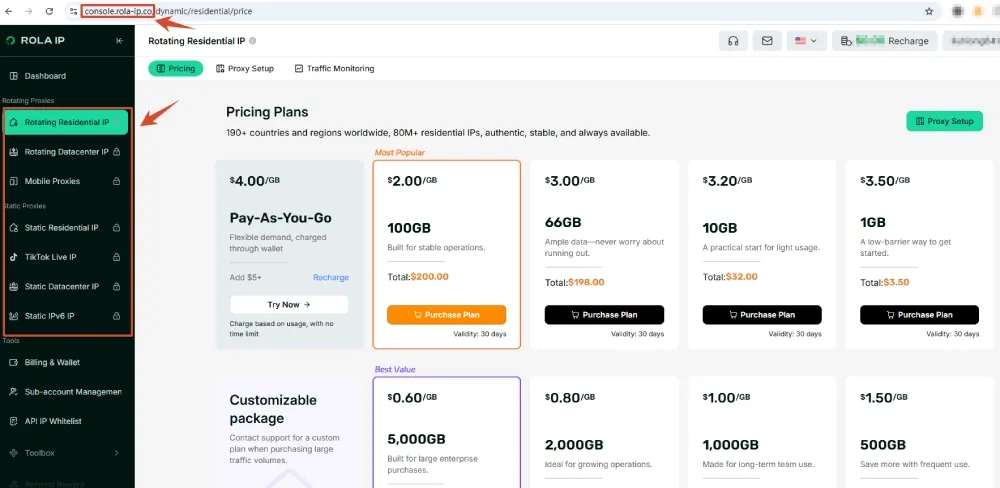
Open the Rola IP console and select your product, such as residential proxies. Copy the issued host, port, protocol, and any required credentials.
Distinguish username/password access from API whitelist access, which uses extracted endpoints. If an account whitelist also restricts credential use, confirm the application’s public outbound IP is allowed. Test one IP-check request before adding location or session requirements.
Rola Connect Local Port Forwarding
When using Rola Connect Port Forward, the application connects to the local address and port shown in the forwarding list. The documented local forward supports HTTP and SOCKS5 and does not require the third-party application to enter the remote proxy credentials.
Keep Rola Connect running and use the assigned port from its forwarding list. If that port accepts TCP but the IP check fails, inspect the client’s upstream connection and logs.
Rola Connect System Proxy
Enable the intended System Proxy entry, then verify the observed public IP in the affected browser. This mode applies to applications that follow the operating-system proxy settings; independently configured applications need their own route checked.
Send Support a Useful Diagnostic Record
If the connection still fails, send a short diagnostic record through the support channel on the Rola IP website:
Time and time zone:
Operating system / application version:
Product and access mode:
Proxy host / port / protocol (no credentials):
Exact error:
Proxy DNS result, if applicable:
TCP test result:
Proxy IP-check result:
Affected scope: all destinations or one target
Recent configuration or network change:
Redact passwords, authorization headers, tokens, and sensitive URL parameters before sharing the record or logs.