
WhatsApp Not Receiving a Verification Code 2026 Troubleshooting Guide

Oct 12, 2026 · Troubleshooting · 9 min read
TL;DR
If WhatsApp is not receiving a verification code, confirm your country code and phone number, check whether the SIM can receive ordinary texts and calls, and follow the waiting period shown in the app. Use email or voice verification only when the current screen offers it. A VPN or proxy may affect the app’s data connection, but changing your public IP cannot repair an inactive SIM or carrier SMS delivery. Investigate proxy settings only when diagnosing the app’s network connection.
First, Identify Which Verification Code Is Missing
When switching to a new phone, reinstalling WhatsApp, or signing in to WhatsApp Business, it can be frustrating to watch the countdown begin while the verification text never arrives. Repeatedly tapping Resend while the app is still waiting may only extend the time before your next attempt.
The phrase “whatsapp not receiving verification code” can describe three distinct issues: an SMS that never reaches your phone number, a voice verification call that never connects, or an email code that does not arrive when the app offers email verification. First check which channel your current screen requires, then troubleshoot that channel. A countdown alone does not show whether WhatsApp actually sent a message, much less prove that your IP address was blocked.
Why Is WhatsApp Not Sending or Delivering the Verification Code?
1. Carrier and Device Issues
An incorrect phone number or country code, a deactivated SIM, weak reception, the wrong line selected on a dual-SIM device, roaming restrictions, or a carrier blocking international or short-code messages can all disrupt delivery. A phone’s Unknown Senders filter may place a text in a different list. Do Not Disturb generally silences notifications; it does not necessarily mean the SMS was never received.
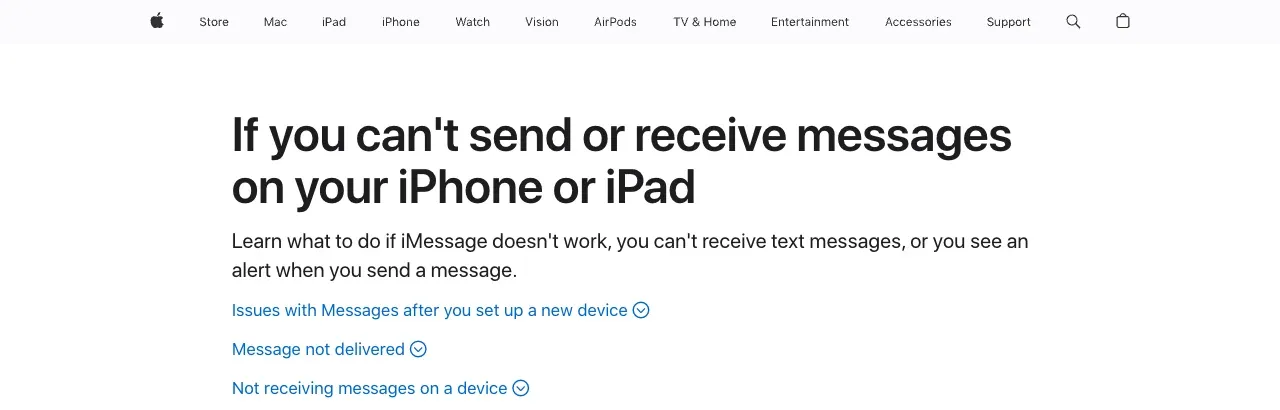
On an iPhone, first verify that the number can receive an ordinary text. Apple’s guide to troubleshooting text message sending and receiving recommends checking whether the cellular line is enabled, the selected SIM or line, and carrier service. If regular SMS messages also fail, contact your carrier first.
2. Network and Account Restrictions
VPNs, public Wi-Fi, and proxy settings can make the app’s connection unstable. Requesting many codes in quick succession may also trigger a waiting period. You can temporarily turn off your VPN and test again using your usual cellular data or home connection. However, SMS arrives through your mobile carrier’s network. Changing your public IP does not fix a suspended line, an incorrect country code, or carrier-level blocking.
There is currently no verifiable official WhatsApp statement establishing that a low “IP Trust Score” silently stops every OTP from being sent. Nor can you infer from the countdown that the server failed to dispatch an SMS. If the app tells you to wait, honor the displayed waiting period rather than trying to probe restrictions by repeatedly changing numbers or networks.
What If You Are Not Receiving a WhatsApp Email Verification Code?
If you searched for “whatsapp email verification code not received,” first confirm that the WhatsApp screen you are using actually offers email verification. That option is not available in every registration or device-transfer flow. Entering an arbitrary email address does not automatically replace verification by phone number.
- Check the email address for typos. Search your inbox, spam, promotions, and All Mail folders, and check whether mailbox storage or filtering rules are blocking the message.
- Use Resend or an alternative verification channel only if it is available on the current app screen. Do not follow sign-in links in unexpected emails.
- If the email code does not arrive but your phone can receive SMS, switch methods only as the app allows. If every channel fails, record the error message and waiting time before contacting official support.
Email delays may arise from mailbox filtering, sender-side restrictions, or account status; they cannot automatically be attributed to your IP address. For business accounts, administrators should also check whether the corporate email gateway has quarantined automated messages.
How to Fix WhatsApp Not Receiving a Verification Code: Step-by-Step
Step 1: Check Your Number and Verification Channel
On the WhatsApp number-entry screen, verify the selected country code and your complete phone number. If the country code is already selected separately, do not enter it again in the number field. Confirm that the SIM or eSIM can receive regular SMS messages and incoming calls. On a dual-SIM phone, verify that the number you are registering belongs to an enabled line. If you receive multiple codes, enter only the valid code associated with your most recent request.
Step 2: Check iPhone Settings
For readers asking “how to fix whatsapp verification code not received on iphone,” start in Settings → Cellular and check the line you intend to use. In the Messages app, inspect any Unknown Senders or filtered-message lists. Restart the phone, update WhatsApp and iOS, and test once using mobile data. If ordinary SMS messages also cannot get through, ask your carrier to investigate incoming text delivery.
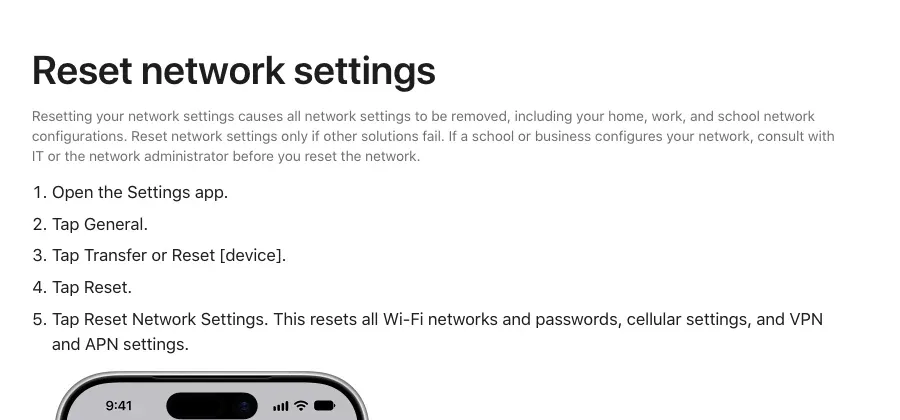
Only if you have identified a network-configuration problem and the previous steps did not help should you consider Settings → General → Transfer or Reset iPhone → Reset → Reset Network Settings. This clears saved Wi-Fi networks, VPN configurations, and certain cellular settings; make a note of passwords and any company-managed configuration first.
Apple’s network settings reset instructions present this as an option after other steps have failed. It is not the first thing to do when a WhatsApp verification text is missing.
Step 3: Stop Repeated Resends and Try Voice Verification If Offered
Do not repeatedly request another code before the countdown ends. If your screen offers Call Me or a similar option, confirm that call blocking is off and that your line can receive calls, then follow the app’s instructions. Whether and when voice verification is available depends on the account and the screen you are seeing; it is not guaranteed for every user.
Important: A missing code or a countdown does not, by itself, identify the cause. Do not immediately assume your IP address is blocked. Separately check your number, carrier signal and incoming SMS, the app’s instructions, and the data connection. If WhatsApp instructs you to wait, follow that requirement instead of repeatedly requesting new codes.
Step 4: Troubleshoot VPNs, Proxies, and Network Switching
Temporarily turn off a free shared VPN or an unreliable proxy, then make one comparison using your usual mobile data connection and another using your home internet connection. This tests the connection between the WhatsApp app and its servers. If regular SMS delivery is broken, your carrier still needs to address that issue. Users of iCloud Private Relay should also note that Apple describes this feature as primarily protecting Safari browsing traffic; it should not be treated as a universal cause of WhatsApp app verification failures.
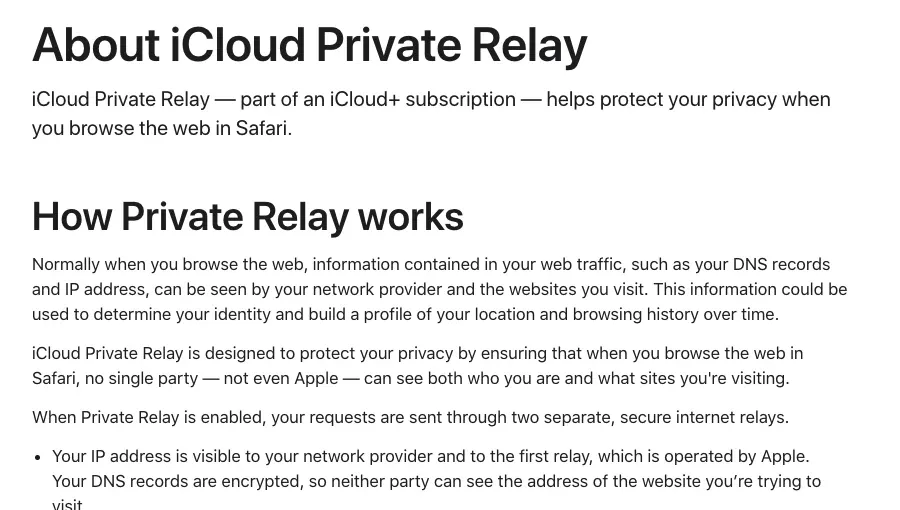
If you previously configured a proxy for a specific Wi-Fi network on your iPhone, use Rola IP’s iPhone proxy settings guide to find Configure Proxy and temporarily select Off. If you use a third-party proxy client, disconnect the VPN or proxy connection inside that client as well. Record your original settings before testing and decide afterward whether they need to be restored.
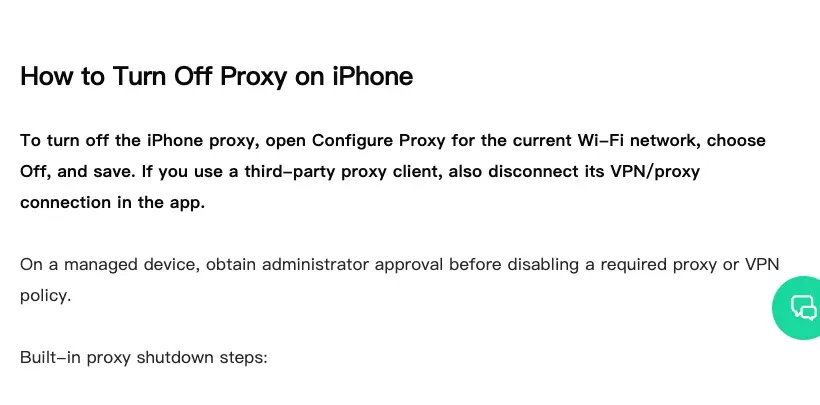
For the scope of Private Relay, see Apple’s official feature explanation.
Step 5: Contact Your Carrier or WhatsApp Support If Nothing Arrives
Record the time of the incident, the country code, your carrier, whether ordinary SMS messages arrive, whether calls connect, the app’s error message, and the countdown shown. If regular texts fail as well, contact your carrier first. If only WhatsApp verification fails, use the app’s built-in Help option or WhatsApp’s official Help Center to submit the issue. Never share your verification code with anyone.
Can a Proxy Fix WhatsApp Not Receiving a Verification Code?
A proxy cannot guarantee that a WhatsApp verification code will be delivered successfully.
A proxy can change the route or exit IP address for network traffic configured to pass through it. It cannot correct an incorrectly entered phone number, reactivate a SIM card, or repair carrier-side SMS routing problems.
Authorized business teams already using proxies can compare the app’s network connectivity with the proxy enabled and disabled.
Even if a proxy connection test passes, that does not demonstrate that WhatsApp actually used that proxy connection, and it certainly does not prove that an SMS verification code was delivered.
What Role Can Rola IP Play in Troubleshooting WhatsApp Verification Issues?
When WhatsApp verification codes do not arrive, first check the phone number, SIM status, carrier SMS service, and device connectivity. For individual users, verification with a number you legitimately control and a normal cellular connection should be the starting point.
Rola IP primarily helps authorized business teams manage connections and outbound IP addresses—not directly fix verification-code delivery. For example, it can support cross-region web testing, workflows that need a consistent session exit IP, or diagnostics for an existing proxy connection.
During troubleshooting, a business team can check the proxy hostname, port, protocol, and authentication settings, then test connectivity through the application that actually uses the proxy. An IP address displayed in a browser does not necessarily represent WhatsApp’s actual network exit.
If a business needs a stable outbound IP, Rola IP’s product documentation can help it evaluate session persistence and fixed-IP options.
Proxy services cannot fix a disabled SIM, an incorrectly entered phone number, or carrier SMS routing failures. They also cannot guarantee successful WhatsApp registration or OTP delivery.
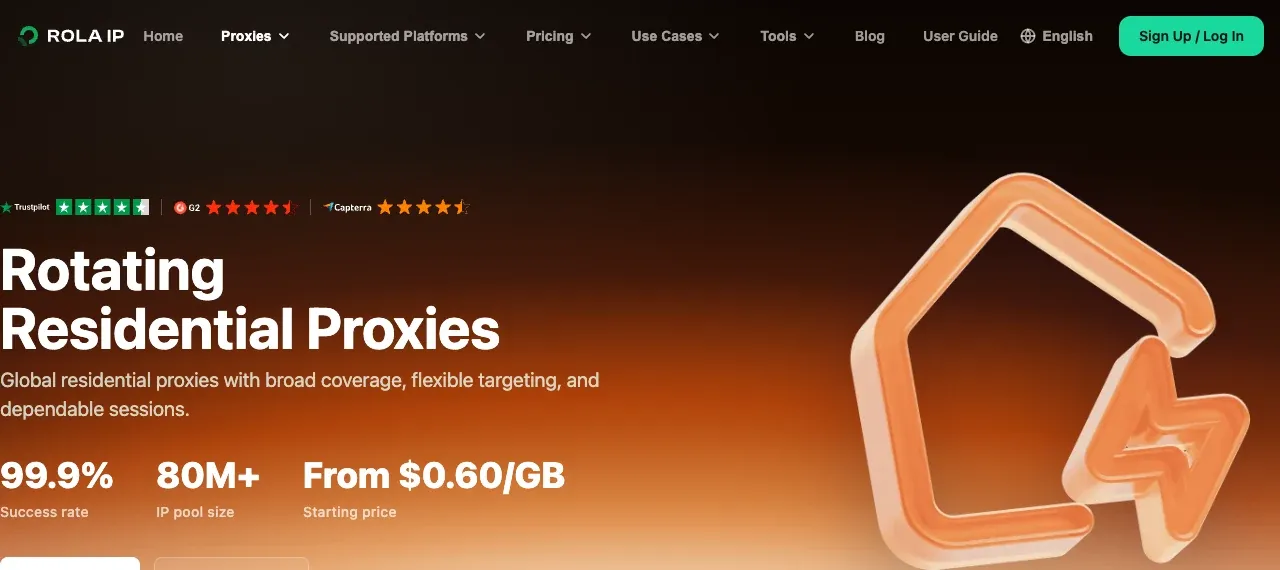
Rotating Residential Proxies for Region-Specific Connection Management
Rola IP’s rotating residential proxy product information lists 80M+ residential IPs, coverage across 190+ countries and regions, geographic selection, and sticky-session options. Teams that genuinely need to test web-page availability in different regions can select the target region and maintain an appropriate session duration for each task. Do not treat IP rotation as a way to remove WhatsApp registration restrictions.
When choosing a rotating network, consider the task duration and actual traffic. Per-request rotation is suitable for independent public-page checks. For continuous sign-in or multistep business workflows, keeping the same session often makes problems easier to reproduce. Available regions and cities should be checked against Rola IP’s current product listings.
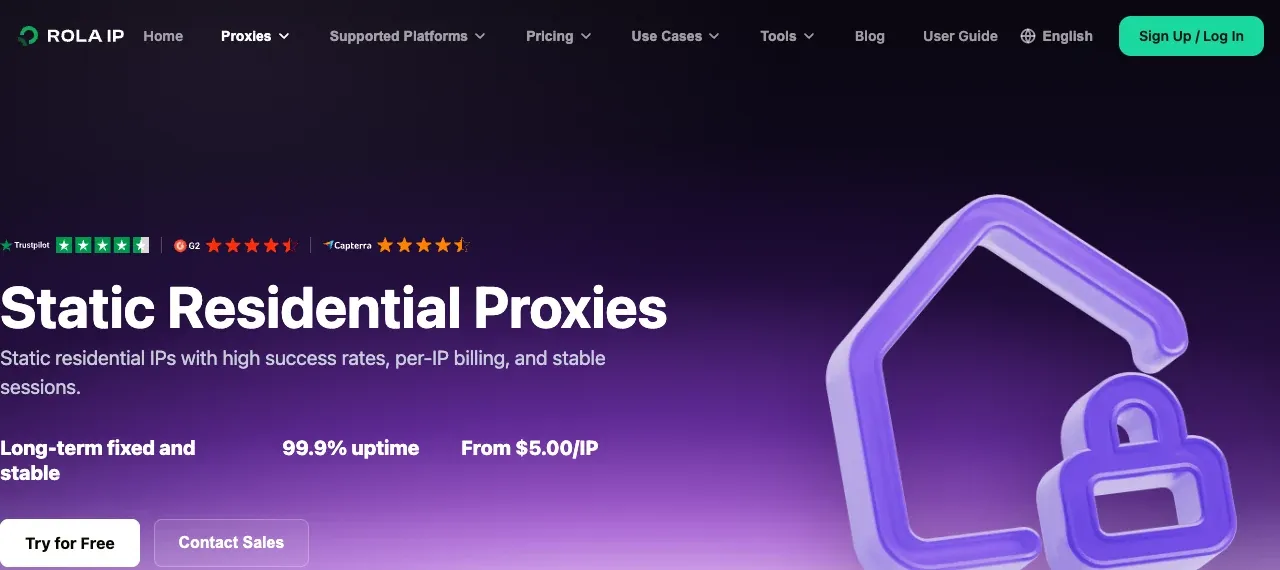
Static Residential IPs for Business Sessions Requiring a Consistent Source
When an authorized business system needs to use the same outbound address over an extended period, static residential IPs offer a fixed IP and longer-lived sessions. The product materials also describe dedicated resources, unlimited traffic during the validity period, and HTTP/SOCKS5 connectivity. These features can support web-based management and testing from a consistent source; they do not mean WhatsApp will necessarily approve a registration or send a code.
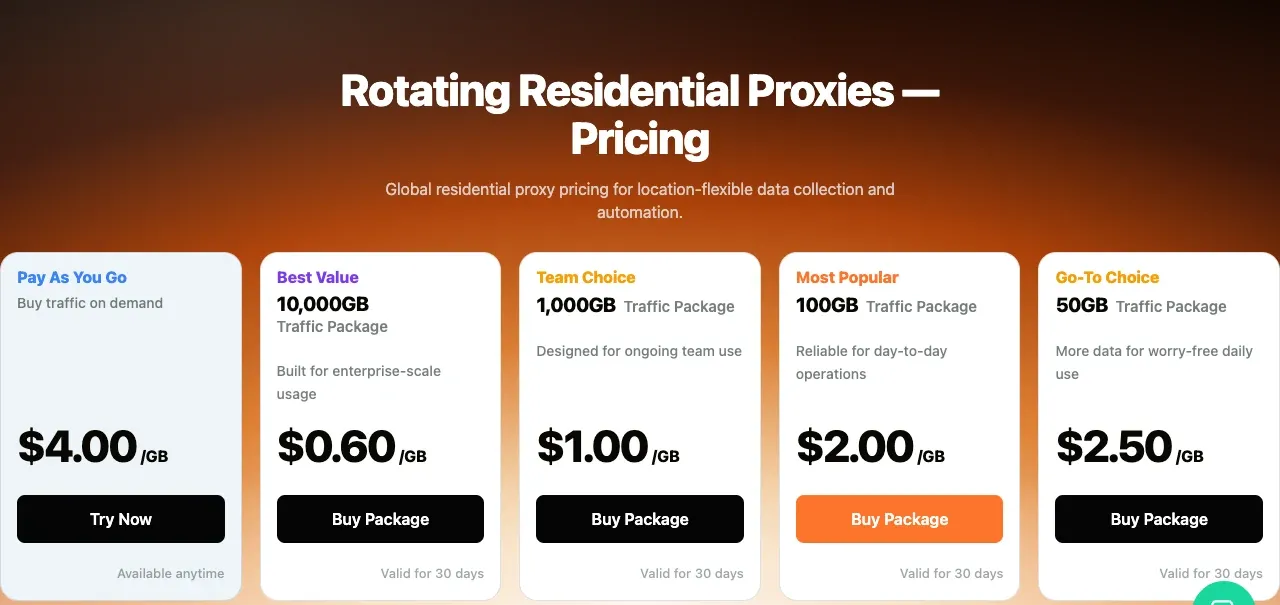
Pricing structures differ. Rotating residential services are typically selected by traffic allowance, whereas static residential services are usually selected by IP and validity period. Before purchasing, businesses should check concurrency requirements, country or city availability, authentication, and which application traffic will actually use the connection.
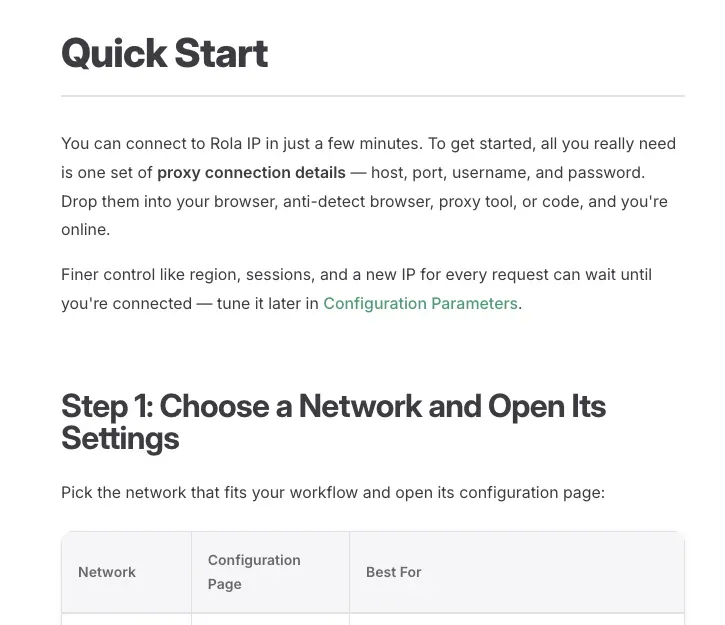
Configure First, Then Verify the Actual Network Path
Rola IP’s Quick Start documentation identifies the basic connection details as host, port, username, and password. Once access is provided, establish a connection in an authorized browser or tool and then test connectivity and the outbound region. For more detailed setup instructions, refer to the residential proxy setup guide.
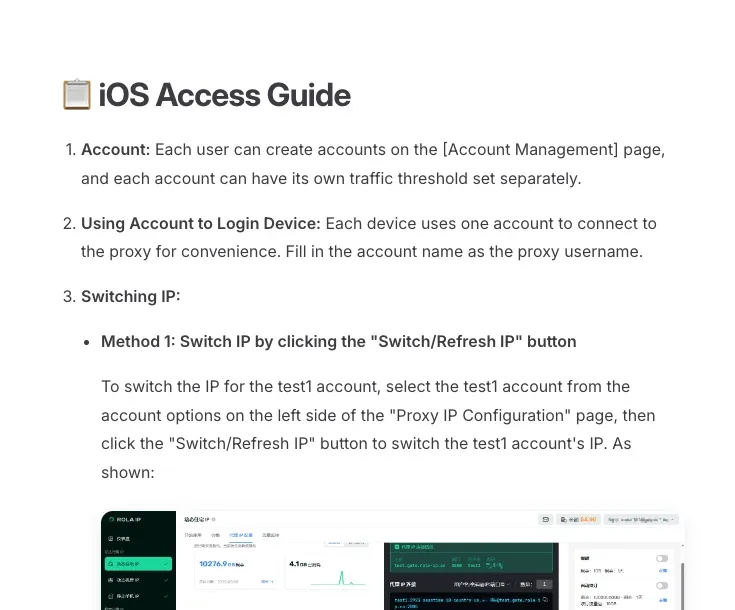
On an iPhone, the iOS access guide explains account and client configuration. Verify on the device whether your proxy covers the current Wi-Fi network, traffic from a proxy app, or cellular data. Merely entering a proxy in Wi-Fi settings does not prove that every WhatsApp app request is routed through that exit.
Once connected, use Rola IP’s proxy checker to inspect proxy connectivity, protocol, and exit location. Such a check describes the network connection; it is not proof of WhatsApp OTP delivery. The rotating residential pricing page and static residential pricing page can help compare billing models. Refer to the live website for current prices.
Good Practices for Managing WhatsApp Business Accounts
- Make sure each business phone number is managed by team members authorized to use it, and preserve recovery methods and administrator permissions.
- Avoid repeated registrations, repeated code requests, or frequent device switching in a short period. If the app displays a waiting period, follow it.
- Use official WhatsApp Business tools and accurate business information. Do not attempt to evade restrictions by spoofing browser fingerprints, registering accounts in bulk, or repeatedly changing numbers.
There is no verifiable universal official requirement that a new account must retain the same IP address for 24–48 hours. Keeping a consistent connection can be useful when stability matters, but a particular duration should not be presented as a guarantee of account safety.
Conclusion
Troubleshoot missing WhatsApp verification codes in this order: confirm the phone number and verification channel; check the SIM, mobile carrier, and iPhone settings; respect the countdown; and then investigate the app’s network connection. Follow an email-verification procedure only if the app actually offers that option. IP addresses and proxies are network factors that may be diagnosed, but they cannot substitute for SMS delivery or account verification.
For authorized business use cases that require stable residential network access, review Rola IP’s products and pricing and choose a connection method based on the application’s actual traffic requirements.