
Perplexity Not Working? Troubleshoot Browser, Network, and Proxy Errors

Oct 26, 2026 · Troubleshooting · 9 min read
If Perplexity is not working, check the official Perplexity status page, then isolate browser or app, account, and network issues. If it works without a proxy but fails through one, verify the endpoint, protocol, authentication, exit route, and routing scope. Rola IP may support permitted routing diagnostics; it cannot repair a Perplexity outage or restore account access.
A blank page, missing Pro features, a 407 Proxy Authentication Required response, and an API 429 are different failures. Record the exact symptom and which service returned it before choosing a fix.
Quick Checks
- Check the official status page for the affected service.
- Test another browser profile, or restart and update the app.
- Compare permitted network paths while keeping the device and account unchanged.
- If a proxy is enabled, verify its configuration and exit before testing Perplexity.
- Record the exact error, make one change, and repeat the same action.
Why Is Perplexity Not Working? Start With the Symptom
“Perplexity AI not working” can describe several unrelated problems. Use the first visible signal to choose the right branch.
| What you see | Layer to check first | First test |
|---|---|---|
| Status page reports an incident | Perplexity service | Wait and monitor the official page |
| Blank page, frozen buttons, endless spinner | Browser cache, extension, or app state | Clean browser profile or another browser |
| Cloudflare verification keeps repeating | Browser or network path | Disable VPN/proxy during diagnosis |
| Works on mobile data but not Wi-Fi | Local network, DNS, filtering, or route | Compare both paths with the same account |
| Pro features or threads disappeared | Account or sign-in state | Verify the exact account on every device |
| Direct or approved control works, proxy fails | Proxy configuration or route | Check protocol, authentication, and exit |
| API or connector request fails | API identity, permission, limit, connector, or transport | Identify the response source and status |
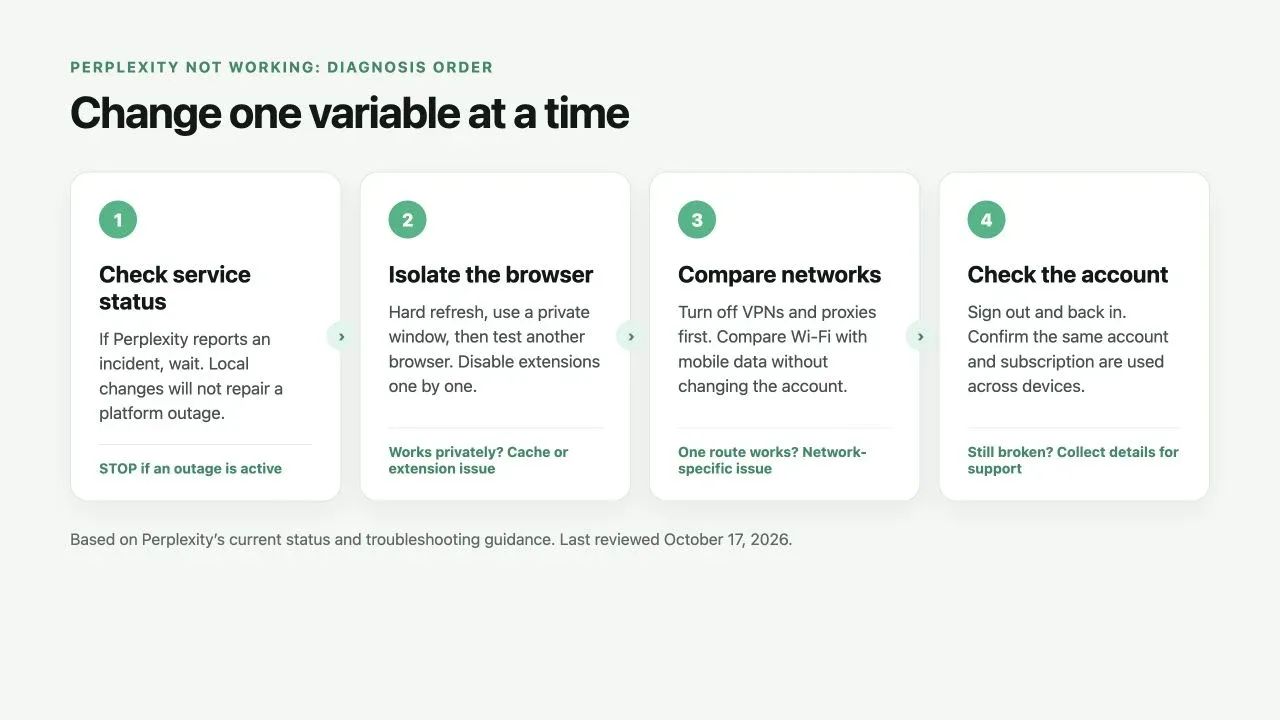
Do not change several settings together. A useful diagnosis changes one variable, repeats the same business action, and records the result.
Check the Service Before Changing Local Settings
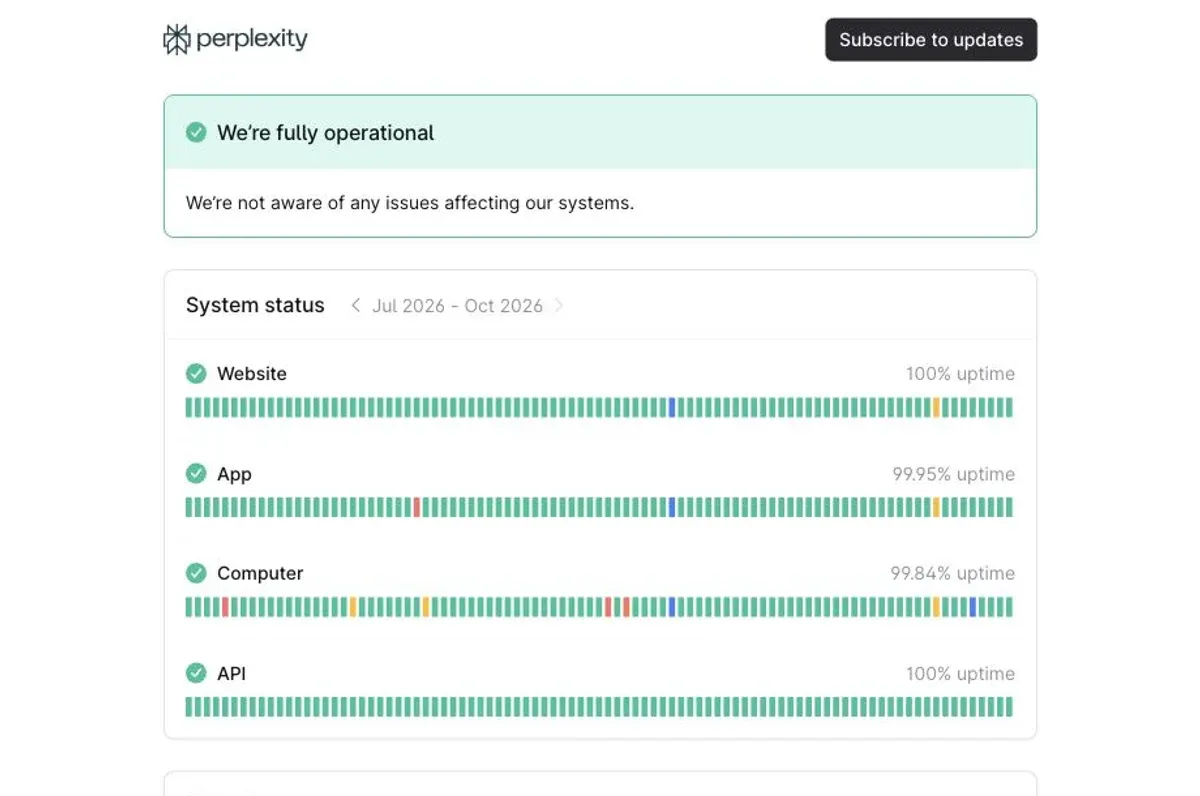
If the status page reports a Website, App, Computer, or API incident, local browser or proxy changes will not repair that component. Wait for an update and avoid repeatedly resending the same request.
A green page is only evidence that Perplexity has not acknowledged a broad incident. It does not prove that your account, browser, network, or connector is healthy. Continue with local isolation when the service is operational but your session still fails.
Fix Browser and App State
Perplexity’s general support guidance recommends a hard refresh: Ctrl + F5 on Windows or Command + Shift + R on macOS. If recovery follows, that result is consistent with a temporary front-end or cached-resource issue, but it does not establish the root cause. Repeat the original action before changing the network.
Next, open Perplexity in a private window or a clean browser profile. If it works there, test extensions one at a time, especially privacy tools, script blockers, ad blockers, and browser-level VPNs. Clear cookies and cached files for perplexity.ai only, then sign in again. Save unsent text before removing site data.
For the mobile or desktop app, force-close it, install available updates, and sign out and back in. Compare the app with the website on the same account and network. If the browser works and the app does not, focus on the app version and local state before reinstalling it.
Stop a Cloudflare Verification Loop
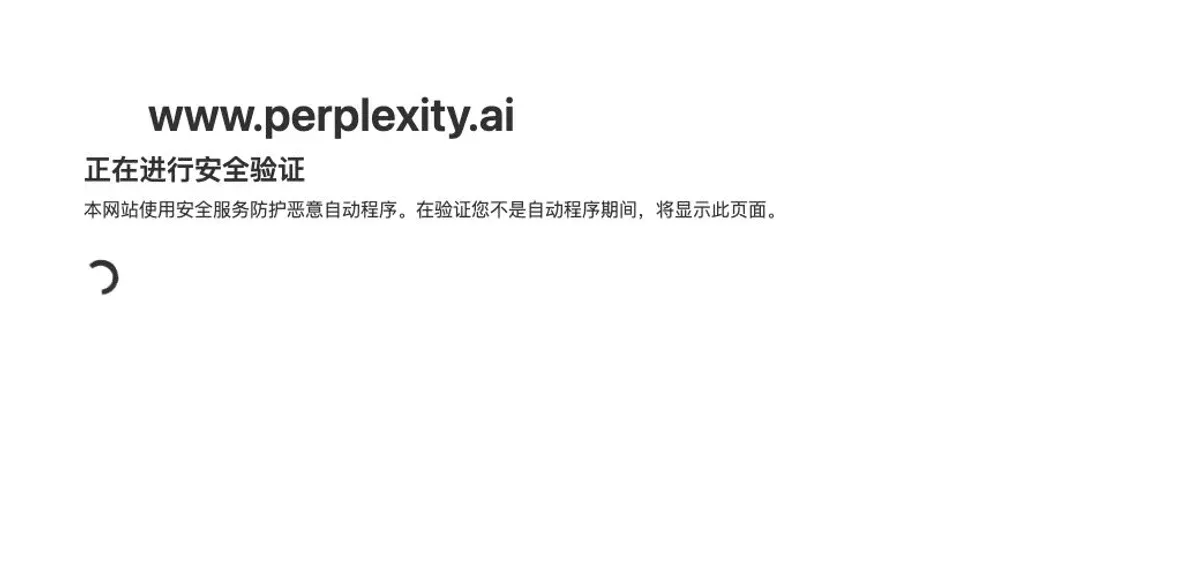
Perplexity uses Cloudflare checks to limit spam and abuse. A challenge screen is not proof that an account or IP has been permanently denied.
Perplexity’s Cloudflare and VPN guidance recommends refreshing, trying another browser, keeping the browser updated, clearing cache and cookies, and disabling VPNs or proxies. Signing in may also reduce the checks shown to anonymous users.
Establish a baseline with an approved, known-good connection. A direct connection is useful only when your organization permits it. On managed networks, use an approved control gateway instead of bypassing policy. Keep the account, device, browser, and test action unchanged while comparing paths.
Compare the Network Without Losing the Control
If policy allows, compare Wi-Fi with mobile data using the same device, browser, and account. Keep VPNs and browser proxies disabled for this baseline.
- If both paths fail, check factors shared by the tests: the device, browser or app, account, device-level proxy settings, security software, and Perplexity itself. Failure on two connections does not completely rule out a network-related cause.
- If one path fails, investigate that network’s DNS, firewall, filtering policy, or upstream route.
- If a work or school path fails, ask the administrator whether Perplexity is restricted.
You can record the visible route with Rola IP’s What Is My IP tool. An IP-check page proves only the exit observed for that request. It does not prove that every Perplexity request used the same route or that Perplexity accepted it.
Restarting a home router or testing an approved DNS resolver may help with a local fault, but treat recovery as an observation rather than proof of the cause. Repeat the same Perplexity action to confirm the outcome.
Check the Account, Pro Status, and Missing Threads
If Pro features or saved threads disappear, confirm that every device uses the exact same account and sign-in method. Perplexity’s account access guidance notes that Apple Relay or Hide My Email may connect a subscription to an address you do not immediately recognize. In this context, Apple Relay refers to an email identity service, not the network-level iCloud Private Relay feature.
For a missing session, check browser history. Perplexity says sessions created while logged out are deleted after 14 days and cannot be recovered. This does not apply to every missing logged-in thread. If the correct account still lacks paid features, contact support rather than repeatedly changing networks.
Why Does Perplexity Work Directly but Fail Through a Proxy?
If Perplexity works on an approved control connection but fails through a proxy, investigate the proxy configuration and route before changing the account or repeatedly switching IPs.
Check the protocol, endpoint, and authentication
Confirm that the client uses the protocol, hostname, and port assigned to the selected product. An HTTPS destination does not automatically require an HTTPS proxy gateway. HTTP, HTTPS-to-proxy, and SOCKS5 labels describe different client-to-proxy behaviors and are not interchangeable.
Check whether the setup uses username/password authentication or a source-IP allowlist. Copy the complete generated username when it includes region or session parameters. Keep passwords and complete proxy URLs out of screenshots, logs, browser history, and support tickets. A 407 response is a proxy authentication signal, not a Perplexity login error. If it appears, use the 407 proxy authentication guide before retesting the destination.
Verify the exit and routing scope
Confirm the exit IP using the same client and proxy profile used for the failed test. For a browser extension, verify that its URL patterns cover the Perplexity requests you intend to route. A browser tab, command-line client, and background connector can inherit different proxy settings.
The FoxyProxy configuration guide shows how to map the generated protocol, host, port, and authentication fields into a browser profile. Use values from the current dashboard rather than examples copied from an article.
Keep the session stable during diagnosis
Use one configured session for a controlled multi-step test. Where supported, a sticky session can reduce exit changes during that test. It does not save browser cookies, guarantee that an IP remains unchanged for a whole window, or make the destination accept the connection.
Do not rotate routes to refresh a verification challenge. For independent, permitted market samples, separate sessions can be appropriate, but each sample should have its own route and evidence record.
Check DNS and the connection phase
No HTTP response means the failure may occur before Perplexity receives the request. A DNS error requires checking the hostname and where resolution occurs. A refused connection points to the gateway address, port, listener, or network policy. A connection timeout calls for route, firewall, and reachability checks. A read timeout can indicate a slow upstream response or an unsuitable client timeout.
Repeat the same business action
After changing one configuration value, repeat the original action. For the website, success means the page loads, the intended interaction completes, and no verification loop returns. For an API, success means the expected structured business response arrives. An HTTP 200 or a successful IP lookup alone is not enough.
What Do 401, 403, 407, 429, and 5xx Mean?
Record which component produced the response. A proxy gateway, connector, and Perplexity endpoint can fail at different layers.
| Signal | What it usually indicates | Next check |
|---|---|---|
| No HTTP response | DNS, TCP, TLS, gateway, firewall, or timeout failure | Inspect the transport phase before changing API credentials |
| 401 from an API | Authentication is missing or not accepted | Check the API key and authentication format without exposing the key |
| 403 | The responding service refuses the operation | Identify the response source, then review permission, policy, or account access |
| 407 | The proxy requires valid authentication | Check endpoint, protocol, credentials, encoding, or source-IP allowlist |
| 429 | The responder reports a rate or usage limit | Read the body, honor Retry-After, and apply bounded backoff where appropriate |
| 5xx | A server or intermediary failed to handle the request | Identify the component, check its status, and use limited retries only when safe |
For Perplexity API limits, consult the current rate limits and usage tiers. The documentation says limiter behavior varies by API, and recommends exponential backoff with jitter for rate-limited traffic. Browser Pro access and API access are separate: a paid web subscription does not by itself prove that an API key, organization permission, credits, or connector configuration is valid.
A failed automation also does not establish a Perplexity outage. Compare the connector with a minimal authorized request for the same API operation. Preserve the request ID and response source, but never print the API key. Do not rotate IPs to evade a 429.
Use Proxy Routing Only for a Defined, Permitted Workflow
For SEO and GEO teams conducting permitted regional answer checks, Rola IP provides a routing option to evaluate alongside the rest of the test setup. Keep the question, account context, model settings, language, timestamp, exit location, and cited domains in each record. A location-specific IP is one variable. It does not guarantee a localized answer or make one result representative of all users in that market.
Rola IP’s Perplexity proxy solution describes regional QA, citation research, and controlled session records. It does not grant permission to access restricted systems, override service limits, or guarantee target acceptance.
This guide is published by Rola IP, a proxy service provider. Proxy routing is discussed as one part of network diagnosis and permitted regional testing, not as a guaranteed fix for Perplexity access problems.
Send Perplexity Support a Reproducible Report
If the status page is healthy and controlled tests do not isolate the issue, contact Perplexity through Help > Contact Support. Its bug report guidance asks for the account email, browser or device version, a detailed description, reproduction steps, and screenshots or video.
For public screenshots, remove email addresses, private session links, request credentials, and other identifiers. In a private official support ticket, provide the account email if Perplexity requests it. Never send an API key, password, cookie, or reusable proxy credential.
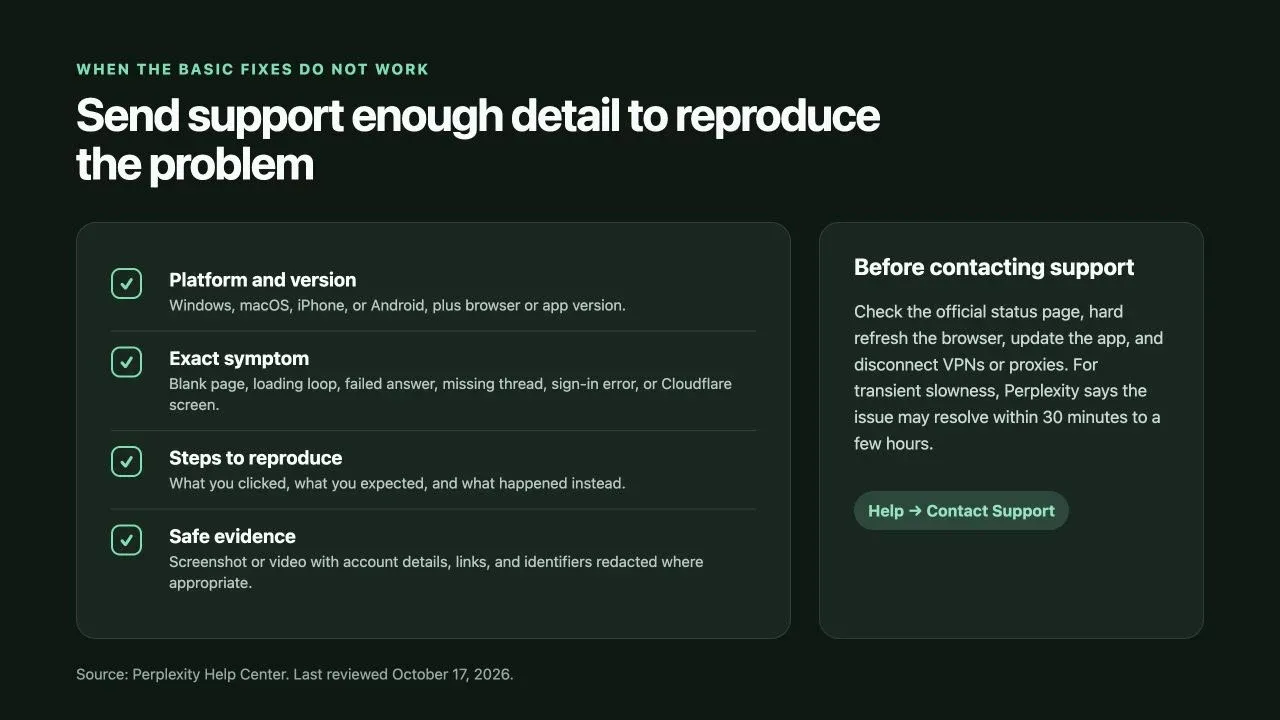
If the problem appears transient, monitor the status page before making more changes. Escalate sooner when data, billing, security, or production impact is involved.