
PAC URL for Wi-Fi: How to Configure, Verify, and Restore Proxy Settings

Nov 13, 2026 · Guides · 14 min read
TL;DR: Use Automatic proxy configuration, Use setup script, or the equivalent Wi-Fi setting when you have a complete PAC URL. Use Manual when you have a proxy Host and Port, plus authentication details if required. After saving, check the exit IP and DNS behavior from the same browser and Wi-Fi network, then test the real HTTPS destination. If the route fails, return the setting to Off or disable the setup script before troubleshooting further.
What is a PAC URL, PAC address, or proxy auto-config URL?
PAC stands for Proxy Auto-Configuration. A PAC file normally contains a FindProxyForURL(url, host) function. A browser or operating system downloads that file and evaluates the function for each request. The result can be a proxy such as PROXY gateway.example:8080, a direct connection such as DIRECT, or a fallback sequence.
That is why a PAC address for Wi-Fi looks like a full web address, for example:
https://network.example.test/proxy/routing.pac
The example is fictional. A PAC URL can end in .pac, but the extension is not mandatory. What matters is that the address serves a valid PAC script to the client. A normal news page, a bare hostname, an IP:port pair, and a complete user:password@host:port string are different values and do not belong in the PAC URL field.
Searches such as proxy auto config URL free, proxy PAC URL free, and URL PAC proxy often combine two different needs: finding a script address and finding an affordable proxy endpoint. Solve them separately. First obtain a trusted PAC URL or create one for a network you manage; then choose an authorized proxy endpoint with documented protocol and authentication support.
PAC URL versus WPAD
WPAD, or Web Proxy Auto-Discovery, is a discovery mechanism. Instead of you pasting a URL, the client looks for proxy configuration supplied by the network, commonly through DHCP option 252 or a DNS name such as wpad.example.test. The discovered resource is often called wpad.dat.
The practical distinction is:
| Setting | What you provide | Typical use |
|---|---|---|
| PAC URL / setup script | A complete script URL | A known administrator or provider endpoint |
| WPAD / automatically detect settings | Usually nothing manually | A managed office, school, or controlled LAN |
| Manual proxy | Host, Port, protocol, and sometimes credentials | A provider-issued gateway or a simple fixed endpoint |
Do not turn on automatic detection on an untrusted network merely because a guide says “use proxy WPAD.” WPAD changes routing based on information supplied by the network. On a home or public Wi-Fi network, use an explicitly trusted PAC URL or a manually configured endpoint instead.
What you need before configuring Wi-Fi
First identify which connection information you actually received.
| Information available | Correct setting |
|---|---|
| Full PAC or setup-script URL | Automatic proxy configuration / Use setup script |
| Network-managed discovery | Automatically detect settings / WPAD |
| Proxy hostname or IP and port | Manual proxy setting |
| Username and password | A client or prompt that supports proxy authentication |
| SOCKS5 endpoint | A compatible proxy client; do not assume the built-in Wi-Fi HTTP field supports it |
For a Rola IP connection, start with the proxy setup guide and copy the generated values for the specific network you selected. Rola’s documented connection details may include a Host, Port, full proxy username, and password. Keep location or session parameters in the generated username when the product supports them; do not replace the proxy password with the password for your Rola account.
The proxy parameters documentation is the right place to confirm which location and session controls apply to a selected network. A PAC file does not automatically translate a provider’s username and password into a login prompt. If the PAC route requires authentication that the operating system cannot supply, use a compatible client or an authorized IP-allowlist method documented by the provider.
Configure a PAC URL on Windows 11
Windows 11 uses the Use setup script section for a PAC URL. The current menu path is:
- Open Settings.
- Select Network & internet, then Proxy.
- Under Automatic proxy setup, select Set up beside Use setup script.
- Turn on Use setup script.
- Paste the complete PAC URL into Script address.
- Select Save.
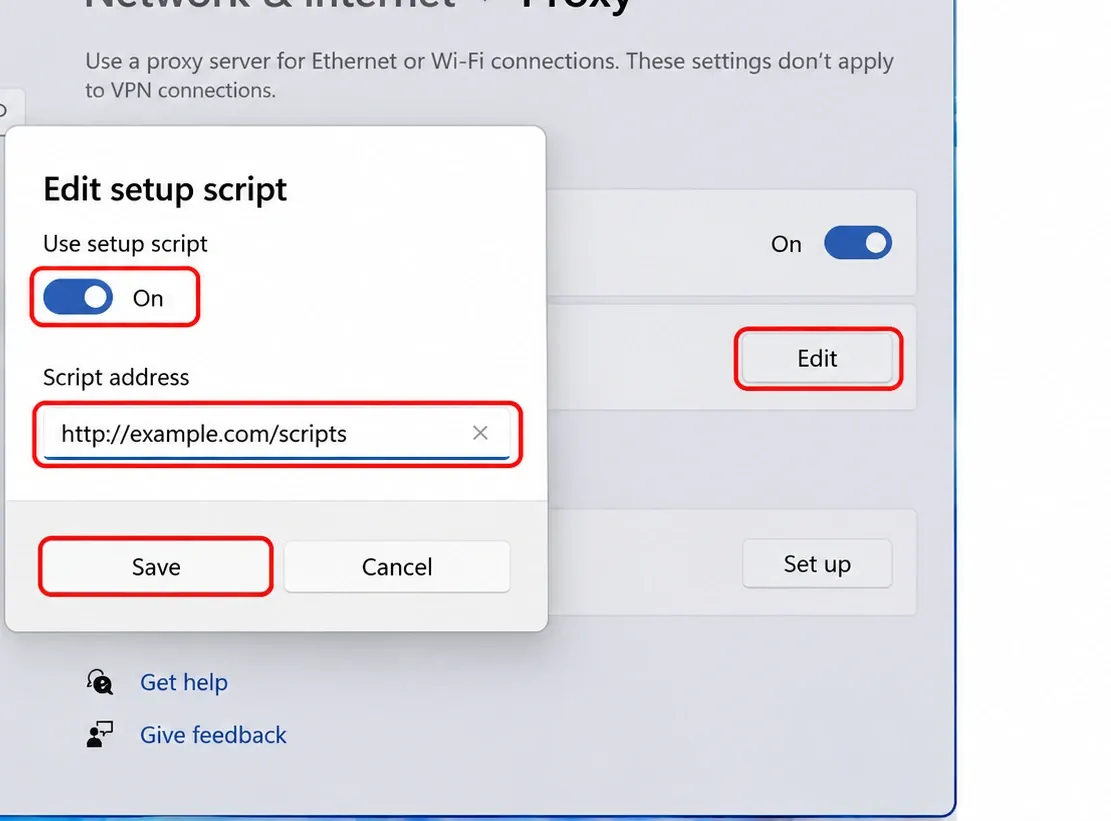
If your administrator told you to use WPAD, the separate Automatically detect settings switch is the relevant control. If you were given an address and port, use the manual proxy section instead. For Rola’s HTTP endpoint, enter the Host and Port separately. Windows does not provide username and password fields in the manual form, so an authenticated endpoint may prompt in the browser or require another supported client.
For a more detailed Windows workflow, see Windows 11 proxy settings. It also explains why a PAC rule that returns DIRECT can leave the public IP unchanged even when the PAC URL itself loads successfully.
Configure a PAC URL on macOS
On current macOS versions, PAC settings belong to the active network service:
- Open the Apple menu and choose System Settings.
- Select Network in the sidebar.
- Select the active Wi-Fi service and choose Details.
- Open Proxies.
- Enable Automatic proxy configuration.
- Enter the PAC URL in the URL field.
- Close the dialog; macOS saves the setting.
The setting applies to the selected network service. Safari and other applications may still differ in whether they honor system proxy settings. Firefox has its own Network Settings panel and can either use the system settings or accept an Automatic proxy configuration URL directly.
If you have only a Rola Host, Port, and credentials, configure the compatible manual proxy fields or use a supported Rola integration. A PAC URL is not a substitute for an endpoint, and changing the URL does not change a provider account’s region or session parameters by itself.
Configure a PAC URL on Android, iPhone, and iPad
Android Wi-Fi
Android generally stores the proxy choice per Wi-Fi network rather than as one global setting. On stock Android and many current devices:
- Open Settings → Network & internet → Internet or Wi-Fi.
- Tap the gear icon beside the connected network.
- Open Advanced options or the edit control.
- Under Proxy, choose Proxy Auto-Config.
- Enter the full PAC URL and tap Save.
Samsung, OnePlus, Xiaomi, and other manufacturers may use different labels. Search Settings for “proxy” if the menu is not in the expected place. A Wi-Fi PAC setting does not automatically cover mobile data, and an app can ignore system proxy settings.
iPhone and iPad Wi-Fi
On iOS and iPadOS, open Settings → Wi-Fi, tap the information button next to the connected network, then scroll to HTTP Proxy → Configure Proxy → Automatic. Enter the PAC URL and save.
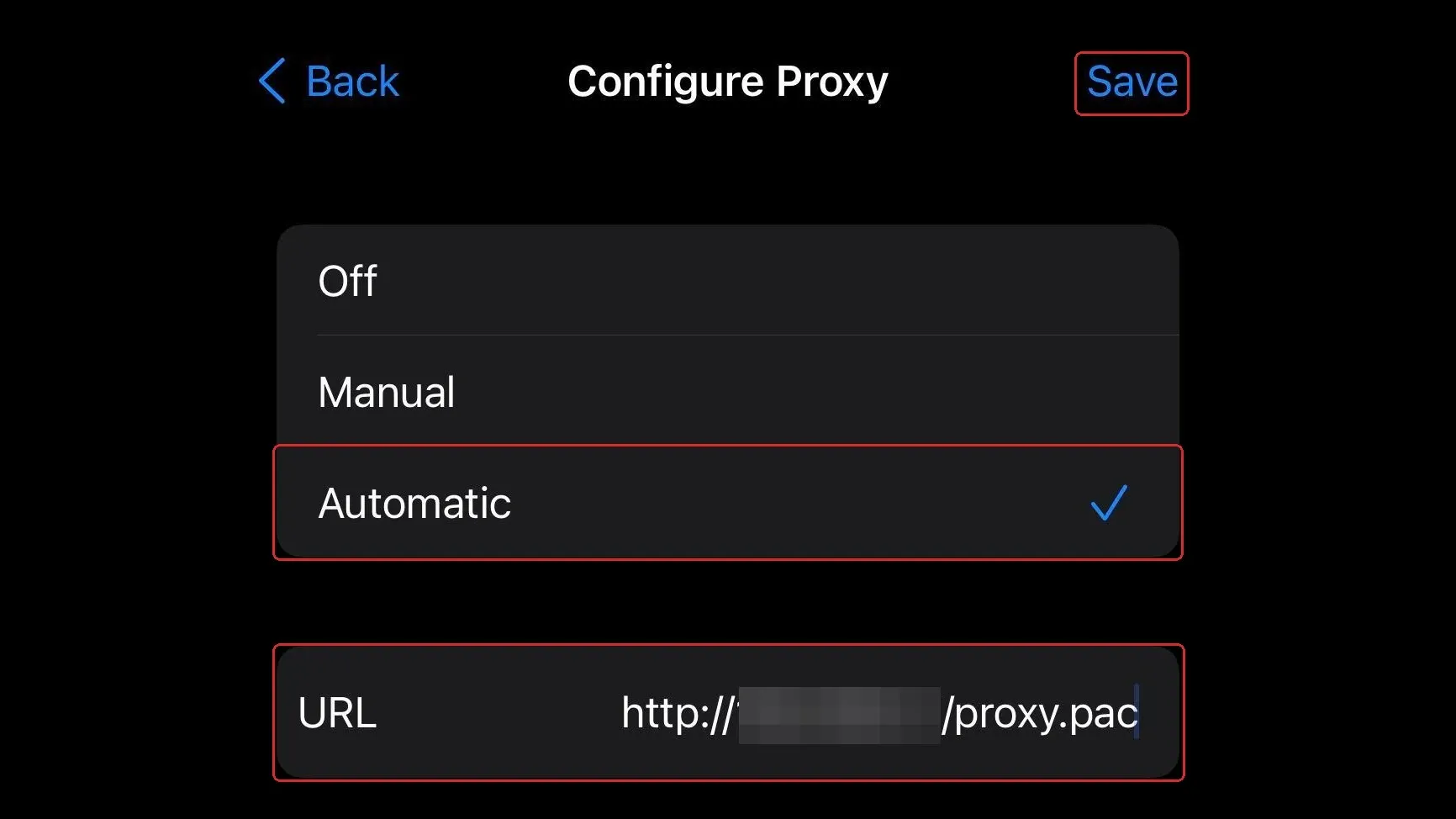
The built-in Wi-Fi page is intended for an HTTP proxy configuration. If you have a SOCKS5 endpoint, use a compatible client or an authorized managed routing solution instead of assuming that the iPhone’s HTTP Proxy field accepts SOCKS5. For a device-specific comparison of Manual and Automatic modes, see iPhone proxy settings.
ChromeOS and Firefox
On ChromeOS, open Settings → Network → Wi-Fi, choose the active connection, expand Proxy, select Automatic proxy configuration, and enter the PAC URL. ChromeOS applies the setting to the Chrome browser and system components that honor it.
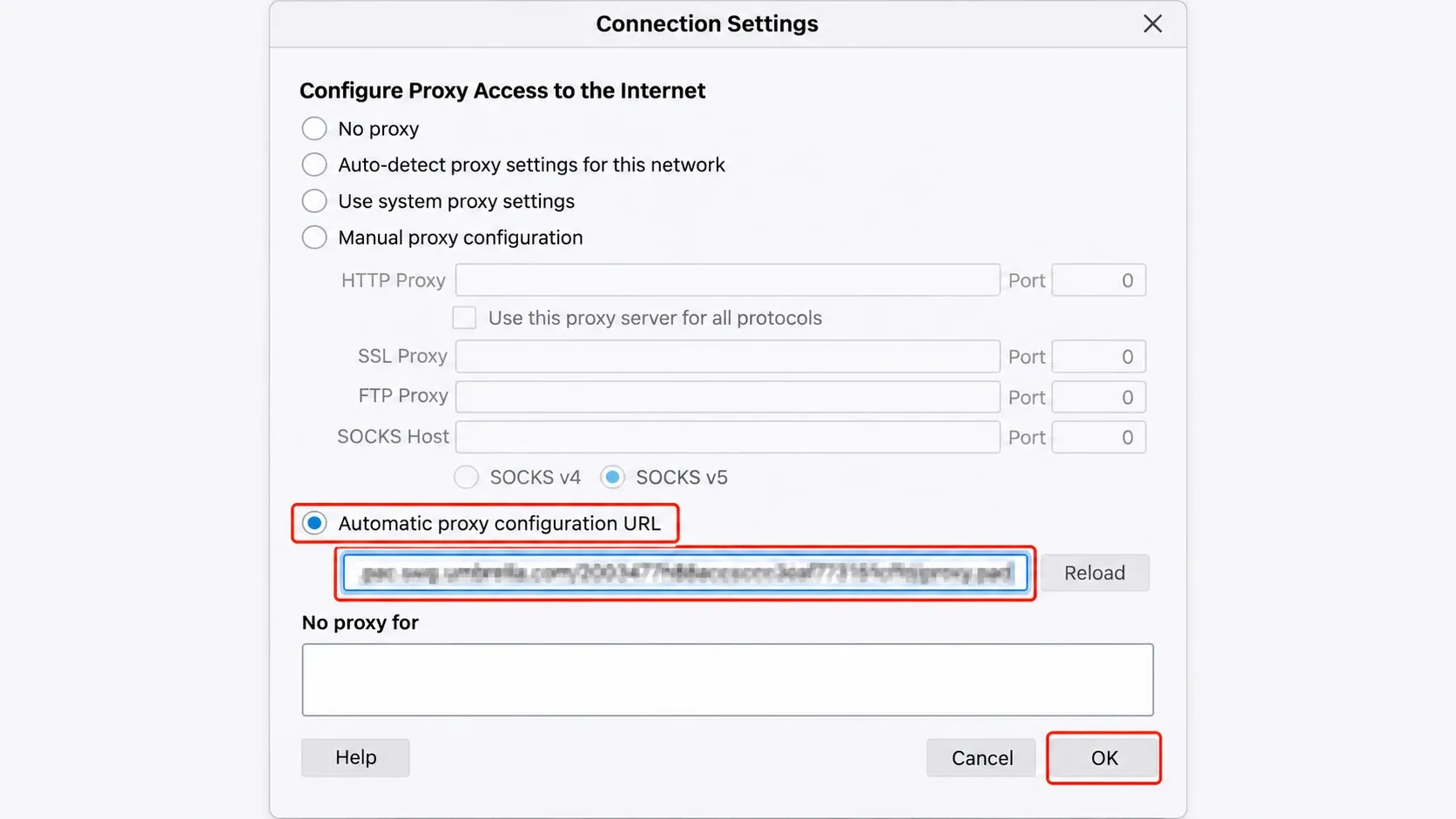
Firefox can be configured independently on Windows, macOS, and Linux:
- Open Firefox Settings.
- Scroll to Network Settings and select Settings.
- Choose Automatic proxy configuration URL.
- Enter the PAC URL and select OK.
Alternatively, select Use system proxy settings if the operating system already has the correct PAC configuration. Most command-line tools, including curl and wget, do not natively interpret a PAC file. For those tools, configure http_proxy and https_proxy with a compatible endpoint directly, or use a PAC-aware wrapper that you have reviewed and authorized.
This guide was checked against the documented Windows 11 proxy path, current macOS System Settings path, current Android Wi-Fi labels, current iOS/iPadOS Wi-Fi path, ChromeOS proxy controls, and Firefox Network Settings on November 11, 2026. It does not claim compatibility with every OS build or browser fork. On a managed device, use the administrator’s supported version and policy; on an unmanaged device, confirm the labels and scope in the target build before changing settings.
Map Rola IP parameters to the right field
When a provider gives you an endpoint rather than a PAC file, the fields are different:
- Host: hostname or IP only; do not add
http://, a path, or credentials. - Port: the number supplied for the selected endpoint.
- Protocol: HTTP, HTTPS, or SOCKS5 as supported by both the endpoint and the client.
- Username: the full generated proxy username, including supported country, city, or session parameters.
- Password: the proxy password issued for that endpoint.
- Authentication mode: enable it only when the client and endpoint use username/password authentication.
Rola IP supplies proxy connection parameters for the selected network, such as Host, Port, a generated proxy username, and a proxy password. These values go into a client that supports the endpoint’s protocol and authentication method; they are not a PAC URL. If you manage a PAC file, return only an approved proxy host and port from the routing rule and keep credentials out of the script. Check the Rola documentation for the exact product before testing the exit IP; price, region, trial, and performance terms are product- and account-specific.
The free option worth using is a validation tool, not a random free proxy list. A provider-side checker can accept formats such as IP:Port and IP:Port:Username:Password and report reachability and location. Treat that result as an endpoint check. It does not prove that every app on your Wi-Fi follows the PAC rules.
Minimal PAC example and a safe test
If you manage the PAC file yourself, start with a small rule set and test it with an authorized endpoint. Never hard-code a real username or password into a PAC file.
function FindProxyForURL(url, host) {
  // Keep internal resources direct only when your network policy allows it.
  if (isPlainHostName(host) || dnsDomainIs(host, ".internal.example")) {
    return "DIRECT";
  }

  // Controlled lab target: do not add DIRECT while testing failure handling.
  if (host === "api.ipify.org") {
    return "PROXY 127.0.0.1:8899";
  }

  return "DIRECT";
}
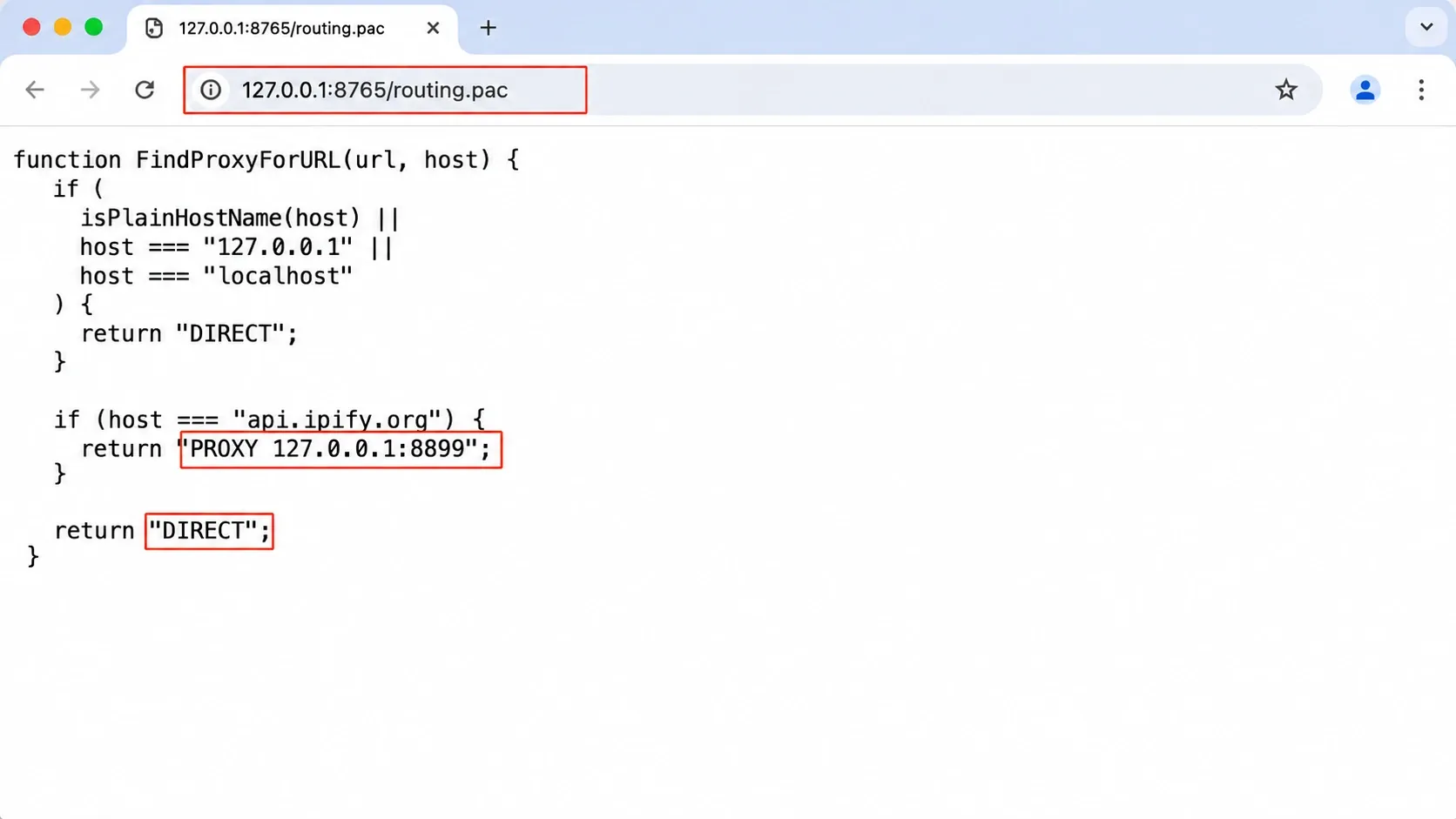
The DIRECT fallback is convenient for resilience but can hide a routing failure: a browser may load the page through the local connection after the proxy is unavailable. The controlled IP-check branch above intentionally omits a fallback so a failed proxy is visible. For production rules, record whether each destination is expected to fail closed or fall back direct. Use HTTPS for the PAC URL when the service supports it, and review who can edit the file. A malicious or modified PAC file can redirect selected traffic.
Reproduce the PAC → proxy → exit-IP path locally
The following controlled lab makes the missing handoff observable without using a public “free PAC URL” or putting credentials in a script. Save routing.pac, the loopback-only proxy, and the run notes in one directory. The PAC server is http://127.0.0.1:8765; the exact file URL is:
http://127.0.0.1:8765/routing.pac
In one terminal, serve the PAC directory:
cd reproduction
python3 -m http.server 8765 --bind 127.0.0.1
In a second terminal, start the allowlisted local proxy and retain its log:
python3 pac_lab_proxy.py 2>&1 | tee pac-proxy.log
The startup line should identify 127.0.0.1:8899. Configure one test Firefox profile or Windows 11 setup script with the exact PAC URL, then open:
https://api.ipify.org?format=json
The expected browser response is JSON containing an ip field, while the expected pac-proxy.log line is:
PROXY_CONNECT target=api.ipify.org:443
If both signals appear in the same dated run, they support the limited conclusion that the browser fetched the PAC file, selected the proxy branch, and reached the IP-check endpoint through the local proxy. The code block is an expected-output example, not a recorded result. Compare the redacted ip response with a direct baseline before calling the route an exit-IP change. This lab does not prove Rola performance or geolocation. For a Rola test, replace the local proxy branch only in an authorized environment with the provider-generated endpoint and supported authentication method; keep credentials outside the PAC file.
Record the date, browser/OS build, exact PAC URL, target URL, redacted ip response, and the matching proxy log line. If the PAC URL returns 404 or HTML, fix hosting first. If the page loads but PROXY_CONNECT is absent, inspect the PAC rule, browser proxy mode, and competing VPN/proxy policies. If the proxy logs DENIED, the target is outside the lab allowlist. Set the browser or Wi-Fi proxy to Off, No proxy, or its previous managed setting, stop both terminal processes with Ctrl+C, and refresh the target page to record the rollback result.
For a reproducible record, use this format rather than filling in simulated values: Date | OS/browser/Python version | PAC URL | PAC response status/type | Rule returned | Direct exit IP (redacted) | Proxied exit IP (redacted) | Proxy log line | Destination status | DNS check method/result | Rollback result.
Verify exit IP, DNS, and the actual destination
Do not stop at “the Wi-Fi still works.” Verification should answer three separate questions:
- Did the configured browser request go through the intended exit?
- Are DNS requests handled as expected?
- Does the real target page or application honor the same route?
Use this sequence:
- Before changing anything, record the current public IP and the active Wi-Fi network.
- Enable the PAC URL or manual proxy and reopen the browser.
- Visit an IP-check page and record the displayed exit IP, country, and time.
- Run a DNS check if resolver location or DNS leakage matters to your workflow. In the same browser, use the BrowserLeaks DNS Leak Test, record the resolver names and networks shown, then repeat after changing the route. The test sends randomized lookups and reports the resolvers that answered; it does not prove that every app or system resolver follows the browser path.
- Open the actual authorized HTTPS destination you need to test.
- Repeat the check once after a refresh; do not treat one cached result as proof.
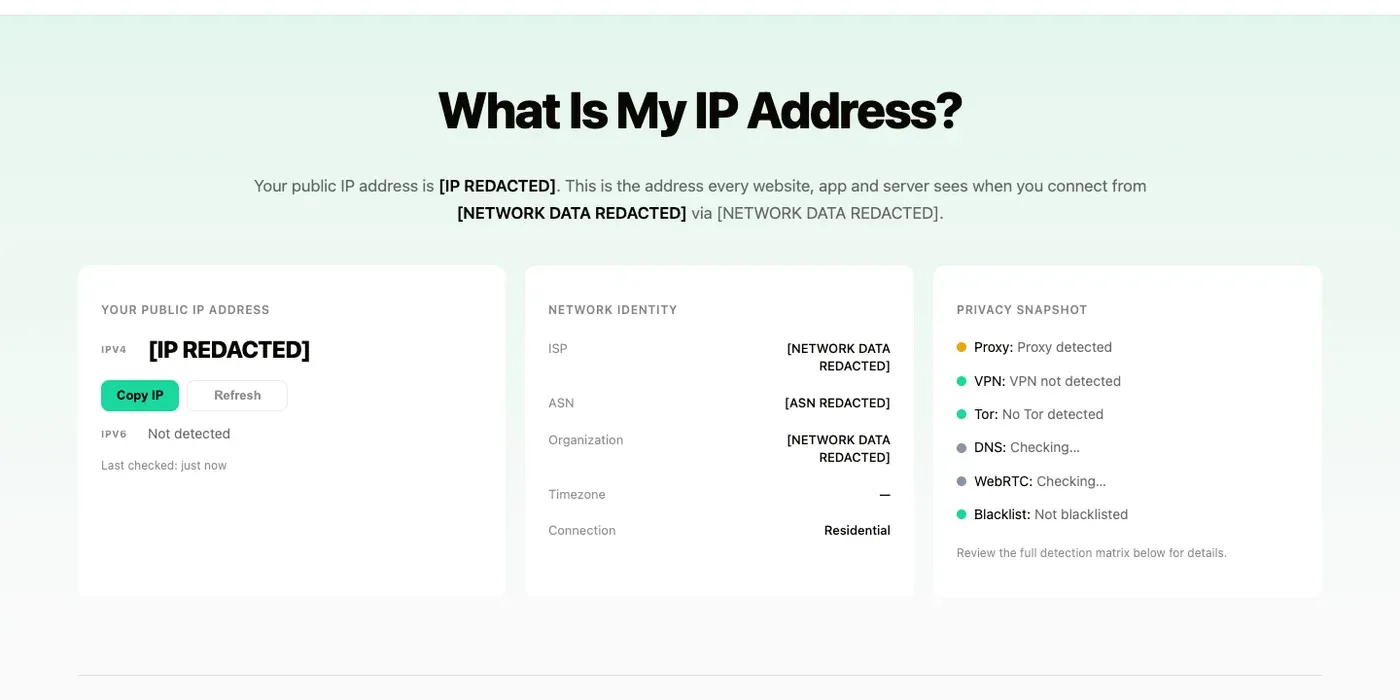
A PAC file may intentionally send the IP-check domain through DIRECT, so an unchanged IP does not automatically mean the PAC file is broken. Conversely, a changed browser IP does not prove that a separate desktop app, mobile app, DNS resolver, UDP flow, or cellular connection uses the same route. Verify within the application or client that matters.
Interpret DNS results separately from the HTTP exit IP. A browser may use DNS-over-HTTPS, a VPN resolver, the operating system resolver, or an application-specific resolver. Compare the direct and configured runs from the same browser, note the test time, and treat a resolver list as evidence about that browser test only—not as proof that all Wi-Fi traffic is covered.
Common errors and how to troubleshoot them
“The PAC URL does not work”
Open the URL in a browser or fetch it from an authorized test environment. Confirm that it returns the PAC script, not a login page, HTML error page, redirect loop, or certificate warning. Check that the device can resolve the hostname and that the URL is reachable from the current Wi-Fi.
Repeated 407 or password prompts
HTTP 407 means the proxy requests authentication. Recopy the proxy username and password, keep the full generated username, and confirm the selected protocol. A PAC URL field usually does not provide a place to store credentials. Use an endpoint/client that supports the required authentication method or an authorized allowlist configuration.
The browser loads pages but the IP stays the same
Inspect the PAC rule for DIRECT, test a domain that should return PROXY, and check that the PAC file you edited is the one the client fetched. Clear or reload the browser’s proxy state if appropriate. Also disable one competing VPN or proxy layer temporarily during diagnosis, subject to your network policy.
Only some apps fail
System Wi-Fi settings are not a universal tunnel. An app may ignore them, use its own proxy configuration, use unsupported UDP/QUIC traffic, or reject a TLS interception certificate. Test the app’s supported configuration separately; do not install an untrusted root certificate to silence a warning.
Captive portal or no internet after enabling the proxy
A hotel, airport, or public Wi-Fi login page may not work through the proxy. If policy permits, set the proxy to Off, complete the Wi-Fi sign-in, then restore the approved configuration. On a managed network, follow the administrator’s recovery process.
Restore the original Wi-Fi settings
Record the original state before editing. To roll back, return to the same Wi-Fi profile and:
- Windows: turn off Use setup script or restore the prior automatic/manual setting.
- macOS: disable Automatic proxy configuration and restore the previous proxy checkboxes.
- Android: choose None or the previous proxy option and save.
- iPhone/iPad: open Configure Proxy, choose Off, and tap Save.
- Firefox: select No proxy or Use system proxy settings, according to the original setup.
Then reopen the browser, confirm that the normal connection works, and test the target page again. If a separate proxy client or VPN is running, disconnect it independently. Disabling a Wi-Fi proxy does not remove an organization-required profile or stop every network extension.
Choose a suitable proxy for the job
Choose the configuration based on the scope you need:
- Use a PAC URL when a trusted network or administrator needs destination-based routing.
- Use a manual HTTP endpoint when a browser or Wi-Fi profile accepts Host, Port, and authentication details.
- Use a compatible SOCKS5 client when the endpoint and application require SOCKS5 or broader application routing.
- Consider Rola’s residential proxies when your authorized workflow needs residential egress; verify the exact region, session behavior, protocol, billing, and current availability for the selected product.
Do not use “free PAC URL” as a synonym for “free working proxy.” A public script can be stale, redirect traffic, expose requests, or simply return DIRECT. The safer decision is to use a script and endpoint you control or have permission to use, then verify the route and restore it when the test is over.