
How to Use FoxyProxy: Rola IP Setup on Chrome and Firefox

Sep 10, 2026 · Guides · 10 min read
TL;DR
FoxyProxy manages browser proxy profiles; Rola IP supplies the proxy endpoint. Install the official extension, add the generated host, port, protocol, and credentials, activate the profile, and verify the exit IP. Use Firefox for authenticated SOCKS5 when required, start with one authorized URL, and confirm target rules before scaling.
Before You Use FoxyProxy
A successful FoxyProxy setup depends on choosing the right proxy connection before you open the extension. Confirm these points first:
- Authorization: You are allowed to access the destination and collect the response under its terms and applicable law.
- Browser scope: You need browser-level routing, not a system-wide VPN or a code-only proxy connection.
- Proxy type: The generated Rola IP endpoint specifies the protocol. Do not choose SOCKS5 just because the destination URL starts with HTTPS.
- Authentication model: Decide whether the browser will use username/password authentication or whether a stable public IP can use Rola IP API whitelist access.
- Session behavior: Use a stable session for an authorized workflow that depends on cookies or continuity. Use per-request rotation only for stateless checks.
- Verification target: Prepare one approved IP-information page or test URL. A changed exit IP proves that a route changed for that check; it does not prove that another website will accept the request.
FoxyProxy does not create proxy IPs, render JavaScript, grant access to a website, or guarantee a target response. Rola IP is the network layer; FoxyProxy is the browser configuration layer.
What You Need
You need:
- Chrome, Chromium, Edge, Brave, or Firefox with permission to install an extension.
- A Rola IP connection generated from your account.
- The generated host, port, protocol, account name or username, and password if the endpoint uses credentials.
- One authorized IP-information endpoint or test URL.
- A way to store credentials temporarily without putting them in screenshots, shared exports, bookmarks, browser history, or support tickets.
Rola IP’s proxy quick start explains how to obtain the connection details. The values in the screenshots below are examples; use the values generated for your own account.
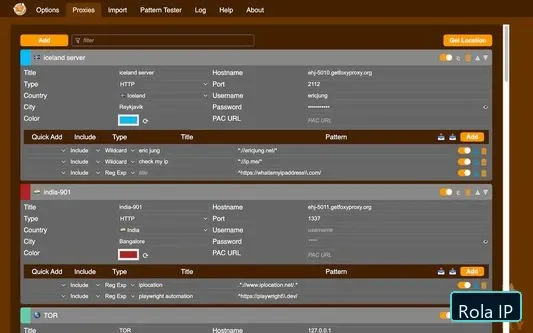
Choose a Rola IP Network Before Creating the Profile
The correct network depends on the workflow, not on a generic promise that one proxy type is always better. Rola IP currently documents three main rotating networks. Its proxy networks guide lists their different traffic contexts and location controls.
| Rola IP network | Suitable starting point | Location and session controls | Important limitation |
|---|---|---|---|
| Rotating Residential | Location-sensitive browsing, e-commerce checks, localization, or workflows that need a residential network context | Country, state, city, session ID, session time, and per-request rotation | Availability and target-site treatment vary. |
| Rotating Datacenter | Low-risk, high-volume, cost-sensitive checks or availability testing | Country, session controls, and per-request rotation | Some websites may classify datacenter traffic as server traffic. |
| Mobile IP | Mobile-network identity, mobile page checks, and mobile-specific QA | Country, session controls, and per-request rotation | Resources may be more limited; state and city controls are not documented for this network. |
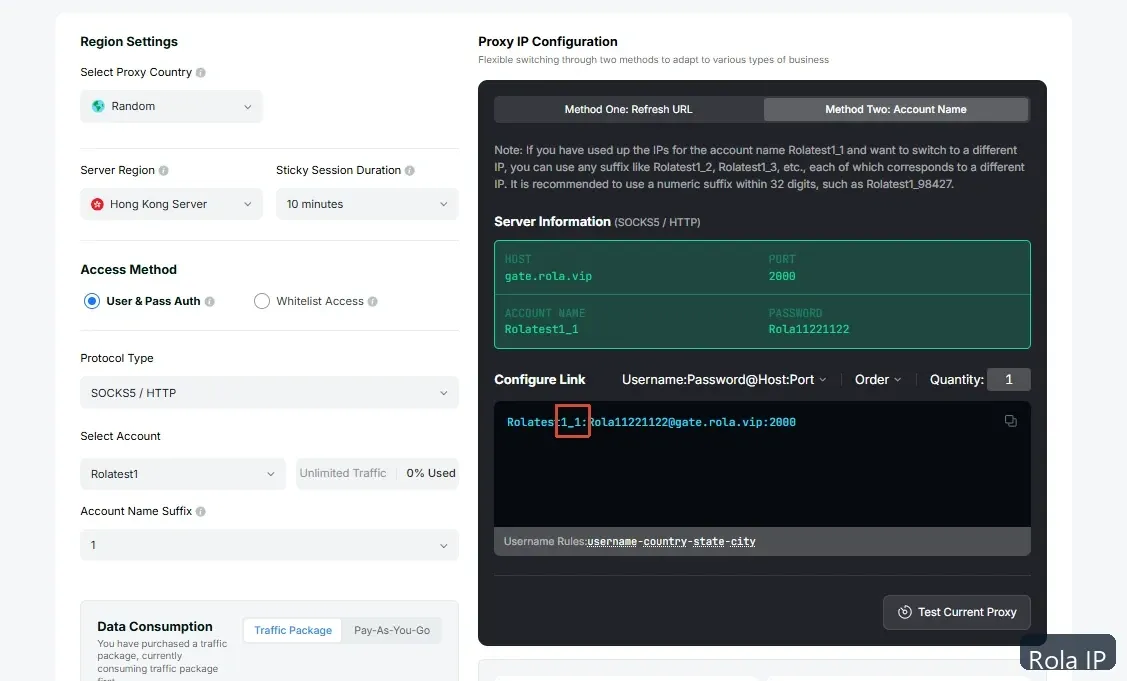
Use the same account-name pattern that Rola IP generates in the console. Rola documents country targeting across these networks, while state and city targeting belong to Rotating Residential. Do not invent a parameter because a competitor uses a similar format.
Stable session or new IP per request?
Rola IP documents the session ID as the value after the underscore in the account name and documents session time from 1 to 120 minutes. Reuse one session pattern when the browser flow depends on one IP and cookie chain. Rola documents the f-1 pattern for a new IP on every request; that is appropriate for stateless checks, not for login, checkout, form submission, or other continuity-dependent flows.
The Rola IP proxy parameters page shows the current parameter syntax and examples. Treat the generated account name as authoritative for your network and account.
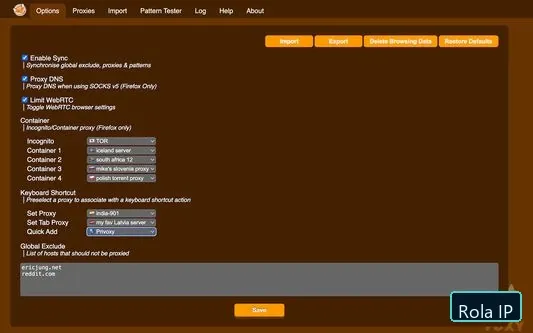
Install the Official FoxyProxy Extension
Install the extension from the browser’s official store, then open its Options page. FoxyProxy’s current open-source repository covers Firefox, Chrome, and other Chromium-based browsers, but the exact feature set can differ by browser.
- For Chrome or another Chromium browser, use the official FoxyProxy Standard listing.
- For Firefox, use FoxyProxy Standard on Firefox Add-ons.
After installation:
- Pin the FoxyProxy icon if it is hidden in the browser’s extensions menu.
- Open the FoxyProxy icon and choose Options.
- Open the Proxies area and choose Add or Add New Proxy.
- Keep the profile disabled until all fields are checked.
If you need private or incognito browsing, enable the extension’s required private-window permission in the browser. Do not assume a profile is active simply because the extension is installed.
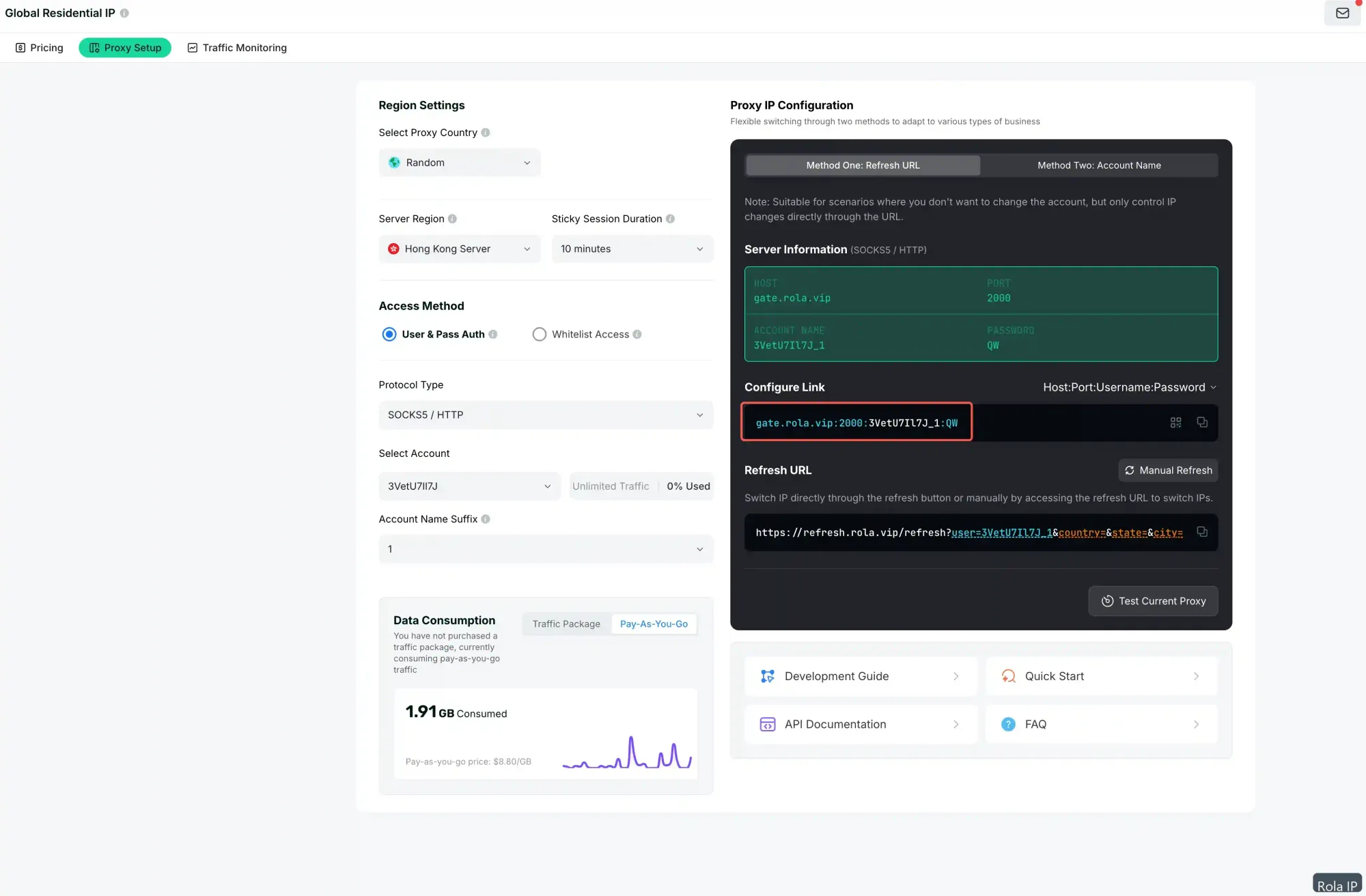
Add a Rola IP Proxy Profile
Use the generated Rola IP connection details to complete the form. The field mapping is the part that generic FoxyProxy tutorials often skip.
| FoxyProxy field | Rola IP value | What to enter |
|---|---|---|
| Title | Local label | A name such as Rola-US-Residential-Session-1; this is only for your browser. |
| Proxy Type | Generated protocol | Select HTTP, HTTPS, SOCKS4, or SOCKS5 only when that protocol is supported by the generated endpoint. |
| Hostname | Generated proxy host | Paste the host exactly as shown in the Rola console. |
| Port | Generated proxy port | Paste the port exactly; do not add a protocol prefix to the port field. |
| Username | Generated account name or username | Paste the generated value, including region or session parameters when Rola provides them. |
| Password | Generated password | Paste it into the password field, but do not place it in a URL or screenshot. |
| URL patterns | Optional routing rules | Add only when selected websites should use the profile. |
Do not combine the username and password into a proxy URL such as username:password@host. Browser history, extension exports, screenshots, and shared settings can expose that format. Use the separate authentication fields and a secret-management process appropriate for your environment.
HTTP, HTTPS, and SOCKS5 are not interchangeable labels
The proxy type describes the connection between the browser and the proxy. The destination URL describes the connection from the browser through the proxy to the target. An HTTPS page can commonly be reached through an HTTP proxy using normal tunneling; that does not automatically make the browser-to-proxy hop TLS-protected.
Use the protocol shown in your Rola IP connection details. If the endpoint requires authenticated SOCKS5, Firefox is the safer first browser to test because the current FoxyProxy help documents SOCKS5 username/password support for Firefox but not Chrome. For Chrome, use an Rola HTTP or HTTPS endpoint when that is the supported authentication path, or use an API-whitelist workflow when your environment meets the allowlist requirements.
Do not disable certificate validation or accept an unknown certificate as a generic fix. If an HTTPS-proxy hop is required, confirm support for the exact Rola gateway before choosing that mode.
Save, Activate, and Verify the Proxy
Complete the profile and select Save. Then choose the profile from the FoxyProxy toolbar menu. Use a bounded verification sequence:
- Open an approved IP-information page without FoxyProxy and record the direct public IP if policy allows.
- Activate the Rola IP profile.
- Open the same IP-information page again and record the observed exit IP, country, HTTP result, and approximate latency.
- For a provider-side check, use the Rola proxy checker with a test endpoint or temporary proxy entry that you are authorized to validate.
- Disable the profile and confirm the browser returns to its intended direct or previous route.
The Rola checker supports common HTTP and SOCKS protocols and can report connection status, protocol, latency, and location. Do not paste production credentials into an unapproved service or a shared browser. Use a temporary test endpoint and follow your organization’s secret-handling policy.
A successful proxy check confirms transport for that check. It does not guarantee a particular target will return the same content, accept the request, or map the exit IP to the exact city you selected.
Route Only Selected Websites with URL Patterns
Use global proxy mode when every browser request in the profile should use the proxy. Use pattern mode when only approved domains or URL groups should use Rola IP.
Example pattern design for an authorized staging domain:
Include: *://*.staging.example.com/*
Exclude: *://internal.staging.example.com/*
The exact pattern syntax and matching order depend on FoxyProxy’s current implementation. The official FoxyProxy help page documents include and exclude behavior, pattern priority, pattern testing, and the fact that unmatched URLs can go direct in pattern mode.
Test one URL at a time before enabling a broad pattern. Keep internal dashboards, local services, private IP ranges, and unrelated personal browsing outside a work profile. A proxy rule that is too broad can route more traffic than intended; a rule that is too narrow can silently send the request directly.
Import or Export Profiles Safely
FoxyProxy supports importing and exporting settings, and its maintainer documentation also describes simple and extended proxy-list formats. Import is useful when a team has multiple approved browser profiles, but it increases the risk of sharing credentials.
Use these controls:
- Export only a redacted template when documenting the workflow.
- Store the real profile only in an approved browser profile or managed environment.
- Do not commit an exported FoxyProxy file to Git.
- Do not send a profile file through chat or email if it contains a password.
- After a temporary pilot, remove the profile and clear temporary credentials.
The FoxyProxy import documentation is the source for the current import syntax. Treat its examples as configuration format, not as a recommendation to place real credentials in URLs.
Use Rola IP API Whitelist Access When Password Distribution Is a Problem
Username/password authentication is convenient for a personal browser profile. If a machine has a stable public IP and several users or tools must share access without copying a proxy password, consider Rola IP API whitelist access.
The operating model is different:
- Add the public IP of the device that will use the proxy to the Rola allowlist.
- Choose the network, region, duration, protocol, output format, and count.
- Generate the proxy list.
- Add the resulting IP and port to FoxyProxy without username/password fields.
- Verify the actual exit IP by making an authorized request.
An extracted IP:port entry is a relay address, not proof of the final exit location. If the device’s public IP changes, the allowlist must be updated. Read the Rola IP API whitelist setup before choosing this method.
Troubleshoot FoxyProxy Setup Problems
| Symptom | Likely cause | How to verify | Fix |
|---|---|---|---|
| The IP does not change | Profile is saved but not active, or the URL did not match the pattern | Check the toolbar state, temporarily switch to global mode, and compare one approved URL | Activate the correct profile or fix the pattern; do not add more profiles until one works. |
| 407 Proxy Authentication Required | Wrong host, port, username, password, or authentication path | Recopy the generated Rola details and test the same endpoint with one browser profile | Keep proxy credentials in the proxy fields; do not substitute destination credentials. |
| SOCKS5 works in Firefox but not Chrome | Browser-specific SOCKS5 authentication support | Retest with an HTTP/HTTPS endpoint or Firefox | Use the protocol/browser combination documented for the endpoint. |
| ERR_PROXY_CONNECTION_FAILED | Wrong port, disabled endpoint, protocol mismatch, firewall, or stale profile | Test the generated host and port from the same network; check whether the endpoint is still active | Generate a fresh endpoint, correct the type, and check local network rules. |
| The location is not what you expected | State/city controls were used on the wrong network, or IP geolocation is approximate | Confirm the Rola network and username parameters; compare observed country and city | Use state/city only with Rotating Residential and treat city results as approximate. |
| A pattern works for one URL but not another | Wildcard, priority, include/exclude, or subdomain mismatch | Use FoxyProxy’s pattern tester with both URLs | Narrow the rule, test priority, and keep a direct bypass for private destinations. |
| The target returns 403 or 429 | Target policy, rate limit, cookies, headers, or authorization issue | Compare the response directly and through the proxy; inspect status and response body | Slow down, use the approved access method, and stop if authorization is unclear. A proxy is not a guarantee of target access. |
Security and Authorized-Use Checklist
Before moving from a one-URL test to a browser workflow:
- Use only destinations and data collection activities you are authorized to access.
- Keep the Rola password out of URLs, screenshots, exports, Git, logs, and browser sync.
- Treat environment variables and browser storage as exposure-reduction measures, not as a complete secret vault.
- Use an approved secret manager for shared or production environments.
- Keep HTTPS certificate validation enabled in the browser.
- Remember that an HTTPS destination does not automatically encrypt the browser-to-proxy authentication hop.
- Use a stable session for continuity and per-request rotation only for stateless work.
- Do not claim that Residential, Datacenter, or Mobile IP guarantees a block-free or CAPTCHA-free result.
- Respect target-site rules, rate limits, privacy requirements, and applicable law.
A Bounded Three-URL Pilot
Run a small pilot before adding more browser profiles or increasing traffic:
- Test one approved IP-information endpoint.
- Record the profile name, Rola network, proxy type, session policy, timestamp, observed exit IP, HTTP result, latency, and error if any.
- If policy allows, compare direct and proxied results.
- Test three authorized URLs sequentially, with about five seconds between requests.
- Retry at most once for a connection timeout. Do not blindly retry authentication, authorization, 403, 407, or 429 errors.
- Keep a fixed session for cookie-dependent checks; use per-request rotation only for stateless checks.
- Remove temporary credentials and delete temporary logs when the pilot ends.
The pilot tells you whether the browser profile and network route work for the chosen test. It does not establish universal availability, target acceptance, or a production success rate.
Conclusion: Start with One Verified Profile
The practical answer to how to use FoxyProxy is simple: install the official extension, map the generated Rola IP connection details to one profile, choose the protocol that the endpoint supports, activate it, and verify the exit IP. The difficult decisions are the ones that generic setup pages often skip: browser-specific authentication, URL-pattern scope, Rola network selection, stable sessions, per-request rotation, and credential handling.
Start with one authorized URL, then run the three-URL pilot. After the route is reproducible, use the Rola proxy checker to validate the endpoint and decide whether the workflow needs Rotating Residential, Rotating Datacenter, Mobile IP, or API whitelist access. Do not increase volume until the target rules, session behavior, and measurement fields are clear.