
Discord Security Bot Setup Permissions, AutoMod and Proxy Checks

Nov 4, 2026 · Guides · 19 min read
A Discord security bot automates moderation tasks such as spam control, onboarding and incident logging. A search for security bot discord can also mean checking whether a bot called “Security” is safe to trust. To assess a bot safely, confirm its publisher, review the permissions it requests and test its actions in a private server before you rely on it.
This guide starts with Discord’s native safety controls, then walks through the checks for adding a bot and an optional proxy configuration for external requests made by a custom worker. It is not a manual for every bot: invitation screens, permissions and dashboards vary by product.
Who should read what. Server administrators need the baseline steps, the permission table, the AutoMod test and the bot setup checklist. Developers who run their own bot can continue to the optional external-worker and proxy sections. A proxy is not required for ordinary server moderation.
TL;DR
Start with Discord AutoMod, then choose a security bot for a specific gap. Review permissions, role order and logging, and test with an ordinary member account. If a custom worker needs a fixed source address or authorized regional checks, configure its external requests separately from the Discord client. The proxy code is a reference configuration: its failure handling was checked with simulated tests only, and live Rola connectivity has not been tested.
What does a Discord security bot do?
A Discord security bot automates moderation tasks that would otherwise depend on a moderator noticing a problem. Depending on the product, it can remove spam, restrict new arrivals, record moderation events or react to destructive changes to roles and channels. These are separate capabilities; a bot that deletes unwanted messages is not automatically an anti-nuke system.
Think about the incident you want to prevent. A public gaming server may need stronger onboarding and mention controls. A business community may need clear logs and a predictable escalation process. A server with many powerful roles needs careful permission design before adding another privileged application.
There is also no universal Security Bot dashboard. Each product has its own management interface. Reach it through the developer’s official website or documentation, rather than a direct message that claims your server urgently needs verification.
Is a Discord security bot safe?
There is no reliable yes-or-no answer based on the bot’s display name. Establish which application you are evaluating, who publishes it and what access it requests. A familiar avatar, a large community or a listing on a bot directory should not replace those checks.
Before installing a bot, compare its invitation with the developer’s published installation route. Read its privacy information and find out what happens to message content, moderation logs and verification data. Start in a private test server with permissions appropriate to the features you actually intend to use.
Before completing a verification flow launched by a Discord security bot, open the server’s verification channel yourself and inspect the destination. A normal OAuth flow can request authorization through Discord; a third-party page should not ask you to paste your account token, reveal a recovery code or run a command on your computer. If the process changes unexpectedly, stop and ask the server’s moderators through an existing trusted channel.
Do not treat a VPN or proxy label as proof that a member is malicious. Shared networks and privacy tools can create false positives. If you use an external verification website, explain its data collection and offer an appeal route. Discord’s documented Guild Member Add event contains a guild-member object and a guild ID. The linked guild-member schema and its user-object schema do not list a member IP-address field (checked October 29, 2026). This observation is limited to those documented bot payloads; it says nothing about what an external verification website collects.
Choosing the best security bot for Discord
The best option is the one that addresses your server’s failure points without creating unnecessary administrative work. Begin with a short list of required actions, then test those actions before buying a plan or adding multiple bots.
Discord AutoMod is a useful starting point. It provides native keyword and spam controls without installing a third-party bot. It belongs in your baseline even if you later add a specialist application. See the Discord AutoMod documentation for current controls.
Wick is worth evaluating when destructive server changes are the concern. Its documentation describes anti-nuke monitoring, quarantine and restoration features. Those protections depend on configuration and authority within the server; they should be tested in a disposable environment before you rely on them. Review Wick’s documented features rather than assuming every protection is active immediately after installation.
A general-purpose moderation bot may fit routine work. Compare the rules, exceptions and logging in each candidate’s current documentation against your team’s requirements. Avoid enabling overlapping punishments in several bots: one incident should not trigger a chain of conflicting actions. Confirm feature availability in the plan you intend to use before installing it.
If you are looking for a free security bot for Discord, begin with native controls and evaluate the currently available free features of any additional bot. Check current plan boundaries before depending on premium functions. GitHub repositories require a different assessment: maintenance, dependencies, secret handling and the actual code paths matter more than stars. Reddit discussions can help identify recurring complaints, but they are not security audits.
How to build a Discord safety baseline
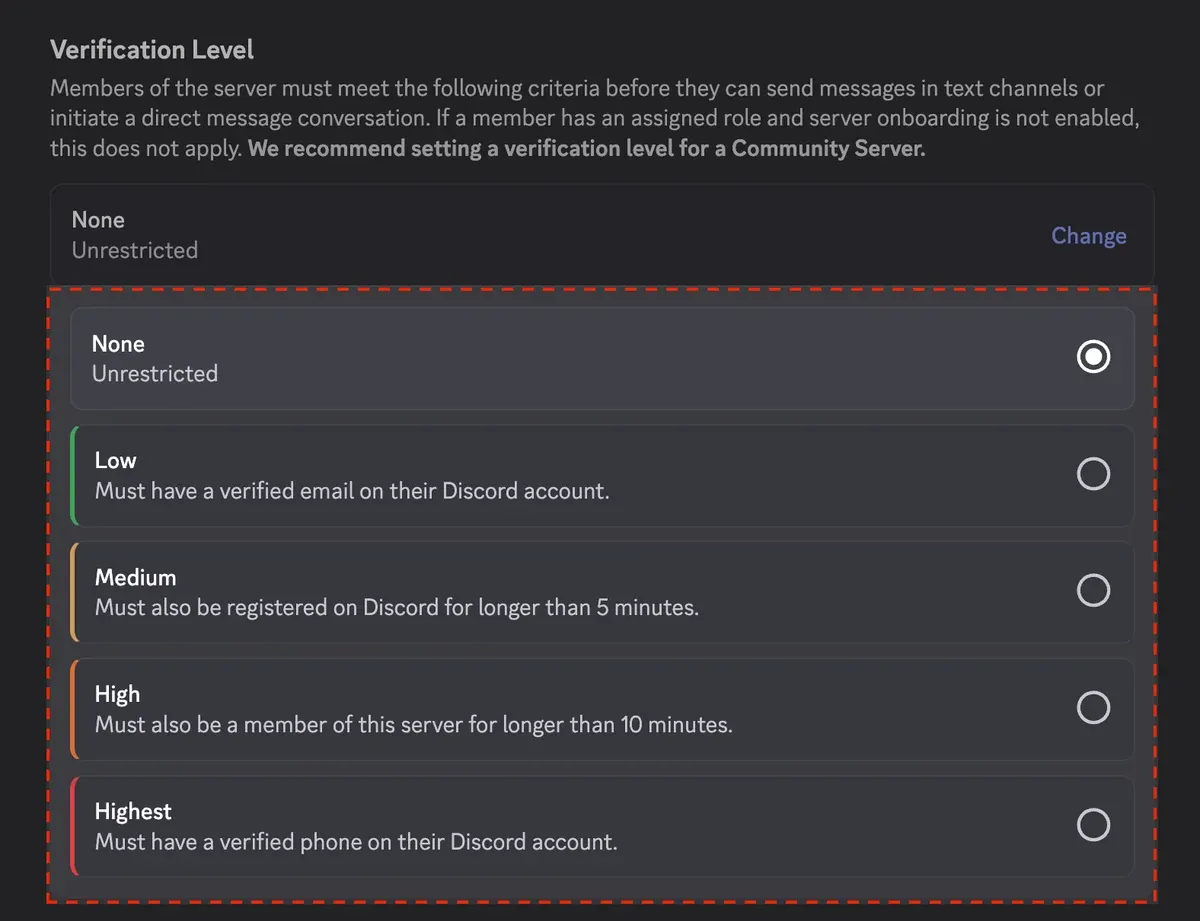
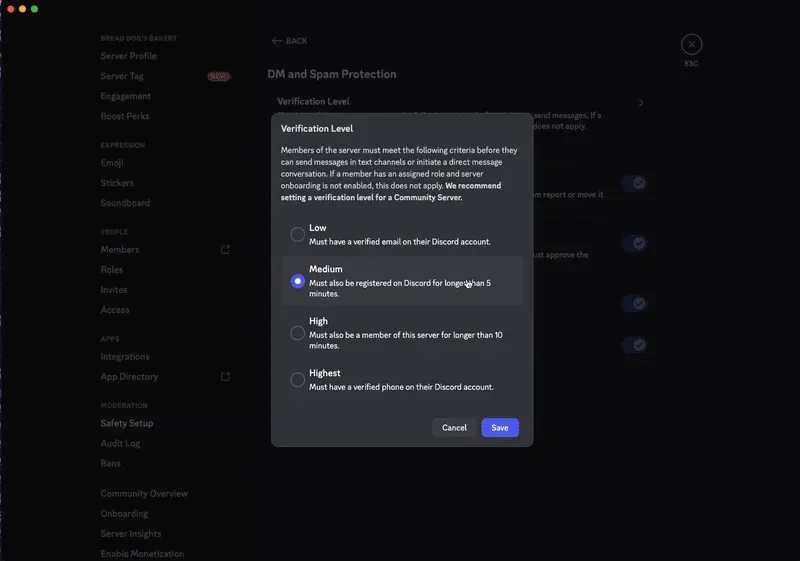
The steps below describe a general baseline, not a shared dashboard for every security bot. Step 4 gives a native AutoMod test with an expected result. The next section applies the same approach to one named bot. The screenshots are official Discord tutorial examples, not screenshots of a server configured for this article.
Step 1 — Configure a baseline before inviting a bot
Use a private test server and create a moderator-only log channel. Decide which roles represent ordinary members, moderators and administrators. Keep a written recovery procedure so a bot outage does not leave the team guessing which controls to change.
Set the server’s verification level in Safety Setup. Community servers may place this control under DM and Spam Protection. Discord’s verification-level guide explains the available requirements and interface paths.
Step 2 — Install the intended application
For a hosted bot, follow the invitation linked from its official documentation and select the test server. You do not need to create a new developer application merely to install somebody else’s hosted bot.
For a custom bot, create an application in the Discord Developer Portal, configure its bot user and Guild Install settings, and keep the token in a secret store or environment variable. Add only the installation scopes and permissions your implementation requires. Discord’s first-bot tutorial covers application creation and installation; its sample app is a starting point, not a finished security bot.
Choose a maintained Discord library for your language. Enable Gateway intents according to the events you process. Message-content inspection may require the privileged Message Content intent; do not enable unrelated privileged intents simply because an old tutorial does.
Step 3 — Review permissions and role order
Map each feature you actually use to a permission, then check role order and channel overrides. Administrator is broad access, so examine any request for it against the product’s documented requirements rather than treating it as a default.
| Feature | Permission needed | Order or override limit | How to verify |
|---|---|---|---|
| Delete unwanted messages | Manage Messages | Channel overrides can deny it | Trigger a harmless test message in that channel |
| Time out a member | Moderate Members | Cannot act on members whose top role is above the bot’s | Time out a disposable test account |
| Ban a member | Ban Members | Same role-order limit | Test only on a disposable account in the test server |
| Assign a verification role | Manage Roles | Bot role must sit above the role it assigns | Complete verification with an ordinary account |
Place the bot’s role above roles it must manage. Role hierarchy can prevent moderation actions even when a permission is enabled. The Discord permissions reference explains these constraints.
Some anti-nuke products need extensive access to perform their intended work. If you grant that access, treat the application as privileged infrastructure: restrict who can change its settings, protect the owner account with multi-factor authentication and review configuration changes.
Step 4 — Configure and test an AutoMod keyword rule
Follow these steps in the test server:
- Open Server Settings → AutoMod, or the AutoMod controls under Safety Setup in your client.
- Create a Custom Keyword Rule named
Baseline testand add the harmless keywordmoderation-test-only. - Enable Block Message and Send Alert, then select your moderator-only alert channel.
- Save the rule. Confirm that neither the test channel nor the test member’s role is exempt.
- From an ordinary member account without Administrator or Manage Server, send the exact marker. Privileged accounts may be exempt, so testing with an administrator proves nothing.
- Check two separate outcomes: the member sees the message blocked, and the private alert channel receives the event.
- Record the result, then remove the temporary rule.
These are reader-run acceptance steps based on Discord’s AutoMod documentation. They are not a record of a test on this article’s own server, so attach your own results before describing the workflow as tested.

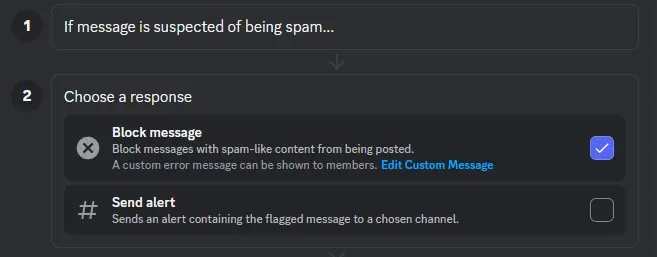
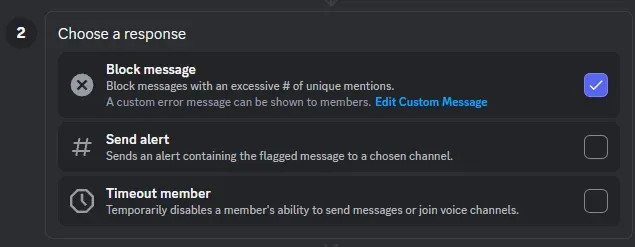
When you pick the response in step 3, the options look like the spam-filter example below. In that official screenshot Block message is ticked and Send alert is not; for the keyword test, tick both. This frame shows the spam filter, not the Custom Keyword rule editor.
Optional: limit mention spam
A mention-spam rule is a useful second AutoMod rule. Set the threshold so that it allows legitimate community activity. Treat the screenshot’s value as an interface example, not a recommendation, and tune it using observed false positives.
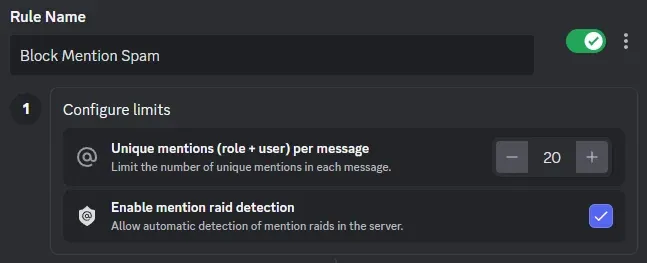
Then choose the response. Start with Block message and add a log channel; introduce Timeout member only after you have seen how often the rule fires. In the official screenshot below, only Block message is ticked.
How do you set up a Discord security bot in a test server?
Wick is the example here because this guide already evaluates it. This is a checklist built from Wick’s documentation, not a record of an installation: no Wick account or paid plan was used for this article, and no button labels, free-plan limits or screenshots are asserted. Another bot will differ in its dashboard and permissions.
- Find the official entry point. Start from the documentation linked in this guide, not from a search advertisement or a direct message. Note the application name and the documentation date you worked from.
- Authorize only the test server. Read the permission list on the authorization screen and compare it with the features you plan to enable. Do not accept a broader grant because it is convenient.
- Open the dashboard and its wizard. Wick’s setup guide describes selecting the server in the dashboard and running the setup wizard. Follow the wizard as it appears to you.
- Choose the verification role and log channel. Use a dedicated role and the moderator-only channel from Step 1. Confirm in Discord, not only in the dashboard, that the role and channel exist.
- Fix role order. Move the bot’s role above the roles it must manage and below roles it should never control.
- Test with an ordinary member. Perform one non-destructive action, such as joining through the verification flow, and confirm that the log records enough context for review. Do not run mass-join or destructive tests, and do not test anti-nuke features against a live community.
- Prepare a rollback. Know how to pause the bot’s rules, remove the temporary roles and remove the application from the server if the test goes wrong.
If any step differs from the documentation, stop and check that you are on the official site before continuing.
Run a small acceptance test for any bot
Use a non-administrator test account. Confirm that a new arrival sees the intended onboarding channel, a permitted member can participate, a harmless trigger produces the expected action, and the private log records enough context for review.
Then check failure cases. Move a disposable test role above the bot and observe how a failed action is reported. Temporarily stop a custom worker and confirm that the bot reports unavailable checks rather than declaring links safe. Restore the original configuration after each test.
Where Rola IP proxies fit into a Discord security bot
A hosted moderation bot normally runs on its provider’s infrastructure. You cannot assume that buying a proxy lets you change that provider’s network route. Rola IP becomes relevant when you control a custom bot, an external verification service or a worker that checks permitted external resources.
| Situation | Can you configure a proxy? | Exit requirement | How to verify |
|---|---|---|---|
| Hosted third-party bot | No, the provider controls its network | None for you | Review the provider’s documentation and logs |
| Custom worker calling a service that allowlists source IPs | Yes, on your own worker | Fixed, stable exit | Check the observed exit against the allocated address |
| Custom worker running authorized regional checks | Yes, on your own worker | Exit in a permitted region | Compare the observed exit with the expected location |
Use two explicit request paths: the Discord client connects to Discord Gateway and REST endpoints, while the external worker connects through the configured proxy to an approved third-party HTTPS endpoint. Keep rate-limit handling in the Discord client and proxy settings in the worker’s HTTP session. If the proxy fails, the worker must report an unavailable result without silently retrying directly.
For example, a custom moderation workflow may send an approved domain indicator to a reputation service that requires a fixed source IP. The worker routes that request through the configured proxy, records the service’s result and request ID, and sends an “unavailable” result to moderator review if the check fails. Never use an arbitrary member-supplied URL as the worker’s request target.
Discord event -> application queue -> external worker -> configured Rola proxy -> approved reputation API

Worker result -> moderator review / log -> Discord client -> Discord API
This is a suggested architecture. Rola IP has not been tested against any particular reputation service, and the script below validates an exit route, not a reputation-service integration.
Choose a fixed exit for repeatable external requests
If a third-party service allowlists your worker’s source address, evaluate Rola IP static residential proxies against that requirement. Before ordering, confirm the address allocation, renewal behavior, traffic allowance and supported protocol for the exact plan in your account. Do not infer those terms from the word “static” alone.
Keep a fixed exit for requests that need a consistent source address, and test whether the destination accepts it. Monitor timeouts, authentication errors and connection failures independently of moderation decisions. An address remaining unchanged does not establish service uptime or destination trust.
Use rotating residential IPs for permitted regional checks
For authorized checks of region-dependent resources, evaluate Rola IP residential proxies, which the product page presents as a rotating residential service with location and session options. Confirm the available location and session settings in the selected plan before writing them into your worker configuration.
A sticky session is useful when related requests need the same exit for a period; rotation fits tasks that genuinely require different network vantage points. Ask which behavior the generated endpoint implements, how long a session can last and what happens when an exit becomes unavailable. This guide does not assume a particular pool size, country count, concurrency limit, unlimited-traffic entitlement or availability guarantee for your account.
Keep proxy protection in proportion
A correctly routed outbound request presents the proxy’s exit address to the destination. That can separate the external worker’s egress from the hosting address, but it does not conceal every route to the host or protect an exposed inbound endpoint against DDoS attacks.
Likewise, a proxy does not disinfect a suspicious URL. Prefer submitting an indicator to an approved reputation service instead of opening arbitrary member-supplied links. If direct inspection is necessary, use an isolated worker with network restrictions, no cloud credentials, redirect controls and limits on response size and runtime. Block private, loopback, link-local and metadata destinations at the network boundary, including after DNS resolution and redirects.
Python reference configuration for an approved external request
Verification status: live Rola proxy connectivity not tested. The script’s failure handling was exercised on October 29, 2026 with simulated tests on Linux, Python 3.12.3 and Requests 2.33.1. The tests cover missing and invalid configuration, a refused local proxy, a silent local proxy, mocked HTTP 403 and 429 responses, invalid response bodies and a simulated valid response. The requests==2.34.2 pin below is the version this guide recommends; it was not the version used in these tests. No Rola endpoint, credentials or account-specific settings were available, so there is no real direct-versus-proxy success output. The example is a reference configuration, not a validated deployment or malware scanner.
Prepare the runtime and endpoint
Save the code below as proxy_check.py. The script and the simulated test file test_proxy_check.py, with its captured output test_output.txt, are delivered alongside this draft. In PowerShell, create an isolated Python environment and install the dependency:
py -3.12 -m venv .venv
.\.venv\Scripts\python.exe -m pip install requests==2.34.2
.\.venv\Scripts\python.exe --version
.\.venv\Scripts\python.exe -m pip show requests
These are reader setup commands; the simulated tests above ran on Linux, not through these exact commands. Review dependency updates before production use. The Python Requests proxy guide explains Rola endpoint configuration. From your account’s selected product configuration, obtain the gateway hostname or allocated IP, its port, the supported protocol and your proxy credentials. A username/password URL takes the form http://USER_ENCODED:PASSWORD_ENCODED@HOST:PORT; those labels are placeholders, not a working endpoint. URL-encode the username and password components individually. Use the account-generated username, including any product-specific session or location suffix; do not invent parameter names.
For IP-allowlist authentication, use the format supplied by the provider and allowlist the worker’s actual public source address. Where both methods are required, configure both. The destination remains HTTPS even if an HTTP proxy carries the CONNECT tunnel. For this example, begin with the HTTP proxy endpoint supported by your selected plan; no particular port or regional availability is assumed.
Set the variable and run explicit checks
In PowerShell 7, use masked input so the proxy URL is not written as a literal command in shell history. Paste the complete account-generated URL at the prompt; the environment variable is still a process secret, not an encrypted credential store.
$env:ROLA_PROXY_URL = Read-Host 'Proxy URL' -MaskInput
.\.venv\Scripts\python.exe .\proxy_check.py --direct
.\.venv\Scripts\python.exe .\proxy_check.py
Remove-Item Env:ROLA_PROXY_URL
The first invocation intentionally contacts the fixed endpoint without the application proxy and reveals the host’s normal exit to that endpoint. Run it only if that baseline request is permitted. The second invocation requires the proxy variable and never switches to direct access after a failure. Use a secret manager for deployment.
"""Fixed-endpoint egress diagnostic for an approved external worker.

Live Rola connectivity has not been tested with this script.
Errors are reported by category and status code only; raw exception text
(which can contain proxy credentials) is never printed.
"""
import argparse
import ipaddress
import os
from urllib.parse import urlsplit

import requests

ENDPOINT = "https://api.ipify.org?format=json"
TIMEOUT = (5, 15)  # (connect, read) seconds


class EgressError(Exception):
    """A sanitized failure category that is safe to print."""


def observe_exit(proxy_url=None):
    with requests.Session() as session:
        session.trust_env = False
        if proxy_url:
            session.proxies = {"http": proxy_url, "https": proxy_url}
        try:
            response = session.get(ENDPOINT, timeout=TIMEOUT, allow_redirects=False)
        except requests.exceptions.ProxyError:
            # CONNECT failures, including proxy auth (407), usually surface here.
            raise EgressError("ProxyError: proxy refused or could not tunnel; "
                              "check endpoint, credentials, allowlist; no direct retry") from None
        except requests.exceptions.Timeout:
            raise EgressError("Timeout: check DNS, port and proxy reachability; "
                              "retest manually; no direct retry") from None
        except requests.exceptions.SSLError:
            raise EgressError("SSLError: certificate verification failed; "
                              "do not disable verification") from None
        except requests.exceptions.ConnectionError:
            raise EgressError("ConnectionError: could not connect; "
                              "check DNS and network path; no direct retry") from None
        except requests.exceptions.RequestException:
            raise EgressError("RequestException: request failed; no direct retry") from None

        status = response.status_code
        if status == 429:
            wait = response.headers.get("Retry-After", "")
            wait = wait if wait.isdigit() else "not provided"
            raise EgressError(f"HTTP 429 from the check endpoint (Retry-After: {wait}); "
                              "stop, wait, then rerun manually")
        if status != 200:
            raise EgressError(f"HTTP {status} from the check endpoint; no direct retry")
        try:
            return str(ipaddress.ip_address(response.json()["ip"]))
        except (ValueError, KeyError, TypeError):
            raise EgressError("InvalidResponse: HTTP 200 without a valid ip field; "
                              "not a success") from None


def main():
    parser = argparse.ArgumentParser()
    parser.add_argument("--direct", action="store_true")
    args = parser.parse_args()
    proxy = None if args.direct else os.environ.get("ROLA_PROXY_URL", "")
    if not args.direct:
        if not proxy:
            parser.exit(2, "ROLA_PROXY_URL is required; no request sent\n")
        try:
            parsed = urlsplit(proxy)
            valid = (parsed.scheme in {"http", "https", "socks5h"}
                     and parsed.hostname and parsed.port)
        except ValueError:
            valid = False
        if not valid:
            parser.exit(2, "Invalid proxy URL; no request sent\n")
    try:
        print("Observed exit:", observe_exit(proxy))
    except EgressError as exc:
        parser.exit(1, f"Egress check failed - {exc}\n")


if __name__ == "__main__":
    main()
This is a one-off manual diagnostic, so it stops on failure instead of retrying. A production worker should add bounded retries and queueing of its own, and must still never fall back to a direct connection.
Define success before interpreting output
Each successful invocation must receive HTTP 200 and parse a valid IP address from the fixed endpoint. Compare the two observed addresses privately: a distinct proxied address, consistent with the expected exit or provider-side records, supports that this request used a different route. If both addresses match, routing remains unconfirmed; investigate before proceeding. One successful request does not establish continuous availability, location accuracy or bot compatibility. Redact addresses before sharing any live output.
The simulated tests produced these results, none of which involve a real Rola connection:
| Test input | Output |
|---|---|
ROLA_PROXY_URL unset |
ROLA_PROXY_URL is required; no request sent, exit code 2 |
| Unsupported scheme or missing port | Invalid proxy URL; no request sent, exit code 2 |
| Local proxy port closed | ProxyError: …; no direct retry, exit code 1 |
| Local proxy accepts but never answers | Timeout: …; no direct retry |
| Mocked HTTP 403 | HTTP 403 from the check endpoint; no direct retry |
Mocked HTTP 429 with Retry-After: 30 |
HTTP 429 …(Retry-After: 30); stop, wait, then rerun manually |
Mocked HTTP 200 without an ip field |
InvalidResponse …; not a success |
| Mocked HTTP 200 with a documentation address | Prints the address, a simulated success only |
The simulated credential string never appeared in any output. Keep certificate verification enabled. For a supported SOCKS endpoint, install requests[socks]==2.34.2 and choose the provider-supported scheme; socks5h:// requests proxy-side hostname resolution. The Requests proxy documentation describes proxy URL and SOCKS behavior. SOCKS connectivity was not tested here.
Use Rola’s IP lookup tool to investigate an observed address, remembering that classification does not prove destination trust. A browser’s “My IP” result describes the browser’s route, not necessarily the worker’s. This synchronous example belongs in a worker or thread when used with an asynchronous Discord bot. If a check is unavailable, report that state and alert an operator rather than declaring a link safe.
Troubleshooting without guessing
| Symptom | What to check | What to do |
|---|---|---|
| Bot is online but cannot moderate | The failed action, target role and channel permissions; online status only proves a connection exists | Fix role order or overrides, then repeat the action on a test account |
| Verification completes but the member stays locked out | Role assignment, channel overrides and conflicting onboarding bots | Record the failed operation instead of asking the member to verify repeatedly |
Check script reports ProxyError, or an external request returns 407 |
Endpoint format, credentials, username suffix and IP-allowlist settings; over HTTPS a 407 often surfaces as a proxy error rather than a status code | Do not retry unchanged credentials; consult the provider documentation or Rola’s support team |
Check script reports Timeout or ConnectionError |
DNS resolution, port, protocol and whether the proxy host is reachable | Retest manually after correcting the path; never fall back to a direct connection |
| Discord returns HTTP 429 | retry_after and rate-limit headers |
Queue work, wait and reduce unnecessary requests; rotating IPs is not a substitute for rate-limit handling (see Discord’s rate-limit reference) |
| External service returns 429 | Its Retry-After header, if provided |
Stop the check, wait, then rerun by hand; this is separate from Discord’s own limits |
| External service returns HTTP 403 | Authorization and the service’s access policy | Resolve access with the service; a new address or country setting does not grant permission |
Keep the server and its network manageable
Review permission changes, expired credentials and moderation false positives on a schedule. Give the team a short incident procedure: who can pause invitations, tighten verification, disable an unsafe integration and contact members. Reliability includes knowing what happens when a dependency is unavailable.
If you buy proxy service for a custom worker, also check the billing unit, minimum purchase, traffic validity period, whether failed requests consume traffic and at what spend you will stop the worker. Read these from your own plan page rather than from this guide.
Conclusion
A dependable Discord security bot starts with clear permissions, sensible verification rules and moderation actions your team has tested. Combine Discord’s native safety controls with a bot that addresses your community’s specific risks, then review logs and false positives as the server grows. For custom deployments, reliable external requests also depend on deliberate network configuration and a clear response when a service fails.
When your workflow requires a fixed exit address or authorized regional checks, Rola IP can support that external-request layer with static and rotating proxy options. Choose the IP type that matches your session and location requirements, validate it with one approved endpoint, and keep Discord’s own rate-limit handling in place as you expand.