
Roblox High Ping and How to Lower It on PC and Mobile

Oct 26, 2026 · Troubleshooting · 13 min read
TL;DR
Roblox high ping usually needs a connection diagnosis before it needs a new internet plan. Check Roblox service status, compare two experiences, then test Ethernet or a stronger Wi-Fi connection while downloads are paused. If the problem follows a particular route, an alternative connection may help. Rola IP provides regional proxy and IP resources for controlled network testing, but a proxy is useful for gameplay only when the endpoint and client can carry Roblox’s UDP traffic. Keep the direct connection unless repeated in-game measurements show an improvement.
Fast downloads do not make delayed hits or rubberbanding any less frustrating. Your connection can move large files quickly while taking too long to exchange small packets with a particular Roblox server. The useful question is where that delay enters the path: inside your home, across your ISP, or at the experience you joined.
This guide explains how to fix high ping in Roblox with changes you can evaluate yourself, including mobile troubleshooting and the conditions under which a stable regional proxy belongs in the test.
Why Is My Ping So High in Roblox Even With Good Internet
Bandwidth measures capacity; latency measures delay. A speed test normally connects to its own test endpoint, often nearby. Its low ping does not establish that your route to a distant Roblox instance is equally fast. That is why “Roblox high ping but good internet” is a plausible combination.
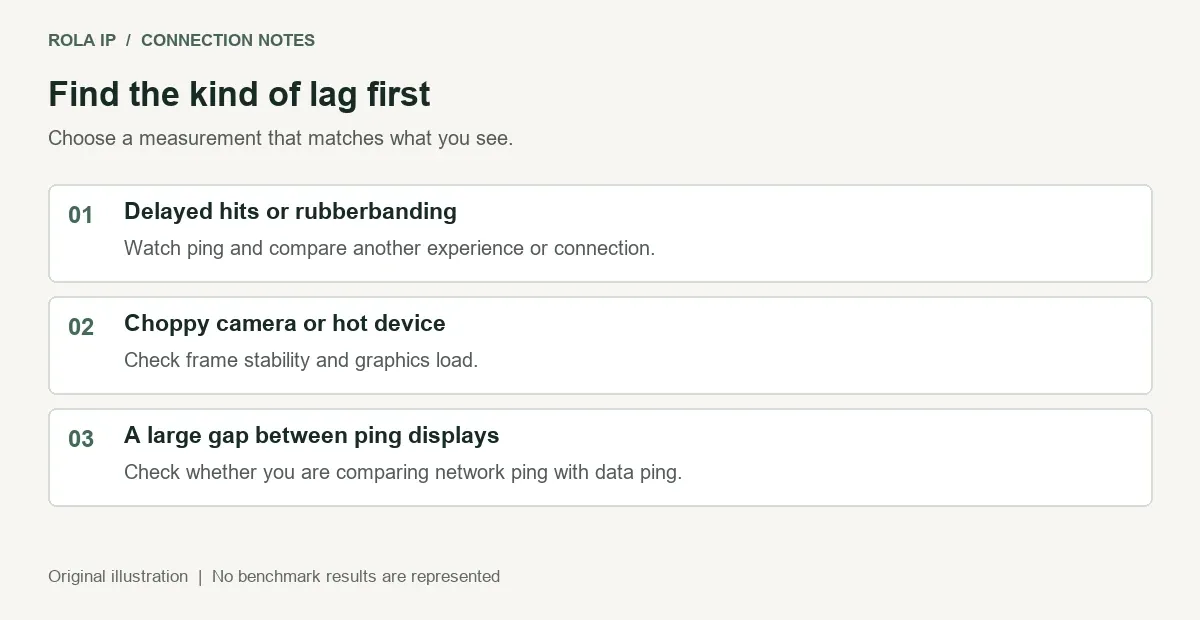
Wi-Fi interference, a busy upload queue, an indirect ISP route, and server distance can each add delay. An experience can also struggle with replication or processing. If only Roblox is affected, compare different experiences before blaming the ISP. If every device gets worse while someone uploads files, investigate shared network congestion first. These observations narrow the possibilities without proving a single cause. If only one experience is slow, compare instances first. If several experiences are slow, compare connections. If the problem appears only on Wi-Fi, investigate the wireless link. If ping stays steady while the camera stutters, check device performance.
Separate network ping from data ping and FPS
Roblox distinguishes the network round trip from data ping, which additionally reflects replication queues and reliability behavior. Read the same statistic throughout your comparison; a number in one overlay may represent something different from another. A large gap can justify further investigation of replication behavior rather than more changes to your home connection. The same official diagnostic reference below explains these measurements.
Delayed actions with otherwise smooth camera movement point toward communication delay. Choppy rendering can instead require graphics or device troubleshooting. Lowering graphics quality may help that second problem, but it is not a dependable network ping fix. Roblox’s lag troubleshooting guide separates these categories.
Check Your Roblox Ping Before Changing Settings
The interface examples in this guide are credited third-party screenshots, not captures of a test performed for this article. Windows, Android, and iOS gameplay and local connection comparisons have not been tested for this article. Menu placement can differ by client version; use the current client labels and official documentation.
Open the in-experience menu, go to Settings, and turn on Performance Stats where available. Roblox Creator Hub: ping measurements and performance tools lists Ctrl + Alt + F7 for Performance Stats on Windows. Shift + F3 opens Network Debug Stats, which includes Data Ping. These readings are not interchangeable; use the menu and current documentation if a shortcut behaves differently in your client. Read ping in milliseconds and observe it after the initial loading period rather than relying on the first number you see.
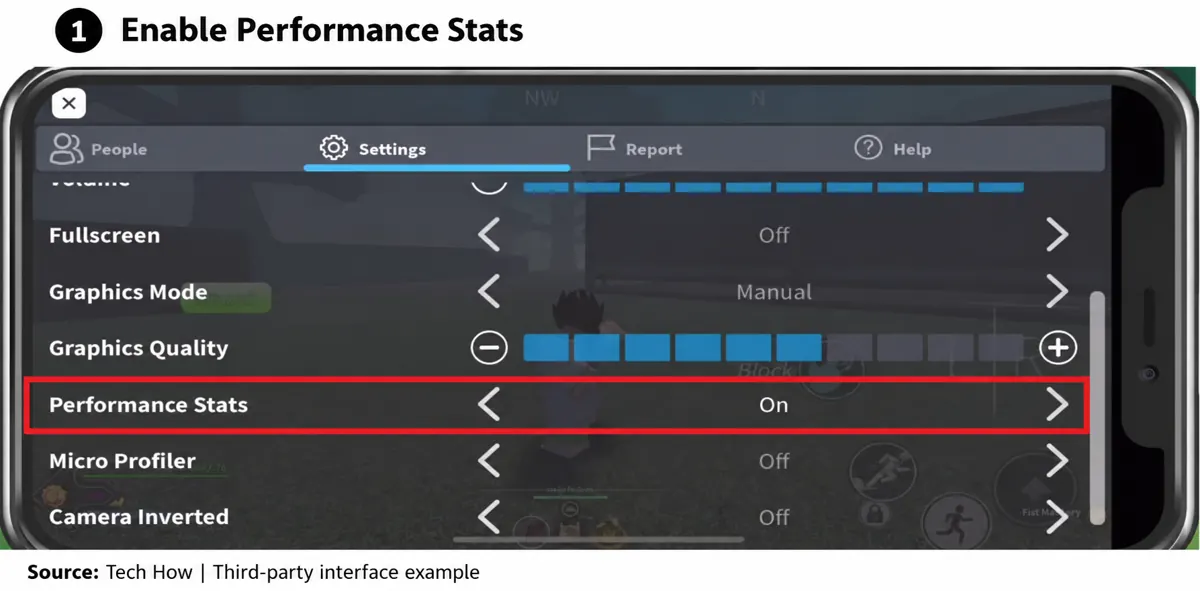
Interface example from Tech How, Project Slayers mobile troubleshooting tutorial. Cropped and annotated; the source already highlights Performance Stats. The source does not identify the device model, OS build, or Roblox version. Screenshot source.
Record a few minutes of normal play, noting the usual range and spikes. Compare typical latency, spikes, and disconnects within the same experience instead of treating a universal ping threshold as a pass or fail. Different experiences and players tolerate delay differently. Readings from different overlays should not be compared as though they measure the same thing.
Compare another server or experience using the same device and connection. You can also leave and rejoin the same experience, recording whether you receive a different instance; reconnecting does not guarantee a closer server. Joining a friend or private server may place you on a different instance, so record that change. A private server does not inherently supply a nearby location, dedicated low-latency routing, or immunity from server load.
A real service-status check
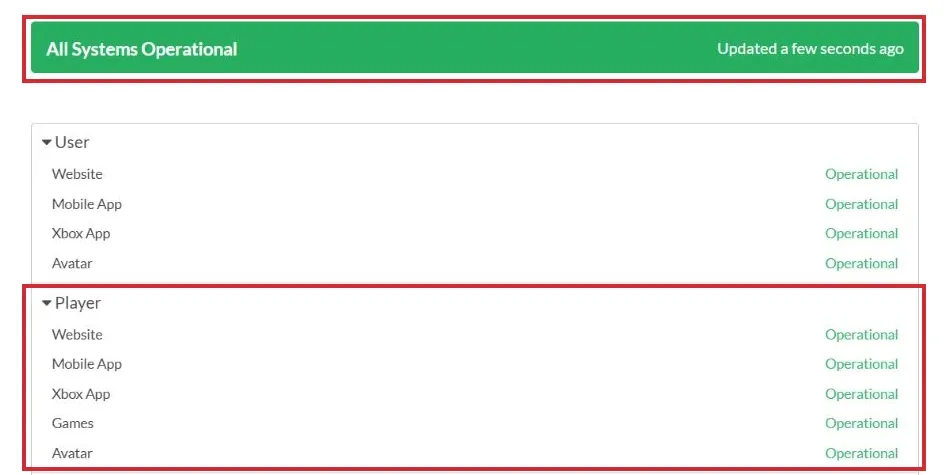
Visit Roblox Status before changing network settings. The screenshot below illustrates the service overview and Player Games component. It is not a live status indicator and does not establish that every experience, server instance, region, or network route is working normally. Check the current page when troubleshooting.
How to Lower Ping in Roblox With Local Network Fixes
Test Ethernet or improve the wireless link
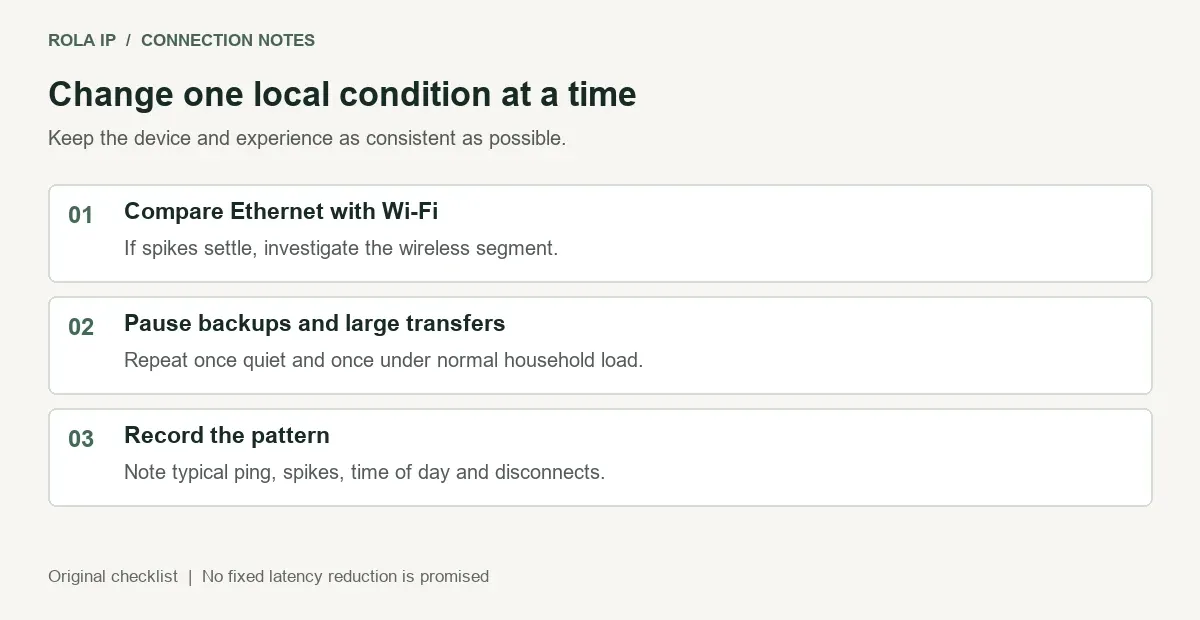
Connect a PC directly to the router with Ethernet if possible, then repeat your observation in the same experience. If spikes settle, the wireless segment deserves attention. Without Ethernet, move closer to the router and compare a 5 GHz connection when supported. Walls and distance can weaken it, so choose the connection that actually stays stable in your room.
Restart a router if the problem began suddenly, then allow the connection to settle before testing. Do not repeatedly restart equipment during a comparison; each extra change makes the result harder to interpret. Roblox includes testing a wired connection in its official connection checklist.
Pause traffic that fills the connection
Pause cloud backups, game updates, large uploads, and streaming on the shared connection. On Windows, inspect Task Manager’s Network column to identify activity, then pause it within the relevant app. Avoid terminating unfamiliar system processes. Observe the same experience while the connection is quiet, then repeat while normal household uploads or downloads resume. A rise that coincides with load suggests congestion, but this comparison alone cannot identify the faulty device or network segment.
If ping rises primarily under load, queue management may be relevant. A router with properly configured SQM or suitable QoS can help control congestion, but the setup depends on the router and connection capacity. Buying more download bandwidth is not automatically the answer to an overloaded upload queue.
Treat DNS and firewall changes as targeted troubleshooting
DNS translates names into addresses. Replacing a resolver or flushing its cache may help a lookup problem, but it does not normally shorten the ongoing packet path to an established game server. Do not expect a DNS change alone to resolve consistently high in-game latency.
If Roblox cannot connect or repeatedly disconnects, review its access in your firewall. The official connection checklist linked above documents UDP connectivity requirements. Keep normal security protections enabled and allow the application as appropriate; do not disable the firewall or blindly expose a broad inbound port range as a ping optimization. An administrator should handle restrictions on a managed network.
How to Reduce Ping in Roblox Mobile
On Android or iPhone, start beside the router with downloads and backups paused. Open Roblox’s in-experience Settings and enable Performance Stats if the option is available. Observe the same experience long enough to distinguish loading from ongoing delay. If the phone is overheating or frames stutter while ping remains steady, reduce graphics load and allow the device to cool.
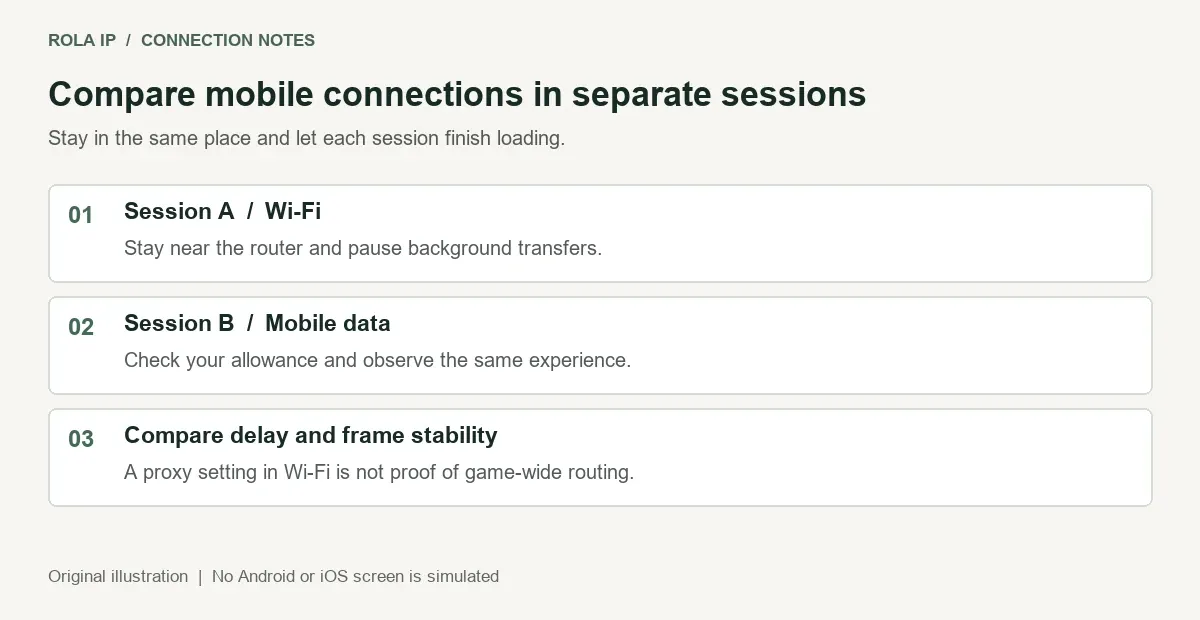
Compare Wi-Fi with mobile data in separate sessions, checking your data allowance first. Keep the phone stationary and avoid evaluating a connection during a Wi-Fi-to-cellular handover. Better performance on cellular suggests the Wi-Fi or home ISP path needs attention; it does not identify which one without another comparison.
A phone’s manual Wi-Fi proxy setting usually handles HTTP proxy use rather than all app traffic. A browser showing a new exit IP therefore does not establish that Roblox gameplay is proxied. For an alternative route, the mobile client and endpoint must explicitly support the required traffic end to end. Confirm Android or iOS support before purchasing a plan or installing a client. Switching IPs during a live session can interrupt connectivity. For Android client fields, exit checks, and troubleshooting, see How to Use SOCKS5 on Android. That setup guide does not establish Roblox UDP compatibility or a latency improvement.

Third-party gameplay example from the same Tech How tutorial. Read the visible Ping label and milliseconds; the displayed values belong to the source session and are not Rola measurements, a target to achieve, or a before-and-after comparison. Cropped and annotated. Screenshot source.
Can a Proxy or VPN Fix Roblox High Ping
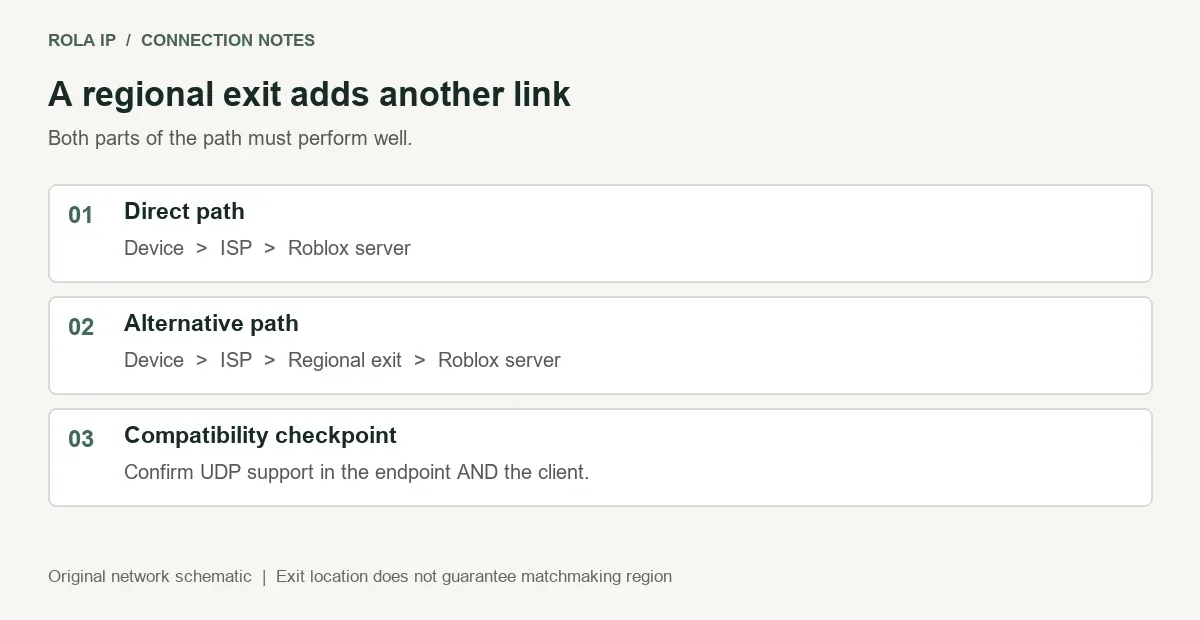
An alternative route can improve latency when it avoids a congested or inefficient segment. It can also make latency worse by adding distance and another relay. A proxy does not move an existing Roblox server closer, and a city label on an exit IP does not guarantee that Roblox will assign a server in that city.
Think of a routed connection as two links: your device to the exit, then the exit to Roblox. Both must work well. An exit near the destination can still perform poorly if reaching it from your ISP takes a long detour. Similarly, a residential IP describes the address resource or its classification; it does not certify a faster route.
Check UDP compatibility before configuring a SOCKS5 proxy
RFC 1928 defines the SOCKS5 UDP ASSOCIATE command and UDP relay mechanism, but support must exist in the actual proxy service, selected endpoint, authentication setup, and client. A provider advertising SOCKS5 alone does not establish that this full path is available. A TCP-only forwarding rule for RobloxPlayerBeta.exe is insufficient evidence that gameplay traffic is using the relay.
Do not assume Proxifier or another application proxy tool can carry the UDP traffic your session needs. Verify its current platform-specific documentation and ask the endpoint provider about UDP relay and any restrictions. A suitable tunnel implementation may be needed. If support cannot be confirmed, use the proxy for compatible web diagnostics and regional checks rather than presenting it as a gameplay fix.
Where Rola IP Fits in a Roblox Network Test
Rola IP supplies proxy and IP resources for workflows that need a controlled exit address. For a Roblox-related route investigation, ask which product, location, client, and transport combination fits your device before purchasing. A location label or SOCKS5 designation alone is not evidence that gameplay traffic will use that exit.
For a persistent comparison, a fixed exit is generally easier to evaluate than per-request rotation. Review Rola’s static residential proxies and confirm the current plan’s IP persistence, allocation model, traffic policy, speed and connection limits, authentication, and UDP relay support. Treat these as product selection questions rather than assumptions about game performance.
The distinction between a fixed local address and a fixed public exit also matters. Rola’s guide to what a static IP address is explains that distinction and why a fixed address does not automatically increase internet speed. Setting a static private address on your computer does not by itself shorten the route to Roblox.
Rotating residential resources are more relevant to compatible data collection, SEO monitoring, ad verification, and market research than to continuous gameplay. A sticky session is intended to hold an exit for a configured period; a static resource is intended to remain fixed under its product terms. Confirm those terms for the selected plan. Neither behavior proves low latency, game compatibility, or protection from account restrictions.
Check compatibility before considering a routed test
This is a compatibility checklist and a proposed test method, not a verified Roblox proxy setup. No specific Rola endpoint and client combination has been validated for gameplay for this article. Obtain current documentation covering UDP relay, client and platform compatibility, authentication, session limits, and a documented way to stop the client and restore the original connection. If these cannot be confirmed, skip the routed stage.
First establish your direct baseline on a quiet connection. Record the device, connection type, time, experience, server instance if identifiable, and the ping statistic used. Observe normal play over several minutes and note typical latency, spikes, and disconnects. Do not publish your home IP, proxy credentials, or account details in screenshots.
Next confirm the candidate endpoint’s location, session behavior, and UDP compatibility with Rola support. Only attempt configuration after the provider identifies a documented, compatible client and endpoint combination for your platform. Do not substitute a generic TCP proxy rule for that evidence. An IP checker can confirm the exit for that check’s traffic; client logs or connection inspection must also establish whether Roblox’s gameplay traffic is following the intended route.
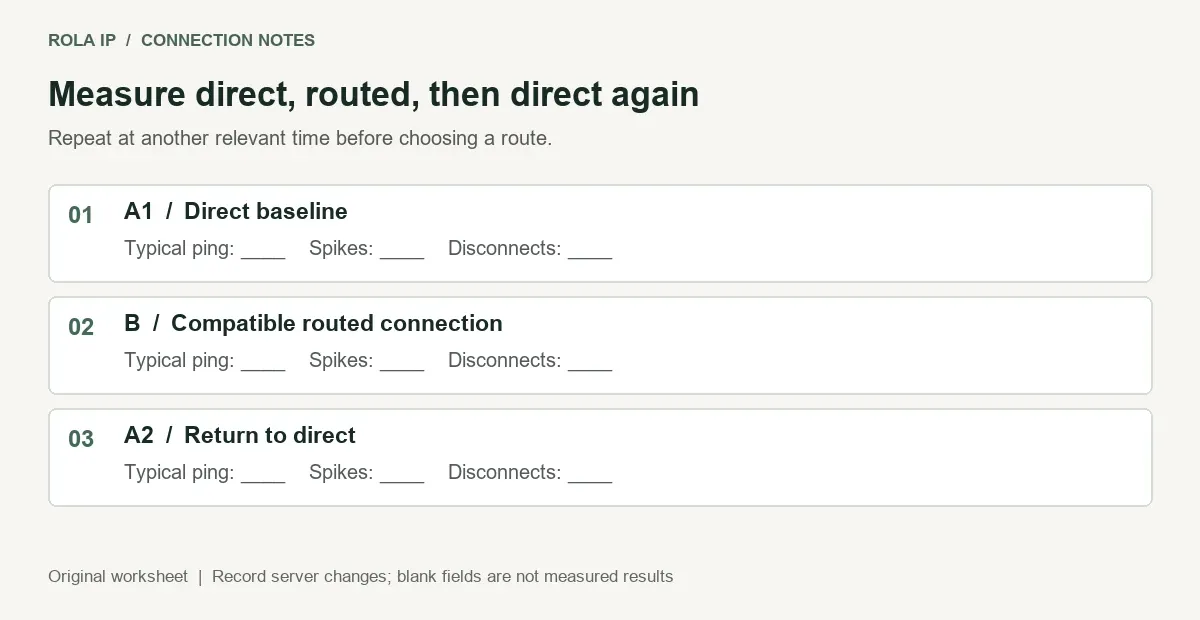
Repeat the observation with the same conditions where possible, then return to the direct connection and compare again. If Roblox assigns another instance, record the change and treat the result as a less controlled comparison. Repeat at another relevant time of day before committing. Keep the alternative route only if it repeatedly improves the in-game experience without introducing instability.
If you need a fixed regional exit for compatible diagnostics or a verified routing experiment, review the static product options above and ask support about a static plan for your device and route. Describe the UDP requirement before choosing a package. Product compatibility and measured results should drive the purchase.
How Can I Compare Roblox Connections Consistently?
Use the same device, experience, and exact ping display. As an editorial testing suggestion, let loading finish, observe five minutes of normal play, and record the displayed ping every 15 seconds, starting at 15 seconds for 20 planned samples. Use the same duration and interval in every run. This is not an official Roblox benchmark. Record the median and highest sampled value, missed samples, disconnects, and whether the instance changed; sampled values can miss brief spikes.
For a local comparison, use A1 for the original direct connection, B for one change such as Ethernet instead of Wi-Fi, and A2 for the original condition again. For a routed experiment, B is permitted only after the compatibility checks above. Copy this worksheet and leave it unfilled until you take real measurements.
Run: A1 / B / A2. Connection and changed condition: ____. Date, time and zone: ____. Device, OS and Roblox build if available: ____. Experience and instance identifier, or not available: ____. Instance changed: yes / no / unknown. Exact ping display: ____. Duration and interval: ____. Completed samples out of 20: ____. Median sampled ping: ____ ms. Highest sampled ping: ____ ms. Disconnects and limitations: ____.
Stop an alternative-route test if gameplay traffic cannot be verified, authentication fails, or new disconnects appear. Stop the routing client using its documented controls, restore the original network connection, rejoin Roblox, and confirm direct connectivity before continuing. If the instance or workload changed, label the comparison less controlled. A lower median accompanied by more disconnects is not enough to call the alternative better.
When High Ping Persists
If only one experience stays slow across different connections, report it to the creator with the time, observed behavior, and measurements. If many experiences are affected on one ISP but perform better on another connection, give the ISP that comparison. A traceroute can add context, but missing replies or a slow intermediate hop alone do not prove packet loss affecting the destination.
For Roblox high ping in a private server, compare a public instance without assuming that paying for privacy changes the physical hosting region. If the issue survives local checks and route comparisons, collect a short reproducible report for Roblox support. Include the device, OS, affected experiences, errors, and steps already tested. Avoid repeatedly resetting unrelated settings when the evidence points elsewhere.