
ROLA App Connect: Proxy Your AI Tools Without Rerouting Your Entire PC

Nov 2, 2026 · Product Updates · 8 min read
You may want AI tools to use a proxy while messaging and everyday office apps stay on your regular connection. Setting up an anti-detect browser can also mean dealing with protocols, hosts, and ports. ROLA App Connect brings these tasks together in a Windows client, so you can configure network access for the applications you choose.
What Is ROLA App Connect?
ROLA App Connect is ROLA’s desktop client for Windows 10 and 11. It lets you connect selected applications to proxy IPs you have purchased.
The client can connect to ROLA from mainland China without requiring a VPN or another third-party proxy tool. After setup, proxy access is available to the applications you have added and enabled.
Access to websites and apps restricted in mainland China is not supported. Direct connectivity from mainland China means only that the client can connect to ROLA’s service; it does not provide access to restricted content.
For an overview and detailed instructions, see the official ROLA App Connect documentation.
You can route local programs, such as AI tools, through a selected proxy. Or you can create a local HTTP or SOCKS5 port for an anti-detect browser or a script that supports standard proxy protocols.
For example, choose per-app routing and enable only the AI tool you want to use through the proxy. That tool will use the selected proxy, while messaging apps and browsers you have not enabled remain on your regular connection. If you need tighter control over which programs can access the internet, Isolation Mode can block other, unauthorized applications.
The proxy IP provides the network exit; App Connect manages the connection and routing on your computer. Use the ROLA website to add funds, purchase plans, and manage APIs. The desktop client handles proxy access from your computer. Installing the client does not include proxy resources; your account must have an available resource.
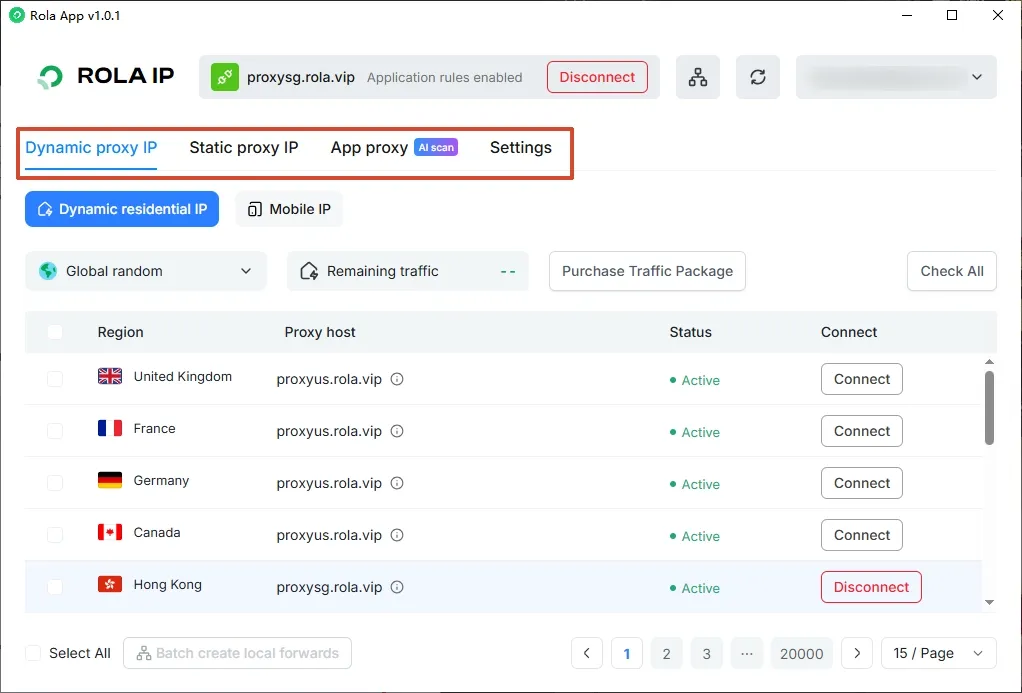
Figure 1. The client’s main window and proxy feature tabs.
Key Features
| Feature | What it does |
|---|---|
| Account resource sync | Sign in with your ROLA account to sync purchased proxy resources and traffic information. |
| Per-app routing | Route selected applications through a proxy while other applications connect directly. |
| AI app detection | Scan for locally installed AI applications supported by the client. The exact list depends on the client version. |
| HTTP/SOCKS5 local ports | Map a selected proxy to a local port for an anti-detect browser or script. |
| Isolation Mode | Allow authorized applications to connect and block other, unauthorized applications. |
| System tray | Minimize the client to the system tray and keep it and its connections running. |
Why Use ROLA App Connect?
ROLA App Connect combines resource sync, per-app routing, and local port forwarding in one client. If you already have ROLA resources, it can save you from repeatedly copying connection details or changing your computer’s system-wide proxy settings. It also makes it easier to use AI development tools, browser workflows, and everyday office apps on the same computer.
Who Is ROLA App Connect For?
| Use case | What you need | Suggested setup |
|---|---|---|
| AI development and chat | Proxy a local AI development or chat app while keeping office apps on your regular connection. | Configure the specific app with per-app routing. |
| Cross-border e-commerce and overseas social media | Connect a business profile in an anti-detect browser to a selected proxy resource. | Use local port forwarding. Consider Isolation Mode if you need to strictly limit other apps’ internet access. |
| Development, testing, and automation | Give scripts or test tools that support standard proxy protocols a connection endpoint. | Use an HTTP or SOCKS5 local port. |
| Multitasking | Use business software and local office apps on the same computer. | Use per-app routing. |
Start with the use case closest to yours. Get one connection working and verify it before adding more applications.
What You’ll Need
Before you begin, make sure you have a Windows 10 or 11 computer, a ROLA account, and an available proxy resource in that account. If this is your first time using the client, start with per-app routing and configure one application before considering Isolation Mode.
Install the client and sign in first, then follow the guide that fits your needs: Guide 1 covers an AI tool, using ChatGPT as an example; Guide 2 covers an anti-detect browser. Refer to your installed client for the exact menu and button names.
1. Download and Install the Client
Download the Windows client from the official ROLA App Connect download page. Run the installer, follow the prompts, and launch the client when setup is complete.
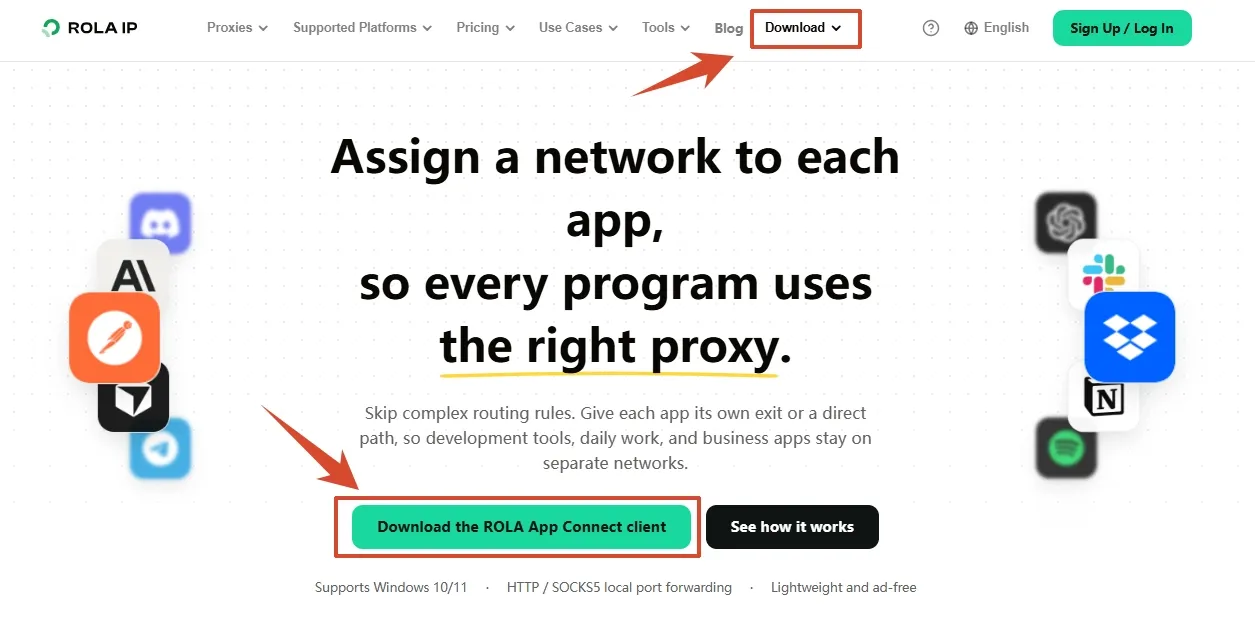
Figure 2. Find the Windows client download on ROLA’s website.
2. Sign In and Choose a Resource
Sign in with your ROLA account and wait for your purchased resources to sync. Select the IP or route you want to use, then check that it is still valid and has traffic available. Check the client or your account dashboard for the latest resource status.
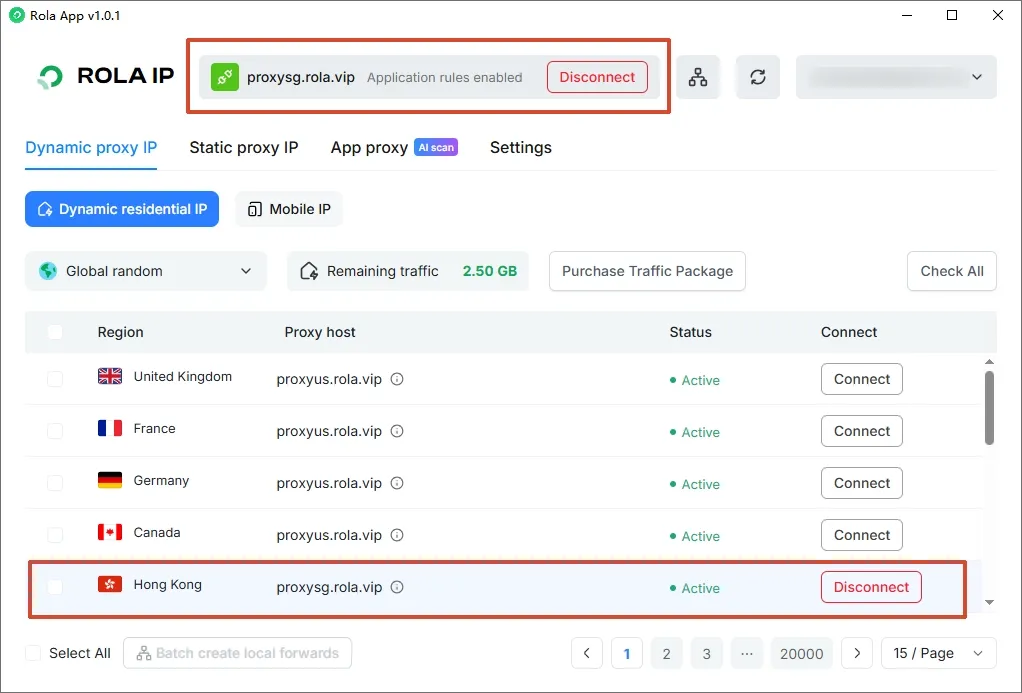
Figure 3. Review your synced resources and connect to the route you want to use.
Guide 1: Set Up a Proxy for ChatGPT (Shown as Codex)
Follow these steps if you want App Connect to manage an AI app’s network connection. The client can detect supported desktop apps installed on your computer, including ChatGPT, Claude Desktop, Cursor, and Windsurf.
- Make sure the ChatGPT desktop app is installed.
- In ROLA App Connect, use AI app detection to find and select ChatGPT. In the example screenshot, the detected entry is labeled Codex and identified as
ChatGPT.exe. If it is not detected, use the app picker to add the correct program manually. - Select Per-App Routing, confirm the proxy IP, and click Connect.
- Quit ChatGPT completely and reopen it. Send a new message to check that it gets a response.
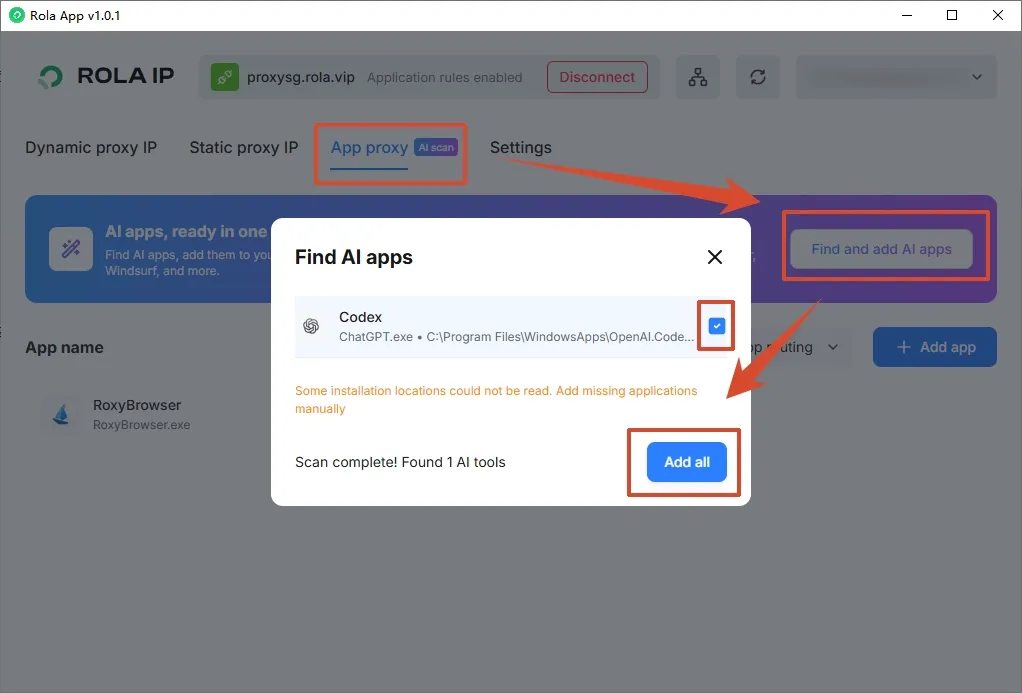
Figure 4. Scan for supported AI apps and add the ones you want to use.
If you use ChatGPT in a browser, add that browser to the app list. Selecting the ChatGPT desktop app does not change the connection used by a regular browser. A successful response is an initial check that the app can connect, but it does not confirm the exact egress IP. A browser that has not been added to the rules will continue to use your regular connection and show your local IP; this is expected.
Guide 2: Connect an Anti-Detect Browser Through a Local Port
Use this method if you want to enter proxy settings in a RoxyBrowser profile yourself. First create a local port in App Connect, then enter the same connection details in RoxyBrowser.
1. Create a Local Port in App Connect
- In the client, select the proxy IP you want to forward and create a local forward.
- Open the port forwarding list to find the connection address and local port associated with that proxy IP.
- Use the port assigned by the client. Do not assume the example port below will match your setup.
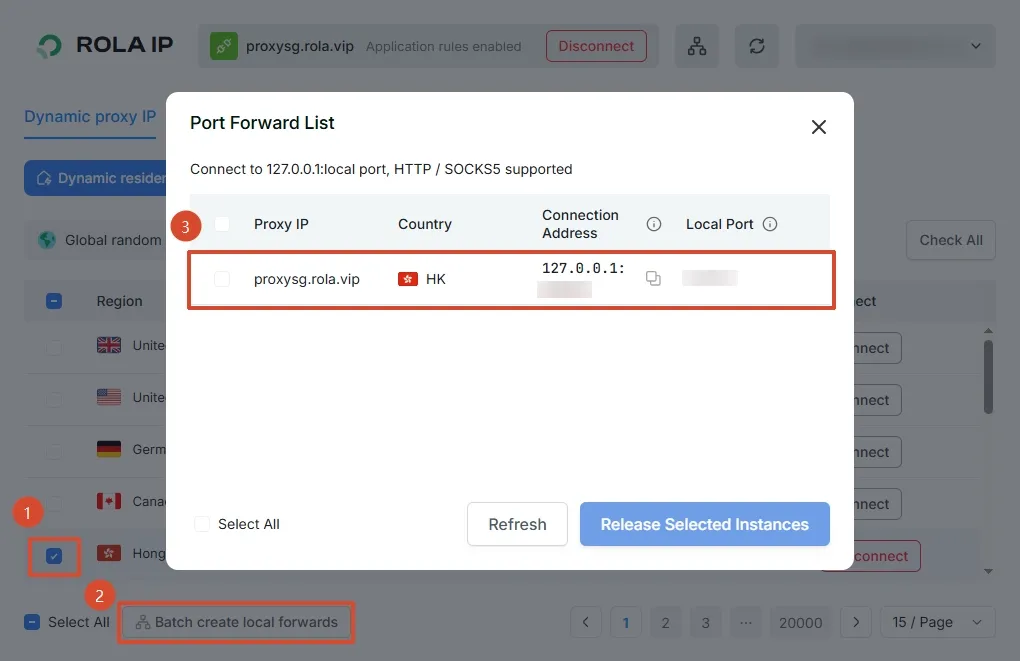
Figure 5. Find the local connection address and assigned port in the forwarding list.
2. Enter the Details in Your Browser
In RoxyBrowser, open the proxy settings for the profile you want to configure. Choose manual setup and enter the following:
| Field | What to enter |
|---|---|
| Proxy protocol | SOCKS5 or HTTP. Local forwarding supports both. |
| Host | The local listening address shown in the client, such as 127.0.0.1. |
| Port | The actual port shown in the client. |
| Username and password | Leave both blank. You do not need to enter the remote proxy IP’s account credentials again. |
For example, if the client assigns 127.0.0.1:8870, choose SOCKS5, enter 127.0.0.1 as the host and 8870 as the port, and leave the username and password blank. Port 8870 is only an example; use the port assigned by your client.
When you use 127.0.0.1, the browser and App Connect must be running on the same computer. Keep the client and local forward running while you use the browser.
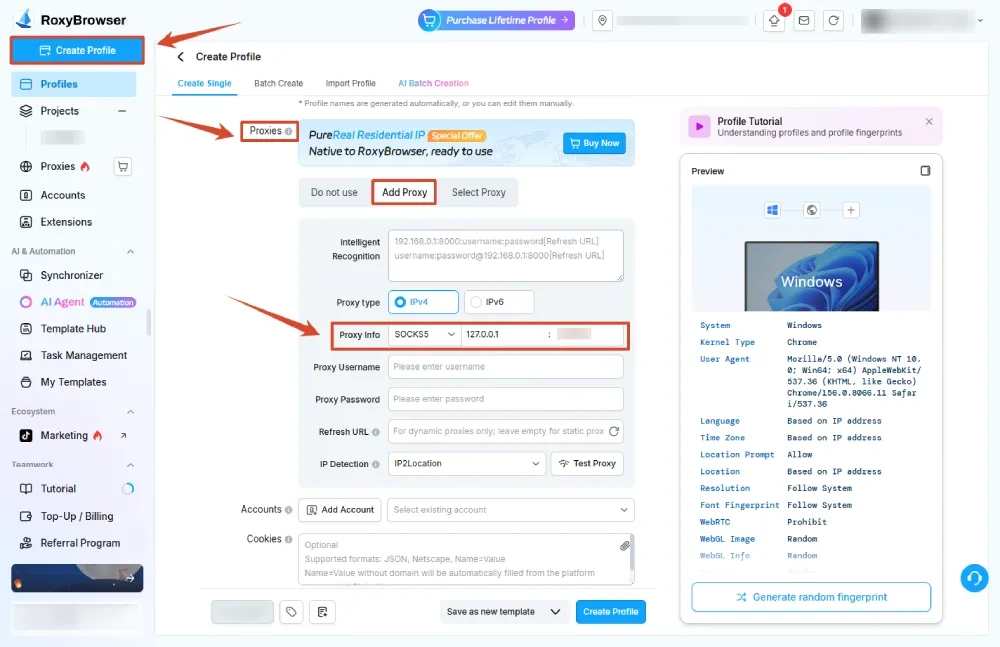
Figure 6. Enter the local address and port shown in App Connect in your browser profile.
3. Check the Egress IP and Test Access
Save the settings and run the browser’s proxy test, if available. Then launch the configured profile and open an IP-check page in that profile. Confirm that the egress IP and region match the resource you selected, then visit the site or service you need.
Run this check in the browser profile where you configured the proxy. A different window without the proxy settings cannot verify the connection.
Should You Turn On Isolation Mode?
If you want business apps to use the proxy while other apps remain available on your regular connection, use Per-App Routing. Here’s how the two modes differ:
| Mode | Selected apps | Other, unauthorized apps |
|---|---|---|
| Per-App Routing | Connect through the selected proxy. | Continue to connect directly. |
| Isolation Mode | Connect through the selected proxy. | Are blocked from connecting. |
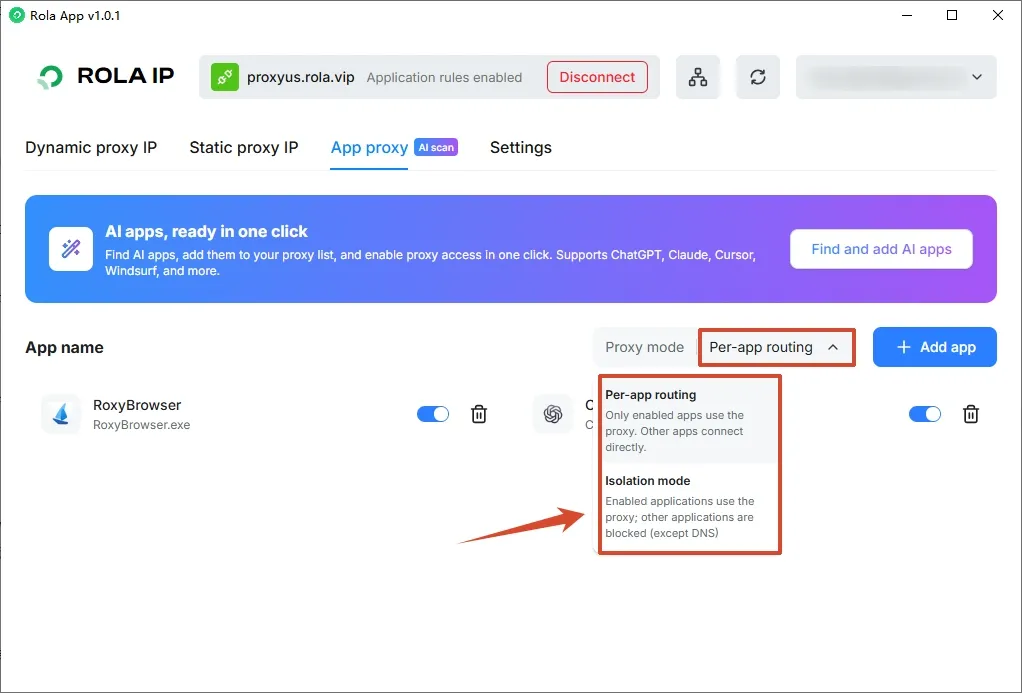
Figure 7. Choose a routing mode based on which applications should have internet access.
Before turning on Isolation Mode, make sure the applications and background components that need internet access are authorized. Switch modes and test your setup. If an office app can no longer connect, check the authorization list or temporarily turn off Isolation Mode while troubleshooting.
For everyday use, you can minimize the client to the system tray and leave the connection running. Reopen the main window when you need to change a resource or rule.
Start with One App
If you want to proxy an AI tool such as ChatGPT or connect an anti-detect browser to a ROLA route, download the client and sign in. Set up and verify one application first. If the workflow suits your needs, you can add more applications later.
Connection results depend on the selected route, your local network, and the destination service. Follow the laws and regulations where you are located, as well as the terms of service of the platforms you use.