
How to Scrape LinkedIn Profiles Without Logging In (Python Guide)

Nov 2, 2026 · Guides · 9 min read
TL;DR
- You can extract only fields present in the HTML returned for a logged-out public profile; availability varies by page.
- Inspect the page, choose selectors for its name, headline, and location, run the Python script, then validate the CSV row.
- If the response is a sign-in wall or access error, use an authorized saved HTML file if available or stop. This guide does not cover bypassing access controls.
What Profile Information Is Visible Without Logging In?
Some profile pages return a name, professional headline, or location summary to logged-out visitors. Available fields depend on page state and privacy settings. This guide shows how to inspect the returned HTML and export fields that are actually present; it cannot retrieve fields omitted from that response.
Use this workflow only where the access method and data use are permitted under applicable platform terms and privacy requirements. Public visibility alone does not grant permission for automated collection. The LinkedIn User Agreement describes LinkedIn’s platform rules.
Before You Begin: Define the Fields to Export
The example CSV contains only four columns: name, headline, location, and profile_url. Name is required. Headline and location are populated only when corresponding elements are present. The source URL enables later verification. Define the fields and missing-value rules first so that you can validate the export.
| Field | Extraction rule | Acceptance criteria |
|---|---|---|
name |
Name heading in the main profile area; required | Must not be navigation text such as “Sign in” or “Join” |
headline |
Selector verified against the DOM; optional | Must not be a title from a recommended-profile card |
location |
Selector verified against the DOM; optional | Leave blank if absent; do not infer from an employer’s location |
profile_url |
Final requested URL or source of the saved page | Must match the actual source and processing record |
Start with one profile URL or one saved HTML file. The script requires a name and stops on common login pages or non-success HTTP responses; missing headline and location values remain blank.
How to Scrape LinkedIn Profiles
The steps below take you from page inspection to CSV validation. The script supports an HTTPS profile URL and a saved HTML file. It does not use account cookies.
Step 1: Verify the URL and Logged-Out Page
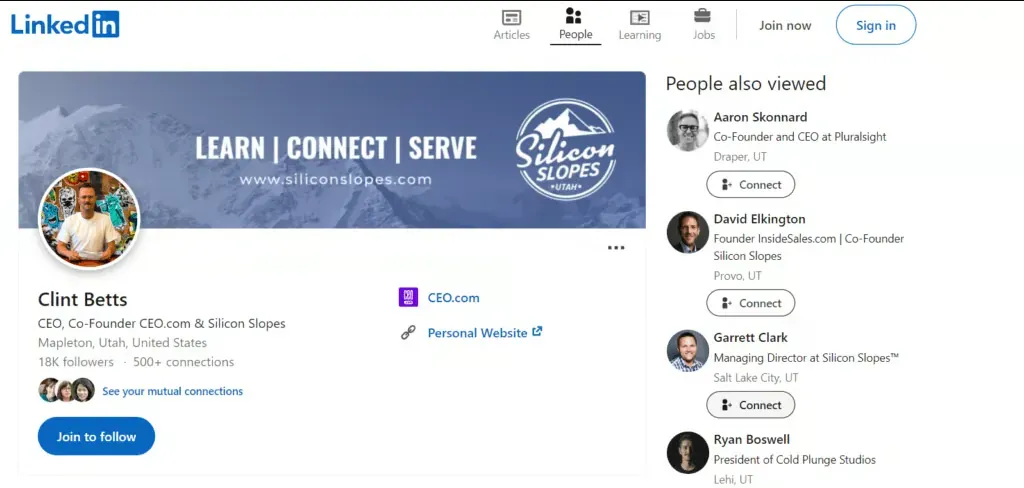
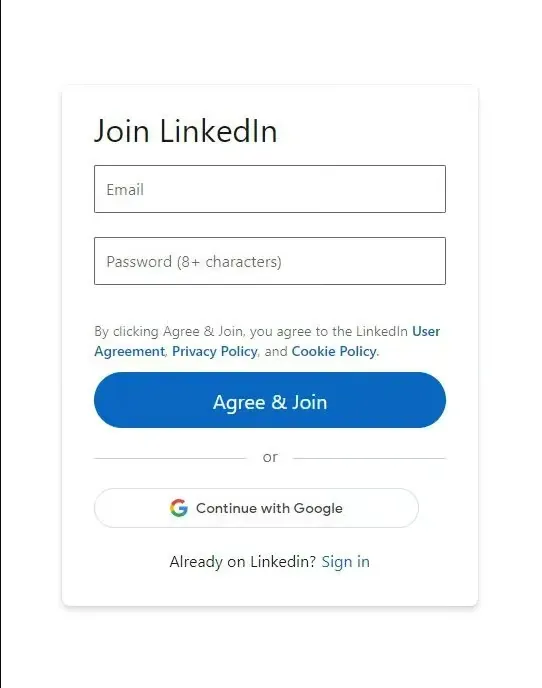
Open the public profile URL in a logged-out browser and note the final URL and visible fields. In Developer Tools, use the element picker on the name, headline, and location, then inspect their containing elements. If the page shows a sign-in wall, continue with an authorized saved HTML file in Step 4 if available; otherwise stop. Do not treat the prompt as profile data. Figures 1 and 2 show the two page states.
Step 2: Create a Python Environment and Install Dependencies
On macOS or Linux:
python3 -m venv .venv
source .venv/bin/activate
python -m pip install requests beautifulsoup4
On Windows PowerShell:
py -m venv .venv
.\.venv\Scripts\Activate.ps1
python -m pip install requests beautifulsoup4
If PowerShell blocks activation, run ./.venv/Scripts/python.exe -m pip install requests beautifulsoup4 and use ./.venv/Scripts/python.exe in place of python below.
Requests makes HTTP requests, Beautiful Soup parses HTML, and Python’s standard library handles CSV export.
Step 3: Confirm the Field Selectors on the Current Page
Find the main profile area in the DOM. Record CSS selectors for the name, headline, and location, then test each in the browser console. For example, document.querySelector('main h1')?.innerText checks the first heading inside main; replace it with the selector you found. Confirm the result belongs to the main profile, not navigation or a recommendation card.
Step 4: Run the Script and Inspect the Response
Save the complete code below as linkedin_profile_scraper.py. It validates the source URL, HTTP status, final URL, and common login-page text before extracting fields. Supply the selectors you checked in Step 3. On a failure it prints a diagnostic and does not write a new row.
import argparse
import csv
from pathlib import Path
from urllib.parse import urlparse

import requests
from bs4 import BeautifulSoup

parser = argparse.ArgumentParser()
source = parser.add_mutually_exclusive_group(required=True)
source.add_argument("--url")
source.add_argument("--html", type=Path)
parser.add_argument("--source-url", default="")
parser.add_argument("--root-selector", default="main")
parser.add_argument("--name-selector", default="h1")
parser.add_argument("--headline-selector")
parser.add_argument("--location-selector")
parser.add_argument("--output", type=Path, default=Path("profiles.csv"))
args = parser.parse_args()

if args.html and not args.source_url:
    parser.error("--source-url is required when using --html")

try:
    if args.url:
        target = urlparse(args.url)
        if (target.scheme != "https" or
                target.hostname not in {"linkedin.com", "www.linkedin.com"} or
                not target.path.startswith("/in/")):
            raise ValueError("Use a permitted HTTPS LinkedIn /in/ URL")
        response = requests.get(args.url, timeout=(10, 30))
        final = urlparse(response.url)
        print("HTTP:", response.status_code, "Final URL:", response.url)
        if response.status_code != 200:
            raise ValueError(f"HTTP {response.status_code}; check access and try again later")
        if (final.hostname not in {"linkedin.com", "www.linkedin.com"} or
                not final.path.startswith("/in/")):
            raise ValueError(f"Unexpected redirect to {response.url}")
        html, source_url = response.text, response.url
    else:
        source = urlparse(args.source_url)
        if (source.scheme != "https" or
                source.hostname not in {"linkedin.com", "www.linkedin.com"} or
                not source.path.startswith("/in/")):
            raise ValueError("Use a permitted HTTPS LinkedIn /in/ URL for --source-url")
        html = args.html.read_text(encoding="utf-8")
        source_url = args.source_url

    soup = BeautifulSoup(html, "html.parser")
    title = soup.title.get_text(" ", strip=True).lower() if soup.title else ""
    if any(phrase in title for phrase in ("sign in", "join linkedin", "page not found")):
        raise ValueError("The response title indicates a login or unavailable page")

    root = soup.select_one(args.root_selector)
    if root is None:
        raise ValueError("Profile container not found; inspect the HTML and update --root-selector")

    def field(selector):
        node = root.select_one(selector) if selector else None
        return node.get_text(" ", strip=True) if node else ""

    name = field(args.name_selector)
    if not name or len(name) > 160 or name.lower() in {"sign in", "join linkedin"}:
        raise ValueError("Profile name not found or selector matched unexpected text; check the selector")
    row = {
        "name": name,
        "headline": field(args.headline_selector),
        "location": field(args.location_selector),
        "profile_url": source_url or "",
    }
    with args.output.open("w", newline="", encoding="utf-8-sig") as file:
        writer = csv.DictWriter(file, fieldnames=row.keys())
        writer.writeheader()
        writer.writerow(row)
except (requests.RequestException, OSError, UnicodeError, ValueError) as error:
    parser.exit(1, f"ERROR: {error}\n")

print("Saved 1 reviewed row:", args.output)
Replace PROFILE_SLUG and the example headline/location selectors with the values you identified in Step 3. This command assumes the profile container is main and the name selector inside it is h1.
The script replaces the output file if it already exists. Choose a new --output filename to keep an earlier CSV.
python linkedin_profile_scraper.py --url "https://www.linkedin.com/in/PROFILE_SLUG/" --name-selector "h1" --headline-selector ".profile-headline" --location-selector ".profile-location" --output profiles.csv
For saved HTML, provide the source profile URL and use the same selectors:
python linkedin_profile_scraper.py --html profile.html --source-url "https://www.linkedin.com/in/PROFILE_SLUG/" --root-selector "main" --name-selector "h1" --headline-selector ".profile-headline" --location-selector ".profile-location" --output profiles.csv
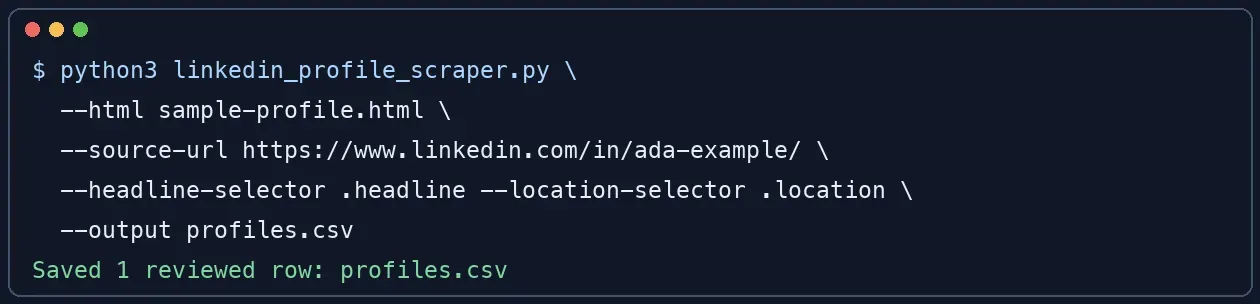
Figure 3 shows an example terminal result from the offline workflow.
Step 5: Open the CSV and Validate Each Column
Open profiles.csv in a spreadsheet editor or inspect it with Python. Confirm the header order (name, headline, location, profile_url), compare the name and URL with the source page, and check that optional fields came from the main profile. A blank optional field means the selector did not find a matching element; update the selector and rerun if the field is present in the page.

Why Can HTTP 200 Still Return No Profile Data?
HTTP 200 means the server returned a successful response status, not necessarily a profile page. Check the final URL, page title, main content area, and field nodes in that order. If the HTML contains only an empty container while the browser shows fields, the content may be rendered by JavaScript and is not available to this Requests-and-Beautiful-Soup script.
| Observation | First thing to verify | Response |
|---|---|---|
| HTTP 200 but blank name | Whether the page has a real profile area and selectors still match | Inspect HTML and DOM; do not export an empty record |
| Redirect to login/authwall | Final URL or page title shows a sign-in flow | Use an authorized saved HTML sample or stop; do not parse the prompt |
| HTTP 403 or 429 | Request was denied or rate limited | Stop requests and review the site’s access conditions |
| Browser displays fields but raw HTML does not | Content may be rendered by JavaScript | Use an authorized rendered HTML export or a permitted rendering workflow |
If the saved HTML uses a different profile container, pass its selector with --root-selector. If the name selector returns no value, inspect the element and update the selector before rerunning.
The Rola IP guide to scraping JavaScript-rendered pages with Python explains ways to inspect content rendered after the initial response. Beautiful Soup parses HTML but does not execute JavaScript.
How Do You Know Whether the Exported Data Is Reliable?
Review a sample of the output before using it. Check that names match profile URLs, headlines come from the main profile, and locations are explicitly shown on the page. People with the same name are not necessarily the same individual; do not deduplicate on names alone. Record the input file or URL, selectors, and any skipped rows so that parsing changes can be reproduced.
- Required field missing: Stop processing that record; do not write an empty name.
- Optional field missing: Leave it blank rather than guessing from other fields.
- Implausible field: Return to the HTML and inspect the element. Avoid mistaking login buttons, navigation, or recommended profiles for the target profile.
- Page structure changed: Inspect a saved HTML sample, update selectors, and rerun the parser on that sample first.
How Can You Make Cross-Region Page Checks Comparable?
For a regional comparison of your own site or another page you are authorized to test, keep the URL, time window, language, and parsing rules constant. This makes differences easier to attribute to the network exit rather than a changed page or session.
Choose a Region and Session, Then Configure the Request Exit
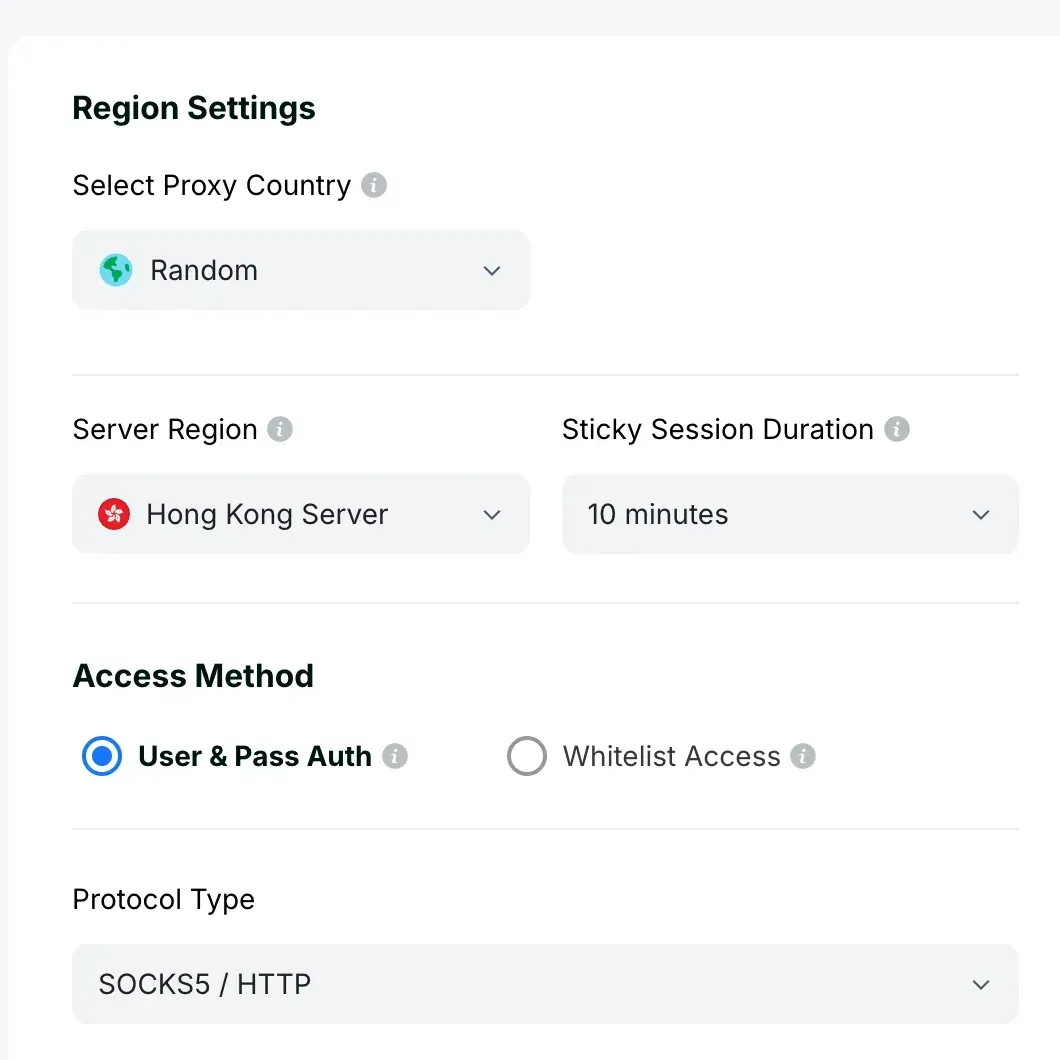
For an authorized regional check, Rola IP can provide a configured proxy exit while the same Python parser checks the response, extracts fields, and writes the CSV. This lets teams compare how their own pages respond across regions and sessions without changing the parsing logic. Use the region, session duration, and authentication settings available in your account; a Requests Session and a proxy sticky session are separate settings.
Verify the Exit Before Checking the Target Page
Get the actual proxy protocol, hostname, port, and authentication credentials from your account and store them in the ROLA_PROXY_URL environment variable. Put the URL of your own or explicitly authorized test endpoint in AUTHORIZED_TEST_URL. Never expose real credentials in source code or screenshots.
import os
import requests

proxy_url = os.environ["ROLA_PROXY_URL"]
test_url = os.environ["AUTHORIZED_TEST_URL"]
response = requests.get(
    test_url,
    proxies={"http": proxy_url, "https": proxy_url},
    timeout=(10, 30),
    allow_redirects=False,
)
print("status:", response.status_code)
print("final URL:", response.url)
response.raise_for_status()
if response.status_code != 200:
    raise SystemExit("Unexpected test response")
This code confirms that the test endpoint returned HTTP 200 through the configured proxy. To check the exit region, compare the response from a trusted IP-echo endpoint with the region selected in your account. For session behavior, send two requests to your own test endpoint and compare the observed exit IPs.
For HTTP 407, check the proxy credentials and allowlist settings. For HTTP 403 or 429 from the destination, stop requests and review that site’s access conditions.
The official Requests proxy documentation explains the proxies argument and environment-variable behavior.
Conclusion
A reliable way to scrape LinkedIn profiles without logging in is to inspect the logged-out HTML, select fields present in the main profile area, and validate each exported CSV row. If the response is a sign-in wall or does not contain the expected profile, use an authorized saved HTML file or stop rather than treating the page as profile data.
For parser syntax, consult the official Beautiful Soup documentation. For platform rules, refer to the current LinkedIn User Agreement.