
How to Set Up Rola IP Proxies in Incogniton?

Nov 17, 2026 · Guides · 7 min read
To use Rola IP proxies with Incogniton, create a browser profile, add your proxy host, port, and credentials in its proxy settings, then check the connection before launching the profile. This guide covers choosing a Rola IP proxy, configuring Incogniton, and troubleshooting common connection issues for authorized client-account management and browser testing.
What is Incogniton?
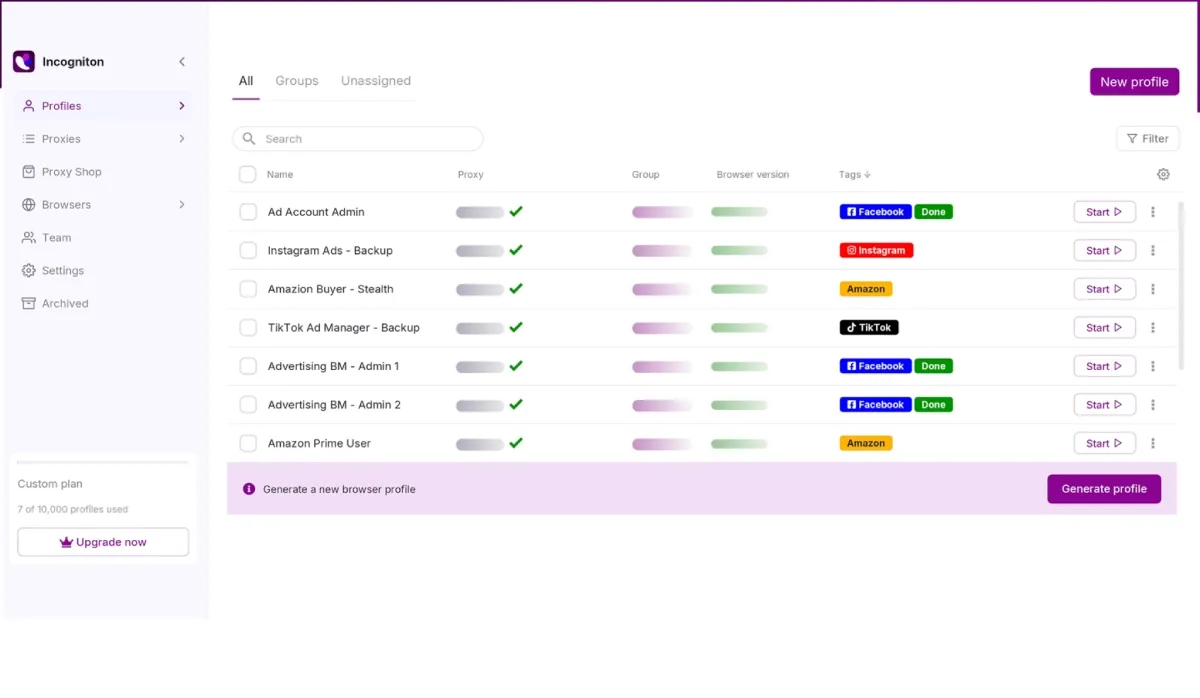
Incogniton is an anti-detect browser for creating and managing separate browser profiles. Its value in this setup extends beyond entering a proxy address: it provides tools for organizing recurring work and collaborating with a team.
- Profile organization: Create separate workspaces and group related profiles so the right environment is easier to find.
- Proxy management: Store proxy connections and assign them to profiles instead of repeatedly entering the same details.
- Team collaboration: Use available profile-sharing and permission controls to give colleagues access to the workspaces they need.
- Bulk operations: Create or edit profiles in batches when managing a larger project.
- Automation: Incogniton offers REST API and Selenium automation, alongside MCP tools and its Cas assistant for supported workflows.
- Backup and synchronization: Available local and cloud options help maintain profile data across ongoing work.
Available features depend on the plan.
Why combine Incogniton with Rola IP?
A proxy and a browser profile handle different parts of your workflow. Rola IP provides the network connection and exit IP. Incogniton manages browser profiles, their stored browsing data, and browser settings. Connecting the two lets you assign a selected proxy to a specific work environment.
For example, an agency managing authorized client accounts can keep each client’s browsing workspace separate and assign the intended regional endpoint to that profile. A QA team can use profiles with different proxy locations to check regional content without repeatedly changing the whole computer’s connection settings.
| Component | Role in the setup |
|---|---|
| Rola IP proxy | Routes the profile’s traffic through the selected proxy endpoint. |
| Incogniton profile | Keeps a browser workspace with its own cookies, storage, and configurable settings. |
| Connection check | Helps confirm that the proxy is reachable and the profile uses the expected exit IP. |
The combination supports organized workflows. It does not guarantee account access, prevent platform enforcement, or replace authorization to use a service.
Which Rola IP proxy should you choose?
Choose the proxy connection around the task’s session and location requirements. For an ongoing browser session, continuity is often more useful than frequent IP changes. For a permitted test that explicitly calls for different exits, a rotating endpoint may be appropriate.
| Rola IP option | Suitable requirement | Check before connecting |
|---|---|---|
| Static residential proxies | Repeated work that needs a consistent exit IP. | Required region, allocation period, and supported protocol. |
| Rotating residential proxies | Authorized browsing or testing that needs selectable locations or changing exits. | Rotation behavior and any sticky-session settings. |
| Mobile proxies | Testing that specifically needs a mobile-network connection. | Available regions, session behavior, and application requirements. |
A sticky session holds an exit IP for a provider-defined period or under specified conditions; it is not a permanent static IP. Our comparison of static and dynamic IP addresses explains the distinction.
Start with one endpoint and one profile, confirm the connection, then expand. You can select your proxy in the Rola IP dashboard before proceeding.
How to set up Rola IP proxies in Incogniton
Before you begin
Have these ready:
- An Incogniton account and the installed application.
- An active Rola IP proxy with its host, port, and supported protocol.
- The endpoint’s username and password, or the authentication method provided for your connection.
- Your intended location and session settings.
The steps below use username/password authentication. Copy the full proxy username, including any location or session parameters generated by Rola IP. Keep all credentials private.
Step 1. Get your connection details from Rola IP
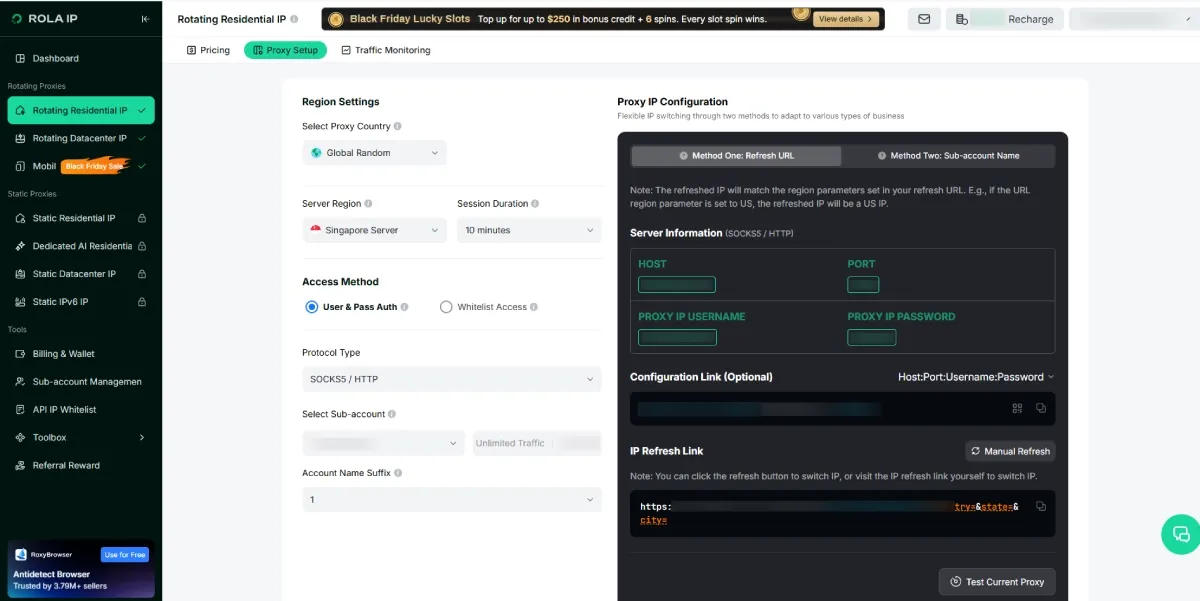
Open your Rola IP dashboard and select the proxy product you want to use. Choose the endpoint’s location and session settings where available, then copy the connection details.
| Field | What to enter in Incogniton |
|---|---|
| Host or IP address | The proxy server address provided by Rola IP. |
| Port | The port supplied for that endpoint. |
| Proxy type | The protocol supported by the endpoint and selected in Incogniton. |
| Username | The complete proxy username, including generated parameters. |
| Password | The corresponding proxy password. |
Use the details generated for the selected product. Do not substitute a dashboard login password for a proxy password or mix fields from different endpoints.
Step 2. Create an Incogniton profile
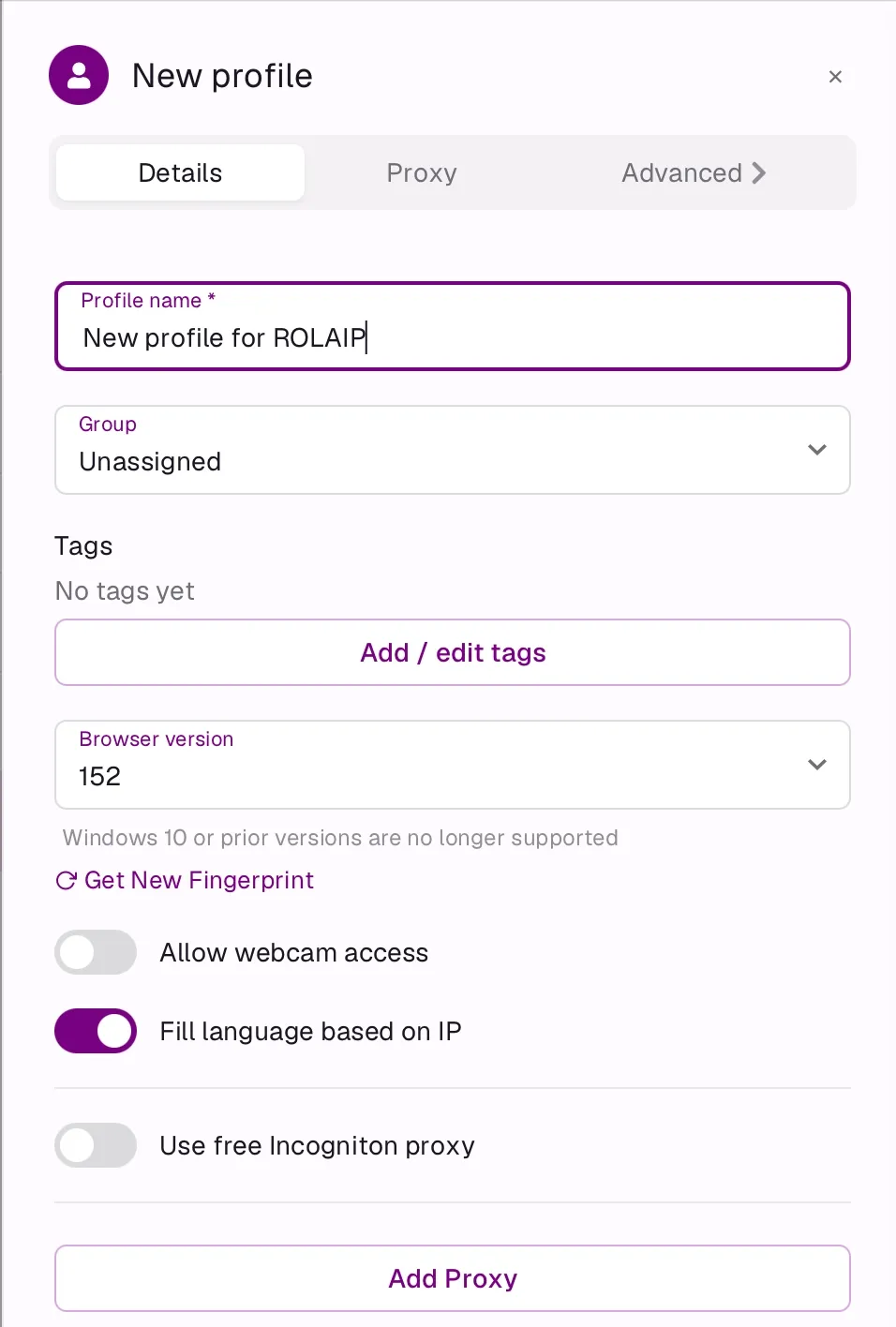
Open Incogniton and select New profile. Give the profile a name that describes its purpose, such as Client-A-UK-01 or Regional-QA-DE-01.
Review the profile settings and save the new profile. A clear naming pattern helps when several profiles belong to different clients, teams, or test regions.
Step 3. Add your Rola IP proxy
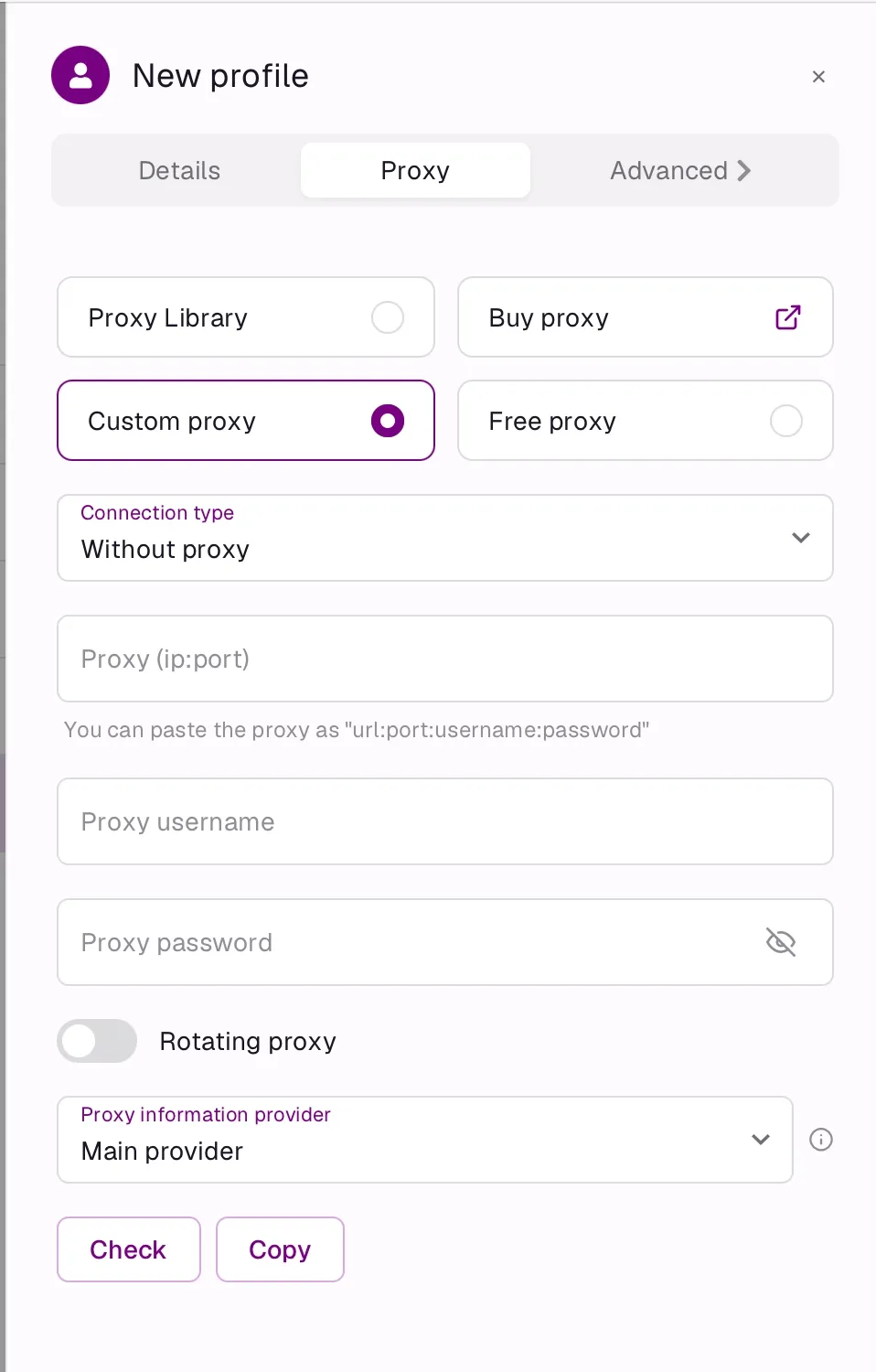
Open the profile’s Proxy tab and select Custom proxy. Choose the protocol matching your Rola IP endpoint, then fill in the host, port, username, and password.
You can also paste the proxy details in the format url:port:username:password. Here, url refers to the proxy host supplied by Rola IP. Entering the values in separate fields is useful when checking which part of the connection is wrong. An HTTP proxy can carry HTTPS website traffic through tunneling; the destination website’s https:// address alone does not determine the correct proxy type.
Select Check to test the endpoint. After the check succeeds, select Save. Menu wording may vary by application version.
Step 4. Review location and privacy settings
For a regional test or another location-dependent task, review the profile’s timezone, language, and geolocation settings. Incogniton includes IP-based options such as Fill timezone based on IP and Fill language based on IP in the partner-supplied workflow.
Review WebRTC settings as well. Where appropriate, use Incogniton’s proxy-based public IP option and verify its result after launch. Only grant geolocation permission when the task requires it. Language, timezone, and IP location are separate signals; an intentional difference between them is not automatically a configuration error.
Step 5. Launch the profile and verify the connection
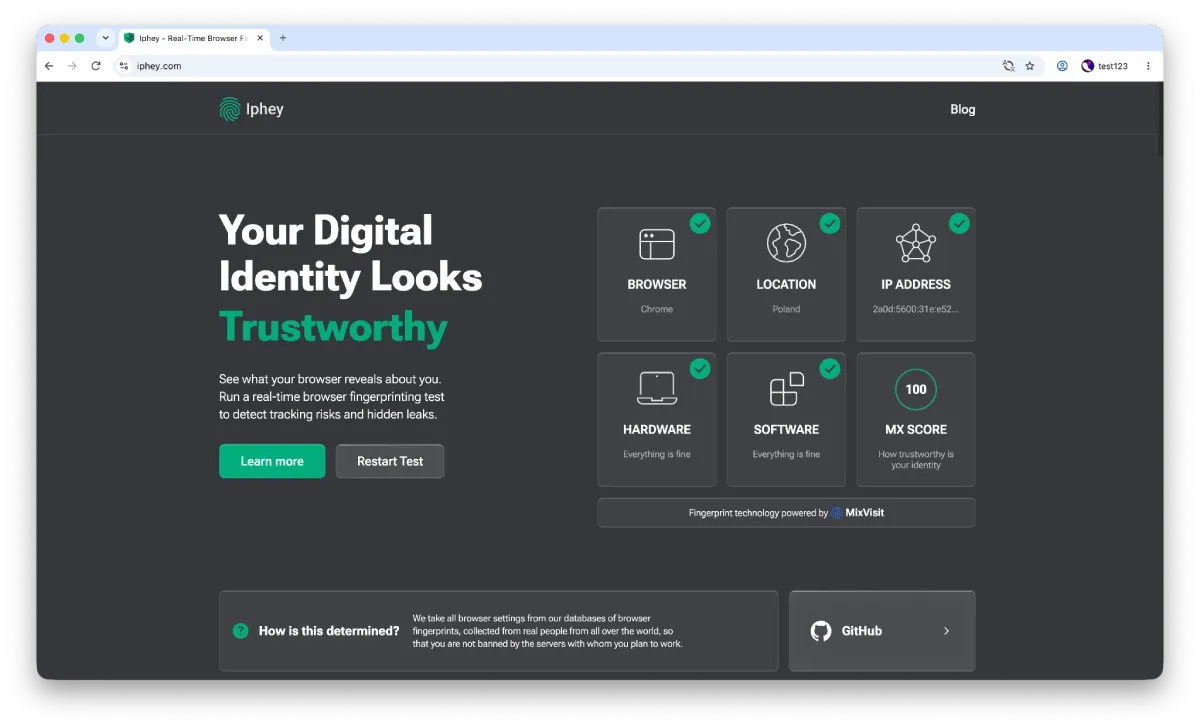
Start the profile and open an IP-check page such as Iphey, BrowserLeaks, Pixelscan, or BrowserScan.
Check three things:
- The browser reports the Rola IP exit address rather than your usual direct-connection address.
- The reported region is consistent with your selected endpoint, allowing for differences between IP-geolocation databases.
- The profile loads pages successfully and the session behaves as configured after reconnecting.
If you changed WebRTC settings, also check the public addresses visible in that test. A checker result helps diagnose the connection; it does not certify account safety or platform acceptance.
Step 6. Organize additional profiles
Once the first connection works, repeat the setup for the remaining workspaces. Incogniton’s proxy library and bulk-management features can reduce repeated entry when your plan includes them. Keep a record of which endpoint belongs to each profile.
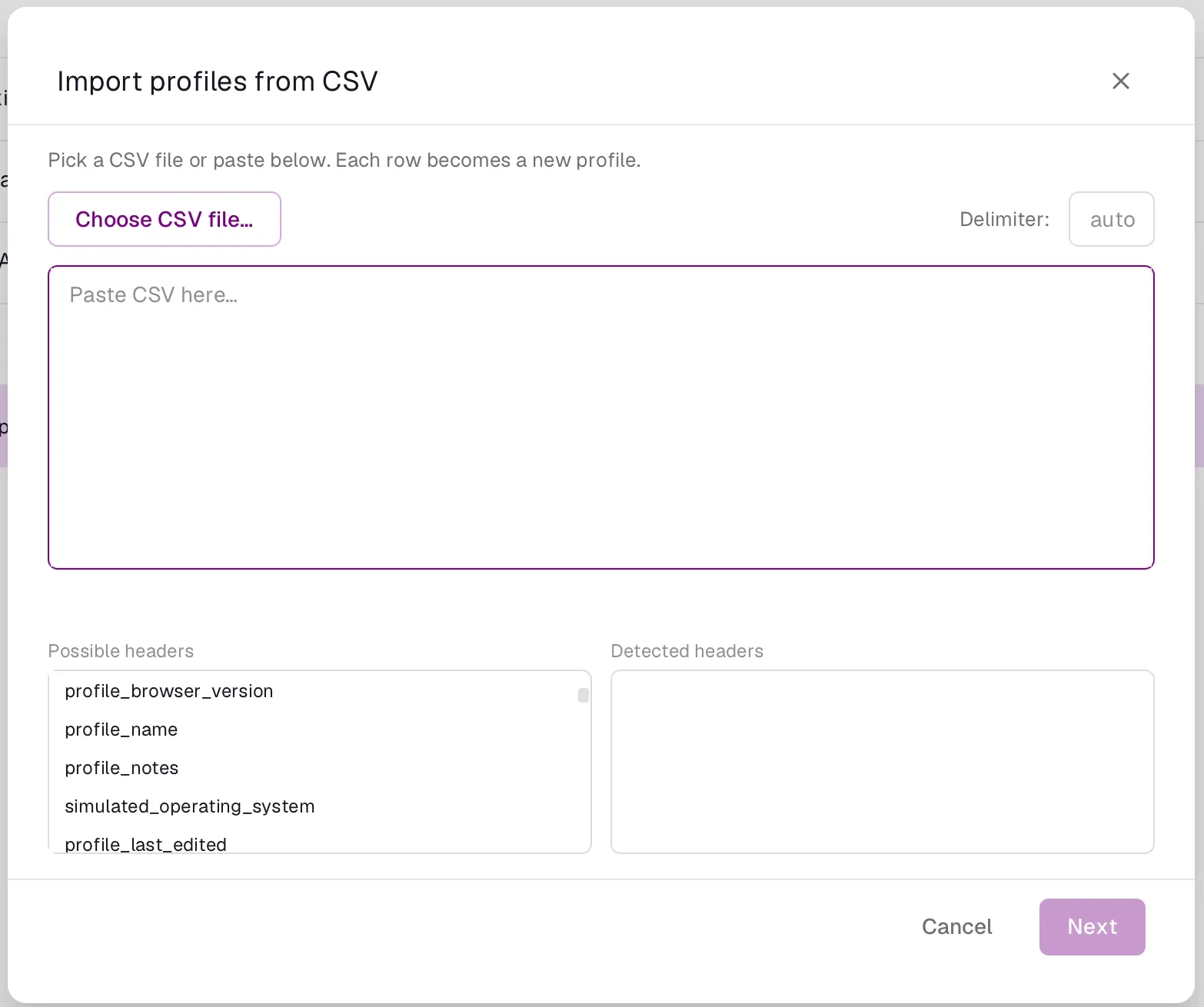
For bulk creation, Import profiles from CSV lets you choose a CSV file or paste its contents, with each row becoming a profile. Use Incogniton’s supported headers and check your data before importing. For a team project, use Incogniton’s available sharing and permission controls. Review access when a colleague leaves the project, and retain appropriate backups of profile data.
Common proxy issues and fixes
| Issue | What to check |
|---|---|
| Proxy check fails | Compare the host, port, protocol, and credentials with the Rola IP dashboard. Check for spaces or incomplete usernames. |
| A 407 authentication error appears | Verify proxy credentials and the endpoint’s authentication requirements, then repeat the connection test. |
| The browser shows your usual public IP | Confirm the proxy was saved to the profile you launched. Close and reopen that profile, then retest. |
| The exit IP changes unexpectedly | Review rotating versus sticky settings and session duration. Use a static endpoint when the task requires a fixed address. |
| Location differs between checkers | Compare the exit address across tools; their geolocation databases may disagree. Ask Rola IP support to help check the endpoint. |
| Proxy works, but one site returns 403 or 429 | Treat access denial and rate limiting separately from proxy connectivity. Check the site’s rules and reduce or stop requests as appropriate. |
Make one change at a time and rerun the same check. This makes it easier to identify whether the issue involves authentication, the network connection, or the destination website.
Incogniton partner offer for Rola IP readers
Incogniton supplied code ROLAIP for a 20% discount for Rola IP readers. Apply it at checkout and confirm the displayed discount and eligible plan before paying.
Get started with Incogniton to create your browser profiles and connect your Rola IP proxy. Feature access and offer eligibility are subject to Incogniton’s current terms.
Get help
Need help choosing a Rola IP proxy or connecting it to Incogniton? Our customer support team is available 24/7 to help with proxy selection, connection details, and troubleshooting.
- Live Chat: Open the chat widget in the bottom-right corner of the Rola IP website to speak with our support team.
- Email: [email protected].
Include the error message, proxy type, and a screenshot with credentials hidden so our team can help you troubleshoot. Never send your password, API token, or full proxy connection string.