
WebRTC IP doesn't match your Remote IP: what it means and how to fix it

Aug 14, 2026 · Troubleshooting · 10 min read
TL;DR
- A different WebRTC IP is not automatically a leak.
- Compare every public candidate with your unprotected ISP baseline.
- Check IPv4, IPv6, the ICE candidate type, and the ASN.
- Fix one routing layer at a time, then retest the same browser profile.
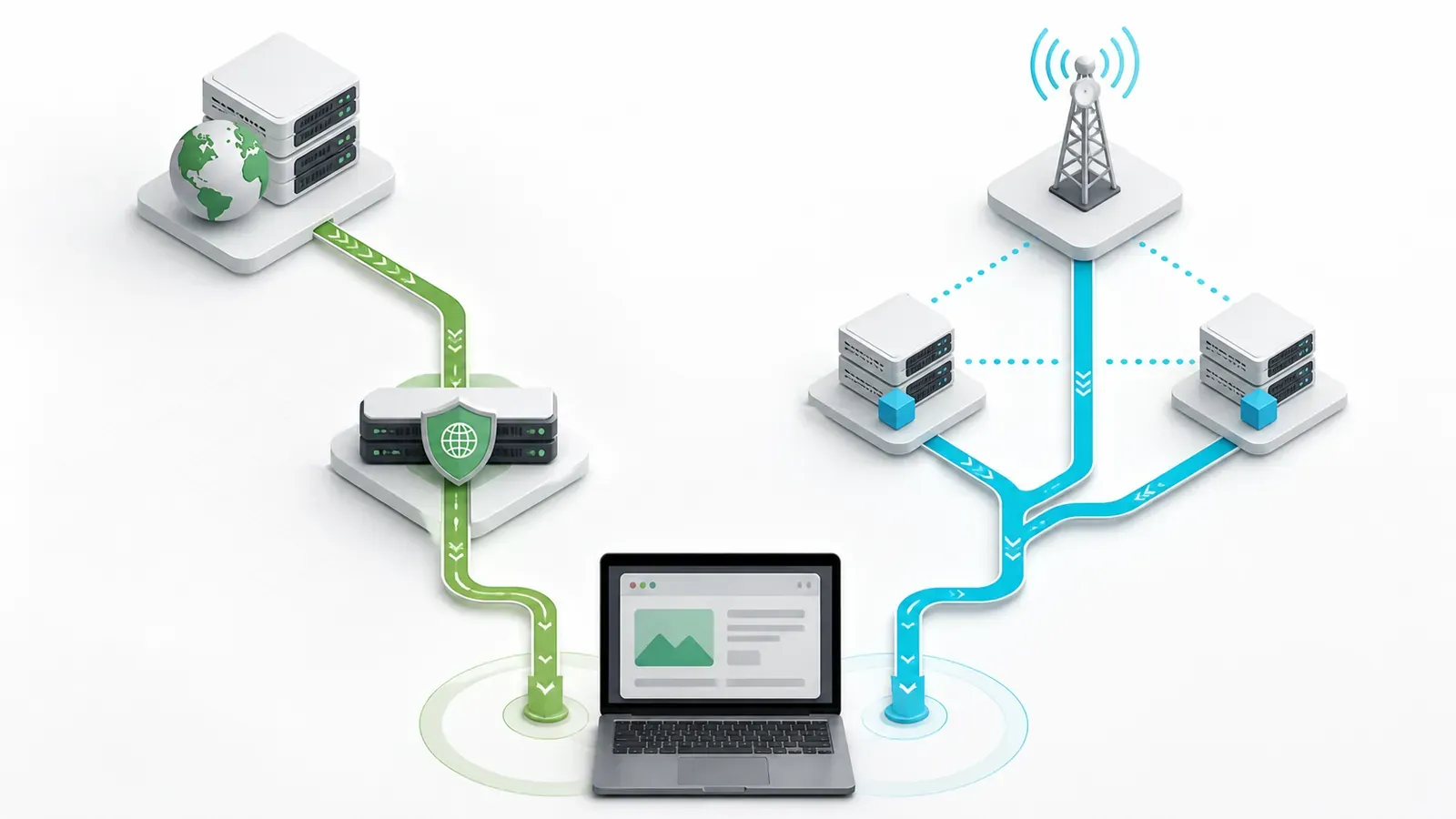
Remote IP and WebRTC use separate network observations. Classify the returned address before making a leak verdict.
When a leak test reports “WebRTC IP doesn’t match your Remote IP,” it has found two network paths. The page’s normal web request produced one address, while WebRTC’s connection-discovery process produced another. This result is often described as a WebRTC leak, but the warning alone does not prove that your real IP is exposed.
A public-IP leak is confirmed when WebRTC reveals the ISP-assigned IPv4 or IPv6 address recorded before you connected the proxy or VPN. A third public IP needs its candidate type and ASN checked first. A private address such as 192.168.x.x, a randomized .local hostname, and a TURN relay address each have a different meaning.
Classify the WebRTC result, compare it with a clean baseline, and change the network or browser settings only after you know which route failed.
Scope: This guide covers desktop Chrome, Edge, Brave, and Firefox. Protocol claims were checked against IETF, W3C, and MDN references on August 12, 2026. Browser controls were checked against vendor documentation.
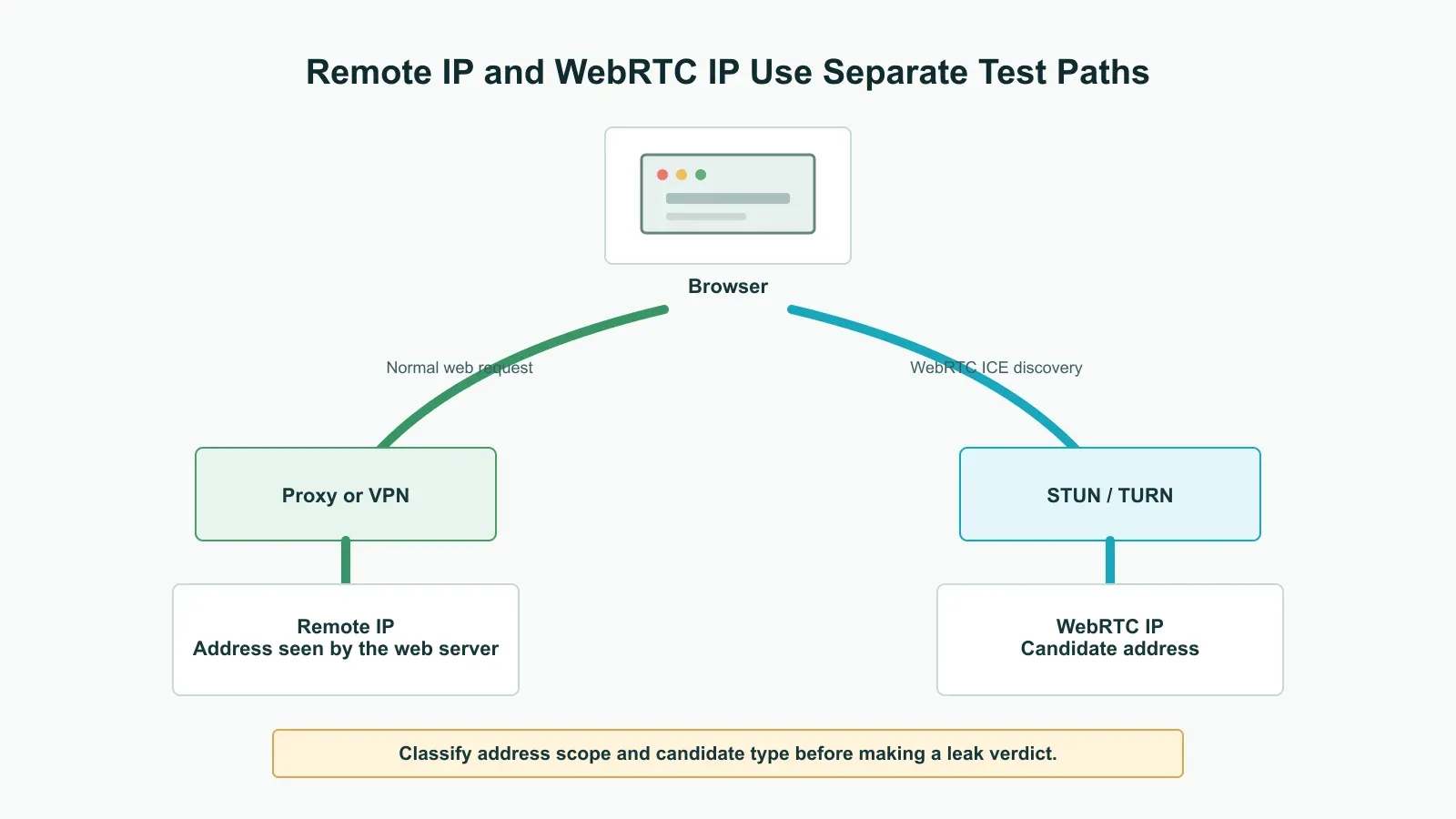
Remote IP and WebRTC IP come from separate paths. Address scope and candidate type determine the result.
What “Remote IP” and “WebRTC IP” measure
On a test page, the Remote IP is the public source address seen by the web server when your browser loads the page over HTTP or HTTPS. When normal browser traffic passes through a proxy or VPN, this field shows the proxy or VPN exit address.
The WebRTC IP comes from Interactive Connectivity Establishment, or ICE. The W3C WebRTC specification defines the browser API, while WebRTC uses ICE to enumerate routes for voice, video, screen sharing, and peer-to-peer data. The IETF’s WebRTC IP-handling requirements explain why this process exposes addressing information that an ordinary web request does not use. During candidate gathering, the browser reports the ICE candidate types documented by MDN:
- A host candidate represents an address or interface available directly to the device.
- A server-reflexive candidate, marked
srflx, is a public NAT mapping discovered through STUN. - A peer-reflexive candidate, marked
prflx, is learned during connectivity checks. - A relay candidate is an address allocated by a TURN server that relays the connection.
ICE candidates do not have to match the HTTP-visible Remote IP. A TURN relay, for example, has its own address. Identify the address first, then check whether it bypassed the proxy or VPN route you intended to use.
Does a different WebRTC IP mean a WebRTC leak?
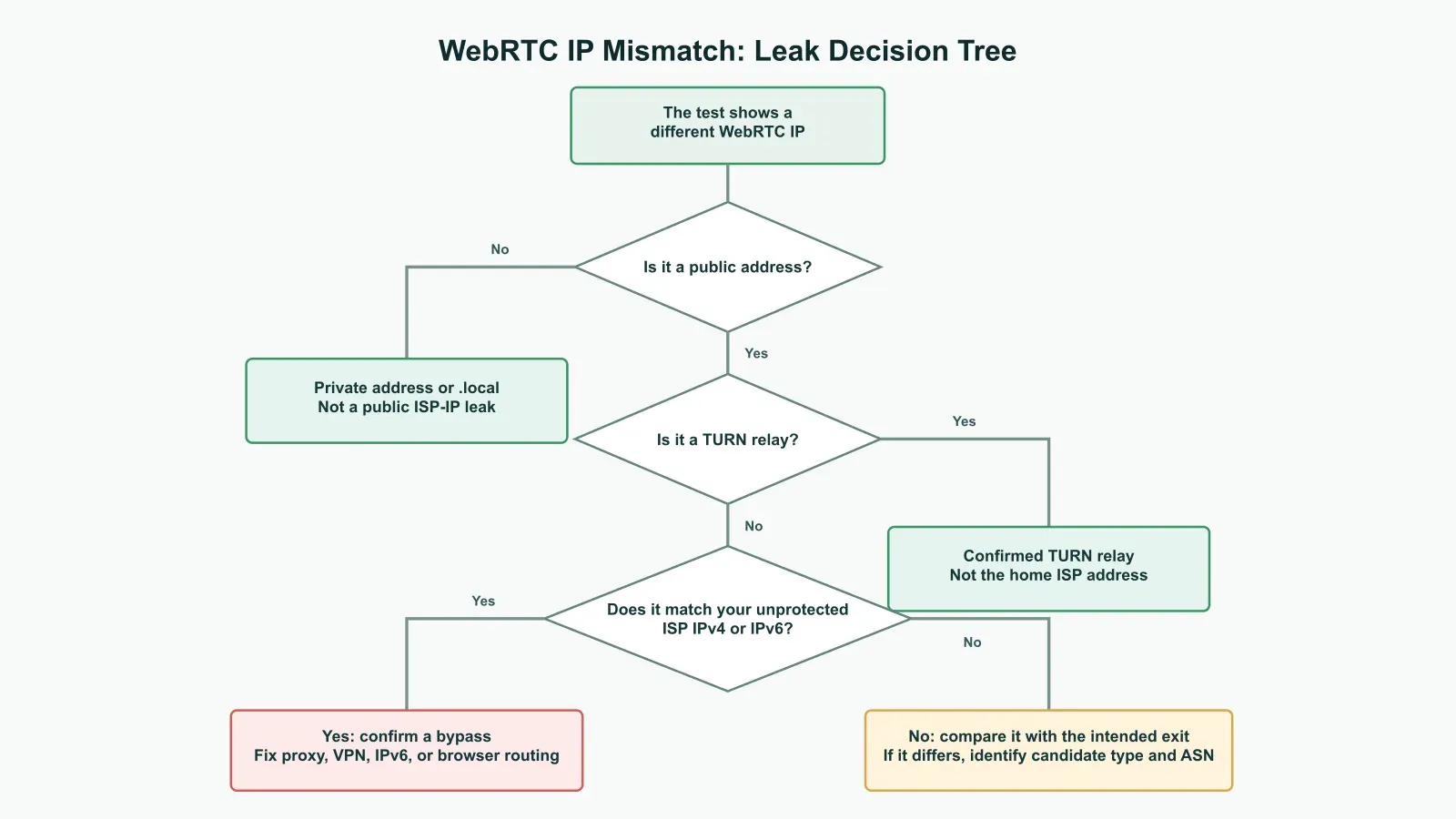
Classify address scope and ICE candidate type before changing browser or network settings.
| What the test shows | What it means | Leak verdict |
|---|---|---|
| WebRTC public IP equals the intended proxy or VPN exit | WebRTC is using the intended public route | Not an ISP public-IP leak |
| WebRTC public IP equals your unprotected ISP address | STUN or another WebRTC path reached the internet outside the intended route | Yes, treat it as a public IP leak |
| WebRTC public IP matches neither the baseline nor the intended exit | It is an unclassified provider, NAT, or relay address | Check the candidate type and ASN before assigning a verdict |
WebRTC shows 10.x.x.x, 172.16-31.x.x, or 192.168.x.x |
RFC1918 private address from the local network | Exposes local-network metadata, not the public ISP IP |
WebRTC shows a random name ending in .local |
The browser is masking a private host candidate with mDNS | Not a public IP leak |
WebRTC shows a relay candidate from TURN |
Media is routed through a TURN server | The relay address is expected and is not the home ISP address |
| Remote IPv4 looks correct but WebRTC exposes your real IPv6 | One address family is outside the intended route | Yes, the setup is still leaking |
| No WebRTC candidates appear | WebRTC may be disabled, blocked, unsupported, or the test may have failed | No candidate was observed in this test; test required WebRTC calls and screen sharing separately |
The private IPv4 ranges above are reserved by RFC 1918 for private networks; they are not globally routable public addresses. They reveal local-network metadata, not the public home address. Browsers can also replace a private host address with an mDNS .local name under the IP-handling guidance in RFC 8828 when mDNS host-candidate masking is active.
A public srflx or other public candidate that matches the ISP address recorded before protection confirms that WebRTC reached the internet outside the intended route.
Confirm the mismatch before changing settings
Build a baseline before installing an extension or disabling WebRTC. Without it, you cannot tell whether a candidate belongs to your ISP, your proxy, or another service.
1. Record your unprotected public addresses
Disconnect the proxy or VPN. Open a fresh browser context and record:
- Public IPv4
- Public IPv6, if available
- ISP or ASN
Do not post these values in a forum or screenshot. You only need them for your own comparison.
2. Connect your protection and confirm the Remote IP
Connect the proxy or VPN, close the old test tab, and open a new tab or window in the same protected browser profile. Check the public IP again. If you use a proxy extension, confirm that it is enabled in that profile. Use a private window only when the extension is explicitly allowed to run there.
The Remote IP should now be the exit you intended to use. If it still shows the baseline ISP address, the primary proxy or VPN route is not working. Fix that before investigating WebRTC.
3. Inspect the WebRTC candidates
Run BrowserLeaks, then repeat the check with what is my IP. Record every public candidate, its address family, and its candidate type when the test provides one.
Compare the results:
- If every public candidate is the intended exit, the test does not show an ISP public-IP leak.
- If your baseline ISP public address reappears, you have confirmed a bypass.
- If a public address matches neither the baseline nor the intended exit, use the IP lookup to identify its ASN, then confirm the candidate type before assigning a verdict.
- If only private or
.localhost values appear, you have not confirmed a public leak. - If IPv6 differs, investigate IPv6 routing even when IPv4 looks correct.
Use two tests to account for different STUN servers, timing, and result labels. Matching conclusions establish the result for WebRTC exposure; they do not test DNS leaks, browser fingerprinting, or account identity.
What creates the WebRTC IP mismatch
A browser proxy handles web traffic, not every socket
A browser extension or application-level HTTP/SOCKS proxy routes page requests but leaves direct network access available unless the setup explicitly controls WebRTC traffic. The WebRTC standard’s IP-handling guidance states that STUN checks bypass a traditional application proxy when direct internet access remains permitted.
Under that condition, the page sees the proxy as its Remote IP while WebRTC discovers the ISP-facing public address through the direct route.
The VPN uses split tunneling
Split tunneling intentionally sends selected traffic through the VPN and the rest through the normal interface. When the browser, UDP traffic, or an address family is outside the tunnel, WebRTC discovers both the VPN address and the ISP address.
IPv6 is not covered by the protected path
A single-stack configuration replaces IPv4 while leaving native IPv6 outside the protected route. A test that displays only the expected IPv4 is incomplete when the baseline also contains IPv6.
The browser uses multiple interfaces
Wi-Fi, Ethernet, virtual adapters, corporate VPNs, and local hypervisors create several browser network paths. WebRTC searches those interfaces for a working route, so a privacy-sensitive configuration must restrict the allowed routes instead of assuming WebRTC follows HTTP.
The displayed address is a relay, not your identity
TURN deliberately provides a relay address for WebRTC traffic. A confirmed relay candidate differs from the ISP address and the page’s Remote IP because the TURN server terminates that route; the relay does not reveal the home ISP address.
Fix the network route before the browser
Change one layer, then retest. The change that removes the baseline ISP candidate points to the route that needs attention.
If you use a browser proxy extension
A browser proxy controls HTTP traffic. It controls WebRTC UDP only when the browser or proxy product documents that behavior.
- Confirm the extension changes the Remote IP.
- Check whether the extension or its provider explicitly supports WebRTC or UDP routing. Do not assume it does.
- If public-IP privacy is required, move the browser onto a full-device VPN, a controlled system route, or a browser/profile solution with documented WebRTC handling.
- Retest that exact browser profile.
Do not rely on a “leak blocker” extension unless its documentation states whether it hides host candidates, blocks non-proxied UDP, or routes traffic. These actions solve different problems. Verify the public candidates after applying the control.
If you use a system proxy
System proxy settings are still application-proxy settings on many platforms. They do not automatically force every UDP flow through the proxy.
Check whether the browser and proxy protocol explicitly support WebRTC UDP. If the documentation does not state that they do, treat direct UDP as outside the proxy path. Restrict non-proxied UDP, use a tunnel that covers browser traffic, or configure the application to require its controlled TURN relay.
If you use a VPN
- Remove the browser from split-tunnel exclusions.
- Enable the VPN’s own leak-protection or kill-switch controls when available.
- Reconnect after changing the server or protocol.
- Verify both IPv4 and IPv6.
- If the baseline ISP address still appears, collect the test details and contact the VPN provider. The provider must know the OS, browser, protocol, split-tunnel state, and leaked address family.
Do not assume that a “connected” badge proves every network path uses the tunnel.
If only IPv6 leaks
Use a proxy or VPN path that routes both IPv4 and IPv6. If the provider does not support IPv6, disable IPv6 as a temporary containment step when the network does not require it. Then reconnect and test again.
Disabling IPv6 removes that address family from the test; it does not add IPv6 support to the protected route. Document the reason before applying this temporary measure.
Chrome and Edge: start with routing, then use managed policy
For unmanaged Chrome and Edge, fix the proxy or VPN route first. Current Chromium exposes its strict WebRTC IP-handling controls as managed browser policies, not as a universal consumer setting.
For managed Chrome deployments, Google’s WebRtcIPHandling policy supports modes including disable_non_proxied_udp. Microsoft Edge provides an equivalent managed WebRtcLocalhostIpHandling policy. In that strict mode, WebRTC uses UDP only when the configured proxy supports it and otherwise falls back to proxied TCP behavior.
These policies change WebRTC transport selection and force proxied TCP when the strict mode disables direct UDP. An administrator should deploy the policy, run the required conferencing applications, and repeat the leak test. Ignore old chrome://flags or edge://flags instructions when the named flag is absent from the current build or lacks current vendor documentation.
If your browser is unmanaged, fix the VPN/proxy route first. Only use an extension when its current publisher, permissions, mode, and limitations are clear, and retest after every update.
Brave and Firefox: browser-level options
Brave
Brave documents a WebRTC IP Handling Policy in its privacy settings. For a proxy-sensitive profile, search Brave Settings for “WebRTC” and choose Disable Non-Proxied UDP. This is more precise than disabling the entire API because it aims to prevent direct UDP outside the proxy path.
Close and reopen the affected profile, rerun the leak test, and test every voice or video site you use. Find the control through Brave’s settings search instead of relying on a menu path tied to one release.
Firefox
Firefox exposes the media.peerconnection.enabled preference behind about:config. Mozilla’s current RTCPeerConnection interface definition is gated by that preference. Setting it to false disables RTCPeerConnection, so a browser-based WebRTC test cannot gather candidates through that API.
Treat this as a last resort, not the first fix:
- Enter
about:configin the address bar. - Search for
media.peerconnection.enabled. - Record the original value.
- Set it to
falseand retest. - If calls, screen sharing, or other WebRTC applications stop working, restore it to
trueand fix the route instead.
Disabling WebRTC removes functionality; it does not improve the underlying proxy or VPN architecture.
How to verify the fix
A fix passes this specific test when all of the following are true:
- The Remote IP is the intended proxy or VPN exit.
- No WebRTC public candidate equals the unprotected ISP IPv4.
- No WebRTC public candidate equals the unprotected ISP IPv6.
- Private or
.localvalues are interpreted separately rather than called public leaks. - Any TURN relay address is recognized as a relay, not mistaken for your home address.
- A second independent test produces the same public-address conclusion.
- The required browser calling or screen-sharing feature still works, unless you intentionally disabled WebRTC.
Run this checklist in every browser profile that has its own proxy or privacy settings. A pass in one Chrome profile does not establish that another profile, Brave, or Firefox uses the same route.
Test Rola IP proxy routing and WebRTC separately
When configuring a Rola IP proxy, follow the proxy setup guide and confirm that the browser’s Remote IP changed to the intended exit. The Rola IP checker displays public IPv4/IPv6 and runs a browser-side WebRTC check after the page loads.
Run the WebRTC comparison separately. A Remote IP that matches the intended exit confirms that normal browser requests use the proxy. It does not prove that WebRTC cannot use another allowed interface. When the browser profile provides a documented WebRTC mode, select the appropriate mode and retest that profile.
The current RoxyBrowser profile summary displays the WebRTC mode Prohibit when that mode is selected. The label records configuration state, not a leak-test result. Save the profile, open the detection page inside that profile, and confirm that no public candidate matches the unprotected baseline. Check the current RoxyBrowser proxy setup before applying the setting.
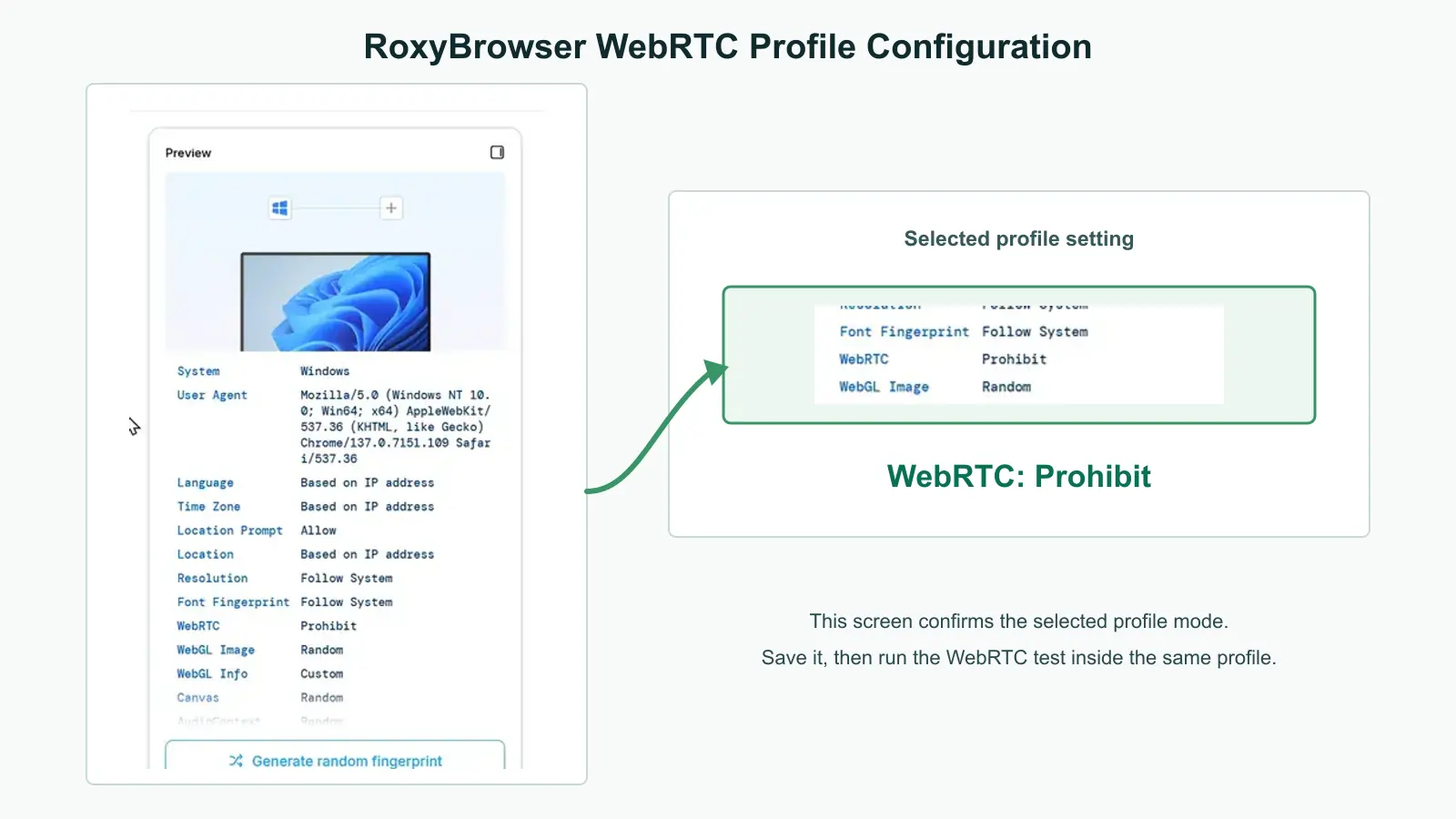
RoxyBrowser shows WebRTC set to Prohibit. This confirms the profile setting; the leak test remains a separate step.
Rola IP provides proxy endpoints and test tools. The browser, operating-system route, proxy protocol, and WebRTC policy determine whether every candidate follows that route.
Summary
A suspected WebRTC leak needs classification before it needs a fix. Compare every public IPv4 and IPv6 candidate with the unprotected ISP baseline and the intended proxy or VPN exit. A candidate that matches the baseline confirms a bypass; a private address, .local mDNS name, or TURN relay requires the classification described above. Fix one route layer at a time, retest the same browser profile, and check that any WebRTC feature you need still works. A proxy-visible Remote IP does not prove that WebRTC follows the same route.