
How to Set Up a Proxy on MoreLogin With Rola IP

Aug 14, 2026 · Guides · 8 min read
Quick answer
To set up a proxy on MoreLogin, open Proxy, choose Add proxy → Add individual, select the same protocol provided by your proxy service, and enter the host, port, username, and password. Run Proxy detection before saving. Then open the target profile, edit its proxy, select the saved proxy, confirm the change, and launch the profile. Verify the route twice: check the detected exit in MoreLogin, then check the public IP inside the launched profile. For a fixed or active sticky session, compare the IP addresses; use the expected country as a second check. City labels can differ between location databases and are not, by themselves, proof that the proxy failed.
This guide is for teams managing accounts they own or are authorized to operate, as well as regional QA, ad verification, market research, and public-web testing. A proxy does not grant permission to bypass a website’s access controls or terms.
What you need before opening MoreLogin
Prepare the following items first:
- A MoreLogin desktop account and at least one browser profile.
- A proxy endpoint with its protocol, host, port, and authentication details.
- The intended country or city and the session behavior the task requires.
- A plan for assigning endpoints to profiles. Persistent profiles should not unexpectedly change their network identity.
Install a MoreLogin build supported on your operating system and note its version before following the screenshots. Its proxy interface supports HTTP, HTTPS, and SOCKS5 for individual entries; its batch importer also documents SSH. Use the protocol shown in your provider dashboard rather than choosing one by habit.
Choose a static or rotating proxy before setup
The right proxy is determined by session behavior, not by the MoreLogin form.
| Requirement | Better starting point | Reason |
|---|---|---|
| A long-lived login or persistent account profile | Static residential or ISP endpoint | A fixed exit makes session continuity easier; confirm the provider’s allocation and replacement policy. |
| A short task that needs temporary continuity | Rotating residential endpoint with a sticky session | A sticky session requests continuity for its configured window; confirm what happens when the exit becomes unavailable. |
| Stateless regional checks or authorized public-data collection | Rotating endpoint | Rotation can distribute independent requests, provided the task does not depend on cookies or login continuity. |
| One enduring identity per profile | One dedicated static endpoint per profile | The profile does not share its network identity with unrelated profiles. |
For authenticated profiles, a static residential proxy is usually the simpler default. Use rotating residential proxies when the workflow is stateless or when a deliberately configured sticky window is long enough for the entire task. Do not enable per-request rotation in the middle of a login, checkout, form, or verification sequence.
How to set up proxy on MoreLogin with Rola IP
The procedure below uses a self-owned Rola IP endpoint, but the MoreLogin fields are the same for another provider that supplies standard proxy credentials.
Step 1: Generate a proxy endpoint in Rola IP
Sign in to the Rola IP console and open the relevant proxy product. Choose the target region, protocol, and authentication method. If you use a rotating network, choose the sticky-session duration before generating the connection string. Copy the values produced by the dashboard; do not rebuild the username parameters from memory.
Rola IP provides both username/password and IP-whitelist authentication. Username/password authentication is easier when your local public IP changes. Whitelisting can be convenient for a fixed office or server egress, but the connection will fail when the actual source IP is not on the allowlist. The current proxy quick start explains the provider-side setup flow.
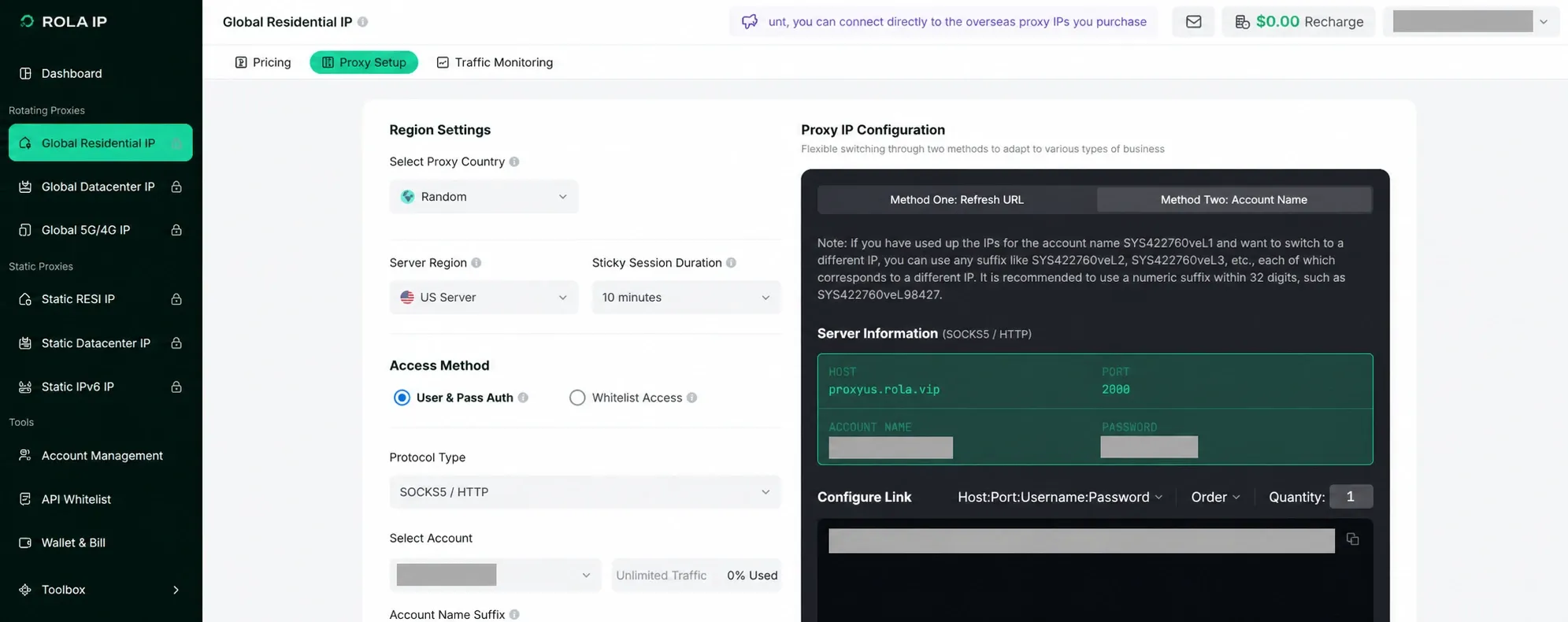
Step 2: Open MoreLogin’s self-owned proxy list
In MoreLogin, select Proxy in the left navigation. Stay on the Self-owned proxy tab, click Add proxy, and choose Add individual.
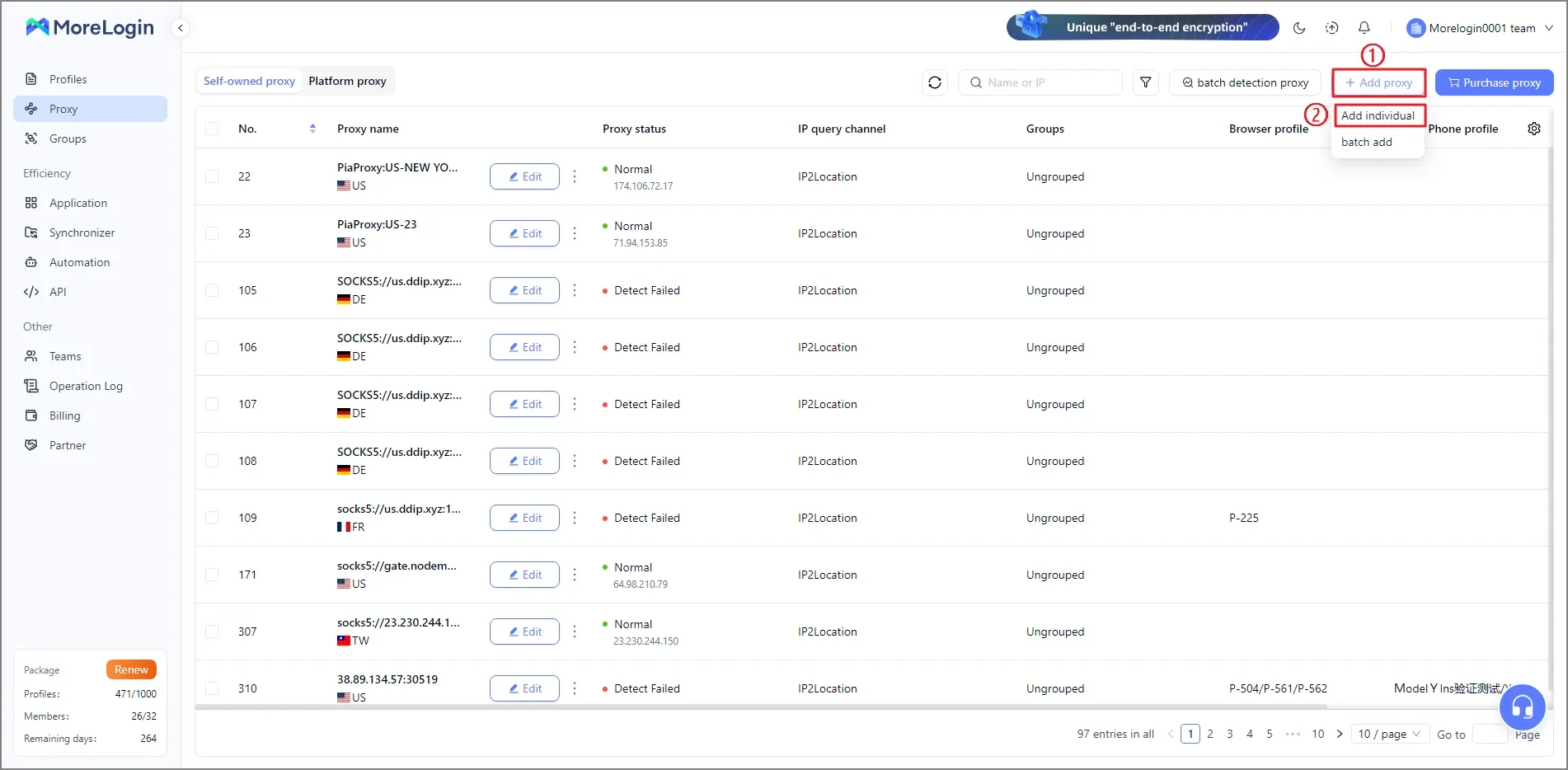
Adding the endpoint to the proxy library first makes it reusable. It also separates connection testing from profile editing, which is useful when several profiles must be configured.
Step 3: Map the Rola IP values to MoreLogin
Enter the endpoint exactly as it appears in the Rola IP console.
| Rola IP value | MoreLogin field | Example format | Common mistake |
|---|---|---|---|
| Protocol | Proxy type | HTTP, HTTPS, or SOCKS5 |
Selecting SOCKS5 for an HTTP-only endpoint |
| Hostname or IP | Proxy server / host | gateway.example.net |
Including http:// when the field expects only a host |
| Port | Proxy server / port | 2000 |
Copying spaces or punctuation with the number |
| Account name | Proxy account | account-country-us-session-01 |
Removing location or session parameters from a generated username |
| Password | Proxy password | Provider-generated value | Using the Rola IP console password instead of the proxy password |
| Refresh URL | Refresh URL | Mobile proxy refresh URL, if supported | Pasting a generic dashboard or unrelated endpoint URL |
Some MoreLogin builds display host and port as two boxes within one Proxy server row. That is still the same pair of values. The IP query channel only determines which location database MoreLogin uses to label the detected IP; it does not change the proxy route.
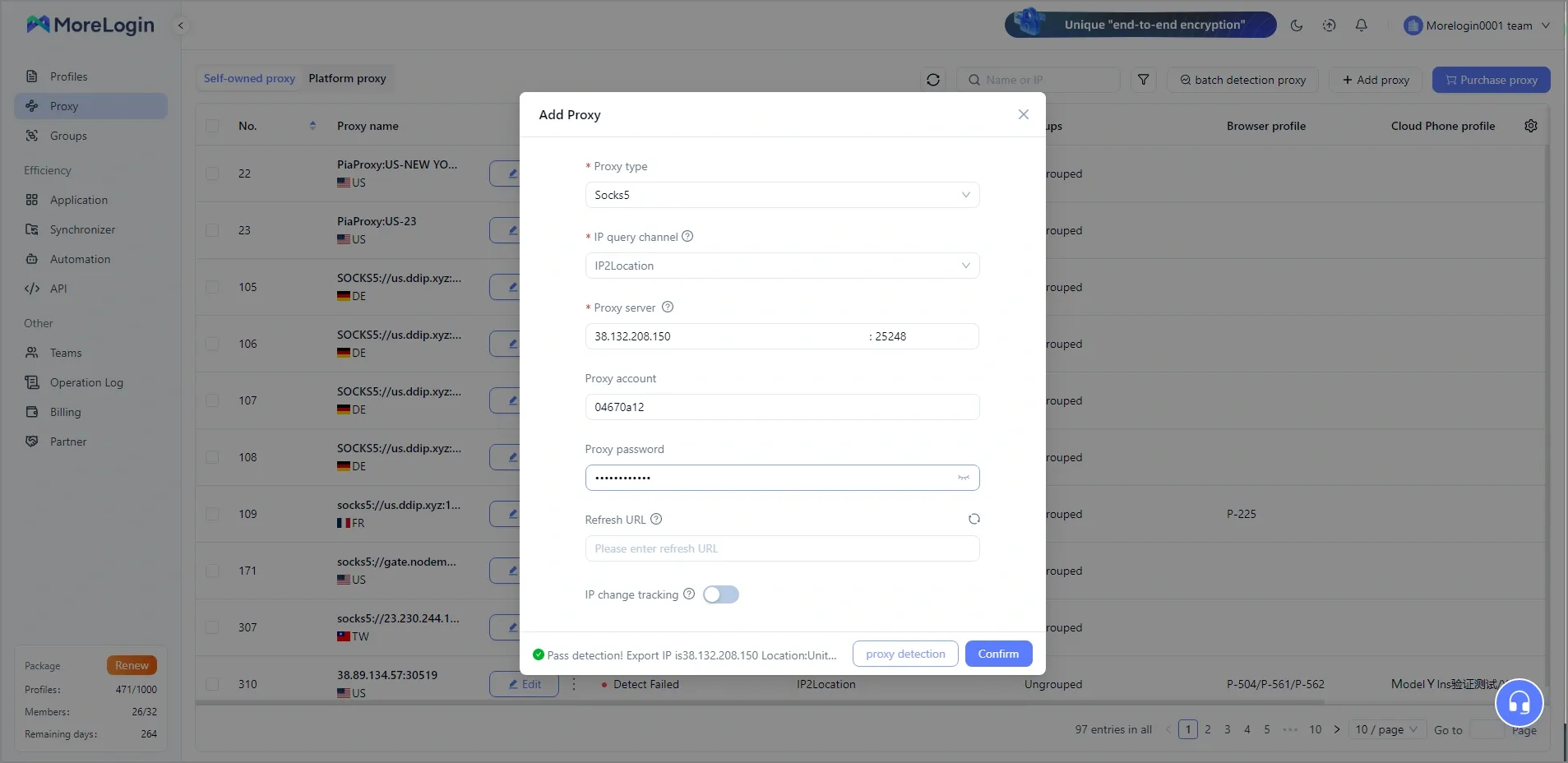
Step 4: Run Proxy detection before saving
Click Proxy detection. Do not continue merely because all fields are filled.
A useful result should show:
- A successful connection status.
- A detected exit IP address.
- The expected country; investigate city differences with a second location database.
If the connection succeeds but the location label looks wrong, change the IP query channel and test again. MoreLogin currently documents IP2Location, MaxMind, DB-IP, and IP-API as query options. These databases can disagree because their geolocation records update at different times. A different label does not automatically mean the traffic bypassed the proxy.
When detection succeeds, give the entry a clear name such as US-NY-static-profile-07 or DE-sticky-30m-QA. Avoid placing a password, full connection string, customer name, or account email in the label. Click Confirm to save it.
Step 5: Assign the saved proxy to a MoreLogin profile
Return to Profiles and find the browser profile that should use the endpoint. In the proxy column, choose Edit proxy. Select Saved proxies, search for the proxy name you created, select it, and click Confirm.
For a persistent profile, document the assignment outside the browser as well: profile name, proxy label, intended region, session type, and assignment date. That small record prevents the same static endpoint from being accidentally reused or replaced later.
Step 6: Launch the profile and verify the real result
Start the browser profile. Verification should happen inside the launched profile, not only in the MoreLogin proxy dialog.
Check the following:
- The public IP matches the exported IP shown by MoreLogin, or belongs to the expected rotating/sticky session.
- The country and, when required, city match the task.
- Browser language, timezone, and operating-system profile are reasonable for the selected region.
- The endpoint remains stable for the full login or multi-step test.
- Restarting a profile backed by a static endpoint does not unexpectedly produce a different exit.
Use an IP-check page inside the launched profile to confirm the actual route. Keep the proxy’s region and session settings aligned with the task.
Record a successful setup
Use this short record after configuring one profile, before importing a batch. These are fields to fill in during your own check, not measurements from a live MoreLogin account.
| Record | What to capture | Pass condition |
|---|---|---|
| MoreLogin version | Installed build and operating system | Screens and supported protocols checked for that build |
| Assignment | Profile label and saved proxy label | The intended profile uses the intended saved entry |
| Detection | Timestamp, exit IP, country, query channel | Connection succeeds; region meets the task requirement |
| Browser check | Public IP from inside the launched profile | Matches the fixed/sticky exit, or documented rotation behavior |
| Continuity | Exit before and after the required task | Session remains suitable for that task |
Keep passwords and full connection strings out of this record. A working IP checker confirms the route, but the destination website must still load successfully. If a separate Python client fails on the same endpoint, use the Requests proxy timeout diagnosis to compare the direct and proxied paths.
MoreLogin documents Refresh URL for supported mobile proxies. Triggering it can change the exit for every profile using that proxy. Leave it blank when your endpoint does not support that mechanism; a sticky username parameter and a refresh URL are different controls.
How to import multiple proxies into MoreLogin
When several profiles need separate endpoints, use Proxy → Add proxy → Batch add. MoreLogin’s current Help Center says one batch can contain up to 100 proxies and accepts IPv4 and IPv6 formats.
Use one proxy per line in either documented format:
ProxyType://ProxyHost:ProxyPort:ProxyAccount:ProxyPassword
ProxyType://ProxyAccount:ProxyPassword@ProxyHost:ProxyPort
A sanitized example looks like this:
http://gateway.example.net:2000:team-us-profile01:REDACTED
socks5://team-de-profile02:[email protected]:2000
If the protocol is omitted, MoreLogin defaults to SOCKS5. That default is convenient only when the endpoints really support SOCKS5; otherwise, state the protocol explicitly. The batch parser also warns that usernames and passwords containing @ or : can cause parsing errors. Add those endpoints individually instead of modifying valid credentials.
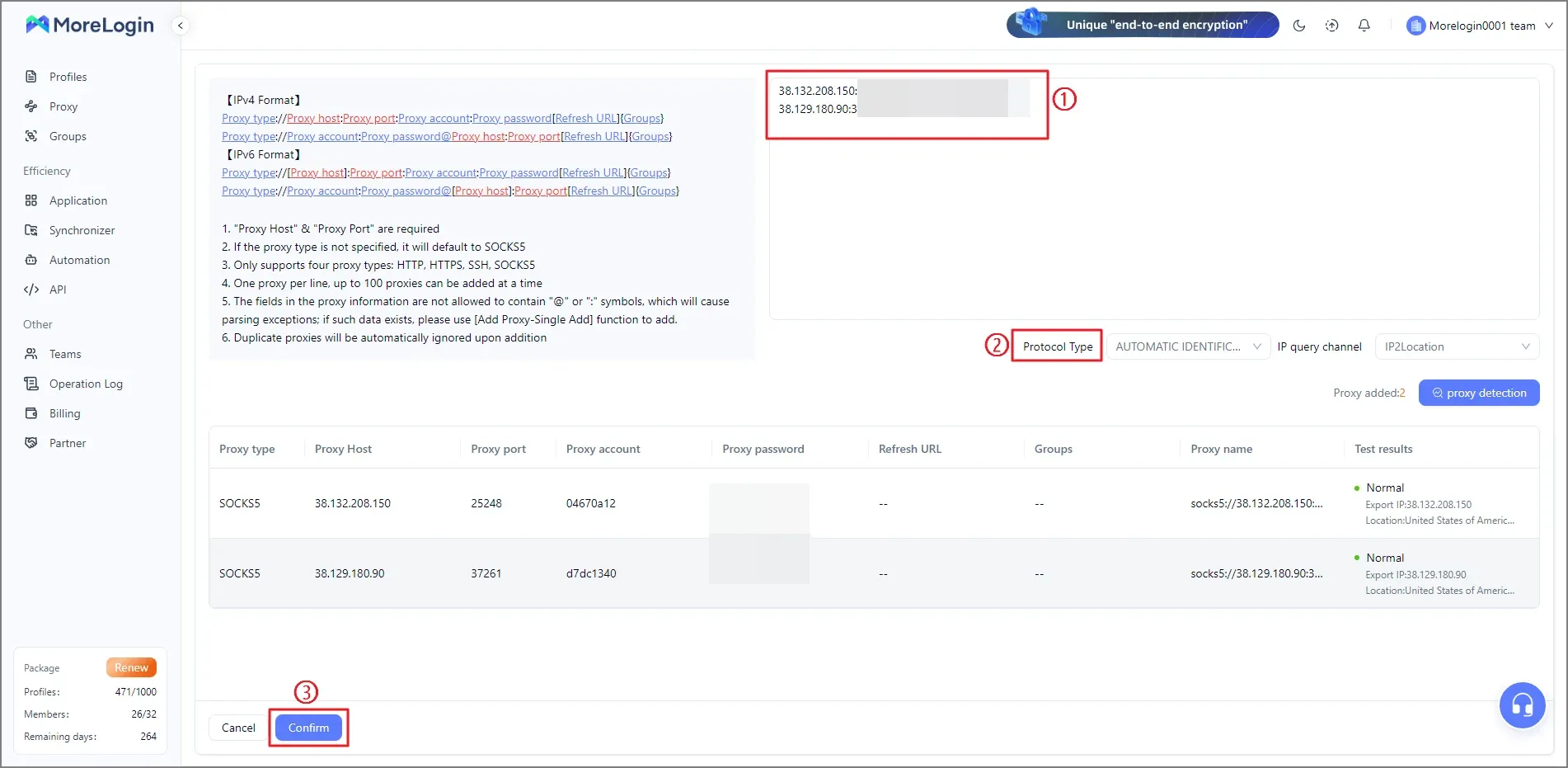
After pasting the list, review the parsed columns, select the correct protocol behavior, run batch detection, remove or correct failed rows, and confirm only the working entries. Then bind each saved proxy to its intended profile.
Common MoreLogin proxy errors and fixes
| Symptom | Likely cause | How to verify | Fix |
|---|---|---|---|
| Proxy detection fails immediately | Wrong protocol, host, port, username, or password | Compare each field with the provider-generated endpoint | Re-copy the values and match the protocol exactly. Do not use the console login password. |
| Authentication fails with correct credentials | Source IP is not whitelisted | Check your current public IP and the provider allowlist | Add the current egress IP or switch to username/password authentication. |
| Detection passes but the profile uses the local IP | The saved proxy was not assigned, or the profile was not restarted | Reopen the profile’s proxy field and inspect the selected entry | Bind the correct saved proxy, confirm, close the running profile, and start it again. |
| The reported country is wrong | Geolocation-database disagreement or incorrect location parameters | Compare two query channels and review the generated username | Change the query channel; if both disagree with the order, regenerate the endpoint at country level first. |
| The IP changes during a logged-in workflow | A rotating endpoint or short sticky duration was used | Check the product type and session duration in Rola IP | Use a static endpoint or a sticky duration that covers the entire workflow. |
| The connection is slow | The exit is far from the target, the route is congested, or the proxy is overloaded | Test another nearby endpoint under the same conditions | Choose a location closer to the target and compare latency before scaling. |
| Batch import creates malformed rows | Unsupported delimiter or @ / : inside credentials |
Compare the parsed columns with the source line | Use the exact documented format or add the affected endpoint individually. |
| Several profiles show the same exit | The same static proxy was reused, or rotating sessions share one session identifier | Inspect proxy assignments and generated account suffixes | Assign distinct static endpoints or distinct session identifiers where the provider supports them. |
Troubleshoot in layers: first verify the proxy outside the profile, then verify the saved MoreLogin entry, then verify the profile assignment, and finally inspect the launched browser. Changing several layers at once makes the cause harder to isolate.