
How to Unblock an Email in Gmail on Desktop, Android, and iPhone

Aug 26, 2026 · Guides · 5 min read
TL;DR:
On a computer, open Gmail and go to Settings > See all settings > Filters and Blocked Addresses. Select the sender, then click Unblock selected addresses. If you already have a message from that person, open it and choose More > Unblock “sender.” On Android, iPhone, or iPad, open the sender’s message, tap More next to Reply, and tap Unblock “sender.” Unblocking changes how Gmail handles future messages. It does not automatically move older messages out of Spam.
Blocking a sender routes future messages from that address to Spam. Use Gmail settings to review the blocked sender list or unblock several addresses, and use an existing message when you only need to unblock one sender.
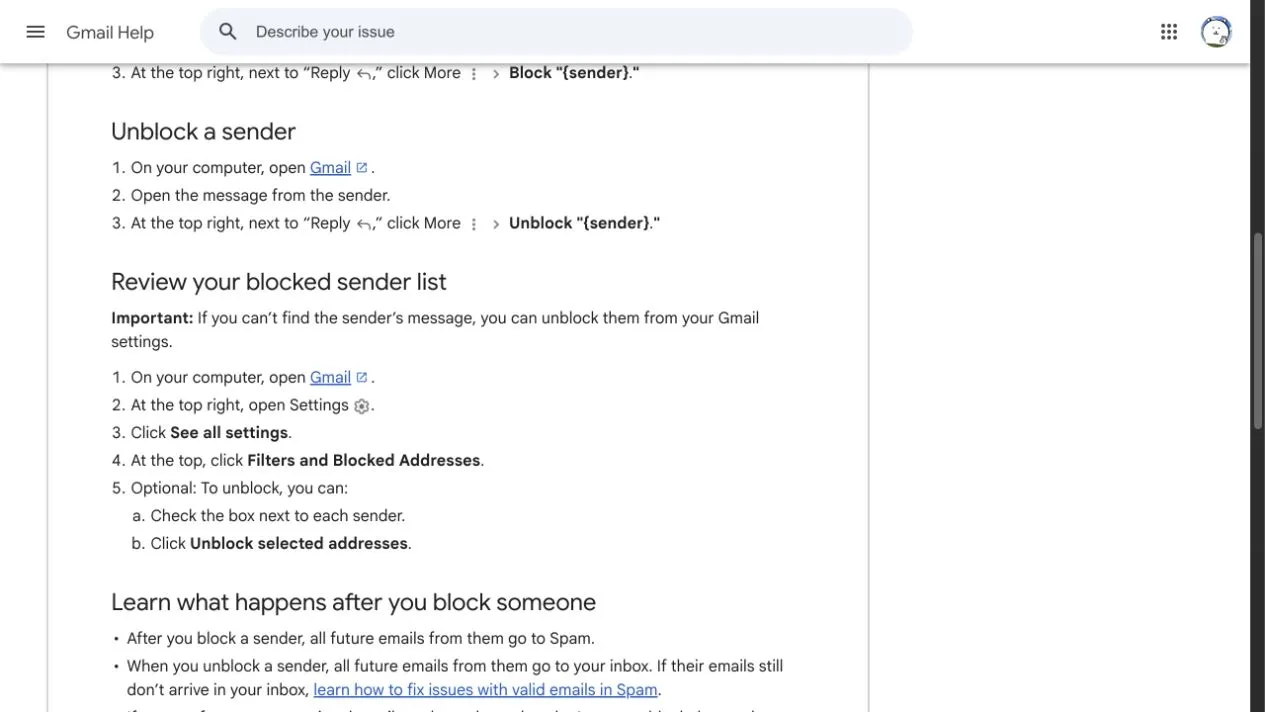
How to unblock an email in Gmail from settings
This is the most reliable method on a computer because it works even when you cannot find a recent message from the sender.
- Open Gmail in a desktop browser and sign in to the correct account.
- Click the gear icon in the upper-right corner.
- Click See all settings.
- Open the Filters and Blocked Addresses tab.
- Scroll to the blocked addresses section.
- Check the box beside the address you want to unblock.
- Click Unblock selected addresses and confirm the change.
You should no longer see that address in the blocked list. Gmail’s current help page says future messages from an unblocked sender go to your inbox. Spam filtering and user-created filters still run separately, so use the troubleshooting section below if a new test message does not appear where expected.
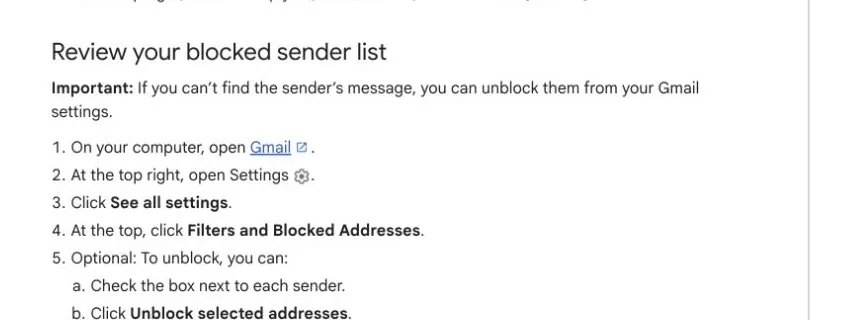
Unblock several Gmail addresses at once
Stay on Filters and Blocked Addresses, select the boxes next to each address, and click Unblock selected addresses. Review the selection before confirming. Gmail does not provide a useful reason to remove every block at once if you still recognize unwanted or suspicious senders in the list.
This settings page contains two different things: filters at the top and addresses blocked through Gmail’s Block command farther down. A filter can archive, label, forward, or delete mail without putting the sender on the blocked-address list. Do not delete an unrelated filter just because it appears on the same page.
How to unblock a sender from an email
If you can find a message from the sender, the direct method takes only a few clicks.
- Open Gmail.
- Search for the sender’s email address. Check Spam if the message is not in your inbox.
- Open the message.
- Click More, the three-dot menu beside Reply.
- Choose Unblock “sender” and confirm.
Make sure you use the menu attached to the message, not the browser menu or Gmail’s main toolbar menu. If the option says Block “sender”, that address is not currently blocked through Gmail’s sender-blocking feature.
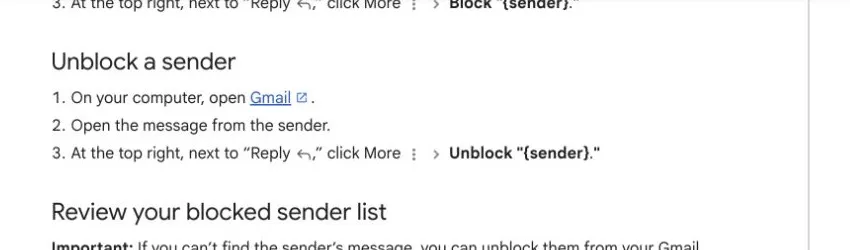
How to unblock an email on the Gmail mobile app
Google’s current Android and iPhone/iPad instructions use the same basic path. You need a message from the blocked sender.
Android
- Open the Gmail app on your Android phone or tablet.
- Open a message from the sender. If necessary, tap the menu icon and open Spam.
- Tap More next to Reply.
- Tap Unblock “sender.”
iPhone and iPad
- Open the Gmail app on your iPhone or iPad.
- Find and open a message from the sender, checking Spam if needed.
- Tap More next to Reply.
- Tap Unblock “sender.”
Google’s current Gmail mobile instructions only document unblocking a sender from an existing message. If you need to review the complete blocked sender list, use Gmail on a computer and open Filters and Blocked Addresses.
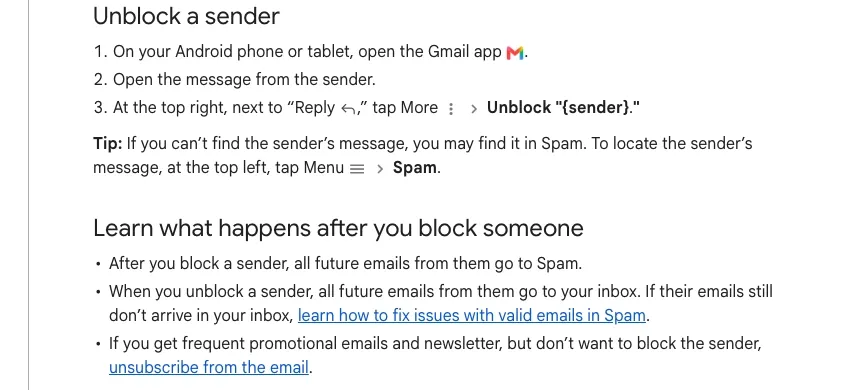
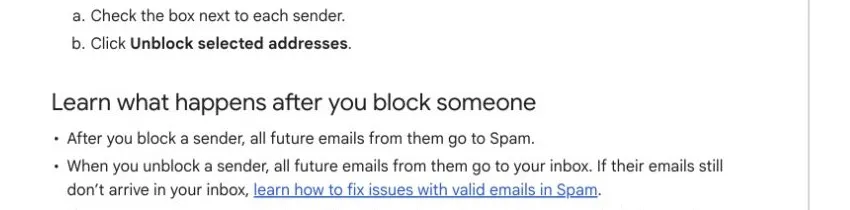
What happens after you unblock someone in Gmail?
Unblocking affects future mail from that address. It does not send the person a message on your behalf, restore a deleted conversation, or move every older message out of Spam.
Check these signals after you make the change:
- The address no longer appears in the blocked-address section on desktop.
- A new test message reaches the inbox, unless another filter or Gmail’s spam system routes it elsewhere.
If an earlier message is still in Spam, open it and click or tap Not spam when you trust the sender and the content. Do not mark an unexpected request for passwords, payment details, or verification codes as safe merely because the display name looks familiar.
Why emails still do not arrive after unblocking
An explicit sender block is only one reason mail can be missing. Work through the checks below in order.
| Problem | Solution |
|---|---|
| The sender still appears blocked | Return to Filters and Blocked Addresses, unblock the address again, and confirm the change. |
| New messages go to Spam | Open a legitimate message in Spam and select Not spam. |
| Messages skip the inbox or get deleted | Review Gmail filters that match the sender, then edit or delete only the rule causing the unwanted action. |
| You still cannot find the message | Confirm the sender’s exact address and ask them to send a new test email. |
Google also recommends three options when valid mail keeps going to Spam: mark a message as Not spam, add the sender to Google Contacts, or create a filter with Never send it to Spam. Use the last option only for a sender you trust. A broad filter for an entire domain can allow unwanted mail from other addresses at that domain.
Check for a filter that still moves the mail
On a computer, open Settings > See all settings > Filters and Blocked Addresses. Read the actions attached to any filter matching the sender or domain. A rule may skip the inbox, apply a label, forward the message, or delete it.
If one filter contains several addresses, edit that filter and remove only the address you want to receive. Deleting the whole rule may change mail handling for every other address it covers.
Confirm that you solved the right problem
This guide covers a sender you blocked inside Gmail. It will not fix a Google account sign-in restriction, a Gmail outage, a school or workplace access policy, or a network connection that prevents Gmail from opening.
If you already use an authorized Rola IP connection and the Gmail page itself will not load, separate that network issue from the sender block. Confirm the visible exit address with what is my IP, test the configured endpoint with the proxy checker, and use Rola’s account login restricted guidance only when the problem is your Rola IP account. Do not change locations or rotate addresses to evade Google’s account security controls.
When you should not unblock the sender
Keep the block in place if the message is phishing, impersonation, harassment, or persistent spam. Unblocking is appropriate when you recognize the address, blocked it accidentally, or have another clear reason to receive future mail.
For ordinary newsletters, Gmail’s unsubscribe tools are usually a better fit than blocking and later unblocking. For suspicious mail, use Report phishing or Report spam. If messages contain credible threats, preserve the evidence and follow the safety guidance appropriate to your location or organization.
Conclusion
Use desktop settings when you need the full blocked-address list or want to unblock several senders. Use the message menu for one sender, including on Android, iPhone, and iPad. Then verify the result with a new message.
If that message still goes to Spam, the block is no longer the main issue. Check Spam classification and Gmail filters before changing account or network settings.