
How to Unblock on OnlyFans: Users and Website Access

Aug 26, 2026 · Guides · 7 min read
To unblock someone on OnlyFans, sign in to the account that set the block, find the user in your blocked-user controls, and select Unblock. If you searched for how to unblock on OnlyFans because the website will not load, start with the browser and connection checks below.
Start with the user-block steps below, or skip to website troubleshooting if you cannot open the site.
Quick answer
- You blocked someone: find the user in your account’s blocked-user controls, select Unblock, and check that the block is removed.
- A creator blocked you: only the creator can reverse that block.
- OnlyFans will not load: compare browser behavior and connections on the same device. The differences help narrow down the cause.
- It fails only with a VPN: disconnect the VPN and repeat the same action to compare the connections.
How to unblock someone on OnlyFans
You need access to the account that created the block. On a phone, open OnlyFans in your mobile browser; on a computer, use your usual browser.
- Sign in to the correct account. Check the account you are using before looking for the blocked user.
- Find the user in your blocked-user controls. Look for a Blocked list among your account’s user lists. If you can still open the person’s profile, check its available account actions as another route. Menu placement can vary by layout.
- Check the username and select Unblock. Confirm the action if prompted.
- Check the result. Revisit the list or profile and confirm that the user is no longer marked as blocked.
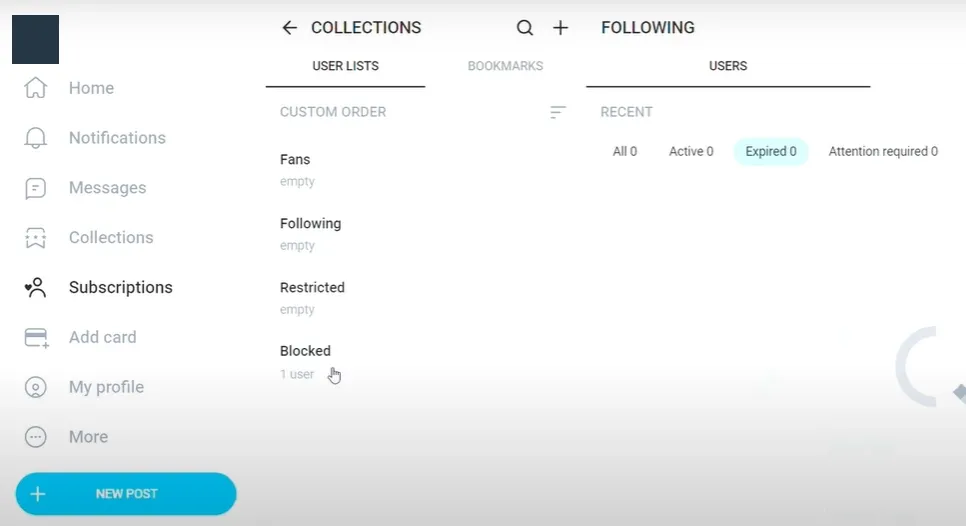
The Blocked list in Collections. Source: Social Rise. Personal details redacted.
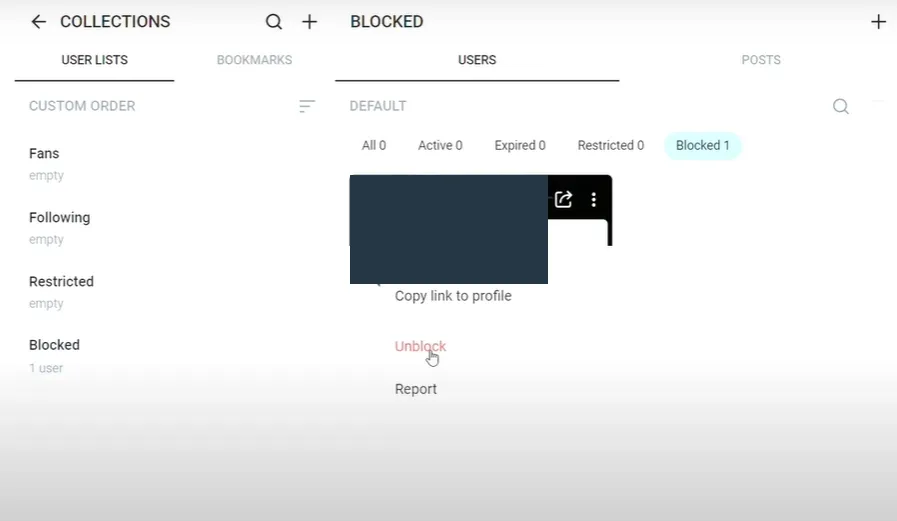
The Unblock option in a blocked user’s action menu. Source: Social Rise. Personal details redacted.
What if you cannot find the user or the Unblock control?
Check that you are signed in to the same account that set the block. If you know the profile URL, check it as well as the username: a changed username or an unavailable account can make searching inconclusive.
If you find the user but no Unblock control appears, note which account and page you are using and open the OnlyFans help page. Include a description of the missing control and a screenshot with private details hidden.
After unblocking, check the specific feature you wanted to use, such as opening the profile or sending a message. For a subscription question, check the subscription status shown in your account.
Did a creator block you, or is OnlyFans not working?
The word “blocked” can refer to different problems. Match the symptom before changing settings.
| What you see | What it may indicate | Useful next step |
|---|---|---|
| A user is on your own Blocked list | A block you control | Use Unblock and check the result |
| One creator’s profile is unavailable | A block, username change, account removal, or temporary error | Check the username and any displayed notice; respect a confirmed block |
| OnlyFans fails in one browser | Site data, an extension, or a browser setting | Compare a private window and another browser |
| It works on mobile data but not Wi-Fi | A difference in DNS, routing, filtering, or public IP | Compare the same action on the same device, then investigate the network |
| It fails only when a VPN is connected | A VPN connection or configuration issue, possibly involving its exit IP | Disconnect the VPN and repeat the check |
| An explicit account, payment, or verification notice appears | An account-specific issue | Follow the notice or contact official support |
Why won’t OnlyFans load on my connection?
Start by checking whether other websites load. If several sites fail, investigate your internet connection or device first. If only OnlyFans fails, continue below. For an outage or maintenance message, wait and try again later.
Change one thing at a time. After each change, repeat the same action—opening the homepage, signing in, or loading a particular page—and note the result or exact error.
Work through the relevant checks, then repeat the action that failed.
1. Compare a private window with your normal browser
Reload the page, then try a private or incognito window. If the page works there, investigate stored site data, extensions, and browser settings. Compare the same page and sign-in state in both windows; for a problem after login, repeat the action after signing in.
Google’s Chrome connection troubleshooting guide includes restarting the browser, testing Incognito mode, disabling extensions, and deleting browsing data. Disable extensions one at a time and retest. If an extension is responsible, adjust its site settings or update it, then restore the other extensions.
2. Clear OnlyFans site data if the problem involves your session
A login loop or a page that works only in a private window can be a reason to reset the site’s stored data. In your browser’s privacy or site-data settings, locate onlyfans.com and remove its stored data. Reopen the site and sign in again.
This can sign you out and reset local preferences. Select only the affected site’s data to keep saved passwords and unrelated browsing data. Google’s guide to deleting browsing data explains the available categories.
3. Compare Wi-Fi with mobile data
On the same phone and in the same browser, try the same page over Wi-Fi and mobile data. If it works only on mobile data, investigate differences in DNS, routing, filtering, or the public IP address.
Check filtering settings on your own router, or ask the administrator about connection problems on a managed network. Keep the browser and sign-in state consistent so that the comparison is useful.
4. Compare the connection with and without a VPN or proxy
If you use a VPN or proxy, disconnect it and repeat the same check on your regular connection. If the result changes, possible causes include DNS handling, routing, connection settings, or the exit IP.
If the problem occurs only with the VPN connected, record the error and check the provider’s connection settings or support guidance. Keep the device, browser, and page the same while testing.
5. Check DNS when the error points to name resolution
DNS translates a domain name into an IP address. Use this check for errors such as “server IP address could not be found.” If the page already displays an account notice, go to the support step instead.
On Windows, open Command Prompt or PowerShell. On macOS or Linux, open a terminal; some Linux installations require DNS utilities before nslookup is available. Run:
nslookup onlyfans.com
nslookup onlyfans.com 1.1.1.1
The first command queries your default DNS server. The second queries Cloudflare’s public resolver at 1.1.1.1. Microsoft’s nslookup documentation explains how the second argument specifies the DNS server.
Use the results to narrow down the problem:
| Lookup result | What it tells you | What to check next |
|---|---|---|
| Both return public IP addresses | Both resolvers answered these queries | Compare the browser’s DNS settings and investigate the remaining loading error |
| They return different public IP addresses | This can be normal because of CDN routing, load balancing, or cached records | Continue troubleshooting; an address difference alone is not evidence of filtering |
One returns 0.0.0.0 or 127.0.0.1 |
A filtering or configuration issue is possible | Router and resolver settings, including any explicit block notice |
One returns NXDOMAIN, SERVFAIL, or another error |
The resolver did not provide a usable answer; the exact error matters | Repeat the lookup and investigate the resolver or network configuration |
| A query times out | The resolver may be unavailable or the query may be blocked | Whether the network permits that resolver and whether other domains resolve |
Your browser may use a separate Secure DNS resolver. Check that setting if terminal lookups succeed but the browser still reports a DNS error. For timeouts on a managed network, ask whether external DNS queries are allowed.
6. Follow the error message to the appropriate support route
For a payment, verification, or account-status notice, follow the instructions shown on the page and use the site’s support options if the issue remains.
When contacting OnlyFans, include the affected page, exact error, time, device, browser version, and the checks you tried. Crop screenshots to remove personal information. Use the site’s help or signed-in support controls, and do not share passwords or one-time codes with third-party “unblock” services.
Can a proxy or VPN unblock OnlyFans?
A proxy or VPN can change the network path and the IP address a website sees. It can therefore change the outcome of some connection problems. It cannot reverse a block stored in your account, undo a creator’s decision, or lift an account suspension.
For the networking background, Rola IP’s explanation of what a residential proxy is describes how requests travel through another IP address and why that does not remove a website’s rules or risk controls.
Start with the connection comparison above to see whether the problem changes with the network path. For a user block, go directly to your account’s Unblock control.
How do you know the problem is resolved?
Retest the specific action that failed, including signing in if that was part of the problem.
- User block: the intended user is no longer marked as blocked in the account that set it.
- Browser problem: the affected page or action works in the normal browser after the relevant setting or site data changes.
- Connection problem: the same action works on the connection you intend to use. If it works only on an alternative connection, continue investigating the original network.
- Account restriction: the platform confirms the status change or the affected account function becomes available through its official process.
Keep a brief note of what changed. If the problem returns, that comparison is more useful than repeating every step at once.
Final takeaway
To unblock a user on OnlyFans, use the account that set the block and confirm that the block is removed. For website loading problems, compare browser behavior and connections, then investigate the specific error. Keep user blocks, network failures, and platform account decisions separate so that you choose the right next step.