Crunchyroll VPN Not Working? Browser and PS4 Fixes

Sep 20, 2026 · Troubleshooting · 18 min read
TL;DR
On a trusted network where direct access is permitted, temporarily disconnect your personal VPN and any proxy, then reopen the same episode with the same account and device.
- Direct access also fails: Check the browser or app, account access, content availability, and service status.
- Only the VPN path fails: Check the tunnel, split-tunneling rules, and connection errors. If direct access works, use it for viewing when permitted.
- Only PS4 fails: Test the console’s own internet connection, then check the app and system software.
- An existing proxy also fails on ordinary websites: Check its address, authentication, and routing before investigating playback.
Change one setting at a time and retest the same episode. Do not disable a company-mandated VPN on your own; involve the administrator instead. A working proxy or a changed IP does not prove that video playback will work.
Crunchyroll’s regional-content guidance states that it does not support using a VPN to access content that is not licensed in your region and recommends turning off a VPN or proxy before playback. This guide is for troubleshooting connection problems during legitimate access. It does not treat changing the egress location as a way to obtain access to another region’s catalog.
Common Reasons Why Crunchyroll VPN Is Not Working
Why a Connected VPN May Still Fail to Play Video
A VPN client’s Connected status usually means only that the device has established a tunnel. Crunchyroll still needs to load the website, authenticate the account, check content permissions, and start video playback. If the home page works but the video fails, keep checking playback permissions and the player. If every website is unreachable, the problem is more likely to be at the VPN, DNS, or routing layer.
There is no single answer to “Why does Crunchyroll not work with a VPN?” Shared-egress access restrictions, network latency, proxy-authentication errors, and incorrect split-tunneling rules are all worth checking, but one failed request cannot reveal exactly which detection mechanism a platform used. Do not assume GPS, WebRTC, or a particular VPN protocol is the sole cause.
Use the Error Symptom to Choose a Troubleshooting Direction
| What You See | Check First | Do Not Conclude Immediately |
|---|---|---|
| No websites open | VPN tunnel, network connection, DNS, and kill switch | Crunchyroll banned the account |
| Only Crunchyroll login or access fails | Direct-access comparison, extensions, and platform messages | All VPNs are unusable |
| Home page works but video keeps buffering | Network stability, active downloads, and playback device | You must switch countries |
| An explicit DRM message appears | Browser updates and protected-content permission | The IP is definitely blocked |
| Only one title is unavailable | Regional licensing, episode, language version, and membership requirements | The network is simply too slow |
| Only PS4 fails | Console network, app version, router, and shared connection path | A successful computer test rules out network issues |
If the browser or proxy client reports a specific error, use it to distinguish the failure before changing settings:
| Observed Error | What It Indicates | Next Check |
|---|---|---|
| HTTP 403 Forbidden | A server refused the request; the status alone does not identify the rule or prove an IP ban | Read the response message and compare permitted direct access with the failing path |
| HTTP 407 Proxy Authentication Required | The proxy requires authentication, or the supplied authentication was not accepted | Check proxy credentials and authentication, then repeat the failed request |
| HTTP 429 Too Many Requests | The responding service is rate limiting requests | Stop repeated retries; wait as directed by Retry-After if supplied, and reduce request frequency |
| Connection refused | The connection attempt was actively rejected | Verify the host, port, service availability, and firewall rules; if the failed endpoint is a proxy, use the proxy connection checks |
| Connection timed out | A connection was not established within the allowed time | Check reachability, routing, and possible filtering; if the timeout starts after enabling a proxy, check its host and port |
| DNS resolution failed | The hostname could not be resolved to an address | Check the hostname and the configured resolver before changing proxy credentials |
| Proxy enabled, but the observed exit IP is unexpected | That browser request may be using a different route, or the expected exit address may be incorrect | Check proxy selection and routing rules, then repeat the IP check in the same browser |
Record the complete error actually shown; not every player exposes an HTTP status. CAPTCHA pages, login failures, and DRM errors are separate conditions. After each change, repeat the failed request. Once connectivity is restored, retest the same episode to check whether the playback problem is also resolved.
Evidence and testing scope: This guide combines official support instructions, browser settings screenshots, and proxy configuration examples. It does not include a verified Crunchyroll subscription-video playback test through Rola IP or a live PS4 playback test. The screenshots illustrate settings and interfaces; they are not evidence of streaming compatibility.
How to Identify the Source of Crunchyroll VPN Not Working
Use this section when you are not yet sure whether the problem comes from the VPN, browser, or device. Complete these three steps first, then continue only with the section that matches the result. You do not need to perform every method in this article.
Step 1: Record Device Details and the Exact Error
Write down the device model, browser or app version, current country, title and episode, exact error text, and time of occurrence. Do not simultaneously clear cookies, change networks, and switch VPN nodes before you have a baseline. Even if the problem disappears, you will not know which change mattered. Do not post account information or your full public IP in public screenshots.
If the page already shows an expired-membership notice, login-verification requirement, or regional-unavailability message, deal with that explicit message first. For subscription questions, use Crunchyroll’s Premium perks guidance. Do not buy another membership simply to test the network.
Step 2: Disconnect the VPN and Check Whether a Proxy Is Still Enabled
In your personal VPN client, choose Disconnect, turn off any browser proxy extension, and verify whether a system proxy is still configured. Turning off only one switch may not be enough: a router VPN, a computer’s shared network, and a system proxy can each affect the connection. Record the original settings first so you can restore them after testing.
If you use Rola Connect, follow the System Proxy instructions to locate the system proxy switch and confirm whether it is enabled.

After disabling it, fully quit and reopen the Crunchyroll app, or reload the same video page in the browser. Do not disconnect the VPN after the video has already buffered and then treat playback of the remaining cached segment as a direct-connection test.
Step 3: Check the Egress IP and Replay the Same Episode
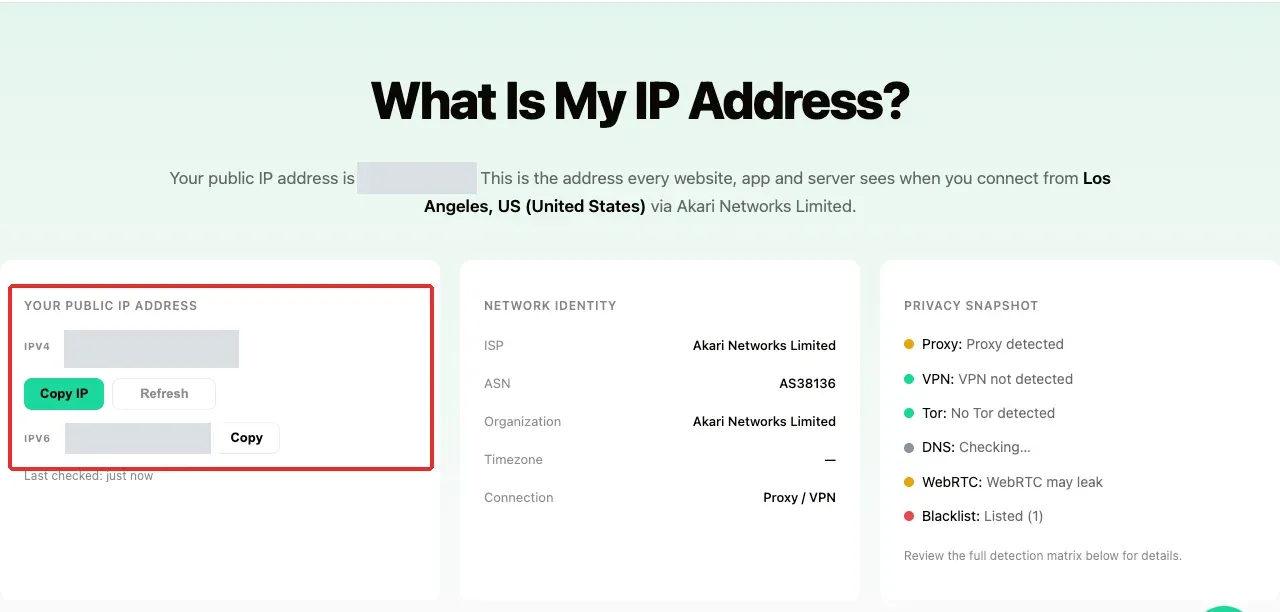
In the same browser you will use for playback, open Rola IP’s What Is My IP page and check the current public egress. This test describes only that browser request. It cannot prove that PS4, a phone app, or every video request follows the same path. Labels such as Proxy, VPN, or blacklist status are the detection service’s assessment, not Crunchyroll’s blocklist. A WebRTC warning also does not replace checking the specific address that may be exposed.
| Comparison Result | Next Step |
|---|---|
| Direct access works; only VPN fails | Continue with VPN routing and compatibility checks; use a platform-supported connection for viewing |
| Both direct and VPN paths fail | Check browser/app behavior, content permissions, or a service issue first |
| Browser works; only PS4 fails | Go to the PS4-specific section instead of copying the computer result |
| Only one episode or one language version fails | Record the title/version and report it to the platform as a content-specific issue |
This comparison is useful only when the account, title, and other test conditions remain the same. It can narrow the problem, but one comparison cannot prove that an IP address has been permanently blocked.
If ordinary web pages are also unreachable, move to the VPN network section. If only browser playback or login is abnormal, use the browser methods below. If only PS4 fails, go directly to the PS4 section. If Rola IP is already configured, you can also check the proxy protocol, authentication, and observed egress.
How to Fix Crunchyroll VPN Not Working in a Browser
Use these methods when the browser repeatedly asks for login, the player reports an error, or playback still does not work after the VPN has been turned off. The four methods address different symptoms; they are not four mandatory steps that must be performed in sequence. After each change, test the same episode with the same account.
Figure 3 shows the About Chrome page in regular Google Chrome. Figures 4–6 were captured in an English build of Chrome for Testing. Names and layouts may differ by browser build and version.
Method 1: Update the Browser and Replay the Video
Use this when the browser is old or the player says the browser is unsupported.
In regular Google Chrome, enter chrome://settings/help in the address bar and check the version and update status. If an update is available, let it finish and restart when prompted after saving your other work. Reopen the original video and test again before changing anything else. Crunchyroll’s browser video quality help also lists updating the browser as a basic troubleshooting step.
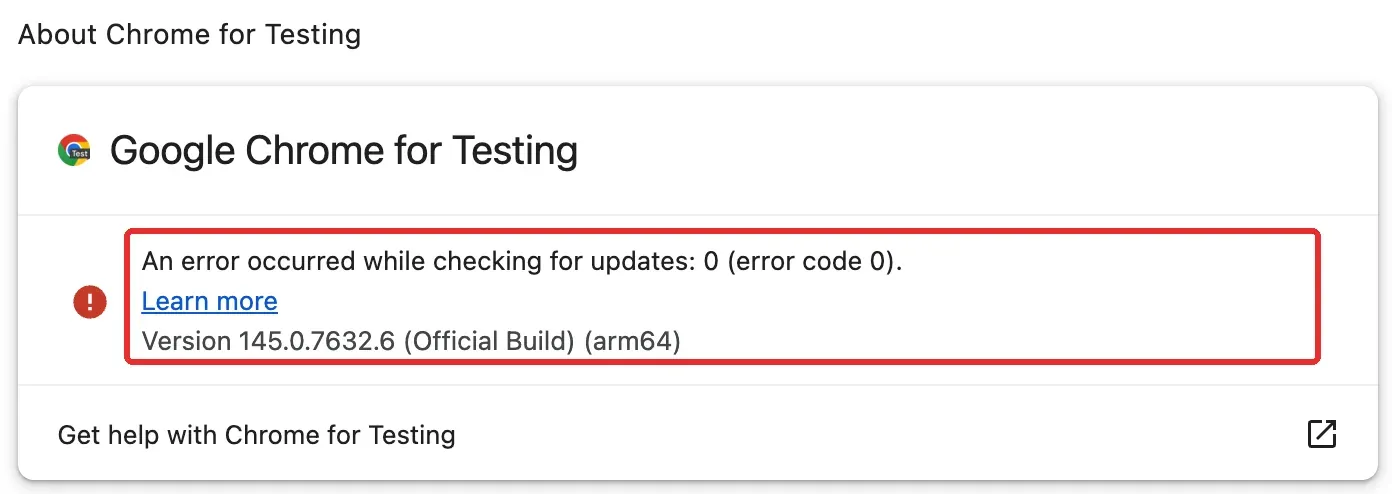
Check the version and update status in Google Chrome. This example shows an update-check error.
If the update process itself fails, fix the browser-update problem first. Do not install player patches, certificates, or “unlock” components from forums. On a managed work computer, contact the administrator.
Method 2: Clear Crunchyroll Site Data and Log In Again
Use this when the page repeatedly asks you to log in, the session appears invalid, or only the current browser profile behaves incorrectly. Finding the site data and confirming the deletion scope are two parts of the same cleanup operation.
Enter chrome://settings/content/all in the address bar and search for crunchyroll in the upper-right search box. Inspect the listed domains and handle only entries that actually belong to Crunchyroll. Do not delete all website data by default.
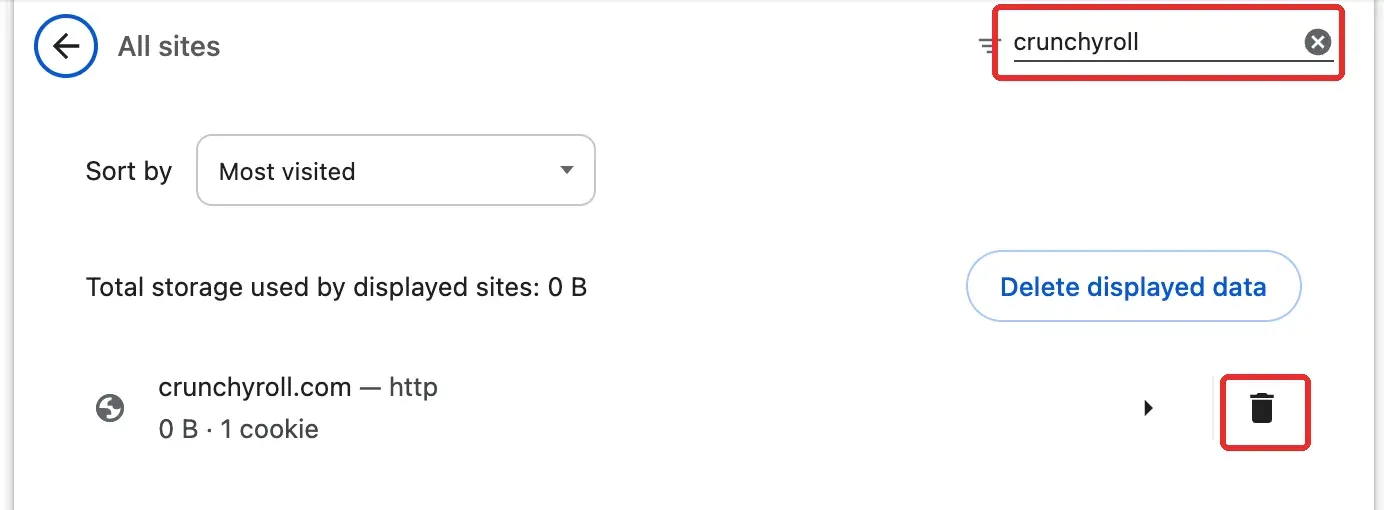
Before cleaning the data, make sure you know the login password and verification method. Removing site data can sign you out and clear preferences. A new browser profile or one that has never visited the site may show no matching entry; do not delete unrelated data merely to “complete the step.”
Click the trash icon for the matching entry and review the site scope in the confirmation dialog. Delete only after confirming it is correct. Then reopen Crunchyroll, sign in to the same account, and replay the same episode. For the detailed path, see Google’s cookie management guidance for a single site.
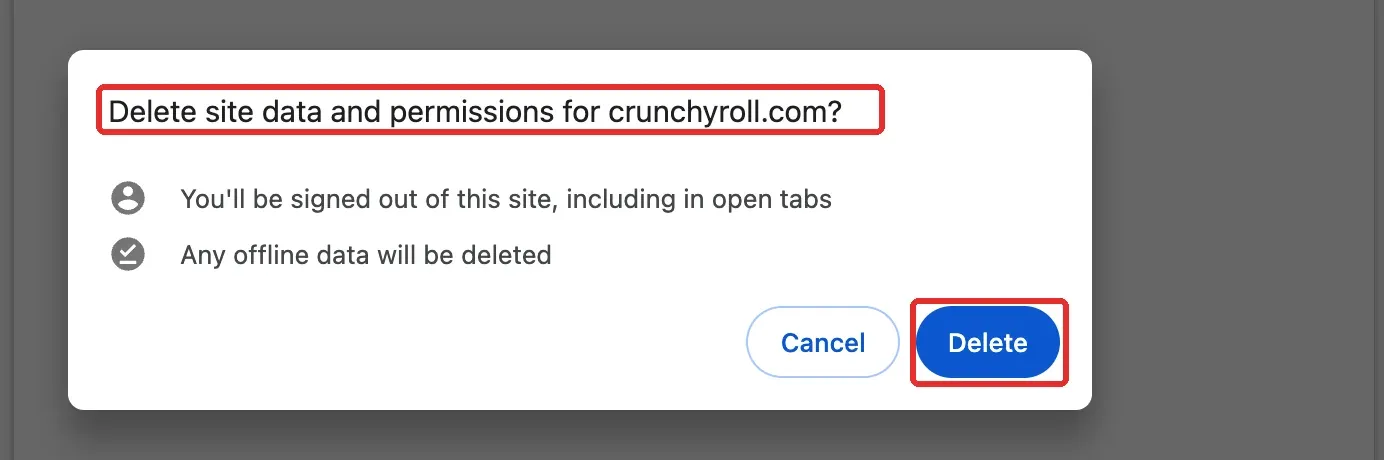
Site-data cleanup can help rule out an invalid session or a local cache state. It cannot change content licensing or guarantee that a network restriction will disappear. If it does not help, there is no need to repeatedly clear the entire browser.
Method 3: Check DRM and Protected-Content Permission
Use this when the page explicitly reports a DRM or protected-content problem. If there is no such message, another method may be more appropriate first.
DRM is part of the mechanism used to play protected copyrighted content. When the page explicitly reports a DRM-related issue, open chrome://settings/content/protectedContent and check whether sites are allowed to use content-protection services. In Edge or Firefox, use that browser’s own protected-content settings rather than copying a Chrome-specific address.
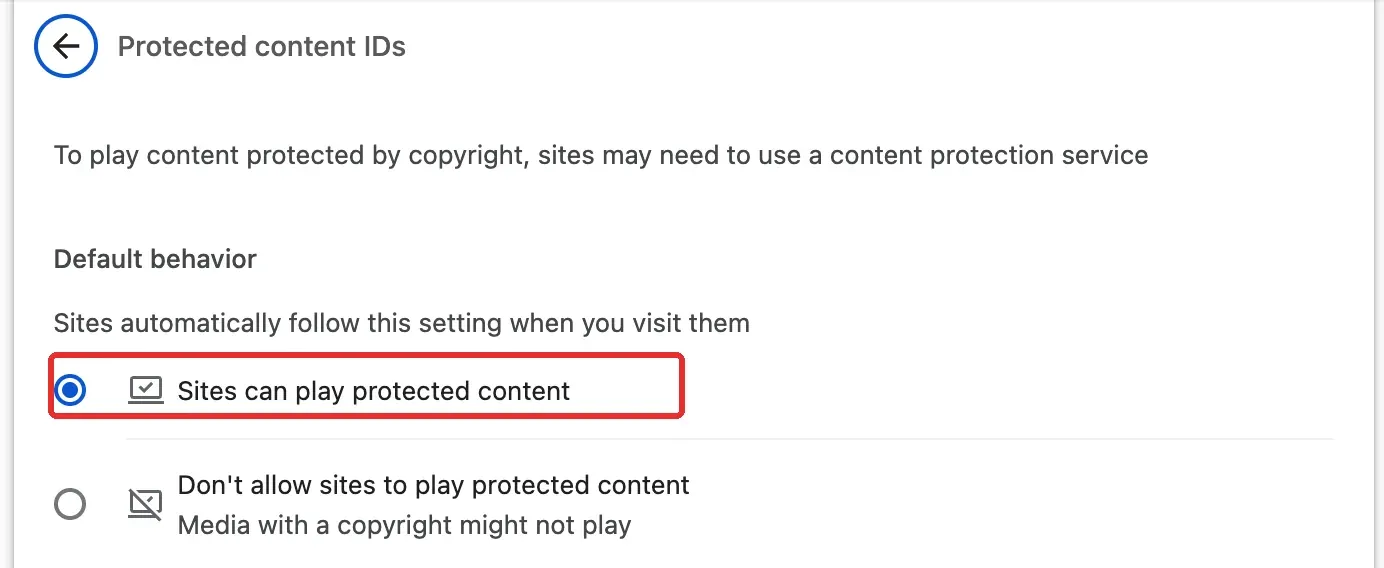
This enables normal protected-content playback; it does not remove DRM. If the setting is already allowed and the browser is current, follow Crunchyroll’s DRM error help to continue troubleshooting extensions and report the exact error to support. Do not assume every message with a MED prefix is the same problem.
Method 4: Disable Potentially Interfering Extensions One at a Time
Use this when the issue started after an extension was installed or updated, or when a clean browser profile without extra extensions can play normally.
Open chrome://extensions/, note which extensions are enabled, and temporarily pause one ad blocker, script filter, or proxy extension at a time. Retest on the same network after each change. If the issue reliably follows one extension’s on/off state, adjust that extension’s site-specific settings, then restore unrelated extensions after the test.
A new browser profile with no extra extensions can also be used for comparison, but do not equate “incognito mode works” with “cookies are definitely the cause.” Extension permissions, third-party cookie behavior, and login state can all differ. There is no need to uninstall every extension or disable system security software for one playback test.
How to Fix VPN Network Problems Behind Crunchyroll VPN Not Working
Use this section when only the VPN connection fails, or when ordinary websites also become unstable after connecting to the VPN. If your setup also includes a browser or system proxy, an authentication error or unexpected exit IP calls for the Rola IP proxy configuration checks. These address a different connection layer from the VPN tunnel.
Method 1: Check Split Tunneling and the VPN Kill Switch
Use this when different applications have different connectivity results, or when all websites remain unreachable after disconnecting the VPN.
Check the VPN client’s Split tunneling or application-routing list and confirm whether the browser or Crunchyroll app has been excluded. A browser extension usually manages only that browser, while a router VPN may affect multiple devices. You cannot infer one device’s route from another device’s IP-check result.
A kill switch may continue blocking direct connections after the tunnel drops. If every website stops working after the VPN is disconnected, inspect the client status and provider documentation. Do not permanently disable the kill switch just to restore Crunchyroll. For connections that must retain privacy or organizational compliance, ask the provider or administrator for a safe test method.
Method 2: Update the VPN Client and Test One Node or Protocol at a Time
Use this when the VPN itself is unstable and ordinary HTTPS pages also time out. Change only one variable at a time: either the node or the protocol.
If the VPN struggles even with ordinary web pages, follow the provider’s official instructions to update the client. Then, within the same legitimate region of use, compare one other node or one supported protocol. Record which change altered the result. Names such as WireGuard or OpenVPN do not guarantee Crunchyroll compatibility, and repeatedly switching countries makes diagnosis harder.
If direct access is normal but the VPN path continues to fail, report the client version, node, and error time to the VPN provider. If the provider cannot confirm compatibility, use a network path supported by the platform for viewing, or allow the playback device to bypass the VPN when that is permitted. Do not sacrifice required security controls for a short-term playback result.
Method 3: Reduce Bandwidth Use and Check Network Stability
Use this when you can log in and start playback but encounter frequent buffering, stalling, or quality drops.
Pause large downloads, cloud synchronization, and other high-bandwidth tasks. Prefer a wired connection when available and retest the same video. If a manual quality option is available, reduce it one level and see whether buffering decreases. A single fast speed test does not rule out packet loss, wireless interference, or instability along the video-delivery path.
Restarting the router should come later because it affects other users and may change the public IP. Save the baseline first, get permission from other users of the shared network, then restart according to the device instructions and establish a new baseline. Do not change DNS, restart devices, and switch VPN settings all at once and then keep only a screenshot showing that playback recovered.
Method 4: Troubleshoot DNS Resolution Errors
Use this when domain names fail to resolve or the client explicitly reports a DNS error. A simple regional-unavailability message is not a reason to change DNS.
DNS resolves domain names; it is not a video-traffic proxy. Switching to a public DNS resolver does not change your egress country and does not grant catalog rights. A DNS test that shows another country may reflect resolver deployment or a geolocation database and is not enough by itself to prove a VPN leak.
If DNS resolution is genuinely failing, follow the VPN provider’s or network administrator’s instructions to restore automatic settings or use the recommended resolver. Do not set system DNS, browser Secure DNS, and VPN DNS to different providers at the same time unless you understand the routing. HTTPS certificate errors should be handled separately and must not be “fixed” by disabling certificate verification.
How to Fix Crunchyroll VPN Not Working on PS4
Use this section when a computer or phone on the same home network can play normally but PS4 cannot. Check the console connection first, then the app and system. Adjust DNS only when there is reason to suspect a resolution problem.
A computer being connected to a VPN does not mean the PS4 is in the same tunnel. The PS4 may connect directly to the router or use a network shared from a computer, and the console’s Proxy Server option is not a full VPN client. Identify the actual connection path before deciding what to change.
Method 1: Test the PS4’s Own Internet Connection
Use this when you have not yet confirmed that the PS4 itself can reach the internet. Run this check on the console.
On PS4, go to Settings → Network → Test Internet Connection and record the IP acquisition and internet-connection results. If basic connectivity fails, troubleshoot the Wi-Fi signal, Ethernet cable, router, or ISP first. Sony’s PS4 network error guidance documents this path.
A successful basic network test confirms basic connectivity. Next, open Crunchyroll and test login and playback on the console itself.
Method 2: Reconnect the PS4 Through a Normal Network Path
Use this when the PS4 is connected through a router VPN or a network shared from a computer and you need a comparison on a normal connection.
If you manage the home network yourself, first record the original settings. Then open Settings → Network → Set Up Internet Connection. Choose Use Wi-Fi for a wireless network or Use a LAN Cable for Ethernet. On a normal home network that uses automatic addressing, you can choose Easy. If a fixed address or company configuration is required, follow the administrator’s settings.
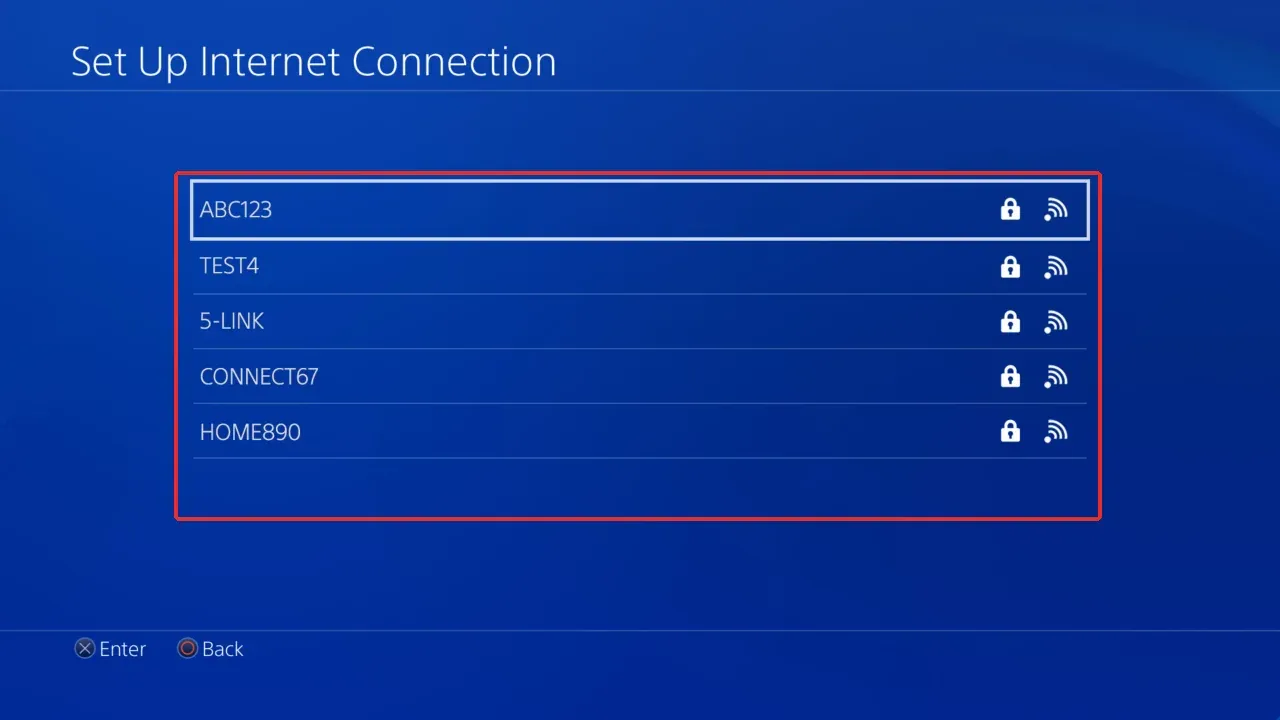
PS4 wireless-network selection screen. Source: official PlayStation help.
Choose the network you actually use and enter its password, then follow the prompts to test the connection. The SSIDs in the screenshot are Sony’s examples and should not be copied. See PlayStation’s internet connection guide for the exact menu path.
If the router itself still has a VPN enabled, choosing Easy on PS4 does not automatically bypass that router tunnel. When authorized, use a normal network path or follow the router instructions to change routing for that device. Whether a computer hotspot shares the VPN also needs to be checked separately.
Method 3: Update the Crunchyroll App and PS4 System Software
Use this when the console’s basic network is normal but the Crunchyroll app still cannot play or repeatedly reports errors.
On the PS4 home screen, highlight Crunchyroll and press OPTIONS on the controller to check for an update. Also confirm whether the console system software needs an update. Close and restart the app, then use the same account to replay the same content. If the issue remains, follow Crunchyroll’s PlayStation playback help, and verify your login credentials and device-linking method before reinstalling.
If other supported devices on the same home network can play but PS4 continues to fail, report the console model, system version, app version, and exact error to Crunchyroll support.
Method 4: Change the Resolver Only When DNS Is Suspected
Use this when automatic configuration still cannot resolve domains normally and the earlier connectivity checks did not find another cause.
If the automatic configuration fails and DNS is a reasonable suspect, use Crunchyroll’s buffering and connectivity help and re-enter the PS4 connection setup with Custom. For a normal home network, set IP Address Settings to Automatic, DHCP Host Name to Do Not Specify, and MTU to Automatic. For a direct-access comparison, choose Do Not Use under Proxy Server.
Under DNS Settings, choose Manual and use one consistent resolver pair if following the official guidance, such as Google’s 8.8.8.8 and 8.8.4.4. Record the original values first and restore them if the change does not help. This step troubleshoots DNS resolution. It is not VPN configuration and it is not an unlocking method.
Proxy Authentication, Timeouts, or Wrong Exit IP? Check the Setup with Rola IP
Check the proxy configuration when you see an authentication error, a timeout after enabling the proxy, or an unexpected exit IP. Match the symptom to the steps below, which use Rola IP connection details as the example. If your setup uses only a VPN, finish the VPN checks first: a VPN failure alone does not establish that adding a proxy will restore playback.
| Proxy Symptom | Action | How to Verify the Change |
|---|---|---|
| HTTP 407 or rejected credentials | Check authentication and connection details | Repeat the request and confirm that authentication succeeds |
| Ordinary pages time out or refuse connections after enabling the proxy | Check the host, port, and reachability | Confirm that an ordinary HTTPS page loads through the configured proxy |
| The detected exit IP differs from the expected resource | Check proxy selection and routing | Repeat the IP check in the same browser and compare with the resource’s expected exit |
| Ordinary pages work, but Crunchyroll still fails | Retest playback and classify the remaining error | Check login, playback start, and sustained playback of the original episode |
For readers comparing proxy services for a separate browser connection, Rola IP’s static residential proxy page describes fixed exit IP resources and username/password or IP-allowlist authentication. These are the details used in the checks below. A fixed exit IP keeps one test condition consistent; it does not establish Crunchyroll compatibility. Review the available configuration and service terms when evaluating the product.
Method 1: Correct the Proxy Address and Authentication Details
Use this when proxy authentication fails, the connection times out, or ordinary web pages stop loading after the proxy is enabled.
Open the proxy client you are currently using and compare the protocol, Host, and Port with the connection information supplied by Rola IP. Enter only the proxy hostname or IP in Host, and enter the port separately. Do not paste a complete connection string into the Host field. A target page using HTTPS does not mean the proxy entry protocol must also be HTTPS; the entry protocol must match the configuration supplied by the provider.
With username/password authentication, enter Username and Password in their respective fields. Check that copy/paste did not add leading or trailing spaces, and preserve any provider-required parameters in the username. Save the configuration, enable it again, and visit an ordinary HTTPS page. If authentication still fails, verify the credentials first. If the connection times out, prioritize checking the host, port, and network reachability instead of changing everything at once.

Protocol and authentication fields in a browser proxy client. Source: official FoxyProxy interface example.
The interface example comes from the official FoxyProxy extension page. If you use IP allowlisting, verify the source public IP that connects to the proxy rather than the exit IP you want to obtain.
Verify the result: Repeat the request that failed. If the 407 error disappears and an ordinary HTTPS page loads, proceed to the playback retest. If a timeout remains, check endpoint reachability and service status with Rola support. Changing credentials will not repair an unreachable endpoint.
Method 2: Check Browser Proxy Rules and the Observed Egress IP
Use this when authentication succeeds but the browser does not appear to use the expected proxy, or the detected egress does not match the selected resource.
In the proxy client, confirm that the Rola IP profile you intend to use is actually selected. Check whether a direct rule, another proxy extension, or the system proxy is overriding it. If you use per-site matching rules, verify that the domain of the actual failing request matches the rule. Do not assume that video requests use the proxy merely because the home page does. Save any rule change and reopen the detection page in the same browser.
Verify the result: Reopen the IP detection page in the same browser, record the IP and test time, and compare them with the selected resource’s expected exit address. The proxy gateway hostname is not necessarily the final public exit. If the result still does not match, inspect available route or connection logs and send sanitized details to Rola support. Once it matches, test playback separately because the video requests may follow different rules.
Method 3: Retest Playback After Proxy Connectivity Has Been Restored
Use this when ordinary HTTPS requests now work and the observed egress matches the configuration, and you need to determine whether the original playback problem is resolved.
Keep the device, browser, account, and episode unchanged. Reload the original video page and check login, playback start, and sustained playback. Record whether the original error disappears, persists, or changes; a previously buffered segment is not enough to verify recovery.
Interpret the result: If both ordinary websites and the original video now work, the configuration change helped with this failure. If ordinary pages work but video still fails, follow the remaining error: DRM calls for browser checks, subscription messages call for account support, and title-specific availability calls for a content-permission check. If the platform explicitly refuses VPN or proxy access, follow its recommendation to use a normal connection.
When contacting Rola support, provide the protocol, resource identifier, error time, and sanitized logs, and state whether an ordinary HTTPS request succeeded. Do not publicly share proxy passwords, cookies, access tokens, or your full public IP.
How to Get Help If Playback Still Does Not Work
When contacting Crunchyroll support, include the title, episode, audio track or subtitle version, country, device, app or browser version, complete error text, and time of occurrence. Also state whether direct access on a trusted network works and whether only one device fails. That information can reduce follow-up questions. Upload only sanitized error screenshots and never submit your account password.
For a VPN or proxy provider, submit connection-layer information instead: client version, protocol, resource or node identifier, connection time, and whether ordinary HTTPS sites are reachable. Do not accept “your IP changed” as a substitute for checking whether the video itself is actually usable.
Set clear stopping conditions. If the official status reports a service incident, wait for recovery. Regional-licensing messages belong with the platform’s content explanation. Membership errors belong with subscription support. If direct access is normal but the proxy path continuously fails, keep using the normal supported connection. There is no need to endlessly retry in search of a “universal node.”
Conclusion
When crunchyroll vpn not working appears, first retest the same device, account, and video with the VPN turned off. Then use the result to decide whether to troubleshoot the browser, network, or PS4 app. If direct access also fails, prioritize the device, subscription, or content-permission issue. If only the VPN path fails, then inspect split tunneling, proxy authentication, and service compatibility. Change one setting at a time so you can identify what actually helped.
For proxy authentication errors, timeouts, or unexpected exit IPs, use the Rola IP configuration checks above to verify connection details and routing, then replay the original episode. If the problem persists, send the error and comparison results to the provider responsible for the failing layer.