
How to Check Competitors' Google Ads: 4 Reliable Methods

Aug 19, 2026 · Use Cases · 9 min read
TL;DR: Start with Google’s free tools. Use the Google Ads Transparency Center to review ads an advertiser has run, including available region, format, and last-run information. Use Auction Insights to see which domains entered the same auctions as your campaigns. Use the Ad Preview and Diagnosis Tool to check a specific location, language, and device without adding impressions or affecting your performance statistics. Add a third-party platform only when you need estimated keywords, ad history, or landing pages. None of these methods reveals a competitor’s exact budget, bids, audiences, or conversions.
Checking a competitor’s ads is easy. Knowing what the evidence means is harder.
An ad in the Transparency Center proves that Google has a record of that creative. An Auction Insights row proves that another advertiser overlapped with you in eligible auctions. A commercial PPC tool may estimate the keywords or traffic behind a campaign. Those findings are useful, but they are not interchangeable.
The four methods below answer different questions. Keep them separate, and your notes will be much easier to trust later.
What each method can actually show
| Method | What it can show | Account needed? | Main limitation |
|---|---|---|---|
| Google Ads Transparency Center | Advertiser identity and ads Google records the advertiser as having run, with available region, format, and last-run information | No | An available ad record does not prove the ad is still running |
| Auction Insights | Advertisers in the same eligible auctions, plus comparative visibility metrics | Yes, with eligible Google Ads activity | Only covers auctions your account entered and data that meets Google’s thresholds |
| Ad Preview and Diagnosis Tool | A search-results preview for a chosen search term, location, language, and device | No for the public preview interface | One preview is a snapshot, not a complete campaign history |
| Third-party PPC tools | Estimated paid keywords, ad history, landing pages, traffic, and spend | Usually limited without a paid plan | Modeled or collected data can be incomplete or wrong |
Use at least two methods before making a campaign decision. A public creative tells you what message exists. Auction or keyword data helps explain where that message may compete with yours.
Build a short competitor list first
Do not begin with every company in your category. Start with five to ten names drawn from different kinds of competition:
- direct competitors selling a similar product to a similar buyer
- search competitors bidding on terms you care about, even if their product differs
- marketplaces or directories that occupy paid results in your category
- new advertisers that appear in Auction Insights or repeated searches
Create a simple evidence sheet before opening another tab. These columns are enough for a first pass:
| Field | What to record |
|---|---|
| Advertiser | Verified name or domain |
| Source | Transparency Center, Auction Insights, Ad Preview, or named third-party tool |
| Market | Country or location setting used |
| Date checked | The day you observed it |
| Creative | Headline, description, image, video, or product format |
| Offer and CTA | Price claim, trial, demo, discount, shipping, or other visible action |
| Landing page or displayed domain | Record which one you observed and how you obtained it |
| Keyword or theme | Observed query or estimated paid keyword, labeled correctly |
| Confidence | Confirmed, strongly supported, or estimated |
| Next test | One change worth testing in your own campaign |
If the work expands beyond ads into pricing, products, or regional messaging, a broader proxies for market research workflow can keep the same evidence structure across markets.
Method 1: Search the Google Ads Transparency Center
The Google Ads Transparency Center is the best starting point when you want to see a known advertiser’s creatives without paying for a tool.
- Open the Transparency Center.
- Set the region where you want to review ads.
- Search by the advertiser’s name or website.
- Select the correct advertiser. Similar names and reseller domains can appear, so confirm the destination domain before recording anything.
- Review the available ads and filters. The available formats and date information can vary by advertiser and campaign.
- Open relevant ads and note the message, offer, CTA, format, and landing-page domain.
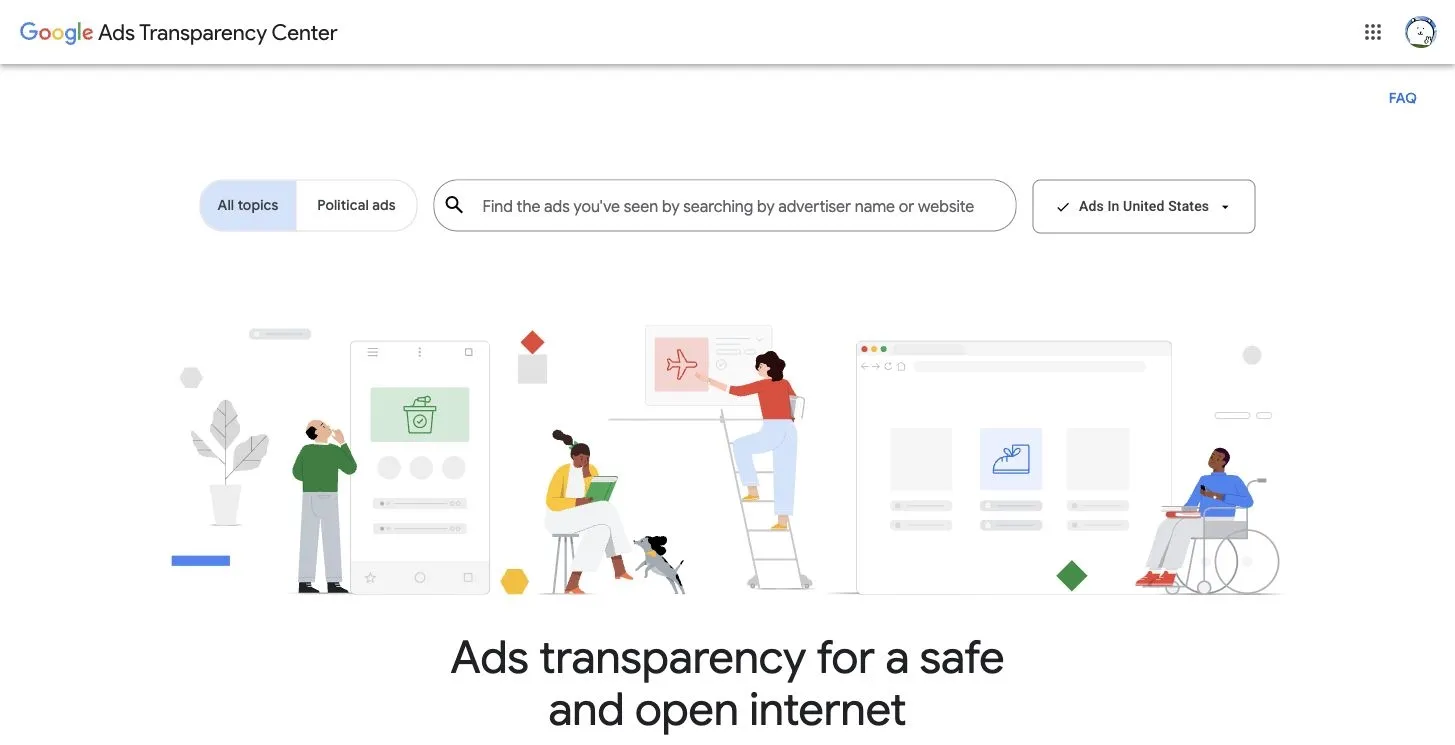
Choose the market before searching so the results match the region you are researching.
The tool is especially useful for comparing creative patterns. Does the advertiser lead with a discount or a product benefit? Do several ads send traffic to the same category page? Are the calls to action consistent across Search, Display, or YouTube formats?
Be careful with keyword conclusions. A phrase in an ad headline may be related to a target keyword, but the creative alone does not prove the exact keyword, match type, audience signal, or query that triggered it. Responsive Search Ads can also combine assets in different ways, so one displayed combination is not necessarily a fixed ad.
A quick way in from a live ad
When Google shows an ad in Search, the advertiser information control can sometimes link to more ads from that advertiser. This is useful when a trading name, legal advertiser name, and website domain do not match neatly. Use the destination domain to confirm that you found the right company.
Method 2: Use Auction Insights for competitors you actually meet
If you run Google Ads, Auction Insights answers a different question: which advertisers competed in the same auctions as you?
Google currently provides Auction Insights for eligible Search, Shopping, and Performance Max campaigns. Depending on the campaign type, the report can include:
- impression share
- overlap rate
- outranking share
- position above rate for Search
- top-of-page rate for Search
- absolute top-of-page rate for Search
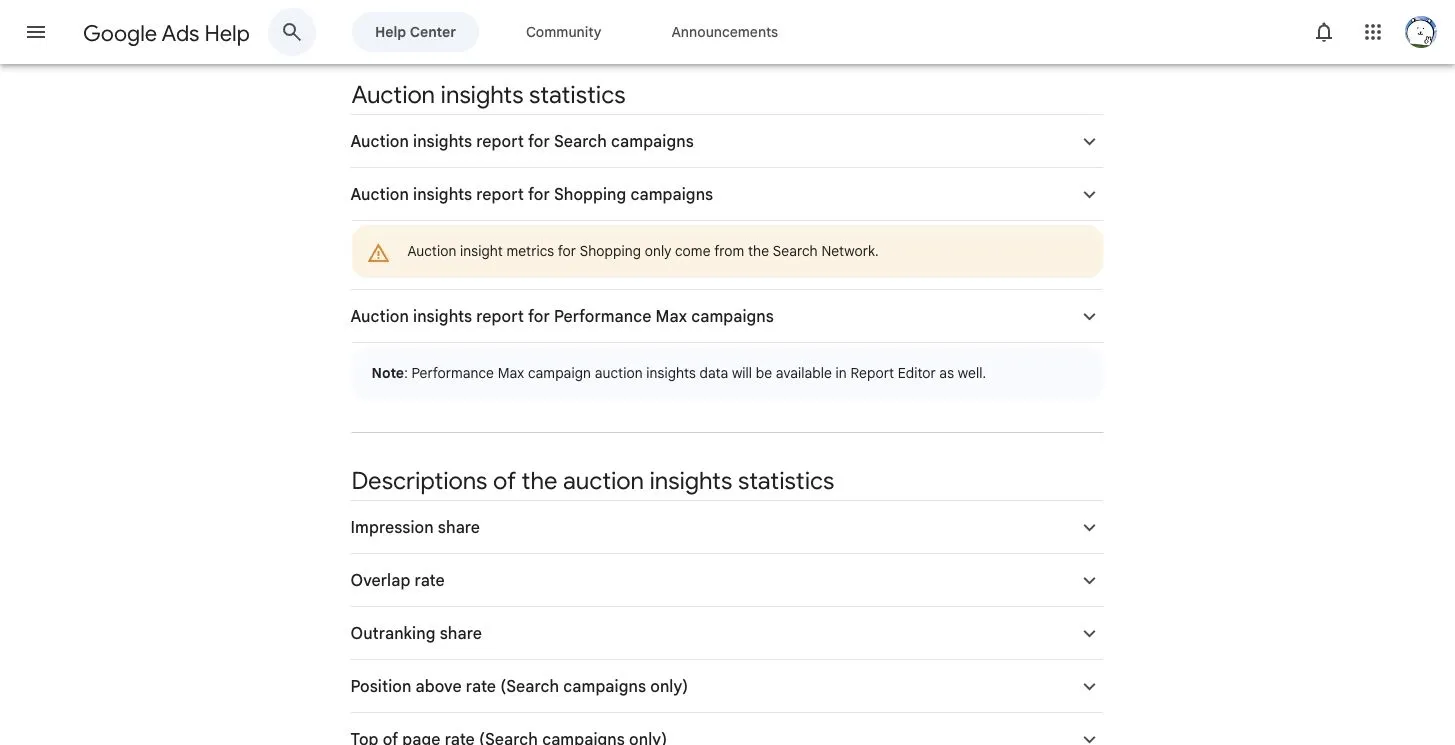
Auction Insights compares eligible shared-auction activity. It does not reveal a competitor’s account settings or results.
Choose the reporting level that matches the campaign type:
- For Search campaigns, Auction Insights can be viewed for keywords, ad groups, and campaigns.
- For Shopping campaigns, use the ad group or campaign level.
- For Performance Max, the standard Campaigns workflow starts at campaign level. Google also describes Performance Max Auction Insights as available at account and campaign levels. The data covers Search and Shopping ads served on the Search Network and is separated into Search and Shopping views.
Select the relevant item, then choose Auction insights. Google changes menu placement from time to time, so look for the report name instead of relying on an old screenshot’s exact button position. The report is available only when the selected activity meets Google’s reporting thresholds.
Read the metrics in context:
- Overlap rate tells you how often another advertiser received an impression when your ad also received one.
- Position above rate shows how often the other advertiser appeared above you when both ads appeared in the same Search result.
- Outranking share combines cases where your ad ranked above another domain and cases where your ad appeared but theirs did not.
- Impression share compares received impressions with estimated eligible impressions. It is not market share or revenue share.
Google’s current help page says Auction Insights does not show when impression share is below 10%. The report also requires a minimum level of activity. A missing competitor row does not prove that the advertiser stopped running ads. You may be looking at a date range, campaign, keyword set, or market where the overlap was too small to report.
Use segments before drawing conclusions. Compare brand and nonbrand campaigns separately. Check the same date range month over month. A competitor that dominates your branded auctions may be unimportant in a product category, and the reverse can also be true.
Method 3: Preview a controlled search market without adding impressions
Manual Google searches are tempting because they feel direct. They are also noisy. Results can change with location, language, device, time, query wording, eligibility, and personalization. Google recommends the preview tool because checking through ordinary Search can add ad impressions and affect performance statistics.
Use Google’s Ad Preview and Diagnosis Tool instead:
- Enter the search term you want to check.
- Set the target location.
- Choose the language.
- Select mobile or desktop.
- Record the sponsored advertisers, visible messages, extensions or assets, and displayed domains. Do not click sponsored results to reach a competitor’s landing page.
- Change one variable at a time. If you switch the query, location, and device together, you will not know what caused the result to change.
If you need the exact landing-page URL, obtain it from the advertiser’s Transparency Center details when available or from a named third-party research tool, then record the source. Keep that step separate from the search preview so your research does not create an unnecessary ad click.
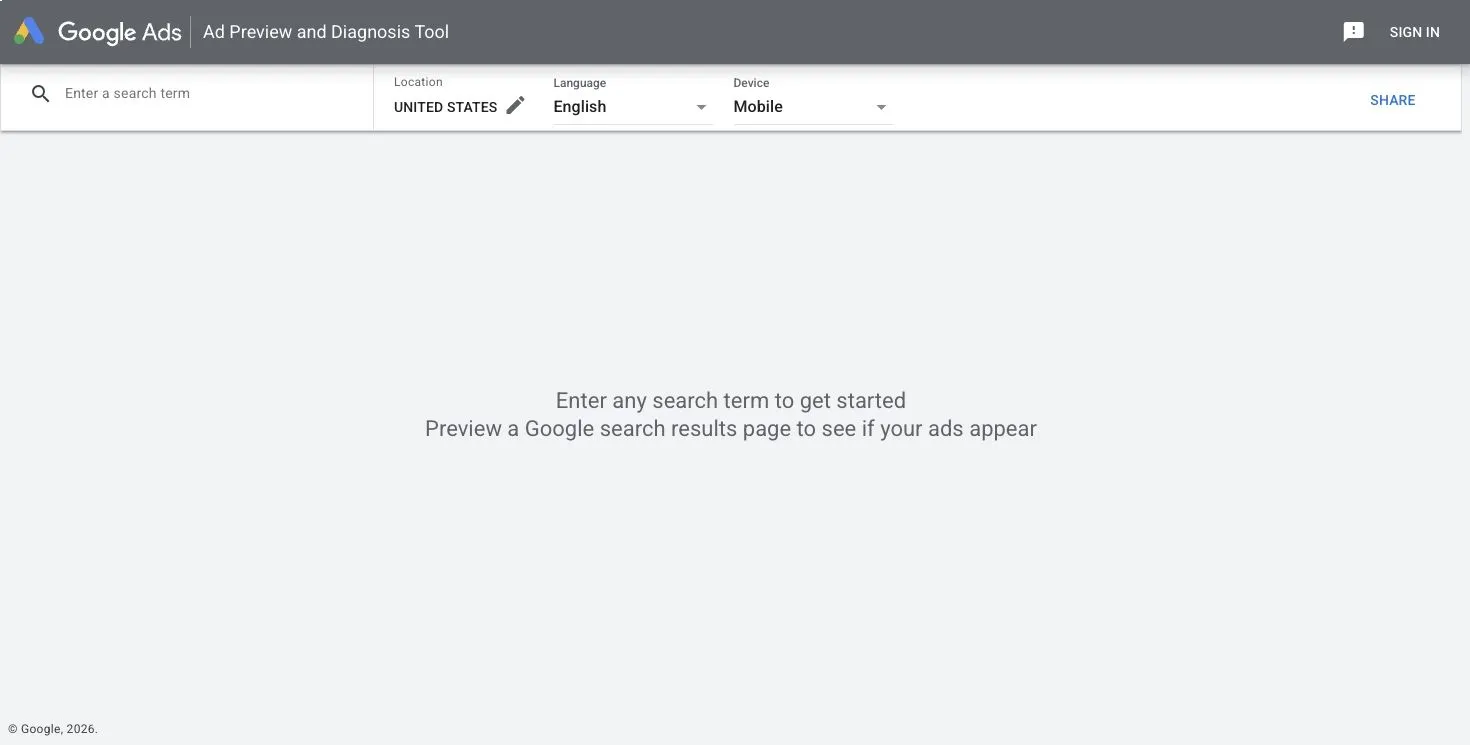
The preview controls make location, language, and device explicit, which is more useful than a casual search from your everyday browser.
One empty preview does not prove that nobody is bidding. Ad delivery also depends on budget, schedule, targeting, auction eligibility, and Google’s serving systems. Run a small, planned set of checks rather than refreshing until you see the answer you expected.
When location consistency matters
Some teams need to compare how ads or landing pages appear in several countries. Start with Google’s own region and preview controls. If you also need an authorized, repeatable browser or collection workflow tied to a specific exit market, an ad verification proxy can help keep the network location consistent.
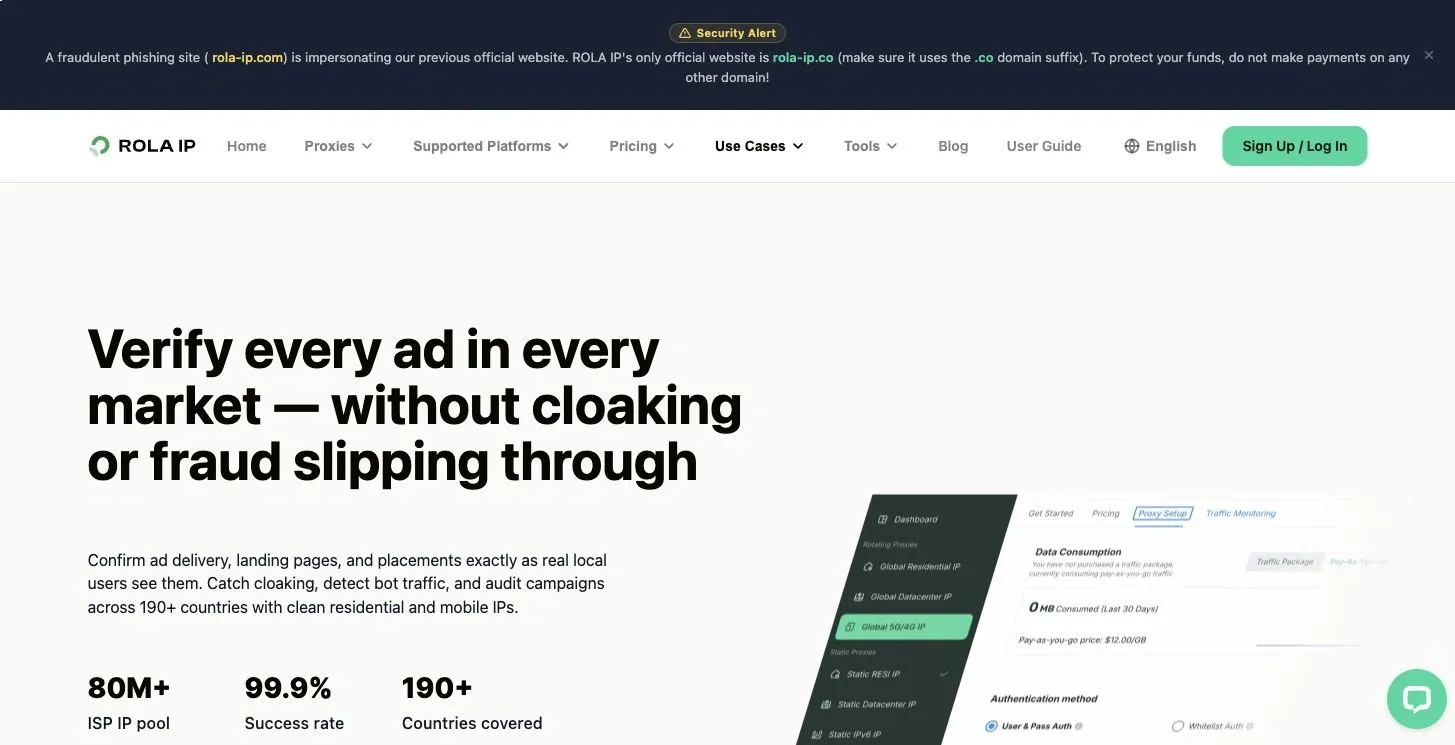
Use a location-controlled workflow only when it fits your research permissions and the platforms’ rules.
For a Rola IP setup, use the current proxy parameters documentation to set the country and session behavior. Then check what is my IP before collecting evidence. Record the observed country, close the page before taking any screenshot, and never publish the live IP address or browser fingerprint.
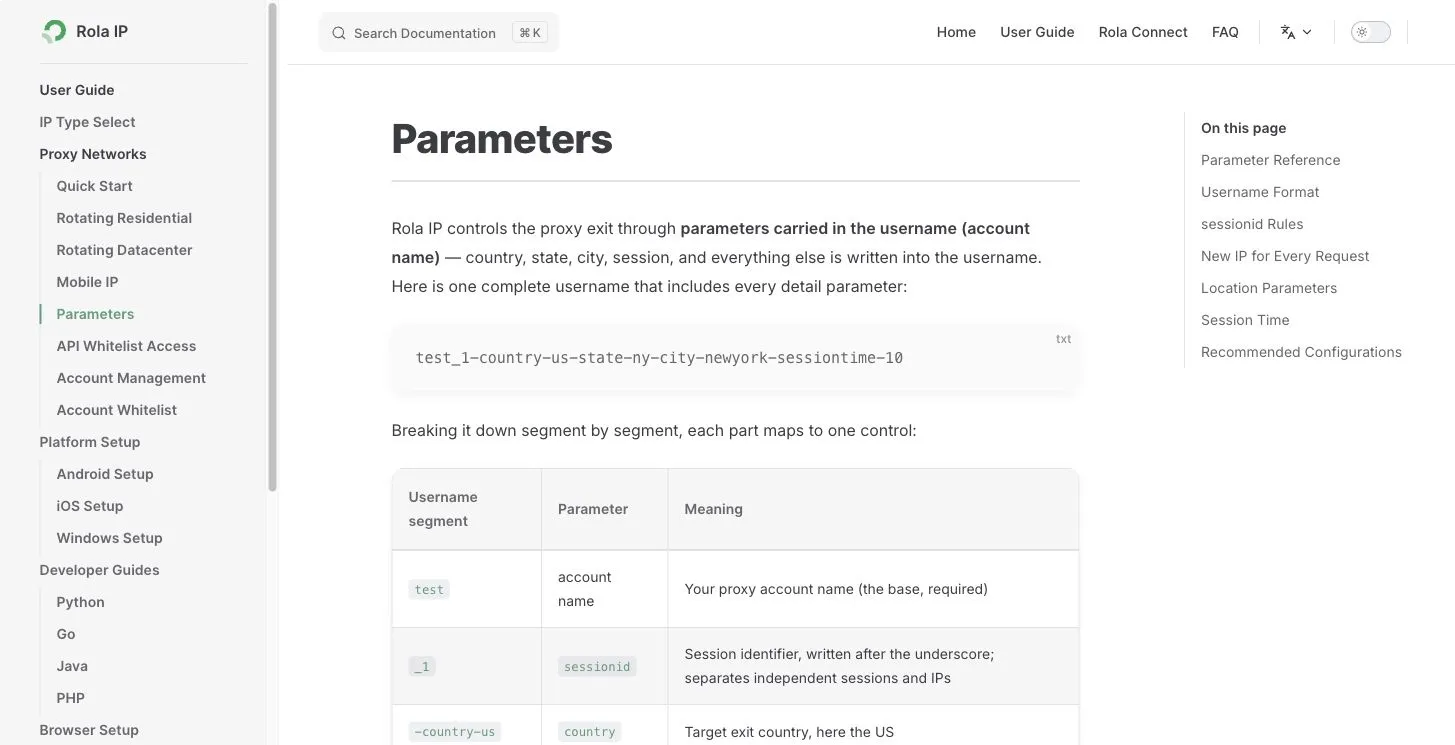
A fixed session and a documented country setting make repeated checks easier to compare. They do not guarantee that every user in that market sees the same ad.
Do not use a proxy to scrape Google aggressively, defeat access controls, or evade account restrictions. Follow Google policies, the destination site’s terms, and applicable law. A clean research design is more valuable than a large pile of unrepeatable screenshots.
Method 4: Add a third-party tool for estimates and history
Commercial platforms such as Semrush, SpyFu, Ahrefs, Similarweb, and SE Ranking can fill gaps left by Google’s free tools. Features differ, but common reports include:
- domains with overlapping paid keywords
- estimated paid keywords and ad positions
- saved ad-copy examples or history
- paid landing pages
- estimated traffic, CPC, or traffic cost
- keyword gaps between domains
Start with a competitor domain, choose the correct country database, and confirm that the report is for paid search rather than organic rankings. Export the date with the data. If the platform provides historical views, compare the same country and device settings over time.
Treat every modeled number as an estimate. These platforms do not have access to a competitor’s Google Ads account. Their crawlers, databases, and models can miss low-volume keywords, short campaigns, local ads, audience-driven delivery, and Performance Max activity. Two tools can produce different estimates for the same advertiser without either one being fraudulent.
Third-party data is best used for prioritization. A keyword theme that appears across several months is worth investigating. One spend estimate is not a budget plan.
What you cannot reliably see
Public competitor research does not reveal a complete Google Ads account. You generally cannot confirm:
- exact daily or monthly budget
- exact bids or bidding strategy settings
- complete keyword lists and match types
- negative keywords
- audience lists or audience signals
- conversion rate, cost per acquisition, or return on ad spend
- Quality Score or account-level recommendations
- every creative combination served by responsive or automated campaigns
You can estimate some of these fields, but label them. “Semrush estimates this domain received paid traffic from the keyword” is defensible. “The competitor spends $20,000 per month on this keyword” usually is not.
The same rule applies to landing pages. A polished page may be part of a strong campaign, but you cannot see its conversion rate from the outside. Record the page’s message, offer, form length, proof, and page speed as observations. Test those ideas on your own traffic instead of assuming they work for someone else.
Turn competitor observations into your own tests
A competitor analysis should end with a short test list, not a folder of screenshots.
For each repeated pattern, ask four questions:
- Is the pattern visible in more than one ad, tool, or date?
- Does it address the same audience and search intent as our campaign?
- Can our product support a clearer or more specific promise?
- What single change can we test without copying the competitor’s words or design?
Useful tests might include a different benefit in the first headline, a landing page built for one search intent, a clearer price or trial explanation, or new negative keywords after reviewing auction overlap. Keep the test connected to your own conversion data. Competitor activity is a clue, not a result.
How often should you check competitors’ Google Ads?
For most teams, a monthly review is enough. Use the same competitor list, markets, sources, and evidence fields each time. Add a faster check around product launches, major promotions, or seasonal buying periods.
Auction Insights may deserve weekly attention in high-spend campaigns because it reflects the auctions you actually enter. Creative libraries and landing pages usually change more slowly. The right cadence is the one your team can repeat without changing the method every time.
Conclusion
Match the question to the tool. The Transparency Center covers ads Google records an advertiser as having run. Auction Insights covers shared-auction competitors. Ad Preview gives you a controlled market snapshot. Commercial platforms fill some gaps with estimates.
Save the market, date, source, and confidence with every observation. If a number came from a model, call it an estimate. That small habit does more for a competitor report than another dozen screenshots.