
How to Get Unblocked from YouTube: Find the Cause and Fix It

Aug 24, 2026 · Troubleshooting · 9 min read
TL;DR
YouTube access problems usually come from one of four layers: account enforcement, Restricted Mode, video-level restrictions, or a network failure. Account terminations and copyright actions require YouTube’s official appeal process; Restricted Mode must be changed by the account holder, parent, or administrator; age, regional, and licensing restrictions may apply to individual videos. A residential proxy can help compare authorized network exits only when the account is in good standing and YouTube works on other networks. It cannot restore a terminated channel or override platform policy.
Why Is YouTube Blocked?
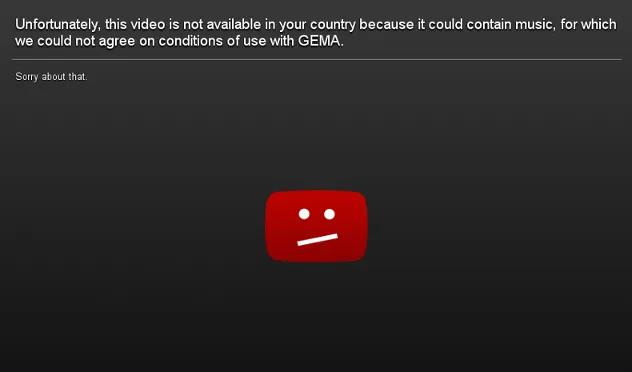
YouTube is one of the world’s largest online video platforms, but many users see messages such as: “The uploader has not made this video available in your country.” To resolve this type of access issue, first understand why the content is restricted.
Readers searching for “how to get unblocked YouTube” are usually dealing with one of these separate restriction layers rather than a single platform-wide problem.
1. Regional Restrictions and Licensing Agreements
One of the most common reasons a YouTube video cannot be played is a regional restriction. These restrictions are usually tied to copyright licensing and commercial distribution agreements.
Content licensing restrictions:
Film studios, TV networks, sports leagues, and record labels often sell distribution rights separately by country or region. For example, a TV series may grant exclusive U.S. streaming rights to one service. To comply with that agreement, the rights holder may restrict U.S. viewers from watching the same content on YouTube.
Copyright and distribution strategy:
Although YouTube’s Content ID system automatically identifies and manages large amounts of copyrighted content, some rights holders still set country- or region-specific viewing restrictions based on local law, licensing agreements, or market strategy.
2. Government Internet Censorship
In countries or regions with stricter internet controls, restrictions may target not just an individual video but the entire YouTube platform, specific channels, or categories of content.
These restrictions are typically implemented by government regulators or internet service providers, and may be based on political, social, religious, national-security, or local content-control considerations. Users may see pages that fail to open, connection timeouts, or the entire video service becoming unavailable.
3. School or Workplace Firewalls
In addition to country-level restrictions, YouTube may also be blocked on internal networks operated by schools, universities, or companies.
Schools and universities:
Educational institutions may restrict video streaming sites such as YouTube to reduce classroom distractions, manage network traffic, or conserve bandwidth.
Workplaces:
Some companies use internal firewalls to limit employee access to YouTube in order to reduce non-work network use, prevent heavy video traffic from consuming bandwidth, or meet their own network security and management policies.
So when YouTube is unavailable, it does not necessarily mean the platform itself is malfunctioning. Regional licensing, government policy, and the access rules of the network you are using can all prevent a video—or the entire platform—from working normally.
How to Get Unblocked from YouTube?
Method 1: Test Authorized Network Restrictions with a Residential Proxy
If YouTube is unavailable because of the current network exit, DNS path, or regional network differences, Rola IP can be used to switch the network exit. However, a proxy cannot reverse a channel termination, account penalty, age restriction, or Restricted Mode.
Rola IP
Rola IP places a proxy exit between your device and YouTube. YouTube sees the proxy exit IP rather than the public IP of the original network. This is suitable for personal network troubleshooting and for authorized cross-region page, ad-display, and video-availability testing.
“Incognito proxy” is not a precise technical term. A proxy can replace the network exit, but it cannot guarantee complete anonymity. YouTube may still identify a session through the account, cookies, browser environment, and device information. A more accurate heading is “Use a static residential proxy.”
Why Recommend Rola IP?
Depending on the plan and current product availability, Rola IP may offer options relevant to YouTube network and browser testing:
- Residential IP coverage across multiple countries and regions; verify current availability on the official product page.
- Country- and city-level targeting for verifying how pages appear in specific markets, subject to plan availability.
- Sticky sessions that can keep the same exit IP during a test, subject to session settings.
- HTTP and SOCKS5 support for browsers, computers, and servers; confirm the currently supported protocols before setup.
- Username/password authentication, IP allowlisting, and combined authentication options, depending on the account configuration.
- Availability targets, technical support, subaccounts, and traffic quotas that vary by plan and should be checked before purchase.
Do not submit a Google password, one-time verification code, or recovery information to a proxy webpage or an unofficial “YouTube unblocked” service. Free or unknown proxy services can create privacy and credential-security risks, especially when a YouTube account is signed in.
Verify current product availability and plan-specific capabilities in the Rola IP residential proxy documentation and the proxy parameters guide before publishing or configuring a test.
How to Use Rola IP to Access and Test YouTube
Confirm the restriction is not an account penalty
Open YouTube Studio and check your email. If there is a channel termination, Community Guidelines strike, copyright penalty, or age-verification prompt, handle it through YouTube’s official process first. Changing proxies cannot restore the account.
Choose the appropriate proxy type
For ordinary web access, regional page checks, or ad verification, use Rola IP rotating residential proxies. If you need to keep a video page open and stream media continuously, enable a sticky session to avoid changing IPs while the player is loading. For long-term monitoring or fixed allowlist tasks, use a static residential proxy.
Generate a proxy connection
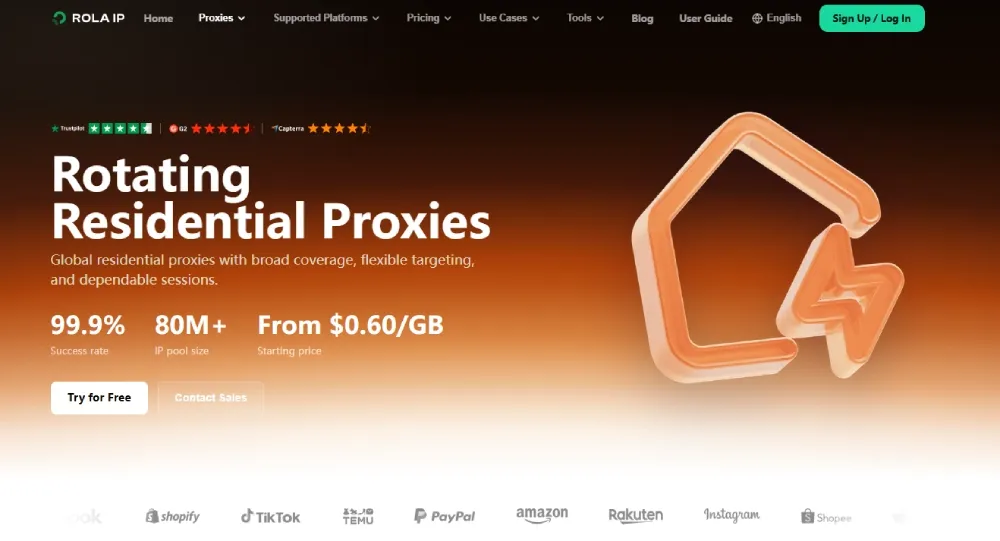
Log in to the Rola IP dashboard, select the target country or city, and generate a connection. Copy the current Host, Port, Username, and Password shown in the dashboard.
Configure the browser
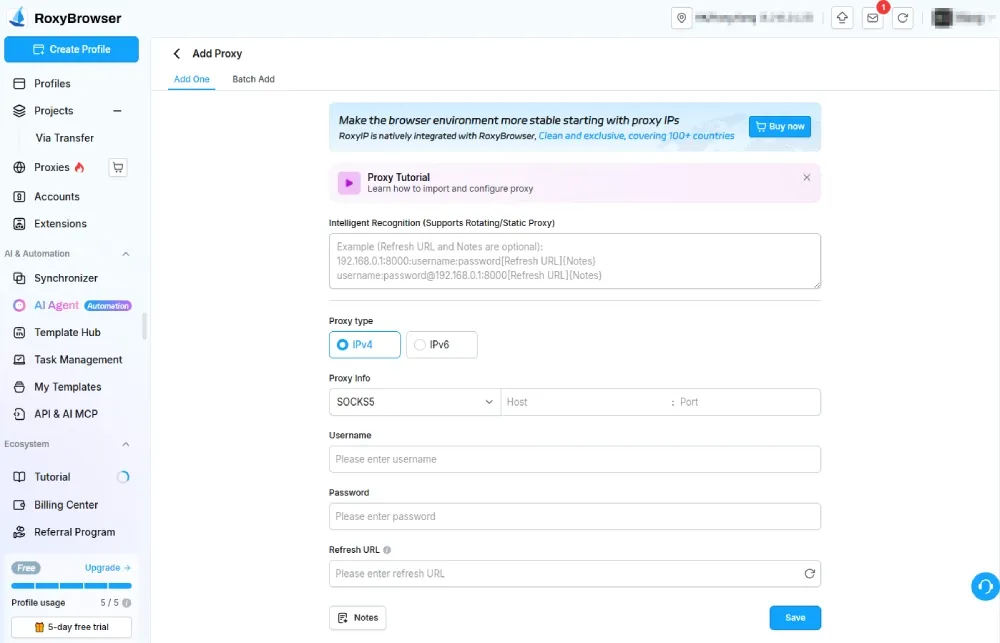
If the workflow requires viewing or checking YouTube in a browser, follow the RoxyBrowser proxy setup guidance to create a new test profile, then enter the Rola IP proxy protocol, host, port, username, and password. The language, time zone, and geolocation should match the target region.
Verify the proxy exit
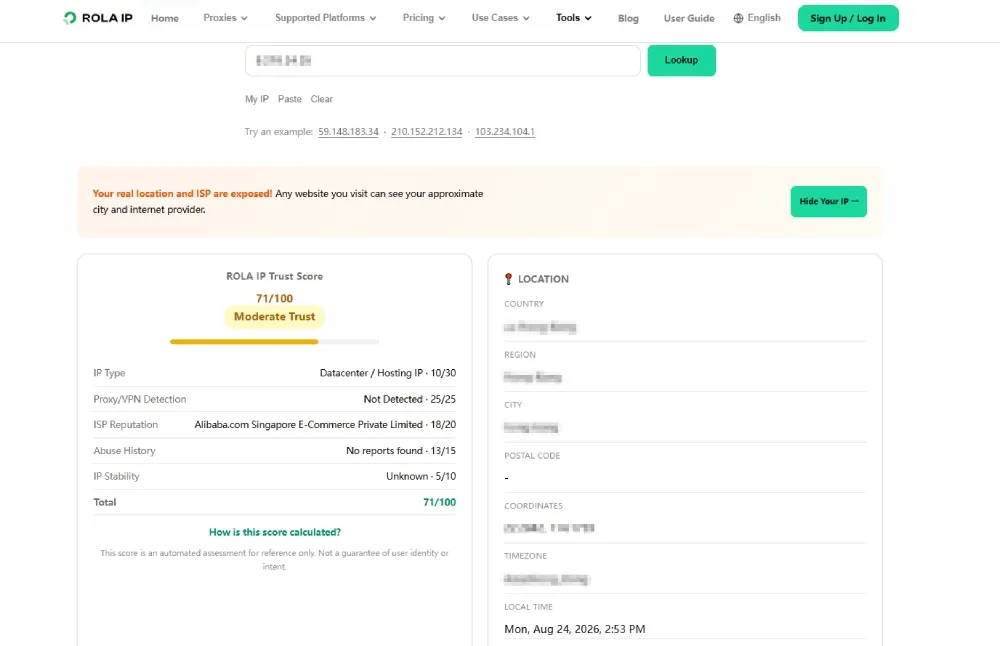
After launching the browser, first visit an IP lookup page to confirm that the exit country and city match the settings. If proxy verification fails, check the protocol, port, credentials, plan balance, and allowlist instead of repeatedly refreshing YouTube.
Test YouTube
Check the YouTube home page, search page, target video page, and player in sequence. Keep the same sticky session throughout the test, and record the error message, final URL, page-load status, and playback result.
Run a direct-connection comparison
Using the same device, browser environment, account, and video URL, test both the direct connection and Rola IP. Change only the proxy setting:
- Direct connection fails but Rola IP works: the issue is more likely related to the original network exit, DNS, or regional network path.
- Both connections show an account restriction: address the account or channel issue.
- The home page works but the video will not play: check video permissions, googlevideo.com media connectivity, bandwidth, and the sticky session.
- Only one video shows a regional-unavailability message: this may be due to copyright or uploader settings; proxy testing does not grant viewing authorization.
Method 2: Restore a Terminated or Restricted Channel Through Official Processes
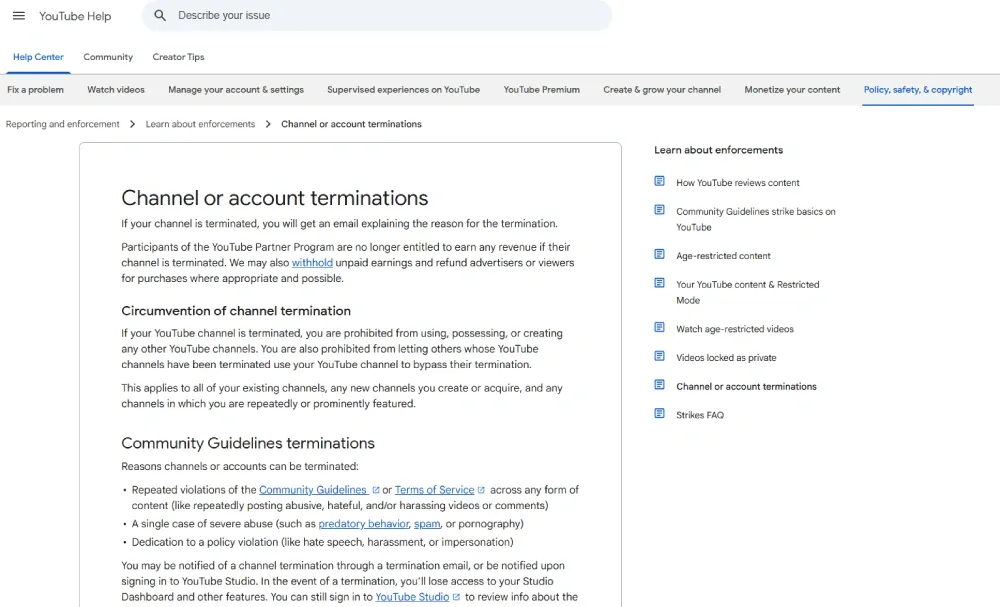
If the goal is an “unbanned YouTube” channel, the first and only reliable path is an official appeal. YouTube states that it sends an email explaining the reason for termination, and a terminated user may not create, own, acquire, or use another channel to bypass the termination.
YouTube Help: Channel or account terminations
Channel Termination Appeal Steps
- Open the termination-information page in YouTube Studio and re-authenticate.
- Select Begin Review and confirm the reason for termination and the policies involved.
- Select Start Appeal and enter an email address where you can be contacted.
- Explain factually why the enforcement may be incorrect, citing specific videos, dates or times, policy provisions, and any actions already taken.
- After submitting, check Studio for the estimated review time and save the confirmation email.
YouTube’s official help currently states that creators can usually appeal within one year of a channel termination, but the number of appeals for the same termination is limited. Do not mass-submit identical text, and do not provide passwords or verification codes to unofficial “unban services.”
Copyright Terminations Are Different from Community Guidelines Terminations
A copyright termination may involve a counter notification or asking the rights holder to retract a claim, but a counter notification is a legal process. A Community Guidelines termination should go through the Studio appeal process. Do not combine the two into a single template appeal.
YouTube Help: Copyright counter notification
Method 3: Turn Off or Remove Restricted Mode
Restricted Mode is a content-filtering setting, not an account ban. It may be enforced by a personal account, Family Link, a school/company Google Workspace administrator, or a network-level content filter.
- Personal account: Profile picture → Restricted Mode → Off.
- Supervised account: a parent adjusts the setting in Family Link/YouTube family settings.
- School or work account: contact the Workspace or network administrator; users cannot override organizational policy.
- If the browser shows “Enabled by your network administrator,” test on a personal device and personal network to identify the source of the policy.
YouTube Help: Turn Restricted Mode on or off
Method 4: Troubleshoot School, Workplace, and Home Network Blocks
If youtube.com is unavailable only on a managed network, contact the network owner first. Schools and employers may restrict streaming based on compliance, bandwidth, or security policies; bypassing those policies without authorization may violate acceptable-use rules.
- Confirm that the system date, browser updates, and certificates are correct.
- Clear the cache and cookies for youtube.com, and disable extensions that may conflict.
- Check whether DNS can resolve youtube.com and googlevideo.com.
- Check firewall, parental-control, and security-software logs.
- Use a personal mobile network once as a comparison, but do not bypass management policies on a managed device.
# macOS / Linux: read-only network checks
nslookup youtube.com
curl -I https://www.youtube.com/
curl -I https://www.youtube.com/generate_204
HTTP 200/204 only proves basic connectivity. It does not prove account permissions, video authorization, or that every media segment can be played.
Method 5: Use Python to Verify Rola IP’s YouTube Network Connection
If you have already completed the troubleshooting above, you can use Python to quickly verify the proxy exit and basic YouTube connectivity without repeating the browser-configuration steps. Confirm the current connection parameters and supported authentication method in the product documentation before running the script.
import os
from urllib.parse import quote
import requests

proxy_url = (
    f"socks5h://{quote(os.environ['ROLA_PROXY_USERNAME'], safe='')}:"
    f"{quote(os.environ['ROLA_PROXY_PASSWORD'], safe='')}@"
    f"{os.environ['ROLA_PROXY_HOST']}:{os.environ['ROLA_PROXY_PORT']}"
)

proxies = {
    "http": proxy_url,
    "https": proxy_url
}

# Check the proxy exit IP
ip = requests.get(
    "https://ipinfo.io/json",
    proxies=proxies,
    timeout=20
)

ip.raise_for_status()
print("Proxy exit:", ip.json())

# Check basic YouTube network connectivity
youtube = requests.get(
    "https://www.youtube.com/generate_204",
    proxies=proxies,
    timeout=20
)

print("YouTube network status:", youtube.status_code)
When using SOCKS5, install:
pip install "requests[socks]"
If the proxy exit information is retrieved successfully and generate_204 returns 204, the basic network connection between Rola IP and YouTube is working.
Common Misconceptions: Why Didn’t “Changing IP” Unblock YouTube?
| Misconception | Problem | Correct Approach |
|---|---|---|
| Changing the proxy after channel termination | Enforcement is tied to platform action, not a single IP | Submit a formal appeal |
| Creating a new channel to keep using YouTube | YouTube explicitly prohibits evading termination | Wait for the appeal result |
| Changing IP for Restricted Mode | May be enforced by account/admin policy | Have an authorized person turn it off |
| Repeatedly changing countries when a video is unavailable in a region | Ignores copyright and regional policy | Use authorized testing or contact the rights holder |
| Rotating IP on every request | Breaks cookies and playback sessions | Use a sticky session when needed |
| Treating 204 as account recovery | Only proves basic network connectivity | Check Studio and specific features |
Conclusion
The key to how to get unblocked from YouTube is not to reach for a proxy first, but to identify the restriction layer. Channel terminations must be appealed; Restricted Mode must be changed by the account holder, parent, or administrator; individual videos must respect age, copyright, and regional rules; only network failures call for DNS, device, and network-exit comparisons. Rola IP can be used for authorized regional and network validation, and RoxyBrowser can isolate test environments, but neither replaces YouTube’s official recovery process.
For authorized regional validation or network troubleshooting, review the appropriate Rola IP residential proxy configuration in the Rola IP documentation and verify the exit location before testing YouTube. Do not use a proxy to evade account termination, age restrictions, or organizational access policies.