
How to Get TikTok Unblocked: 7 Fixes by Restriction Type

Aug 24, 2026 · Troubleshooting · 13 min read
To get TikTok unblocked, do not start by switching VPNs or proxies at random. First, identify where the restriction occurs. If TikTok works on mobile data but not on a particular Wi-Fi network, network filtering or regional routing is likely the cause. In that case, switching to a permitted network or using a reliable VPN or proxy may restore access. If TikTok fails across every connection, or only features such as login, posting, and direct messages are restricted, check the app, device, and account status instead—changing your IP alone is unlikely to help.
This guide does more than list generic TikTok unblocker tools. It uses a controlled troubleshooting process to compare Wi-Fi with mobile data, the web version with the native app, and homepage access with actual feature availability. Once you confirm that the network path is the problem, you can choose an appropriate TikTok unblock proxy and verify that videos, login, and other core functions work—not just that the homepage loads.
TL;DR: First compare TikTok on Wi-Fi and mobile data, then compare TikTok Web with the app and check whether the device is managed. Use a VPN or browser proxy only when the evidence points to an authorized network-route problem. Account restrictions, another user’s block, device policies, and age or identity checks require TikTok or administrator support.
Find Where TikTok Access Fails
Match your symptom to the closest row, then run the three comparisons below in order. The table covers access failures: TikTok will not open, connect, or load media.
| What you see | Likely problem area | Run this comparison | What the result means |
|---|---|---|---|
| TikTok works on mobile data but not on one Wi-Fi network | That Wi-Fi network’s DNS, firewall, content policy, or route | Repeat the same official page and public-video test on Wi-Fi and mobile data | A mobile-data success isolates the failure to the original Wi-Fi path |
| TikTok Web works on the same device and network, but the native app cannot connect | App state, app-specific traffic, permissions, or device settings | Repeat the same page, video, and required action in Web and the app without changing networks | A Web-only success narrows the failure to the app or its device environment |
| The homepage opens, but videos do not start or keep playing | Media requests on one network or in one client | Play the same public video on two networks and in both Web and the app | A one-network failure points to the network; a one-client failure points to that client |
| TikTok stays unavailable on a school- or work-managed device after changing networks | Browser or device management policy | Check chrome://management and chrome://policy, then compare a personal device on the same connection |
A managed status keeps device policy in scope even after the network changes |
| The official site and a public video fail on multiple personal devices and permitted networks | Broader service or regional availability, shared routing, or more than one local problem | Try the official site on a second personal device and connection, then retry after an update and restart | Repeated failure across devices and networks rules out one Wi-Fi or one app as the sole cause |
Compare Wi-Fi with mobile data
Choose one official TikTok page and one public video. On a personal phone, record whether the page opens and the video starts on Wi-Fi. Turn Wi-Fi off, confirm the phone is using mobile data, and repeat the same two tests without changing the account or app settings.
- If both tests work on mobile data and fail on Wi-Fi, the original Wi-Fi path is the leading suspect. This comparison makes a device-wide failure less likely, but it does not completely exclude regional, CDN, or time-specific service issues.
- If the page opens on both connections but the video fails only on Wi-Fi, the Wi-Fi path is interrupting or limiting media requests rather than the entire site.
- If both connections fail, the evidence does not isolate the problem to Wi-Fi. Keep one connection unchanged for the Web-versus-app comparison, then repeat the test on a second personal device.
On Windows PowerShell, these two commands test basic DNS and HTTPS reachability:
Resolve-DnsName www.tiktok.com
curl.exe -I --max-time 20 https://www.tiktok.com/
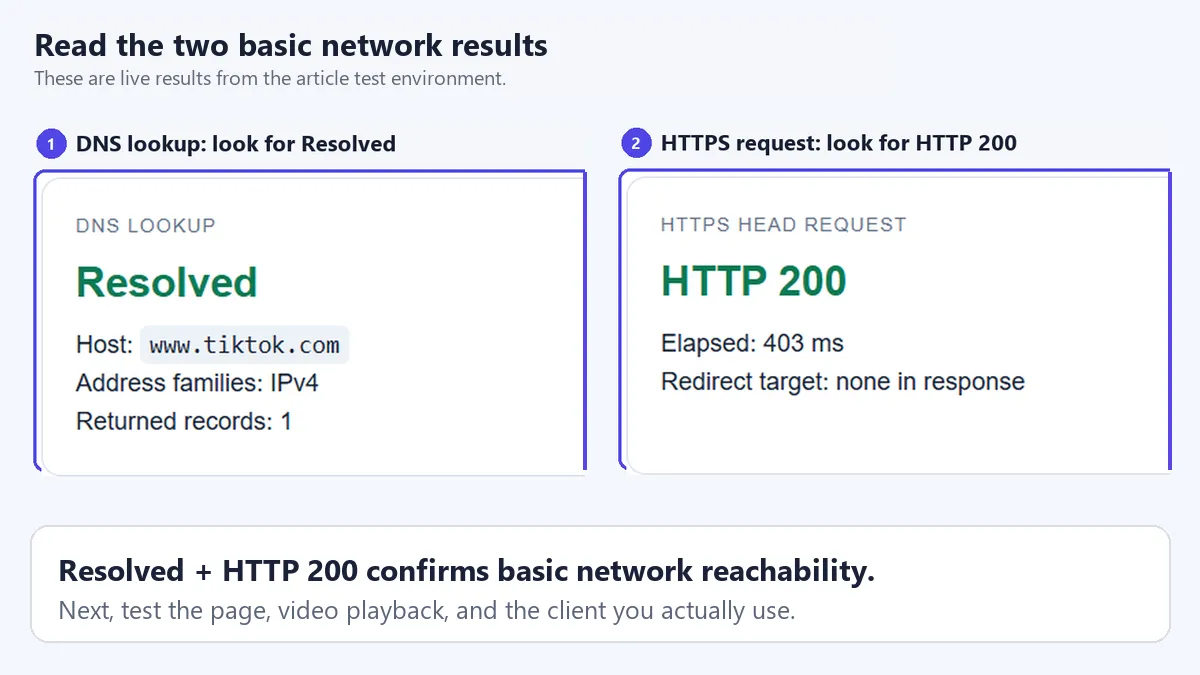
Read panel 1 for DNS and panel 2 for HTTPS. Resolved shows that DNS returned an address. HTTP 200 shows that the basic HTTPS request reached TikTok. Next, play the same public video to test its media requests. A DNS failure points to name-resolution filtering or a resolver problem; an HTTPS timeout, block page, or repeated connection error keeps filtering and routing in scope.
Compare TikTok Web with the app
Keep the network unchanged. In an updated browser, enter the official https://www.tiktok.com/ address, open a public video, and note whether it keeps playing. Repeat the same viewing test in the native app. If you need a signed-in feature, test one specific action only after public pages and video work in both clients.
- If Web and video work while the app fails, the problem is concentrated in the app state, app-specific traffic, permissions, or device environment. A broad block on the current connection becomes less likely, but should still be checked on a second permitted connection.
- If Web and the app fail on this network but both work on the other connection, the network remains the problem area.
- If public pages and videos work in both clients while login, posting, comments, profile editing, or messages are restricted, access is working and the remaining issue is at the account or feature level.
- If both clients fail on multiple permitted networks, one browser or one app is not the sole cause. Compare a second personal device and check service availability.
Check whether the device is managed
On desktop Chrome, enter chrome://management in the address bar. Google documents the same status in the Chrome menu and lists active policies at chrome://policy. For an operating-system-managed device, also review the work or school management area in system settings.
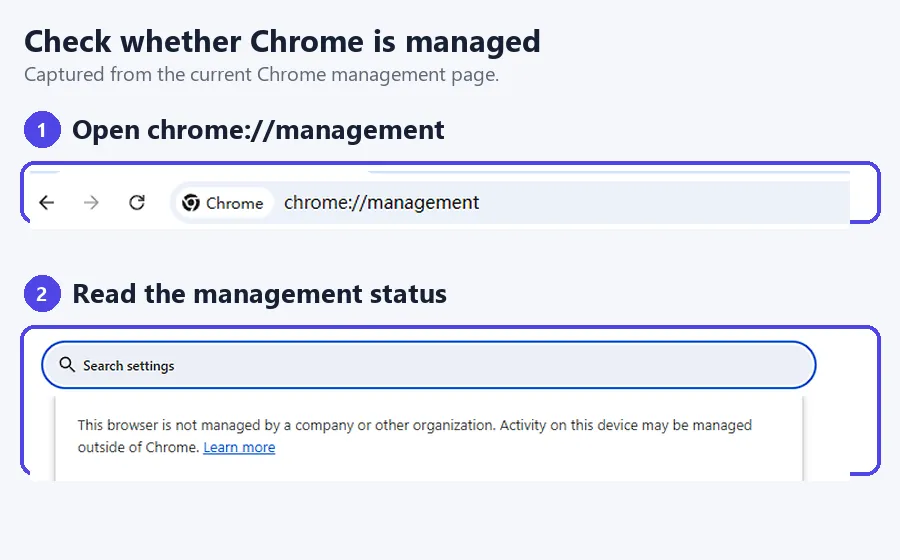
- If Chrome or the operating system reports management and TikTok remains unavailable after the connection changes, device policy is still a likely cause. Test a personal unmanaged device on the same network to separate device policy from the network rule.
- If Chrome reports that it is not managed, this check removes Chrome management from the cause list. Continue with the network, app, or account category established by the first two comparisons.
After these three checks, you should know which observed pattern most closely matches the failure. The table below summarizes seven methods and shows the problem each method fits, what to do, and how to verify the result.
Choose the Right Fix for Your TikTok Problem
Use this table as an overview, then read the matching method below. Start with the method that fits the problem category established by the checks. RoxyBrowser is one way to apply a browser proxy, not an eighth solution.
| Method | Best for | What to do | How to verify |
|---|---|---|---|
| 1. Mobile data or a personal hotspot | TikTok fails only on one Wi-Fi network | Turn off Wi-Fi and repeat the same page and video test; use a hotspot for a second-device comparison | The same tasks work on the alternate connection |
| 2. TikTok Web | The native app fails while the official website works | Test the official site, a public video, login, and the specific Web feature you need | The required browser task works on the same device and network |
| 3. Update and restart TikTok or the device | One client is unstable or Web and app results differ | Update, restart, review permissions, and clear cache one step at a time | The exact failed action works after a known step |
| 4. Administrator approval or a personal device | TikTok fails on a managed browser or device | Confirm management, report the blocked task, and compare a personal device | The administrator confirms the rule or the personal-device comparison isolates the policy |
| 5. TikTok Account check and appeal | Public content works but signed-in features are restricted | Review Account check and the relevant notification; appeal through that notice | The feature shows a checkmark or TikTok returns an appeal decision |
| 6. VPN client | A network-path problem affects native-app or device traffic | Use an authorized tunnel, check split tunneling, and test from the covered client | The expected exit appears and the page, video, and required action work |
| 7. Browser proxy or RoxyBrowser Profile | A confirmed browser-route test needs a specific exit | Add and test the proxy, bind it to the browser or Profile, then verify the route | The same browser shows the expected exit and completes the TikTok Web test |
Switch to mobile data or a personal hotspot
Use this method when TikTok works away from one Wi-Fi network. On the same personal phone, open the chosen official page and public video on Wi-Fi, then turn Wi-Fi off completely. Confirm the cellular indicator is active and repeat those exact tests before changing any other setting.
If both tests now work, the original Wi-Fi path is causing the access failure. If the result is unclear, connect a second personal device to the first phone’s hotspot and repeat the page and video test. When both devices work through the hotspot but fail on the original Wi-Fi, the comparison isolates that Wi-Fi network. When only one device still fails, continue with its app and device checks.
Mobile video can consume a large amount of data. Use a short public video for diagnosis, check the data allowance first, and avoid uploads until the comparison is complete. For ongoing access, use a permitted connection or give the Wi-Fi administrator the failed URL, time, device type, and block message so the rule can be reviewed.
Use TikTok Web when only the app fails
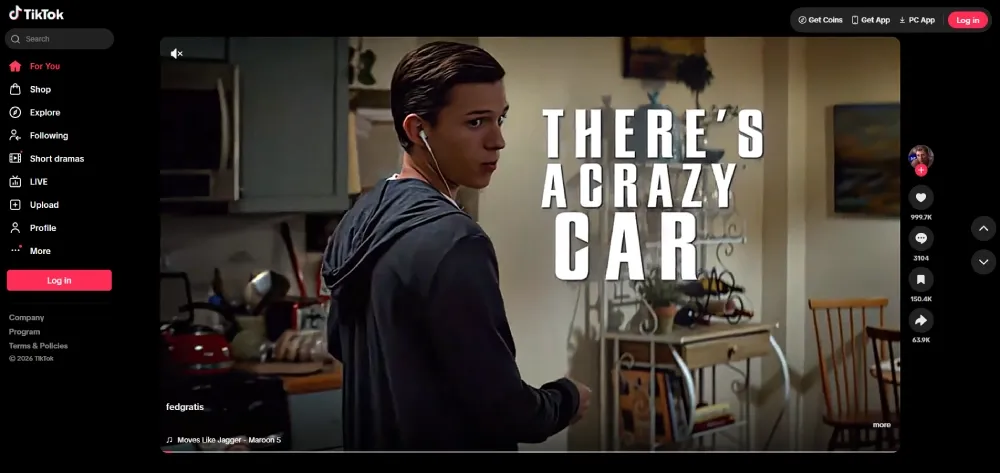
Use an updated browser on the same device and network where the app failed. Type https://www.tiktok.com/ directly into the address bar, open a public page, and play a public video long enough to confirm continuous playback. Sign in on the official domain only if the task requires it, then test the exact function you need, such as viewing a profile, posting, or messaging.
TikTok Web can provide temporary access while the native app is being repaired, provided that the browser offers the required function. A successful public-page and video test shows that the device and connection can reach TikTok through the browser. If login or one signed-in action fails in both Web and the app, classify the remaining problem as an account or feature restriction. If Web fails alongside the app, return to the network and device results rather than treating this as an app-only fault.
Update and restart TikTok and the device
TikTok’s current troubleshooting steps cover app and operating-system updates, restarting, connection checks, cache removal, battery level, and app permissions. Apply them in this order, repeating the same failed action after each step:
- Update TikTok from the official app store and install available operating-system updates.
- Close TikTok completely, reopen it, and test again. Restart the device if the result is unchanged.
- Check the permission used by the failed task. Camera, microphone, and photo access matter for recording or posting; they do not explain a public video that will not load.
- In TikTok, open Profile → Menu → Settings and privacy → Free up space, then clear Cache. Leave Downloads and Drafts untouched unless you intend to remove them.
Clearing cache removes temporary files. Clearing app data or reinstalling is a later step because it can sign the user out and may remove downloads, drafts, or local settings. Confirm the login method and preserve any needed local work first. If public pages and playback recover while a signed-in feature remains restricted, the app is working and the account check is the relevant next method.
Ask the administrator or use an approved personal device
Google’s managed-browser guidance says Chrome displays Managed by your organization in its menu when an administrator controls it. chrome://management shows the management state, and chrome://policy lists active browser policies. Work or school management can also appear in the operating system’s account or device-management settings.
Compare a personal unmanaged device on the same Wi-Fi. If TikTok works there while the managed device still fails, the device policy is the distinguishing factor. If both devices fail, the Wi-Fi rule may also be involved. Send the administrator the exact site or app action, time, block message, and management result; this gives them enough context to confirm whether access is intentionally restricted or a policy is misconfigured.
Use a personal device and connection only where organization rules allow it. Keep management removal, certificate changes, sideloaded unblockers, and policy workarounds out of the troubleshooting path.
Use TikTok Account check and the appeal path
Use this method after public pages and videos work but login, posting, comments, profile editing, or direct messages remain restricted. TikTok’s current Account check lists those five feature areas and uses a checkmark for no detected issue and a warning sign when an issue is present.
Open Account check through either current path:
- Profile → Menu → TikTok Studio → More tools → Account check
- Profile → Menu → Settings and privacy → Support → Safety Center → Account check
Open the warning to identify the affected feature and review the related notice. TikTok’s content violations and bans guidance places violation records under Inbox → System notifications → Account updates and provides an Appeal action in eligible restriction or ban notices. Follow the prompts in that notice. If no matching notice appears, use Settings and privacy → Report a problem and select the closest topic.
Before submitting, record the username, affected feature, exact warning text, time of failure, app version, and any relevant content or notification ID. Attach a clear screenshot when the support form allows it. This information helps TikTok review the specific event; the outcome remains TikTok’s decision.
For a similar distinction on another platform, see our OnlyFans blocking and access guide, which explains user blocks and website loading problems separately.
Use a VPN only for an authorized device-wide route
Choose a VPN client when the diagnosed network-path problem affects the native app or several applications on a personal device. Before connecting, check whether the client uses a full-device tunnel or split tunneling. With split tunneling, confirm that TikTok and the browser used for route verification are included; an excluded app continues to use the original connection.
Connect to the authorized location, then open an IP-check page in a browser covered by the same tunnel. Confirm the displayed country and compare it with the VPN client’s connection status. Next, test TikTok in stages: official page, public-video playback, login, and the required action. This sequence shows whether the tunnel carries basic Web traffic, media traffic, and the signed-in task.
If the browser exit changes while the native app behaves exactly as before, review the split-tunnel list and operating-system VPN indicator. A device-management rule or TikTok account notice belongs to its own method; changing the network route does not process either one.
Configure a proxy for a confirmed browser-route problem
When a proxy fits
Use a proxy after the comparison shows a browser-route problem and the required task is in TikTok Web. A browser proxy covers that browser. A system proxy covers applications that honor the operating-system proxy setting. A proxy assigned in RoxyBrowser covers that Profile. The native mobile app needs a route configured for the app or device, which is usually a VPN-client scenario rather than a browser-proxy setup.
Keep account enforcement, another user’s block, device management, age or identity checks, and For You recommendations outside this network fix. Their status comes from TikTok or the device policy, not from the proxy exit.
Configure and verify the route
For an authorized browser or regional business test, follow TikTok’s terms, local law, and any applicable organization network policy:
- Choose the required exit region and obtain the provider’s protocol, host, port, username, and password.
- Enter those values in the browser or proxy client. Test connectivity before opening TikTok.
- In that same browser, open an IP-check page and confirm the exit country. A mismatched or unchanged result means the browser is not using the intended route.
- Keep one exit for a signed-in browser session. Per-request rotation is designed for stateless requests and can interrupt session continuity.
- Open TikTok Web and test the official page, public-video playback, login, and required action separately.
Rola IP’s proxy quick start documents the four connection fields and an exit-IP/country check. You can use a proxy checker to validate an endpoint before opening TikTok. Do not place real credentials in screenshots, shared notes, or support messages.
Bind the proxy to a RoxyBrowser Profile
RoxyBrowser’s current proxy documentation supports HTTP, HTTPS, SOCKS5, and SSH entries, a Test Proxy action, and assignment of a saved proxy to a Profile. The Rola IP integration guide shows the product-specific menu path:
- Open Proxy IP, select Add Proxy, and choose the protocol supplied by the proxy provider.
- Enter Host, Port, Username, and Password. Add a refresh URL only when the proxy type requires one.
- Click Test Proxy. Correct invalid credentials, an expired endpoint, or the detection channel before saving a failed entry.
- Create or edit a Profile/window and assign the saved proxy.
- Launch that Profile, confirm the exit country on an IP-check page, and then run the TikTok Web tests.
The tested route applies to that Profile’s browser traffic. Other profiles, the system, and the phone’s native TikTok app keep their own network settings.
Need a controlled browser-route test? Review the Rola IP service and documentation, verify the exit country, and use the proxy only for permitted TikTok Web activity. A proxy cannot remove account enforcement or device-management restrictions.
Choose a safer proxy source
Enter TikTok credentials only on an official TikTok domain. Reject a web proxy, mirror, or extension that generates its own login form, asks for an unexplained certificate, requests broad permissions unrelated to routing, or claims it can remove account or device restrictions.
An NDSS/MADWeb study followed more than 640,000 advertised free proxies over 30 months. Only 34.5% were active at least once during testing, and the researchers identified thousands that manipulated content. Use a provider with clear ownership, authentication, support, and privacy terms, and install only extensions you trust.
Verify That TikTok Is Really Working
Run the checks in order and stop at the first failure:
- Route check, if you changed the route: Does an IP-check page in the routed browser or app show the intended exit country?
- Website check: Does the official
tiktok.compage render without a block page or redirect loop? - Media check: Does a public video start and continue playing?
- Account check: Can the official site or app log in without an enforcement notice or unexpected verification loop?
- Task check: Does the specific permitted action, such as viewing, posting, commenting, messaging, or regional testing, work?
- Status check: Does TikTok Account check show a restriction that needs appeal or support?
Record the device, network, browser or app version, route scope, exit country if applicable, time, and exact failed step.
Summary
Start with the access table, confirm the result by changing one variable at a time, and apply only the matching fix. Use a VPN or proxy for an authorized route problem, keep RoxyBrowser inside the browser-proxy workflow, and use TikTok’s own account and privacy controls for non-network restrictions.