
How to Set Proxy on Telegram: Safe SOCKS5 Setup Guide

Aug 17, 2026 · Guides · 7 min read

Illustration, not a Telegram interface screenshot. It shows the connection path this guide discusses.
Telegram includes proxy controls in its clients, so you can route its connection through a server you trust without changing every application’s network setting. The practical part is simple: choose the proxy type that matches your credentials, enter the server details, and test a normal message. The important part is choosing credentials you can trust and keeping them private.
This guide explains how to set proxy on Telegram on desktop and mobile clients, how SOCKS5 differs from MTProto, and when a paid endpoint is a better choice than a free proxy for Telegram. It covers ordinary, authorized use. A proxy does not grant access to a service, override a platform’s rules, or guarantee that calls and every feature will work the same way.
Quick answer
For a Telegram SOCKS5 proxy, open the proxy section in the app, choose SOCKS5, then enter the server and port. Add a username and password only if your provider supplied them. For an MTProto proxy, enter the server, port, and secret instead. Telegram’s official documentation lists SOCKS5 and MTProto as its common supported proxy types, and it recommends using proxies only from sources you trust.
Before you save anything, confirm the values in your provider’s dashboard. Do not copy a random proxy URL from a public channel into a personal or work account.
What you need before changing proxy settings for Telegram
Have the connection details ready before opening Telegram. The exact fields depend on the proxy type.
| If you selected | Required information | Do not substitute it with |
|---|---|---|
| SOCKS5 | Server, port, plus username and password if the provider requires authentication | An MTProto secret or a browser-only proxy URL |
| MTProto | Server, port, and secret | A SOCKS5 username and password |
You also need a way to test the connection. Sending a message to a contact or a private test chat is enough for a basic check. If you use Telegram for work, make the change during a time when you can safely switch the proxy off again if the endpoint is slow or unavailable.
How to set proxy on Telegram Desktop
Telegram’s official proxy page places the Desktop path at Settings > Advanced > Connection Type. The wording can move slightly between releases, but the sequence below is the normal desktop flow.
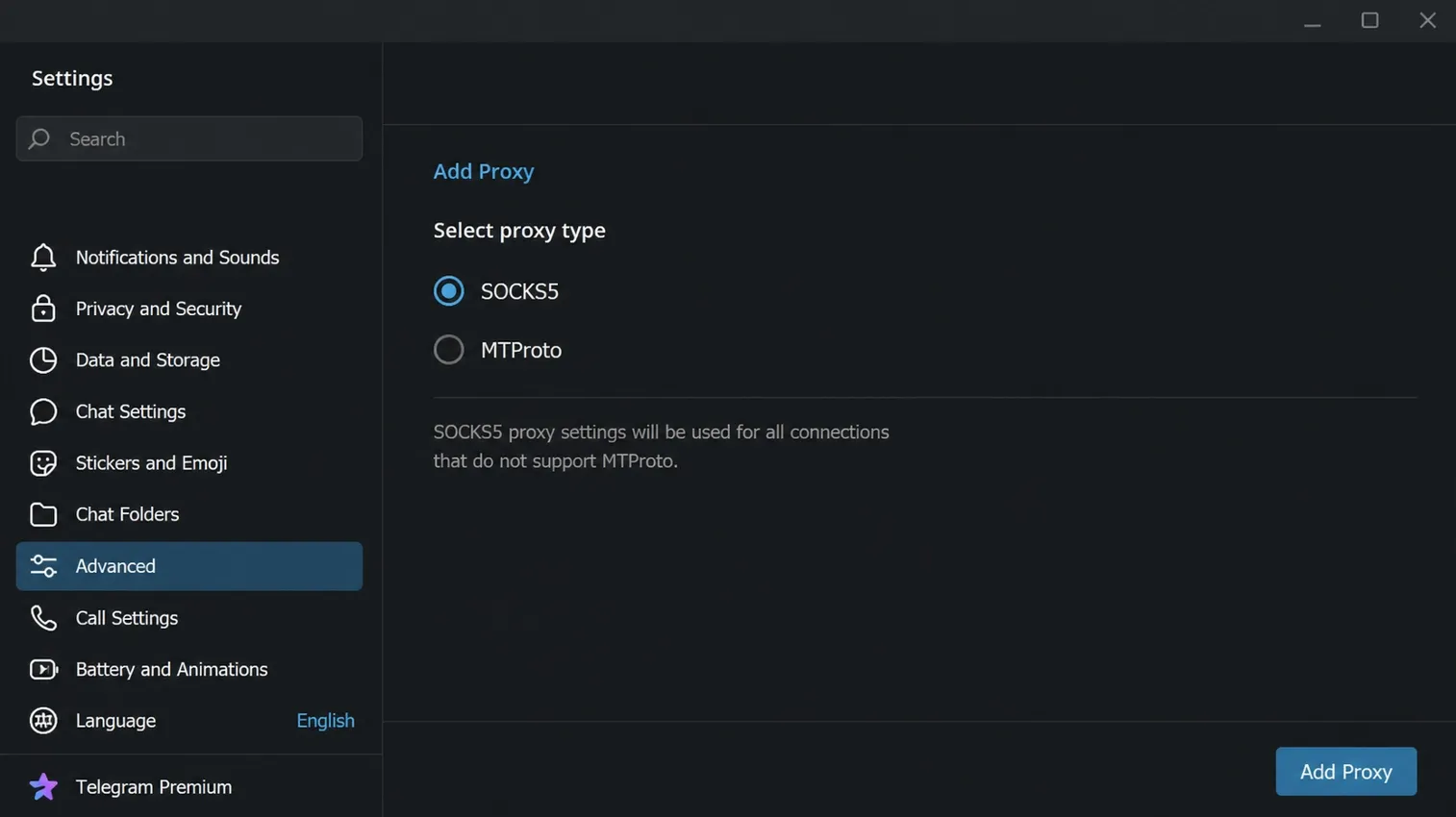
- Open Telegram Desktop and go to Settings.
- Select Advanced, then open Connection Type.
- Choose Use custom proxy and select Add proxy.
- Select SOCKS5 if your provider gave you a server, port, and optional username and password. Select MTProto only if the provider gave you a server, port, and secret.
- Enter the values exactly as supplied. Do not add
https://, a trailing path, or a copied configuration URL to the server field. - Save the proxy, enable it, and send one ordinary message.
If Telegram reconnects and the message is delivered, the basic configuration is working. If it remains stuck on connecting, disable the proxy first. That gives you a useful control test: if Telegram works with the proxy off, the issue is more likely to be the endpoint, port, credential format, or network path than your account.
How to set a proxy on Telegram mobile
On mobile clients, look under Settings for Data and Storage, Proxy, or Use Proxy, then choose Add Proxy. Telegram documents the macOS path as Settings > Data and Storage > Use Proxy; Android and iOS labels can vary by app release and language.
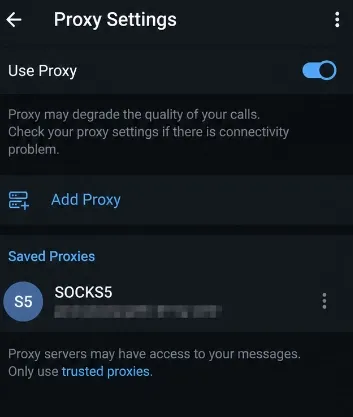
The fields follow the same rule as Desktop:
- Choose SOCKS5 when you have a server and port, with username and password only when requested.
- Choose MTProto when you have a server, port, and secret.
- Save first, then turn the proxy on and test one normal chat action.
Avoid treating a successful chat message as proof that every Telegram feature uses the same network path. If voice calls matter to your workflow, test them separately with your own account and network. A historical Telegram Desktop issue report shows that call behavior can differ from basic chat connectivity for some proxy setups.
SOCKS5 vs. MTProto: choose the fields that match your provider
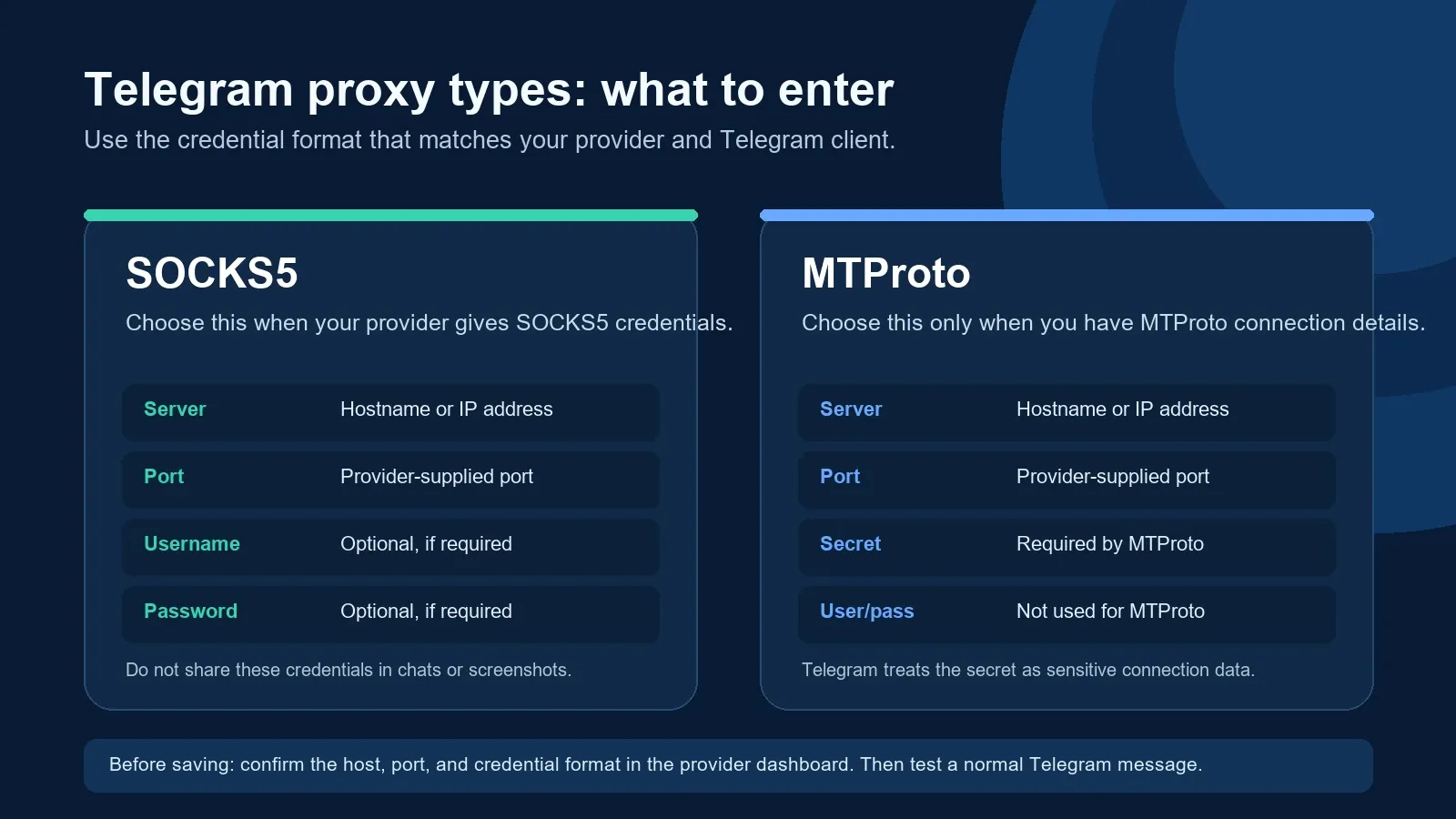
Use the proxy type that matches the credentials you received. Do not try to convert one credential format into the other.
SOCKS5 is a general proxy protocol. Telegram can use it with a server and port, and it may also accept a username and password. MTProto is Telegram’s proxy protocol and uses a secret instead of SOCKS5 authentication details. Telegram’s own guide is the source of truth for these field requirements.
For most people, the decision is not about which label sounds more secure. It is about what the provider actually supports. If you purchased or operate a SOCKS5 endpoint, use the SOCKS5 option. If you received an MTProto server, port, and secret from a trusted administrator or provider, use MTProto.
Do not publish either set of credentials. Treat any exported or forwarded connection string as sensitive.
What is the best proxy for Telegram?
There is no single best proxy for Telegram for every user. A sensible choice has four properties:
- You know who operates it and can contact that party if it fails.
- It supports the credential format Telegram needs, usually SOCKS5 or MTProto.
- Its location and latency fit your normal connection, rather than adding an unnecessary long route.
- It remains stable long enough for the use you have authorized.
For a long-running, approved client setup, a stable endpoint is usually easier to diagnose than a rotating endpoint. If you are evaluating proxy infrastructure for an authorized business workflow, compare the session behavior before you configure the client. A static residential proxy can be relevant when a consistent long-lived egress is a real requirement. It is not a promise that Telegram, or any other platform, will approve an account or accept a particular network identity.
Should you use a free proxy for Telegram?
A free proxy for Telegram can be tempting because the setup takes only a minute. The tradeoff is that you usually do not know who runs the server, what they log, how long it will remain available, or whether other people can reuse the same endpoint. Telegram’s official guidance is straightforward: use proxies from a source you trust.
For a throwaway connectivity test, a free endpoint may show whether your local network can reach Telegram through a proxy at all. It is a poor choice for a personal account, an organization account, or a conversation where privacy matters. It can also disappear without warning, which makes troubleshooting harder.
If you need a managed SOCKS5 endpoint, use the provider’s current dashboard and documentation rather than a copied list. Rola IP’s public setup materials show the required host, port, authentication, and protocol fields. Its proxy quick start is the right place to confirm the current connection format before entering it into an app.
Entering Rola IP credentials without exposing them
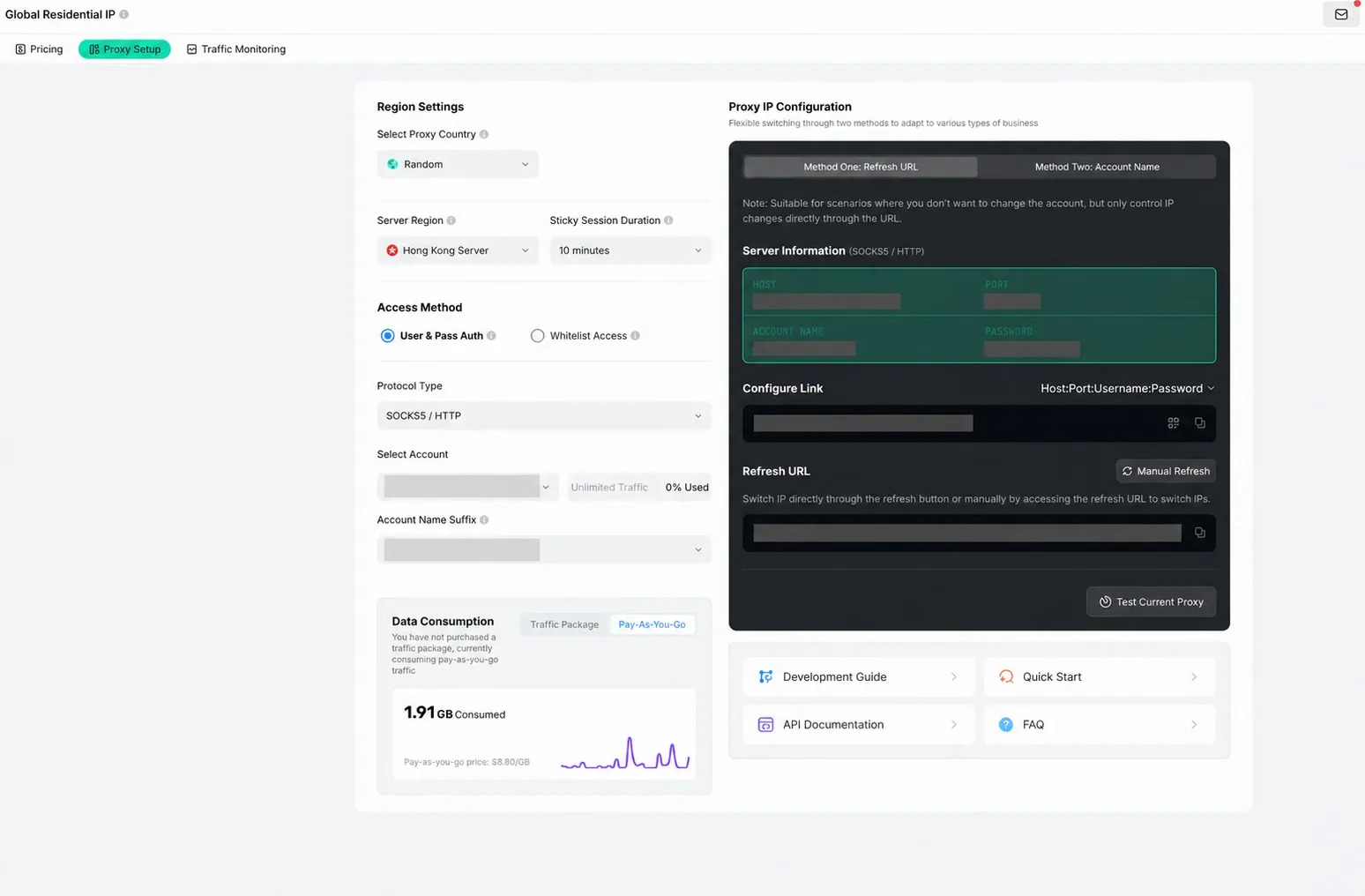
Rola IP configuration example. Host, port, account, password, configuration-link, and refresh-link values have been redacted.
When a provider gives you SOCKS5 credentials, Telegram normally needs only the values that belong in its own fields. Read the provider’s current Rola IP documentation and copy the host, port, username, and password from the generated connection details. Do not paste a full connection string into Telegram’s server box.
Before saving, check these details:
- The protocol in the provider panel is SOCKS5 if you selected SOCKS5 in Telegram.
- The server and port are copied without extra prefixes or spaces.
- Username and password fields are blank only when your provider confirms that authentication is not needed.
- Screenshots, support tickets, and chat messages do not show live connection strings.
The image above is deliberately redacted. Treat every live proxy credential as you would a password. Replace the values in Telegram if you believe someone else has seen them.
Troubleshooting Telegram proxy settings
Use one change at a time. Changing the proxy type, port, location, and account credentials together makes the result impossible to interpret.
| Symptom | Likely cause | What to check | Safe next step |
|---|---|---|---|
| Telegram connects with the proxy off but not on | Wrong server, port, or credentials | Compare every field with the provider dashboard | Re-enter the values manually and test again |
| Telegram keeps reconnecting | Unavailable endpoint or unstable route | Test the same endpoint from a controlled connection | Try a known-good endpoint from your provider |
| SOCKS5 saves but does not connect | Wrong credential format or authentication required | Confirm whether username and password are mandatory | Do not switch to MTProto unless you actually have an MTProto secret |
| The client becomes slow | Long network path or a congested endpoint | Compare normal use with the proxy enabled and disabled | Choose an appropriate location or contact the provider |
| Basic messages work but a call does not | Feature-specific routing or client behavior | Test a call separately with your own account | Keep the proxy setting documented and use the official client support path if needed |
If a problem starts after an app update, first write down the client version, operating system, proxy type, and the exact symptom. That short record is more useful to support than a screenshot containing credentials.
Final check before leaving the proxy on
Set the correct proxy type, enter only the requested fields, test a normal message, and keep a simple record of the provider and configuration date. If the connection fails, turn the proxy off, confirm that Telegram itself works, then check the endpoint values one by one. That method is slower than guessing, but it makes a failed configuration much easier to fix.