
Instagram IP Ban: How to Diagnose and Recover Safely

Aug 18, 2026 · Troubleshooting · 9 min read
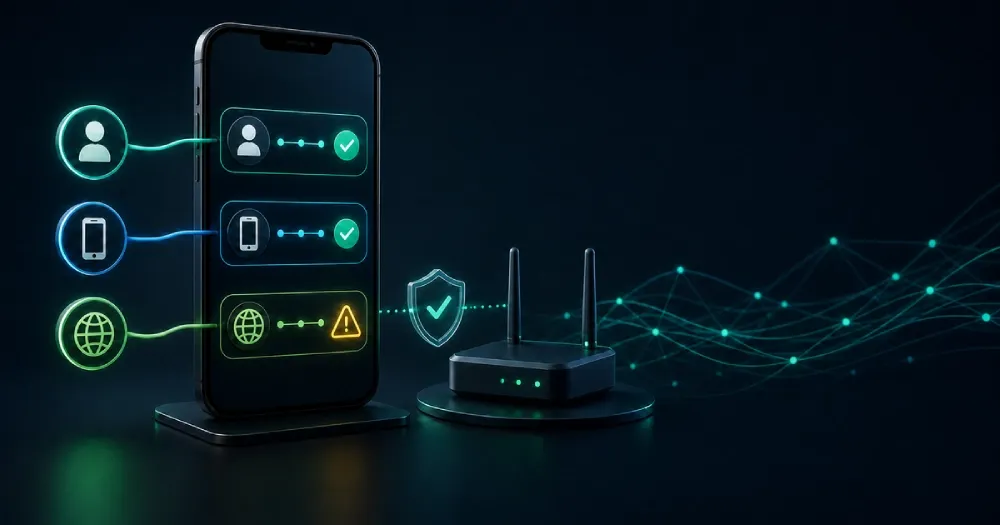
People often suspect an Instagram IP ban when the app stops loading, a login fails, or several accounts have trouble on the same connection. The diagnosis is rarely that simple. Instagram can receive your network IP address, but similar symptoms can come from an account suspension, an action block, a broken session, an app problem, or ordinary network failure.
If you think you are IP banned on Instagram, do not start by creating another account or cycling through VPN servers. First determine which layer is failing. This guide shows how to diagnose the problem and choose the right recovery path.
TL;DR: If you can still sign in, check Account Status before changing networks. If you cannot sign in, record the exact notice and use Instagram’s official recovery path. One comparison between Wi-Fi and a trusted alternative network can identify a network-dependent problem, but it cannot prove that Instagram deliberately banned an IP. A proxy cannot overturn an account suspension or make prohibited activity compliant.
What an Instagram IP Ban Means
Every online service needs a destination address for the response it sends back to you, so the service receives the public IP used by your connection. Meta’s Privacy Policy says it collects information about the network a device connects to, including its IP address, along with device characteristics, identifiers, location-related information, cookies, and activity data.
An IP address on Instagram is not a public profile field. Other users cannot read it from your profile or DMs. It generally identifies a network connection and approximate location, not a precise home address. If you open an external link, however, the destination website may log your public IP just as any website can; that is different from Instagram revealing it in the app.
“Instagram IP ban” is also not a status that ordinary users can look up in a dashboard. Meta’s public help material explains account status, disabled accounts, security checks, and restricted activity, but it does not expose an IP-enforcement record to the user. That is why this article uses suspected IP or network restriction unless there is direct platform evidence.
Use the pattern of failure to decide what is more likely:
| Possible issue | Typical pattern | Controlled check | Correct next step |
|---|---|---|---|
| Suspected network, routing, or IP issue | Access fails on one connection but works on another trusted connection | Same account and device; change only the network once | Troubleshoot the original connection |
| Account suspension | Instagram displays a disabled-account or review notice | Read the notice; do not keep testing networks | Use the official review path |
| Action block | Only following, liking, commenting, or messaging fails | Check whether the rest of the account works | Stop the affected activity and follow the notice |
| Device or app issue | Problems remain on one device across networks | Compare the app with the web version | Update or repair the app/device |
| Session issue | The app and browser behave differently | Check cookies, cached state, and login session | Repair the session after protecting recovery access |
| Recommendation restriction | The account works, but content is not eligible for recommendation | Check Account Status | Address the flagged content or request a review |
| Local outage or routing failure | Other users or services fail on the same network | Test unrelated sites and check service status | Wait or contact the network provider |
The key distinction is correlation versus proof. If Instagram works on mobile data but not on Wi-Fi, the Wi-Fi path is implicated—but the test cannot distinguish platform enforcement from routing, DNS, firewall, or shared-address issues.
How to Know If Your IP Is Banned on Instagram
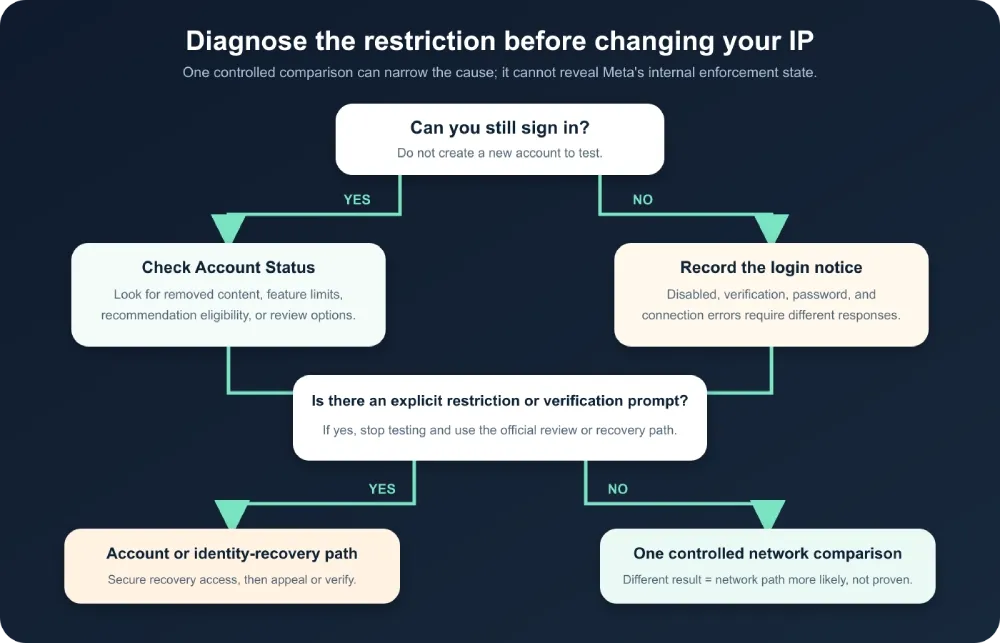
There is no single test that answers how to know if your IP is banned on Instagram. A safe diagnosis combines the platform’s own notices with one controlled network comparison.
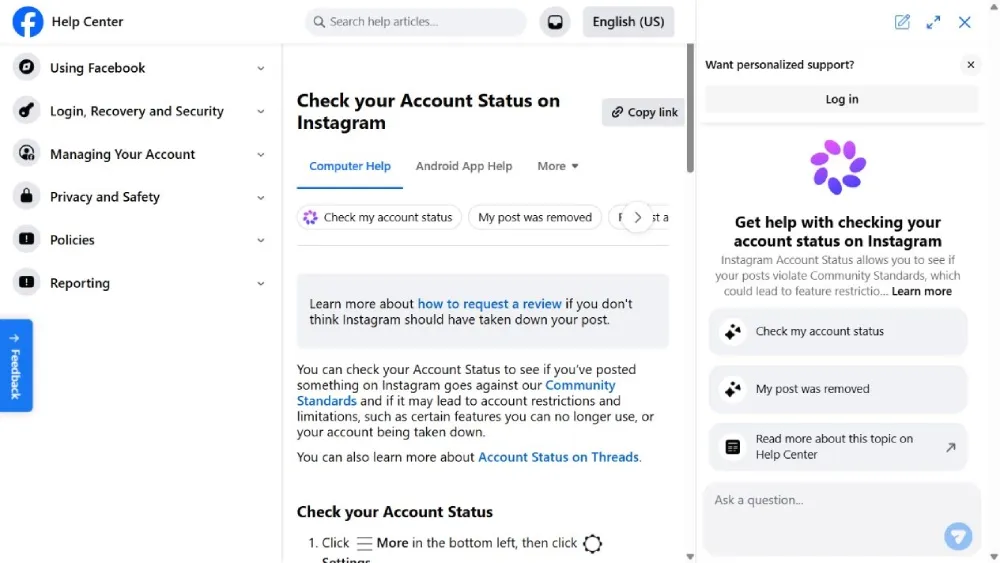
If you can still sign in, check Account Status
Open Instagram’s current Settings interface and find Account Status. The route varies by platform and version, so follow your installed app’s labels. Meta’s Account Status help page says this area can show removed content, features you cannot use, and options to request a review.
If Account Status identifies a content or feature restriction, treat that as account-level evidence. Changing the network will not remove the underlying decision.
If you cannot sign in, record the notice
Account Status is unavailable when you cannot enter the account. Record the exact message instead of repeatedly submitting credentials. Distinguish among:
- a disabled-account or review notice;
- an identity-verification request;
- an incorrect-password or recovery error;
- an action-specific restriction;
Try again later;- a blank feed, timeout, or connection error.
These messages are not interchangeable. A disabled-account notice points toward an enforcement or review process. A timeout may have nothing to do with the account.
Rule out a local problem
Instagram’s public troubleshooting guidance ecommends using the latest app and operating-system versions, restarting the device, and comparing Wi-Fi with mobile data. Also check other sites, network firewalls, and the browser version.
Run one controlled network comparison
Use the same existing account and the same device. Record the result on the original connection, then make one comparison using trusted mobile data or another trusted network. Do not change the password, device, browser, and network at the same time; that destroys the value of the test.
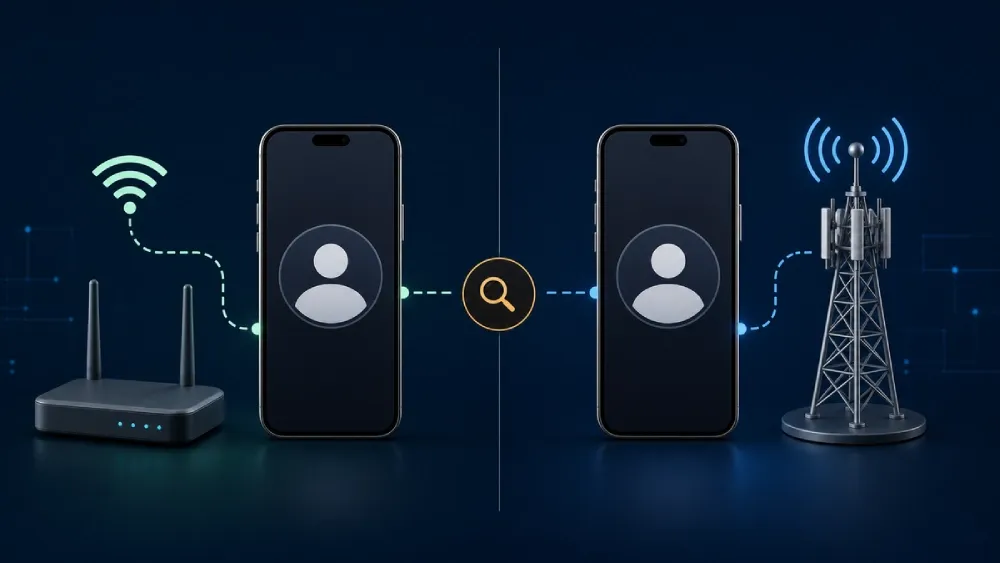
You can use a public what is my IP check once on the original network and once on the comparison network to confirm that the public IP changed. Mask the address in screenshots or support tickets. The tool verifies the visible IP, not Instagram’s enforcement state.
Stop testing if Instagram asks for identity verification, shows a disabled-account notice, blocks further attempts, or cannot deliver a verification code. At that point, additional network switching adds risk without producing a cleaner diagnosis.
Interpret the result conservatively:
- If the same device fails on Wi-Fi and mobile data, a network-specific problem becomes less likely; check the account, device, app, and session.
- If the account works on the same device over a trusted alternative network, investigate the original network, routing, DNS, firewall, or shared exit address.
- If Instagram works in the browser but not in the app, investigate the app and session before blaming the IP.
- If Instagram displays an account notice, follow it even if another network changes the symptoms.
- If results are inconsistent, label the diagnosis inconclusive and stop experimenting.
Never create new accounts as a diagnostic test. Repeated registrations, verification requests, or logins from multiple locations can create new problems and still will not reveal Meta’s internal decision.
How to Recover From a Suspected Instagram IP Ban Safely
The recovery path depends on the diagnosis. Changing everything at once can erase a working session, complicate identity checks, and hide the cause.
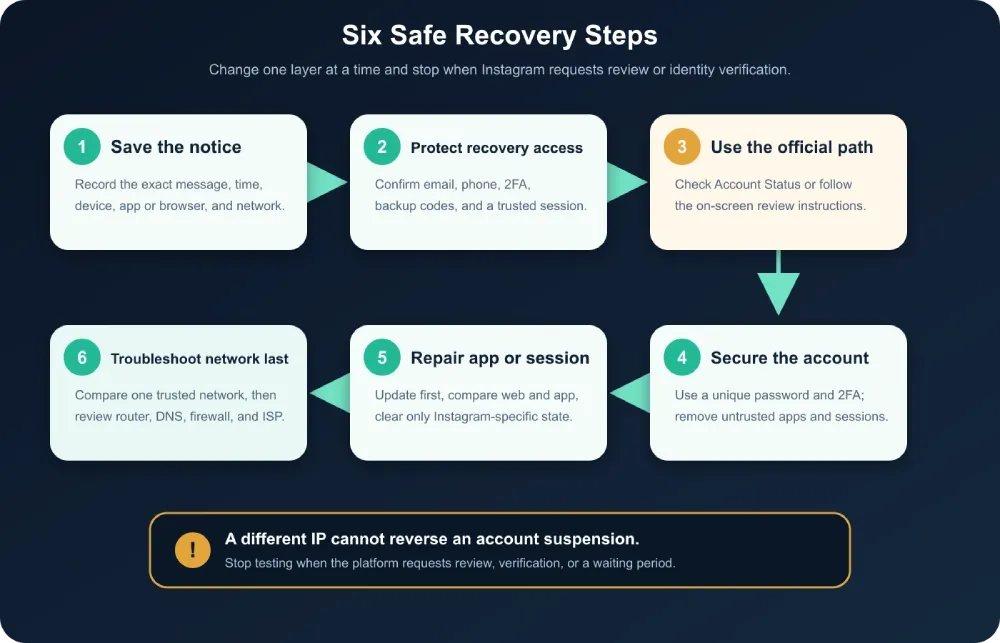
Follow these six recovery steps in order
- Save the exact notice. Record the message, time, device, app or browser, and network. This creates a baseline. Stop changing networks if Instagram displays a disabled-account or identity-verification prompt.
- Protect recovery access. Before logging out, clearing data, or reinstalling, confirm access to the account’s email, phone, two-factor authentication method, and backup codes. Do not erase the last working session if you cannot receive recovery codes.
- Use the account-level recovery path when indicated. If you can sign in, check Account Status. If the login screen says the account is disabled, follow Instagram’s disabled-account guidance and its on-screen review instructions. A different IP cannot reverse that decision. Submit accurate information once, retain case records, and reject paid “internal unban” offers.
- Secure unexpected activity. Follow Instagram’s account-security guidance: use a unique password, enable two-factor authentication, review recent logins, and remove untrusted apps. If the account may be hacked, use instagram.com/hacked.
- Repair the app or browser session. Restart and update the app and device, then compare the browser with the app. Clear only Instagram-specific cache or cookies if needed; reinstall last. Clearing cookies does not change the public IP, and changing the IP does not repair cookies.
- Troubleshoot the original network only when the comparison supports it. If the same account and device work on a trusted alternative network, review the router, DNS, firewall, and ISP routing. A router restart changes the public IP only if the ISP assigns addresses dynamically. Instagram publishes no universal IP-ban duration, so follow the notice and stop retrying when told to wait.
Why Instagram Restricts Accounts or Flags Activity
If you are asking why Instagram is banning accounts, start with its published rules rather than guessed daily limits. Instagram does not provide a universal number of follows, likes, comments, or DMs that is safe for every account.
Patterns that may trigger restrictions or security checks include machine-like repetition, bulk unsolicited messages, fake engagement, rapid failed logins, and unauthorized automation. Instagram’s Terms of Use prohibit unauthorized account creation, access, or data collection; its Community Guidelines prohibit spam and other abusive behavior.
Meta has a dedicated help page explaining that an account may be restricted after activity associated with unauthorized data scraping. It lists automated collection, sharing credentials with third-party services, and unauthorized interaction tools as possible concerns. Authorized APIs and permitted business tools are not the same as disguising prohibited automation.
Content violations, fraud, impersonation, harassment, repeated copyright infringement, and enforcement evasion can lead to account consequences. Compromised accounts, untrusted apps, or sudden login changes can also prompt verification.
Network conditions may contribute but cannot be confirmed from the client. Public Wi-Fi, free VPN exits, and corporate gateways share traffic and reputation; this does not prove that an address is banned or reveal Instagram’s internal scoring.
How to Avoid Future Instagram Restrictions
If your goal is to learn how to not get banned on Instagram, the reliable answer is to reduce unauthorized behavior and make account ownership easier to verify—not to imitate a secret “human” activity threshold.
For individual accounts:
- follow Instagram’s Terms and Community Guidelines;
- avoid bots, fake-engagement services, and unsolicited bulk interactions;
- use a unique password and two-factor authentication;
- review connected apps and recent logins;
- respond to Account Status warnings promptly;
- keep recovery email and phone details current; and
- avoid unnecessary bursts of logins from distant locations.
For brands and agencies, prefer first-party access controls to password sharing. Meta describes roles for a shared Instagram business account, though availability varies. Grant minimum permissions and remove them when work ends.
Professional accounts needing programmatic management should evaluate the official API rather than credential-sharing automation. Meta’s Instagram API collection documents current capabilities and limitations; verify permissions before implementation.
| Risky response | Why it is unreliable | Safer alternative |
|---|---|---|
| Retry the login every few minutes | Can produce more checkpoints without clarifying the cause | Record the error and pause |
| Create several replacement accounts | May look like enforcement evasion | Resolve the original account status |
| Share the main password with a team | Removes accountability and increases compromise risk | Use official roles and least privilege |
| Rotate through free proxy or VPN exits | Changes several signals while using shared infrastructure | Use one trusted connection for diagnosis |
| Follow a fixed “safe actions per day” list | Instagram publishes no universal threshold | Avoid repetitive or unsolicited behavior |
| Submit the same appeal repeatedly | Does not improve the evidence | Send one accurate, complete request |
Network Stability for Authorized Instagram Teams
A proxy cannot restore a suspended account, remove policy violations, or make prohibited automation compliant. Network planning is relevant only after an account is in good standing and the team has legitimate authorization.
For long-lived login sessions, consistency is usually more useful than constant rotation. Avoid moving one account across distant countries in a short period, and do not treat a proxy as complete identity isolation: cookies, device state, recovery information, permissions, and behavior still matter.
Teams needing a consistent network origin can evaluate isp proxies with fixed, dedicated addresses for authorized account-management workflows. This is not an unban method or guarantee against verification. Test a small, permitted workflow and follow platform rules and applicable law.
Diagnose Before You Change Anything
An Instagram connection problem is not proof of an IP ban. Start with the platform’s notice, use Account Status when you can still sign in, and perform no more than one controlled network comparison. If the same device fails on multiple networks, investigate the account, app, device, and session instead of assuming the IP is responsible.
The safest order is simple:
Check status → record the exact error → change one variable → use the correct recovery path → prevent recurrence.
For authorized teams: Rola IP provides residential, ISP, and mobile connection options for controlled network workflows. These services do not override Instagram enforcement and must be used in accordance with platform rules and applicable law.