
How to Use Proxy SwitchyOmega with Rola IP in 2026

Sep 11, 2026 · Guides · 15 min read
TL;DR
- Firefox users: Mozilla’s official add-on store still lists Proxy SwitchyOmega 2.5.10, but the version was last updated in 2018, so review its permissions and compatibility before installing it.
- Chrome, Edge, and other Chromium users: The original SwitchyOmega is based on Manifest V2. In 2026, do not simply follow old Chrome tutorials; evaluate a Manifest V3-compatible fork such as ZeroOmega.
- Basic configuration: In the extension’s Options page, create a Proxy Profile, enter the Protocol, Server, Port, and Authentication values exactly as shown in the Rola IP dashboard, and then click Apply changes.
- Rotating residential proxies: Browsers usually benefit from a sticky session so that the HTML, scripts, images, and API calls used by one page do not come from different exits.
- Verification: Verify the endpoint first, then confirm the browser exit IP, country or city, session stability, and the actual target-page result.
- Security: Do not use extensions from unknown sources or unknown free proxies. Never expose complete proxy credentials in screenshots, and do not let multiple extensions control browser proxy settings at the same time.
What Is Proxy SwitchyOmega?
Proxy SwitchyOmega is a browser extension for managing proxy configurations. It can save multiple proxy setups and lets you quickly switch among Direct, System Proxy, fixed proxy profiles, and Auto Switch rules from the toolbar menu.
Compared with a browser’s built-in manual proxy settings, SwitchyOmega’s main advantage is reusability. You do not have to re-enter the Host and Port every time. You can create separate Profiles for different countries, projects, or network types. Auto Switch can also select a Profile based on domain or URL conditions.
However, the extension and the proxy network are two different things. SwitchyOmega only routes browser requests to the endpoint you configure. It does not generate IPs, repair unavailable proxies, or automatically provide geographic targeting. Stable regional verification or public-page testing still requires a reliable proxy service and correct authentication information.
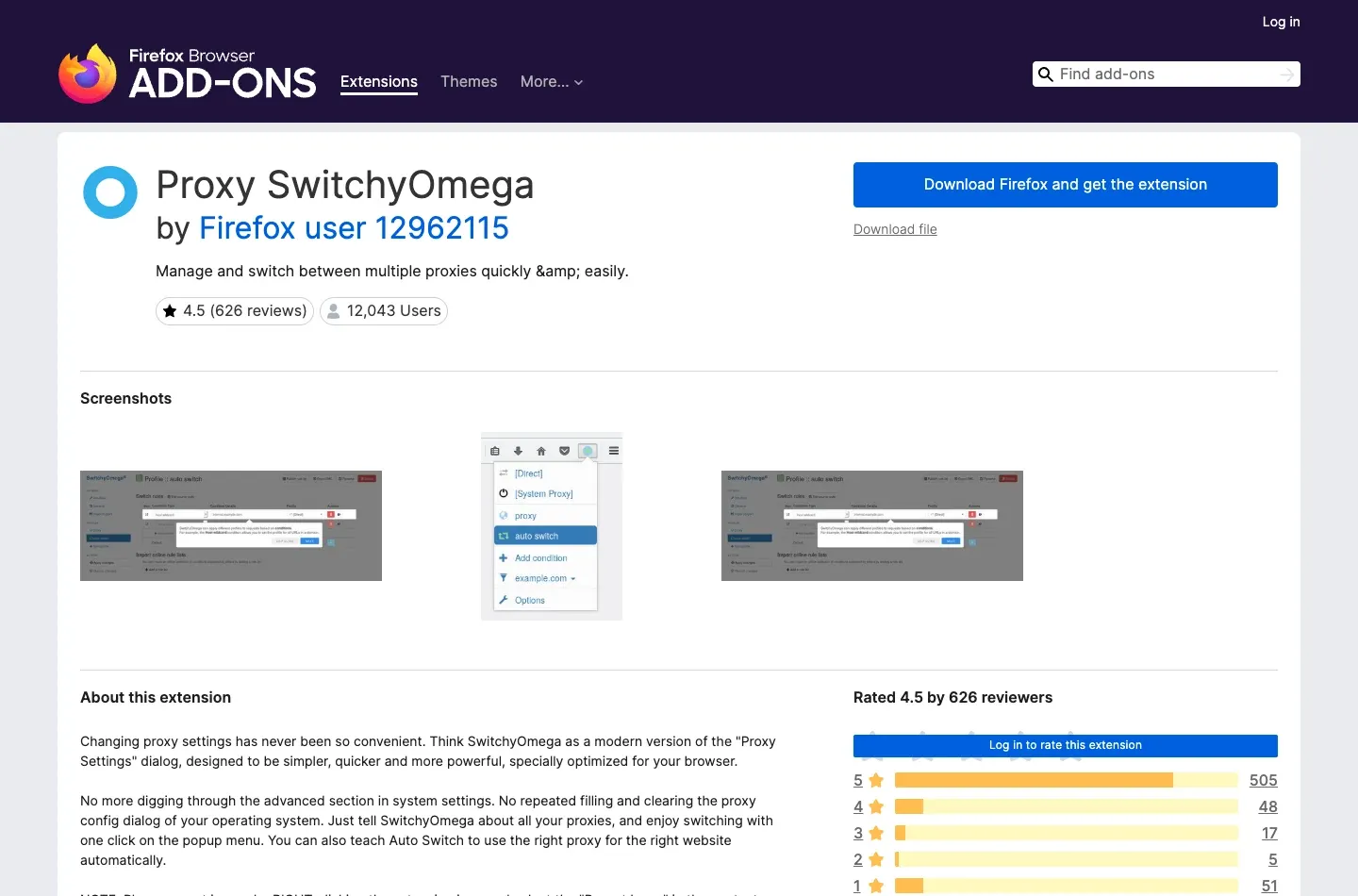
According to the public information on Mozilla Firefox Add-ons, the Firefox version currently listed is 2.5.10 and supports proxy configuration, quick switching, and Auto Switch. The extension page also makes an important point: SwitchyOmega itself does not include proxy servers.
Can You Still Use Proxy SwitchyOmega in 2026?
Whether you can use Proxy SwitchyOmega in 2026 depends on the browser. Firefox still has an official page for the original extension, while Chrome and Edge users should prioritize a Manifest V3-compatible version rather than assuming the old original extension can still be installed.
The original FelisCatus SwitchyOmega repository is marked as no longer maintained. For long-running business workflows, that means browser upgrades, permission changes, and a migration plan should be part of ongoing maintenance even if the extension still works today.
| Browser Environment | 2026 Recommendation | What to Watch |
|---|---|---|
| Firefox Desktop | Verify and install the original 2.5.10 from the Mozilla English add-on page | The version is old; test authentication, Auto Switch, and compatibility with browser updates before production use |
| Chrome / Edge / Brave | Evaluate the Manifest V3-compatible ZeroOmega | Verify the publisher, source-code URL, and permissions; avoid unknown extensions with similar names |
| Enterprise-managed browser | Ask the administrator and confirm extension policy first | Extension installation, browser proxy APIs, or external connections may be locked by policy |
| Mobile browser | Do not apply desktop steps directly | Extension support and proxy APIs differ from desktop; test according to current platform documentation |
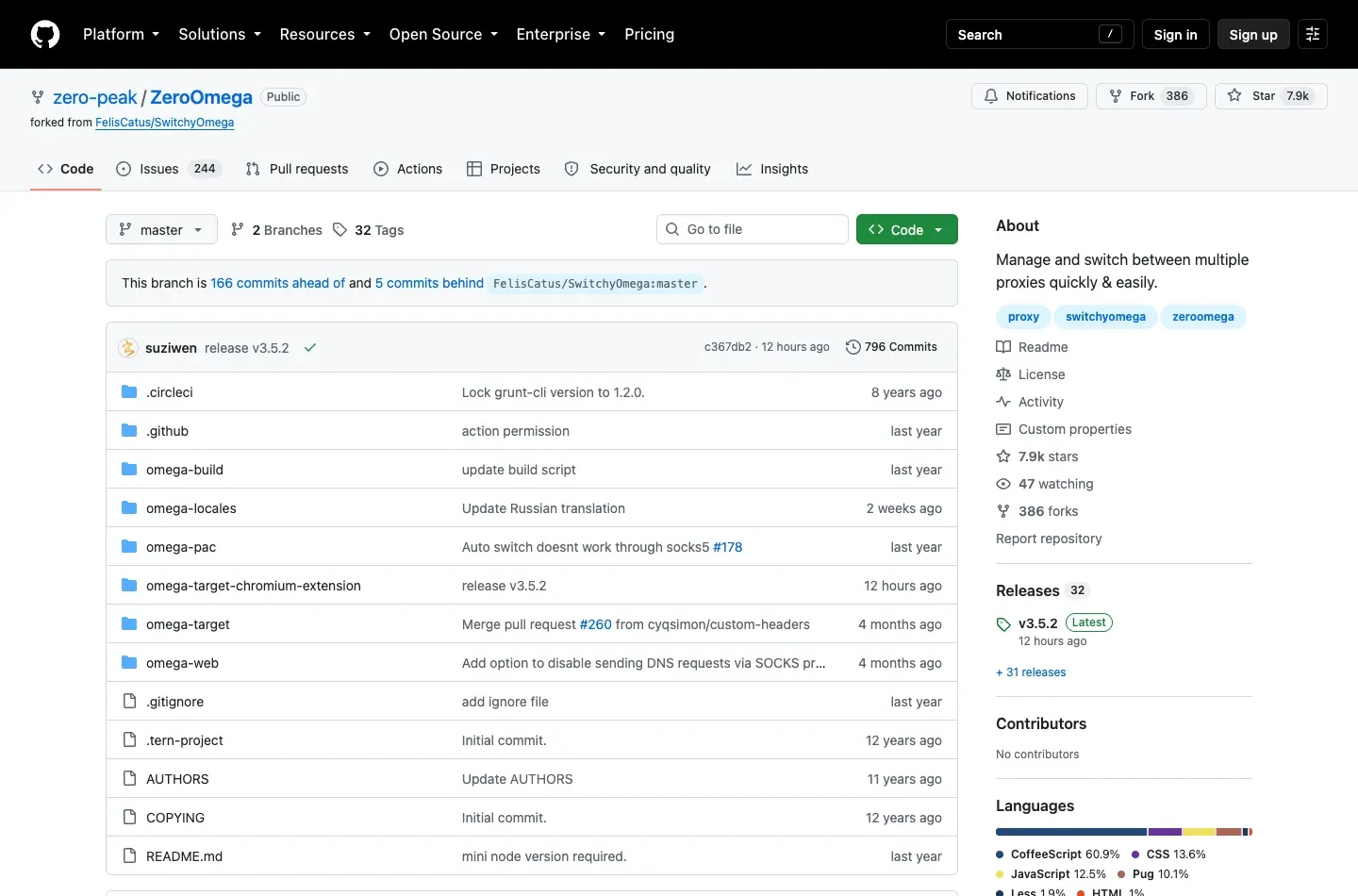
Chromium users can start from the ZeroOmega GitHub repository, follow the store links listed by the project, and verify the current release, publisher, and source code. Do not download extension packages from search ads, file-sharing drives, or websites with look-alike names.
What Do You Need Before Using SwitchyOmega?
Before configuration, prepare the browser version, Rola IP product type, connection protocol, Host, Port, authentication method, target region, and session strategy. A missing or incorrect value in any one of these fields can cause connection failures or inconsistent results.
Choose the Rola IP Network Based on the Task
Rola IP provides rotating residential, static residential, datacenter, and mobile proxy networks. Do not choose only by asking whether the endpoint can connect. Also consider whether the page includes a login, whether the location must remain fixed, whether the task needs many independent exits, and how sensitive the target site is to different network types.
| Browser Task | First Option to Consider | Profile and Session Recommendation | Why |
|---|---|---|---|
| Multi-country public pages or localized-result checks | Rotating residential proxy | One Profile per region; an independent session for each task | More flexible geographic coverage and exit rotation |
| Authorized post-login QA, shopping cart, or multi-step flow | Static residential or rotating residential with a sticky session | Keep the same exit for the same workflow | Reduces risk controls and content inconsistency caused by changing IPs mid-session |
| High-frequency, low-sensitivity public-page testing | Datacenter proxy | Fixed exit or batch-level switching | Usually fast and easier to control for cost |
| Mobile-carrier or mobile-page rendering verification | Mobile proxy | Fixed session per device or use case | Network identity is closer to a cellular network |
If the main goal is regional browsing or multi-location verification, start by reviewing Rola IP’s rotating residential proxies. If the workflow includes login, continuous pagination, or form steps, prioritize a stable exit or configure a session instead of allowing every resource request to change IP.
Copy the Complete Connection Details
Follow the Rola IP English proxy quick start. At minimum, you need the following fields:
| Field | Location in SwitchyOmega | Rule |
|---|---|---|
| Protocol | Protocol / Scheme | Use the HTTP, HTTPS, or SOCKS5 protocol provided by the dashboard; do not guess based on the target website’s protocol |
| Host | Server | Enter only the gateway hostname or IP, without a path or extra spaces |
| Port | Port | Enter the numeric port that matches the protocol and product |
| Username | Authentication | Use the proxy username, not the email used to log in to Rola IP |
| Password | Authentication | Use the proxy password; redact it in screenshots and documentation |
| Location | Usually encoded in Username or product configuration | Follow the documentation: configure country first, then state or city if supported |
| Session | Usually encoded in Username or product configuration | Prefer a controllable sticky session for browser workflows |
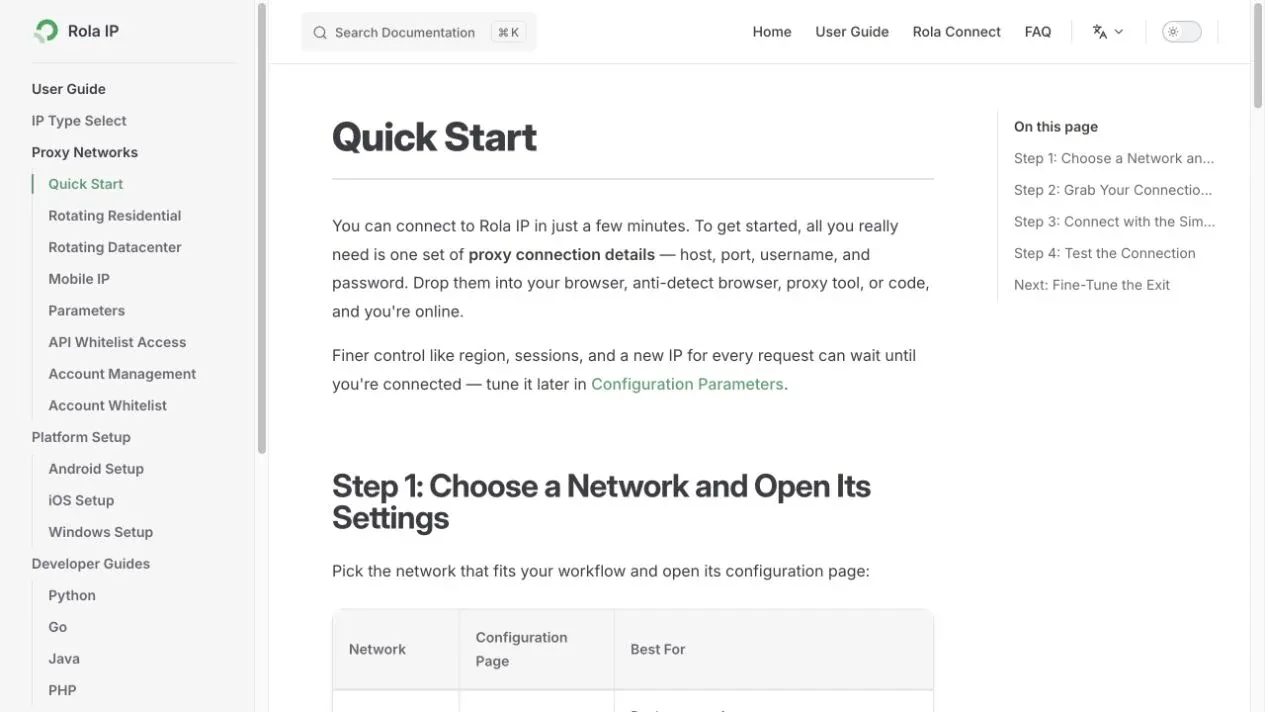
If you choose IP allowlist authentication, authorize the current public exit in the Rola IP account console before testing. Mobile networks, residential broadband reconnections, and corporate environments with multiple exits can make an allowlist invalid. For a single browser Profile, username/password authentication is usually more straightforward.
How to Use Proxy SwitchyOmega with Rola IP
The complete sequence is to install a trusted extension, open Options, create a Proxy Profile, enter the Rola IP endpoint, save authentication, click Apply changes, enable the Profile, and then perform layered verification.
Step 1: Confirm the Browser and Extension Source
Firefox users should start from Mozilla’s English add-on page. Chromium users should start from the official store links listed by the ZeroOmega GitHub project. Before installing anything, verify the extension name, publisher, update date, source-code link, and permissions.
The extension needs permission to control the browser’s proxy settings in order to work, but a permission such as “access all websites” also places it in a sensitive network position. If the source, publisher, or permission explanation is unclear, do not install it. The interface images in this guide come from Mozilla’s official extension page and real English extension interfaces shown in public tutorials; they are not generated UI mockups.
Step 2: Open Options and Create a Proxy Profile
After installation, click the SwitchyOmega or ZeroOmega toolbar icon and choose Options. On the left, click New profile, enter a descriptive name such as Rola US Residential Sticky, select Proxy Profile as the Profile type, and click Create.
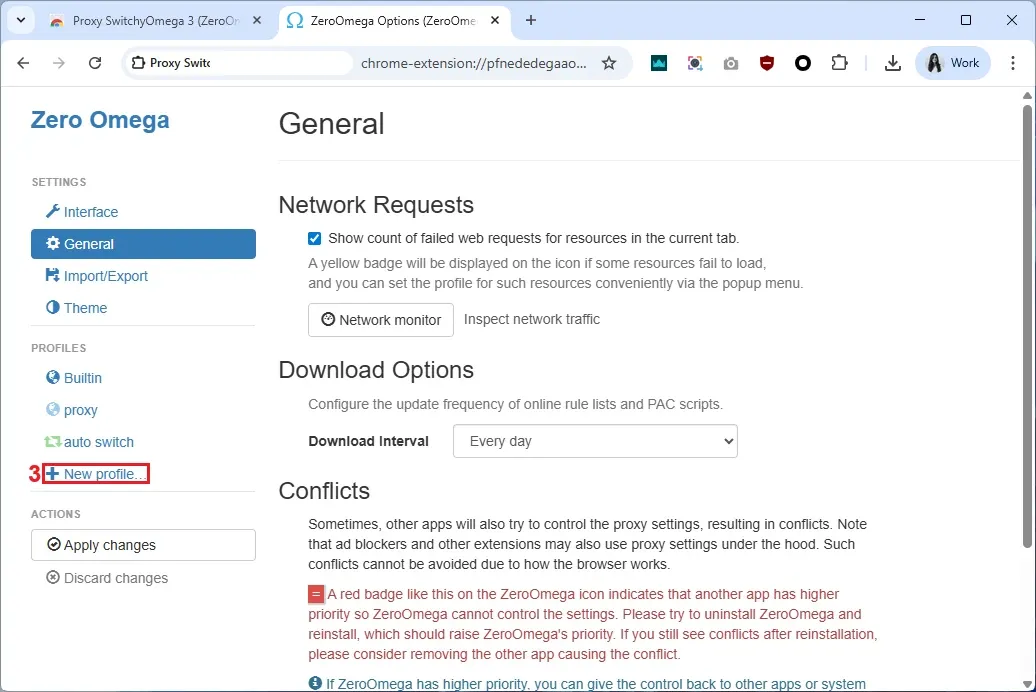
Use a naming pattern such as brand + country or city + network type + session mode instead of vague names like proxy1. As the number of Profiles grows, clear names help prevent a login workflow from being accidentally switched to a rotating exit and make troubleshooting easier.
Step 3: Enter Protocol, Server, and Port
Open the new Profile. In the Proxy servers area, select the Protocol provided by Rola IP and enter the Server and Port separately. Example values shown in the interface are only there to illustrate field placement; your actual values must come from your own Rola IP dashboard.
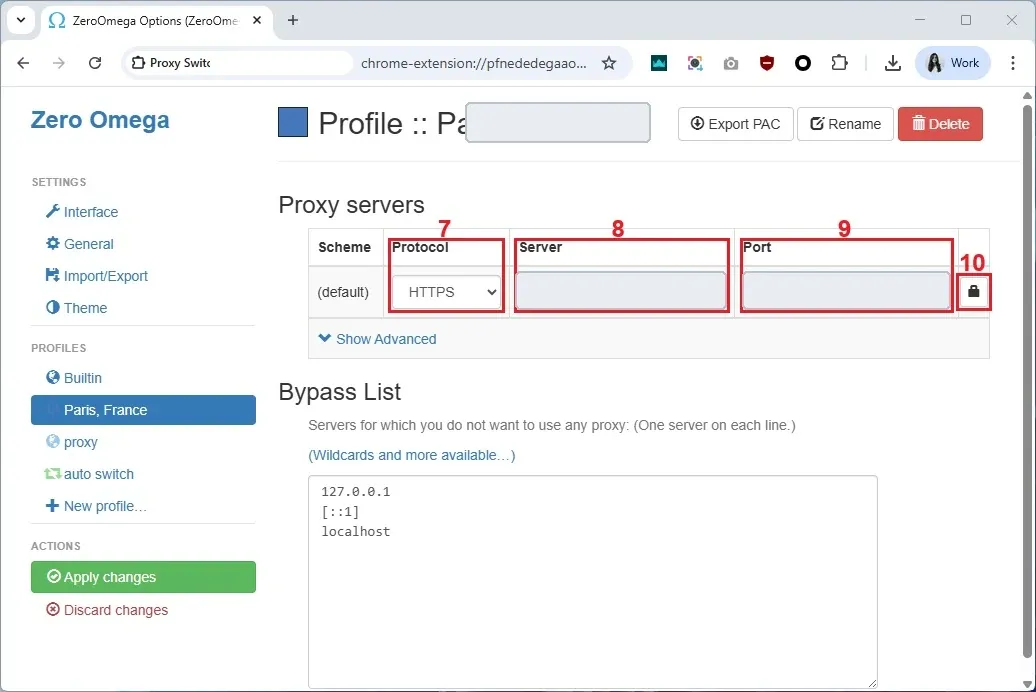
Common mistakes include pasting a complete URL into the Server field, confusing the proxy protocol with the target website protocol, or copying the wrong port. Visiting an HTTPS website does not mean that HTTPS must be selected as the proxy Protocol. Use the proxy protocol explicitly shown in the Rola IP connection details.
Step 4: Configure Username and Password Authentication
Click the lock icon on the right side of the proxy row, enter the proxy Username and Password, and click Save changes. Do not enter the target website account, and do not use the email address for the Rola IP dashboard in place of the proxy username.
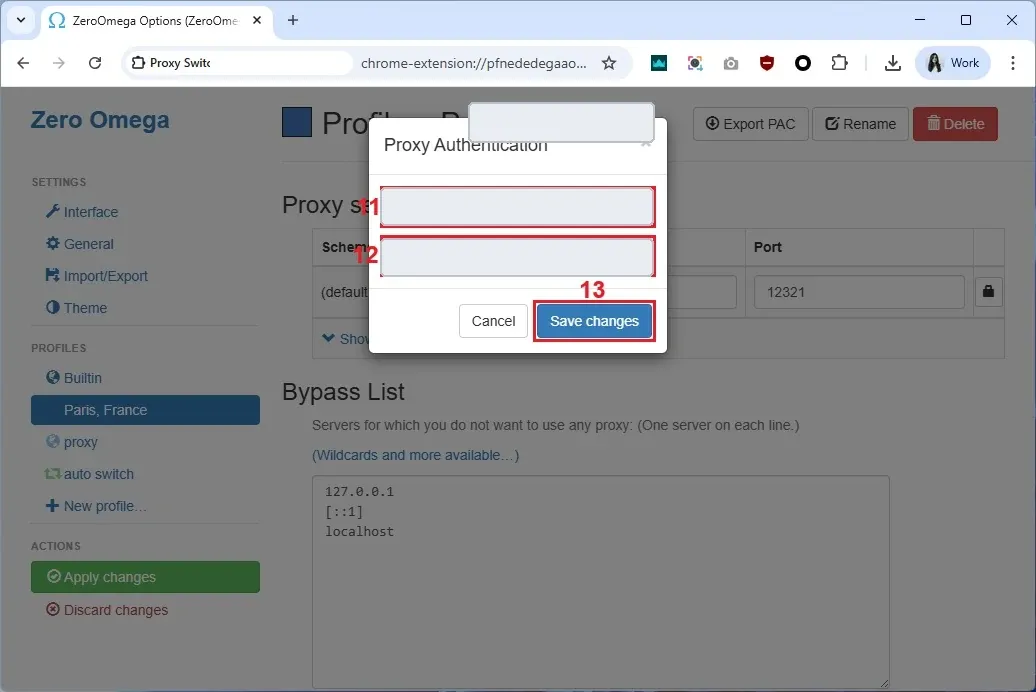
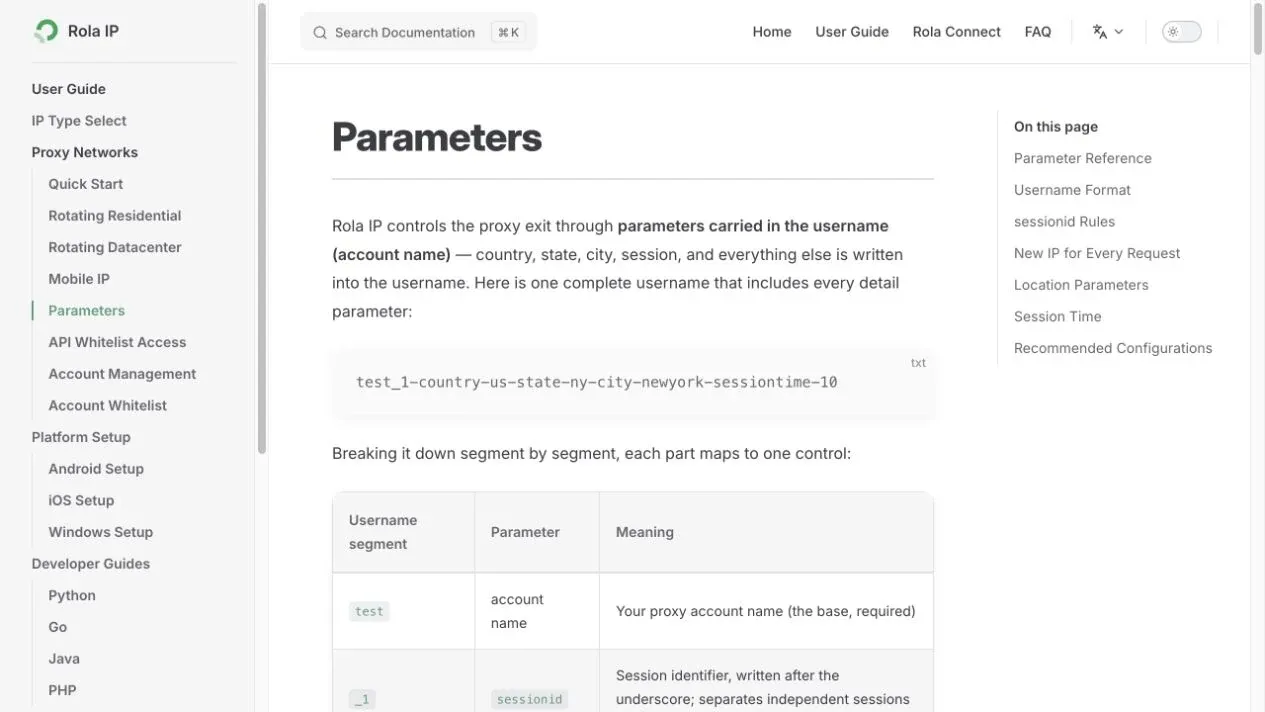
If Rola IP expresses country, state, city, or session information through the username, copy the complete string. Removing hyphens, underscores, or parameter segments manually can cause authentication failure or return the exit to a default region. Use the English proxy parameters documentation to confirm the field structure.
Step 5: Save and Enable the Profile
After all fields are complete, click Apply changes on the left. Simply closing the page or saving only the authentication dialog does not guarantee that the full Profile has been applied.
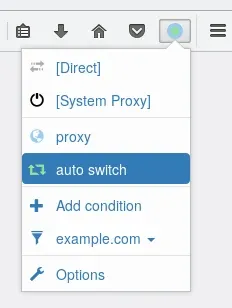
Next, click the browser toolbar icon and choose the Rola IP Profile you just created. The active item is usually shown by an icon color or selected state. Choose Direct to return to a direct connection, or System Proxy to hand control back to the operating system’s proxy settings.
Step 6: Verify That the Proxy Is Actually Working
Do not decide that setup succeeded only because “the page opens.” Reliable verification should include at least four layers:
- Endpoint works: Host, Port, Protocol, and Authentication pass a connection test.
- Exit changes: After enabling the Profile, the browser’s public IP differs from the direct-connection baseline.
- Location is correct: Country, state, city, and network type match the Rola IP parameters and available inventory.
- Business result is correct: Language, currency, inventory, search results, or ad versions on the real target page match expectations.
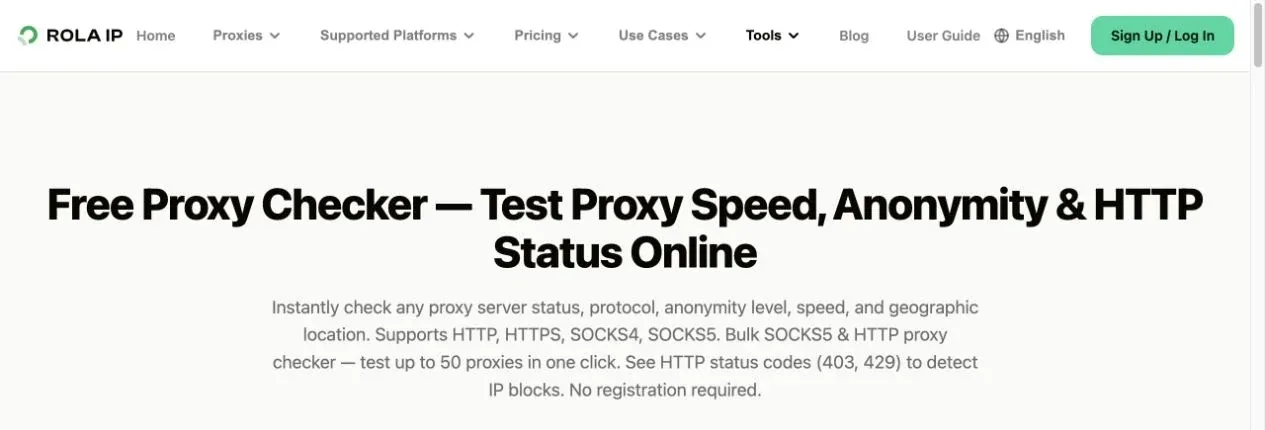
You can first use Rola IP’s Proxy Checker to test the endpoint, then open an independent IP-check page in a browser tab while the Profile is enabled. If the endpoint checker succeeds but the browser still shows the original IP, the issue is usually an inactive Profile, Bypass List entry, extension conflict, or browser proxy permission rather than the proxy inventory itself.
How to Manage Rola IP Rotating and Sticky Sessions With SwitchyOmega
SwitchyOmega selects the Profile, while Rola IP controls exit-IP rotation and the session. The extension itself does not create a proxy pool out of a single fixed endpoint.
Why Browser Pages Usually Work Better With Sticky Sessions
A modern web page may simultaneously request HTML, CSS, JavaScript, images, fonts, and XHR or Fetch APIs. If the gateway is configured to “change IP on every request,” different resources on the same page can come from different regions or network identities. That can lead to inconsistent currency, CAPTCHAs, login failures, or partially loaded resources.
For that reason, manual browsing and continuous QA usually benefit from assigning a session to one task and changing it only after the page workflow is complete. For independent verification across several regions, create multiple Profiles, for example:
Rola US Residential StickyRola UK Residential StickyRola DE Datacenter Batch
Each Profile should use its own region and session parameters. When you need a new sample, change the session identifier or wait for the session to expire according to the product rules. Follow the session-time and IP-lifetime rules shown in the current Rola IP account documentation.
When to Use Rotating Exits
Rotation is more suitable for independent sampling of public pages, comparing results across locations, or batch verification. Even when using a rotating network, it is usually better to keep a single page-load process stable and change the exit at the task boundary. SwitchyOmega does not understand business transaction boundaries, so session lifetime should be designed in the Rola IP parameters instead of relying on frequent clicks on the extension button.
How to Use SwitchyOmega Proxy Auto Switch
Auto Switch assigns different requests to specified Profiles based on conditions. It is useful for a fixed workflow such as “certain domains use a proxy while other websites connect directly.”
Create an Explainable Domain Rule
Open Auto Switch, add a rule, and select a condition type. For an entire site, prefer Host wildcard. Use a URL wildcard or regular expression only when you really need to match a complete path.
| Goal | Example Condition | Selected Profile | Explanation |
|---|---|---|---|
| Main domain and subdomains use a US residential proxy | *.example.com |
Rola US Residential Sticky | Suitable for regional QA across the whole site |
| Only one host uses a proxy | shop.example.com |
Rola UK Residential Sticky | Avoids affecting other domains under the same organization |
| Internal addresses stay direct | localhost or an internal host |
Direct | Prevents local tools from being sent through an external proxy |
| No rule matches | Default rule | Direct or a reviewed default Profile | Default behavior must be explicit to avoid accidental direct connections |
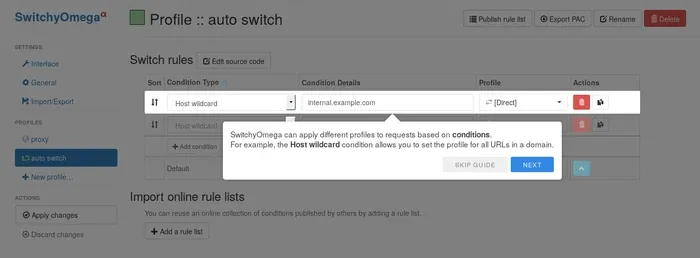
After the rules are complete, click Apply changes and enable auto switch from the toolbar menu. During testing, open one domain that should use the proxy and another that should connect directly, and verify both exits. Do not only check that the rule appears in the list.
Why Rule Order and Resource Domains Matter
Sending the page’s main domain through a proxy does not mean every resource follows the same path. Scripts, images, login endpoints, and CDNs can use different domains. If those resources also need the same region but are not covered by the rules, the page may load only partially or show a cross-region login state.
When troubleshooting, inspect the hostnames of failed resources first and add only the minimum necessary rules. Do not begin with an overly broad * condition because it sends all browser traffic through the proxy and makes it harder to see which rule is actually responsible.
How to Use the Bypass List to Avoid Proxying the Wrong Traffic
The Bypass List lets specified hosts bypass the current Proxy Profile. It is appropriate for localhost, internal network addresses, and services that clearly should not pass through an external proxy.
Keep and verify entries such as:
- Local addresses including
localhost,127.0.0.1, and[::1]. - Internal organizational systems or local development domains.
- Services that explicitly require a direct connection through the corporate network.
Do not add the IP-check site used to verify the exit or the real target domain to the Bypass List. Otherwise, the page will show the original exit and you may incorrectly conclude that Rola IP is not working. Bypass rules also do not replace access controls or data governance; sensitive internal systems should be protected by network policy, not only by a browser extension.
How Should Multiple Proxy SwitchyOmega Profiles Be Organized?
The clearest approach is for each Profile to represent one predictable network identity and include the region, proxy type, and session mode in the name.
| Profile Name Example | Network Identity | Suitable Tasks | Not Recommended For |
|---|---|---|---|
| Rola US Residential Sticky | US rotating residential with sticky session | Post-login regional QA and continuous-page verification | Batch jobs that require a new IP for every request |
| Rola JP Residential Rotate | Japan rotating residential with task-level rotation | Independent public-page sampling | Shopping carts, payment, or long login flows |
| Rola DE Static Residential | Germany fixed residential exit | Long-term consistency testing | Tasks requiring large-scale exit diversity |
| Rola Datacenter Batch | Datacenter exit | Low-sensitivity, high-frequency QA | Websites sensitive to datacenter ASNs |
Export a backup before modifying Profiles. A backup file may contain proxy configuration and even authentication information, so store it in a controlled location and do not upload it to public cloud drives, chat groups, or code repositories. After importing it to another device, verify the exit and credentials again instead of assuming the migration succeeded.
How to Troubleshoot Common Proxy SwitchyOmega Problems
Troubleshoot in the order of browser compatibility, Profile status, fields, authentication, rules, DNS, and the target website. Avoid changing multiple variables at the same time.
The Extension Cannot Be Installed or Shows as Unsupported
If Chrome says the old SwitchyOmega is unsupported, the cause is usually the retirement of Manifest V2. Repeatedly downloading an old CRX does not solve the architecture-compatibility problem. Use the official Firefox add-on page, or verify a Manifest V3 version from the ZeroOmega GitHub repository.
The Browser Cannot Access Anything After Enabling the Profile
Switch back to Direct first and confirm that the local network works. Then check whether Host, Port, and Protocol exactly match the Rola IP connection details. Test the same parameter set with an endpoint-checking tool. If the endpoint also fails, prioritize fixing product status, credentials, or the network allowlist.
You See 407 Proxy Authentication Required
HTTP 407 means the proxy server requires authentication but did not accept the current credentials. Check whether you used the dashboard email instead of the proxy username, whether the password was copied completely, whether region or session parameters in the username were mistyped, and whether the IP allowlist covers the current public address.
The Authentication Window Keeps Appearing
Repeated prompts usually mean the credentials are wrong, the account or plan is unavailable, or multiple page requests are triggering the same failed authentication. Do not keep retrying the same password. Verify the connection information in the Rola IP dashboard, save authentication again, and then click Apply changes.
The IP Does Not Change or the Location Is Wrong
Confirm that the target Profile is selected in the toolbar instead of Direct, System Proxy, or a default-direct Auto Switch rule. Then check whether the test domain is in the Bypass List, whether Auto Switch matched the correct rule, and whether the country or city parameter in the username is valid.
Part of the Page Fails to Load
Check whether the page loads resources from other CDN, login, or API domains. If Auto Switch proxies only the main domain, cross-domain resources may connect directly. Also confirm that the sticky session is long enough and whether the target site is returning 403, 429, or a CAPTCHA instead of blaming every failure on the extension.
SOCKS5 Connects but Authentication Fails
SOCKS5 authentication can be limited by the browser proxy API and extension implementation. First confirm that the current browser, extension version, and Rola IP endpoint all explicitly support the combination. Use the protocol and authentication combination shown in the current Rola IP account documentation as the reference. If a Chromium extension cannot handle SOCKS authentication, switch to a supported HTTP endpoint or verify again in Firefox instead of removing authentication.
The Extension Icon Shows a Conflict or Cannot Control the Proxy
Only one proxy-control system should dominate in the same browser. Disable other proxy-switching extensions, VPN extensions, or enterprise proxy tools and test again. Do not configure different endpoints simultaneously in SwitchyOmega, the system proxy, and another extension, because it becomes difficult to determine which component controls the actual exit.
Proxy SwitchyOmega Auto Switch vs Manual Setup vs Rola Connect
Choose based on the scope of proxying. Use SwitchyOmega when you want to control one browser and switch Profiles frequently. Native manual browser proxy settings are simpler when testing only one endpoint. Evaluate Rola Connect when you need system-level routing or local port forwarding.
| Method | Scope | Best For | Main Limitation |
|---|---|---|---|
| SwitchyOmega / ZeroOmega | Current browser or Profile | Fast switching among multiple proxies and domain-based rules | Depends on extension compatibility and permissions |
| Native manual browser proxy | Current browser configuration | One endpoint and temporary testing | Repeated switching is inconvenient and rule support is limited |
| System proxy | Multiple applications that follow system settings | Unified exit testing | Broader impact and more variables during troubleshooting |
| Rola Connect | System proxy or local port-forwarding workflow | Providing proxy access to multiple applications | Requires separate installation, configuration, and scope management |
If the task has expanded beyond a single browser, select a system-level routing method that your organization has approved. After changing methods, record the baseline IP again so that a SwitchyOmega Profile and system proxy do not accidentally remain active at the same time.
Is Proxy SwitchyOmega Safe to Use?
SwitchyOmega can improve configuration efficiency, but it cannot replace a trustworthy proxy, browser security, or data compliance. Because an extension can control proxy settings and access web requests, its installation source, permissions, and maintenance status all require review.
- Install only through Mozilla Add-ons, an official browser store, or a verified GitHub project.
- Verify the publisher, version, permissions, source code, and update history; do not judge authenticity only by the extension name.
- Do not use unknown free proxies for logins, payments, enterprise systems, or sensitive data.
- Do not expose proxy Username, Password, full gateway, or session identifiers in articles, tickets, or screenshots.
- For teams, use separate subaccounts and least privilege where available, and revoke credentials after a member leaves or a project ends.
- Use proxies only for lawful, authorized browsing, QA, regional verification, and public-data access, and comply with target-site terms.
Conclusion
The key to learning how to use proxy switchyomega is not simply entering a proxy address into an extension. Correct setup requires browser compatibility, the right Rola IP product, authentication, location parameters, session strategy, Profile activation, and verification on real pages.
Firefox users can verify the original 2.5.10 extension through Mozilla’s official English add-on page. Chrome and Edge users should use a verified Manifest V3-compatible approach. After configuration, verify the endpoint and exit first, then confirm the region and business result. Use sticky sessions for continuous browsing, rotate at task boundaries for independent regional tasks, and reduce mistakes with clear Profile names and Auto Switch rules.