
Edge Proxy: How to Change and Check Proxy Settings in Microsoft Edge

Sep 11, 2026 · Guides · 8 min read
TL;DR
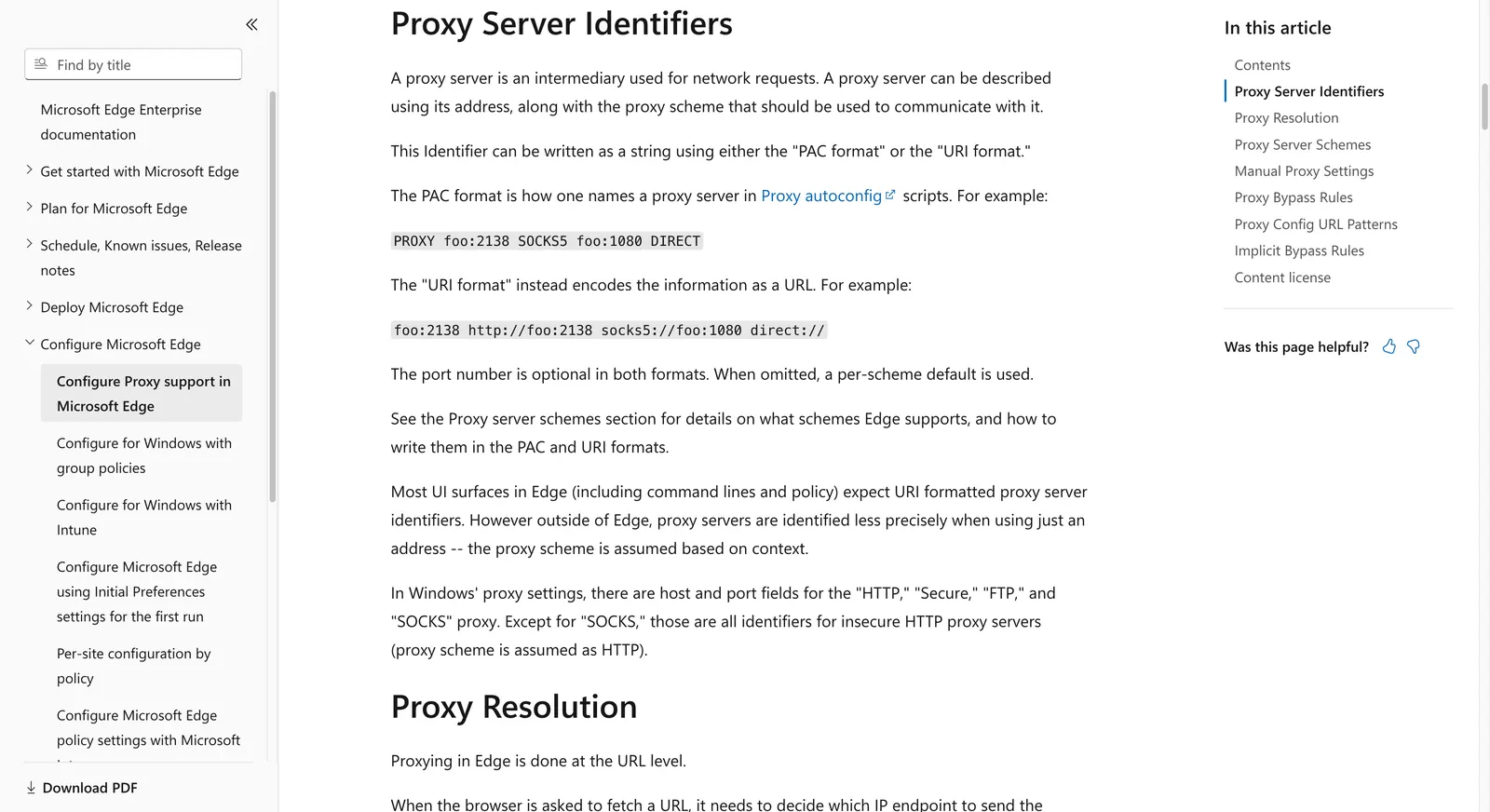
Microsoft Edge normally uses the operating system’s proxy settings. On Windows, open Settings > Network & internet > Proxy. On macOS, open System Settings > Network > the active connection > Details > Proxies. Configure an authorized HTTP, HTTPS, or SOCKS endpoint, save the change, then visit an IP-check page to confirm the observed exit address. Edge extensions can apply per-profile rules, but they may conflict with system settings and should be limited to trusted software.
For Rola IP, copy the exact host, port, protocol, username, password, and location or session parameters from your current account dashboard or documentation. Do not guess a gateway or append an unverified country suffix. A proxy routes traffic; it does not grant access to a website, bypass a CAPTCHA, or override a site’s terms.
What Is the Safest Way to Configure an Edge Proxy?
Use the operating system’s proxy settings with an endpoint you are authorized to access, then verify the observed exit IP in a fresh Edge window. Test one layer at a time, keep credentials out of URLs and logs, and stop when the destination returns a login prompt, CAPTCHA, 403, or 429. A proxy changes routing; it does not create permission or override site policies.
How Edge Proxy Settings Work
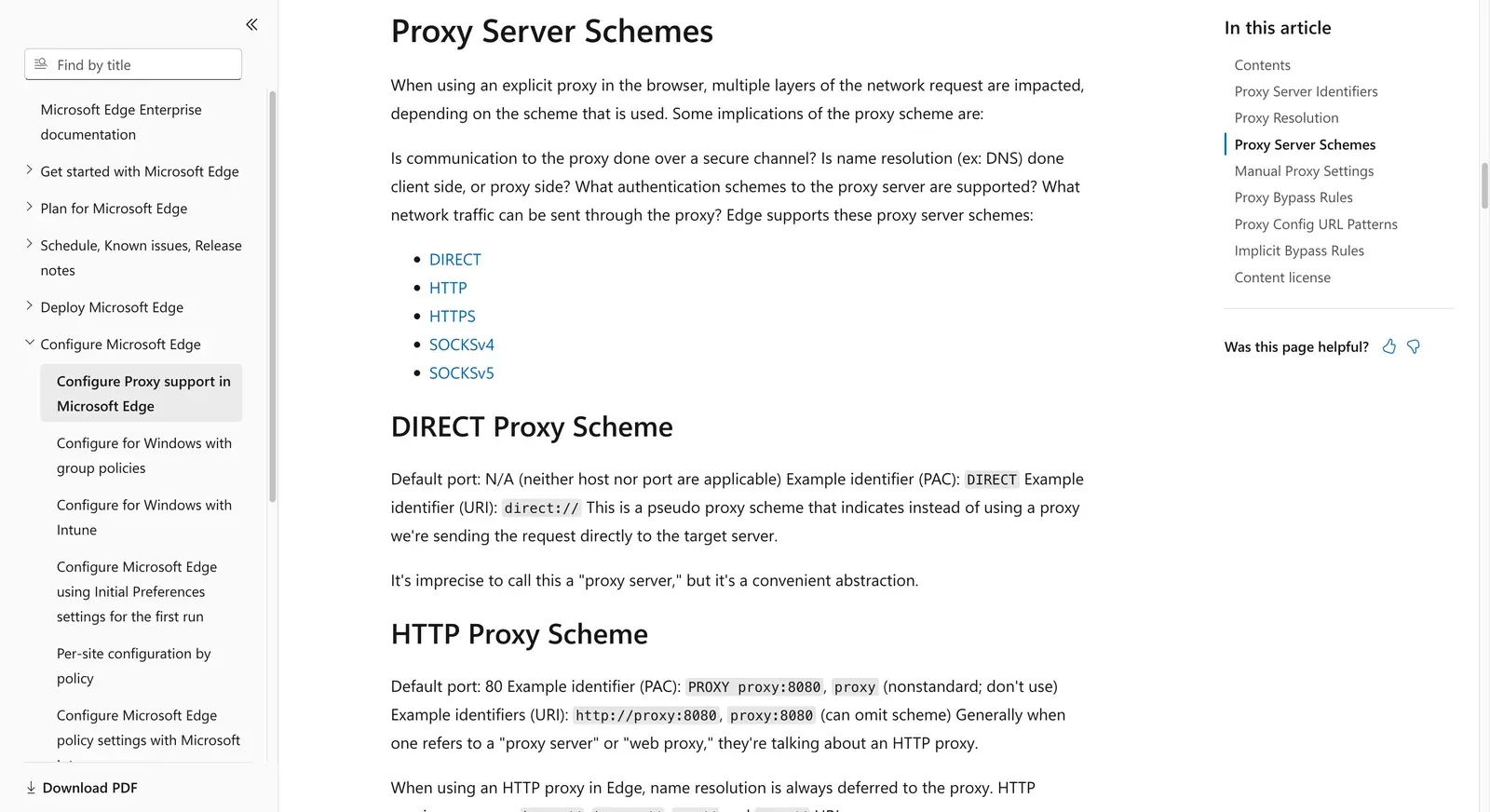
Edge is built on Chromium, but its proxy configuration is generally delegated to the host operating system. That means changing a setting in Windows or macOS can affect Edge and other applications. A browser extension may provide profile-level rules, automatic switching, or per-site exclusions, but its behavior depends on the extension and its permissions.
Keep these layers separate when diagnosing a problem:
| Layer | Where you change it | Best use | Common risk |
|---|---|---|---|
| System proxy | Windows or macOS network settings | A consistent route for Edge and approved tools | Changes affect more than Edge |
| Edge policy | Managed browser configuration | Organization-controlled devices | Users may be unable to edit it |
| Extension | Edge Add-ons profile | Quick profile or site switching | Untrusted extensions can see browsing traffic |
| PAC file | Automatic configuration URL | Rule-based routing and bypasses | A broken script can send traffic direct or nowhere |
Choose one layer for the test. If an extension is active while a system proxy is also configured, disable the extension temporarily so you know which route you are measuring.
How to Change Proxy Settings in Microsoft Edge on Windows
These steps apply to current Windows 11 and Microsoft Edge releases, consistent with official guidance from Microsoft Edge Support and Windows Support.
- Open Edge and select Settings and more (…) > Settings.
- Open System and performance and select Open your computer’s proxy settings. You can also open Windows Settings directly and choose Network & internet > Proxy.
- Under Automatic proxy setup, leave Automatically detect settings enabled only when your organization uses discovery or a PAC file. If you were given a specific PAC URL, enter it under Use setup script and verify the URL with your administrator.
- Under Manual proxy setup, enable Use a proxy server.
- Enter the approved address and port. If Windows offers a bypass list, add only internal hosts that your policy explicitly permits.
- Save the setting, close existing test tabs, and open a fresh InPrivate window for verification.
Do not paste a username and password into a screenshot or shared ticket. Windows may prompt for credentials when Edge first connects. If the endpoint uses a special authentication format, follow the provider’s documented syntax rather than improvising a URL.
For screenshots of the Windows setup process, follow our Windows 11 proxy settings guide. It explains where to enter your Rola IP HTTP proxy address and port; verify the resulting connection in Edge using the steps below.
How to Change Proxy Settings in Edge on macOS
On macOS, Edge delegates proxy routing to the active network service configuration, as documented in Apple Support: Enter proxy settings on Mac.
- Open System Settings > Network.
- Select the connected Wi-Fi or Ethernet service and choose Details.
- Open Proxies.
- Select the protocol supplied by your authorized provider, such as HTTP Proxy, HTTPS Proxy, or SOCKS Proxy.
- Enter the server address and port. Enable authentication only when the provider requires it, and keep credentials in the system prompt or approved password manager.
- Select OK and Apply, then restart the test tab in Edge.
If your organization distributes a configuration profile, some controls may be locked. Ask the administrator to confirm whether a PAC file or managed proxy policy is intended. Do not remove a company profile just to test a personal endpoint.
Configure an Authorized Rola IP Endpoint
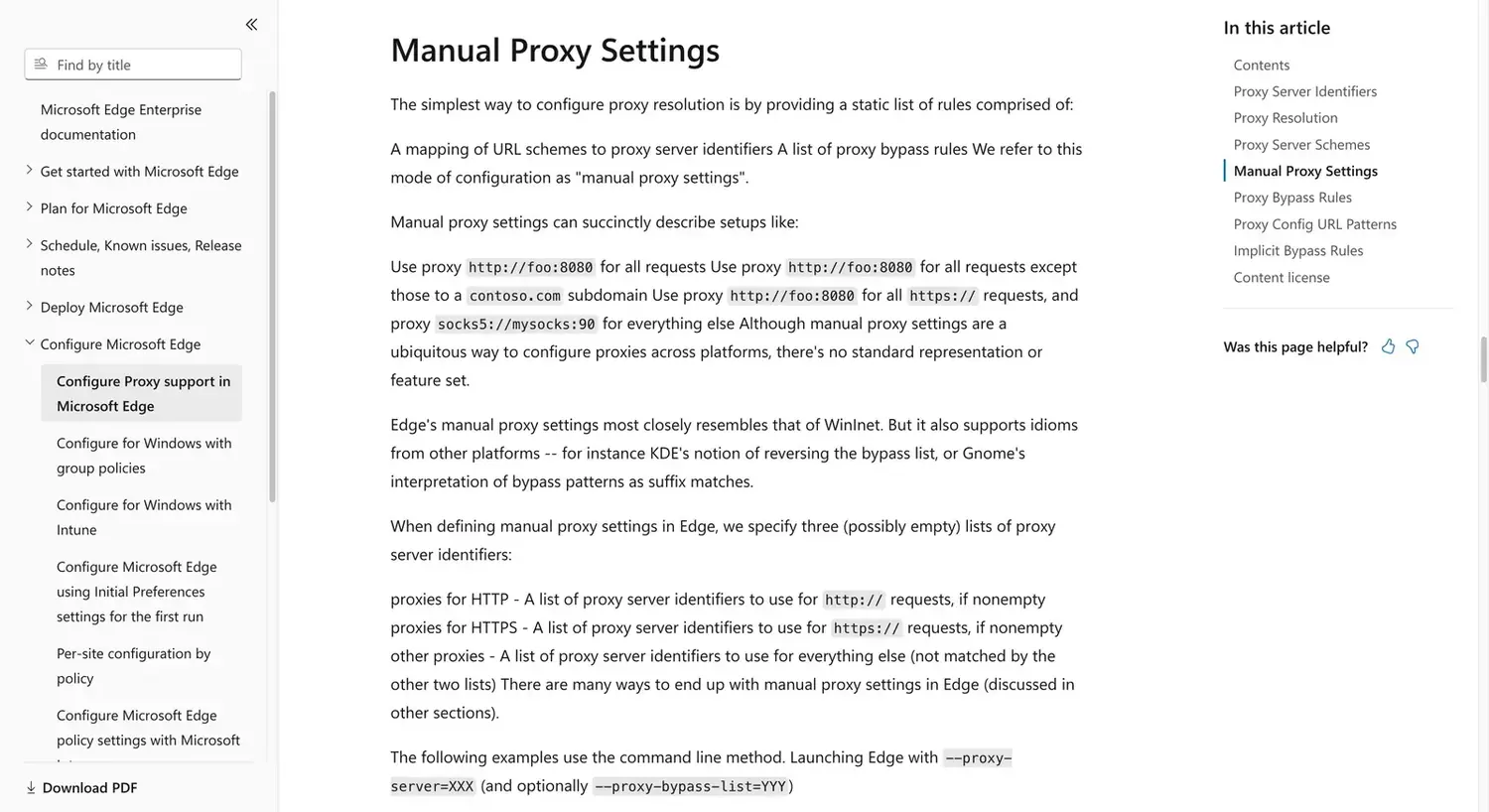
Rola IP should be introduced at the network-routing step, after the reader has confirmed that a proxy is appropriate for the task. When configuring for the first time, refer to the proxy quick start guide to verify connection fields. Country, region, and session-related fields should follow the current guidance in proxy parameters and your account console output. Product availability, endpoint names, ports, protocols, locations, session behavior, and pricing can change, so this article intentionally does not hard-code them.
Rola Endpoint Configuration Fields
| Parameter Field | Description | Source / Expected Value |
|---|---|---|
| Protocol | HTTP, HTTPS, or SOCKS5 | Per account dashboard selection |
| Proxy Host / Gateway | Server entry address | Generated dynamically in console |
| Port | Connection port assigned to protocol | Generated dynamically in console |
| Username / Account | Sub-account identifier with token | Obtained from account management |
| Password | Sub-account authentication secret | Maintained securely in password manager |
| Session / Geo Parameters | Country, city, or sticky session flags | Defined via console parameter generator |
| Verification Status | Egress IP and connectivity check record | Verified via IP lookup and proxy check tools |
For a team-managed Edge profile:
- Copy the Rola host, port, protocol, username, password, and any documented location or session parameters from the account console.
- Store credentials in an approved password manager. Do not put them in a public extension, URL shared in chat, or browser history. If your account uses credential-based authentication or IP allowlisting, confirm the access permissions in the account documentation or console.
- Configure the system proxy layer described above, or use a trusted enterprise extension if your organization has approved one.
- Record the test date, selected protocol, and redacted endpoint label. Never record the full authenticated proxy URL.
- Keep one stable session for related checks. Rotate only between separate, authorized test batches; never rotate to evade a site’s 403, 429, login wall, or CAPTCHA.
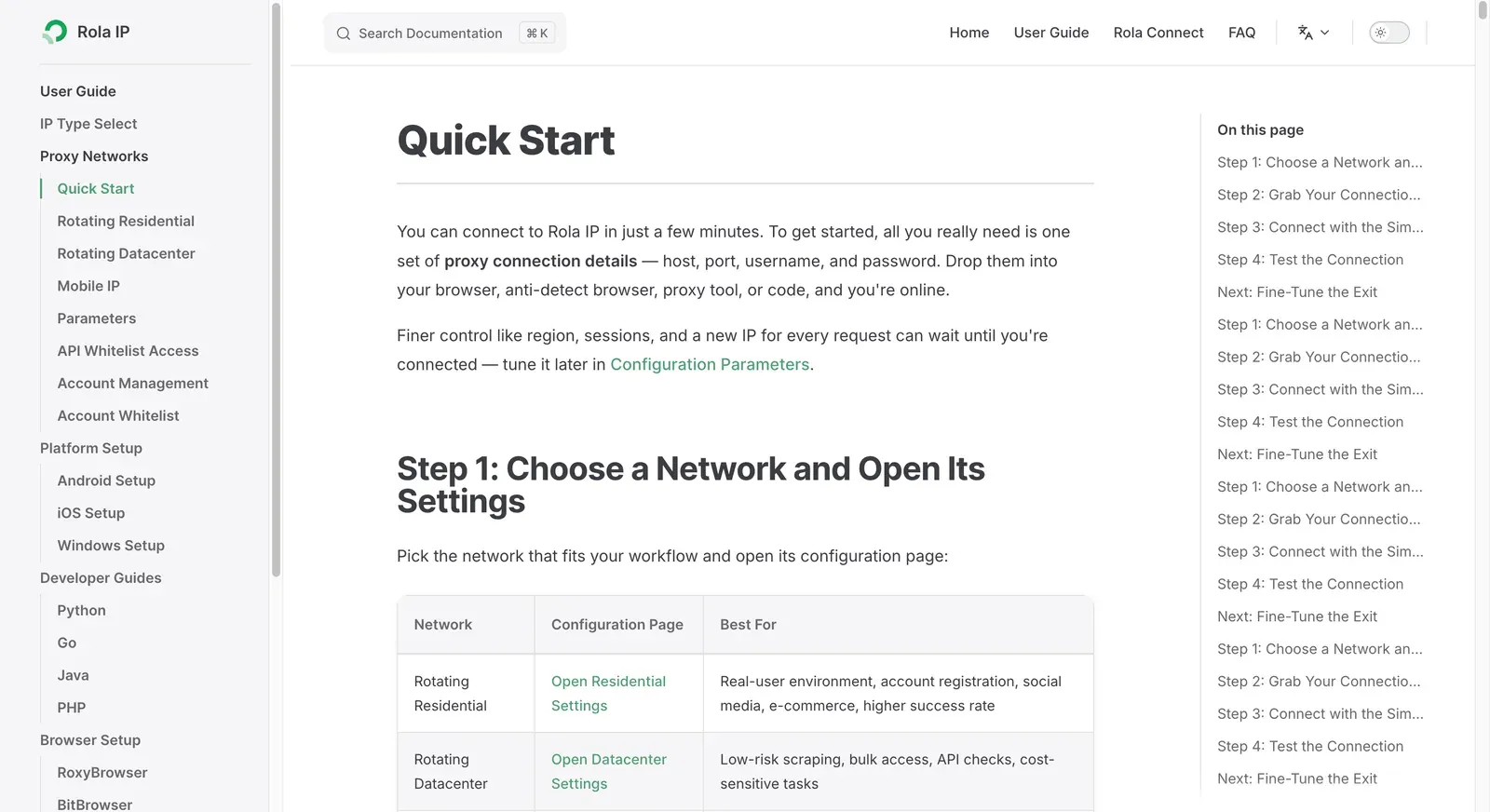
An IP change confirms only the exit routing observed for the current Edge browser requests; it does not confirm that other applications on the system are using the same proxy layer.
How to Check Proxy in Edge
Checking a proxy means verifying what route Edge actually used, not merely confirming that a form accepted a hostname. Use a trusted IP-information or diagnostic page and compare results before and after enabling the proxy.
- Record the current public IP in a normal Edge window.
- Enable the proxy and open a new InPrivate window.
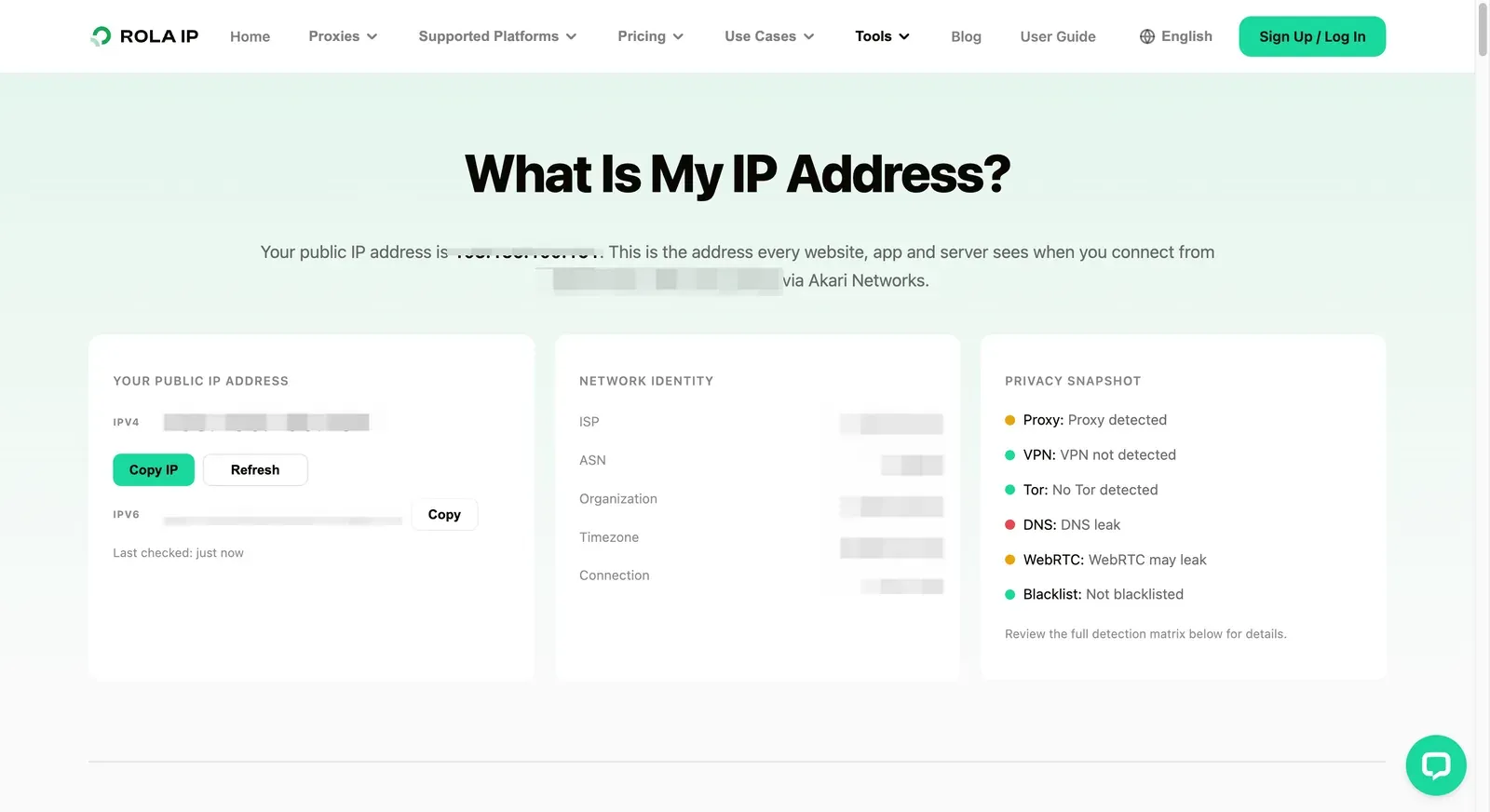
- Visit an IP lookup page such as Rola’s what is my IP tool. Compare the observed address, country, ASN, and network type where the tool provides them.
- If your workflow requires an operational check, use the proxy checker to verify connection status, supported protocols, latency, and observed exit information. This result is used to troubleshoot the current connection and does not prove complete anonymity, destination site access permissions, or that all applications share the same routing.
- Confirm the destination loads over the expected protocol. An IP change alone does not prove that every application or domain is using the same route.
Troubleshooting Edge Proxy Errors
| Symptom | Likely area to check | Safe next step |
|---|---|---|
| Edge cannot connect | Host, port, DNS, firewall, or inactive endpoint | Recheck the exact Rola parameters and test the endpoint with a proxy checker |
| HTTP 407 Proxy Authentication Required | Username, password, encoding, or account permission | Recopy credentials from the console; do not expose them in logs |
| Pages load with the wrong location | Selected route or location parameter | Compare the requested location with an independent IP lookup; do not guess suffixes |
| Some sites fail but others work | Destination policy, TLS handling, or protocol mismatch | Test a permitted neutral page and review the destination’s rules |
| Browser works, another app does not | Different app-level proxy configuration | Treat each application’s proxy layer separately |
| PAC file behaves unexpectedly | Script logic or unreachable PAC URL | Temporarily test a documented manual route, then ask the administrator to review the PAC file |
| HTTPS certificate warning | TLS interception, wrong protocol, or destination certificate issue | Stop and verify the documented protocol; never disable certificate validation |
Clear old proxy settings before testing a new route. Cached connections, service workers, and extensions can make a change appear ineffective. Restart Edge only after recording the configuration that produced the result.
Security and Privacy Boundaries
Use only proxy infrastructure and destinations that your organization is authorized to access. A proxy does not make scraping, account automation, or collection of personal data lawful. Keep the collection purpose narrow, minimize stored fields, encrypt exports, and define a deletion deadline. Never use an Edge proxy to bypass authentication, rate limits, CAPTCHAs, geo-restrictions that you are not entitled to bypass, or a site’s technical controls.
Browser extensions deserve extra scrutiny because they can inspect requests, page content, and browsing history. Prefer a well-maintained extension with transparent permissions, or use the operating system settings when a stable managed route is required.
When to Use a Browser Proxy Versus an Application Proxy
Use an Edge proxy when the task is genuinely browser-based, such as checking how an approved page renders from a requested region. For an authorized data-collection workflow, select a route whose protocol, location, session behavior, and usage terms match the approved workflow. For code-driven pipelines or automated tasks in Python, curl, or Go, configure the application directly so the network path is explicit and reproducible. A system proxy is convenient for a quick manual test, but it can unintentionally route unrelated applications. For production workflows, document the boundary and monitor the observed exit IP instead of assuming that a browser setting applies everywhere.
Conclusion
Configuring an Edge proxy correctly means matching the Windows or macOS proxy layer with an authorized endpoint, the correct protocol, and valid authentication details. For Rola IP, copy the current host, port, credentials, location, and session parameters from the account console instead of guessing values. After saving the setting, verify endpoint connectivity, exit IP, geographic result, and the target-page outcome in a fresh Edge window.
Use system settings when Edge needs a consistent managed route, and use a trusted extension only when profile-level switching or domain rules are necessary. Keep credentials out of URLs, screenshots, and logs, and treat a 403, 429, CAPTCHA, or login prompt as a site-policy signal rather than something a proxy should bypass. This workflow keeps Edge proxy testing reproducible, secure, and within the authorization granted for the task.