Spotify Proxy Settings: Desktop Setup and Connection Fixes

Sep 24, 2026 · Guides · 13 min read
TL;DR
Use direct access if Spotify already works on your network. When a proxy is necessary, test its availability, authentication, and speed before entering the provider’s exact host, port, and protocol. Choose a fixed IP or a suitable sticky session for a stable exit, then verify Spotify’s route and play a track that is not downloaded. A browser IP check or successful login alone does not confirm that audio uses the proxy. If something fails, change one setting at a time, distinguish connection issues from account or playback problems, and keep your previous configuration for recovery without disabling the firewall.
Where should I configure the proxy?
For a desktop build with proxy controls, start at profile menu > Settings > Proxy settings, enter the provider values, and restart. If those controls are missing, this article does not establish another entry point for your version. On a permitted direct connection, No proxy, where offered, is the app-level rollback option.
| Surface | Configuration scope | Verification status |
|---|---|---|
| Spotify desktop | App proxy controls, if the build exposes them | Conditional walkthrough; no client version, GUI, playback, or route test |
| Web player | Browser or system proxy supported by that browser | Official guidance reviewed; playback not tested |
| macOS network proxy | Active network service and applications that honor it | Apple documentation reviewed; no Mac device test |
| Android or iPhone | Device/network configuration; coverage varies | Limitations only; no verified mobile setup |
How to configure Spotify proxy settings on desktop
The following is a conditional walkthrough for desktop builds that expose a Proxy settings section. Spotify changes its interface, and menu labels differ by platform and release. Check the controls in your installed build rather than expecting an old screenshot to match exactly.
Step 1 Find the proxy controls
Open Spotify’s profile menu and select Settings. Look for Proxy settings, scrolling through the settings page if necessary. Some older releases place the section under advanced settings or expose a settings link near the login screen.
If you cannot find those controls, do not assume they are available in the web player or mobile app. Use the browser or operating-system route described below, provided your chosen application honors it. Avoid copying an obsolete preferences-file edit from a forum without checking the affected version.
Step 2 Enter the provider values
Choose the protocol that matches your working endpoint. Enter its host and port, then the proxy username and password if those fields are available and required. If the service uses source-IP authentication, check that your current public outbound IP is allowed. A change of Wi-Fi, VPN route, or ISP address can invalidate that allowlist entry.
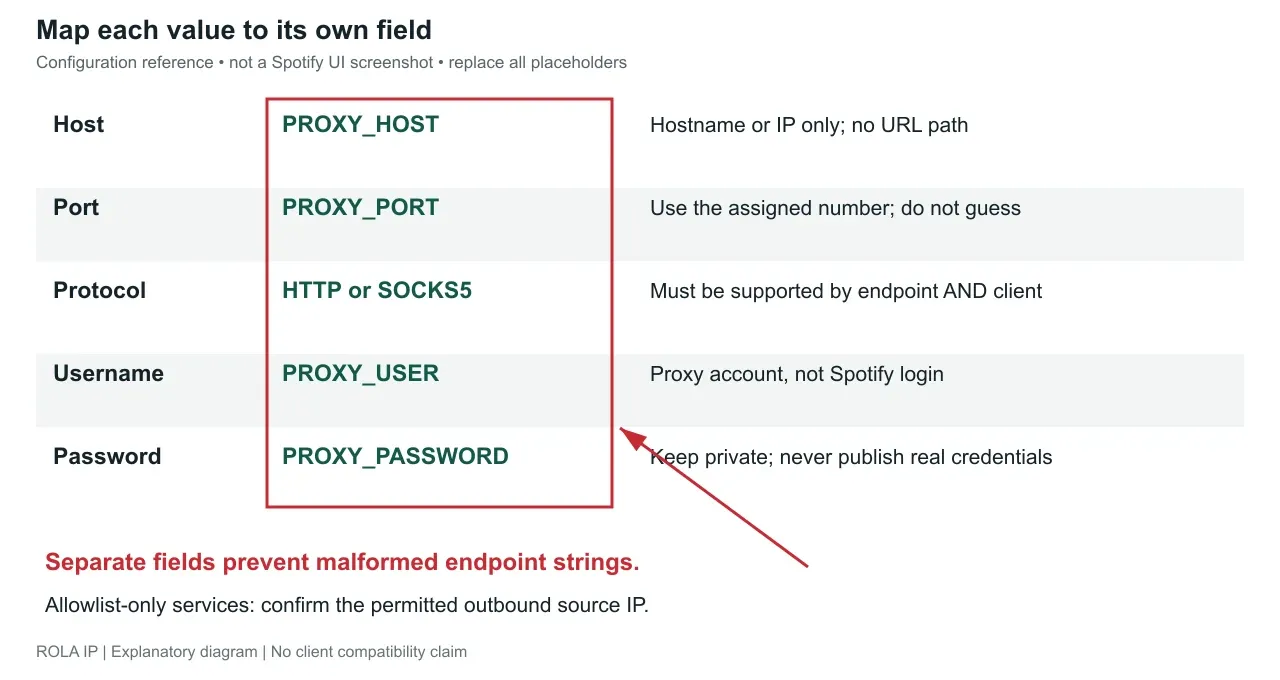
Check each field before applying the change. Common mistakes include a trailing space, a complete host:port:user:pass string pasted into the host field, or a SOCKS5 selection against an HTTP-only port. If the required authentication method is unavailable in your client, obtain a compatible endpoint or use an appropriate supported routing method.
Step 3 Apply the change and restart
Use the save or restart control presented by your build. If no restart control appears, quit Spotify fully and reopen it. Closing the window may leave the process running.
Sign in if prompted, then stream something that is not downloaded. Start another track, seek within it, and leave playback running for several minutes. These actions exercise more of the connection than simply opening your library.
How do I know Spotify is using the proxy?
A browser IP lookup cannot establish the route used by Spotify desktop. After applying a supported configuration and restarting Spotify, stream a track that is not downloaded and correlate playback time with available proxy or process connection records. A provider activity counter alone cannot identify the process or prove that every Spotify connection used the exit.
Record the observation time, identified process, endpoint, and whether playback, seeking, and changing tracks worked. Repeat the same actions after a fix. The log interface depends on your routing software; no log screenshot or successful playback record was collected for this article.
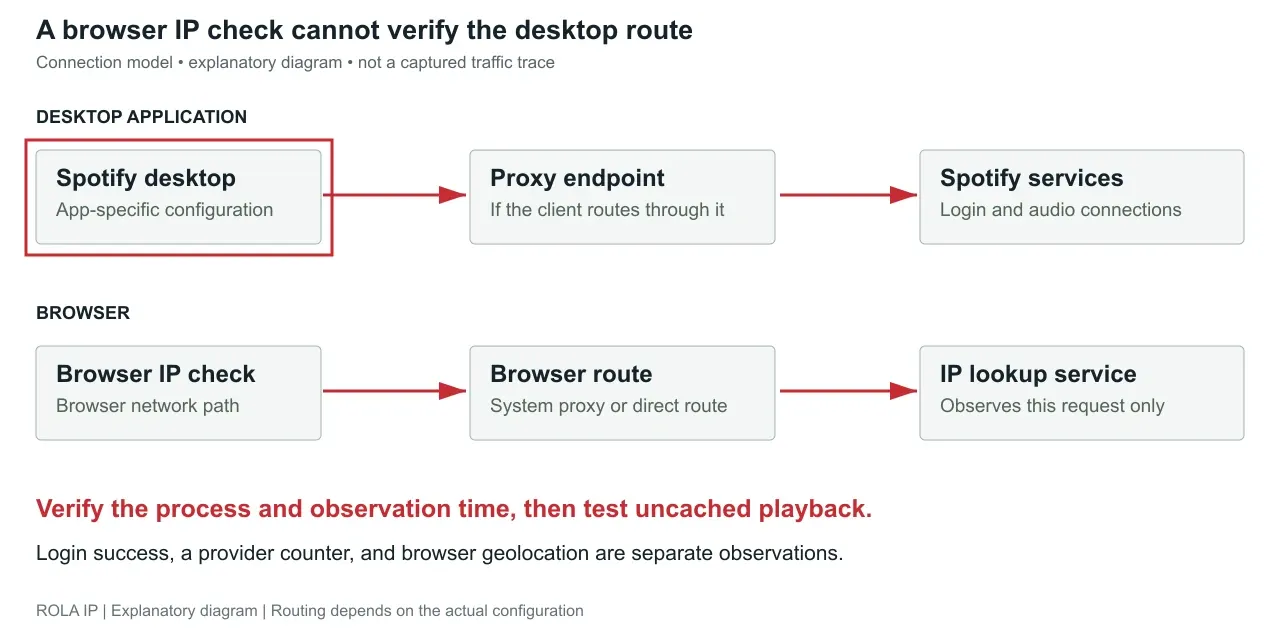
If the new configuration fails, restore the previous working configuration and restart. On a network that allows direct access, switching Spotify back to No proxy is a useful comparison. A system VPN or transparent gateway can still affect the route even after an app-level proxy is disabled.
What a Spotify proxy does and when you need one
A proxy forwards supported connections between your device and a destination. For connections that actually use it, the destination sees the proxy’s exit IP. That makes the endpoint’s availability, location, and network route relevant to playback.
You may need one when an administrator requires an approved gateway, when you are investigating a routing problem, or when you need a consistent exit IP for an authorized network setup. You do not need to buy a proxy simply because an error mentions one. An old proxy configuration can itself prevent Spotify from connecting.
Three boundaries matter:
- Routing is application-specific. A browser extension usually affects that browser, not the Spotify desktop app.
- Account country is separate. An exit IP does not automatically update your Spotify account or payment details. Spotify explains the applicable changes in its country and region guidance.
- A working login is only part of the test. Audio delivery can fail even when an account page loads, and downloaded tracks can play without proving an internet connection.
On a managed school or work network, obtain the approved configuration from the administrator. Spotify’s offline troubleshooting guidance identifies network restrictions as a possible cause of connection problems.
Which proxy settings are good for Spotify
Choose settings that match the endpoint you actually have. There is no universal Spotify proxy address, port, or protocol that works for everyone.
Choose the protocol your endpoint and client support
No proxy is the sensible starting point on a network that permits direct Spotify access. Auto-detect, when available, is appropriate when your network intentionally supplies proxy configuration; it is not a way to find a free proxy server.
For manual configuration, use HTTP or SOCKS5 only when both the provider and the particular client support that choice. HTTP proxies can carry HTTPS connections through a CONNECT tunnel. SOCKS5 supports a broader connection model, but its name does not guarantee lower latency or encryption. The SOCKS5 protocol specification defines protocol capabilities; actual application support determines which are used.
Do not select SOCKS5 simply because a tutorial says it is always faster. Compare the same endpoint, destination, and local network where possible. Route quality, congestion, and connection failures matter more than the protocol label.
Prefer a stable exit for a continuous listening session
For an individual listening session, a fixed exit is a practical choice because it reduces changes while you troubleshoot. A static ISP proxy can provide that continuity. A rotating residential service may also work with a sticky session, but confirm its duration and what happens when the session expires. A sticky session is not a promise of a permanent address.
Other IP types have tradeoffs. Datacenter proxies can be economical, though acceptance depends on the destination. Mobile proxies are not inherently necessary for listening. Paying for a mobile or residential label does not establish that an endpoint will work with Spotify.
For an authorized setup that needs a consistently assigned endpoint, consider Rola IP’s static residential proxies. Its public product page, reviewed September 23, 2026, describes fixed, dedicated IPs, per-IP billing, and unlimited traffic within the validity period. These are published product claims, not performance results from this article. Confirm the selected plan’s location, protocol, authentication, assigned port, validity, allocation policy, and speed limits before purchasing. Unlimited traffic is not unlimited throughput, and neither establishes Spotify compatibility.
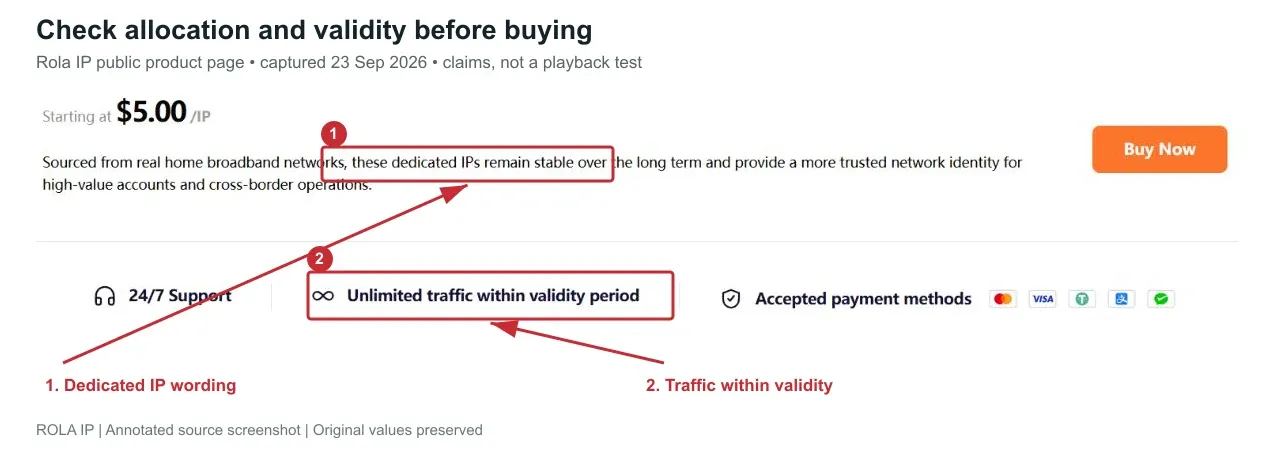
Also confirm the billing unit, minimum purchase, whether failed checks consume paid traffic, and what happens at expiry. For metered plans, set a personal usage or spending threshold. Ask whether the chosen service offers budget alerts rather than assuming that feature exists.
Gather the connection details before changing anything
Record these values in a private note:
- Host: the provider’s hostname or IP address, without a URL path.
- Port: the endpoint’s assigned port. Do not guess 8080 or 1080.
- Protocol: the protocol enabled on that host and port.
- Authentication: the proxy username/password, source-IP allowlist, or required combination.
- Session behavior: fixed IP, sticky session duration, or rotation policy.
- Limits: expiry, remaining traffic if metered, and concurrent connection limits.
Your Spotify password is not your proxy password. When fields are separate, enter only the host in the host field and only the number in the port field. Keep a note of the original settings so you can restore them.
Test the proxy before connecting Spotify
A useful preflight answers three questions: can the proxy accept a connection, can it reach the destination, and is its performance consistent enough to use? Test those in that order.
Step 1 Check the endpoint and destination separately
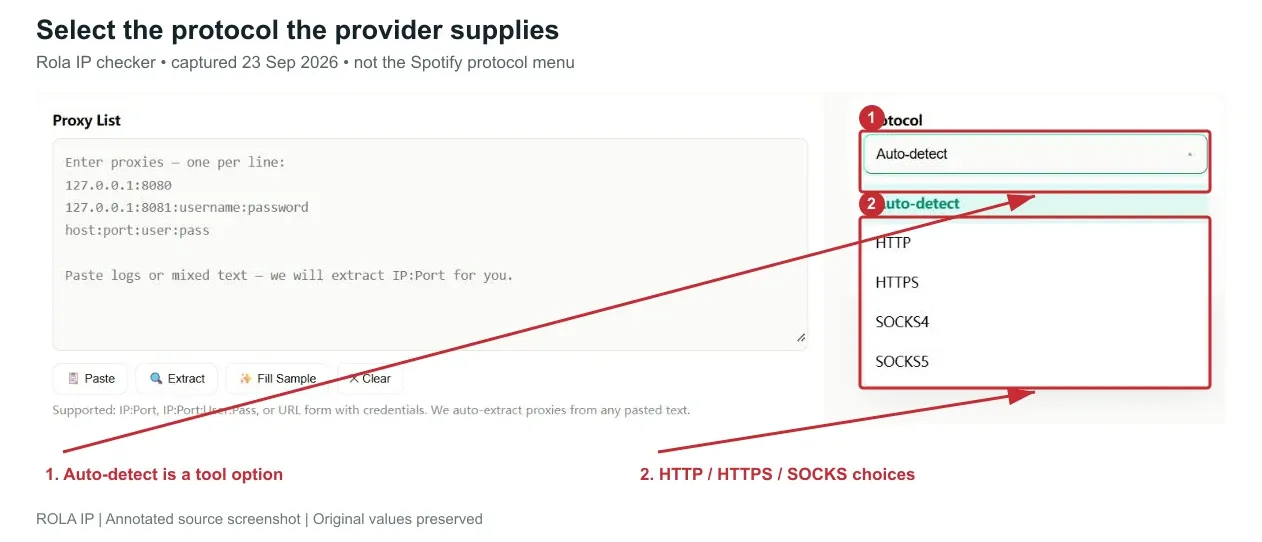
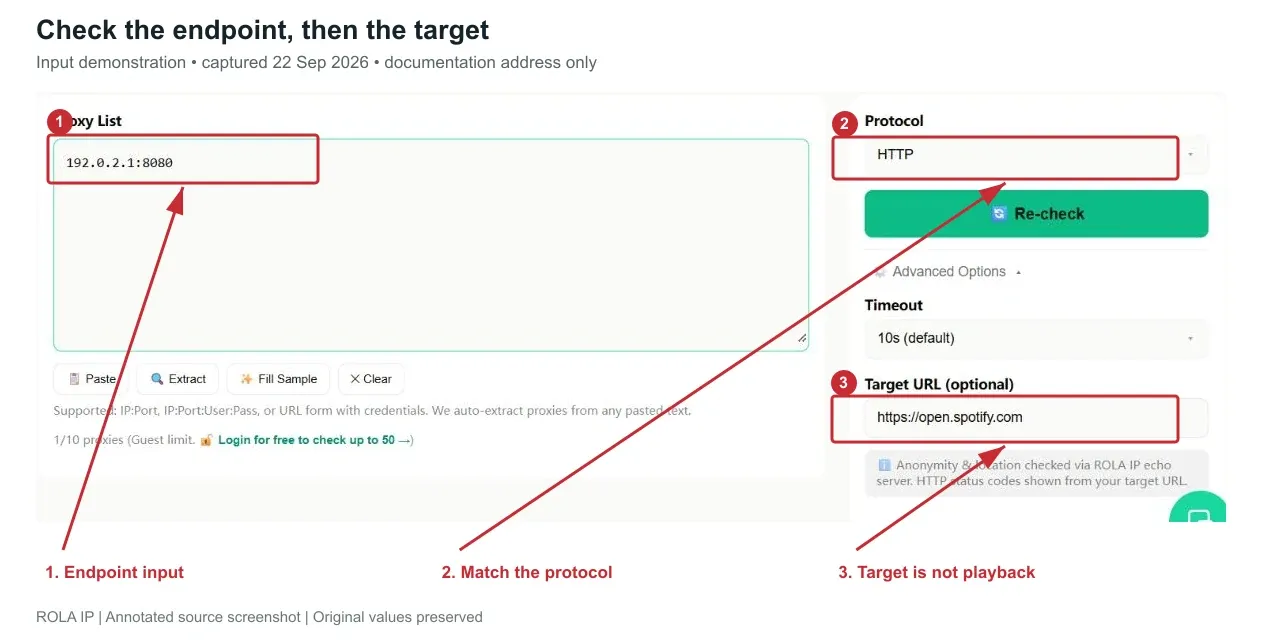
Open the Rola IP proxy checker. Enter an endpoint using one of the formats displayed on the page, select its actual protocol, and expand Advanced Options if you need to change the target URL or timeout. The interface distinguishes Target Status from Via Probe, which helps separate destination access from a general probe result.
For a preliminary Spotify website check, set the target to https://open.spotify.com. This tests a web destination, not every authentication or audio-delivery host the app may use. A successful response therefore supports the next step; it does not prove that music will play.
Use only a checker you trust with the credentials you submit. A server-side checker connects from its own infrastructure. If your proxy accepts only your home or office IP, its probe may fail even though the endpoint works locally. Do not remove the allowlist just to obtain a green result; use a provider-supported test method or an appropriately scoped test account.
Match the checker protocol to the endpoint. The menu below describes the tool’s capabilities, not options guaranteed in Spotify. Choose the provider’s known protocol; a port number alone does not identify it.
Step 2 Compare repeated speed measurements
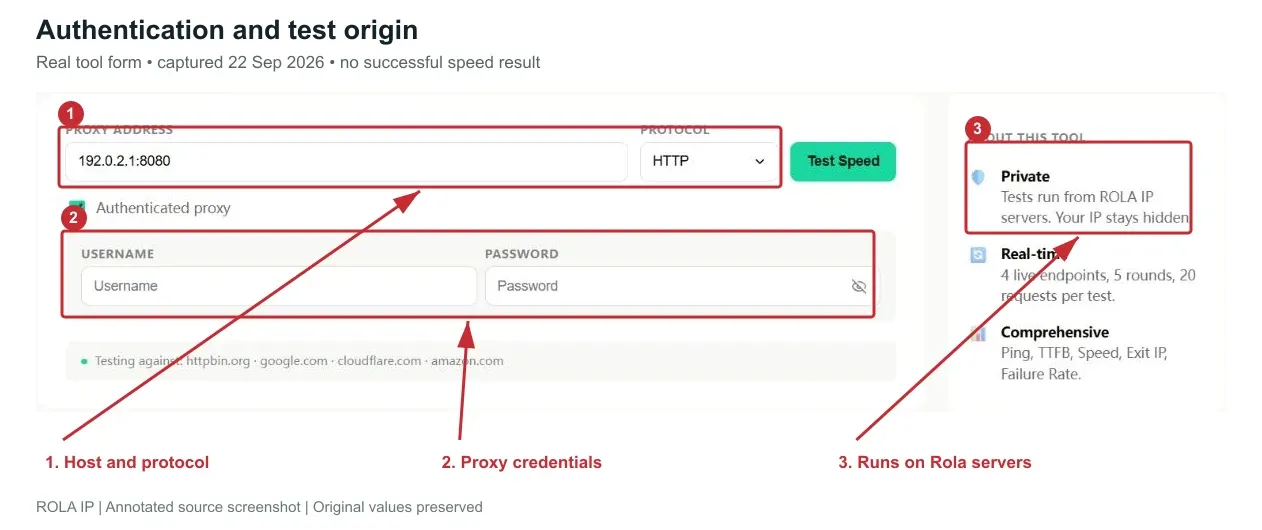
Use the proxy speed test to compare latency, time to first byte, download speed, and failure rate. Enter the same endpoint and protocol used in the checker. Enable the authentication option when your endpoint needs credentials.
Repeat the measurement and look for consistency. A low best-case latency means little if several attempts time out. The displayed targets include services such as Google, Cloudflare, and Amazon; these are baseline measurements, not Spotify audio benchmarks. Because tests run from Rola IP servers, repeat the final playback check from the device and network you intend to use.
Do not confuse kilobits and kilobytes when budgeting traffic. Using decimal MB and GB, a constant 320 kbps stream uses about 144 MB per hour before overhead: 320,000 × 3,600 ÷ 8. Two hours per day for 30 days would be approximately 8.64 GB. This is a bandwidth example, not a claim about your active Spotify quality setting; codecs, quality options, caching, video, and other traffic change the total.
Step 3 Investigate failed checks before changing Spotify
If a check fails, identify where it ran and what failed. A tool error or different source-IP allowlist can invalidate the test without invalidating a locally working endpoint. Check expiry, port, credentials, protocol, and allowlist rules, then repeat a local test. If a neutral destination succeeds but the Spotify target fails, investigate destination-specific access rather than replacing every setting at once.
Proxy settings for Spotify web player and mobile
Windows and macOS web player
The web player uses the browser’s network path. On Windows, system proxy controls are under Settings > Network & internet > Proxy. Browsers that use the system configuration can inherit those settings, subject to browser and organization policies. Use the administrator’s setup script or a manual endpoint as appropriate; the Windows manual proxy form is not a universal SOCKS5 configuration interface.
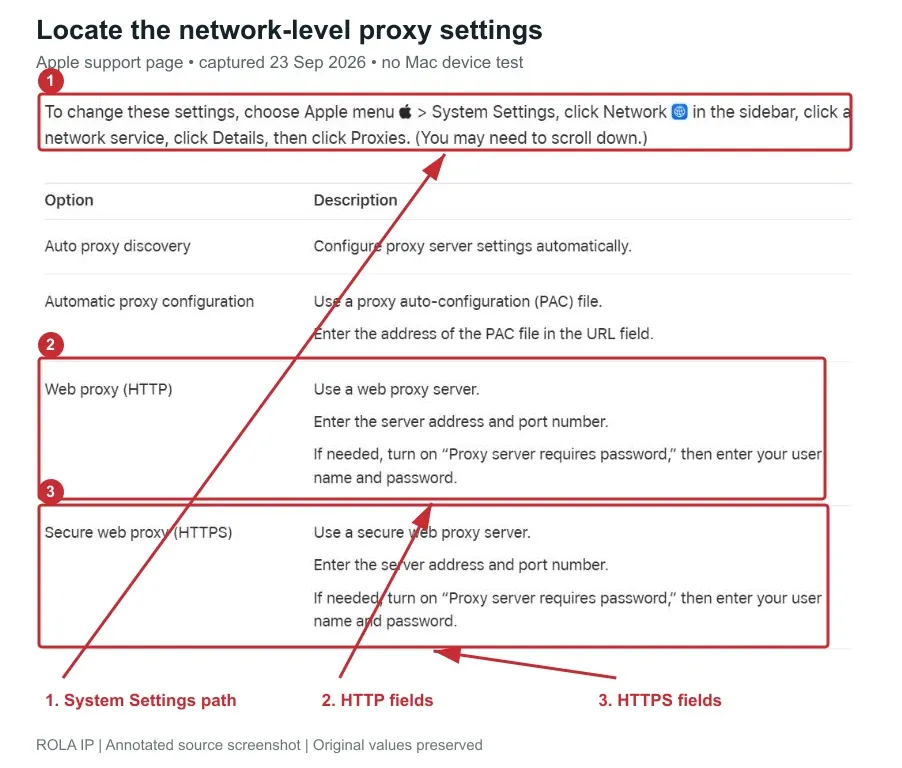
On macOS, open System Settings > Network, choose the active service, then Details > Proxies. Apple documents the separate HTTP, HTTPS, SOCKS, and automatic-configuration options in its Mac proxy settings guide. Set the option that matches your service, apply it, and restart the browser if needed.
Changing a system proxy can affect other applications. If you use a browser-specific setup, verify that it covers the web player and its requests. A page that loads with silent or failed playback may have a browser media issue: Spotify’s web player help explains protected-content requirements and supported browsers.
Android and iPhone
Do not expect the desktop proxy menu in Spotify’s mobile app. Device Wi-Fi proxy settings are specific to the connected network, may not cover every app connection, and do not automatically cover cellular data.
Use a device or network configuration that explicitly supports the traffic you need to route, then test on that connection. A successful mobile browser IP check is still only a browser check. If the network is managed, request the approved mobile configuration instead of importing an unknown configuration profile.
How to fix Spotify proxy and firewall errors
Change one variable at a time. First compare direct access, if permitted, with proxy access on the same device. Next compare the desktop app with the web player. Finally, try another permitted network. That sequence narrows the fault without discarding a valid account or application setup.
Read the diagnostic message and retest the same action
These messages can appear in a proxy client or diagnostic log. They are general categories, not a mapping of Spotify error numbers. Identify which component returned the message before changing settings.
| Observed message | What to check | Action and retest |
|---|---|---|
| HTTP 407 | Credentials and authentication support | Correct authentication and repeat the local proxy test. SOCKS failures may use different messages. |
| HTTP 403 | Which server or intermediary refused access | Review applicable access rules and retry the permitted request. A 403 alone does not prove a bad IP. |
| HTTP 429 | Rate limits and any Retry-After value | Pause as instructed and retry within limits. Do not repeatedly rotate to evade the restriction. |
| DNS error | Proxy versus destination hostname; local versus remote DNS | Correct the relevant name or resolver configuration, then repeat the same lookup and request. |
| Connection refused | Host, port, and whether the service accepts connections | Correct the endpoint or contact the provider; repeat the connection attempt. |
| Connection timeout | Route, allowlist, endpoint status, and timeout setting | Change one variable, retest locally, and compare with the remote checker. |
After the endpoint test passes, repeat uncached playback, seeking, and track changes with available route evidence. These are acceptance steps for the reader, not completed results from this article.
A failed endpoint or repeated timeout
Symptom: the checker cannot establish a usable connection, or Spotify stalls immediately after applying the proxy.
Check: confirm the endpoint is active, the protocol matches, and authentication is correct. For an online checker, account for its different source IP. Try the same endpoint locally before concluding that the provider is down.
Fix: correct the specific mismatch or obtain a replacement endpoint from the provider. Do not try to repair Spotify’s firewall rules while a basic proxy connection is still failing.
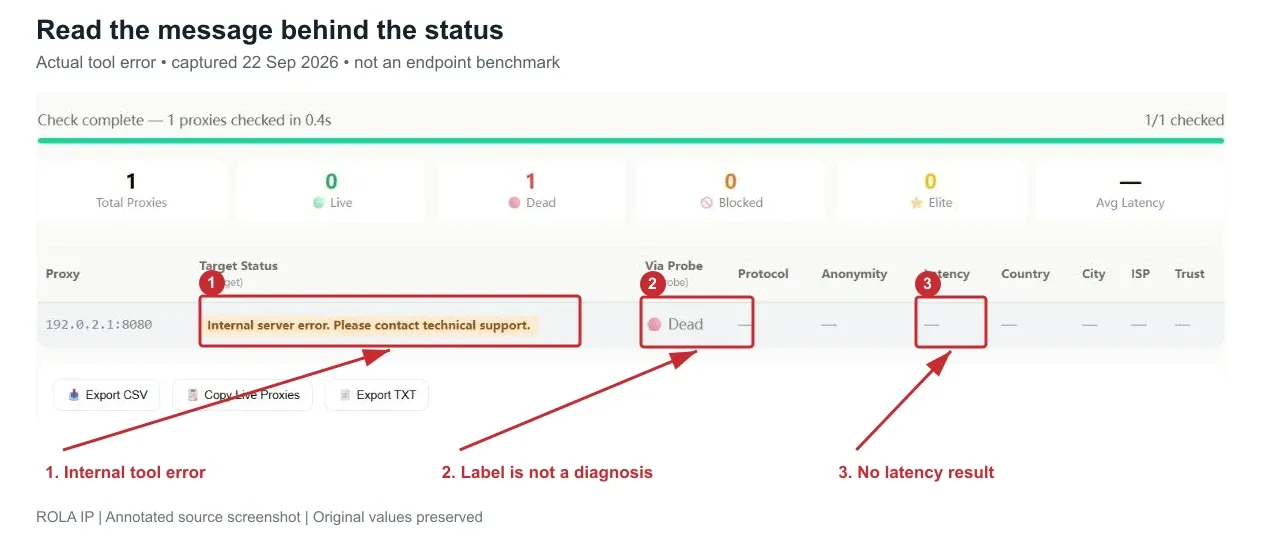
This example also shows why you should read the message beneath a status label. An internal tool error does not identify whether a real purchased endpoint is reachable. Retry later or use a local/provider-supported check before drawing that conclusion.
Authentication failures or HTTP 407
A 407 response refers to proxy authentication. Recheck the proxy credentials, not your Spotify account password. Confirm whether the provider requires a username, an allowlist, or both. Check for expired credentials and whether your current network changed the source IP.
If an endpoint works with one client but not Spotify, compare the supported authentication methods. Repeatedly reinstalling Spotify will not resolve an authentication method that the client cannot supply.
Error code 17, code 30, or a firewall warning
An error number is a clue, not a complete diagnosis. Do not assume that every code 17 or code 30 report has the same cause across Spotify versions. Record the full message, operating system, app version, and whether the issue occurs without the proxy.
Check for a stale proxy first. Then inspect any security product that controls Spotify’s outbound access. On Windows, the built-in exception interface is under Windows Security > Firewall & network protection > Allow an app through firewall. With appropriate administrator access, select Change settings, locate the installed Spotify app, and review the network profile that actually applies.
An inbound exception does not necessarily fix an outbound block. If a company policy or third-party firewall controls outbound traffic, ask the administrator to inspect that rule. Do not disable the firewall, open arbitrary ports, or automatically enable every network profile. Microsoft’s firewall guidance explains why application exceptions should be narrowly scoped.
On macOS, inspect the active firewall and any third-party network filter. Follow the controls provided by your installed macOS version; older tutorials may show System Preferences screens that have since changed.
Login works but playback buffers or stops
Test a track that is not downloaded. Compare repeated speed results, then check whether the exit changes at the moment playback fails. A short sticky-session lifetime, unstable route, or exhausted traffic allowance can interrupt a working session.
If the web player alone fails, check protected-content playback. If only particular tracks are unavailable, investigate catalog availability instead of assuming that more proxy rotation will help. When both direct and proxy connections fail, also check for a Spotify incident. Use the official offline guidance linked above to check the network, then compare with another permitted connection.
A browser IP check shows the wrong location
First determine which connection you measured. A desktop-only proxy will not necessarily affect a browser, and a browser-only proxy will not affect the desktop app. Also distinguish the provider’s gateway hostname from the public exit address observed by the destination.
Compare the observed exit with the location you requested. Geolocation databases can disagree, especially at city level. An IP reputation score or a clean blacklist result cannot prove that Spotify will accept an address.
Why public proxies are a poor default for Spotify
Public endpoints often have unclear operators, short lifetimes, shared usage, or restrictive bandwidth. They introduce extra variables when you are trying to isolate a problem. A proxy operator can also observe connection metadata and any unencrypted traffic; a proxy label is not a privacy guarantee.
Prefer a provider with clear ownership, authentication controls, and support. Never install an unknown root certificate or disable certificate validation to make a free proxy work. A dedicated endpoint reduces interference from other users sharing that exact IP, but it cannot make an account immune to platform checks.
Rola IP offers multiple proxy types and network diagnostic tools. For this use case, choose the endpoint around continuity, location, authentication, and traffic needs. Large rotating pools and high concurrency are more relevant to other workloads than to one listening session. Validate a suitable endpoint before committing to a larger plan.
Conclusion
Reliable Spotify proxy settings start with a working endpoint and a clear reason to use it. Test availability and performance, match the protocol and authentication to your provider’s configuration, and verify both the application route and playback of a track that is not downloaded. Keep the previous settings so a failed change is easy to reverse.
If you need a consistent exit, evaluate a static IP or a suitable sticky session around your location, traffic, and authentication requirements. Rola IP’s diagnostic tools can help screen endpoints before setup; the final check is still Spotify running on your own device and network. Save the configuration that passes that test instead of repeatedly changing settings without evidence.