Scrape Naver Images: Extracting Image Search Results with Python

Sep 24, 2026 · Guides · 10 min read
To scrape Naver images as structured metadata, use the official Image Search API with a Naver Developer Client ID and Client Secret. This Python example exports titles, image URLs, thumbnail URLs, and dimensions to CSV. It retrieves up to 1,000 result records per run, retains duplicate URLs, and does not download image files. API results may differ from the browser page. Proxies do not replace API credentials or increase the application’s quota.
Understand the Search Results Page Before Scraping Naver Images
Open the Naver image results for seoul skyline. The search box at the top holds the keyword, and “이미지” (Image) below it is the image tab. Each result card contains a thumbnail, a title, and a source domain. Clicking a card opens an enlarged preview and source information on the right.
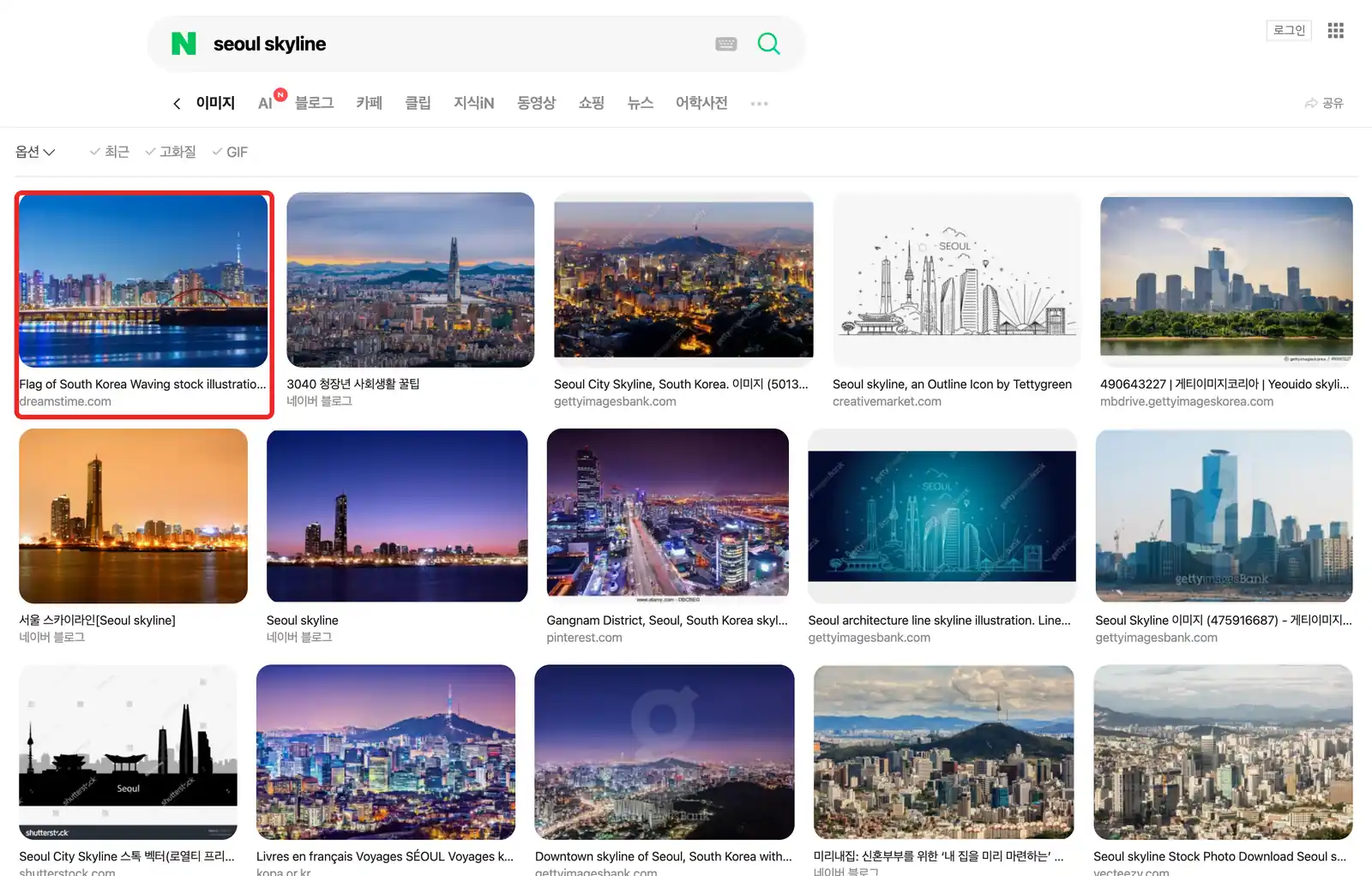
Figure 1: A real Naver image search results page.
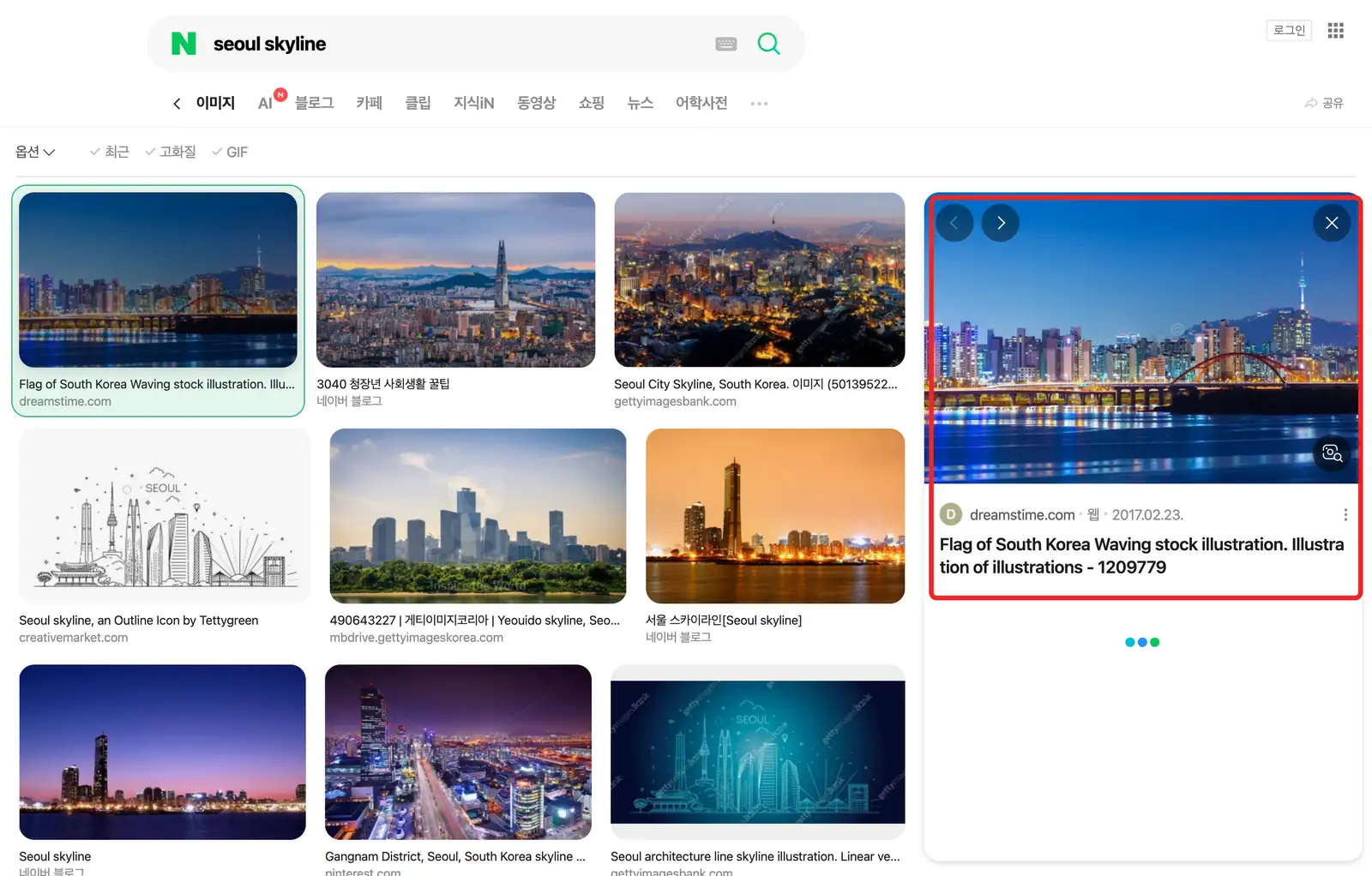
Figure 2: The real preview shown after clicking the same result.
What’s displayed on the web page and what the API returns won’t necessarily match in order or quantity. The search interface changes with region, time, and product updates, so don’t use item-by-item order matching as the sole criterion for “the code is correct.” When collecting data, record the keyword, execution time, and API parameters to make later review easier.
What’s the Difference Between the Naver Search API and Scraping the Image Page
The official Naver Image Search API documentation defines a JSON endpoint at https://openapi.naver.com/v1/search/image. It requires a Client ID and Client Secret from a Naver Developer application, passed via request headers, and returns an items array. Each item can include title, link, thumbnail, sizewidth, and sizeheight. The Python code in this article only reads these publicly documented fields.
| Method | Best for | Watch out for |
|---|---|---|
| Official Image Search API | Bulk retrieval of image search metadata, paginated by parameters | Requires API keys; subject to official quota and field limits |
| Reading the search page in a browser | Observing the cards, previews, and page behavior users actually see | Page structure can change; lazy-loaded results aren’t guaranteed to be complete |
| Downloading image files | Obtaining pixel files for already-authorized uses | Image copyright, source-site restrictions, and download permissions must be verified separately |
Image Search, Maps, and Shopping serve different purposes. Do not treat the response from /v1/search/image as map location or product inventory data. For a broader comparison of the two collection methods, see web scraping vs an API.
Step 1: Register a Naver Application and Confirm the Image API Parameters
Register an application with Naver Developers, enable the Search API, and obtain a Client ID and Client Secret. Don’t put credentials in articles, screenshots, or Git repositories. The official documentation states that image search uses GET, query is required, display allows 1–100 per page, start allows 1–1000, and sort can be sim or date. This script caps one run at 1,000 requested records; that is a script limit, not a claim about the total number of results.
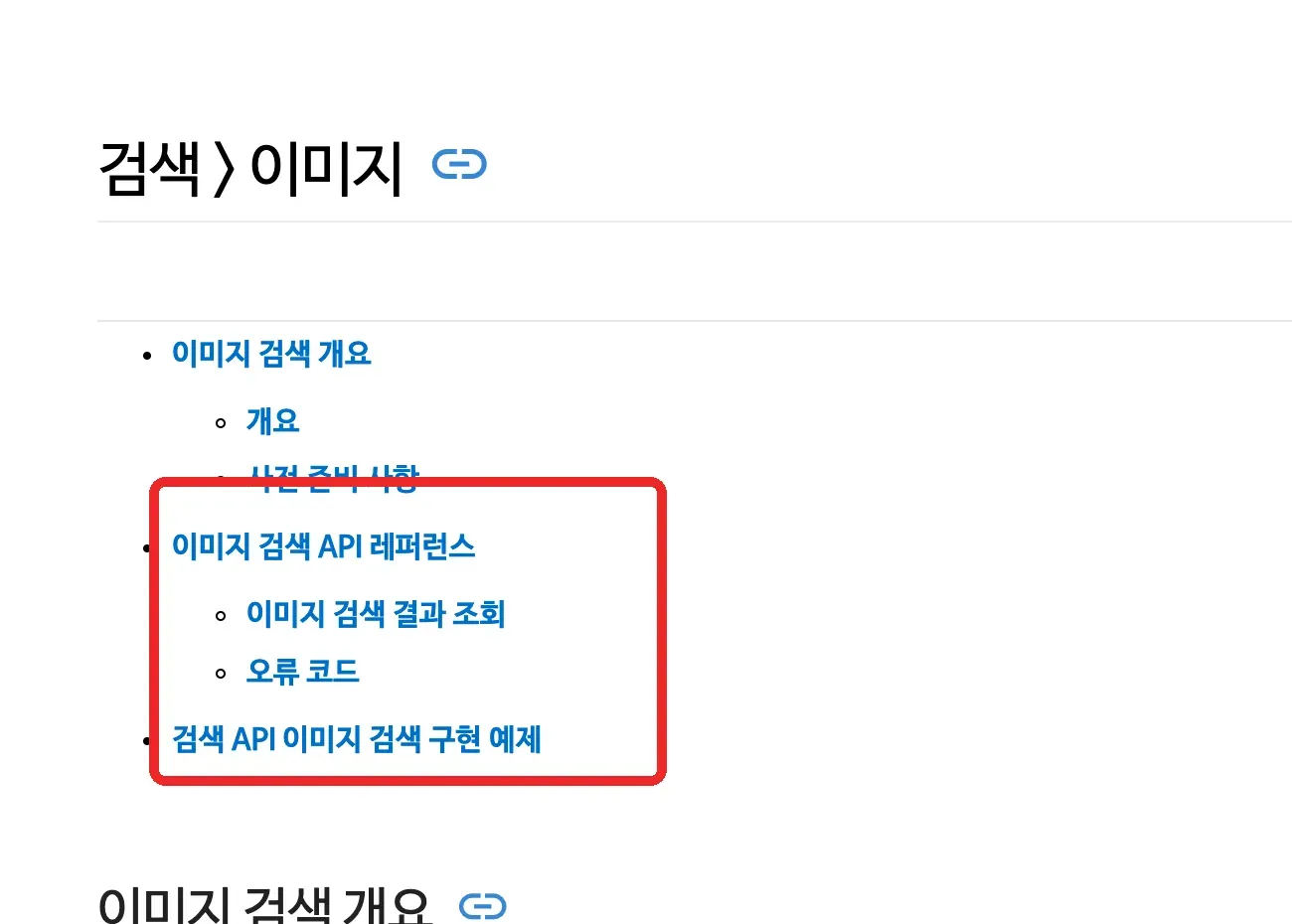
Figure 3: Real Naver Developers image search API documentation.
In the official field table, link is the image URL, thumbnail is the thumbnail URL, and sizewidth/sizeheight are pixel dimensions. title is the title of the document where the image was found — not necessarily the photograph’s official name. The dimension fields are defined as strings in the documentation; the export keeps the original values and does not convert them to floats on its own.
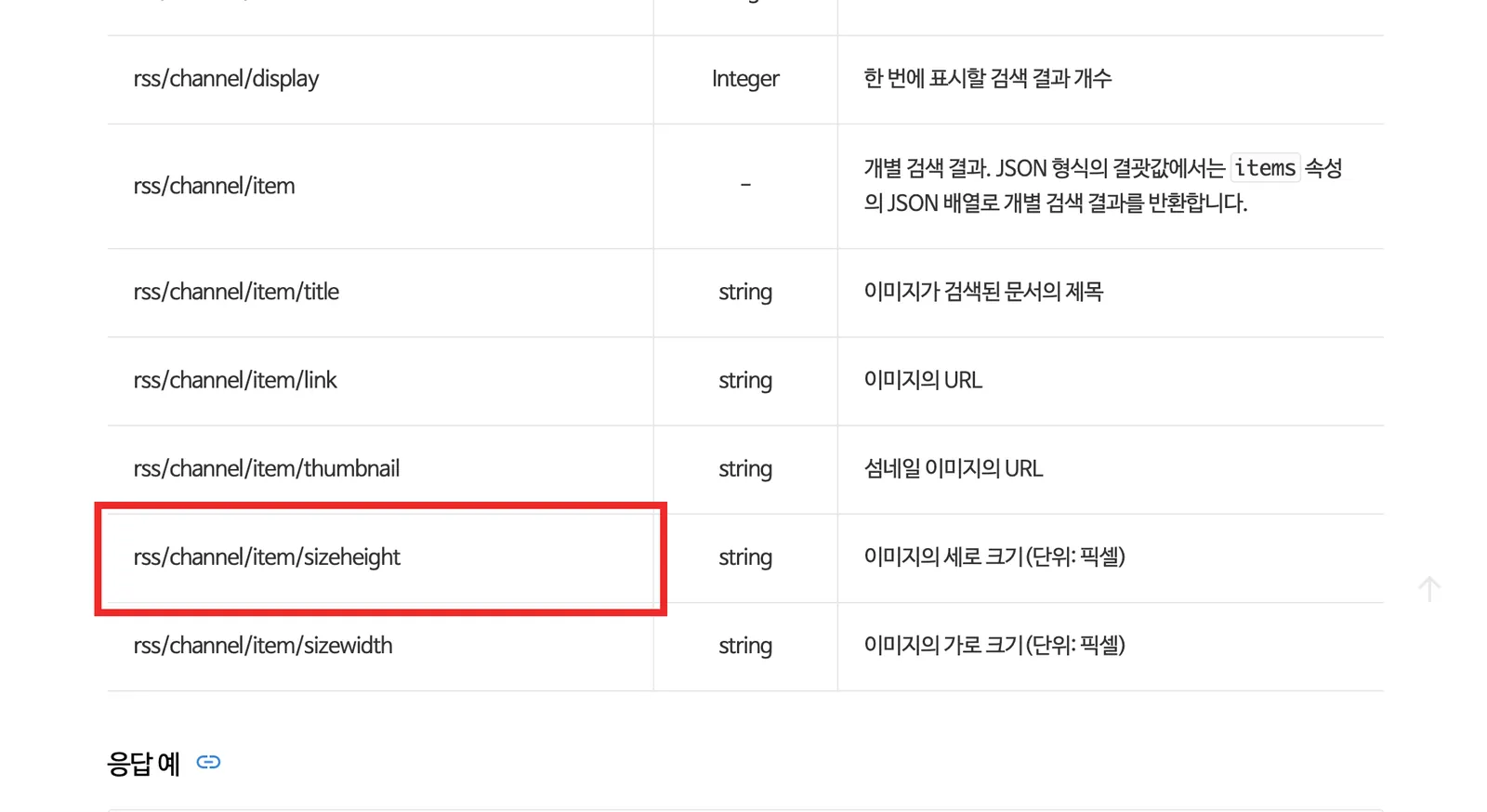
Figure 4: Official Naver field table.
Step 2: Set Up the Python Environment and Store Your Credentials
Create a virtual environment, install requests, and set the credentials only in your current terminal session. On macOS/Linux:
python3 -m venv .venv
source .venv/bin/activate
python -m pip install requests
export NAVER_CLIENT_ID='your Client ID'
export NAVER_CLIENT_SECRET='your Client Secret'
On Windows PowerShell, use the virtual environment interpreter directly:
py -m venv .venv
.\.venv\Scripts\python.exe -m pip install requests
$env:NAVER_CLIENT_ID = 'YOUR_CLIENT_ID'
$env:NAVER_CLIENT_SECRET = 'YOUR_CLIENT_SECRET'
Environment variables only take effect in the current terminal session. Before running the script, confirm that Search API is enabled in your application’s API settings; if you get an HTTP 403, check your application permissions first — don’t try to bypass API authorization by switching proxies.
Verification scope: Offline checks used Windows 10, Python 3.12.10, and requests 2.34.2 on September 24, 2026. They covered mocked API responses and local CSV output, not live Naver access, macOS/Linux execution, Excel rendering, or proxy connectivity.
Step 3: Use Python to Extract Titles, Image Links, and Dimensions
Save the complete code below as naver_image_api.py. It reads credentials from environment variables and paginates using start=1,101,201.... It calls raise_for_status() on every response, so a 401, 403, or 429 will not be recorded as “success with no data.” The command prints a concise diagnostic and exits with a nonzero status on request failure. It does not automatically retry or write a partial CSV; a file left by a previous run remains unchanged. Tags in titles are stripped, and the CSV is written with utf-8-sig encoding so Excel correctly displays Korean and Chinese characters.
"""Export Naver Image Search API metadata to CSV. Requires API credentials."""
import argparse
import csv
import os
import re
from html import unescape

import requests

API_URL = "https://openapi.naver.com/v1/search/image"
FIELDNAMES = ["query", "title", "image_url", "thumbnail_url", "width", "height"]


def clean_title(value):
    return unescape(re.sub(r"<[^>]+>", "", value or ""))


def fetch_images(query, limit, client_id, client_secret, session=None):
    if not 1 <= limit <= 1000:
        raise ValueError("limit must be between 1 and 1000")
    http = session or requests.Session()
    headers = {
        "X-Naver-Client-Id": client_id,
        "X-Naver-Client-Secret": client_secret,
    }
    rows = []
    for start in range(1, limit + 1, 100):
        display = min(100, limit - len(rows))
        response = http.get(
            API_URL,
            headers=headers,
            params={"query": query, "display": display, "start": start, "sort": "sim"},
            timeout=20,
        )
        response.raise_for_status()
        payload = response.json()

        items = payload.get("items", [])
        for item in items:
            rows.append({
                "query": query,
                "title": clean_title(item.get("title")),
                "image_url": item.get("link", ""),
                "thumbnail_url": item.get("thumbnail", ""),
                "width": item.get("sizewidth", ""),
                "height": item.get("sizeheight", ""),
            })
        if len(items) < display:
            break

    return rows


def main():
    parser = argparse.ArgumentParser()
    parser.add_argument("query", help="Search term, for example: seoul skyline")
    parser.add_argument("--limit", type=int, default=100)
    parser.add_argument("--output", default="naver_images.csv")
    args = parser.parse_args()
    client_id = os.environ.get("NAVER_CLIENT_ID")
    client_secret = os.environ.get("NAVER_CLIENT_SECRET")
    if not client_id or not client_secret:
        parser.error("set NAVER_CLIENT_ID and NAVER_CLIENT_SECRET first")
    if not args.query.strip():
        parser.error("query must not be blank")
    if not 1 <= args.limit <= 1000:
        parser.error("limit must be between 1 and 1000")
    try:
        rows = fetch_images(args.query, args.limit, client_id, client_secret)
    except requests.HTTPError as exc:
        response = exc.response
        status = response.status_code if response is not None else None
        advice = {
            400: "Check query, display, start, and sort parameters.",
            401: "Check the Client ID and Client Secret.",
            403: "Check application permissions and whether Search API is enabled.",
            429: "Check daily quota and request rate before retrying; proxies do not increase quota.",
        }.get(status, "Check the API status and documentation before retrying.")
        if status == 429 and response is not None:
            retry_after = response.headers.get("Retry-After")
            if retry_after:
                advice += f" Retry-After: {retry_after}."
        parser.exit(1, f"API request failed (HTTP {status}): {advice}\nNo CSV was written for this run.\n")
    except requests.Timeout:
        parser.exit(1, "Request timed out. Check connectivity before retrying. No CSV was written for this run.\n")
    except requests.RequestException:
        parser.exit(1, "Request or response processing failed. Check connectivity and the API response format. No CSV was written for this run.\n")
    with open(args.output, "w", encoding="utf-8-sig", newline="") as file:
        writer = csv.DictWriter(file, fieldnames=FIELDNAMES)
        writer.writeheader()
        writer.writerows(rows)
    print(f"Saved {len(rows)} rows to {args.output}")


if __name__ == "__main__":
    main()
Example run:
python naver_image_api.py 'seoul skyline' --limit 120 --output naver_images.csv
On Windows PowerShell, run the saved script with the virtual environment interpreter:
.\.venv\Scripts\python.exe naver_image_api.py 'seoul skyline' --limit 120 --output naver_images.csv
On success, the terminal displays Saved N rows to naver_images.csv, where N depends on the results returned for that run — don’t assume it will always equal 120. If no credentials are set, the program exits with an instruction to set the two environment variables. The limit range in the code is 1–1000; since the official start maximum is 1000 and search results and ranking can change over time, this endpoint should not be treated as a tool for unlimited deep pagination.
3.1 How Naver Image API Pagination Is Calculated
Assuming limit=250, the script issues at most three requests: start=1, display=100; start=101, display=100; start=201, display=50. If the second page returns only 30 items, the script stops and does not request the third page. This avoids writing empty pages as data and avoids exceeding the maximum starting position declared in the code.
3.2 Does This Script Deduplicate Image URLs?
No. This script exports the records returned by the API and retains duplicate image URLs. The limit option caps the number of result records requested, not the number of unique images. If your analysis needs one row per image URL, deduplicate the exported CSV by image_url. When combining queries, preserve all associated query terms so you do not lose where each image was found.
Step 4: Validate the CSV Against the API Response
Check the exported columns against the API response: title maps to title, image_url to link, thumbnail_url to thumbnail, and width/height to sizewidth/sizeheight. The query column records your input. Spot-check readable titles, non-empty URLs, and preserved dimension values. Open a small sample of image or thumbnail links where permitted. Do not expect the API ordering or result count to match the browser page.
To open it in Excel, either double-click the CSV directly or import it via “Data → From Text/CSV” and select UTF-8. utf-8-sig helps reduce garbled Korean text, but you should still check the encoding settings across different Excel versions.
When Browser Automation Is More Suitable Than the Naver Search API
If your research focus is on the cards actually displayed on the page, the preview shown on the right after a user clicks, or how the page changes after scroll-based loading, API fields alone aren’t enough to capture this visual and interactive information. For this kind of task, you can use Playwright or Selenium to open the actual image search page, then use browser developer tools to observe the DOM attributes and network requests of the image cards.
Browser-based collection requires waiting for the page to render and for lazy-loaded images. After launching, first confirm the keyword and image tab, then wait for the first screen of cards to appear; after each scroll, wait for the new card count to stabilize; finally, record titles, thumbnails, and sources, and deduplicate by URL. Don’t rely on a specific Naver CSS class staying unchanged long-term, and don’t scroll too quickly in succession, which can cause missed items. After the page structure changes, re-check the real page and update your selectors.
Data collected this way reflects what’s currently visible and loaded in the browser, which isn’t necessarily equal to the API’s total result count. If you need stable, structured queries with pagination, prefer the official API; if you need to study the actual page experience, use a browser and archive page screenshots, access time, and the query term together.
When Does Rola IP Help with Naver Image Search?
Start with a direct connection for the official Image Search API. A proxy does not replace your Client ID and Client Secret or increase the application’s quota. Rola IP is relevant when your authorized task is to compare the image results visible in a browser across network regions; see the Naver regional search QA guide.
Follow the Rola IP quick start to configure the host, port, username, and password, then verify the actual exit IP and location. The rotating residential proxy guide describes country, state, and city targeting; available locations depend on current resources.
For one comparison session, keep the same session ID and use a sessiontime of 1–120 minutes. The proxy configuration parameters documentation says the session will try to keep the same IP during that period. Use different session IDs for independent tests; -f-1 rotates the exit on every request and is unsuitable for a comparison that needs a consistent exit.
For each image-page comparison, record the query, requested region, actual exit IP/location, session ID, timestamp, browser, language, login state, and observed URL. Keep these controls consistent: personalization and timing can affect results as well as network location. A browser proxy extension does not automatically configure an independently running Python requests process.
How to Troubleshoot Common Errors
| Symptom | Check first | Action |
|---|---|---|
| Missing credentials error | Whether both environment variables are set in the current terminal | Re-export the variables; don’t hardcode credentials |
| HTTP 401 or 403 | Client ID, Secret, and the application’s Search API permissions | Verify the application configuration in the developer dashboard |
| HTTP 400 | query, display, start, sort |
Check against the official parameter ranges |
| HTTP 429 | Whether the API message indicates daily quota or per-second rate limits | The script stops on the error. Honor Retry-After if present and lower the request rate before retrying. For daily quota exhaustion, wait for reset or arrange additional access; changing proxies does not resolve it. |
CSV row count lower than limit |
Whether the API returned fewer results | Verify the keyword and the actual items count for that run |
| Image URL won’t open | Whether the source link has changed or has restrictions | Keep the metadata and verify the source separately |
Naver distinguishes daily-quota errors from per-second Search API limits in its common API error guide. The sample does not automatically retry failed requests.
Summary
When collecting Naver image search data, first confirm the cards, previews, and sources on the real page, then read the items array’s title, image link, thumbnail, and dimensions according to the official Image Search API documentation, and finally spot-check with the CSV. The code behavior for pagination, field mapping, and missing credentials was checked with mocked responses; this article does not include a live API run. Actual requests require your own Naver Developer credentials. Browser pages and the API each have their own use cases; Rola IP can be used for authorized, regionalized page observation, but it cannot replace API credentials or expand your official quota.