Web Scraping Shopify with Python: Products, Variants & CSV

Sep 18, 2026 · Guides · 24 min read
When scraping Shopify products, the most important step is identifying where the data displayed on the page actually comes from. The same “price” may be a product’s starting price, the price for the currently selected color, or an amount shown for a different market. Likewise, one product can have multiple SKUs and different availability states.
This tutorial uses the real online Shopify Dawn demo store. Starting with the Puff product page, we will locate the public product JSON, extract the returned color variants, export the data to CSV, and then extend the workflow to a two-page product catalog and structured data in HTML.
You do not need to buy a proxy just to learn from a single page. Add Rola IP only when you need to verify product displays by region or configure an outbound network for authorized ongoing collection.
TL;DR
For authorized web scraping Shopify projects, start with a product’s Ajax JSON or the JSON-LD in its HTML. Export one row per returned variant, and verify price units, currency, and availability against the visible page. This tutorial limits collection to one product, two catalog pages, and one product sub-sitemap. Availability is not an exact inventory count, and a sample is not a complete store export. Add a proxy only when the task requires a particular outbound network or region; an exit IP alone does not determine currency or grant access.
First, Understand What a Shopify Scraper Can Extract
This example uses the Dawn demo product page. The supplied screenshots and exported-data view were captured while the article was being written; the workflow was validated against the live demo store and a Rola IP Rotating Residential connection at that time. Store content and proxy exits may change, so compare your own results with the current page before reusing the workflow.
One Product Does Not Equal One Record
Open the page and you can see Puff, CAD 465.00, color options, and a purchase button. When Emerald is selected, the product can be purchased. When Olive Leaf is selected, that option shows an unavailable state and the purchase button is disabled. Both colors belong to the same product, but they map to different variants and SKUs.
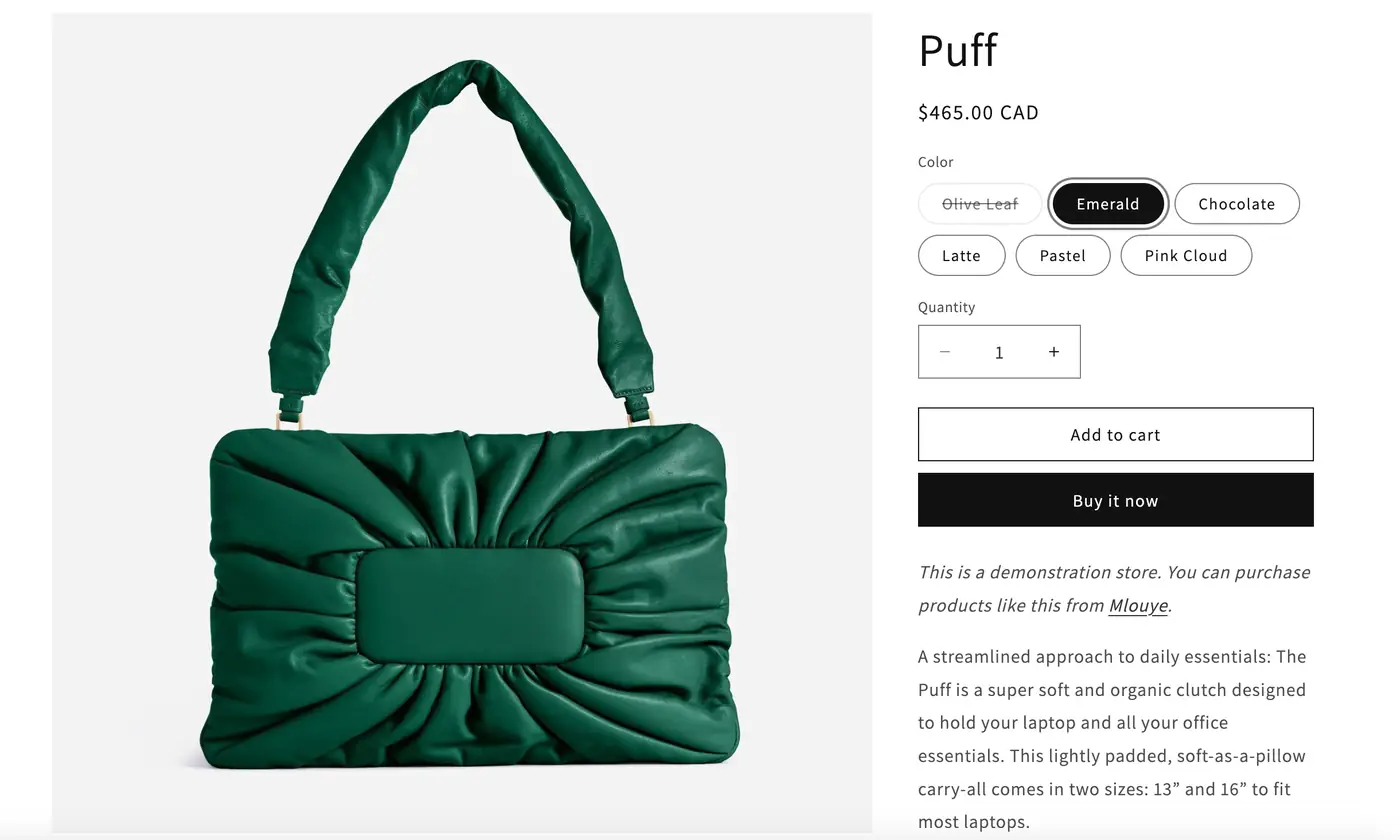
Figure 1: Puff in Emerald. The page shows CAD 465.00, six color options, and an available Add to cart button.
| Page information | Corresponding field or location | Export handling |
|---|---|---|
| Puff product name | title |
Keep the product title; do not overwrite it with the color |
| Colors such as Emerald | variants[].title |
Export each variant as a separate row |
| Product price | variants[].price |
In this Ajax example, convert 46500 to CAD 465.00 |
| Currency CAD | Page display and JSON-LD priceCurrency |
Save it with the price; do not store only a dollar sign |
| Product SKU | variants[].sku |
Keep it as a string and allow empty values |
| Purchasable state | variants[].available |
Save the Boolean value; do not convert it into inventory quantity |
| Product images | images or featured_image |
Usually save the URL; downloading every large image is unnecessary |
| Product description | description or body_html |
This is HTML content; strip tags only when needed |
available=true means the variant is purchasable in the current response. It does not mean “inventory is greater than zero and the exact quantity is known.” Preorders, overselling policies, and other sales rules can affect this state. Likewise, the default value of 1 in a quantity input is the purchase quantity, not warehouse inventory.
Which Shopify Data Source Should You Use: Ajax JSON, JSON-LD, or a Merchant API?
| Data source | Best for | Main limitation |
|---|---|---|
| Single-product Ajax JSON | Known product URL; extracting prices, options, and variants | Paths and theme architecture vary; do not assume every store exposes the same endpoint |
products.json |
Small-scale product discovery and pagination tests | Not supported by every Shopify store and should not be treated as a complete Admin API |
| JSON-LD in HTML | Reading prices, currencies, Offers, and structured variants | May contain only a summary, may be missing, or may be out of sync with the visible page |
| Rendered page | Verifying current selections, popups, and delayed content | More resource-intensive than HTTP requests; selectors require maintenance |
| Authorized merchant API | Complete inventory, orders, and administrative data for your own store | Requires appropriate permissions and is not anonymous public-page scraping |
Preparing for Web Scraping Shopify
Install the Environment and Dependencies
Use Python 3.12 with Requests 2.34.2 and Beautiful Soup 4.15.0 for the example environment. It uses Python’s built-in html.parser, so ChromeDriver, Selenium, and an additional parser are not required. These dependency versions are available on PyPI; they are not a claim that the revised workflow has passed a live integration test. Record your operating system and exact dependency versions when you run it.
Create a new shopify-tutorial folder, open a terminal in it, and run:
python3 -m venv .venv
source .venv/bin/activate
python -m pip install requests==2.34.2 beautifulsoup4==4.15.0
On Windows, run these commands in PowerShell from your tutorial folder:
py -m venv .venv
.\.venv\Scripts\Activate.ps1
python -m pip install requests==2.34.2 beautifulsoup4==4.15.0
If enterprise policy does not allow activation scripts, create the environment as above, skip activation, and install dependencies with its interpreter directly:
.\.venv\Scripts\python.exe -m pip install requests==2.34.2 beautifulsoup4==4.15.0
After saving shopify_scraper.py as described in Step 2, run it with the same interpreter:
.\.venv\Scripts\python.exe shopify_scraper.py
Use the same interpreter path for the other scripts. You do not need to change the system execution policy.
The complete scripts and pinned dependencies are also supplied in the accompanying code/ folder. Keep the five Python files together so they can import shopify_scraper.py.
Define the Test Scope
Before collecting data, review the target store’s robots.txt, terms of use, and the scope of your authorization. This article reads only public product data: single-product JSON, product HTML, two catalog pages, and one product sitemap. It does not log in, add items to a cart, or request order or checkout data. Public visibility and a permissive robots.txt do not by themselves establish permission. Record the applicable access basis and rules before running these examples; stop if collection is not permitted.
In the code, BASE is the store domain and HANDLE is the final part of the product path, puff-olive-leaf. When switching stores, verify the domain, language path, currency, and field structure as well. Do not replace only the product name. If you receive an access-denied page or a verification page, stop and review the permissions and the actual response content first.
Step 1: Locate Public Data from the Product Page
Record What You Need to Verify on the Page
Open the Puff product page, record the product name, currency, and currently selected color, and then switch to Olive Leaf. Observe the color state and the change in the button without clicking the purchase button. This creates a visible reference for the available field used later.
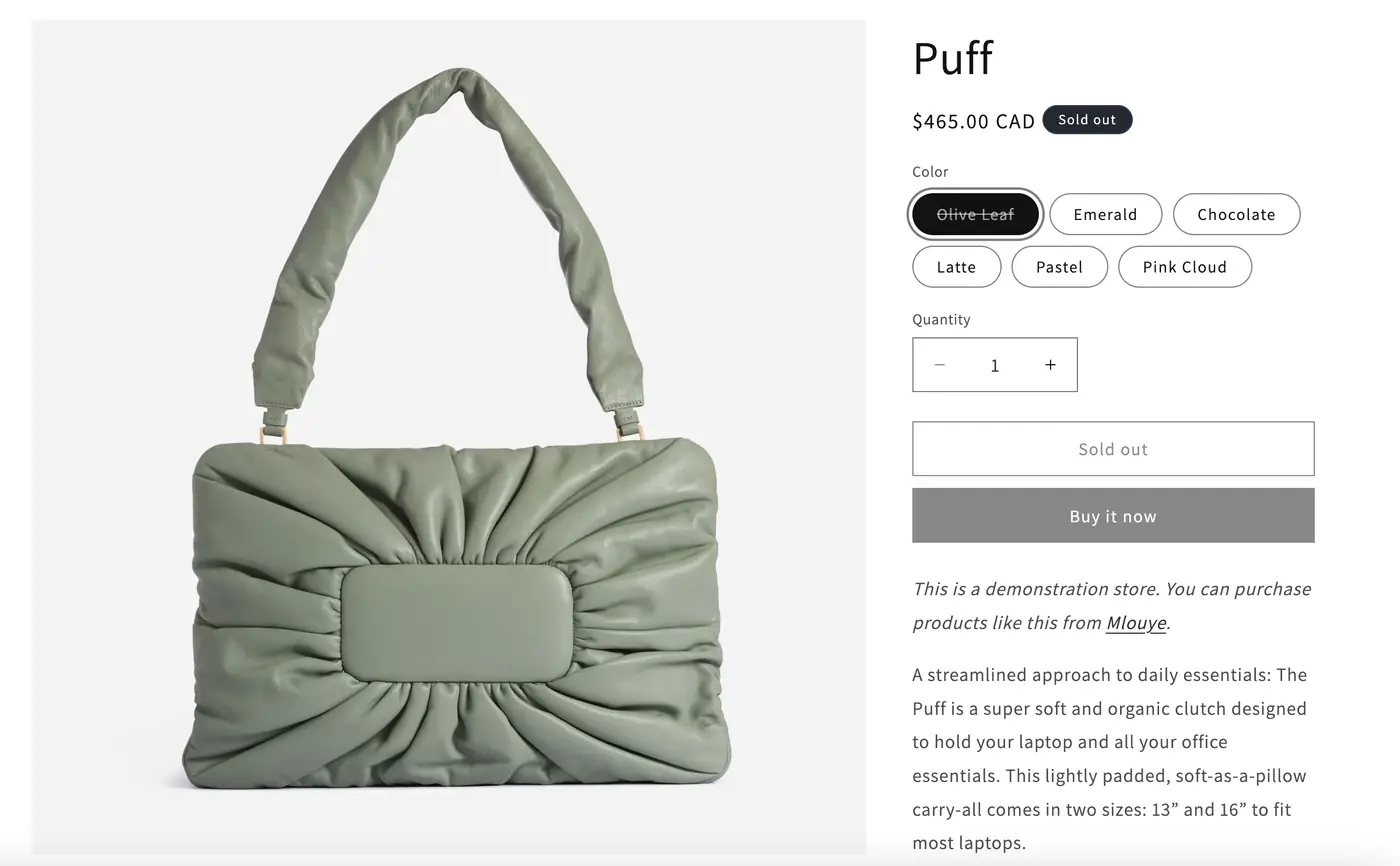
Figure 2: Selecting Olive Leaf changes the product image and displays Sold out.
Find HTML and Network Responses in Developer Tools
On the product page in Chrome, right-click an empty area and select Inspect. On Windows you can also press Ctrl + Shift + I; on Mac, press Command + Option + I. When DevTools appears, select Elements to view the HTML elements for the current page.
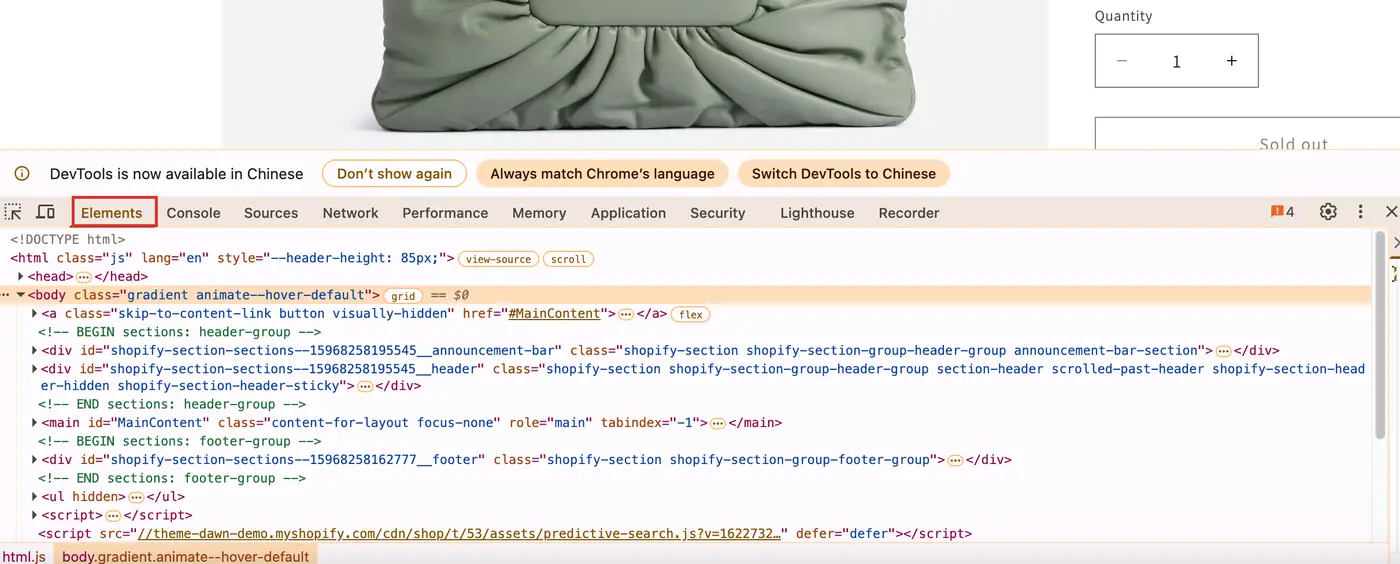
Figure 3: Open Chrome DevTools and select Elements below the product page.
Click any HTML line in the Elements panel, press Ctrl + F (Command + F on Mac), and search for application/ld+json. The search bar at the bottom shows the number of matches. Press Enter or use the arrows beside the search box to move through them. When you find <script type="application/ld+json">, click the small triangle to the left of the line to expand its contents.
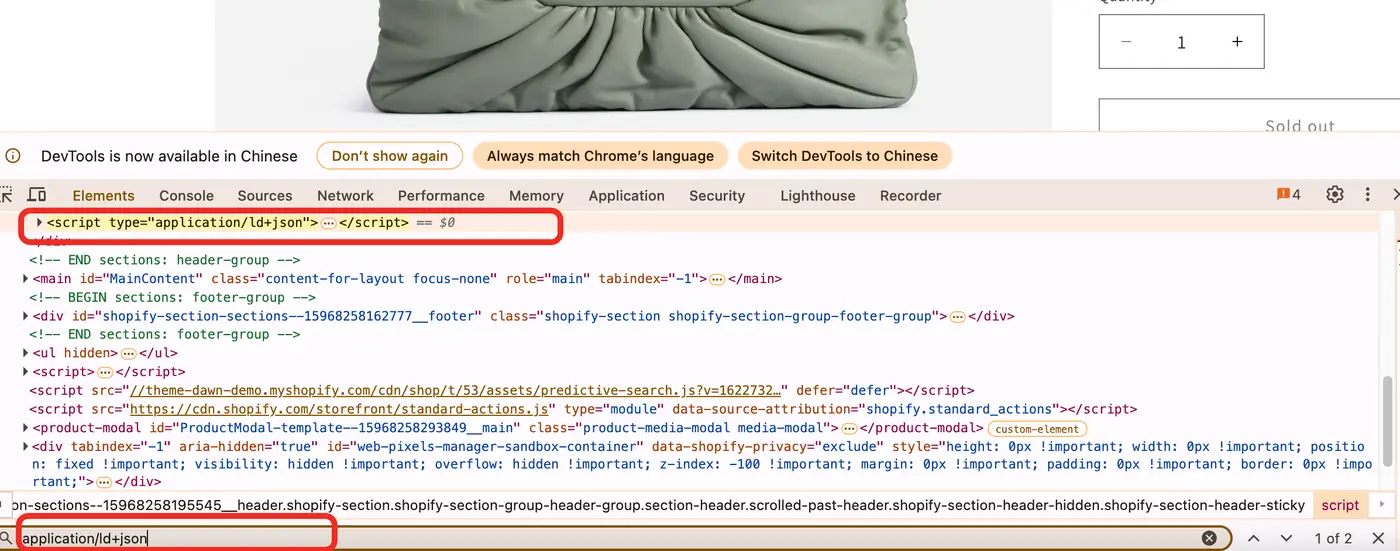
Figure 4: Locate an application/ld+json script in Chrome DevTools; Figure 5 shows its expanded contents.
There is more than one JSON-LD script on this page. You have reached the product data only when you find content that includes ProductGroup and the product name Puff, rather than organization-level website information. The following screenshot shows part of the raw expanded content in DevTools.
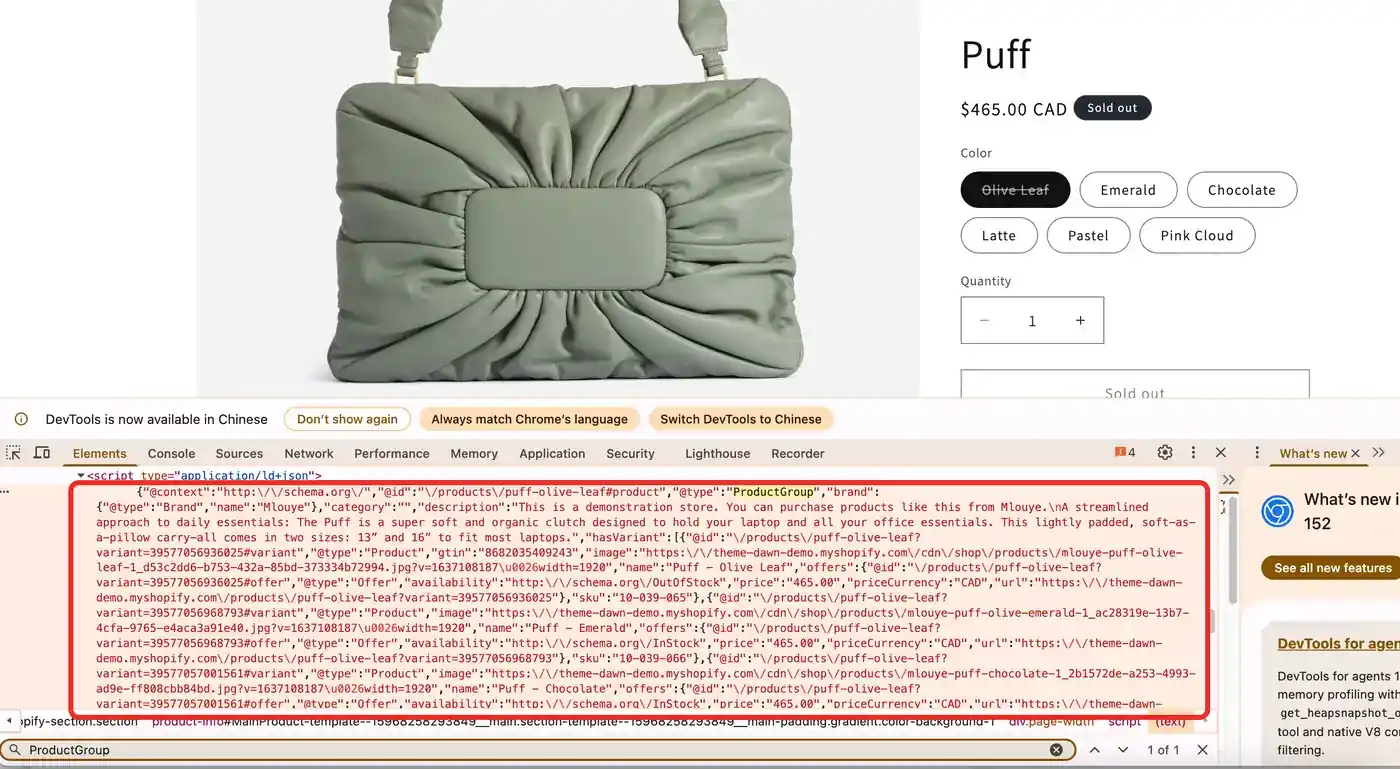
Figure 5: ProductGroup data expanded in Chrome. The original JSON contains variant offers, SKUs, and availability.
Follow the hasVariant array through the product variants, then inspect their offers. In the screenshot, the Olive Leaf offer contains price: "465.00", priceCurrency: "CAD", OutOfStock, and SKU 10-039-065. Emerald is InStock with SKU 10-039-066. These values correspond to the purchase states shown in Figures 1 and 2. The JSON-LD price is already a decimal amount, so do not divide it by 100 again.
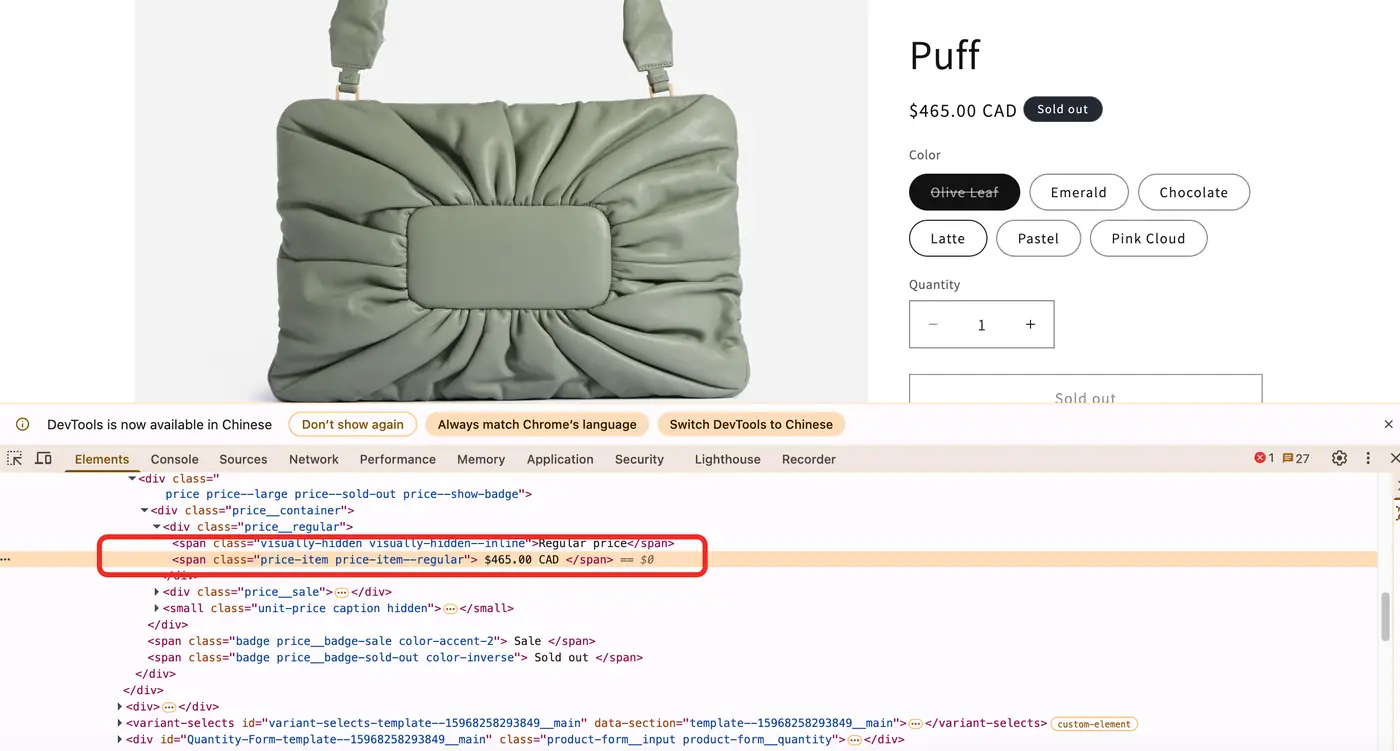
Figure 6: The visible price in the HTML DOM. This is an HTML element, not a JSON-LD Offer.
This is data received and displayed by the browser, not Shopify Admin source code or a database. Elements shows the current DOM. In Step 4, the script will also request the HTML directly to confirm whether the offers are present in the server response.
Switch Colors and Identify the Real Product Request
Open Network, refresh the page, select Fetch/XHR, and switch the color to Pink Cloud. Inspect the newly added requests instead of assuming that every 200 response is product data. Entries such as metrics and collect should not automatically be treated as price endpoints.
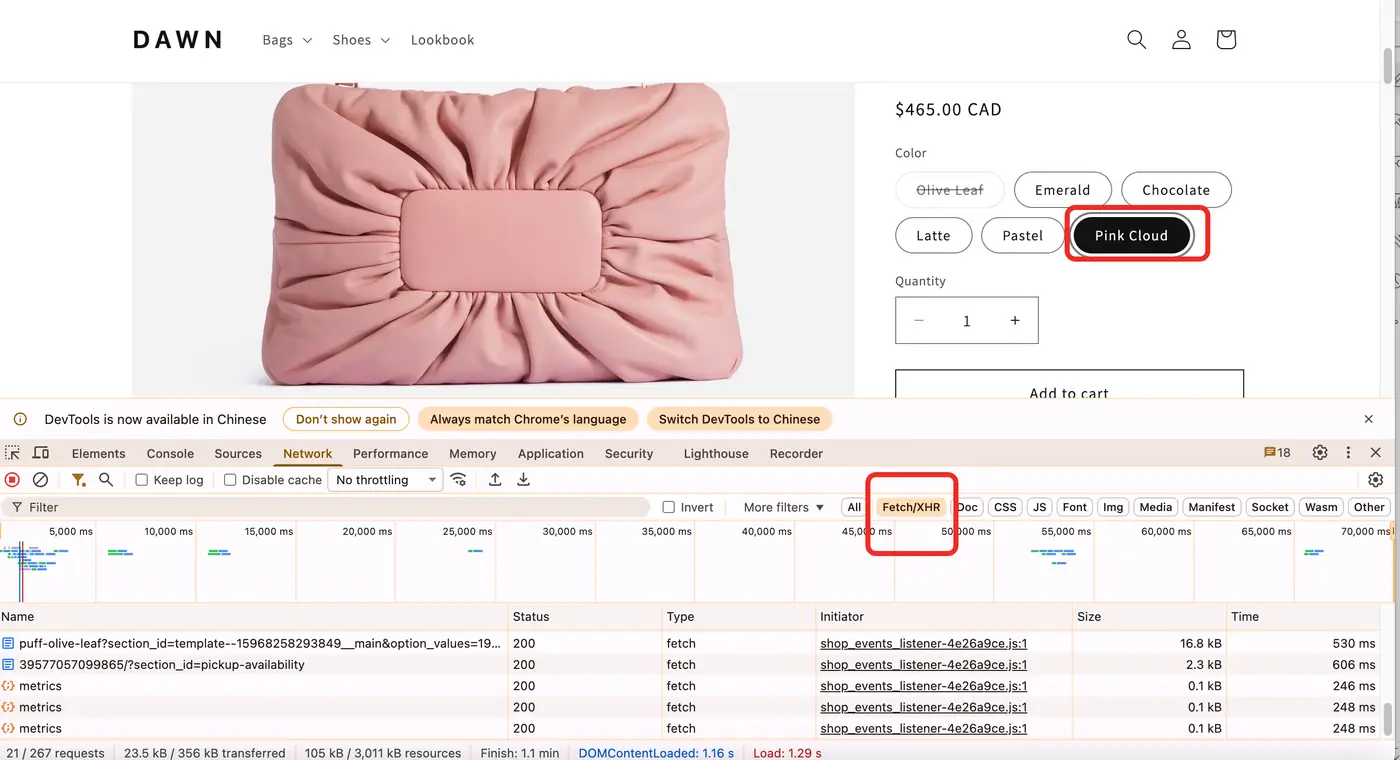
Figure 7: Select Pink Cloud and inspect the product-related requests under Network and Fetch/XHR.
The screenshot shows a request beginning with puff-olive-leaf?section_id=... and another containing section_id=pickup-availability. The first relates to a product-page section, while the second relates to pickup availability. Neither should be treated automatically as complete product JSON or exact inventory quantity. Fetch/XHR describes the request type; it does not guarantee that the response format is JSON.
Click the target request name, verify the Request URL under Headers, and then inspect the actual content under Response. If the response is HTML, parse it as HTML. If it is JSON, inspect its field structure. If no independent JSON request appears, continue using the JSON-LD method above. You can also select Doc and inspect the product document response, but that is optional for this example.
Build a Field Mapping with the Single-Product Endpoint
For the Online Store page in this example, the public product request is:
According to the Shopify Ajax Product API, the single-product endpoint uses the product handle and requests should account for locale-aware paths. Amounts in the response are related to the customer-facing currency. The response contains a maximum of 250 variants, so do not treat it as a complete export for products with more variants. Documentation checked September 18, 2026.
The first variant in this example is Olive Leaf: price is 46500, available is false, and SKU is 10-039-065. Converted to CAD, the price is 465.00, matching the page. JSON-LD, by contrast, directly returns the string "465.00", so it must not be divided by 100.
Step 2: Extract Product Prices and Returned Variants with Python
Save the Request and Field-Conversion Code
Create shopify_scraper.py. Put the following three code blocks into the same file in order. They handle requests, field conversion, and file export; they are not three unrelated scripts.
The first section creates a session and fetches JSON. It uses connection and read timeouts and does not disable HTTPS certificate verification. trust_env=False prevents an existing environment proxy on your computer from silently affecting the direct-connection baseline. Rola IP will be configured explicitly later.
import csv
import json
from datetime import datetime, timezone
from email.utils import parsedate_to_datetime
from decimal import Decimal
from pathlib import Path

import requests

BASE = "https://theme-dawn-demo.myshopify.com"
HANDLE = "puff-olive-leaf"
OUT = Path("results")


def make_session():
    session = requests.Session()
    session.trust_env = False
    session.headers["User-Agent"] = "ShopifyTutorial/1.0"
    return session


def retry_after_message(value):
    if value:
        try:
            if value.strip().isdigit():
                seconds = int(value.strip())
            else:
                deadline = parsedate_to_datetime(value)
                if deadline.tzinfo is None:
                    raise ValueError("Retry-After date must include a timezone")
                seconds = max(0, int((deadline - datetime.now(timezone.utc)).total_seconds()) + 1)
            return f"Wait at least {seconds} seconds before considering a rerun."
        except (TypeError, ValueError, OverflowError):
            pass
    return "Pause collection and confirm the permitted rate before rerunning."


def get_response(session, url, **kwargs):
    try:
        response = session.get(
            url, timeout=(10, 30), allow_redirects=False, **kwargs
        )
    except requests.exceptions.ProxyError:
        raise RuntimeError("Proxy connection failed; check gateway and authentication.") from None
    except requests.exceptions.SSLError:
        raise RuntimeError("TLS verification failed; check the certificate and trust configuration.") from None
    except requests.exceptions.Timeout:
        raise RuntimeError("Request timed out; check connectivity before rerunning.") from None
    except requests.exceptions.ConnectionError:
        raise RuntimeError("Connection failed; check DNS, host, port, and network access.") from None
    except requests.exceptions.RequestException:
        raise RuntimeError("Request failed; inspect sanitized diagnostics.") from None

    status = response.status_code
    if 300 <= status < 400:
        raise RuntimeError("Redirect received; verify the destination before changing the URL.")
    if status == 429:
        raise RuntimeError("HTTP 429: " + retry_after_message(response.headers.get("Retry-After")))
    messages = {
        403: "Access denied; stop and confirm the permitted access method.",
        407: "Proxy authentication failed; check the supported authentication mode.",
        404: "Not found; verify the handle, locale, and endpoint.",
    }
    if status >= 400:
        raise RuntimeError(f"HTTP {status}: " + messages.get(status, "Stop and review the response."))
    return response


def get_json(session, url, **kwargs):
    response = get_response(session, url, **kwargs)
    # Shopify .js can contain JSON with a JavaScript content type.
    if response.text.lstrip().startswith("<"):
        raise ValueError("Received HTML instead of product JSON")
    try:
        data = response.json()
    except ValueError:
        raise ValueError("Invalid JSON; inspect the response format") from None
    if not isinstance(data, dict):
        raise ValueError("Expected a JSON object")
    return data
Do not check only whether Content-Type contains json. In this example, the .js request returns JSON content, but its response type may be JavaScript. The code first rules out HTML, then uses the JSON decoder and checks the object type. Later steps also validate the product ID and variants.
These examples make one attempt per request and stop on errors; they do not retry automatically. For HTTP 429, the shared request helper reads Retry-After as either seconds or an HTTP date and reports the minimum wait before a possible rerun. If the header is missing or invalid, pause and confirm the permitted rate. A 403 or 407 requires resolving access or authentication first. Redirects also stop the run so a changed destination cannot silently expand the collection scope.
The second section converts each variant into one row. This example uses the CAD amount scale illustrated above and uses Decimal to avoid floating-point price errors. Before using another currency, verify the amount representation rather than carrying the CAD label into another market unchanged.
def variant_rows(product, currency="CAD"):
    # Compare the CAD amount with the current visible product page before use.
    if currency != "CAD":
        raise ValueError("Verify price scaling before adding another currency")

    variants = product.get("variants")
    if not product.get("id") or not isinstance(variants, list) or not variants:
        raise ValueError("Missing product ID or variants")

    captured = datetime.now(timezone.utc).isoformat()
    rows = []

    for variant in variants:
        raw_price = variant["price"]
        if type(raw_price) is not int:
            raise ValueError("Ajax price must be an integer")

        price = Decimal(raw_price) / Decimal(100)
        compare = variant.get("compare_at_price")
        if compare is not None and type(compare) is not int:
            raise ValueError("Ajax comparison price must be an integer or null")
        if type(variant.get("available")) is not bool:
            raise ValueError("Variant availability must be a Boolean")
        compare_price = None if compare is None else Decimal(compare) / 100

        rows.append({
            "product_id": str(product["id"]),
            "title": product["title"],
            "variant_id": str(variant["id"]),
            "variant": variant["title"],
            "sku": variant.get("sku") or "",
            "price": format(price, ".2f"),
            "currency": currency,
            "available": variant["available"],
            "compare_at_price": (
                "" if compare_price is None else format(compare_price, ".2f")
            ),
            "is_discounted": compare_price is not None and compare_price > price,
            "url": f"{BASE}/products/{product['handle']}?variant={variant['id']}",
            "captured_at": captured,
        })

    if len({row["variant_id"] for row in rows}) != len(rows):
        raise ValueError("Duplicate variant IDs")

    return rows
When compare_at_price is empty, keep it empty rather than writing 0. is_discounted is true only when the comparison price is higher than the current price. Even then, it does not prove that a cart discount, member price, or checkout promotion has already been applied.
Export CSV and JSON, Then Run the Script
The third section saves the raw response and converted results. The CSV uses UTF-8 with BOM for easier reading in Excel, while JSON preserves Boolean values that are better suited to programmatic processing. Duplicate variant IDs cause the script to stop rather than silently exporting duplicate records.
def save_rows(rows, stem):
    if not rows:
        raise ValueError("No rows to export")

    OUT.mkdir(exist_ok=True)
    (OUT / f"{stem}.json").write_text(
        json.dumps(rows, ensure_ascii=False, indent=2), encoding="utf-8"
    )

    with (OUT / f"{stem}.csv").open("w", newline="", encoding="utf-8-sig") as file:
        writer = csv.DictWriter(file, fieldnames=list(rows[0]))
        writer.writeheader()
        writer.writerows(rows)


def main():
    OUT.mkdir(exist_ok=True)
    with make_session() as session:
        product = get_json(session, f"{BASE}/products/{HANDLE}.js")
        (OUT / "product_raw.json").write_text(
            json.dumps(product, ensure_ascii=False, indent=2), encoding="utf-8"
        )

        rows = variant_rows(product)
        save_rows(rows, "puff_variants")

        print(f"Product: {product['title']}")
        print(f"Variants: {len(rows)} | Currency: CAD")
        for row in rows:
            print(row["variant"], row["sku"], row["price"], row["available"])
        print("Saved: results/puff_variants.csv and results/puff_variants.json")


if __name__ == "__main__":
    main()
After saving all three blocks, run:
python shopify_scraper.py
The program creates a results folder. product_raw.json contains the endpoint response, while puff_variants.json and puff_variants.csv contain the normalized results. The supplied spreadsheet screenshot shows six color variants at CAD 465.00, with Olive Leaf marked false and the other five marked true. Treat that image as a historical visual reference, not a guaranteed result of a new run.
Check Whether the Exported Data Is Actually Usable
Open the CSV and verify the Olive Leaf and Emerald rows first. Do not stop at confirming that the file was created. The product ID should be the same, while variant IDs and SKUs should differ. The currency should be CAD, and availability should match the corresponding color.
Excel may automatically convert long IDs to scientific notation. When importing, set the product_id and variant_id columns to text. For later programmatic processing, prefer the JSON file, where the IDs remain strings. Save captured_at for every collection run; otherwise, when a price changes days later, it becomes difficult to distinguish a real page change from a scraping error.
Inspect the CSV in Excel
The script creates CSV and JSON files, not an Excel workbook. Import your generated CSV into Excel, keep product IDs, variant IDs, and SKUs as text, and check the price and Boolean columns before optionally saving it as .xlsx. Preserve url and captured_at in your own export so records remain traceable. Figure 8 shows the supplied spreadsheet view; no downloadable workbook or original run log accompanies that screenshot.

Figure 8: Supplied spreadsheet screenshot of six Puff variants. The collection timestamp is not visible in this crop.
Step 3: Paginate Through a Shopify Product Catalog
Validate Pagination with Two Pages Instead of Scraping the Entire Store
Knowing one product handle lets you fetch only one product. To discover more products, first test the target store’s products.json. This example uses limit=2&page=1 and limit=2&page=2, deliberately limiting each page to two products so you can verify that page 2 returns new records.
Create catalog.py in the same directory as shopify_scraper.py. It reuses the request functions already defined, but saves the raw catalog data instead of passing catalog prices through the Ajax integer-conversion function.
import json
import time

from shopify_scraper import BASE, OUT, get_json, make_session


def collect(session, max_pages=2, limit=2):
    products, seen = [], set()

    for page in range(1, max_pages + 1):
        data = get_json(
            session,
            f"{BASE}/products.json",
            params={"limit": limit, "page": page},
        )

        batch = data.get("products")
        if not isinstance(batch, list):
            raise ValueError("Missing products list")
        if not batch:
            break

        fresh = [p for p in batch if p["id"] not in seen]
        if not fresh:
            raise ValueError("Repeated page; stop and inspect pagination")

        for product in fresh:
            if product["id"] not in seen:
                seen.add(product["id"])
                products.append(product)

        print(f"Page {page}: {len(batch)} products | Unique total: {len(seen)}")

        if page < max_pages:
            time.sleep(2)

    if not products:
        raise ValueError("No products returned; inspect the catalog response")
    return products


if __name__ == "__main__":
    with make_session() as session:
        products = collect(session)
        OUT.mkdir(exist_ok=True)
        (OUT / "catalog_sample.json").write_text(
            json.dumps(products, ensure_ascii=False, indent=2), encoding="utf-8"
        )
        print("Saved: results/catalog_sample.json")
        print("Bounded sample only; not a complete store inventory")
Run python catalog.py. Check the printed unique-product count and saved IDs. Two pages with two distinct products each would produce four unique products; this is a success check, not a recorded result of the revised script. The script waits two seconds between requests, stops on an empty page, raises an error on a repeated page, and reads no more than the specified maximum number of pages.
max_pages=2 is a teaching sample limit, not a signal that the whole store has been scraped. Before expanding collection, obtain appropriate authorization and define a request budget, failure logging, and checkpoints. Products can also be added or removed while the store is being collected, changing pagination order. Deduplication by ID removes repeats but cannot guarantee that nothing was missed.
Do Not Interpret Fields from Different Endpoints as If They Were Identical
In this example, variants[].price from the catalog endpoint is an amount string such as "465.00", while the single-product .js endpoint returns 46500. Both are valid, but they should not be passed into the same “divide by 100” function. Catalog product descriptions commonly use body_html, while the Ajax example uses description.
For that reason, use the catalog stage mainly to obtain handles and IDs. If you need a unified format, write a separate conversion layer for each source and save the source_url or source type. A shared field name does not prove that the unit, structure, or meaning is the same.
Step 4: Supplement Collection with HTML Structured Data and Sitemaps
Parse Product Offers Inside ProductGroup
If the catalog endpoint is unavailable but the public product page loads normally, inspect the JSON-LD in the HTML. Create the following script as inspect_html.py. It saves the actual HTML and recursively finds Offer objects, supporting the ProductGroup and hasVariant structure used in this example as well as common nested arrays.
import json
from pathlib import Path

from bs4 import BeautifulSoup

from shopify_scraper import BASE, HANDLE, get_response, make_session


def walk(value):
    if isinstance(value, dict):
        yield value
        for child in value.values():
            yield from walk(child)
    elif isinstance(value, list):
        for child in value:
            yield from walk(child)


def extract_offers(html):
    soup = BeautifulSoup(html, "html.parser")
    offers = []

    for script in soup.find_all("script", type="application/ld+json"):
        try:
            data = json.loads(script.string or script.decode_contents())
        except json.JSONDecodeError:
            continue

        for item in walk(data):
            if item.get("@type") == "Offer" and "price" in item:
                offers.append(item)

    if not offers:
        raise ValueError("No price offers found; inspect this theme")

    return offers


if __name__ == "__main__":
    with make_session() as session:
        response = get_response(session, f"{BASE}/products/{HANDLE}")

        Path("results").mkdir(exist_ok=True)
        Path("results/product.html").write_text(response.text, encoding="utf-8")

        offers = extract_offers(response.text)
        Path("results/offers.json").write_text(
            json.dumps(offers, indent=2), encoding="utf-8"
        )

        print(f"HTML status: {response.status_code} | Offers: {len(offers)}")
        for offer in offers:
            print(offer["price"], offer.get("priceCurrency"), offer.get("availability"))
Run python inspect_html.py, then compare each returned Offer with the current Ajax variant by URL, price, currency, and availability. Do not infer a successful match from the number of Offers alone. If no offers are found, the script fails explicitly instead of creating a misleading “successful but empty” output file.
Figure 5 shows variant Offers in the JSON-LD; Figure 6 shows the visible HTML price element. The script reads the server response, parses the same structure, and saves the result to a file. When comparing the sources, check price, currency, availability, and variant links rather than only the product name.
This parser recursively extracts explicit Offer objects throughout the page, without preserving their parent Product context. It is scoped to inspecting this example: before reusing it on a page with recommendations or several products, filter by the target product and variant URLs and deduplicate the records. It extracts only Offers that actually exist. It does not infer missing inventory and does not guarantee that every theme uses the same schema. If a page contains AggregateOffer, multiple sellers, or other offer types, inspect the structure before changing the parsing rules. For the organization of ProductGroup and variants, see Google’s product variant structured data documentation.
Discover Product URLs from a Sitemap
A sitemap answers “where are the product links?” rather than “what is the price?” Shopify stores commonly have a sitemap index that points to product sub-sitemaps. See the Shopify sitemap documentation for the related mechanism.
Create sitemap_urls.py as shown below. It reads only the first product sub-sitemap and keeps three product URLs rather than recursively crawling the entire site. The XML is parsed with a namespace so the default namespace does not cause an empty result.
import xml.etree.ElementTree as ET
from urllib.parse import urlsplit

from shopify_scraper import BASE, OUT, get_response, make_session


def read_xml(session, url):
    if (urlsplit(url).scheme, urlsplit(url).netloc) != (urlsplit(BASE).scheme, urlsplit(BASE).netloc):
        raise ValueError("Stop at a cross-domain sitemap")
    response = get_response(session, url)
    return ET.fromstring(response.content)


if __name__ == "__main__":
    ns = {"s": "http://www.sitemaps.org/schemas/sitemap/0.9"}

    with make_session() as session:
        index = read_xml(session, BASE + "/sitemap.xml")
        links = [node.text for node in index.findall("s:sitemap/s:loc", ns)]
        product_map = next(
            (u for u in links if u and "sitemap_products" in u), None
        )
        if product_map is None:
            raise ValueError("No product sitemap found in this index")

        root = read_xml(session, product_map)
        urls = list(dict.fromkeys(
            node.text
            for node in root.findall("s:url/s:loc", ns)
            if node.text and "/products/" in urlsplit(node.text).path
            and (urlsplit(node.text).scheme, urlsplit(node.text).netloc)
            == (urlsplit(BASE).scheme, urlsplit(BASE).netloc)
        ))[:3]
        if not urls:
            raise ValueError("No in-scope product URLs found; inspect the sitemap")

        OUT.mkdir(exist_ok=True)
        (OUT / "sitemap_sample.txt").write_text("\n".join(urls), encoding="utf-8")

        print(f"First product sitemap: {len(urls)} sample URLs")
        for url in urls:
            print(url)
Run python sitemap_urls.py. The script saves up to three unique, same-origin product URLs and fails if none are found; the specific handles depend on the current sitemap. After discovering the links, verify that each page is accessible and then choose either Ajax or HTML parsing. A store may have multiple product sub-sitemaps, so the returned URLs are only a bounded sample.
How to Handle Dynamic Pages and Regional Pricing
Check Existing Responses Before Reaching for Browser Automation
A page that looks dynamic does not necessarily require browser automation. The supplied DevTools screenshots show structured offers in the DOM while variant selection changes the interface. Use inspect_html.py to verify separately that the current server HTML contains the required offers. Check whether the target fields are present in the HTML and public responses before using Selenium.
Use Playwright or Selenium only when the required field is genuinely generated after JavaScript execution or user interaction. Open the page, select the target variant or market, wait for the specific price element or data response to update, and then read the current value. The wait condition should target a specific element or response rather than sleeping for a fixed number of seconds. Do not treat all text in the DOM as the current price because themes may keep hidden original and promotional prices at the same time.
A Regional Exit IP Is Not a Currency Switch
When collecting U.S. and Canadian market displays, IP region is only one variable. The store domain, locale path, country selector, cookies, tax rules, and current variant can all affect what is shown. Switching to a U.S. exit does not automatically make the amount USD. Verify the currency from the actual page or corresponding response every time.
Keep market settings and session conditions consistent within the same batch. When comparing regions, create separate sessions and record region, currency, product ID, variant ID, and collection time before comparing prices. Do not treat amounts from different colors, tax systems, or promotion conditions as a regional price difference for the same product.
Configure Rola IP for a Shopify Web Scraper
When a Proxy Is Worth Using
For authorized cross-region product-display verification, ongoing price observation, or standardized outbound network management for a team, you can connect Rola IP residential proxies to Requests. Residential proxies are suitable when a residential-network exit is required. Requests for the same product page, JSON, and verification workflow should stay in the same session and region where possible so different market conditions are not mixed between requests.
If a task needs a stable outbound IP for a longer period, evaluate whether a static residential proxy is a better fit. A fixed IP is not the same thing as a Requests Session: the Session reuses connections and cookies, while whether the proxy keeps the same exit depends on the proxy product and session configuration.
For product-price tasks, the important metric is the cost per valid, comparable record rather than the raw number of requests. Request only the necessary HTML and JSON, avoid repeatedly downloading large images, and choose an outbound strategy that fits price monitoring instead of increasing concurrency without limits. A proxy does not guarantee that 403, 429, or store access restrictions will disappear.
Before paying for an ongoing task, check the selected product’s billing unit, minimum purchase, traffic expiry, and treatment of failed or retried traffic. Start with one concurrent request, keep one region and session configuration for each comparison batch, and choose the session duration required for that batch. Set a request or traffic budget before scaling and stop at that limit or on unresolved access errors; this tutorial does not establish a production concurrency allowance or quote a package price.
Add Real Connection Parameters to the Script
This example uses Rola IP Rotating Residential with username/password authentication over an HTTP proxy. The Rotating Residential configuration guide documents this product’s host, port, username, password, location targeting, and session controls. The connection workflow was validated with a Rola IP account while this article was being written; verify the current product settings before reuse. Official documentation checked September 18, 2026.
- In the dashboard, open Account Management → Account List and create or select an enabled proxy sub-account. Use its proxy credentials, rather than assuming your website login password is the proxy password.
- Open Residential Settings, select the account, and choose the HTTP connection details. Copy the generated host, HTTP port, full username, and password. Use the dashboard’s values rather than hard-coding a gateway or borrowing a SOCKS5 port.
- Set the region and session for the task in the generated username. The product documentation uses
test_1-country-us-sessiontime-10as a formatting example:testis the placeholder account name,_1identifies a session,country-usrequests a U.S. exit, andsessiontime-10requests a 10-minute session. The documented session-time range is 1–120 minutes. Paste your own generated username into the script, including its suffixes; do not enter this placeholder literally. - Reuse the same full username for requests that should share a region and session. A session attempts to retain the exit IP for the requested duration; verify continuity if it matters to the task. Avoid
-f-1in this comparison workflow because it requests a new IP for every request. A U.S. exit still does not prove that the store returned USD; this example’s CAD conversion requires checking the actual displayed currency. - If the sub-account has IP Whitelist Limit enabled and its account whitelist contains entries, ensure that the machine’s current public IP is included. This restricts who may use the credentials; it is different from credential-free API Whitelist Access. Keep the account enabled and within its configured traffic quota.
The current residential and parameter guides use an underscore session ID, such as test_1, with sessiontime. The Python integration page also contains an account/password example, but its sample uses a different -sid- spelling. For this workflow, use the username generated by Residential Settings and the syntax above; do not combine the two session formats. The script accepts the full generated username unchanged before URL-encoding it.
Create rola_proxy.py. It reads parameters interactively and hides both the username and password input so credentials are not written into the source code, shell history, or screenshots. This example uses an HTTP proxy configuration. HTTPS targets can establish a CONNECT tunnel through an HTTP proxy, so the https entry in the dictionary does not mean the proxy URL itself must begin with https://.
from getpass import getpass
from urllib.parse import quote

from shopify_scraper import BASE, HANDLE, get_json, make_session, variant_rows


def configure_proxy(session, host, port, username, password):
    if not host or any(c.isspace() or c in "/:@" for c in host):
        raise ValueError("Enter a gateway hostname only")
    if not str(port).isdigit() or not 1 <= int(port) <= 65535:
        raise ValueError("Invalid proxy port")

    if not username or not password:
        raise ValueError("Username and password are required for this authentication mode")

    user = quote(username, safe="")
    secret = quote(password, safe="")
    proxy_url = f"http://{user}:{secret}@{host}:{port}"
    session.proxies.update({"http": proxy_url, "https": proxy_url})


if __name__ == "__main__":
    host = input("Rola IP gateway hostname: ").strip()
    port = input("HTTP proxy port: ").strip()
    username = getpass("Full generated residential proxy username, including suffixes (hidden): ")
    password = getpass("Proxy password (hidden): ")

    try:
        with make_session() as session:
            configure_proxy(session, host, port, username, password)
            product = get_json(session, f"{BASE}/products/{HANDLE}.js")
            rows = variant_rows(product)
            print("Product JSON received:", product["title"], "| Validated variants:", len(rows))
    except RuntimeError as error:
        # The shared request helper produces sanitized messages.
        print("Request failed:", str(error))
        raise SystemExit(1)
    except Exception as error:
        # Do not print other exceptions that may contain credential-bearing URLs.
        print("Request failed:", type(error).__name__)
        raise SystemExit(1)
Run python rola_proxy.py and enter your own real parameters. The code URL-encodes characters such as @, :, and / in authentication information and avoids directly printing exception details that may contain credential-bearing URLs. Do not use verify=False to work around certificate errors, and do not use an HTTP port as a SOCKS5 port. See the Requests proxy documentation for Requests proxy behavior.
Common Errors and Data-Quality Checks
Before using the proxy for regional comparisons, verify its exit region with a trusted IP lookup and check the actual currency in the product response or page. A successful connection and a product title alone do not establish that the intended market or session was used.
Separate Access Errors from Parsing Errors First
| Symptom | Check first | What to do |
|---|---|---|
404 |
Product handle, locale prefix, whether the endpoint exists | Verify the real page URL and use page HTML when appropriate |
403 or verification page |
Authorization, site restrictions, and actual response content | Stop repeated requests and confirm the permitted access method |
407 |
Proxy account, port, and authentication method | Fix authentication; do not treat it as a Shopify ban response |
429 |
Request frequency and Retry-After |
The script stops and reports a wait if available; review the rate before rerunning |
| Timeout or connection failure | DNS, gateway, port, network access, and response delay | Resolve connectivity first; do not assume the IP is blocked |
| Redirect or empty sitemap | Destination, XML structure, and same-origin product URLs | Review the destination or structure; the script stops instead of exporting an empty success |
| JSON decoding fails | Whether the response is HTML, empty, or JSON | Save sanitized diagnostic information, inspect the response, then change the parser |
| Price differs by 100× | Ajax integer amount vs. catalog amount string | Convert by source and verify the currency |
| Product exists but colors are missing | Whether only the first variant or a summary was read | Iterate the variants array and account for endpoint return limits |
| Page and data disagree | Variant, market, cookies, time, and cache | Compare again under the same conditions; do not immediately blame the proxy |
Conclusion
A reliable Shopify web scraper should align the page, product response, and exported records before scaling. Starting with Puff’s six color variants, this tutorial covers single-product extraction, CSV and JSON export, a deduplicated two-page sample, JSON-LD parsing, and sitemap-based link discovery. Add Rola IP only when a regional exit is needed, and verify the market, currency, and session conditions at the same time. That produces records that are suitable for later product monitoring and analysis.