Yahoo Proxy Setup Guide: Chrome and Android Configuration, Verification, and Troubleshooting

Sep 22, 2026 · Guides · 17 min read
Getting a proxy to work with Yahoo isn’t just about pasting a string of numbers into your browser — the proxy protocol, the authentication method, and the actual connection path all have to line up. This article uses Rola IP together with FoxyProxy in Chrome as the main desktop walkthrough, and also covers system-level proxy settings for the current Wi-Fi network on Android, exit-IP verification, testing Yahoo’s actual features, and common troubleshooting steps.
The steps below focus on desktop Chrome; the Android section only covers the system proxy setting for the Wi-Fi network you’re currently connected to. Whether the same setup applies to the Yahoo Mail app, other browsers, or desktop mail clients needs to be checked separately for each. If Yahoo has already shown you an account-lock or verification notice, deal with that account issue first — a proxy cannot substitute for verification, and it cannot restore a restricted account.
TL;DR
On desktop Chrome, you can use FoxyProxy to configure Rola IP’s host, port, and authentication details. On Android, changes generally apply only to the current Wi-Fi network, and whether proxy authentication is supported depends on the device and client. Check the proxy endpoint and exit IP first, then test Yahoo’s actual functionality. A change in exit IP does not mean you’ve successfully logged in to Yahoo. If you see an account-lock or verification prompt, follow Yahoo’s official process. A proxy only changes the network path — it doesn’t grant access, and it doesn’t guarantee bypassing verification.
What Is a “Yahoo Proxy” and Who Is It For
“Yahoo proxy” refers to a proxy server used to access Yahoo — it is not a special proxy protocol offered by Yahoo itself. Once enabled, requests covered by the proxy setting are routed through the proxy server before reaching Yahoo. The site typically sees the proxy’s exit IP, but your cookies, login state, and browser fingerprint are still present, so using a proxy is not the same as being anonymous.
Everyday Yahoo browsing doesn’t necessarily require a proxy. A proxy has a clear purpose if you already rely on a company proxy, need a fixed network exit, or need to check how public pages display in different regions. If a direct connection already works fine and you don’t have these needs, there’s no reason to add a proxy — and a potential point of failure — just for the sake of it.
| Scenario | Reasonable approach | Boundaries to keep in mind |
|---|---|---|
| Daily use of your own Yahoo mailbox | Use a stable exit and keep your login environment consistent | Changing networks can still trigger verification |
| Checking Yahoo Search or public content | Choose an exit based on the region you actually need | Content is also affected by language and cookie settings |
| Troubleshooting an existing network issue | Compare direct vs. proxy connections in the same browser | A single failure doesn’t prove the IP is blocked |
| Authorized monitoring of public pages | Control request frequency and follow the site’s terms of service | A proxy is not scraping authorization or a rate-limit exemption |
A browser-level proxy also doesn’t automatically encrypt all traffic on your device. Keep HTTPS enabled when visiting Yahoo, and don’t disable certificate verification or install root certificates from unknown sources just to make an error go away.
How to Choose a Rola IP Plan for a Yahoo Proxy
Prioritize a Static Exit If You Need Long-Term Logins
If you regularly log in to the same Yahoo mailbox and want troubleshooting to be easy to reproduce, start by checking the static residential proxy product page on Rola IP, and confirm the region, protocol, authentication method, session behavior, billing unit, and validity period of your plan before purchasing. A stable exit helps keep network conditions consistent, but it doesn’t mean Yahoo will skip its security checks.
Choose Authentication and Protocol Based on How You’ll Access Yahoo
This guide uses an HTTP proxy with username/password authentication, which is straightforward to fill in field-by-field inside a desktop Chrome extension. An HTTP proxy can reach HTTPS sites through a CONNECT tunnel, so visiting https://www.yahoo.com doesn’t mean the extension’s “Type” field must be set to HTTPS. Only choose HTTPS if your provider explicitly offers an HTTPS proxy endpoint.
If your selected product supports source-IP allowlisting, review the proxy account whitelist documentation. The address to authorize is the public IP you use to connect to the proxy gateway, not the proxy’s exit IP. That source address can change if you reconnect your home network, switch Wi-Fi, or switch to a different network line. Do not guess at fields such as region, country, or session and concatenate them yourself; check the current format on Rola IP’s proxy parameters page.
If your need is checking public pages by region, consider a dynamic residential proxy; for anything involving login, avoid switching exits frequently within the same session. Don’t treat bulk IP rotation as a way to handle a Yahoo verification notice — the specific region, session, and rotation rules should always follow the current documentation for whichever plan you choose.
How to Set Up a Yahoo Proxy in Chrome
This method affects web requests controlled by the extension within that browser profile — not just the current Yahoo tab — and other browsers, mobile apps, and mail clients won’t automatically inherit it.
Step 1: Install FoxyProxy and Open Settings
Install FoxyProxy from the official FoxyProxy Chrome Web Store page — check the extension’s name, publisher, version, and required permissions before installing, and don’t download a same-named package from an unfamiliar site. After installing, click the extension icon in the toolbar, then open Options.
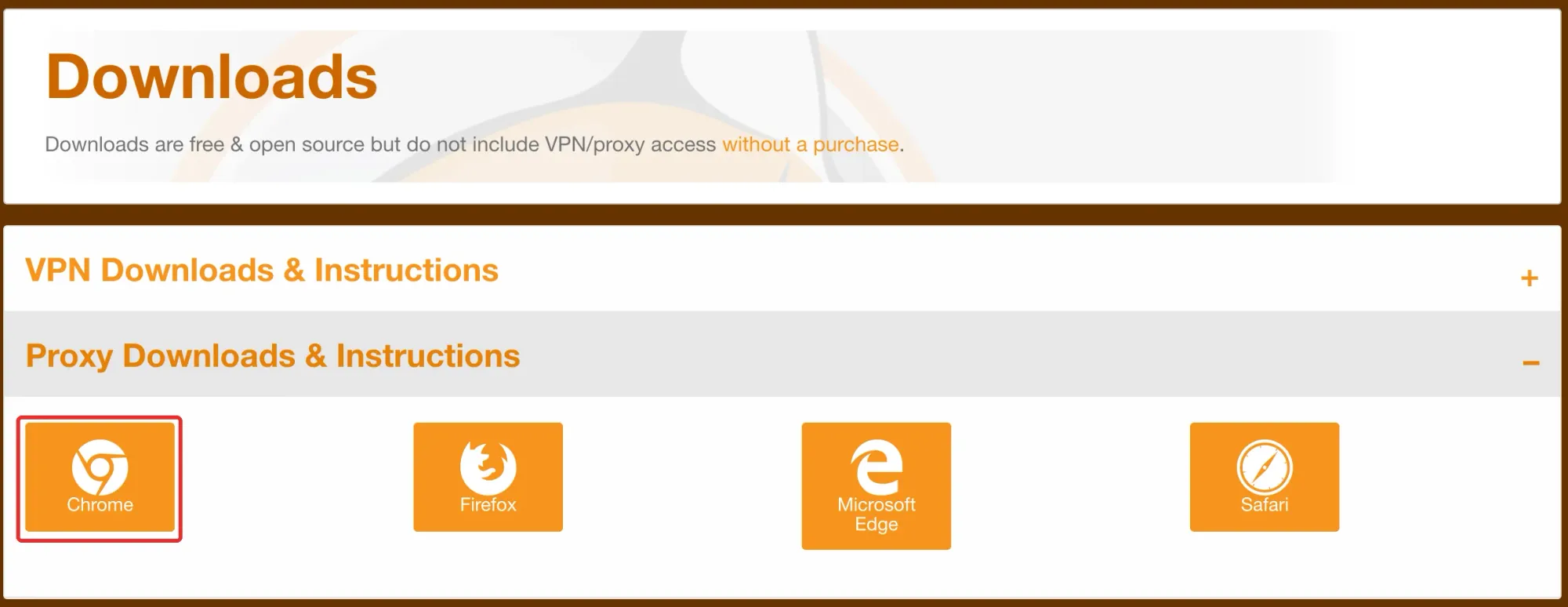
Once you’re on the settings page, click Proxies at the top. Layouts and menu names may differ between versions; the steps below use the interface shown in the screenshots as an example.

Step 2: Add a New Yahoo Proxy Configuration
Click Add to create a new configuration. The Title is just a label to distinguish this connection — you can enter something like “Rola Yahoo.” It doesn’t change the proxy server or the exit region.
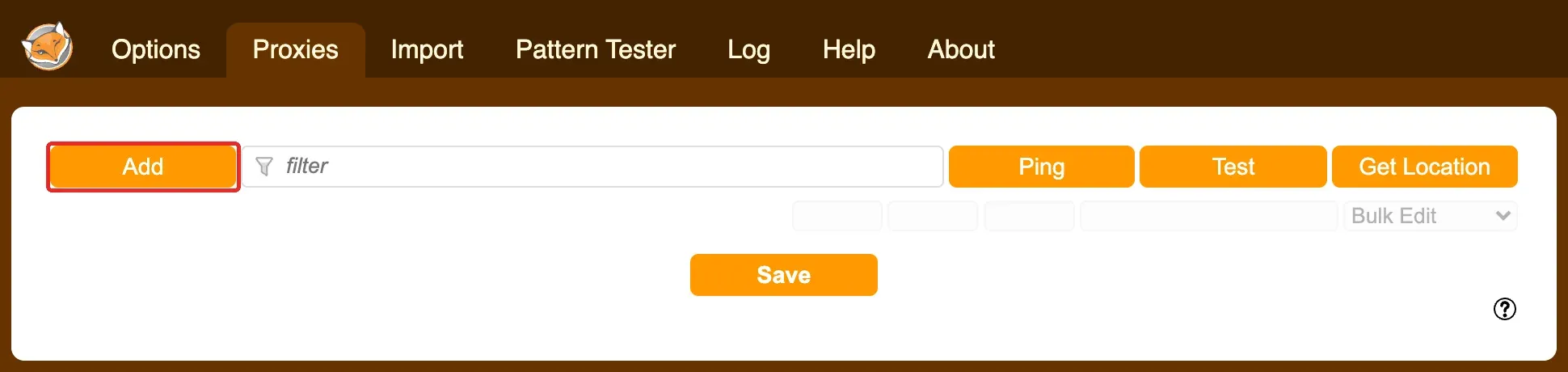
Step 3: Enter the Protocol, Address, and Port
Get the connection details for your chosen proxy from the Rola IP console; follow the provider’s current setup guide if you need help locating those values. The Hostname field should contain only the host name or IP — don’t paste a long string that combines the username, password, protocol prefix, and port together.
| FoxyProxy field | What to enter |
|---|---|
| Title | A custom label for this connection, e.g. Rola Yahoo |
| Type | The protocol actually supported by the proxy endpoint — HTTP in this example |
| Hostname | The proxy host name or IP provided by Rola IP |
| Port | The port that corresponds to this endpoint and protocol |
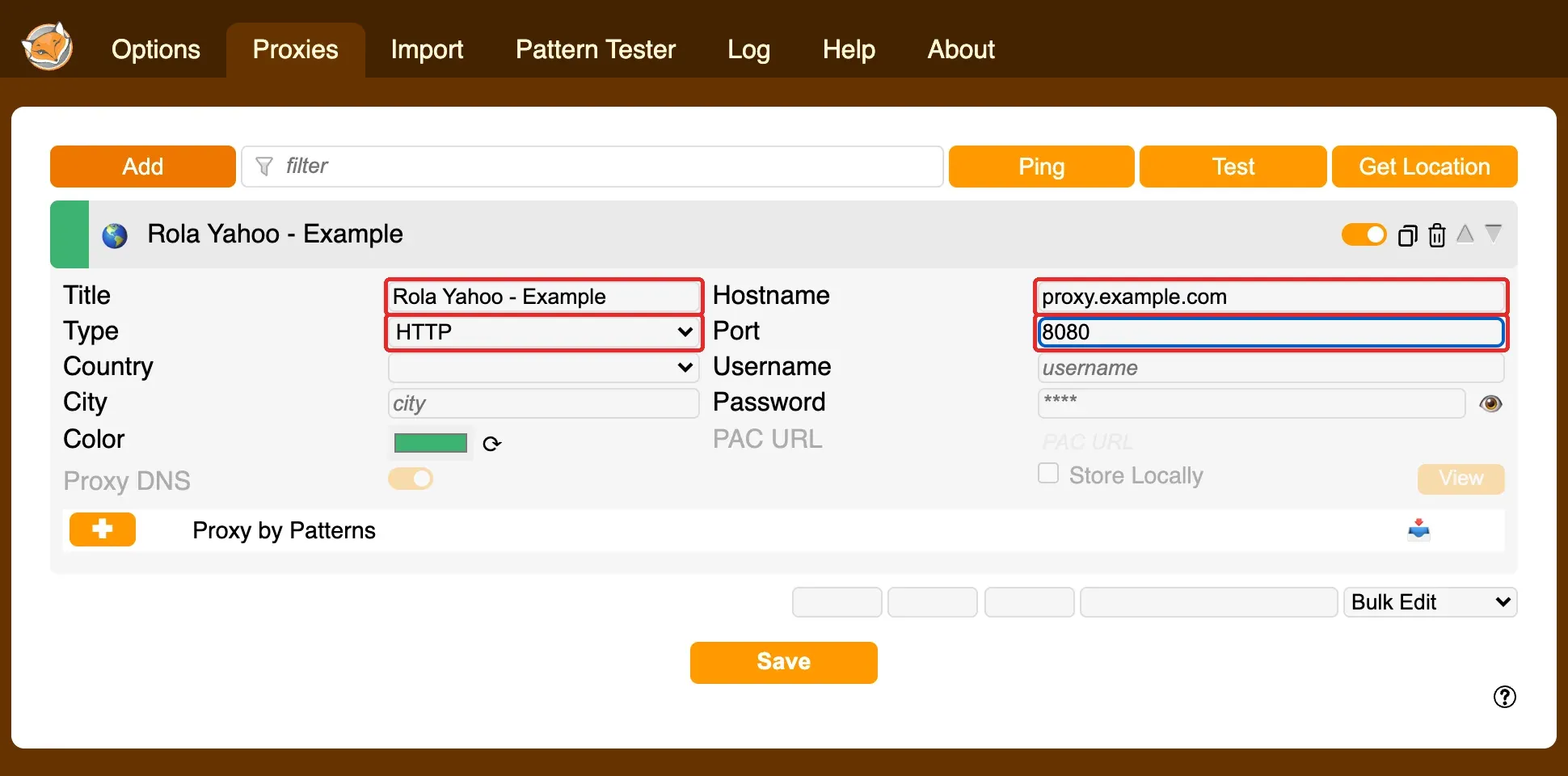
The Country and City fields can’t request a target-region exit on your behalf. Decide on a region first through whatever region-selection method your provider offers, then use the matching endpoint or connection parameters. Also don’t manually append country or session suffixes to the proxy username yourself.
Step 4: Enter Proxy Authentication Details
If you’re using username/password authentication, enter your Rola IP proxy username in Username and your proxy password in Password. This is not your Yahoo email address or Yahoo password, and it’s not necessarily the same account you use to log in to the Rola IP website.
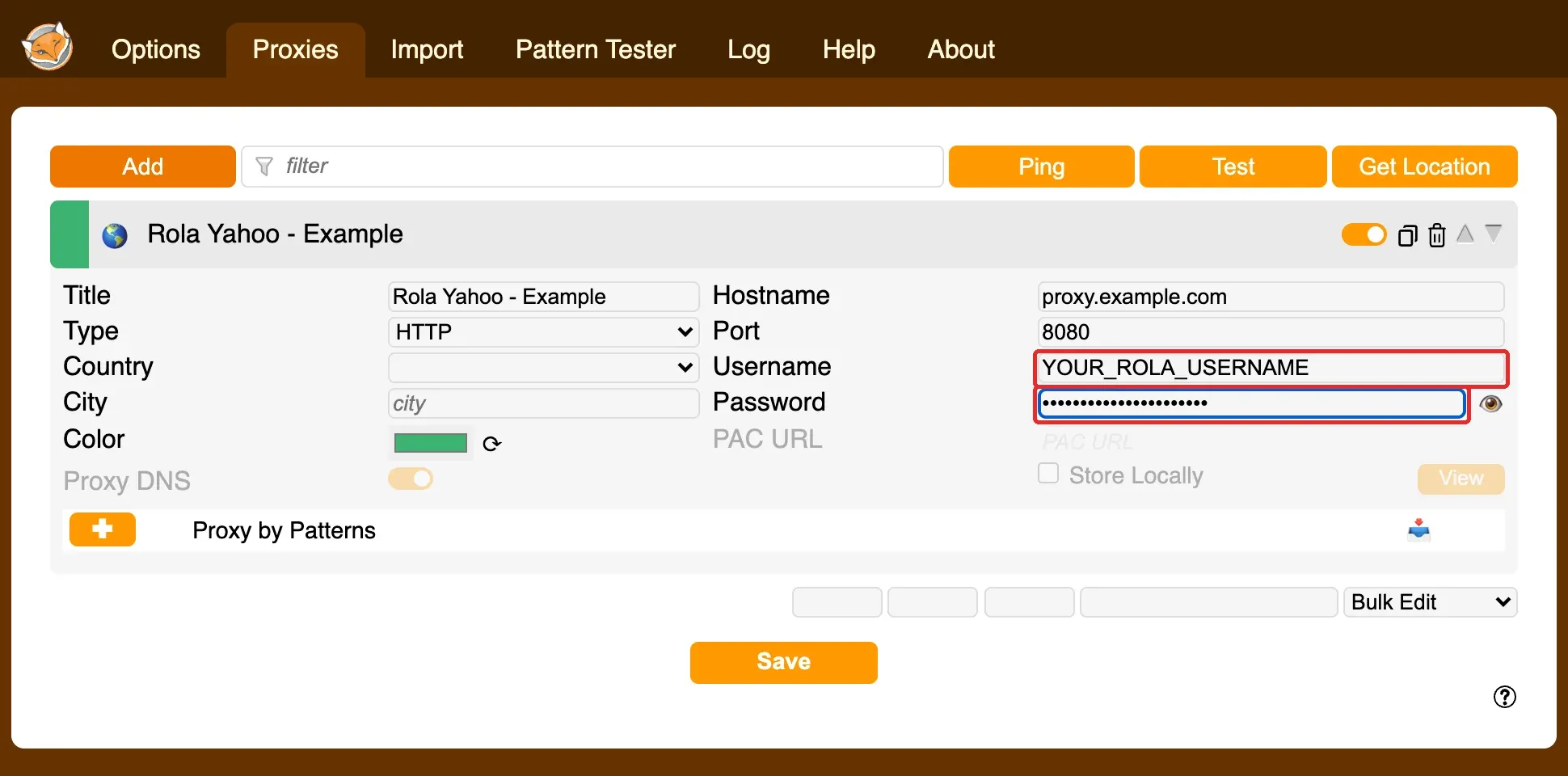
If your plan is configured for IP whitelisting, complete the authorization first, then decide whether Username/Password should be left blank based on your current plan’s requirements. Don’t confuse “leaving the password blank” with “already having access.” As a general security practice: only enter proxy credentials into trusted clients or system settings, and mask your real username, password, and full endpoint before sharing screenshots, tickets, or shared configurations.
Step 5: Save the Configuration
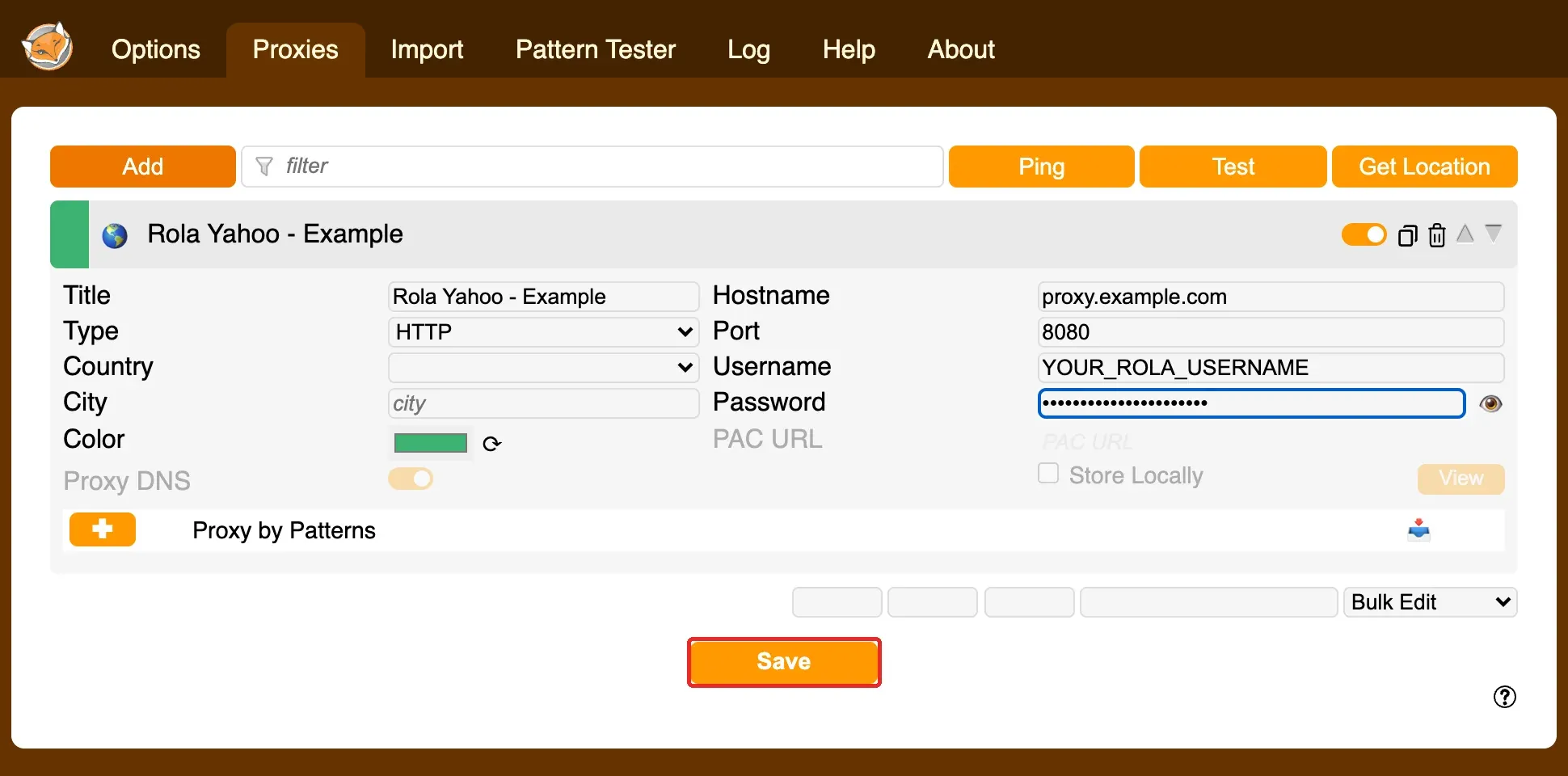
Check that the address has no extra spaces, the port is correct, and the authentication method matches, then click Save. A successful save only means the extension has remembered the parameters — it doesn’t mean the server is reachable, and it doesn’t mean requests are already going through the proxy.
Step 6: Select the Proxy You Just Saved
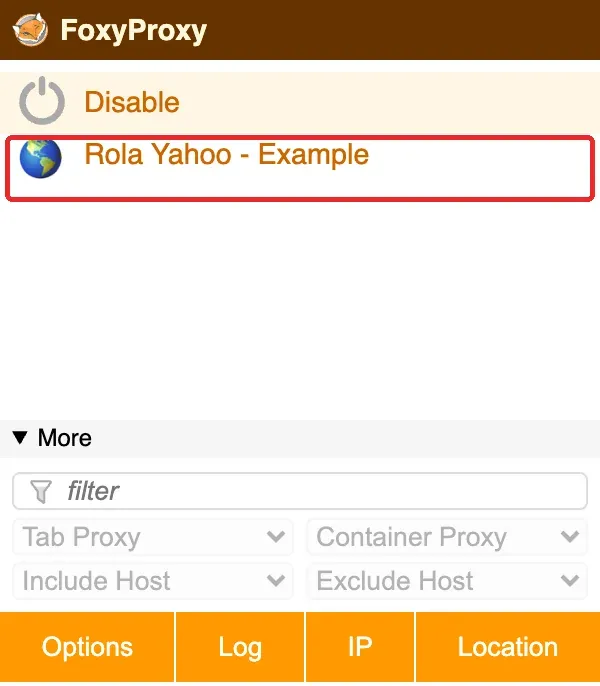
Open the FoxyProxy menu and click the name of the connection you just saved — don’t leave it on Disable. For your first verification, it’s best to use the entire proxy configuration rather than also adding complex domain-matching rules at the same time.
This matters because Yahoo’s homepage, login, and mail may involve multiple host names. Writing only one incomplete yahoo.com matching rule can result in the homepage going through the proxy while login or resource requests take a different path. If you need to split traffic by rule later, fill out the rules based on the actual requests involved, then re-verify the relevant functionality. For details on the extension’s features, permissions, and source code, see the FoxyProxy official project documentation.
How to Use a Yahoo Proxy on Android
On an Android phone, you can set an HTTP proxy specifically for the Wi-Fi network you’re currently connected to, then use the same phone’s browser to access Yahoo. This setting generally doesn’t carry over automatically if you switch to a different Wi-Fi network or to mobile data, and support for proxy authentication can vary by manufacturer and system. Saving the setting only means that Wi-Fi’s configuration has been written to the system — it doesn’t mean every app will follow it.
The example below uses the Samsung English interface.
Step 1: Open Connections in Settings
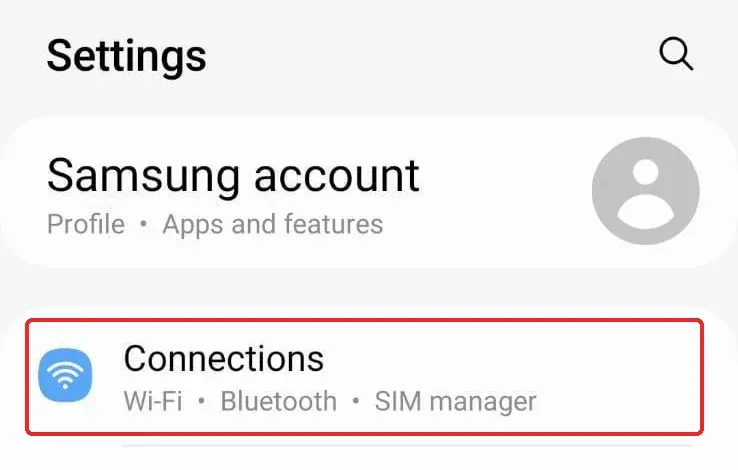
Open your phone’s Settings, tap Connections, then go into Wi-Fi. On devices like Pixel phones, the equivalent entry point is usually called Network & internet, then Internet; the exact menu name depends on your phone’s brand and system version.
Step 2: Open Settings for the Current Wi-Fi Network
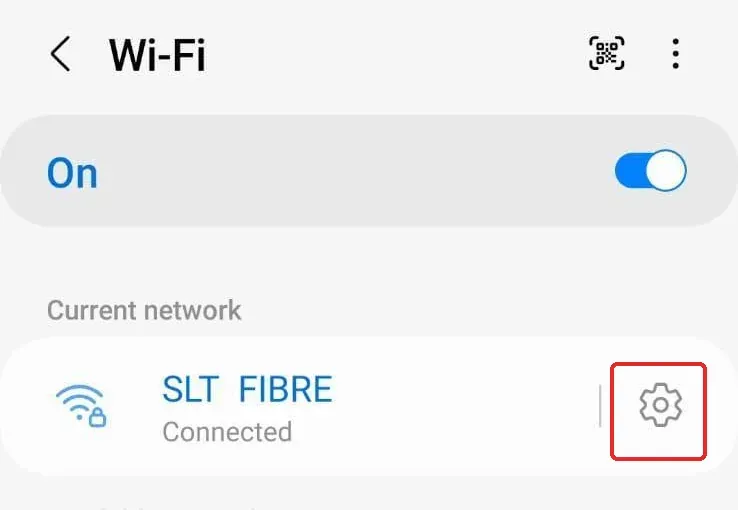
Confirm your phone is connected to the target Wi-Fi network, then tap the gear icon next to the current network. Be careful not to accidentally select Add network — on some devices you need to long-press the connected network and choose Modify network instead.
Step 3: Expand Advanced Options and Find Proxy
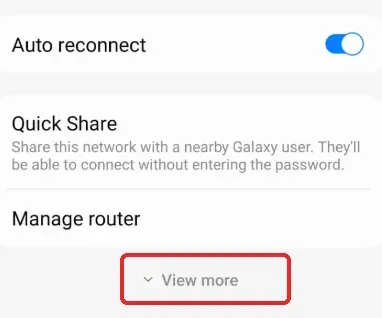
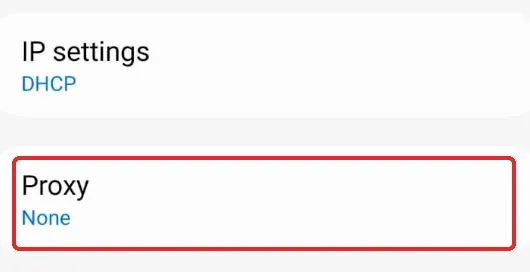
Scroll down on the network details screen and tap View more. On other devices this may be labeled Advanced options, or you may need to tap an edit icon first. Once expanded, find Proxy — keep your existing IP settings as they are; you don’t need to switch from DHCP to a static address just to set up a proxy.
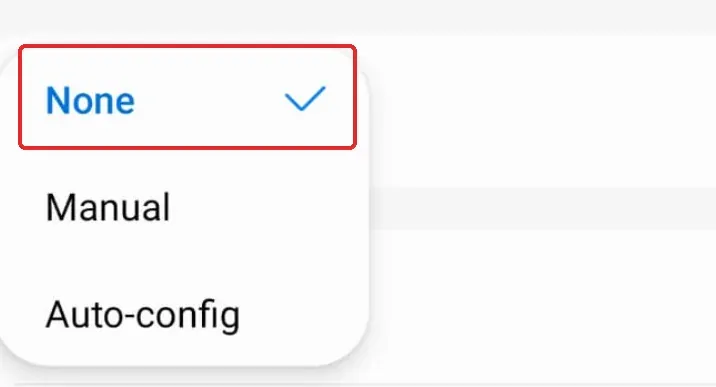
Step 4: Set the Proxy Mode to Manual
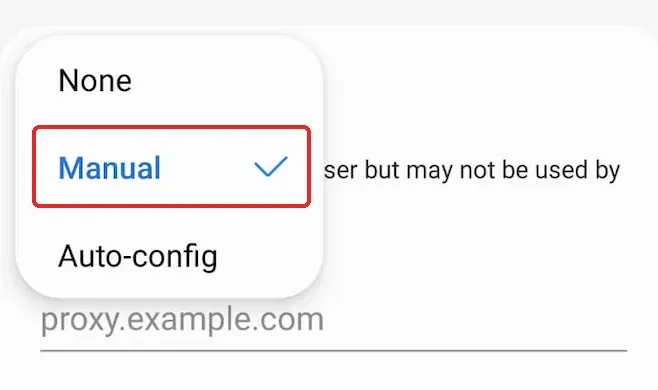
Select Manual. None means that Wi-Fi network won’t use a proxy; Auto-config is for entering a PAC configuration address provided by an administrator or vendor — it does not automatically discover an arbitrary proxy server. Only choose it if you’ve actually been given a PAC address.
Step 5: Enter the Rola IP Host Name and Port
For Proxy host name, enter the host name or IP provided by Rola IP — without http://, a username, a password, or a port. Enter the numeric port for that HTTP endpoint separately in Proxy port. The proxy.example.com and 8080 shown in the screenshot are placeholder text in the interface, not a verified working proxy.
Bypass proxy for is a list of addresses that skip the proxy. Leave it empty unless you have a specific exception in mind, and don’t add Yahoo to it — otherwise those requests may go direct instead of through the proxy. This screen is for HTTP proxy settings; you can’t enter a SOCKS5 endpoint here as if it were an HTTP endpoint.
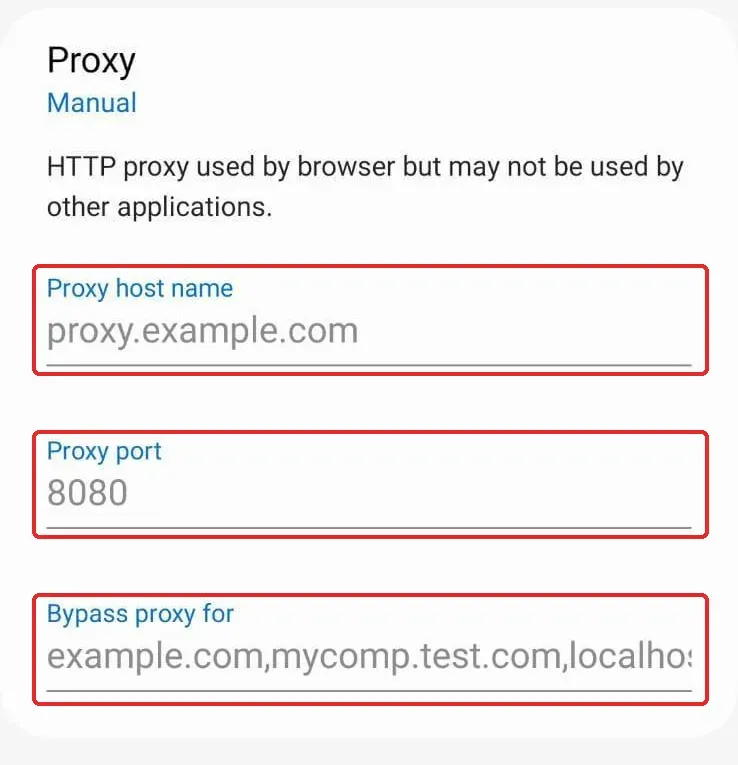
The system screen shown here has no fields for a proxy username or password. If your plan supports IP whitelisting, you can authorize your phone’s current Wi-Fi public exit as required by the console — don’t enter a private address like 192.168.x.x. If you’re using username/password authentication, check whether your current phone browser or an authorized client actually supports a proxy-authentication prompt; if there’s no prompt or authentication keeps failing, switch to a client that explicitly supports that authentication method rather than trying to stuff credentials into the host name field.
Step 6: Save, Then Verify in Your Phone’s Browser
After entering a valid host name and port, tap Save. The screenshot below marks the location of the Save button; in the reference image no valid parameters have been entered yet, so the button appears greyed out — that doesn’t mean it has been saved or connected successfully. If your Save button still isn’t clickable, check the required fields and the port format first.

After saving, stay on the current Wi-Fi network and always complete verification in the same phone browser: first record the exit IP the browser observes, then open the Yahoo homepage along with whichever search or mail feature you actually need. A change in the browser’s exit IP only shows that this particular request’s network path changed — it does not mean Yahoo’s functionality succeeded, and results from a different browser or the Yahoo Mail app can’t be substituted for each other.
If a proxy-authentication prompt appears, what you enter there is your proxy credentials, not your Yahoo password. If Yahoo asks for account verification, follow the official prompts. If the browser shows no path change at all after saving the system proxy, or authentication support seems insufficient, go back and check the proxy type, port, whitelist/authentication method, and client support one item at a time — don’t conclude from this alone that “the whole phone isn’t using the proxy.”
Step 7: Turn Off the Wi-Fi Proxy When You No Longer Need It
Go back to the Proxy menu for the same Wi-Fi network, select None, then save according to your phone’s interface. Reopen your browser to check the exit IP and page access. This only cancels the proxy setting for the current Wi-Fi network — it won’t turn off a separately running VPN.
Entry points can differ across Android versions and manufacturer interfaces — see Google’s official Android network settings documentation for reference. Just because the system provides a proxy-settings entry point doesn’t mean every app uses the same network implementation, so this article treats “current Wi-Fi plus current browser” test results as the scope of verification for this step.
How to Verify a Yahoo Proxy Is Actually Working
Step 1: Check the Exit IP in the Same Browser
First use Rola IP’s proxy checker to check the proxy endpoint’s own availability, protocol, or response status; then, in the same browser profile you’ll use to access Yahoo, record the exit IP before and after configuration along with the check time. Endpoint checks and browser exit-IP checks are two different layers: the former doesn’t prove the browser has the proxy enabled, and the latter doesn’t prove every Yahoo host name hits the same rule.
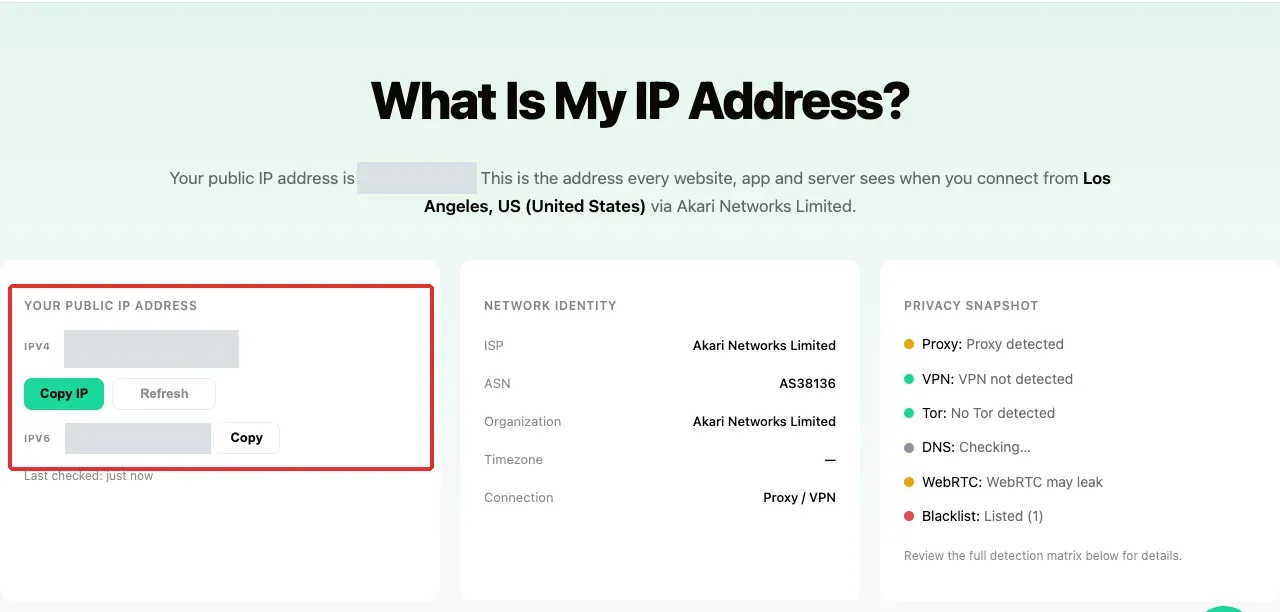
A change in exit IP supports that this particular check request took a different path, but it doesn’t by itself prove every Yahoo request uses the same connection. The proxy’s Host may also just be a gateway address — the detected exit doesn’t necessarily match the Host. If the IP hasn’t changed, first check the selected extension mode and any exclusion rules and other proxy tools — don’t conclude the service has failed based on this alone.
If the page only returns an IPv4 address, that only tells you the exit for that particular IPv4 request — it doesn’t represent IPv6, other apps, or every domain. For a stricter check, combine this with your client’s routing records to inspect the actual target requests; don’t rely on a single IP-lookup screenshot to infer your entire device’s network path.
Step 2: Open the Yahoo Homepage and the Feature You Actually Need
Open the Yahoo homepage in your current browser. Once the page has fully loaded, click through to whatever you actually need — Mail or Finance, for example. Don’t stop checking just because you see the Yahoo logo, and don’t use the page displaying in English as a way to judge which country the proxy is in.

This image shows Yahoo’s actual page and where those entry points are — it is not proof that a Rola IP connection succeeded. For your own verification, record your own results: whether the page loads, whether clicking through takes you where it should, and whatever error message eventually appears. Web mail also requires you to complete normal sign-in and security verification for your own account.
Step 3: Separate “Network Success” from “Account Verification”
Yahoo’s official account-verification guidance explains that a sign-in from a VPN or proxy, an unfamiliar device, or a changed location may trigger additional verification. Record the access date when publishing this claim because Yahoo’s guidance can change. A verification code or recovery-email prompt doesn’t by itself prove the proxy server is broken — first confirm you’re on Yahoo’s official domain, then complete verification using a recovery method already on your account.
| Check | What it tells you | What it doesn’t tell you / next step |
|---|---|---|
| Proxy endpoint | Host/Port/protocol/authentication respond at the connectivity level | Doesn’t mean the browser has it enabled — check the extension or system proxy next |
| Exit IP | This particular check request observed a different exit | Doesn’t mean every Yahoo request uses the same path — keep testing the target pages |
| Yahoo homepage | The basic page loads | Doesn’t mean login, Mail, or Finance functionality works |
| Login / Mail | The target feature is reachable or completes | Still subject to normal verification and permissions on your own account |
| Verification prompt | Yahoo is requesting additional identity confirmation | Doesn’t mean the proxy server is broken — follow Yahoo’s official recovery/verification process |
| HTTP status codes | 407 points more toward proxy authentication; 403/429/timeouts need context to diagnose | Save the time, URL, protocol, and a redacted screenshot; avoid frequent repeated attempts |
How to Fix a Yahoo Proxy That Won’t Connect
Method 1: Fix Address, Protocol, and Authentication Errors
If your browser shows a proxy connection failure or connection refused, go back to Proxies and check Hostname, Port, Type, and validity period. If you see 407 Proxy Authentication Required, check your proxy username/password or whitelist authorization first — don’t change your Yahoo password.
Change one field at a time, save, then re-test. If the endpoint is still unreachable, share the protocol, port, error time, and a redacted screenshot with your provider — don’t paste a password into a public support ticket.
Method 1A: Classify the Error Before Retesting
Use the first observable failure to choose the next check. Do not rotate to another exit until the current protocol, authentication, and route have been verified.
| Symptom | Likely layer | Verify | Safe handling and retest |
|---|---|---|---|
| DNS lookup fails or the host cannot be resolved | Local DNS, VPN, PAC, or endpoint hostname | Resolve the proxy hostname on the same network and compare it with the provider’s current endpoint | Correct the hostname or approved DNS path; retest once and record the result |
| Connection refused | Host/port, endpoint availability, firewall, or client protocol | Confirm the host, numeric port, protocol type, and validity; test the endpoint without changing Yahoo credentials | Correct one field at a time; retest the IP-check page before opening Yahoo |
| Connection timed out | Unreachable route, firewall, overloaded endpoint, or wrong port | Record timeout duration, network, host, port, and whether direct access works | Use the provider’s documented endpoint or contact support; apply a bounded retry only when appropriate |
| 407 Proxy Authentication Required | Proxy credentials or source-IP allowlist | Check the proxy username/password or the current public source IP registered for allowlisting | Correct the authentication method; never put credentials in a public URL or support ticket |
| 403 Forbidden or an account/security challenge | Yahoo policy, account state, request context, or target-side rule | Record URL, time, account state, and the exact response; compare one authorized direct request | Stop repeated attempts, follow Yahoo’s official recovery or support process, and do not rotate to evade the response |
| 429 Too Many Requests | Rate limiting by Yahoo, the proxy gateway, or another layer | Identify the responder and read Retry-After when present |
Pause for the stated interval, reduce request frequency, and retest only within the permitted scope |
After each retest, record the protocol, endpoint label, browser profile, time, observed exit, Yahoo feature tested, and result. A successful IP check is not a successful Mail login, and an HTTP status alone is not proof that the requested function completed.
Method 2: Rule Out Conflicts Between Proxy Tools
Don’t let two extensions fight over proxy settings in the same browser at the same time. Temporarily disable the other proxy extension and test again, and note whether the system is still running a VPN or another proxy client. On a company-managed device, contact your administrator first — don’t remove a network policy on your own.
If it only fails in an Incognito window, check whether the extension is allowed to run in Incognito mode. Don’t assume that being enabled in a normal window means it’s also enabled in an Incognito window.
Method 3: Handle Yahoo Login Loops and Verification Notices
If ordinary pages load fine but you get stuck in a loop after logging in, first confirm your browser allows the cookies that site needs, and that no extension is blocking login resources. If the problem persists, refer to Yahoo’s official sign-in troubleshooting instead of repeatedly cycling through a large number of IPs to keep retrying the login.
Before clearing Yahoo site data, make sure you know your password, recovery email/phone, and have a working verification method available, since clearing data may sign the account out. For lockouts, deactivations, or cases where recovery isn’t completing, use the Sign-in Helper / account-recovery process on Yahoo’s help pages — don’t treat switching proxies as a substitute for account recovery.
Method 4: Use a Direct Connection to Narrow Down the Problem
In the same browser, temporarily disable FoxyProxy and reopen the public page that just failed. If it fails both with and without the proxy, check Yahoo’s service, your browser, and your local network together rather than simply buying more proxies. If only the proxy path fails, check connection latency, provider limits, and whatever information the target site returns.
Don’t handle a certificate warning by just “ignoring the error.” Stop entering account information, check your system clock, network interception, or proxy configuration, and only continue logging in once you’ve restored a trustworthy HTTPS connection.
How to Turn Off a Yahoo Proxy and Restore Your Original Connection
Open the FoxyProxy menu, select Disable, refresh the Yahoo page, and recheck the exit IP. This only turns off FoxyProxy’s proxy control — it won’t automatically disable a system VPN, another extension, or a company network proxy.
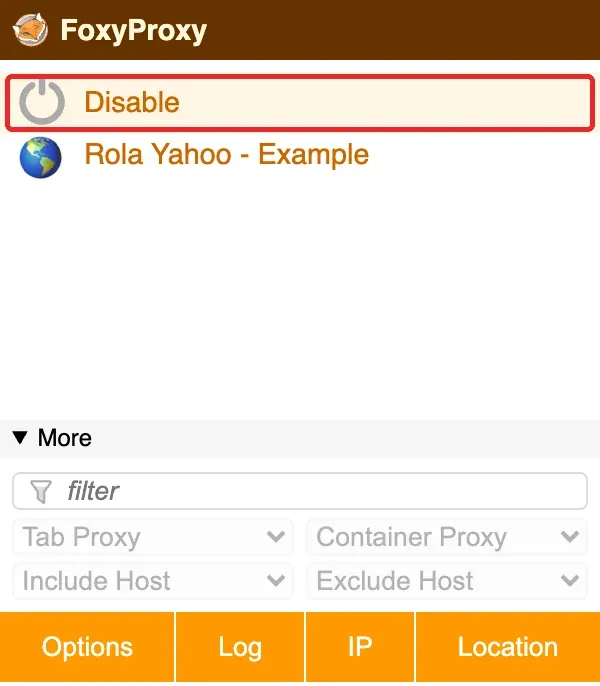
If the exit IP still differs from what you originally recorded after disabling, check whether another network tool is still running, and whether your local network itself has changed. Once you’re done troubleshooting, you can keep the saved connection for next time, but don’t put an exported configuration file containing a real password on a public cloud drive.
Summary
Setting up a Yahoo proxy works best as a clear, reproducible path: confirm your current Rola IP plan and parameters, enter the connection details according to the actual protocol in FoxyProxy or your Android device’s current Wi-Fi settings, and then verify the proxy endpoint, the browser’s exit IP, and Yahoo’s target functionality separately. For long-term mailbox use, prioritize a stable network environment and account-recovery readiness; for checking public pages, also factor in region, access frequency, and the site’s own rules. Once you separate “proxy connection,” “browser routing,” “Yahoo page,” and “account verification” into layers, troubleshooting becomes far more reproducible than simply cycling through random IPs.