
YouTube “There Was a Problem with the Server [400]”: How to Diagnose and Fix the Error

Aug 21, 2026 · Troubleshooting · 9 min read
If YouTube shows “There was a problem with the server [400]”, reopen the app, restart the device, compare Wi-Fi with mobile data, and update the official app or browser. If it persists, determine whether it follows one app, account, network, or device before clearing data or reinstalling anything.
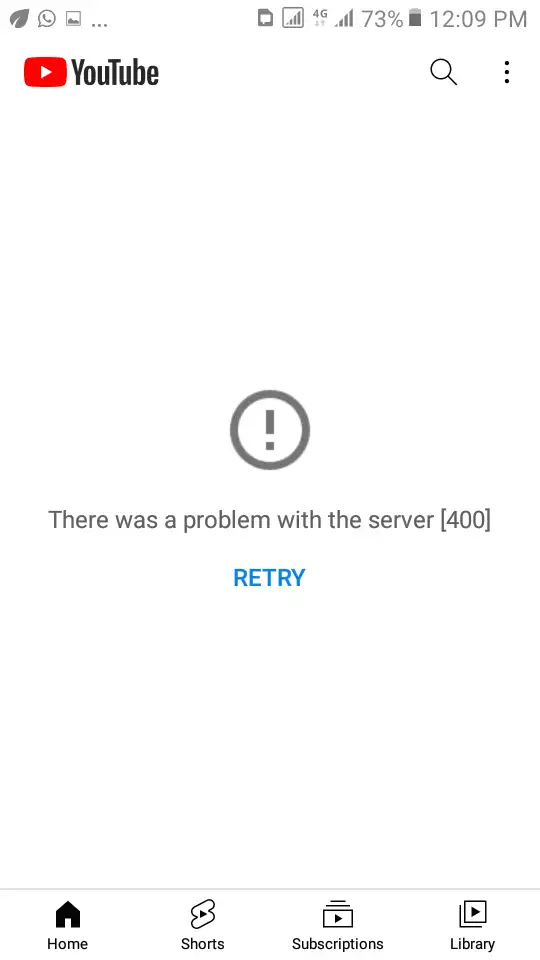
Figure 1. The YouTube Android app displaying error [400]. Image source: Google Play Community
Diagnose the YouTube Error 400 in 60 Seconds
Do not change five settings at once. Keep the video, account, and device constant, then change one variable per test. The result tells you where to spend your time.
| Controlled test | Result | Likely scope | Start with |
|---|---|---|---|
| Try another video and another action | Only one video, playlist, download, comment, or library action fails | Content, permission, or action-specific issue | Test the same item on the official website; do not reset the device |
| Test signed out, in a private browser window, or with another account | Only one account fails | Session or account request | Fix 5 |
| Compare the official app with youtube.com | The app fails but the website works | App version, cache, or local app state | Fixes 3, 4, and 7 |
| Compare Wi-Fi with mobile data or a trusted hotspot | Only one network fails | Captive portal, router, DNS, VPN, proxy, or filtering | Fixes 2 and 6 |
| Test a second device, account, and network | Every available combination fails at the same time | YouTube service or version-specific incident | Check YouTube Known Issues, then report it if necessary |
If you lack a second device, account, or network, run the comparisons available and check YouTube Known Issues; a missing comparison is not proof of an outage. If only age-restricted, supervised, purchased, or unavailable content fails, check account permissions, availability, and Restricted Mode. Treat third-party outage reports as supporting evidence, not confirmation of YouTube’s root cause.
What Does “There Was a Problem with the Server [400]” Mean on YouTube?
HTTP 400 normally means a server cannot or will not process a request because it perceives a client-side problem. That is the definition in RFC 9110. In the consumer YouTube app, however, the visible [400] message does not expose enough detail to identify the failed request.
Stale session data, corrupted local data, an outdated client, a modified network path, or a temporary YouTube incident can produce the same visible symptom. Therefore, a YouTube server error 400 is not automatic proof that YouTube is down, that your account is banned, or that your IP address is blocked. This article also does not cover 400 Bad Request responses from the YouTube Data API, which are developer errors with their own documented reasons.
How to Fix YouTube “There Was a Problem with the Server [400]”
Work through these fixes in order unless the diagnosis table sends you directly to an account- or network-specific step. Stop when the original action works; continuing to clear data after recovery only adds risk.
Fix 1: Close YouTube and Restart the Device
YouTube’s official video troubleshooting starts with closing and reopening the app, restarting the device, and replaying the video. In a browser, reload once; if that fails, exit and reopen the browser. On a TV, quit YouTube or disconnect the device from power for several seconds rather than leaving it in standby.
Retry the original action, then play another video. If only the original item fails, a device-wide problem becomes less likely.
Fix 2: Switch Networks and Complete Wi-Fi Sign-In
Compare Wi-Fi with mobile data or a trusted hotspot while keeping the device, account, and video unchanged. Mobile data charges may apply. On public Wi-Fi, open a normal webpage and complete any sign-in portal; Chrome’s connection guidance notes that these portals can block loading until authentication is complete.
Restart the router only if several devices fail on it. If YouTube works on mobile data but not Wi-Fi, investigate that network instead of assuming an IP ban or changing DNS blindly.
Fix 3: Update YouTube, the Browser, and the Operating System
Update the affected client, then restart it:
- Android: Google Play → profile picture → Manage apps & device → Updates available → YouTube → Update. See Google’s current app-update steps.
- iPhone/iPad: App Store → account picture → App Updates → YouTube → Update. Apple documents the manual update route.
- Computer: Update and relaunch the browser. In Chrome, use More → Help → About Google Chrome.
- TV/streaming device: Update YouTube and the device firmware using the manufacturer’s support guidance.
Ignore version numbers in old forum posts; verify the installed version instead.
Fix 4: Clear YouTube Cache, Cookies, or Site Data Safely
Use this when one app or browser fails but another surface works. Start with the narrowest deletion.
Android: clear cache before storage
Use Settings → Apps → YouTube → Storage & cache → Clear cache, or the equivalent labels on your device. Reopen YouTube before touching Clear storage/data. Android explains that cache contains temporary files, while clearing storage permanently deletes local app data. Storage clearing can remove the session, settings, and downloads; account-stored subscriptions, playlists, and channel data return when you sign into the same account.
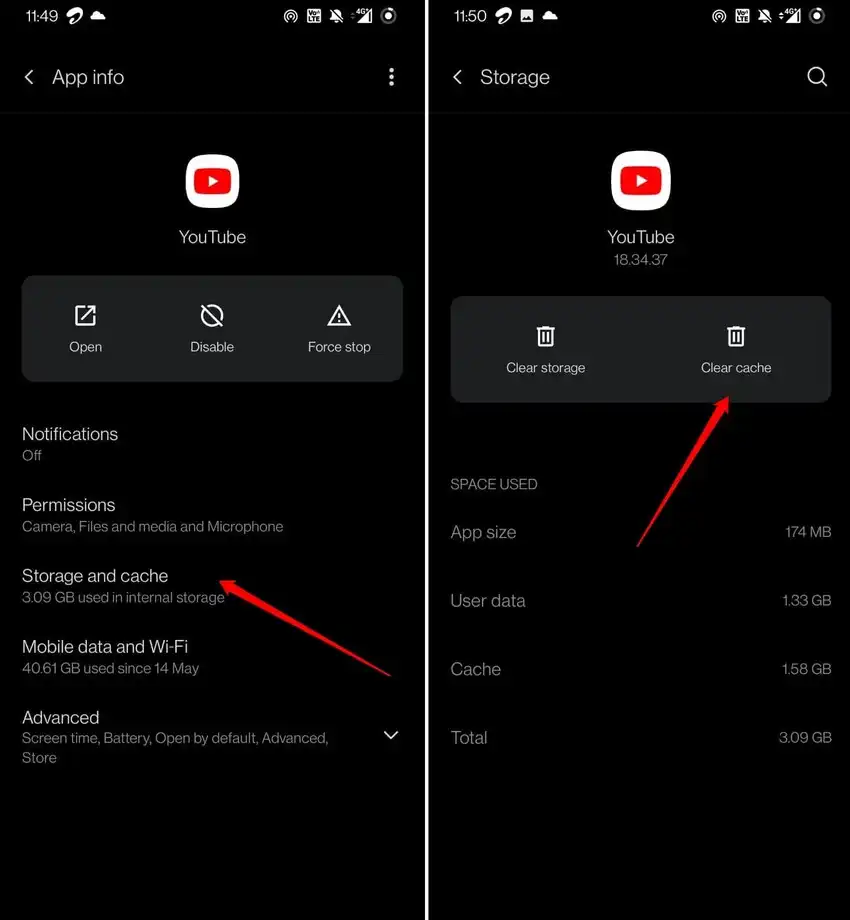
Figure 2. YouTube’s Android App info and Storage screens, with Clear cache and Clear storage shown separately. Source: 4DDiG
Chrome, Edge, Firefox, or Safari: test privately first
Test YouTube signed out in a private window. If it works, remove YouTube/Google site data when the browser offers per-site controls. Chrome’s broader route is More → Delete browsing data. YouTube warns that clearing cookies can remove settings and require another sign-in.
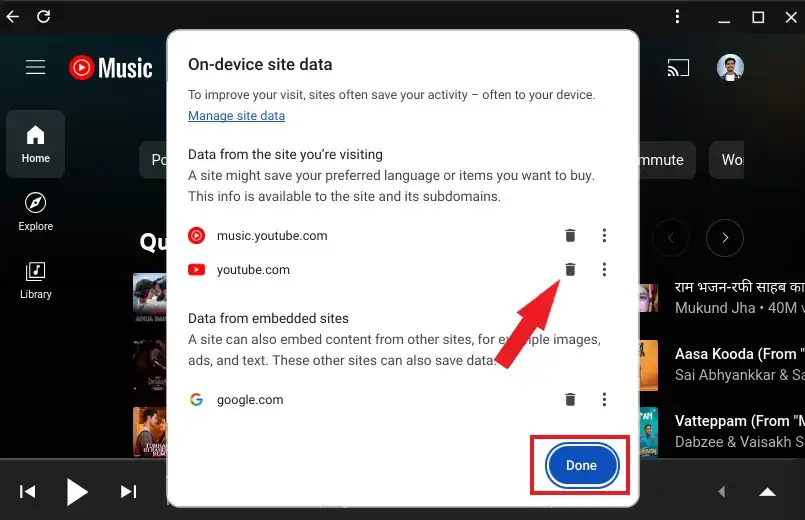
Figure 3. Chrome’s per-site data panel for YouTube and YouTube Music. Source: The Coder World
iPhone and iPad: do not look for an Android-style cache button
iOS does not expose Android’s YouTube Clear cache control. Test the website and update the app first; if only the app fails, use Fix 7.
Fix 5: Test and Refresh the Google Account Session
Use this only when the problem follows one account. Test YouTube signed out, in a private browser window, or with another authorized account on the same device and network. If the comparison account works, sign out and back into the original account where that is safe.
On Android, signing out removes the account from the device and signs it out of other Google apps. Try YouTube Incognito or a private browser first. If one account fails across updated devices and networks, stop repeating sign-ins, record the exact action, and report it.
Fix 6: Disable VPNs, Proxies, Private DNS, and Blockers Temporarily
Use this conditional test only when a VPN, proxy, custom/private DNS, content blocker, antivirus web filter, or router filter is active—or when one network fails. Record the original setting, disable one modifier, replay the same video, and restore it if nothing changes. Return custom DNS to Automatic for diagnosis instead of cycling through public resolvers.
If you intentionally configured a device proxy, review the relevant Android proxy setup or iOS proxy setup before changing unrelated settings.
If you intentionally use a proxy, verify that the endpoint responds and that the device is using the expected route with a proxy checker. Proxy credentials are sensitive: use only a trusted checker and never expose credentials in screenshots. Buying or rotating proxies cannot repair app data, refresh a Google session, reverse an account decision, or resolve an outage.
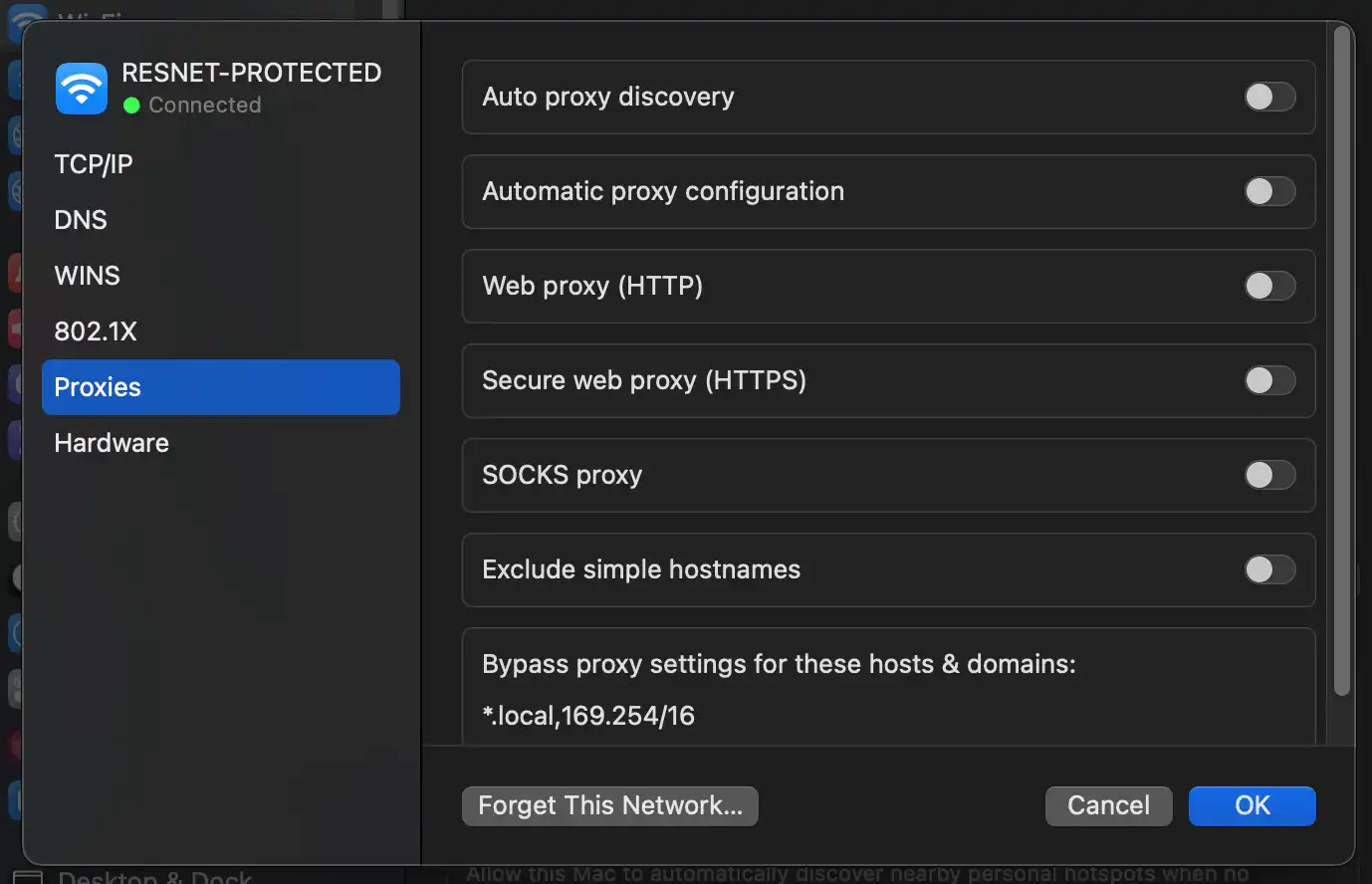
Figure 4. macOS network proxy controls. Change only a modifier that was already active, record its original state, and restore it after the test. Source: UC San Diego Support
Fix 7: Reinstall or Reset the Official YouTube App
Reinstall only after isolating the error to one app.
- Android: Clear storage/data or reinstall through Google Play after cache and session tests. Preinstalled versions may offer Uninstall updates instead of complete removal.
- iPhone/iPad: Settings → General → iPhone/iPad Storage → YouTube. Apple says Offload App keeps documents and data, so it may preserve the local state causing the problem. Delete App provides a cleaner reset but removes the app and related local data, including downloads. Offload first only when preserving local data matters; use Delete App and reinstall when a full app-state reset is justified and you can sign in again.
- TV/streaming device: Reset or reinstall only when the platform supports it.
Local sessions, settings, and downloads may need restoration. Use only the official app.
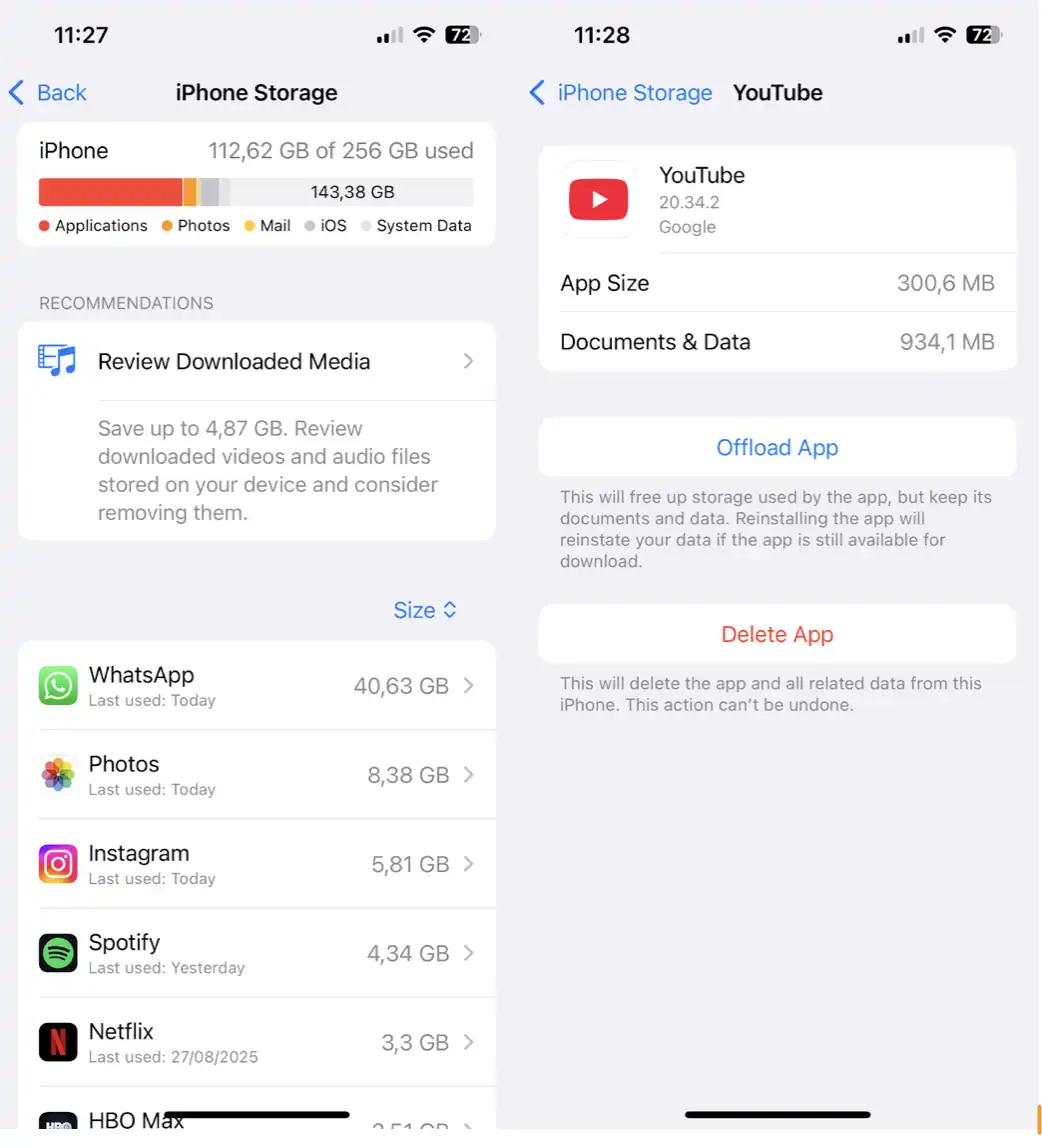
Figure 5. YouTube’s iPhone Storage page showing Offload App and Delete App. Source: CleanMyMac
Fix 8: Check Device Settings, Support, and the Official Web Fallback
If an old device cannot update YouTube, check YouTube’s unsupported-device guidance before resetting it. Use m.youtube.com as a mobile fallback; supported browsers can use youtube.com or music.youtube.com. Update the OS or TV firmware if possible.
Check date, time, and time zone only after a device reset, when the clock is visibly wrong, or when secure connections also fail elsewhere. Set them to automatic and test once; this is not a universal YouTube error 400 fix.
How to Fix YouTube Music Error 400
A YouTube Music error 400 may affect all playback, one item, downloads, or a library action. If playback works but one action fails, do not reset the device.
Compare the official YouTube Music app with music.youtube.com using the same account and network. Interpret the result as a clue, not proof of one cause:
| Comparison result | What it suggests | Next step |
|---|---|---|
| The app fails but the web player works | App version, cache, or local app state | Fixes 3, 4, and 7 |
| The same action fails in the app and web player for one account | Account session or action-specific request | Fix 5, then report the exact action |
| Several accounts, devices, and networks fail | Service or version-specific incident is more plausible | Check Known Issues, update, then report if needed |
YouTube Music’s official troubleshooting page recommends restarting the app and device, checking the connection and system updates, and clearing cache or reinstalling when appropriate. Supervised-account limits can also resemble a technical failure.
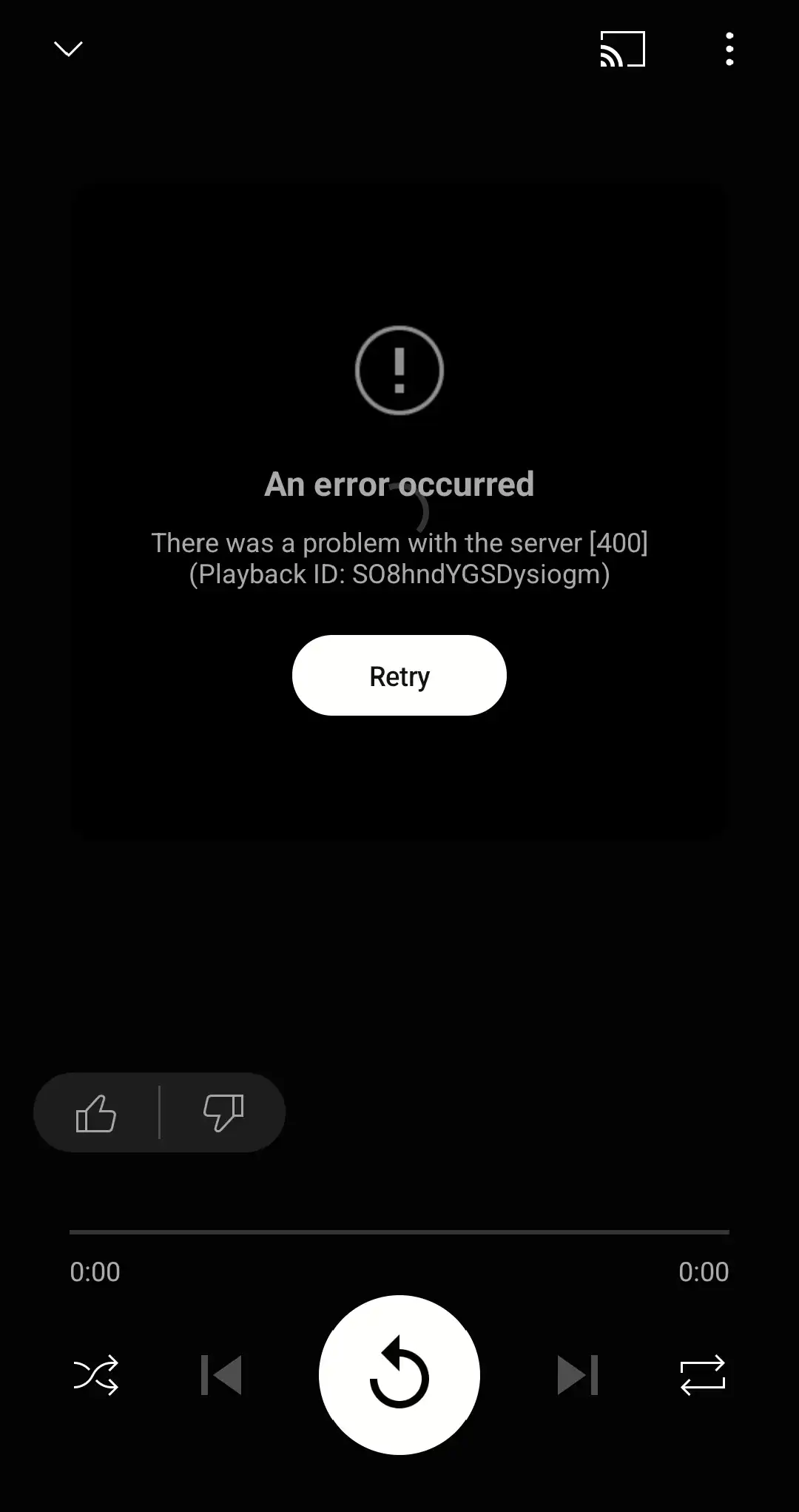
Figure 6. A real YouTube Music playback error [400]. Source: YouTube Music Community
YouTube Server Error 400 on a Smart TV or Streaming Device
Confirm another streaming app works. Quit YouTube, power-cycle the TV or streaming device, and update its app and firmware. Test YouTube on a phone using the same Wi-Fi: if the phone works, focus on the TV; if both fail, focus on the network or a wider incident.
YouTube’s TV guidance also recommends signing out and back in, trying another supported device, and sending feedback after the problem occurs. Reinstall or reset the TV app only after the lower-risk checks.
What Not to Do While Troubleshooting Error 400
- Do not clear Google Play services data as an early step. Google’s Play services guidance reserves that for later troubleshooting because it can remove saved information and require reauthentication.
- Do not remove the primary Android Google account before a signed-out, Incognito, or alternate-account test.
- Do not install unofficial or outdated APKs.
- Do not factory-reset a phone, TV, router, or streaming device before isolating the failing layer.
- Do not change several DNS, VPN, proxy, and browser settings together.
- Do not assume a new IP address fixes an account, app, or service problem.
How to Confirm YouTube Error 400 Is Fixed
Return to the original video or action, then test a second video. Restore the original account and network one at a time. Re-enable any VPN, proxy, private DNS service, or extension separately and watch for the error to return. Repeat the affected action or continue normal playback for 10–15 minutes before calling the problem resolved. If it fails again, the last restored variable is a useful lead—not automatic proof of causation.
When to Report the Problem to YouTube
Report the issue when it persists in an updated, supported client across networks and devices, or consistently follows one account. Record the error, time zone, device, OS, app/browser version, affected action, comparison results, and fixes tried.
In the mobile app, YouTube’s current Send feedback instructions use profile picture → Settings → Send feedback. On desktop, select the profile picture → Send feedback. On a TV watch page, select Settings → Feedback. Include a redacted screenshot and logs when offered.
YouTube may also request Stats for nerds or debug information, which can include the device, OS, video ID, playback identifier, and bandwidth details. Review and redact anything you do not want to share before attaching diagnostics.
Follow the Diagnostic Result, Not Random Fixes
Treat “There was a problem with the server [400]” on YouTube as a symptom. Isolate the app, account, network, device, or service; apply the least disruptive matching fix; then verify on the original setup. Report persistent cross-device and cross-network failures to YouTube.