
How to Fix a Python Install Syntax Error from pip install

Aug 21, 2026 · Troubleshooting · 8 min read
TL;DR
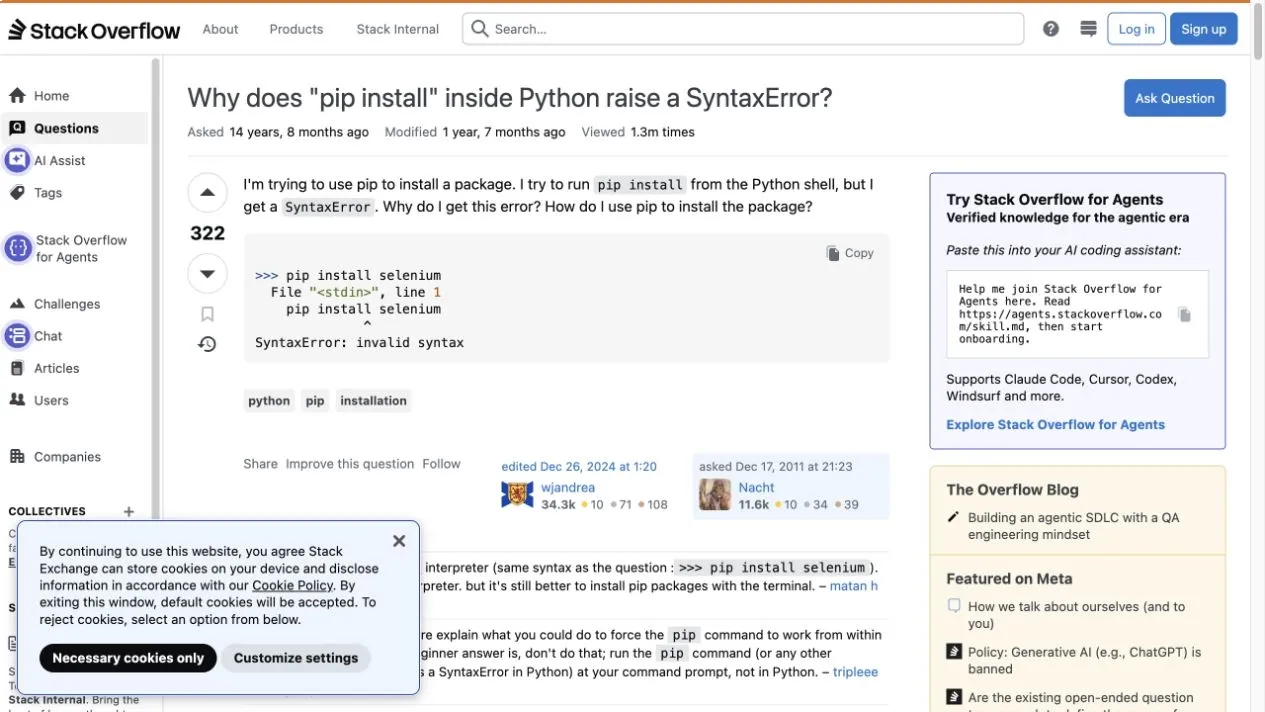
A python install syntax error usually means pip install requests was entered at Python’s >>> prompt instead of a system shell. Exit Python with exit(), return to Terminal, PowerShell, or Command Prompt, and run pip through the Python interpreter you actually want to use:
python -m pip install requests
On many macOS and Linux systems, use python3 -m pip. On Windows, py -m pip install requests is often the clearest choice. In a Jupyter or IPython notebook, use %pip install requests in a cell.
The important clue is not the package name. It is the prompt. >>> accepts Python statements. pip install ... is a command-line instruction, so regular Python cannot parse it.
Before You Start
This guide assumes Python is already installed. You also need access to a system shell: Terminal on macOS, a Bash or Zsh terminal on Linux, or PowerShell or Command Prompt on Windows.
First, identify the interface in front of you. A prompt showing >>> is the standard Python interpreter. A prompt such as $, %, PS C:\...>, or C:\...> is usually a system shell. Jupyter and IPython cells commonly show In [1]: and support special magic commands.
Check the Python command available in your system shell:
python --version
python3 --version
On Windows, the Python launcher can be checked with the following command. NOT EXECUTED in this macOS workspace:
py --version
You need only one working command. Use that same interpreter name throughout the installation and verification steps. A virtual environment is recommended for project dependencies, but it is not required to understand or reproduce the prompt error.
Why pip install Raises SyntaxError: invalid syntax
pip is Python’s package installer, but the familiar pip install package-name form is a command-line interface. It is meant for a system shell such as Terminal, Bash, Zsh, PowerShell, or Command Prompt.
The standard Python interpreter is a different interface. Its primary prompt normally looks like this:
>>>
At that prompt, Python expects expressions and statements such as print("hello"), import requests, or total = 2 + 2. When it receives this instead:
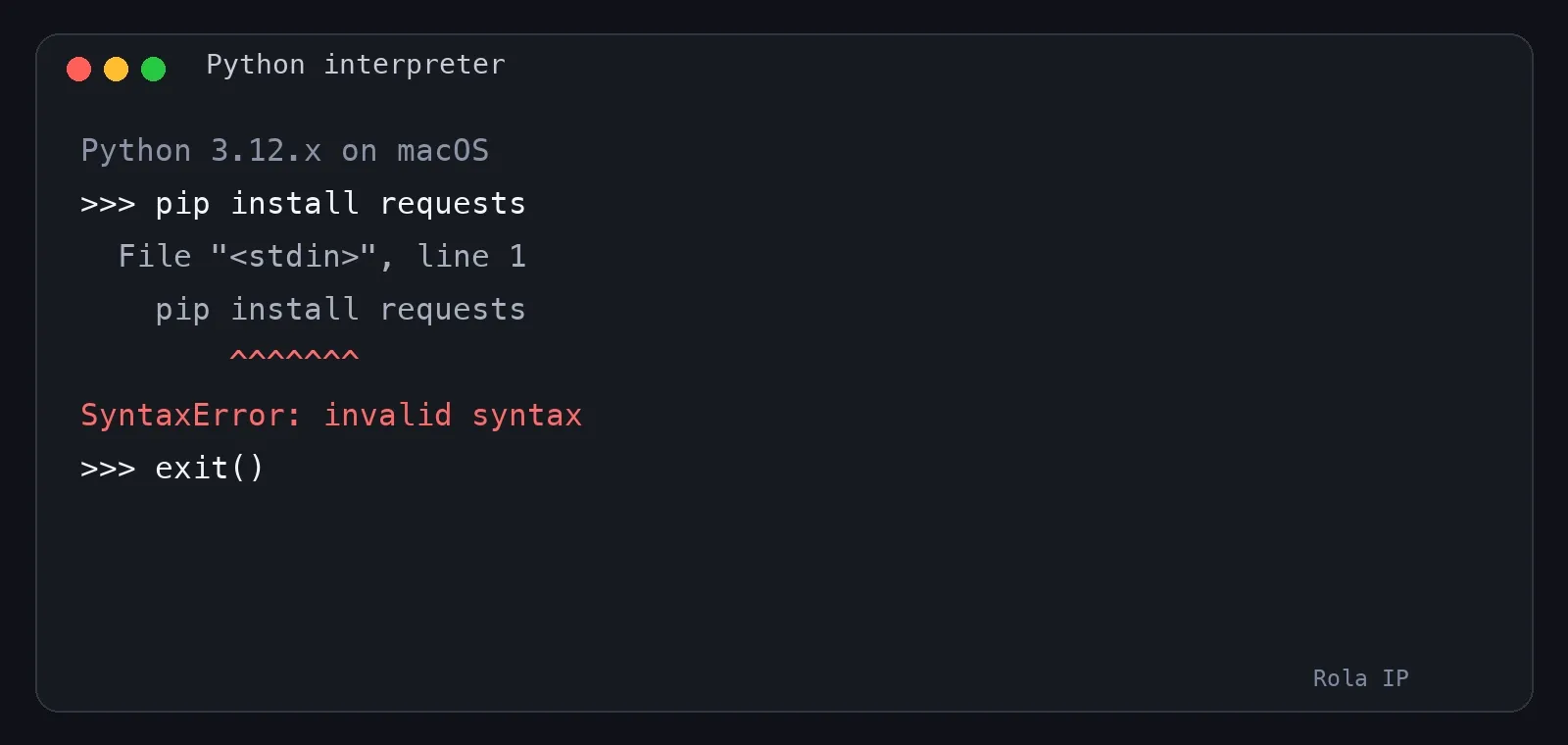
>>> pip install requests
it tries to parse the words as Python code. There is no valid Python grammar for that line, so parsing stops before pip ever starts.
This distinction also explains why upgrading pip is not the first fix. If the traceback points to pip install ... on line 1 of <stdin>, pip has not run yet. Changing pip versions, package versions, network settings, or the target library cannot repair a command that was entered in the wrong interface.
Fix It in Three Steps
1. Check which prompt you are using
Look immediately to the left of the command.
| What you see | Where you are | What belongs there |
|---|---|---|
>>> |
Standard Python interpreter | Python code |
... |
Python continuation prompt | The rest of an unfinished Python statement |
$ or % |
Common macOS or Linux shell prompt | Shell commands, including pip |
PS C:\...> |
Windows PowerShell | PowerShell and command-line commands |
C:\...> |
Windows Command Prompt | Command-line commands |
In [1]: |
IPython or Jupyter | Python plus supported magic commands such as %pip |
Prompt appearance can be customized, so treat the examples as clues rather than universal styling. The decisive test is whether you intentionally started Python and now see >>>.
2. Exit the Python interpreter
At >>>, run:
exit()
quit() also works in a normal interactive session. Keyboard exits differ by operating system: Control-D sends end-of-file on Unix-like systems, while Windows uses Control-Z followed by Enter. Using exit() is easier to explain and works across the common interactive environments.
After exiting, the >>> prompt should disappear and your normal system prompt should return.
3. Run pip from the system shell
On macOS or Linux, start with:
python3 -m pip install requests
If python already selects the intended Python 3 interpreter, this is also valid:
python -m pip install requests
On Windows PowerShell or Command Prompt, the Python launcher commonly provides the most explicit command. NOT EXECUTED in this macOS workspace:
py -m pip install requests
You may also use python -m pip install requests when python maps to the correct installation.
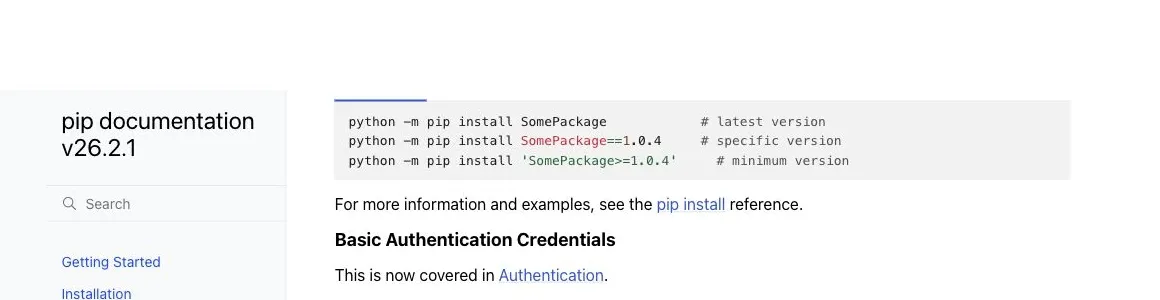
Why prefer python -m pip over a bare pip command? It couples pip to the interpreter named at the start of the command. That reduces a common problem where pip installs into one Python environment but the script runs under another.
Use a Virtual Environment to Avoid Interpreter Mix-Ups
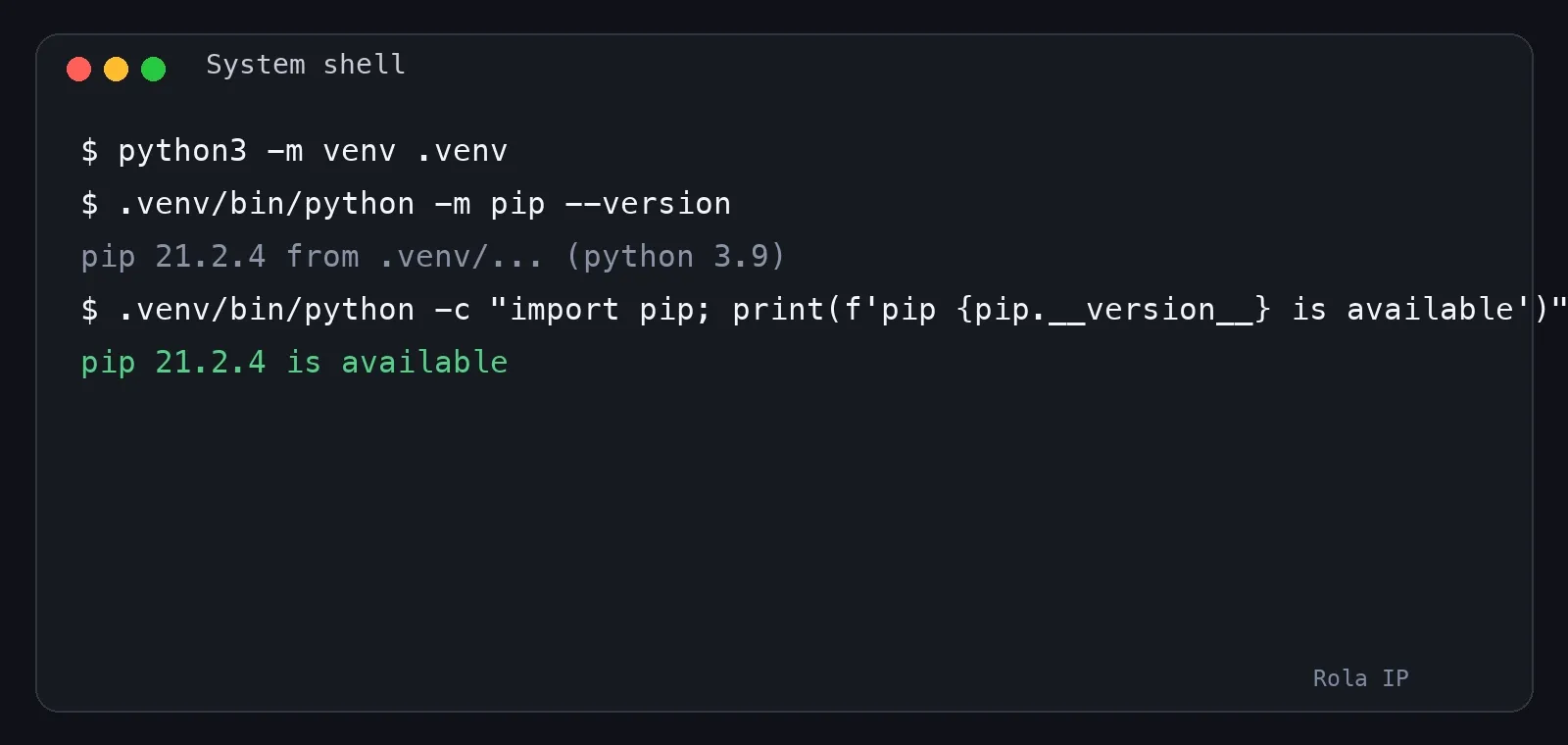
Fixing the prompt solves the syntax error. A virtual environment solves the next common problem: installing successfully and then receiving ModuleNotFoundError in the project.
For macOS or Linux:
python3 -m venv .venv
source .venv/bin/activate
python -m pip install requests
python -c "import requests; print(requests.__version__)"
For Windows PowerShell, use the following sequence. NOT EXECUTED in this macOS workspace:
py -m venv .venv
.\.venv\Scripts\Activate.ps1
python -m pip install requests
python -c "import requests; print(requests.__version__)"
If PowerShell blocks the activation script, you can call the environment’s interpreter directly instead of changing machine-wide execution policy:
.\.venv\Scripts\python.exe -m pip install requests
.\.venv\Scripts\python.exe -c "import requests; print(requests.__version__)"
Success has two parts. The install command must finish without an error, and the import verification must run under the same interpreter. A successful installation message by itself does not prove that your IDE or script is using that environment.
The Correct Command in Jupyter and IPython
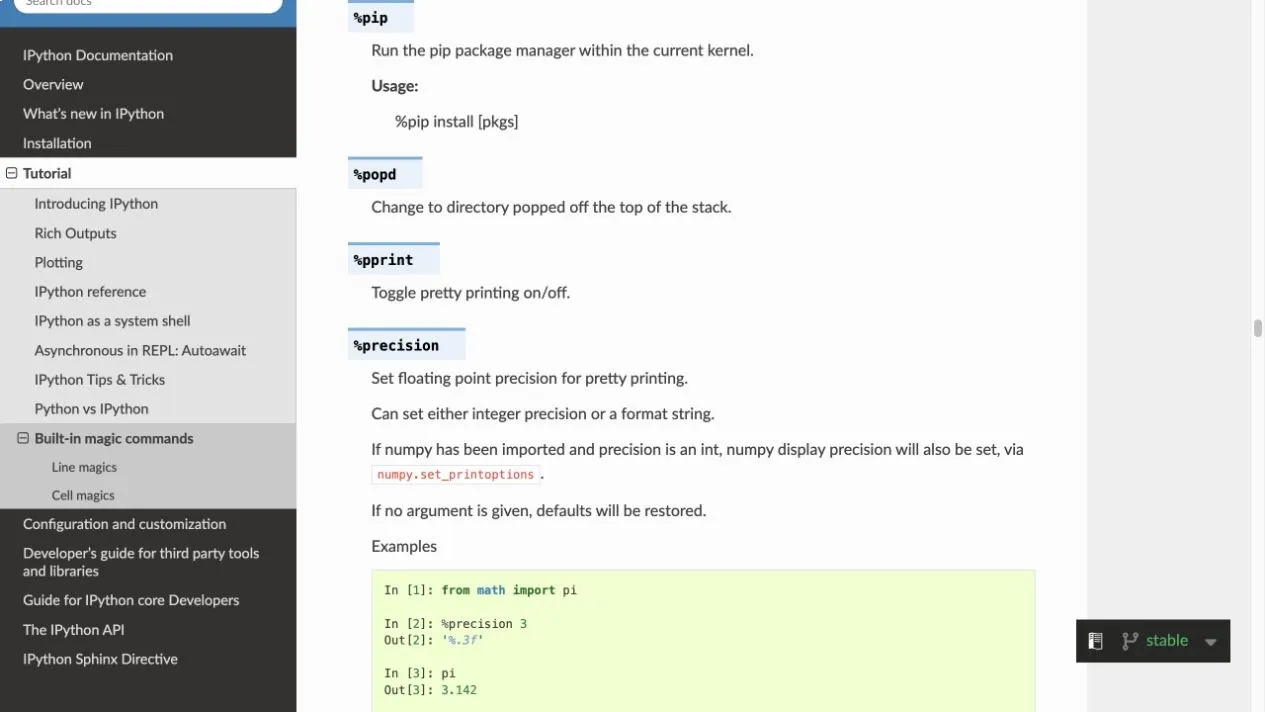
A notebook cell is not a normal system terminal, even though it executes Python. IPython provides a dedicated %pip magic that runs pip in the current kernel environment. The syntax below was verified against the IPython documentation but was NOT EXECUTED because this workspace has no IPython or Jupyter runtime:
%pip install requests
That is preferable to pasting a normal shell command into a regular Python interpreter. It is also preferable to assuming that a separate terminal uses the same environment as the notebook kernel.
After installation, verify the import in a new cell:
import requests
print(requests.__version__)
Some packages require a kernel restart before newly installed code or compiled components load cleanly. If the install succeeds but an already-imported module behaves as though it has not changed, restart the kernel and run the import again.
VS Code, PyCharm, and IDLE: Choose the Terminal, Not the Python Console
Modern IDEs often place several panels next to each other. Their names matter.
In VS Code, use the integrated Terminal for python -m pip install .... The Python REPL opened by commands such as Start REPL shows >>> and accepts Python code, not shell commands.
In PyCharm, use the Terminal tool window for pip commands. The Python Console is an interactive interpreter and normally shows a Python prompt.
IDLE’s Shell is also a Python interpreter. Exit it and open Terminal, PowerShell, or Command Prompt for a normal pip command. If the editor offers a package-management interface, confirm that it targets the same project interpreter before using it.
Diagnose the Error You Actually Have
Not every install failure is a Python install syntax error. Read the first useful error line and note whether pip began producing output.
If the caret points at
piporinstallwhile the prompt shows>>>, the command was entered in the Python interpreter rather than a system shell.
| Symptom | Likely cause | How to verify | What to do |
|---|---|---|---|
SyntaxError points at pip install ... on line 1 of <stdin> |
pip was entered at >>> |
Look for the Python prompt | Exit Python and run python -m pip ... in the system shell |
'pip' is not recognized or pip: command not found |
The shell cannot find a bare pip executable | Run python -m pip --version or py -m pip --version |
Use the interpreter-qualified command instead of changing Python syntax |
No module named pip |
That interpreter has no pip module | Run python -m pip --version |
Try python -m ensurepip --upgrade, or use the official Python installer or OS package guidance |
externally-managed-environment |
The OS protects its managed Python environment | The message appears after pip starts | Create a virtual environment and install there |
| Connection timeout, TLS, certificate, or proxy error | pip started but could not reach its package source | pip displays download or index activity | Check the index URL, DNS, certificate trust, firewall, and required proxy configuration |
No matching distribution found |
No compatible release matches the interpreter, platform, or requirement | Check Python version and package release support | Use a supported Python or package version; do not treat it as a syntax problem |
| Wheel or compiler build failure | The package needs a compatible wheel or local build tools | pip reaches a build step | Read the package’s platform prerequisites and the first build error |
SyntaxError appears deep inside a pip or package traceback |
Old Python may be parsing newer package code | Run python --version and note the file named in the traceback |
Use a supported Python version and re-create the environment |
The last case is uncommon but important. A historical pip issue showed a real SyntaxError after get-pip.py had started because an obsolete Python release could not parse code from a newer toolchain. That is fundamentally different from a caret pointing at the word install on the command you typed.
If pip Is Missing
First make sure you are running the check in a system shell:
python -m pip --version
If Python responds with No module named pip, do not assume ensurepip is the universal repair. Check the installation guidance for your operating system or Linux distribution first. Some distributions disable, remove, or separately package ensurepip to protect the system-managed Python environment.
For a standard Python installation that includes the module, this command can bootstrap pip:
python -m ensurepip --upgrade
Then verify again:
python -m pip --version
If the command reports that ensurepip is unavailable or disabled, follow the distribution’s package-manager instructions or install a current Python from an official supported source. Some distributions also require a separately packaged virtual-environment component. Avoid reaching for sudo pip install ... as a universal fix because it can modify an OS-managed Python installation.
Verify the Package with the Same Interpreter
Do not stop at “Successfully installed.” Ask the same interpreter to import the package:
python -c "import requests; print(requests.__version__)"
If this fails after the install succeeded, compare these commands:
python -c "import sys; print(sys.executable)"
python -m pip --version
The paths should refer to the same Python installation or virtual environment. Also check the interpreter selected by the IDE or notebook kernel.
Once Requests imports correctly, the next useful steps depend on the project. Rola IP’s Python Requests headers guide explains header handling, while the Python Requests timeout guide covers connection and read timeouts. If the application itself needs to route web requests through a proxy, use the Python proxy integration guide. Those are application-level steps; they do not change where a pip command must be entered.
Can You Install a Package from a Python Script?
Python can launch pip as a separate process, but ordinary application code should not install its own dependencies at runtime. Dependency installation belongs in project setup, a requirements file, a build process, or an environment-management workflow.
If a controlled installer truly needs to invoke pip, use the running interpreter and a subprocess:
import subprocess
import sys

subprocess.check_call([
    sys.executable,
    "-m",
    "pip",
    "install",
    "requests",
])
Do not rely on private pip._internal APIs. They are implementation details and are not a stable application interface. Even with subprocess, consider permissions, environment isolation, restarts, and supply-chain controls before making installation automatic.
Conclusion
When pip install produces SyntaxError: invalid syntax, inspect the prompt before changing anything else. A caret under pip or install at >>> means the command is in the Python interpreter instead of the system shell.
Exit Python, run python -m pip install package-name or the operating-system equivalent, and verify the import with the same interpreter. If pip starts and reports a different error, follow that error’s evidence. PATH problems, missing pip, protected system environments, network failures, incompatible packages, and build failures require different fixes.