
Disney Plus VPN Not Working: How to Troubleshoot Playback Step by Step

Oct 8, 2026 · Guides · 12 min read
Quick answer: If Disney+ stops working when you enable a VPN or proxy, compare the same device, account and title on a direct connection first. Then verify the proxy endpoint, authentication, actual application route, exit IP, DNS and IPv4/IPv6 handling in that order. If both paths fail, check their shared network dependencies as well as account and playback errors. A changed IP or a successful proxy check does not establish playback access; confirm the result in Disney+ itself.
What to Check First When Disney+ Won’t Play
Exit Address and Protocol Support
A VPN node’s address, routing, and load can change, so a single failure does not prove that an IP is permanently blocked. If direct playback works but playback fails with the tool on, first confirm that the browser or app you are actually using goes through that tool and that the tool supports the network protocol it needs. Then check the exit and DNS. Don’t treat the tool’s own “connected” status as proof that Disney+ will play.
DNS and the IPv4/IPv6 Path
A VPN showing “Connected” does not mean your browser, DNS, IPv4, and IPv6 all take the same path. A DNS resolver located in a different region from your exit IP can be perfectly normal architecture, or it can be a sign that the configuration needs review. Either way, you cannot conclude from it alone that Disney+ has detected your location. Methods 4 and 7 below give same-device comparison steps.
Account and Title Licensing
Title availability changes with region, subscription, and licensing. Changing your exit IP does not change your account or a title’s licensing. When the page opens but the video won’t play, use the actual error message to check the account and the title first, and only then decide whether to investigate browser DRM or app state.
Disney+ Page Won’t Load vs. Video Won’t Play
If your browser can’t even open the Disney+ home page, first test other websites on a direct connection and check your local DNS and network connection. A page-access failure happens before playback, so clearing Disney+ cookies or switching titles usually won’t pinpoint the problem. If the page fails to open only with the VPN on, compare the exit and DNS on the same device between the direct path and the VPN path. Don’t treat a working IP lookup tool as proof that the Disney+ page will work.
If the home page and title details open, but clicking play leads to a black screen, an endless spinner, or an error code, then page access and video playback are two different outcomes. Save the full message first and check whether the same title plays on a direct connection. If direct playback also fails, check your subscription, the title’s region, your device, and the player first. Disney+'s official playback troubleshooting help offers further device and network checks. Only when direct playback works and playback fails after you enable the VPN should you shift your focus to the exit path, DNS, or client settings.
Login failure is yet another kind of problem. If you see a message about suspicious account activity or an unfamiliar device, protect your account by following the on-screen prompts first. The Error 73/93 section later in this guide explains what each of those two errors points to. A login problem can’t simply be treated as a line fault.
What to Do When Disney Plus VPN Is Not Working
The steps below are written separately for desktop browsers and mobile apps. The Chrome screenshots are desktop examples, the Android cache screenshot applies only to that system, and the Linux IPv6 screenshot can’t be copied over to Windows or macOS. Record the device, operating system, app or browser version, time, error code, and the result of each test, and change only one thing at a time.
Method 1: Stop the VPN and Proxy and Run a Direct-Connection Comparison
- Fully quit the Disney+ app, or close all Disney+ tabs.
- Disconnect the VPN client, and confirm that the system proxy and any browser proxy extensions are not still taking over your traffic.
- Keeping the same device, account, and home network, restart the app or browser.
- Play the same title and record the error code and the result.
If the direct connection works, your account and device are at least capable of basic access or playback, and you can go on to check the VPN, proxy, and DNS paths. If the direct connection fails too, check your account, subscription, region, app, and service status first. The value of this test is that it holds every other condition constant; it does not prove that a direct connection is always better.
Method 2: Compare Your Public IP and Region Information
First turn off the VPN or proxy, and use Rola IP’s IP lookup tool to record the country, region, and network ownership that your browser shows. Then turn the original tool back on and retest in the same browser. If you mask the full IP when sharing screenshots, that’s a good habit. If the before and after results are identical, the browser’s exit may not have switched. If an unexpected region appears, go back and check the node and the routing. An IP tool can only prove the exit your browser saw at the time of the test. It cannot prove how the Disney+ servers judge you, or which path a native app’s traffic takes.
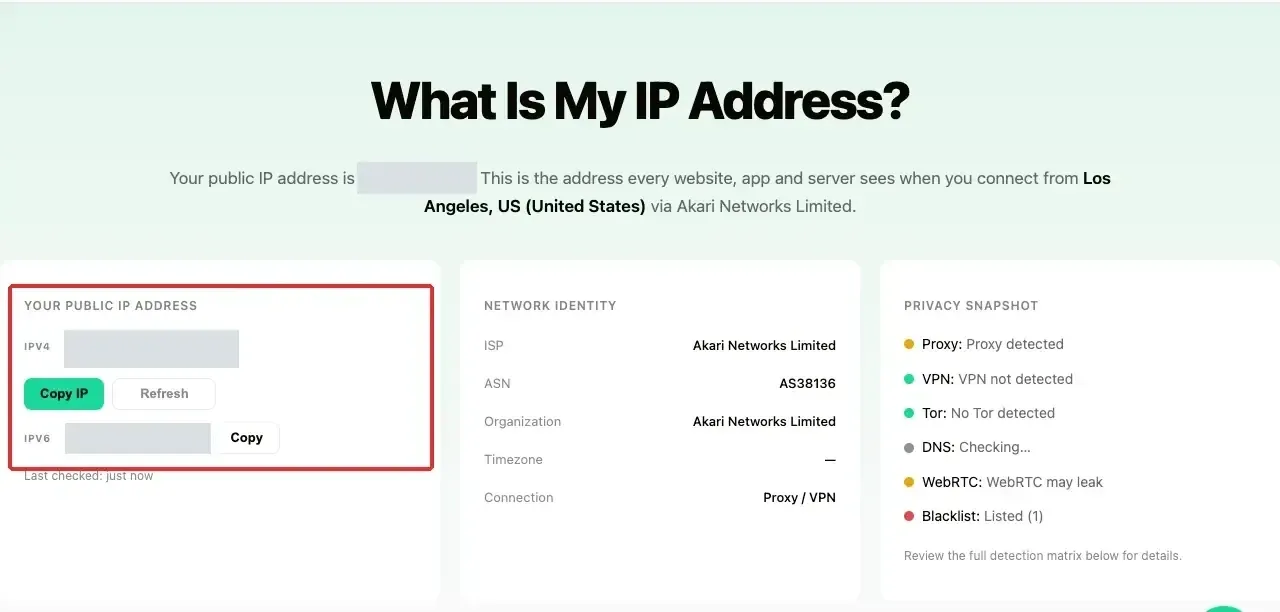
Record four results separately: (1) whether the browser or proxy endpoint can be reached; (2) whether the exit IP changed as expected; (3) whether the Disney+ page opens; and (4) whether the same title actually plays. Success on the first two does not imply success on the last two. Account region, device location, and DNS resolution also need to be checked separately in the corresponding device and tool.
| Checkpoint | What it can tell you | What it cannot tell you |
|---|---|---|
| Proxy endpoint is reachable | The test from the tool to the proxy succeeded | Disney+ traffic is going through the proxy |
| Browser exit changed | That browser’s exit had changed at the time of the test | The native app’s path or playback permission |
| Disney+ page opens | The web page can load | The video can play |
| Same title plays | This device, account, and path can play it this time | It will necessarily work in other regions or later |
Method 3: Tell Apart a VPN, a System Proxy, and a Browser Extension
A VPN usually builds a system-level tunnel that affects multiple apps. A system proxy only forwards requests from apps that support that proxy setting. A browser extension usually affects only the browser or matching sites. The steps below apply to desktop Chrome only: open chrome://extensions/ in the address bar, note the current status of any proxy extensions, pause the relevant extensions one by one, fully quit and reopen the browser, and then retest on a direct connection with the same account and title. The entry points for system proxy settings differ across Windows, macOS, and Linux, and Android and iOS each have their own system and app settings, so you can’t reuse the desktop screenshots there.
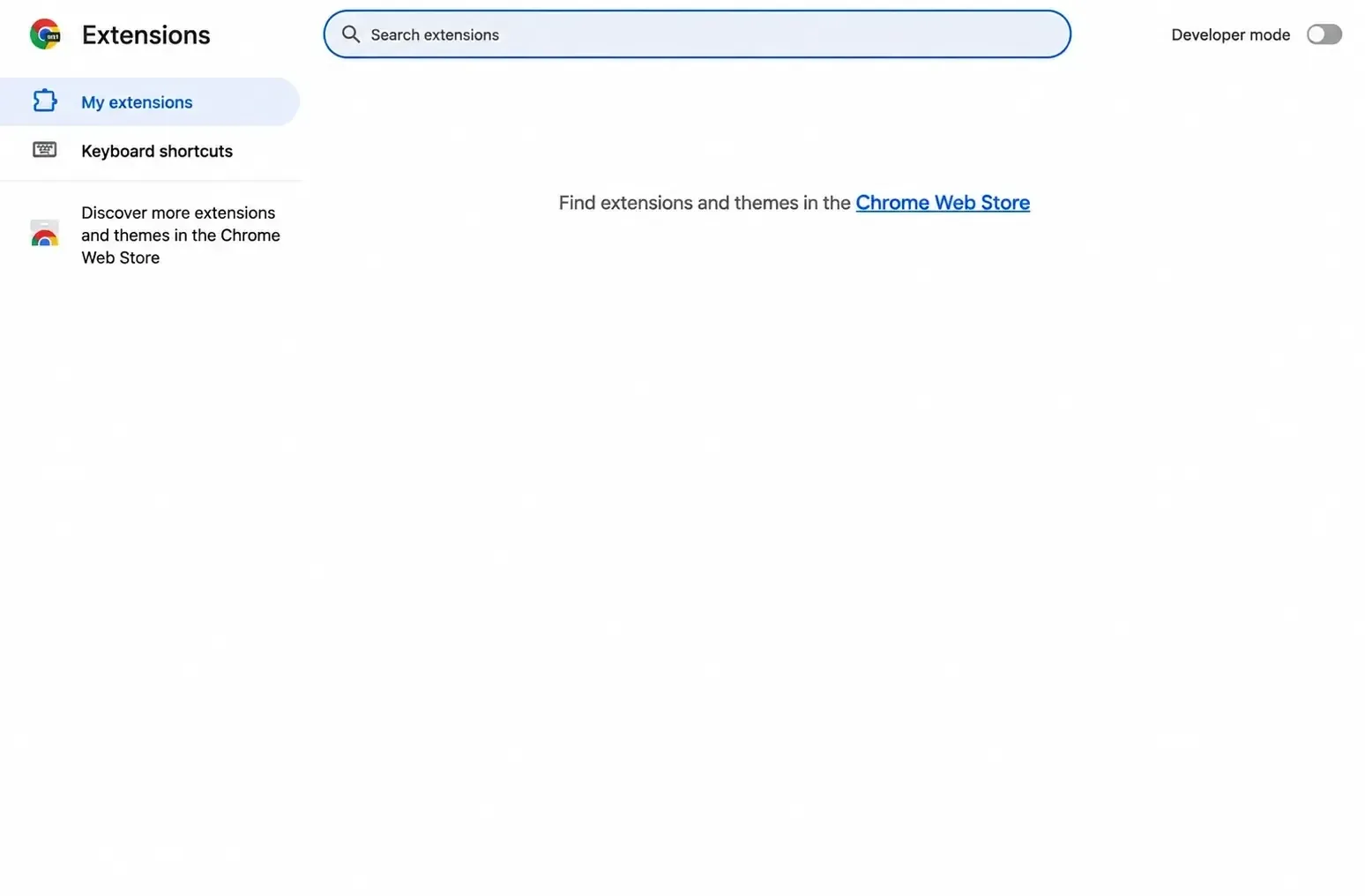
If the system VPN is disconnected but an extension is still connected, the browser may still use a different exit. Likewise, turning off the browser proxy does not mean a native app has left the system VPN.
Method 4: Check the DNS Path on the Same Device
First turn off the VPN and proxy. On the same desktop device, record the system resolver, the server that a DNS query actually used, the browser’s exit IP, and whether the same Disney+ title plays. On macOS, you can use scutil --dns to view the system resolvers, then run dig disneyplus.com and read the SERVER line in the output; Apple’s DNS settings guide can be used to verify the graphical settings entry point. On Windows PowerShell, you can use Get-DnsClientServerAddress to view the system configuration, then run nslookup disneyplus.com and read the server and query result it shows; Microsoft’s command documentation explains what the commands return. Next, enable just one VPN or proxy path, repeat the same queries and the playback test, and record the time and any changes. When the test is over, turn the tool off and confirm that your direct-connection result can be restored.
If a command can’t resolve the domain, that only means this one query failed, so check your local network and DNS configuration first. If the query succeeds, that only shows the query returned a result; it does not prove Disney+ will play. Command-line tools may also bypass a browser’s secure DNS, and they don’t represent the resolution path a native app uses. If the exit changed but the resolver did not, first check whether the client promises to take over DNS and whether the browser has its own secure DNS enabled. Don’t declare a “leak” or a platform block just because the resolver’s region is different. You can check the availability of a SOCKS5 endpoint on its own with Rola IP’s SOCKS5 proxy checker, but the actual page and same-title playback remain the deciding test.
Method 5: Clear Disney Plus Site Data and Sign In Again
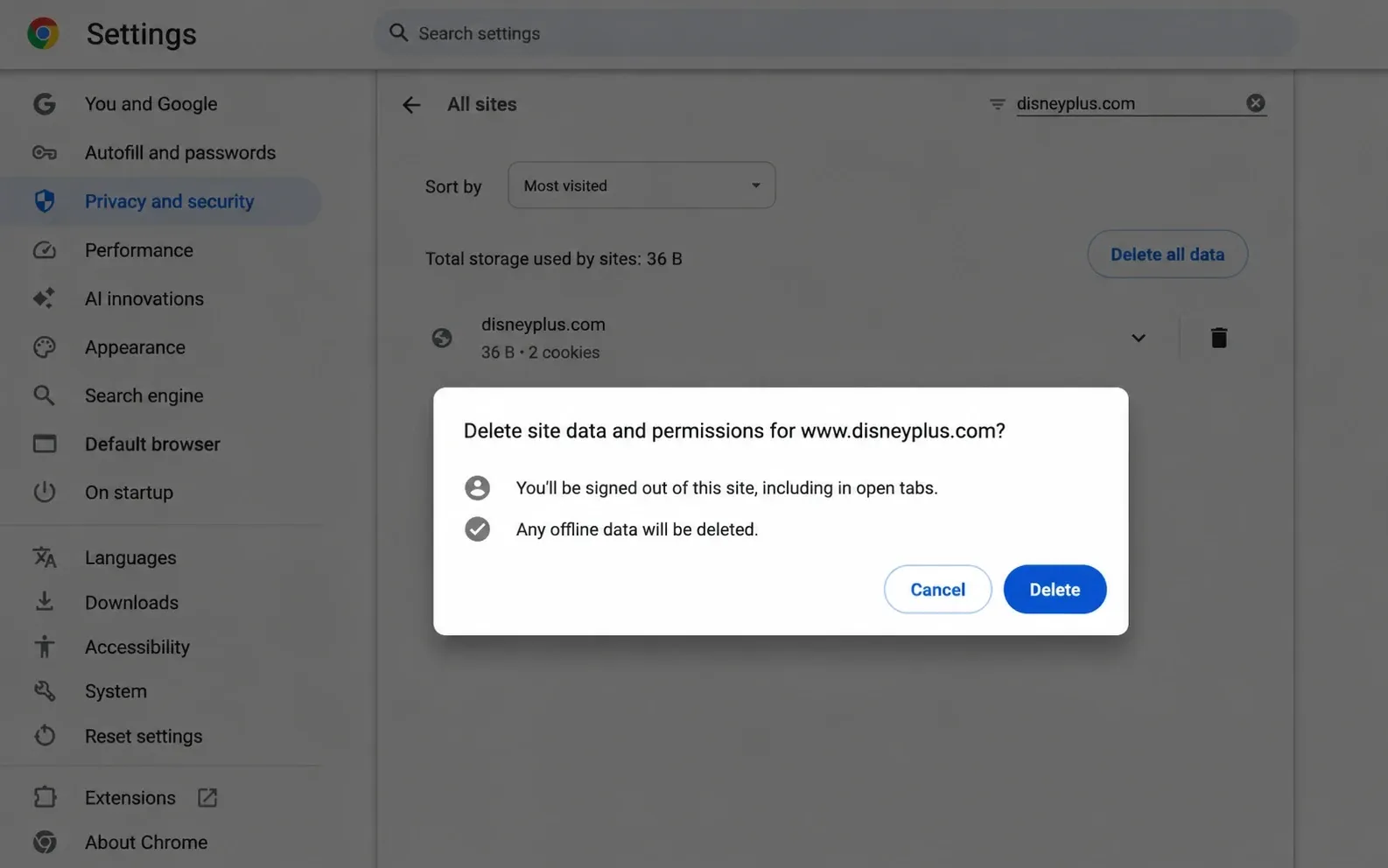
Clear the site’s data only if the comparison between the direct and tool paths is already done and desktop Chrome still keeps showing an old page state. Open chrome://settings/content/all, filter for disneyplus.com, verify the domain, and then click delete. Chrome’s official cookies and site data guide explains the scope and consequences of clearing. Figures 3 and 4 were captured on September 29, 2026, in an isolated browser on macOS with Chrome 154; the interface may look different in other versions.
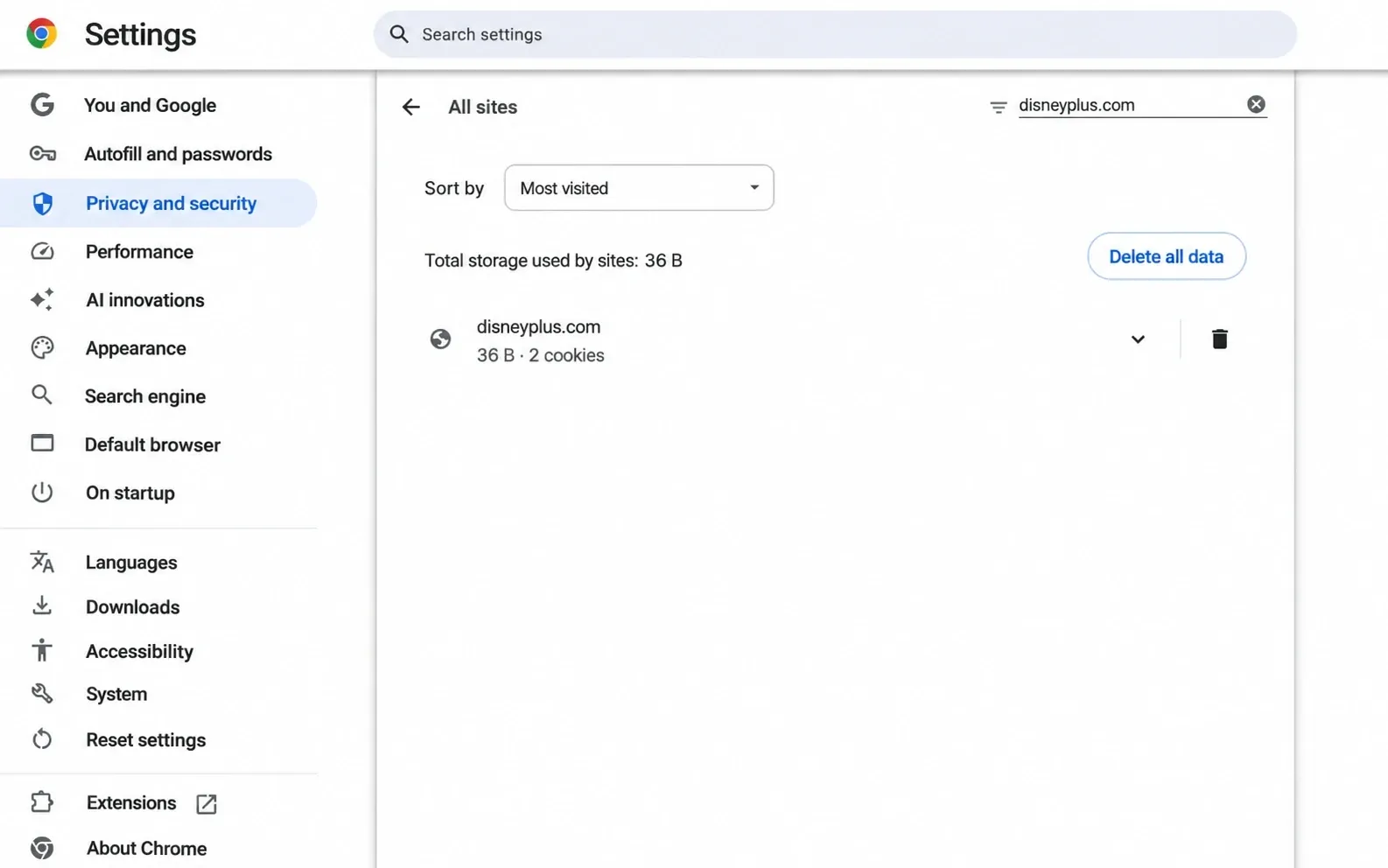
Confirm that the window shows www.disneyplus.com before deciding whether to delete. Deleting signs you out and may remove offline data, so first make sure you know how to recover your account. Figure 4 stops at the confirmation window; it does not prove that any data was deleted or that playback was restored. After the operation, retest with the same title. If it still fails, restore your original test path and don’t go on to clear other sites’ data.
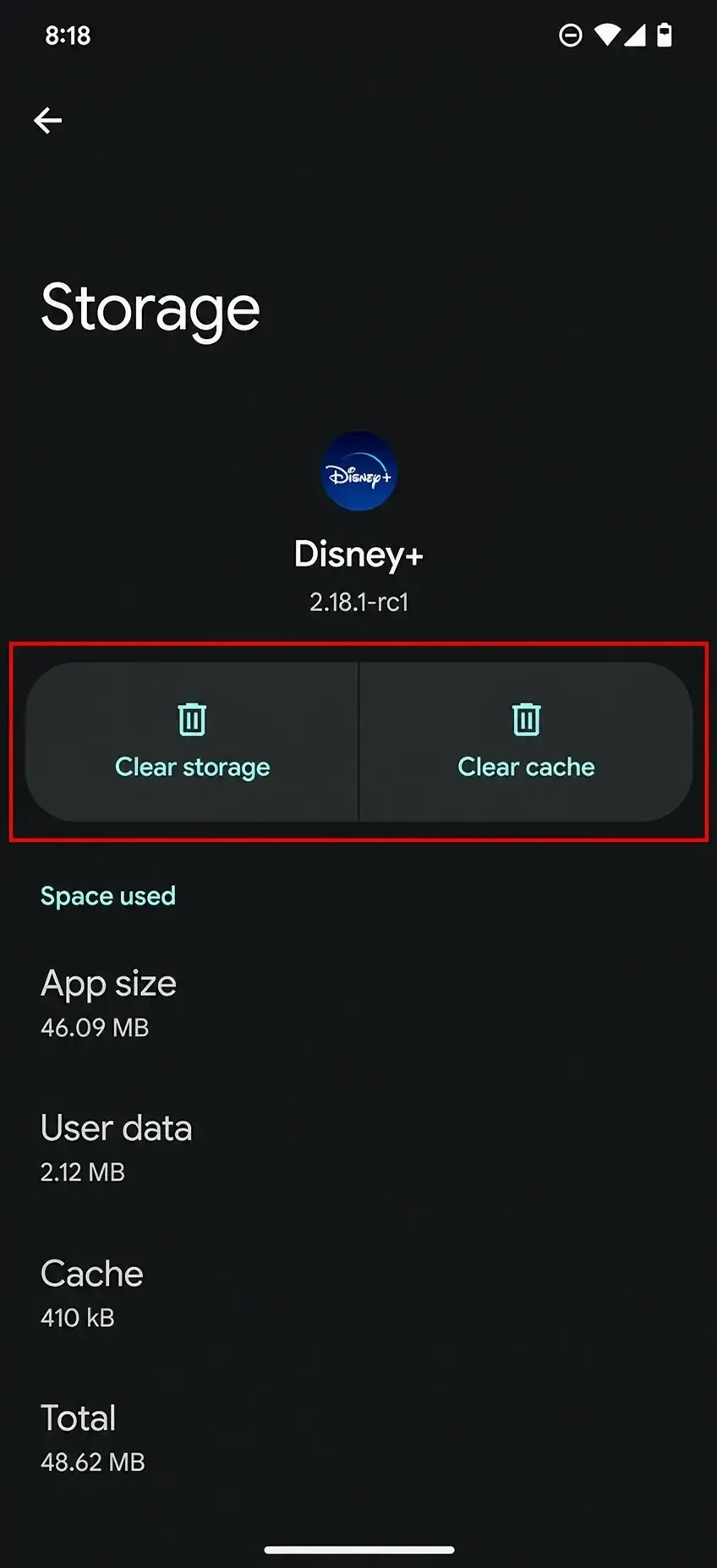
If the problem appears only in the Android app, you can check the Disney+ cache in your system’s app storage settings. Note that “Clear data” may remove your login and offline content. Figure 5 is an Android example and does not apply to iOS. After clearing, you should still judge by actual playback results rather than by whether the page opens.
Method 6: Check DRM and the Browser Playback Environment
Only if the page opens in desktop Chrome but the video shows a black screen or a decryption prompt should you check the protected content settings at chrome://settings/content/protectedContent and your browser version. For the specific options, see Chrome’s official protected content settings guide. After making a change, restart the browser and retest with the same title. This step does not apply to mobile apps, and it can’t replace the network-path comparison.
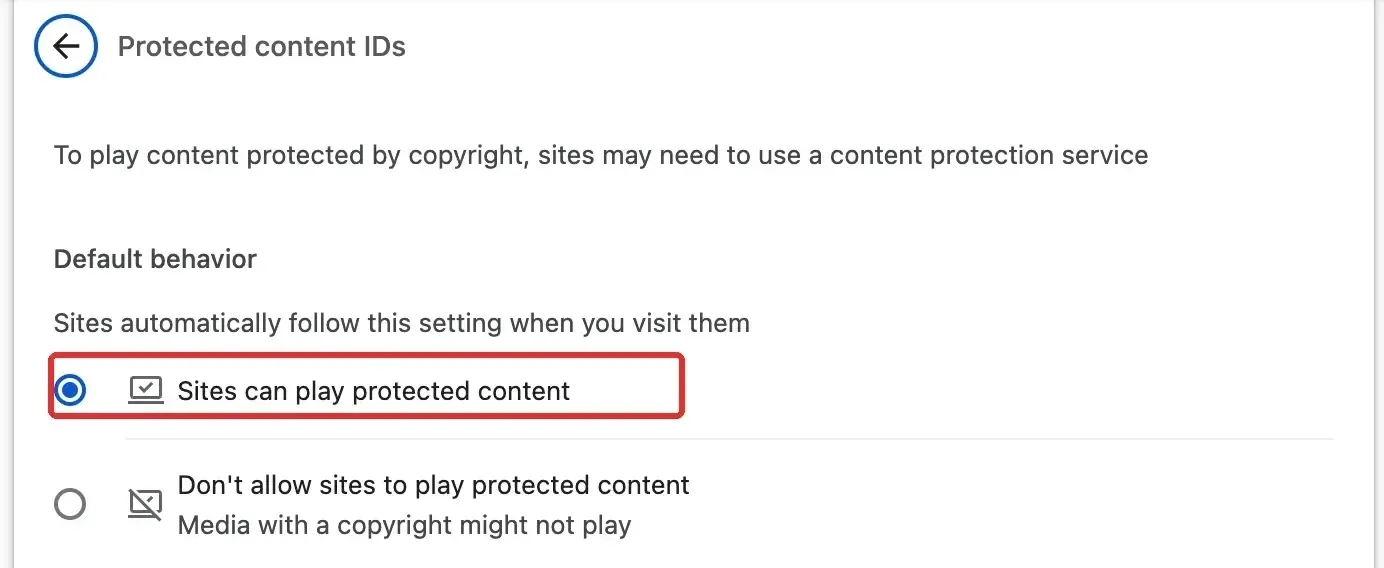
DRM faults are different from VPN detection. Switching your exit generally can’t fix problems with Widevine, browser components, or device authentication, and you should not turn off browser security features to try to force playback.
Method 7: Confirm Whether IPv6 Is Available Before Deciding on a Comparison
In the same desktop browser, on a direct connection, first open an IPv4/IPv6 checker page and record the detected public IPv4 and IPv6 addresses and the time of the test. Then enable just one VPN or proxy path, retest in the same browser, and compare the results. If the checker shows that IPv6 is unavailable or the test did not complete, retest and verify whether your device has IPv6 at all; don’t jump to calling it an “IPv6 leak.” An IPv4 vs. IPv6 comparison article explains the difference between the two address families. If you never had usable IPv6, skip the disabling step. Only when you have confirmed that IPv6 is available, the tool isn’t handling IPv6 as expected, and the client has no more precise setting should you consider temporarily disabling IPv6 on the current connection for one comparison.
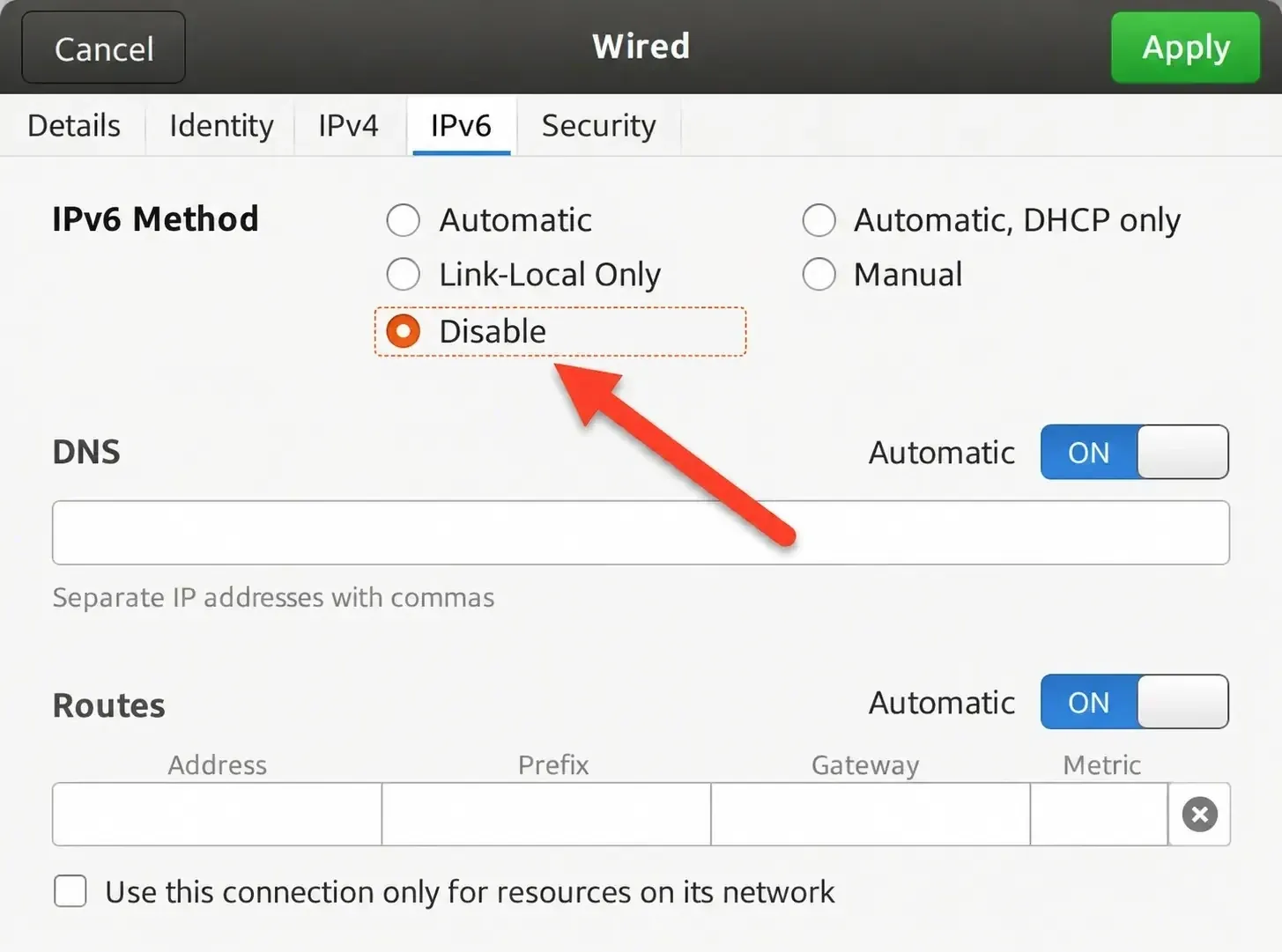
Record the IPv4/IPv6 addresses, the Disney+ page, the same-title playback result, and the error code separately before and after the change, then restore your original configuration and retest the direct connection. The checker page only observes the browser’s network; it does not represent Disney+'s native app or the platform’s detection logic. Figure 7 only illustrates the Linux GNOME controls; on Windows, macOS, and mobile systems, follow each system’s own settings guide. A change in one result cannot prove that Disney+ uses IPv6 as a basis for identification, and disabling IPv6 is not a default fix.
Method 8: Restart the App, the Device, and the Home Network
Only if the earlier direct-connection tests still fail and the device or home network looks faulty, restart the app and the device first, then restart the router on its own if needed, retesting on a direct connection with the same title each time. If it plays over a cellular network but not on your home Wi-Fi, then check your home network. Don’t change DNS, the exit, and account settings all at once.
Method 9: Check Account Region, Subscription, and Device Activity
If the direct connection fails too, verify that your current region and subscription include the target title, and save the full error message. If the message involves an unfamiliar device or account security, follow Disney+'s official guidance to protect your account and contact support. Don’t guess the cause from the error code number alone, and don’t keep switching regions to cover up an account problem.
What to Do About Error 73 or Error 93
After completing the direct-connection comparison above, handle the issue according to the actual error you see. Error 73 usually shows a message that the title can’t be watched from your current location. Disney+'s official Error 73 explanation says it may mean the service isn’t yet offered in your current country or region, or it may be related to a VPN or an IP anonymizing tool. First confirm the service region. If a VPN or proxy is on, turn it off, restart the app, and retry the same account and title on a direct connection.
Error 93 usually shows a message that suspicious activity was detected on the account, and account access may be temporarily restricted. Disney+'s official Error 93 explanation mentions that signing in from multiple devices in different locations at the same time, or using a VPN, can both be related. First review the account’s device activity, sign out of any devices you don’t recognize, and then turn off the VPN and restart the app. If access still isn’t restored, contact Disney+ support. For Error 73, check the region and the connection path first; for Error 93, check account security first. The two errors can’t share the same fix.
Using Rola IP for Authorized Proxy-Path Diagnosis
Rola IP provides proxy services, which have a different scope of coverage from a system-level VPN. Consider a single browser proxy as an exit-path comparison only when direct playback succeeds, the fault is confined to the network tool you have enabled, and the user has the right to configure a proxy.
Whether you need a second test path depends on the fault point you’ve recorded. If the cause is only a DNS configuration or a browser extension conflict, fix your existing configuration first. If you truly need to compare a fixed exit, then review the current product page and account settings for Rola IP static residential proxy to confirm the protocol, allocation method, sessions, region, and billing terms. A static residential proxy should not be assumed to be dedicated, low-risk, or compatible with Disney+, and it cannot guarantee that playback will be restored.
When you run the test, save your direct-connection result first, configure only one proxy path, and record the endpoint, the exit, the page, and the same-title playback result separately. When you finish, revoke the proxy, return to a direct connection, and retest. Don’t stack Rola IP, a VPN, and other proxy extensions, and don’t buy a proxy just to fix an ordinary playback problem. This article has no actual playback record showing that a proxy can restore Disney+.
Disney Plus VPN Troubleshooting Table
| Test result | More likely direction | Next step |
|---|---|---|
| Direct connection works, VPN fails | VPN exit, DNS, or client configuration | Check a single path; don’t keep rotating servers |
| Both direct connection and VPN fail | Account, subscription, app, device, or service status | Record the error code and contact Disney+ support |
| Browser fails, app works | Extensions, site data, or DRM | Pause extensions, clear site data, and check DRM separately |
| Home Wi-Fi fails, cellular works | Home network or router configuration | Retest on a direct connection and compare network settings |
| IP changed but DNS path did not | DNS did not switch with the tool, or the result was misread | Check the client’s DNS configuration and the scope of the test |
| Error 93 with an unfamiliar device | Account security needs review | Check the device list and contact official support |
Summary
First turn off the VPN, the system proxy, and browser extensions on the same device and account, and complete a direct-connection comparison. If the direct connection fails, check your account, region, app, and service status first. If the direct connection works but playback fails once a tool is enabled, check the endpoint, the browser exit, page loading, and title playback separately. A network tool’s results cannot replace the actual Disney+ playback result. Rola IP can be used only for proxy-path diagnosis in authorized scenarios; it cannot replace content licensing, and it does not guarantee that playback will be restored.