
Prime Video Keeps Buffering? Fix Playback and Network Issues

Oct 8, 2026 · Guides · 12 min read
TL;DR
If Prime Video keeps buffering on fast internet, test the connection that actually reaches your playback device before upgrading your broadband or buying a proxy. Compare the same title on another device, then compare the original device on another network. Restart and update the app, reduce competing traffic, and test with VPNs and proxies disabled. Persistent problems can involve Wi-Fi, congestion, routing, app state, or playback authorization. Residential proxies can help with controlled network diagnostics, but they cannot guarantee Prime Video access or uninterrupted streaming.
A gigabit connection and a spinning loading circle can coexist. Your broadband plan describes potential capacity; it does not tell you how reliably each video segment reaches your television. A speed test on a nearby laptop also says little about the TV behind a wall, its wireless connection, or the route to the video server.
If you are wondering why Amazon Prime Video keeps buffering while everything else seems fast, use the checks below to identify the failing part. This guide starts with low-effort fixes, then covers ISP policies, proxy behavior, and a measured way to evaluate alternative routing.
Why does Prime Video keep buffering on fast internet?
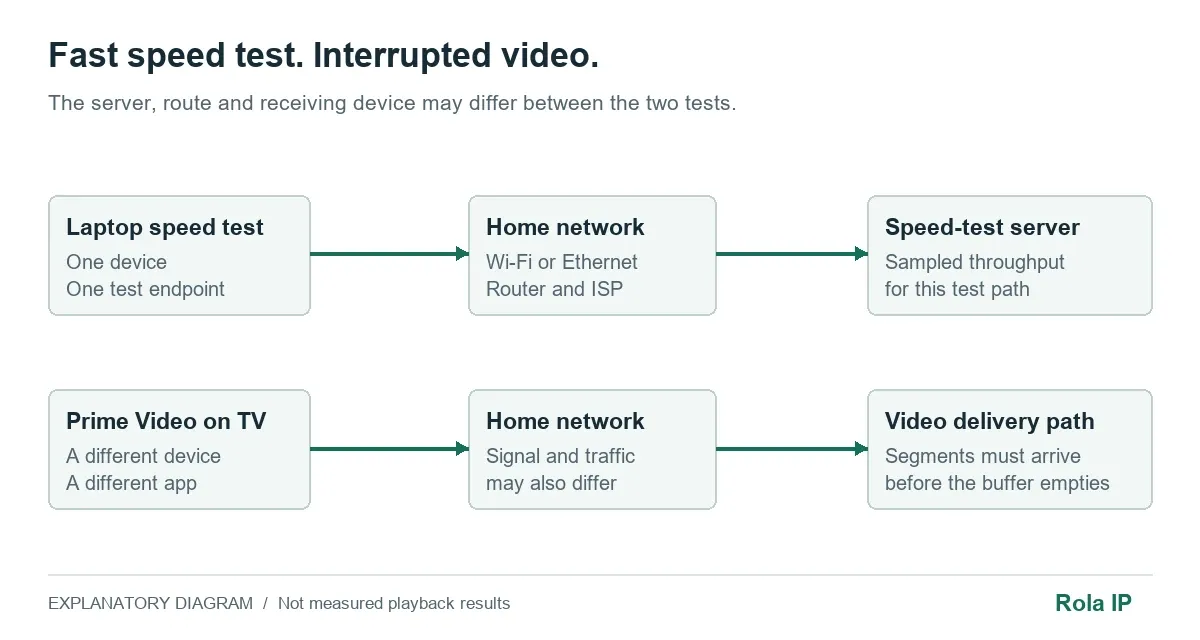
A speed test measures a different connection
The player needs incoming video data to stay ahead of playback. Short interruptions can empty its buffer even when average download capacity looks excellent. A speed test may use a different server, different connections, and a different route from Prime Video.
Local conditions matter too. A television with a weak wireless signal can struggle while a phone beside the router reports hundreds of megabits per second. Upload-heavy backups, interference, and an overloaded router can interrupt delivery without changing the speed advertised by your ISP.
Another streaming app working normally is useful evidence, but it does not rule out your device. Apps use different playback software, buffers, and delivery paths. Test Prime Video itself on another device before deciding the problem is entirely outside your home.
Peak-hour congestion and video policies need different fixes
Congestion means a shared link has too much traffic. Throttling means a policy intentionally limits certain traffic or usage. Both can affect video, but evening buffering alone cannot distinguish them.
Video-specific policies do exist. For example, T-Mobile describes streaming video optimization in its network policy. That is evidence about a particular provider and its plans, not proof that every home ISP deliberately slows Prime Video.
Check your own plan for video resolution settings, data allowances, and traffic-management rules. Repeat a short playback test during a quiet period and during the usual failure window. If only the busy-period test fails, give the ISP those timestamps and ask about congestion or routing. Do not present one speed-test result as proof of intentional throttling.
A loading screen does not reveal Amazon’s internal risk decision
A page can load while playback fails because the page and video depend on different requests. Network timeouts, playback authorization, browser compatibility, and content-specific failures can produce similar symptoms.
Amazon recommends disabling VPNs and proxies when troubleshooting. Its public help does not establish that an endless spinner means your IP was assigned an inferior CDN node. Nor does it establish that residential addresses receive privileged delivery. Treat those explanations as unverified, not as the starting diagnosis. Amazon playback troubleshooting.
How to fix Prime Video buffering step by step
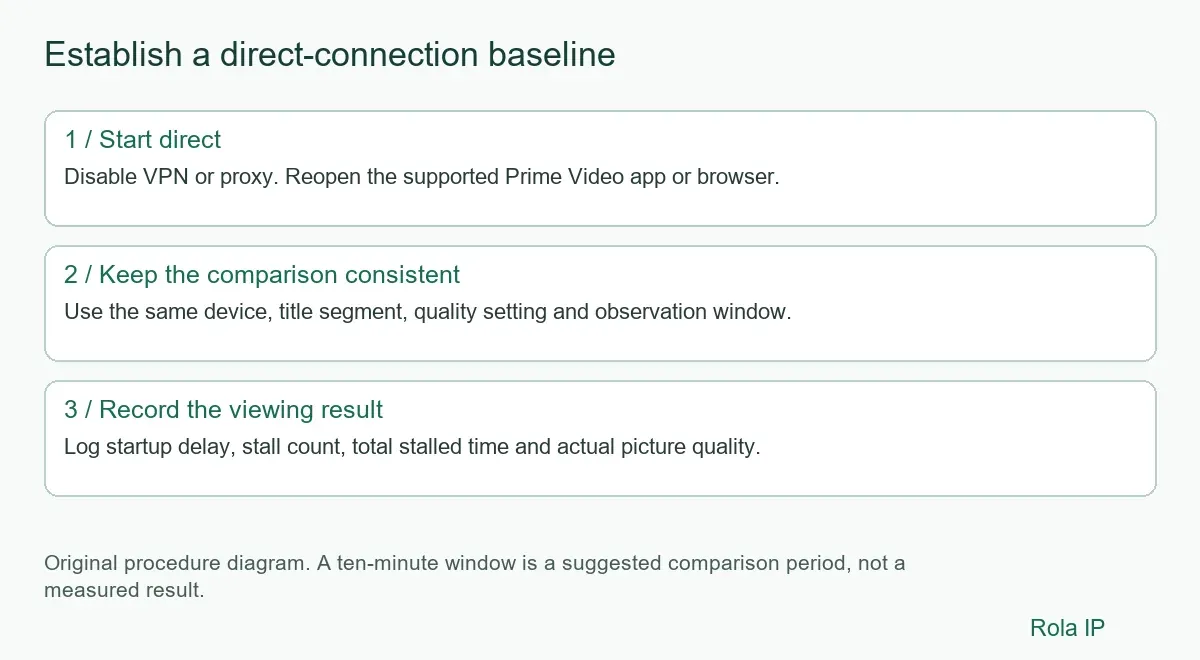
1. Establish a direct-connection baseline
Pause the video and note the title, episode, playback position, time, and any error code. Close other active streams on your account. If you use a VPN or proxy, disconnect it for the baseline test and reopen Prime Video.
Play the same section for about ten minutes. Record startup delay in seconds, the number of rebuffering interruptions, their combined duration in seconds, and actual picture quality if the player exposes it; otherwise record quality as unavailable. Keep this interval consistent for later comparisons. It is a practical observation window, not an Amazon performance guarantee.
If playback becomes stable immediately, inspect the intermediary connection before changing your television or broadband package. If it still fails, continue with the local checks.
2. Restart the app and playback device
Fully close Prime Video, then restart the television, streaming stick, phone, or computer. For a powered streaming device, Amazon advises switching it off for at least 60 seconds before restarting. Resume the same section afterward.
If a router restart is needed, wait until its connection indicators stabilize before testing. Avoid repeatedly rebooting both devices at once: changing one component at a time makes a successful result easier to interpret.
3. Check updates and app state
Update Prime Video through the device’s app store and check for operating-system updates. On Fire TV, Amazon lists Settings > My Fire TV > About > Check for System Update. On a computer, update the browser and restart it before testing again.
Where your device exposes an app-specific cache control, clear Prime Video’s cache first. Cache removal and clearing app data are different operations: clearing data can remove sign-in state and local settings. Reinstall the app only if simpler steps fail and you have your account details available. Amazon device and app guidance.
4. Test the network at the screen
Pause large downloads, cloud backups, and other streams. If possible, temporarily connect the playback device by Ethernet. Otherwise, move it closer to the router or compare another available Wi-Fi band. Neither band is universally better: distance, walls, and nearby networks affect the result.
Run any available connection test on the playback device itself. Then repeat the video test. If Ethernet fixes the interruptions while Wi-Fi fails, improve wireless coverage or keep the wired connection; a proxy would still have to traverse the same unreliable wireless link.
5. Reduce quality where the app permits it
If your version offers a playback-quality control, select a lower setting and repeat the test. Some TV apps handle quality automatically and do not expose the same controls as mobile or desktop versions. Do not spend time searching for a menu your device does not provide.
Amazon’s live-stream help recommends at least 1 Mbps for SD and 5 Mbps for HD. These are published minimums for that context, not a promise that every connection at those speeds will play smoothly. Leave room for competing traffic and temporary dips. Prime Video live-stream requirements.
If lower quality works, the result points toward a delivery or device-capacity problem. It does not identify the ISP as the cause by itself.
6. Separate device problems from network problems
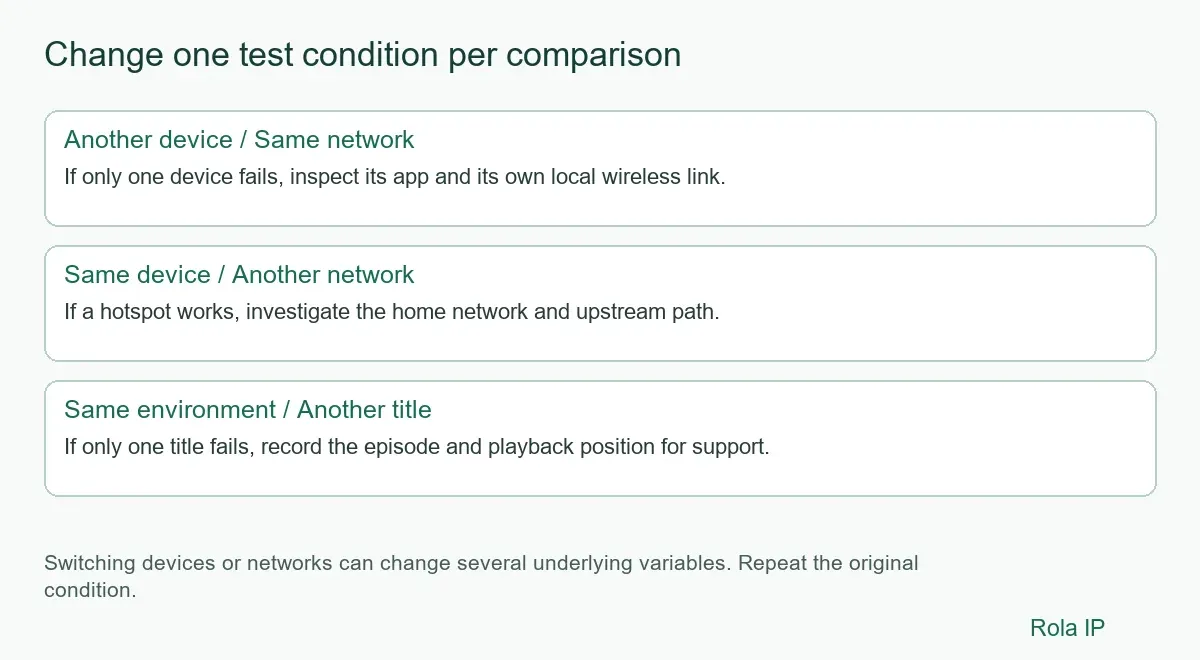
Use a small comparison rather than a long sequence of unrelated tweaks:
- Play the same title on a second supported device using your home connection.
- Test the original device on another permitted connection, such as a mobile hotspot. Keep the test short if mobile data is limited.
- Repeat the original test afterward to check that the improvement was not merely a temporary recovery.
If only one device fails on both networks, focus on that device, its app, and its local wireless link. If multiple home devices fail but the hotspot works, investigate the home network and its upstream route. If one title fails everywhere while other titles play, report the title and playback position to Amazon.
An alternate network changes several things together, including the ISP, public IP, route, and possibly DNS. A successful hotspot test narrows the investigation; it does not isolate exactly which changed factor fixed it.
7. Check browser-specific failures
Try a clean browser profile without optional extensions before changing system settings. If that works, reintroduce extensions individually to identify interference. A pause that consistently occurs at an advertisement transition is worth reporting with its exact time; it should not automatically be labeled an IP problem.
For technical troubleshooting, open Chrome DevTools and select Network. Confirm that network emulation is not set to Offline or a slow preset, enable Preserve log, and reproduce the failure once. Inspect failed requests and timing rather than copying every request URL. Media requests may also appear under Fetch/XHR, so do not rely exclusively on the Media filter. Chrome Network panel reference.
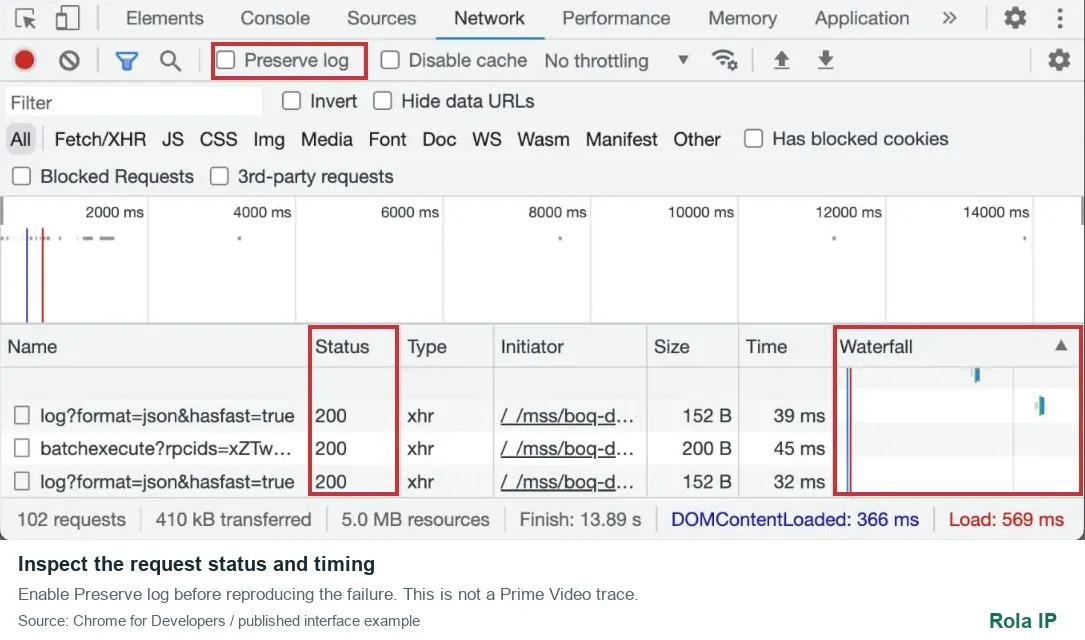
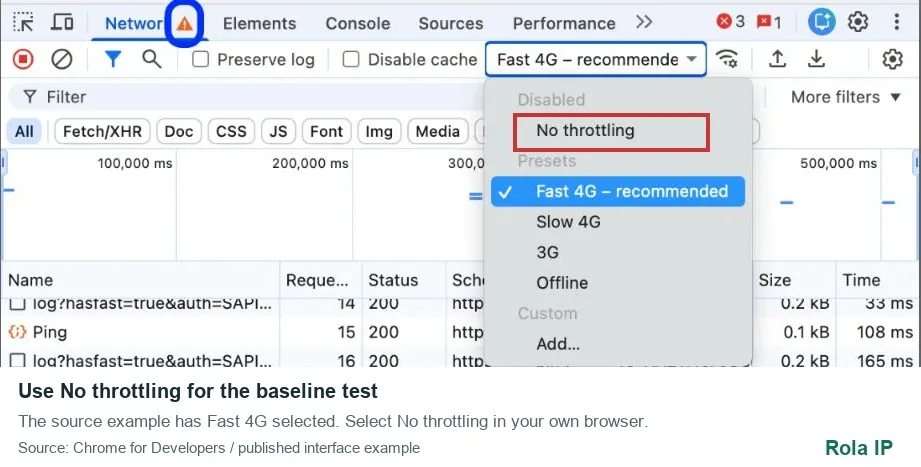
The official example shows Fast 4G selected. The red box marks No throttling, the option to select in your own browser before measuring normal playback. Screenshot source and DevTools reference.
A timeout and an HTTP rejection are different clues. Neither identifies a private risk rule on its own. Keep session tokens, cookies, authorization headers, and signed media URLs out of screenshots and public support posts.
Is it congestion, a proxy failure, or a playback restriction?
Use the observable failure to choose the next check. These HTTP statuses are general protocol signals, not Prime Video player error codes. Identify which request failed and which server or intermediary returned the response before drawing a conclusion.
| Observation | Likely layer and next check | Does not establish |
|---|---|---|
| Ethernet works; Wi-Fi fails | Local wireless: signal, interference, competing traffic | Need for a new public IP |
| DNS or connection setup fails | Resolution or reachability: check DNS and configured route | Intentional ISP throttling |
| HTTP proxy returns 407 | Proxy authentication: check credentials and method; SOCKS uses different signaling | Prime Video account rejection |
| Relevant request returns 403 | Refusal: inspect response, authorization and request context | An ASN filter or residential-IP requirement |
| Relevant request returns 429 | Request rate: stop rapid retries; follow Retry-After if present | That rotating IPs is an appropriate fix |
| Media request times out | Delivery: inspect timing, congestion and route | A private CDN penalty |
| Requests succeed; playback stalls | Player: actual quality, DRM messages and device support | Smooth playback from HTTP success alone |
| Service explicitly rejects proxy | Access restriction: disable proxy; follow official support | Acceptance of a different proxy |
The status definitions come from HTTP semantics and the 429 specification. Save a redacted error summary, not an unfiltered network export. Ordinary viewing problems should follow the device and network checks first; the route test below is for technical readers with an authorized diagnostic reason.
Why a VPN or datacenter proxy can make buffering worse
An intermediary introduces another connection and another possible bottleneck. A distant exit can add delay; a congested shared gateway can reduce usable throughput. Changing exits during a session can also make the test inconsistent.
IP reputation is another possible factor, but ASN is not a universal verdict. An autonomous system identifies a network’s routing administration; it does not prove that a viewer is a bot. Amazon’s precise playback detection rules are not public, so an article cannot reliably attribute every refusal to an ASN filter.
Also separate proxying from encryption. A VPN commonly creates an encrypted tunnel. An ordinary HTTP or SOCKS proxy does not automatically encrypt all device traffic or hide every traffic characteristic from an ISP. HTTPS protects the application connection, but that does not make every proxy configuration equivalent to a VPN.
Finally, 4K describes picture resolution, not a requirement to transport video over UDP. SOCKS5’s specification includes UDP association, but support depends on the provider and client. Do not buy a proxy on the assumption that a SOCKS5 label proves a working UDP path or fixes Prime Video playback. SOCKS5 specification.
Using Rola IP for controlled exit and session diagnostics
For an authorized route investigation, the relevant product is the rotating residential offering listed under Rola IP residential proxies. Its public page advertises country selection and session controls with traffic-based billing. These are documented capabilities, not validated results for a purchased plan or playback client. Check your account’s actual options before configuring anything. Ordinary viewers do not need to buy a proxy to follow the earlier troubleshooting steps.
For background, read what a residential proxy is and how it works. Residential describes a network context; it does not mean dedicated, permanently fixed, or accepted by Prime Video. Rotation controls when addresses change. A sticky session aims to retain an exit temporarily. These are separate properties, and a large address pool does not measure throughput for your session.
Prepare the route and session
Record the product and plan, supported protocol, authentication method, generated host and port, selected exit country, session duration, and billing unit. Use values generated by your own account; published examples are not credentials or endpoints to reuse. Follow the residential proxy setup guide and your client’s documentation for the actual input fields. If current documentation and account settings disagree, resolve that with support before testing.
Choose a permitted, fixed exit country appropriate to the investigation. An ingress server region is not evidence of the exit country. Avoid per-request rotation for a continuity comparison. Confirm when session timing starts and what happens at expiry; choose an available duration covering setup, sign-in, the complete observation window, and a margin. A ten-minute session is not sufficient merely because playback will be observed for ten minutes.
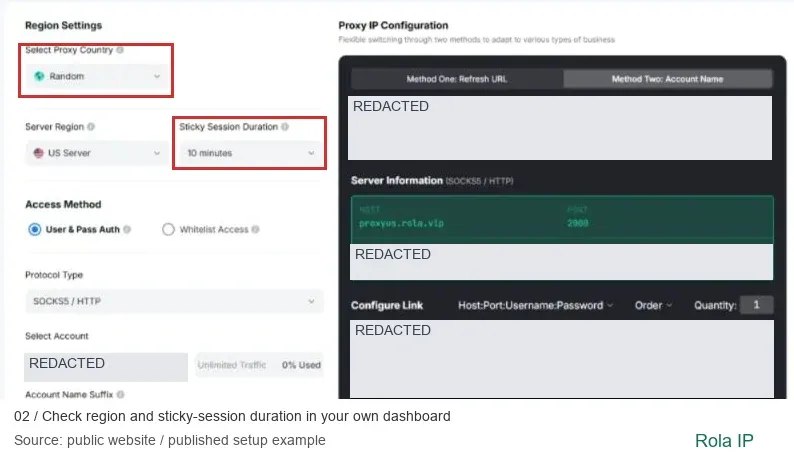
Check the same client and separate the results
Enter your account-generated settings in a client that supports the selected protocol and authentication method. In that same client, use the IP lookup tool to record the observed exit before, during, and after the observation window. Keep full addresses in private test records. A changed browser exit does not establish that a TV, native app, another browser, or every media request uses that route.
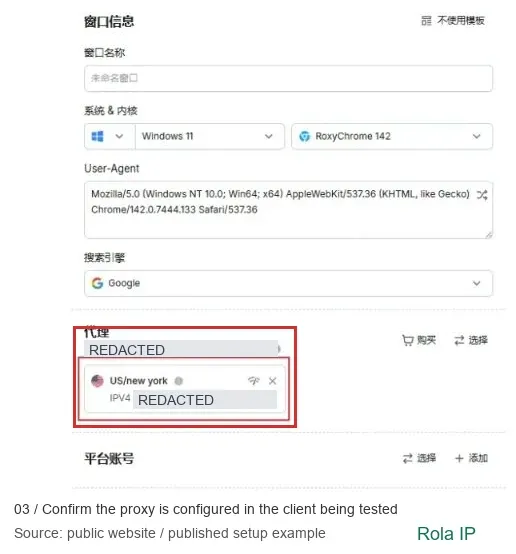
Rola IP’s published Chinese-language RoxyBrowser example shows Windows 11 and RoxyChrome 142, with identifying values concealed. It locates a selected proxy entry; it is not a host, port, and authentication entry tutorial. The screenshot does not establish a fully specified client version or Prime Video compatibility. Use the linked setup documentation for configuration.
Endpoint connectivity, exit stability, and playback are separate results. This article has not validated any of them in an authenticated Rola client. Record the actual OS and full client version when you test; the pictured environment is not a tested recommendation. Proceed to any playback comparison only in a supported playback environment and stop if the service rejects the intermediary.
Record a comparable direct, proxy, direct sequence
Run A1 directly, B through the configured route, and A2 directly again. Keep the device, client, title segment, requested quality setting, and observation duration comparable. Use the table below as a recording template for each run; it contains no measured results.
| Record group | Fields for each A1, B and A2 run |
|---|---|
| Environment | Timestamp and timezone; device; OS; full client version; title and segment |
| Route | Direct or proxy; protocol; authentication method; country; session setting |
| Continuity | Exit before, during and after; any reconnect or session expiry |
| Playback | Observation seconds; startup seconds; stall count; total stalled seconds |
| Quality and cost | Requested and actual quality, or unavailable; redacted error; billed GB |
Fewer stalls at a lower actual resolution are not automatically an improvement at the same quality. If the exit changes during an intended fixed-exit test, stop and mark it uncontrolled. Repeat a promising comparison before relying on it. Even a consistent result applies only to the tested environment and period; it does not identify Amazon’s internal mechanism.
Set a cost limit before starting
For traffic-priced plans, estimated usage charge equals billable GB multiplied by the applicable price per GB. Record the actual plan source and review date, minimum purchase, traffic expiry, rounding rules, retry billing, and fixed charges separately. Published product descriptions do not replace your account’s billing terms. If these are unclear, confirm them before a paid test.
At a hypothetical continuous 10 Mbps, decimal transfer is about 4.5 GB per hour, or 0.75 GB in ten minutes, excluding overhead and other traffic. This is neither a measured Prime Video bitrate nor a bill estimate. Set a maximum billed-traffic or cost budget in advance, monitor usage, and stop at the limit. Also stop on explicit proxy rejection or uncontrolled exit changes. Restore direct access afterward. Rola provides an alternative path to investigate; it cannot repair weak Wi-Fi or promise playback access.
What to do when buffering continues
Collect a short evidence summary: device model, app or browser version, title, failure time, error code, and the device/network comparisons you completed. Send playback-specific failures to Amazon support. Give your ISP the home-versus-alternate-network result and peak-hour observations when the pattern points toward the home connection.
Avoid a factory reset as an early experiment. It can remove accounts, settings, and downloads without fixing an upstream problem. If you need an immediate alternative, eligible titles can be downloaded inside a supported Prime Video app and watched offline. Download availability and device support vary; use Amazon’s built-in feature. Prime Video download help.
Conclusion
When Amazon Prime Video keeps buffering, begin with a direct-connection baseline and compare the same title across devices and networks. If the evidence points to an intermediary or upstream path, verify its authentication, actual exit, DNS behavior, and session continuity before comparing playback. Rola IP’s residential proxy resources can provide a controlled alternative route for an authorized test; record stalls, actual quality, and cost in the same A1-B-A2 sequence before deciding whether that route helps your viewing environment. If direct playback also fails, focus on the device, local network, ISP, or Amazon support instead.