
How to Change Video Quality on Netflix and Check 4K Playback

Oct 27, 2026 · Guides · 12 min read
When you adjust Netflix video quality, first tell apart three independent settings: the online-playback data usage in your account profile, the cellular playback option in the mobile app, and the quality of downloaded content. They solve different problems, and changing the wrong one leads to confusion such as “I already lowered it but data usage is still high” or “downloads take up a lot of space.” There is also no universal button that forces 4K; picture quality depends on your plan, the title, your device, your connection, and your playback settings.
This guide follows the order in which people actually do things: first estimate the data used per hour, then adjust the web, mobile, and download settings separately; next check why the picture looks blurry on a TV or computer; and finally verify the 4K playback conditions one by one. The proxy sections only cover authorized network-path testing and traffic budgeting; they do not present a proxy as a way to unlock regional content or fix Netflix picture quality.
TL;DR
- On the web: open Account → Profiles → choose a profile → Playback settings, and set Auto, Low, Medium, or High. The preference is saved per profile.
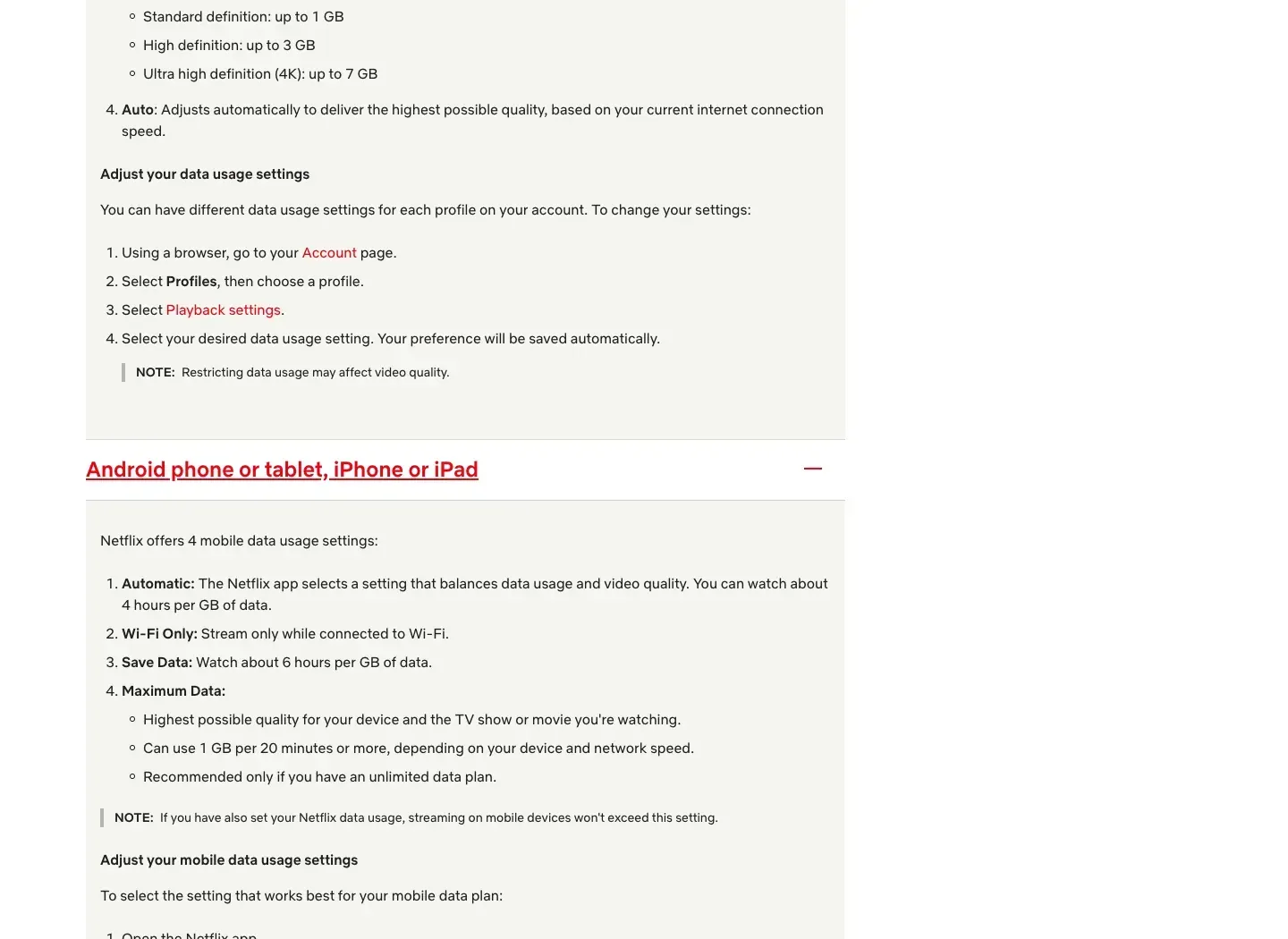
- “High” for online playback is not a 4K lock. Netflix gives approximate maximums of about 1 GB/hour for SD, 3 GB/hour for HD, and 7 GB/hour for 4K; actual usage can be lower than or close to these ceilings depending on the title and the network.
- The cellular option in the mobile app is separate from the web playback preference; when Automatic is on, some devices hide the other options or make them unselectable. Download quality is yet another independent setting.
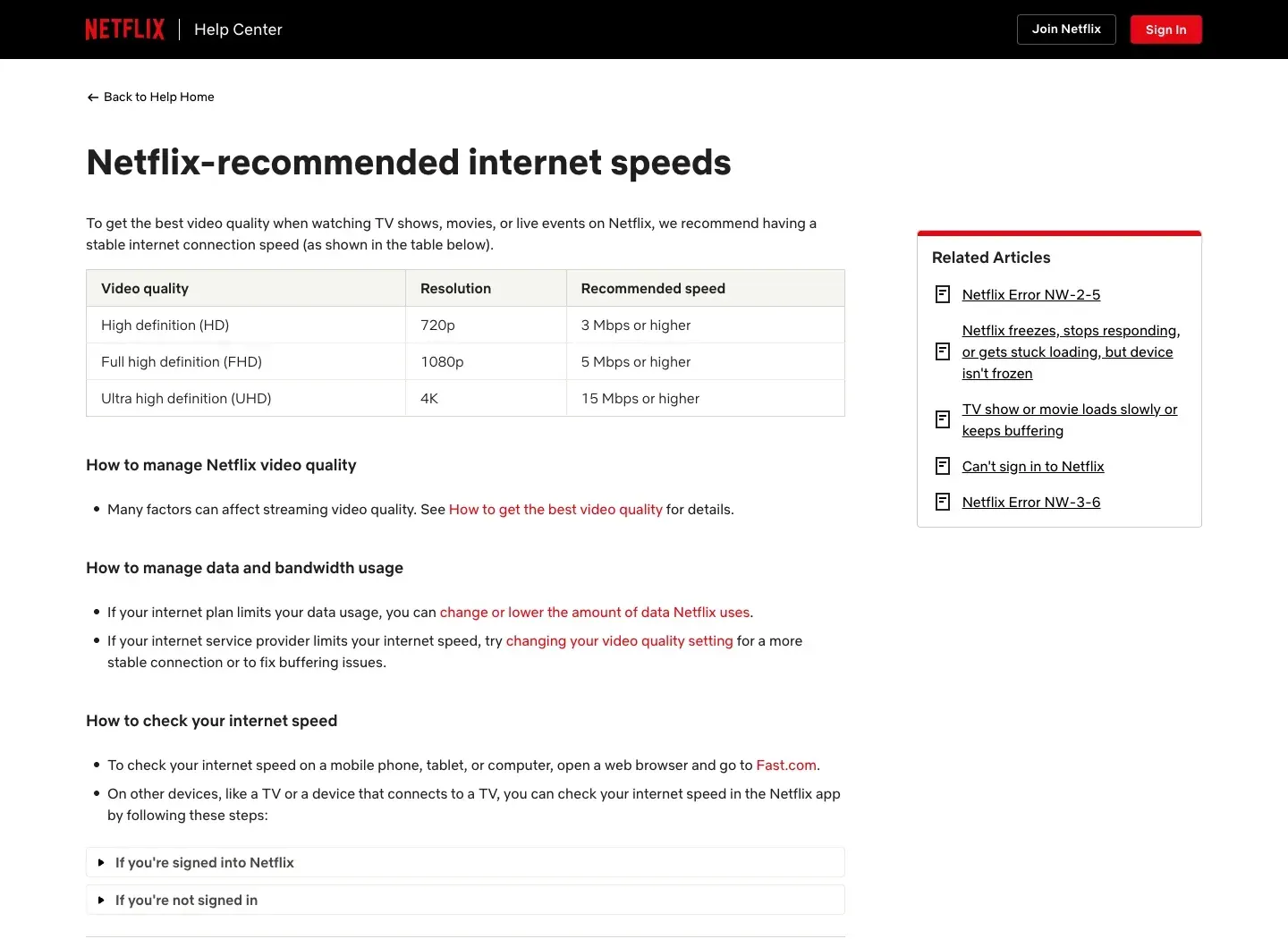
- Netflix recommends a stable connection of at least 15 Mbps for 4K, but you also need an Ultra HD plan, a compatible device, and a 4K title. High only allows higher data usage; it does not guarantee a resolution.
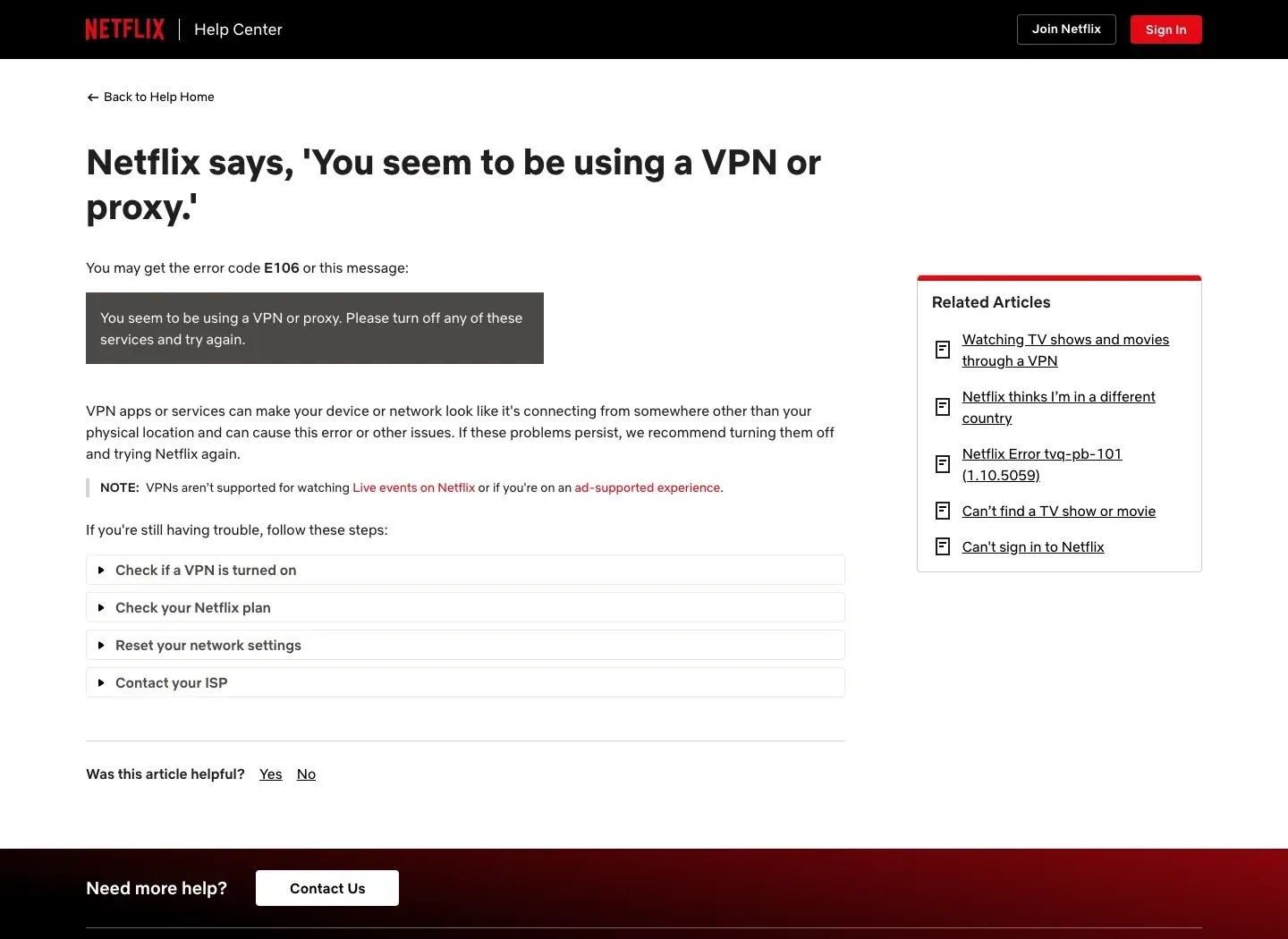
- If the picture gets blurry through a proxy, turn the proxy off first to get a direct-connection baseline, then compare on the same device, title, and time of day. If a Netflix VPN/proxy message appears, follow Netflix’s official advice and turn the proxy off instead of rotating exit IPs over and over.
How Much Data Does Netflix Use Per Hour?
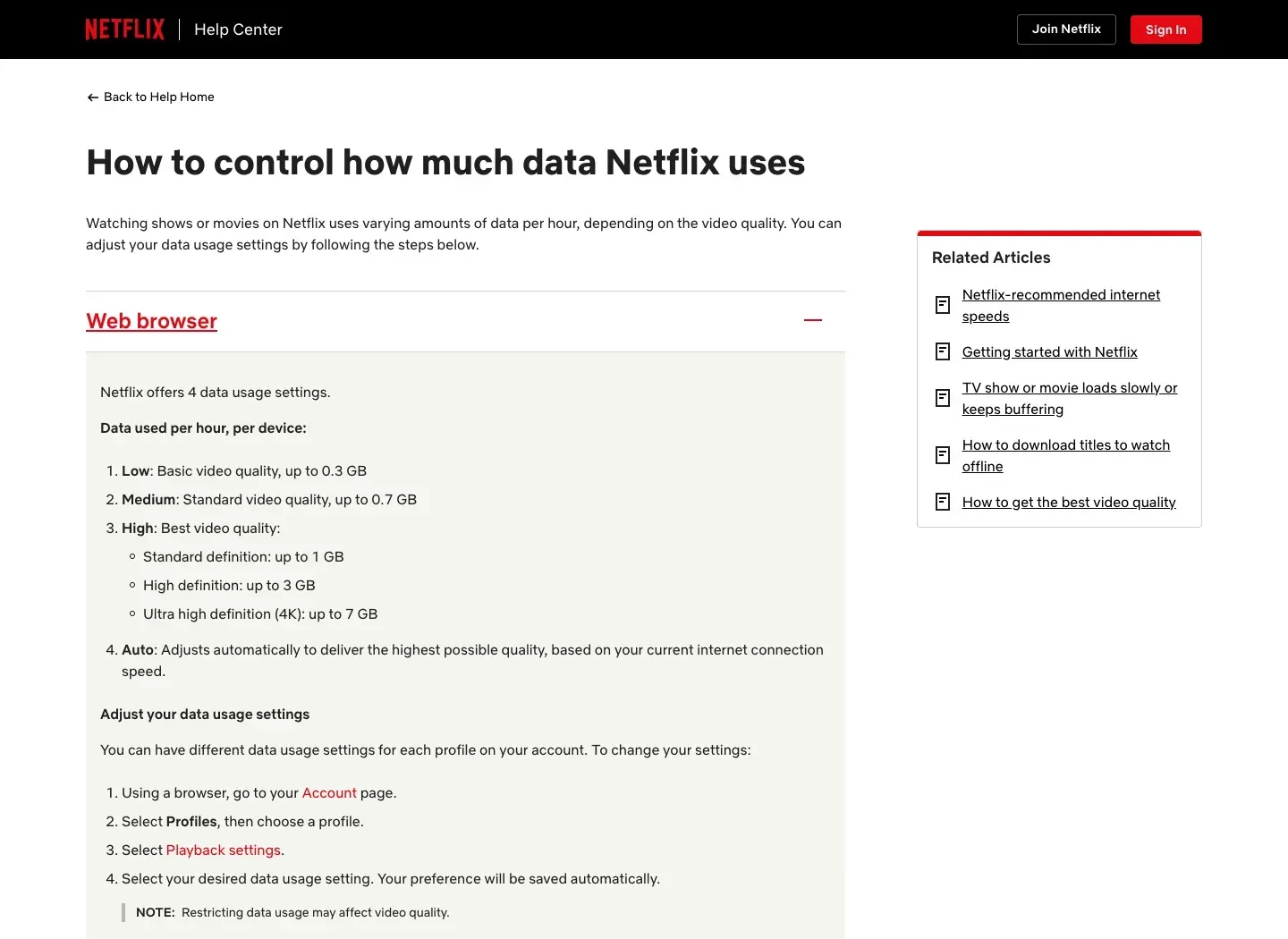
Netflix’s official approximate maximums per screen are: Low about 0.3 GB/hour and Medium about 0.7 GB/hour; the High setting can reach about 1 GB/hour for SD, about 3 GB/hour for HD, or about 7 GB/hour for Ultra HD 4K. Auto adjusts to your current connection and device, so it cannot be estimated with a single fixed number. The figures below are upper-bound estimates and do not mean every title will reach them.
Web setting / quality |
Approx. max data per hour |
2-hour estimate |
Better suited for |
Practical note |
|---|---|---|---|---|
Low |
0.3 GB |
0.6 GB |
Tight data budgets, smaller screens |
Lower clarity |
Medium |
0.7 GB |
1.4 GB |
A balance between everyday viewing and saving data |
Try a short playback first, then adjust based on how it looks on your screen |
High · SD |
1 GB |
2 GB |
Allowing higher quality but not HD |
High does not necessarily mean SD |
High · HD |
3 GB |
6 GB |
Most HD viewing |
Actual results depend on the device, title, and network |
High · 4K UHD |
7 GB |
14 GB |
Screens and titles that meet the 4K conditions |
This is the highest-tier upper-bound estimate |
Auto |
Not fixed |
Not fixed |
When you want the system to adapt to your connection |
Not suitable for precisely estimating monthly data |
How to estimate: hourly usage × actual hours watched. For example, a two-hour movie uses at most about 1.4 GB on Medium, about 6 GB on HD, and about 14 GB on 4K. Actual data is affected by the title, the encoding, fast-motion scenes, playback length, and adaptive bitrate. If your connection is billed per GB, test briefly with a fixed data tier first, then check your carrier bill or the device’s usage statistics to build your own real-world baseline.
How to Change Netflix Streaming Video Quality
Change a profile’s playback settings in a browser
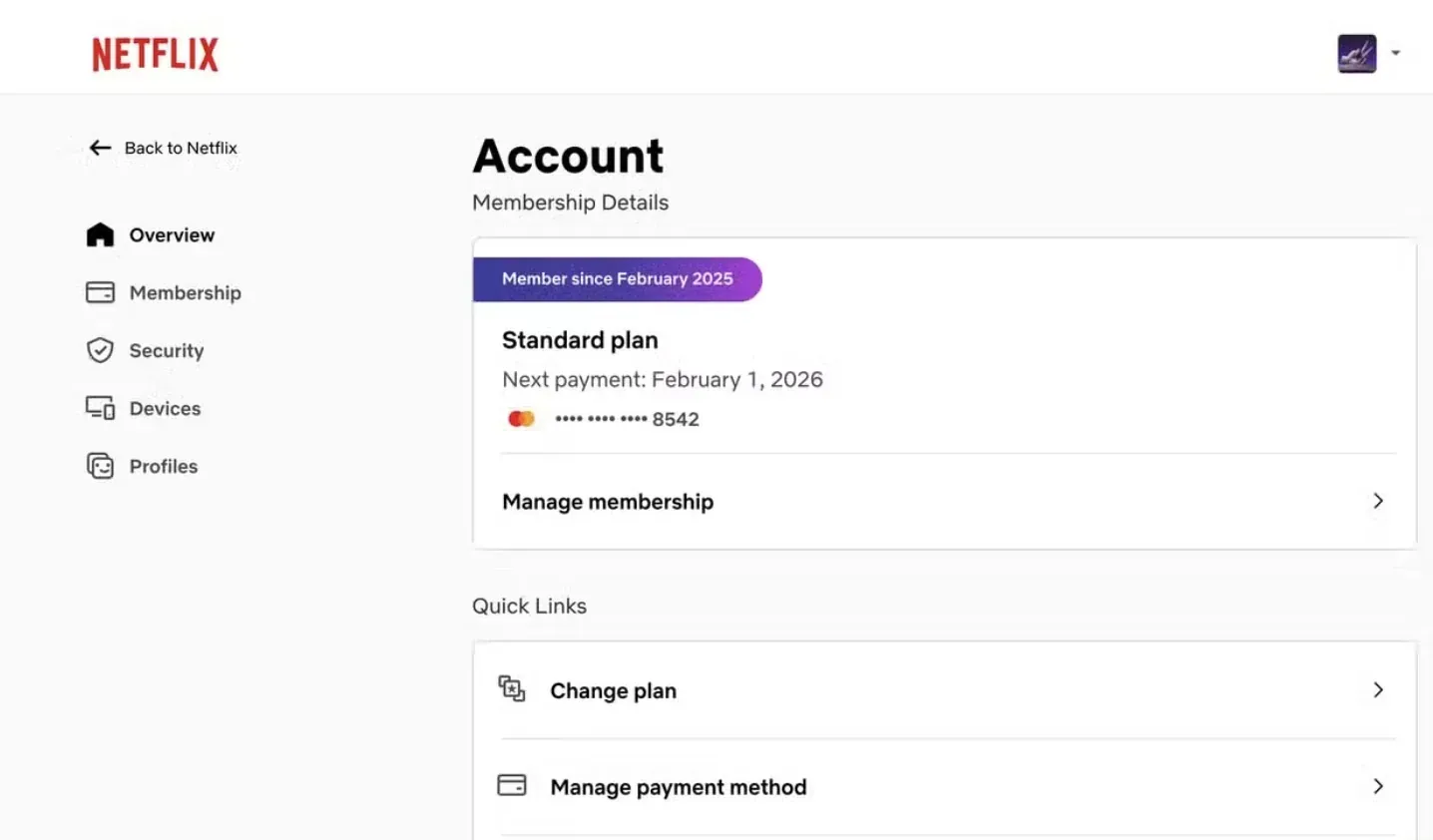
- Open the Netflix Account page in a browser and sign in.
-
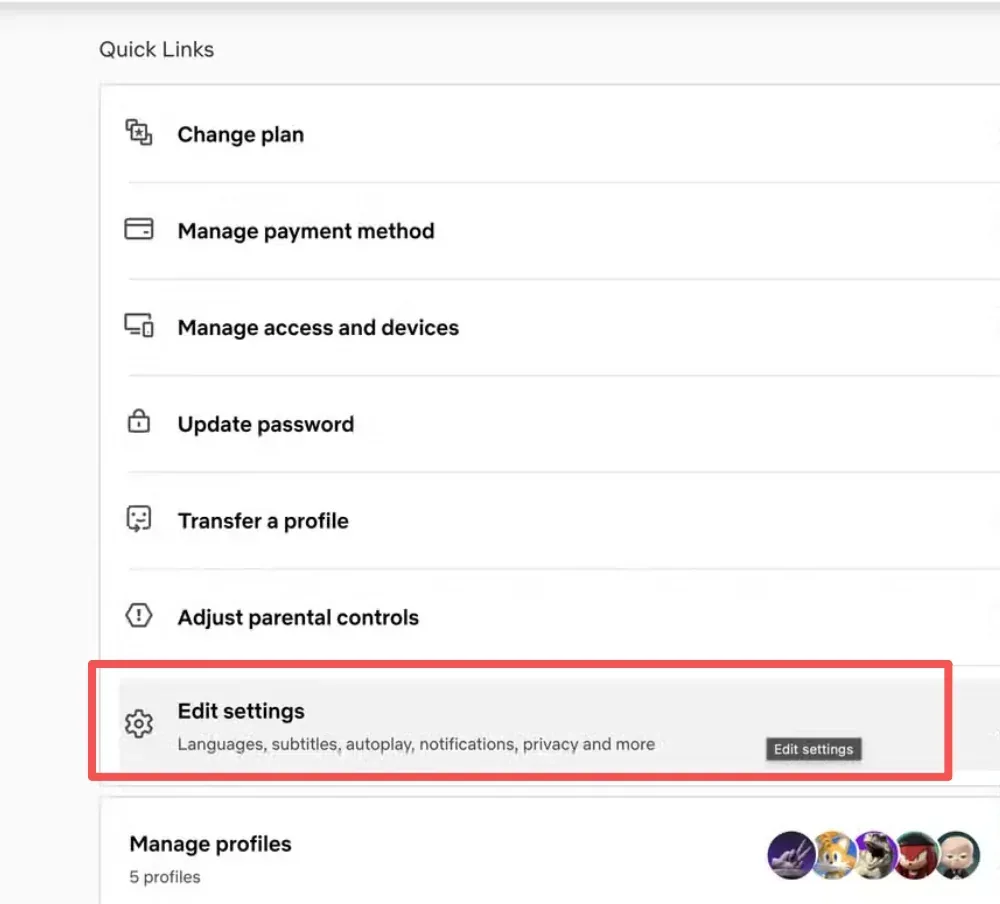
Go to Profiles and choose the profile you want to adjust. If family members use different profiles, you need to set each one separately.
-
Open Playback settings.
- Under Data usage per screen, choose Auto, Low, Medium, or High; the choice is usually saved automatically.
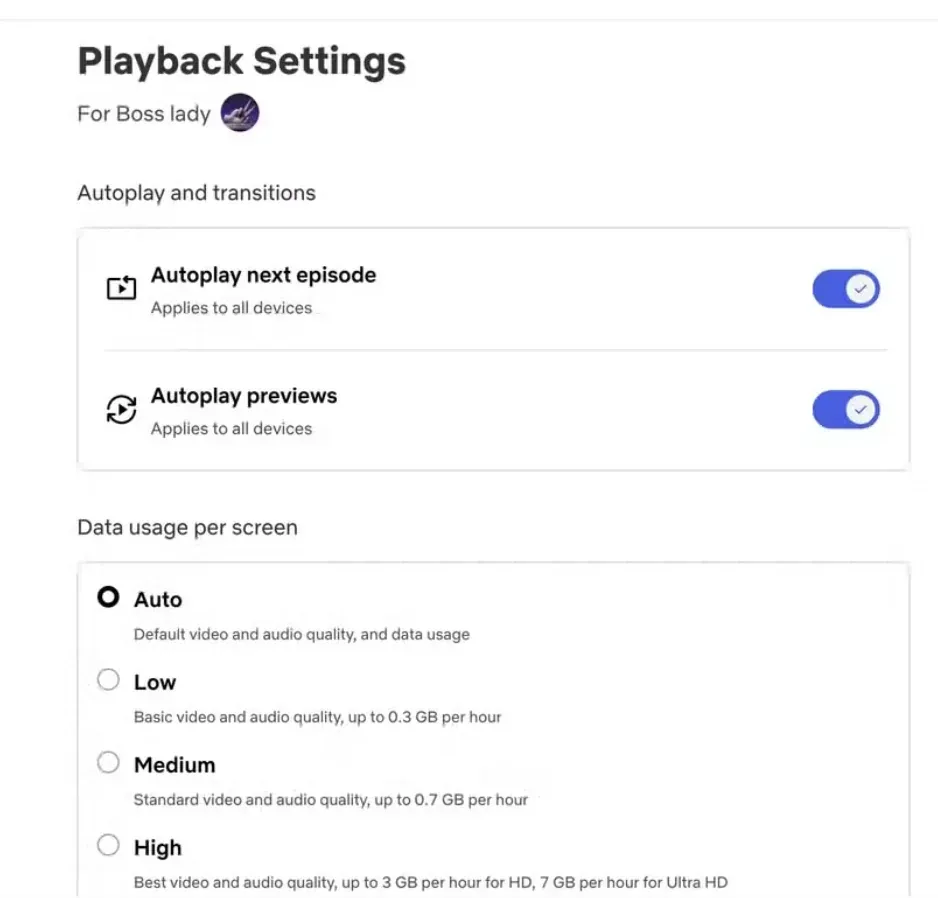
Data usage per screen on the web controls which data tier online playback may use. Choosing Low or Medium limits data and can also lower picture clarity; choosing High only lets the player use a higher bitrate when other conditions are met, and it does not lock 4K. Netflix’s menu names may differ slightly by region, account, and interface updates.
Adjust cellular playback on Android, iPhone, or iPad
The cellular option in the mobile app is not the same layer of settings as the profile playback preference on the web. The Netflix help page lists Automatic, Wi-Fi Only, Save Data, and Maximum Data: Automatic balances data usage against picture quality; Wi-Fi Only prevents playback over cellular networks; Save Data lets you watch about 6 hours per 1 GB; Maximum Data can reach 1 GB per 20 minutes or more, and Netflix recommends it only on unlimited data plans. Menu wording and paths may differ slightly between app versions.
The usual path is: open the Netflix app → My Netflix → tap the profile name/avatar at the top → App Settings → Video Playback → Cellular Data Usage. Only after you turn off Automatic can you choose Wi-Fi Only, Save Data, or Maximum Data as needed. If Automatic is on, the options may be greyed out or unselectable; turn the automatic option off and re-enter the menu. Labels or levels may differ a little between Android and iOS, so go by what the current app shows.
If the app displays a download-related restriction, follow its prompt, wait for the download to finish or pause it as instructed, and then try again. Do not assume that an active download is the cause when the app does not show such a message. The iOS and Android interfaces differ by version, account, and region, so when the path does not match, go by the prompts in the current app.
Download quality is a separate setting
Download quality and online playback quality are independent of each other: setting the web playback preference to Low does not automatically change content you have already downloaded, or are about to download, to low quality. In the Netflix app you usually go to My Netflix → tap the profile name/avatar at the top → App Settings → Downloads → Download Video Quality, and then choose Standard or Higher. Menu names may change with the device and app version.
Standard downloads faster and takes up less space; Higher downloads a clearer picture, but the files are larger, the download takes longer, and your phone storage fills up faster. If your goal is to save cellular data, download over Wi-Fi first and choose a suitable tier in the download quality setting separately. After changing it, check the device’s remaining space and verify with a short title.
How to Save Data on Netflix
- On a phone’s cellular network, choose Save Data; if you do not want to use mobile data at all, choose Wi-Fi Only.
- On the web, set each profile to Low or Medium, so that Auto does not raise the bitrate when network conditions improve.
- Download over Wi-Fi before you leave home, and adjust Download Video Quality separately; the online playback setting does not replace the download setting.
- Watch one or two titles in a row on the device you use most, then compare against the system’s data statistics; do not extrapolate a whole month’s bill from a few minutes of sample data.
- If you use a network or proxy billed per GB, set a budget cap and monitor total transfer; video playback consumes data quickly.
Why Is Netflix Blurry on My TV or Computer?
If it is still blurry after choosing High, some other playback condition is usually not being met. Netflix adapts the bitrate based on available bandwidth, network stability, the device’s decoding capability, and the quality of the content. A brief blur right after playback starts may also be the player evaluating your connection; watch for a few minutes to see whether the picture gradually sharpens before deciding whether it is a persistent problem.
| Symptom | What to check first | How to verify |
|---|---|---|
| Blurry on every device | The home network or the ISP path | Run Fast.com on the same network; restart the router; compare wired and Wi-Fi |
| Blurry on only one TV | The TV, the player, the HDMI connection, the app | Update the app; check the device specs and the HDMI port; test a different title |
| Blurry at the start, sharp after a few minutes | Adaptive bitrate ramping up | Wait a while and see whether the picture steadily improves |
| Sharp on a direct connection, blurry through a proxy | Proxy latency, throughput, or concurrency limits | Run a direct vs. proxy A/B comparison on the same device and title at similar times |
| A VPN/proxy warning appears | Service compatibility or network configuration | Turn off the VPN/proxy as Netflix officially advises, then try again |
Test your connection before changing more settings
Netflix’s currently recommended stable connection speeds are: at least 3 Mbps for 720p, at least 5 Mbps for 1080p, and at least 15 Mbps for 4K. You can run Fast.com on the same device and the same network that is playing Netflix; the TV app may also offer a network test under Get Help or Check your Network. 15 Mbps is Netflix’s recommended threshold for a single 4K stream, not a guaranteed value; when other devices in the home are downloading or streaming at the same time, you need extra bandwidth.
Test a VPN or proxy as a separate variable
Do not assume right away that your ISP, VPN, or proxy is “throttling.” Keep the same device, title, profile, and a similar time of day, and record the download speed, latency, error messages, and continuous stable playback time on the direct connection and on the proxy connection separately. Only when the proxy path is clearly slower on repeated tests do you have grounds to list it as the bottleneck. A proxy can add latency or reduce throughput, and it does not necessarily improve Netflix picture quality.
If you need to verify your actual public exit, you can use ROLA IP’s What Is My IP tool; the Proxy Checker can help check the status of a proxy connection. These tools can verify the exit or the proxy’s connectivity, but they cannot prove that Netflix will accept that IP, nor can they tell whether your account has 4K entitlement.
How to Check Netflix 4K Playback Conditions
There is no “force 4K” switch that works on every device. The more accurate approach is to check, item by item, the Ultra HD plan, the device and display chain, the profile playback settings, the title’s quality label, and a stable network. If any one of them is not met, High may still play at 1080p or lower.
1. Plan: Confirm that your current account plan supports Ultra HD. Plan names and benefits change by country/region and over time, so go by the Change Plan page in your account.
2. Device and display chain: Confirm that your TV, player, or computer supports Netflix 4K; on a computer, it is also affected by the operating system, the browser or app, HEVC decoding, and the display chain. The HDMI port, the cable, and content-protection compatibility can also affect the output.
3. Profile playback settings: Set the Playback settings of the profile you use to High or Auto.
4. Network: Keep a stable connection of at least 15 Mbps, and reserve extra bandwidth for the other devices in your home.
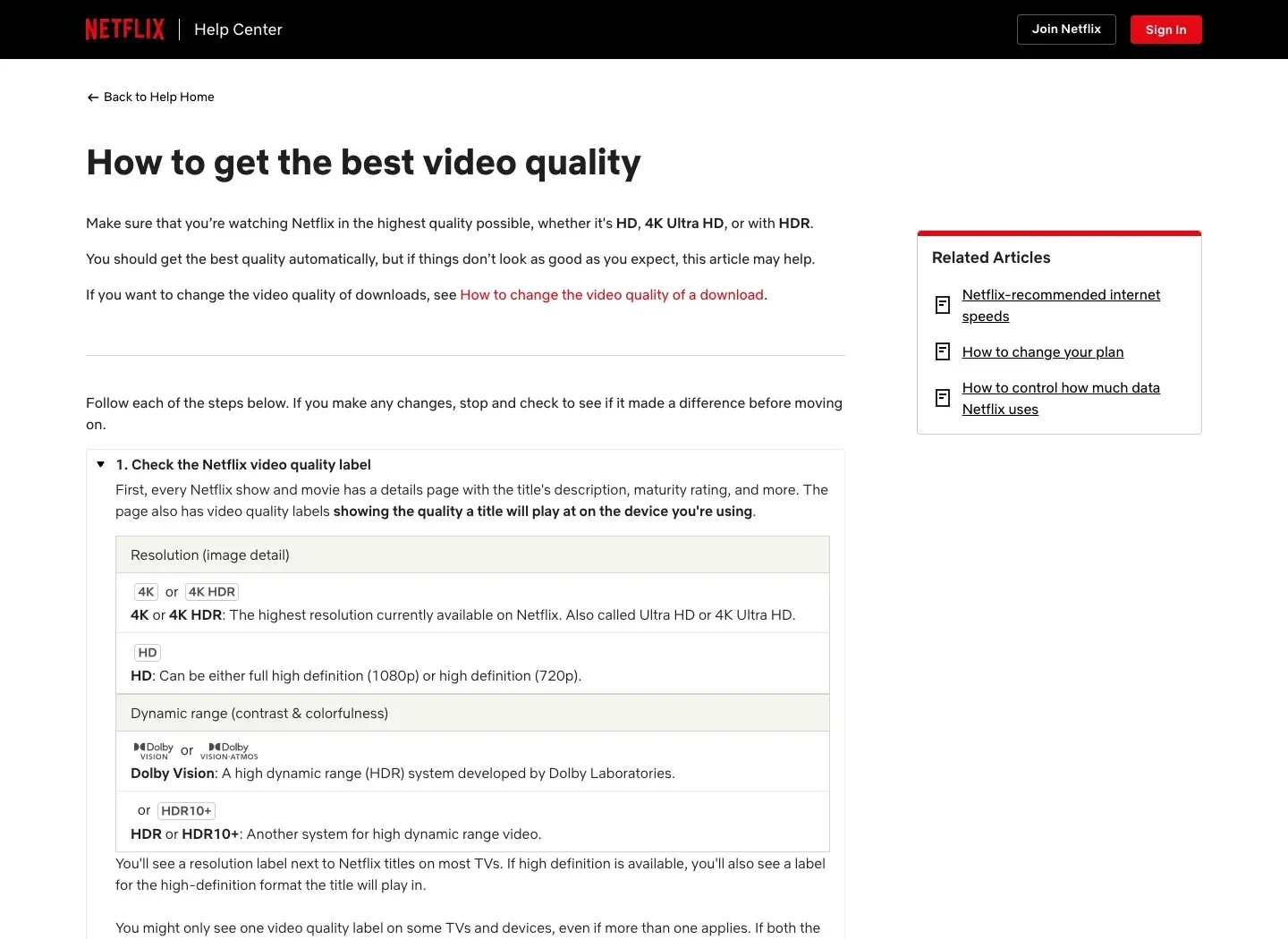
5. Title: On the title’s detail page on your current device, confirm that a quality label such as 4K, Ultra HD, or Dolby Vision/HDR is shown; not all content is available in 4K.
Change only one condition at a time and test again. If you change the device, the network, the proxy, and the profile settings all at once, then even if the picture quality changes, it is hard to tell which factor actually made the difference.
Why High Does Not Guarantee 4K
High means the player is allowed to use more data; it does not lock a resolution. The final picture quality is determined together by the plan, the title, the device’s certification and decoding, the display chain, and the real-time network. The same movie may show an Ultra HD label on a 4K TV and only an HD label on a device that does not support 4K.
If you run into a quality problem, you can start with Netflix’s official guidance on getting the best video quality and Netflix’s recommended internet speeds. If the problem happens only on a computer, then check the official playback requirements for the corresponding Windows, Mac, or browser.
Using ROLA IP for Netflix Connection Testing
When you need to estimate the cost of per-GB-billed testing
Video is a high-traffic application. Before you start long playback sessions, set a budget based on the hourly estimates above, and verify actual data usage with low-quality or short tests. If your work genuinely needs an approved exit-path test through a proxy, you can look at ROLA IP’s residential proxy traffic pricing and check the current billing model, target regions, and terms. The page shows proxy products and pricing; it does not mean Netflix is compatible with that line.
When you need to keep the same exit to reproduce a network problem
If you want to compare “whether things change before and after changing a playback setting, on the same exit,” a fixed exit is easier to reproduce than changing IPs in the middle of playback. You can look at ROLA IP’s static residential proxy description, and before buying or testing, confirm the region, protocol, bandwidth, concurrency limits, authentication method, and terms of use. Static only means the exit is relatively fixed; it does not mean Netflix supports that address, and it does not make 4K easier to get.
View the ROLA IP static residential proxy page. If your task requires understanding the difference between rotating and sticky sessions, you can read Sticky Session vs Rotating Proxy. Video sessions are usually not suited to switching the exit mid-playback, and a change of address may interrupt the connection or trigger re-verification.
Conclusion
Decide on your goal first, then change the matching setting: to save data, adjust the mobile cellular option or the web profile setting; to manage offline-viewing space, change the download quality separately; to go for 4K, check your plan, device, title, playback preference, and stable network speed. High is not a switch that forces 4K.
If the picture is still blurry, first build a direct-connection baseline, then check the network, device, and account conditions one by one. Only in scenarios such as approved exit-region testing, reproducing an issue on a fixed line, or traffic budgeting can a ROLA IP proxy serve as a network-test variable; it is not a Netflix picture-quality fix, and it does not guarantee that any error code will disappear.