
Epic Games Connection Error: 9 Safe Steps to Fix It

Oct 29, 2026 · Guides · 9 min read
TL;DR: Try These Fixes in Order
- Check the Epic Games status page.
- Exit the launcher completely and reopen it.
- Test the same action on Ethernet or another authorized connection.
- Clear the correct launcher cache for your version.
- Sync the Windows clock and install pending Windows updates.
- Reset Winsock and refresh DNS.
- Check firewall policy and Epic domain allowlisting.
- Disable VPN and proxy routes for a direct-connection baseline.
- If the problem is only slow downloads, remove the launcher speed limit and compare network activity with disk activity.
Do not reinstall the launcher, forward ports, or disable security software as your first move. Those changes are disruptive and often fail to identify the layer that is actually broken.
First, Identify the Failure You Actually Have
Use the exact symptom to choose a starting point.
| Symptom | Most useful first check | Avoid assuming |
|---|---|---|
| Launcher and Epic website both fail | Epic status, local internet, DNS | The launcher files are corrupt |
| Launcher fails, but other sites work | Cache, clock, Windows updates, proxy settings | Your whole internet connection is down |
| One game fails while the store works | That game’s service status and files | The launcher itself is offline |
| It works on a hotspot but not home Wi-Fi | Router, ISP, DNS, or route policy | A reinstall will repair the network |
| It fails on a school or work network | Administrator allowlist and filtering policy | You should circumvent the network controls |
| Downloads are slow but sign-in works | Download limit, Ethernet, cache, disk activity | A connection error and a slow patch are the same issue |
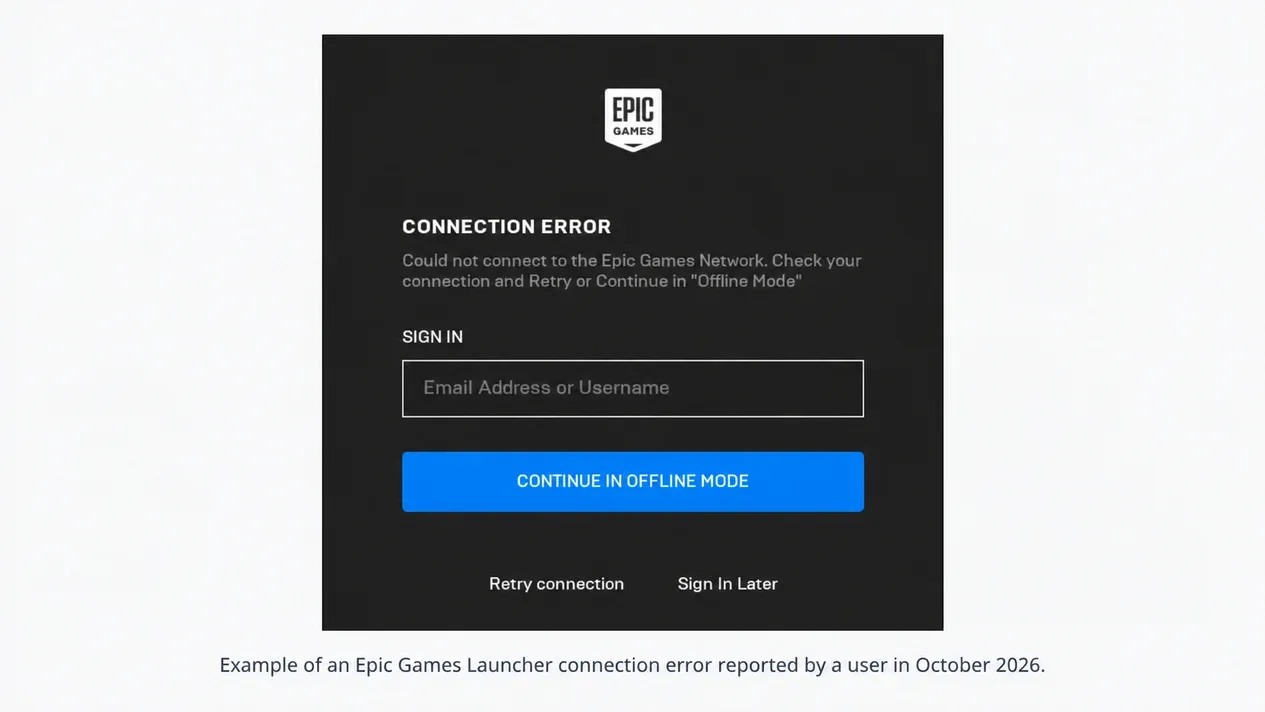
Epic’s current support flow covers login failures, update failures, error codes, matchmaking problems, packet loss, and high latency. That breadth is useful, but it also means the phrase “connection error” is only a symptom. Diagnose the failing action before applying a long list of fixes.
1. Check Epic Games Server Status
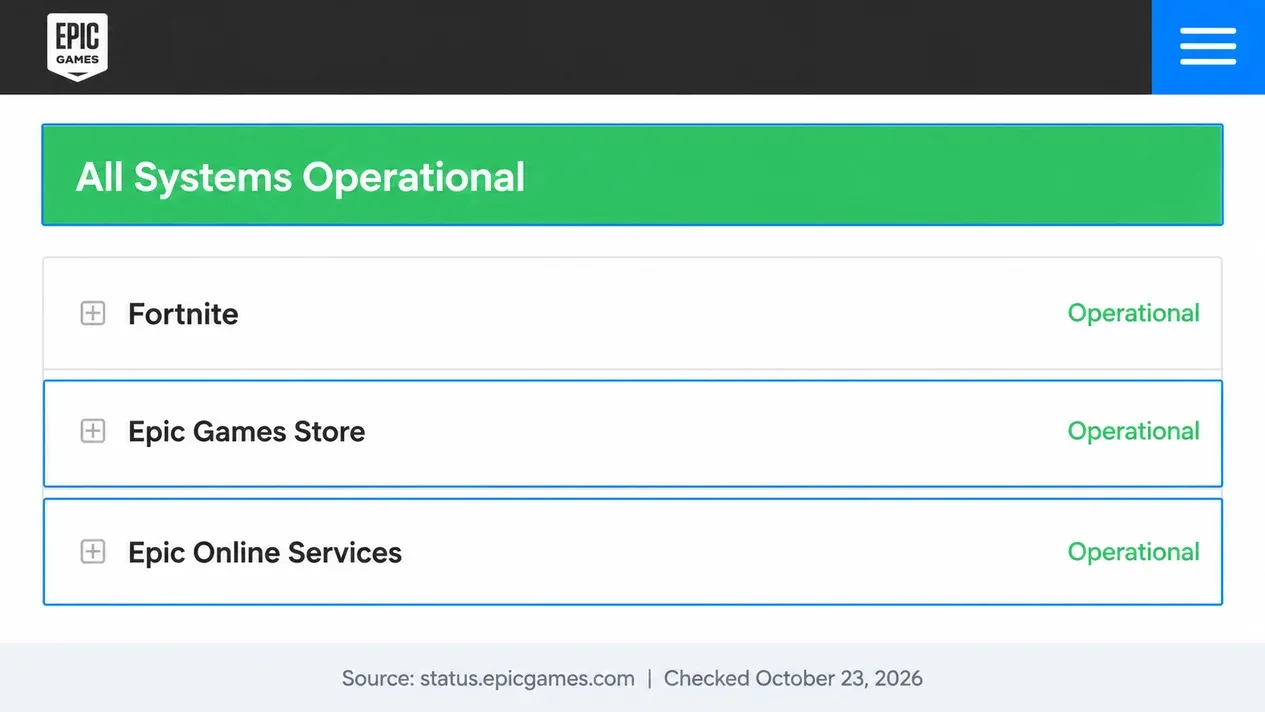
Open the Epic Games Public Status page and inspect the service tied to your failure. For a launcher sign-in problem, check Epic Games Store and authentication. For a failed download, check download and installation services. For a single game, expand that game’s component list.
If Epic reports an incident, wait for recovery. Local DNS resets, cache deletion, or reinstalling the launcher cannot repair a server-side outage.
2. Exit the Launcher Completely, Then Restart the Right Device
Closing the main window may leave Epic processes running in the Windows notification area. Right-click the Epic Games icon near the clock, choose Exit, and reopen the launcher. If it remains stuck, check Task Manager for Epic Games Launcher or EpicWebHelper processes before retrying once.
Restart the router only when the problem points to your local connection. If every device is offline, the router or ISP is a sensible next step. If only Epic fails on one PC, preserve the rest of the network and continue with launcher-specific checks.
3. Compare One Other Authorized Connection
Connect by Ethernet if you were using Wi-Fi, or test once on an authorized mobile hotspot. Repeat the same action, such as signing in or starting the same download.
- If both connections fail, focus on the launcher, Windows, account, or Epic service.
- If the alternate connection works, the original Wi-Fi, router, ISP route, DNS resolver, or network policy deserves attention.
- If only one game fails, check that game’s status and verify its files before changing system-wide settings.
This is a diagnostic comparison, not proof that an ISP is throttling Epic. Record the time, connection used, and exact result so you can reverse changes and explain the fault clearly.
4. Clear the Epic Games Launcher Cache
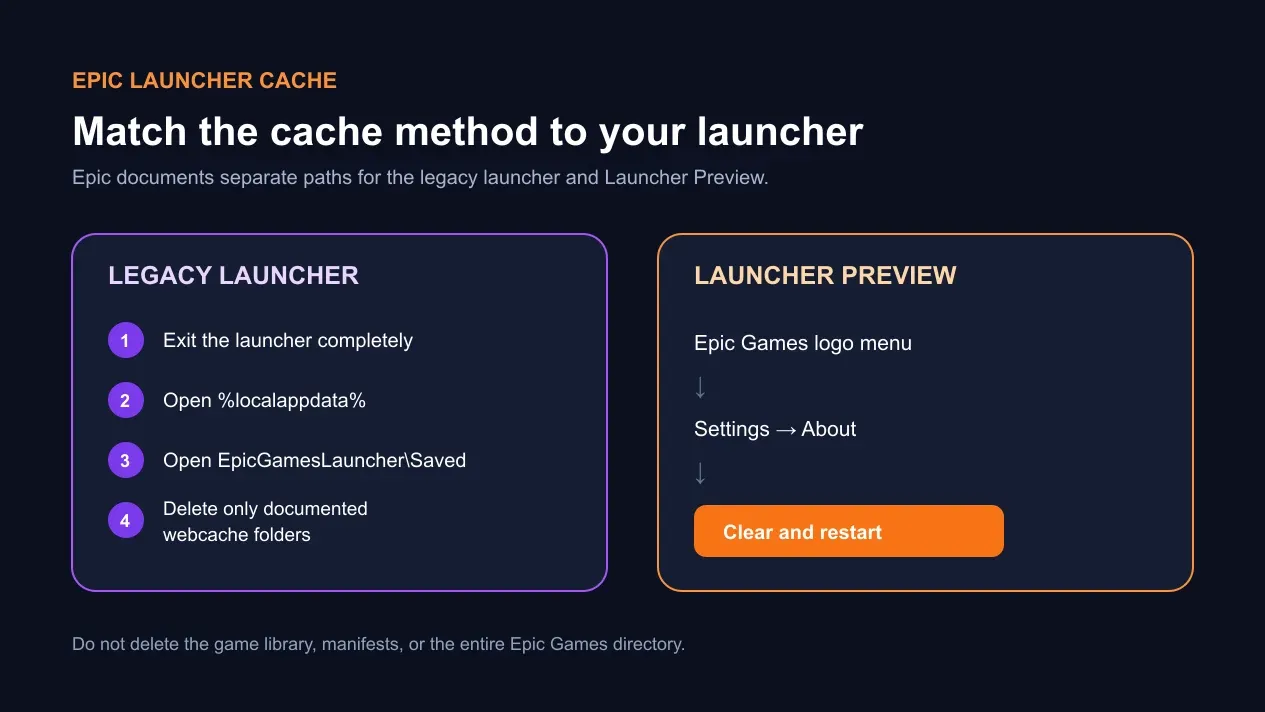
Epic now documents different cache controls for its legacy launcher and Launcher Preview.
Legacy Epic Games Launcher
- Exit the launcher from the notification area.
- Press Windows + R.
- Enter
%localappdata%and press Enter. - Open
EpicGamesLauncher\Saved. - Delete
webcache,webcache_4147, andwebcache_4430if they exist. - Reopen the launcher.
Epic Games Launcher Preview
Open the Epic Games logo menu, choose Settings, open About, then select Clear and restart under Cached data.
Clearing these cache folders should not remove installed games. Delete only the cache locations Epic names, not the game library or the entire Epic Games directory.
5. Check the Windows Clock and Updates
Some Epic network-connectivity errors are certificate trust failures rather than ordinary packet loss. Epic says its store relies on certificates that chain to the ISRG Root X1 certificate. An incorrect system clock or an outdated Windows certificate store can make a valid secure connection appear untrusted.
Turn on automatic time synchronization, confirm the time zone, and run Windows Update. Reboot if Windows requests it. If the error message mentions certificates, security, or trust, prioritize this step before changing DNS or firewall rules.
6. Reset Winsock and Refresh DNS
Run Command Prompt as administrator. Epic’s documented sequence is:
netsh winsock reset
Restart Windows. Then open a new administrator Command Prompt and run:
ipconfig /release
ipconfig /renew
ipconfig /flushdns
The release command temporarily drops the current IP lease, so save any network-dependent work first. After the sequence finishes, reopen Epic Games Launcher and repeat the same failed action. A successful flushdns message only confirms that Windows cleared its DNS resolver cache. It does not prove Epic is reachable.
7. Check Firewall Rules and Restricted-Network Policy
Avoid turning off the firewall as a blanket fix. On a personal PC, confirm that the launcher is allowed through Windows Security or your approved security suite, then retest. If a temporary diagnostic change identifies the firewall as the cause, restore protection and create the narrow application rule your security product supports.
On an enterprise, college, or university network, Epic publishes a list of domains that administrators can allow. Give that list to the network team. Do not try to circumvent organizational controls, and do not forward router ports without a game-specific, current requirement.
8. Disable VPN or Proxy Routes for the Baseline Test
Epic states that proxy servers often cause problems with its services. Establish a direct-route baseline before adding a new route.
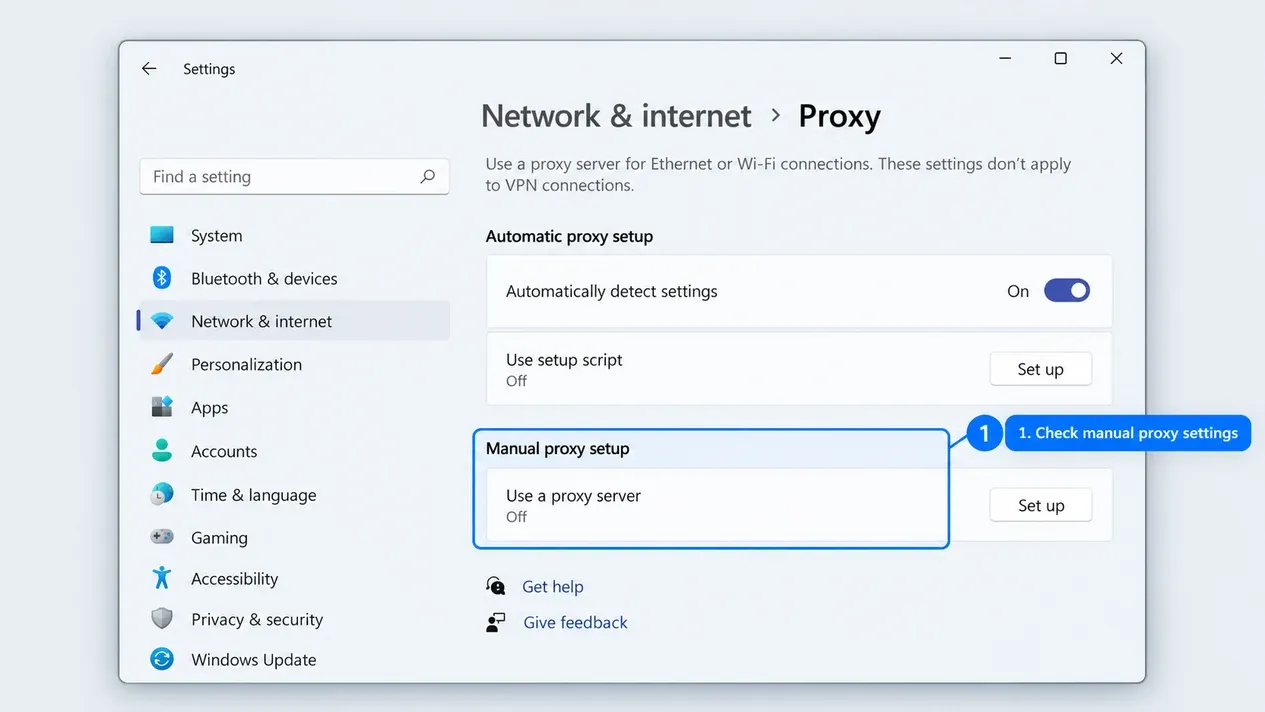
Open Settings > Network & internet > Proxy and turn off Manual proxy setup for the test. Also check for an http_proxy environment variable and any VPN, proxy client, browser extension, or launcher flag that could still alter the route. Epic also documents this administrator command for resetting the WinHTTP proxy:
netsh winhttp reset proxy
Record your existing settings before changing them, especially on a managed PC. Rola IP’s guide to Windows 11 proxy settings shows where manual, automatic, and application-specific routes can be configured and reversed.
9. If Epic Games Updates Are Slow, Diagnose Downloads Separately
When sign-in and store browsing work, slow updates are a different branch of the problem.
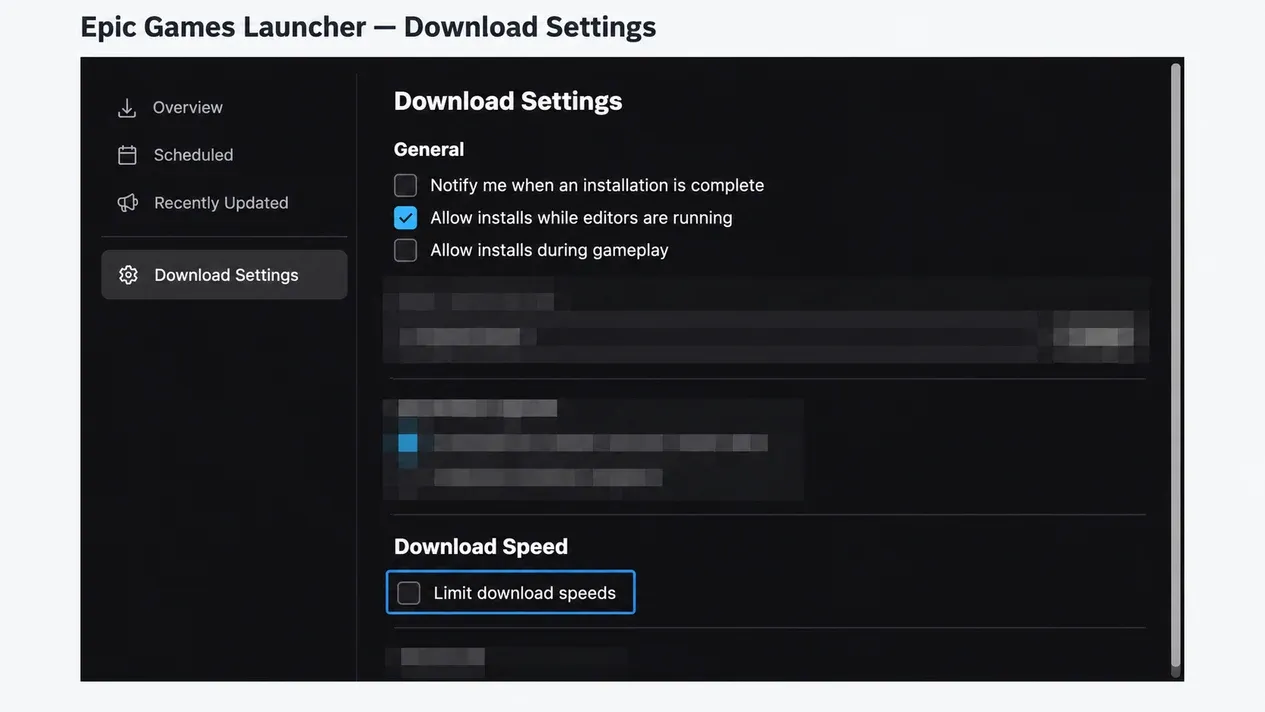
For the legacy launcher, open Settings > Download Settings and clear Limit Download Speeds. In Launcher Preview, open Settings > Downloads and make sure the download speed limit fields are empty. Restart the launcher after changing the setting.
Then compare:
- Epic’s reported download rate
- Windows network activity
- Disk activity on the drive holding the game
- Free space on that drive
- The same download over Ethernet and Wi-Fi
A patch can alternate between downloading and applying files. If network activity falls while disk activity rises, the storage step may be the bottleneck. If both remain low, check Epic status, cache, DNS, background applications, and the original network path.
When Is an Alternate Route Worth Testing?
An alternate route is useful only after the direct connection has been tested and the result is repeatable. For example, an authorized QA team may compare how an Epic storefront loads from two approved network paths, or a network administrator may isolate an upstream routing fault.
Keep that comparison controlled:
- Record the direct-route result.
- Change only the route.
- Confirm the browser’s route with a tool that can check the public IP used by a browser request.
- Repeat the same Epic action once.
- Restore the original route.
If a configured endpoint refuses the connection, diagnose the proxy connection refused error separately. Rola IP’s Epic Games proxy workflows are framed for authorized store QA and product research, not as a guaranteed fix for launcher access, download speed, latency, or account sanctions. A proxy can add latency, require authentication, or be incompatible with a client.
What to Record Before Contacting Support
Stop repeating broad resets once you have a stable failure. Capture:
- the complete error wording and code
- the date, time, and time zone
- whether login, store browsing, download, or one game failed
- the Epic status-page state at that time
- Windows and launcher version
- Ethernet, Wi-Fi, or hotspot result
- whether direct routing and proxy/VPN-disabled testing changed the result
- the cache, DNS, clock, and firewall checks already completed
This record is more useful to Epic Support, your ISP, or a network administrator than “the internet works.” It also prevents a clean reinstall from erasing evidence before the underlying cause is understood.
Conclusion
The safest way to fix an Epic Games Launcher connection error is to isolate the failing layer. Check Epic’s service status, reproduce the same action, compare one authorized connection, and then work through cache, time, Windows updates, DNS, security policy, and route settings. Treat slow updates as their own diagnostic branch. Use an alternate route only as a controlled comparison, not as a promise of faster downloads or restored account access.