
How to Run a .py File: Terminal and VS Code Steps

Aug 27, 2026 · Guides · 8 min read
TL;DR
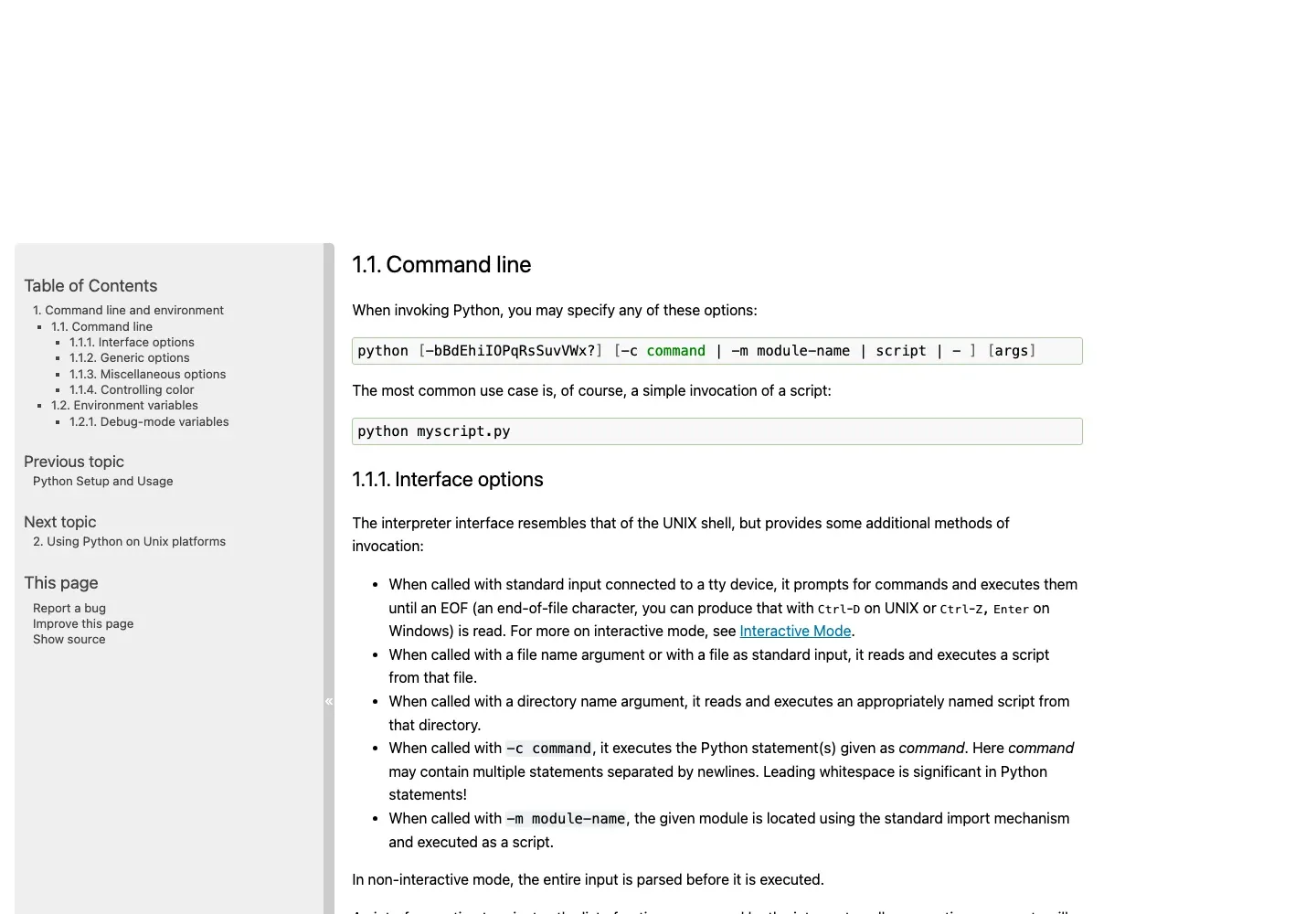
To run a .py file, open a terminal, move to the folder containing the file, and pass its name to Python:
python hello.py
On macOS or Linux, the installed command is often python3:
python3 hello.py
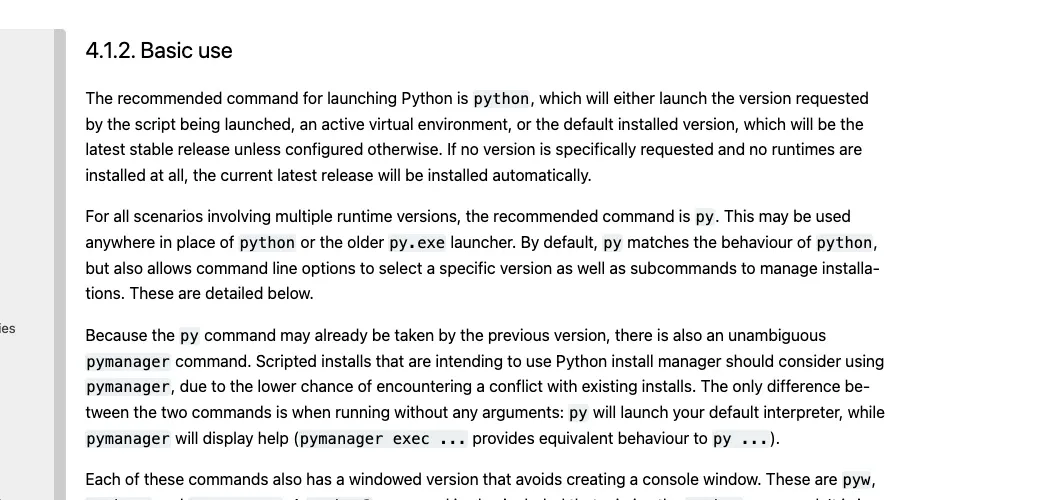
On Windows, current Python installations normally support python hello.py. The py hello.py command is useful when you have multiple Python runtimes and want the Python install manager to select one. If a path contains spaces, put it in quotes.
A successful run returns to the terminal after printing the program’s output. If you see can't open file, fix the filename or current folder. If you see python: command not found, install Python or use the command available on your system.
Before You Run an Unknown .py File
A .py file is source code, but running it can still change files, contact websites, install software, or read data that your user account can access. Open an unfamiliar script in a text editor first. Do not run code from an untrusted download merely because the filename ends in .py.
This guide assumes you have a script you trust and permission to execute. The minimal steps apply to current Python 3 installations on Windows, macOS, and Linux. Interface labels can differ slightly by editor and operating system.
Step 1: Create or Check the Python File
Create a file named hello.py in a folder you can find easily. Add this code and save the file:
print("Hello from Python!")
Make sure the real filename ends in .py. On Windows, File Explorer may hide known extensions, so a file displayed as hello.py could actually be hello.py.txt. In an editor such as VS Code, the tab title and language mode can help confirm that the file is being treated as Python source.
The expected result for this example is:
Hello from Python!
Step 2: Confirm That Python Is Available
Open Terminal on macOS or Linux. On Windows, open PowerShell, Windows Terminal, or Command Prompt. Then try the command appropriate for your system:
python --version
If that does not work on macOS or Linux, try:
python3 --version
On Windows, you can also check the Python install manager:
py --version
You need one working command, not all three. A result such as Python 3.x.x confirms that the terminal can find an interpreter. Use the same command in the next steps.
The word python3 does not mean you need to rename the file. It is only the interpreter command. The script can still be named hello.py.
Step 3: Move to the Folder That Contains the File
The terminal has a current working directory. Python looks for a relative filename such as hello.py inside that directory, which is why running the correct command from the wrong folder fails.
Use cd to change folders. For example, on macOS or Linux:
cd ~/Documents/python-practice
On Windows PowerShell:
cd "C:\Users\YourName\Documents\python-practice"
Quotes are required when a path contains spaces:
cd "C:\Users\YourName\My Python Files"
List the folder contents before running the script:
ls
On Windows Command Prompt, use:
dir
You should see hello.py in the output. This simple check catches misspellings, hidden .txt extensions, and navigation to the wrong folder before Python is involved.
Step 4: Run the .py File
Use the interpreter command that worked in Step 2, followed by the script name.
| System or setup | Typical command |
|---|---|
| Windows with a current Python install | python hello.py |
| Windows with multiple runtimes | py hello.py |
| macOS | python3 hello.py |
| Linux | python3 hello.py |
| Active virtual environment | python hello.py |
For example:
python3 hello.py
Expected output:
Hello from Python!
That visible line is the success signal. A script that intentionally prints nothing can also finish successfully, so check its documented output, created files, exit code, or other expected result rather than assuming silence means failure.
Run the File Without Changing Folders
You can pass an absolute or relative path instead of using cd first:
python3 "$HOME/My Python Files/hello.py"
On Windows:
python "C:\Users\YourName\My Python Files\hello.py"
Quoting the entire path is safer whenever a folder or filename contains spaces. Dragging a file from Finder or File Explorer into many terminal apps inserts its path automatically, but check the command before pressing Enter.
How to Run a Python File in VS Code
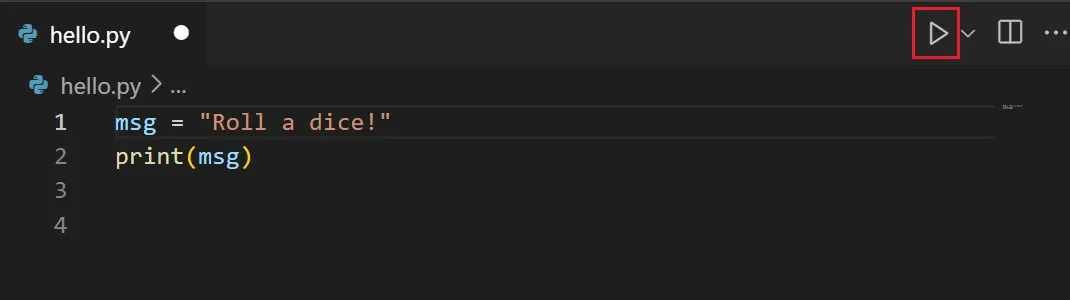
VS Code is an editor. The Python interpreter is still the program that executes the file, so install Python separately and install Microsoft’s Python extension in VS Code.
Then:
- Open the folder containing the script with File > Open Folder.
- Open
hello.py. - Use Python: Select Interpreter from the Command Palette and choose the intended interpreter or virtual environment.
- Select Run Python File in Terminal in the upper-right corner of the editor.
- Check the integrated terminal for
Hello from Python!.
The integrated terminal should show the exact interpreter and file path that VS Code invoked. If the Run button uses a different environment from the one where you installed a package, select the interpreter again before changing your code.
You can also open Terminal > New Terminal and run the same command manually:
python hello.py
or:
python3 hello.py
Pass Arguments to a Python Script
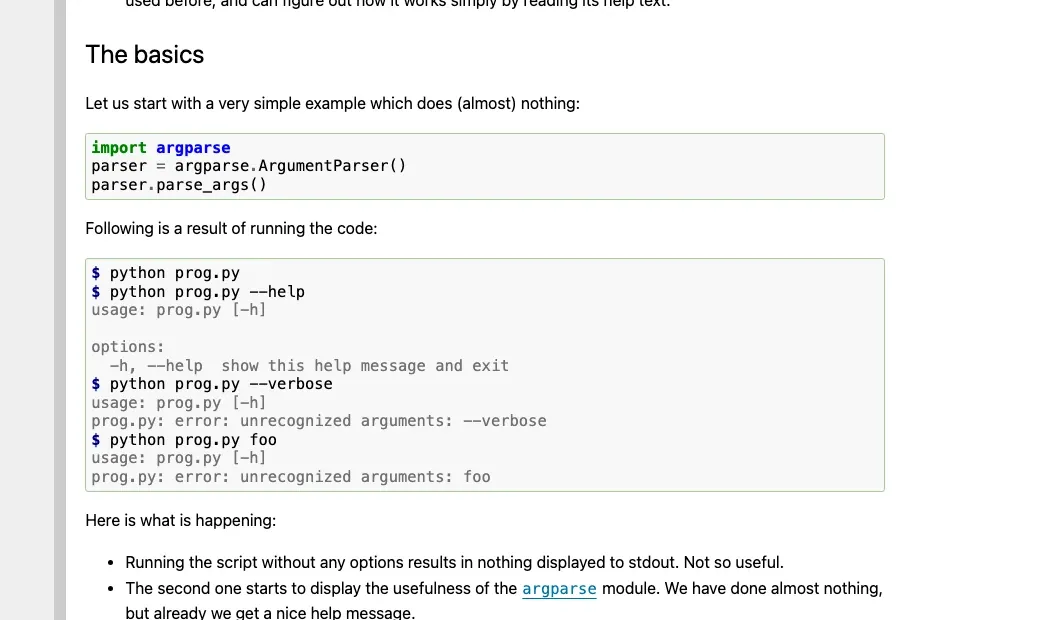
Anything after the script name is available to the program as a command-line argument. A small argparse example makes the expected input explicit:
from argparse import ArgumentParser

parser = ArgumentParser()
parser.add_argument("--name", default="reader")
args = parser.parse_args()

print(f"Hello, {args.name}!")
Save it as greet.py, then run:
python3 greet.py --name Rola
Expected output:
Hello, Rola!
Use quotes when one argument contains spaces:
python3 greet.py --name "Rola reader"
Optional: Run a Python Script as an Executable on macOS or Linux
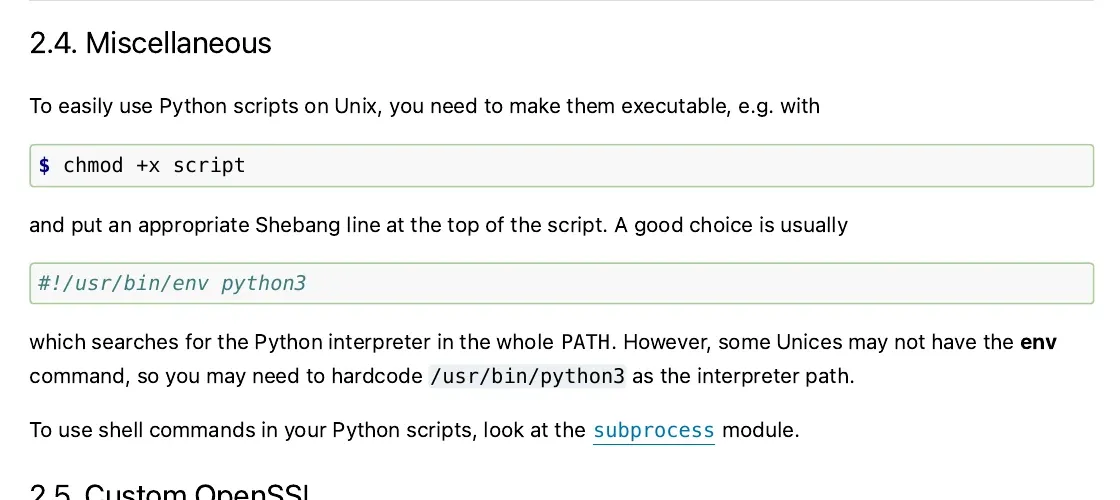
Unix-like systems can execute a trusted script directly when it has a shebang and executable permission. Put this line at the top of the file:
#!/usr/bin/env python3
Then grant execute permission and run the file from its directory:
chmod +x hello.py
./hello.py
The ./ matters because most shells do not search the current directory for commands by default. This method is convenient for a script you control. Calling python3 hello.py remains clearer for a one-off file and works without changing execute permission.
Use the Right Environment When the Script Imports Packages
A script may start correctly and then stop at an import such as import requests. That is an environment problem, not a file-running problem.
For a project, create and activate a virtual environment before installing dependencies. On macOS or Linux:
python3 -m venv .venv
source .venv/bin/activate
python -m pip install requests
python hello.py
On Windows PowerShell:
python -m venv .venv
.\.venv\Scripts\Activate.ps1
python -m pip install requests
python hello.py
After activation, python should refer to the environment’s interpreter. Verify both paths when an editor and terminal behave differently:
python -c "import sys; print(sys.executable)"
python -m pip --version
The interpreter path reported by both commands should belong to the same environment.
Common Errors and the Smallest Useful Fix
| Symptom | Likely cause | How to verify | Fix |
|---|---|---|---|
python: command not found or python is not recognized |
Python is not installed, is not available on PATH, or the system uses another command |
Try python3 --version on macOS or Linux, or py --version on Windows |
Install Python from an official source, reopen the terminal, and use the command that reports a version |
can't open file ... [Errno 2] |
The current folder, path, or filename is wrong | Run pwd and ls on macOS or Linux, or cd and dir on Windows |
Move to the correct folder or pass the quoted absolute path |
| The file opens in an editor but does not run | The operating system associated .py with an editor |
Check whether you invoked the file through Python | Run python file.py or python3 file.py in a terminal |
SyntaxError |
Python parsed invalid source code | Read the filename, line number, and caret in the traceback | Correct the indicated code. Do not paste shell commands at the >>> prompt |
ModuleNotFoundError |
The selected interpreter lacks a dependency | Print sys.executable, then run python -m pip --version |
Activate the intended environment and install the package through that interpreter |
Permission denied after ./file.py |
The file is not executable, the filesystem blocks execution, or the path is wrong | Run ls -l file.py on macOS or Linux |
Use python3 file.py, or apply chmod +x only to a trusted file you own |
| The window appears and disappears after double-clicking | The script completed or failed before you could read the console | Run the file from a terminal | Read the output and traceback in the persistent terminal window |
| The script runs but cannot find a data file | Its relative path is resolved from the current working directory | Print Path.cwd() and the resolved data path |
Run from the expected folder or build the data path from a deliberate base directory |
When a traceback appears, start at the final line for the exception type, then use the filename and line number above it. Do not reinstall Python for every error. A successful version check proves the interpreter can start, while the traceback identifies what failed after startup.
When to Use python -m Instead of a File Path
For one standalone file, python path/to/script.py is appropriate. For code inside a package, module execution often preserves package imports more reliably:
python -m package.module
Do not include .py after the module name. The -m option asks Python to locate the module through its import system and run it as __main__. This is also why commands such as python -m pip work.
Avoid running one Python file by copying its source into exec() or by launching a second interpreter with os.system(). If two files are part of the same application, organize reusable behavior into functions and import them. Use subprocess only when you genuinely need a separate process.
Next Steps for Network and Data Scripts
Once the file itself runs, diagnose network behavior separately from Python startup. For an authorized HTTP client, the Python Requests headers guide shows how to inspect the request metadata your code actually sends, while the Python Requests timeout guide distinguishes connection and read timeouts.
If the project legitimately requires proxy routing, use the current Python proxy integration documentation instead of pasting credentials or unverified settings into a script. For permitted collection projects, the web scraping proxy page explains where a proxy fits in the broader workflow. These are later application steps. They do not change the basic command used to run a .py file.
Conclusion
The shortest reliable workflow is to verify one Python command, confirm the terminal is in the script’s folder, run python file.py or python3 file.py, and check a visible success signal. Most beginner failures come from one of three mismatches: the wrong folder, the wrong interpreter command, or the wrong environment.
Keep those layers separate. First prove that Python can start. Next prove that it can find the file. Then handle syntax, dependencies, arguments, and network behavior using the exact error shown.