
How to Set Up a Proxy in Firefox with Rola IP (2026)

Sep 15, 2026 · Guides · 17 min read
TL;DR
Firefox suits users who need “only one browser going through a proxy,” since it can use proxy settings independent of Windows or macOS. Completing the setup requires handling four things: choosing the right Rola IP network, copying the correct proxy parameters, entering the protocol into the matching field, and verifying the result with an independent check.
- In the Rola IP dashboard, confirm the network type, country or city, session mode, Host, Port, Username, and Password.
- On newer Firefox, go to Privacy & Security; on older Firefox, go to Network Settings at the bottom of the General page.
- Choose Manual proxy configuration, and fill in the HTTP Proxy or SOCKS Host field according to the endpoint’s protocol.
- When using SOCKS5, enable Proxy DNS when using SOCKS v5 if needed.
- After saving, enter your proxy account credentials, and check the exit, region, and refresh-triggered session changes through an IP-check page.
The most common mistakes: including http:// in the Host field, using your dashboard login account as the proxy account, putting an HTTP endpoint into the SOCKS Host field, not enabling the proxy for HTTPS, mistakenly adding your target site to No Proxy for, or enabling per-request rotation when you need a continuous session.
What Is a Firefox Proxy, and How Is It Different From a System Proxy?
A Firefox proxy is a network-forwarding rule defined within the browser’s profile — it mainly affects supported connections made from that Firefox profile, and doesn’t automatically change the exit for every application on the computer.
Why Is Firefox’s Built-In Proxy Useful?
Chrome, Edge, and Safari usually rely more heavily on the operating system proxy, while Firefox provides independent Connection Settings. For regional page acceptance testing, search-result checks, ad-landing-page verification, cross-border e-commerce page review, and authorized testing, this browser-level control has three practical advantages:
- Firefox can use a proxy while your terminal, meeting software, and other browsers keep their original network.
- Test settings can be saved in a dedicated Firefox profile, reducing the impact on your everyday browsing environment.
- HTTP, HTTPS, SOCKS, exception addresses, and an automatic configuration URL can each be set separately.
A Firefox Proxy Isn’t the Same as a VPN
A VPN usually handles more application traffic at the system’s network layer; a Firefox manual proxy has a narrower scope. A proxy also doesn’t automatically change a website account’s registered region, cookies, language, time zone, or browser fingerprint, and it certainly can’t undo an account penalty or bypass a site’s authorization. It solves network-exit and routing problems — not every access problem.
Do Normal and Private Windows Share the Same Proxy?
Usually yes. A manual proxy is a Firefox profile-level setting, not a setting for a specific tab. Opening a private window doesn’t automatically create a new exit IP. If different tasks must use different proxies, set up independent Firefox profiles or use a vetted proxy-management tool — don’t assume private windows are isolated from each other.
Why Are the Proxy Entry Points Different Between New and Old Firefox?
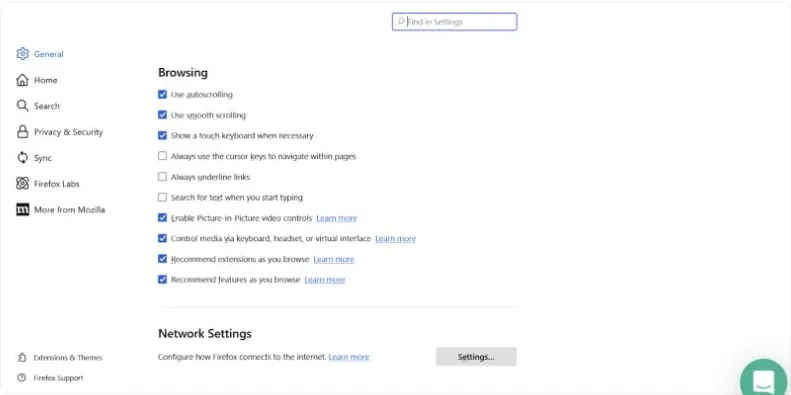
Firefox 152 and later moved the proxy entry point under Privacy & Security, while the General > Network Settings path common in older tutorials still applies to some older interfaces.
Mozilla’s current Connection settings in Firefox documentation keeps both paths, showing that the interface changes across versions and release channels. So readers should check their own Firefox version first, rather than mechanically hunting for one fixed button.
| Firefox Interface | Recommended Entry Point | Final Window |
|---|---|---|
| Firefox 152 and newer design | Privacy & Security > Connection and software security > Advanced settings > Proxy settings > Configure proxy | Connection Settings |
| Older desktop interface | General > Network Settings > Settings | Connection Settings |
| An organization-managed device | The entry point may be controlled by policy | Configured or locked by an administrator |
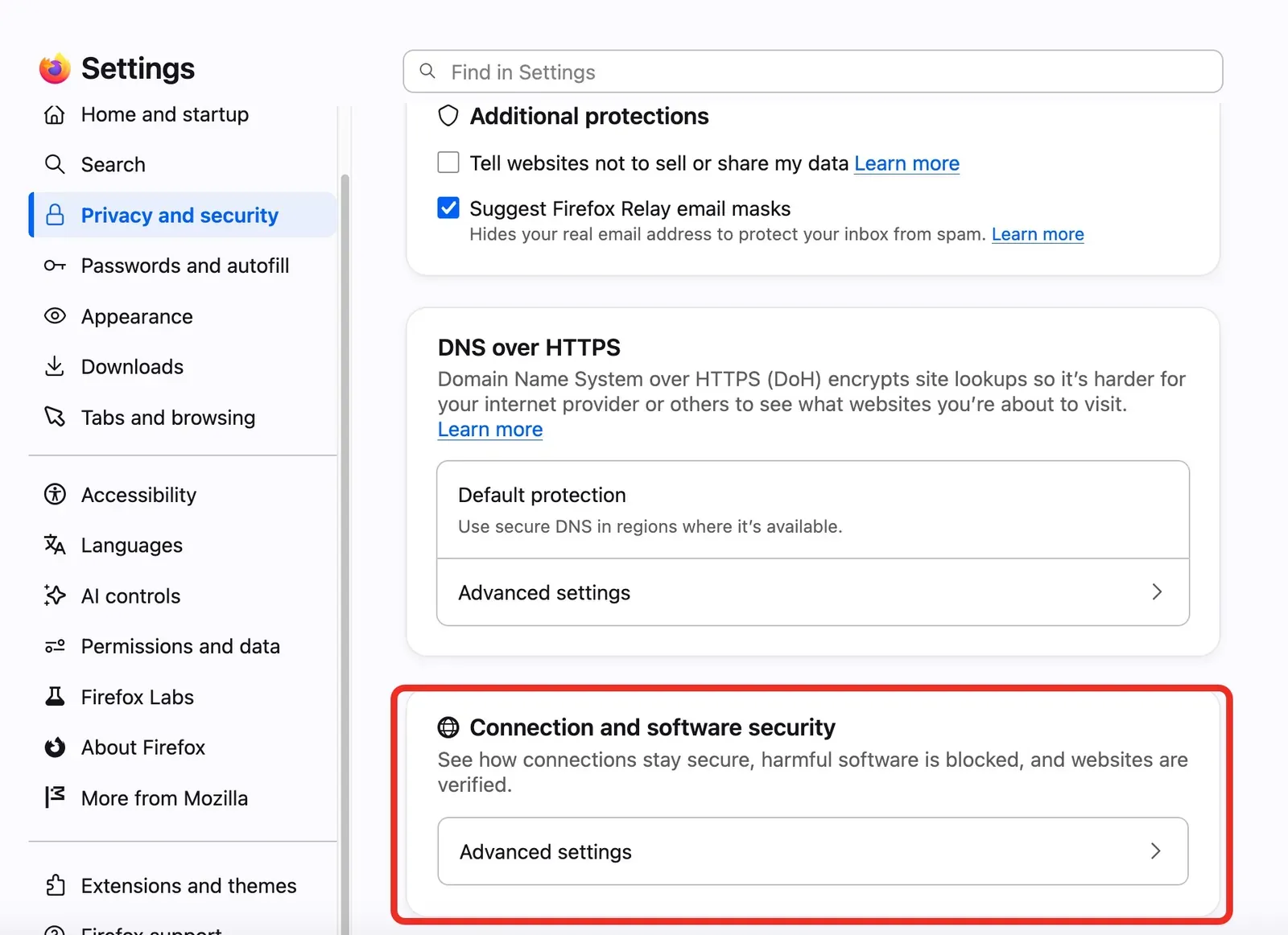
At the bottom of the new page, you can see “Connection and software security.” After expanding “Advanced settings,” go to Proxy settings, then click Configure proxy.
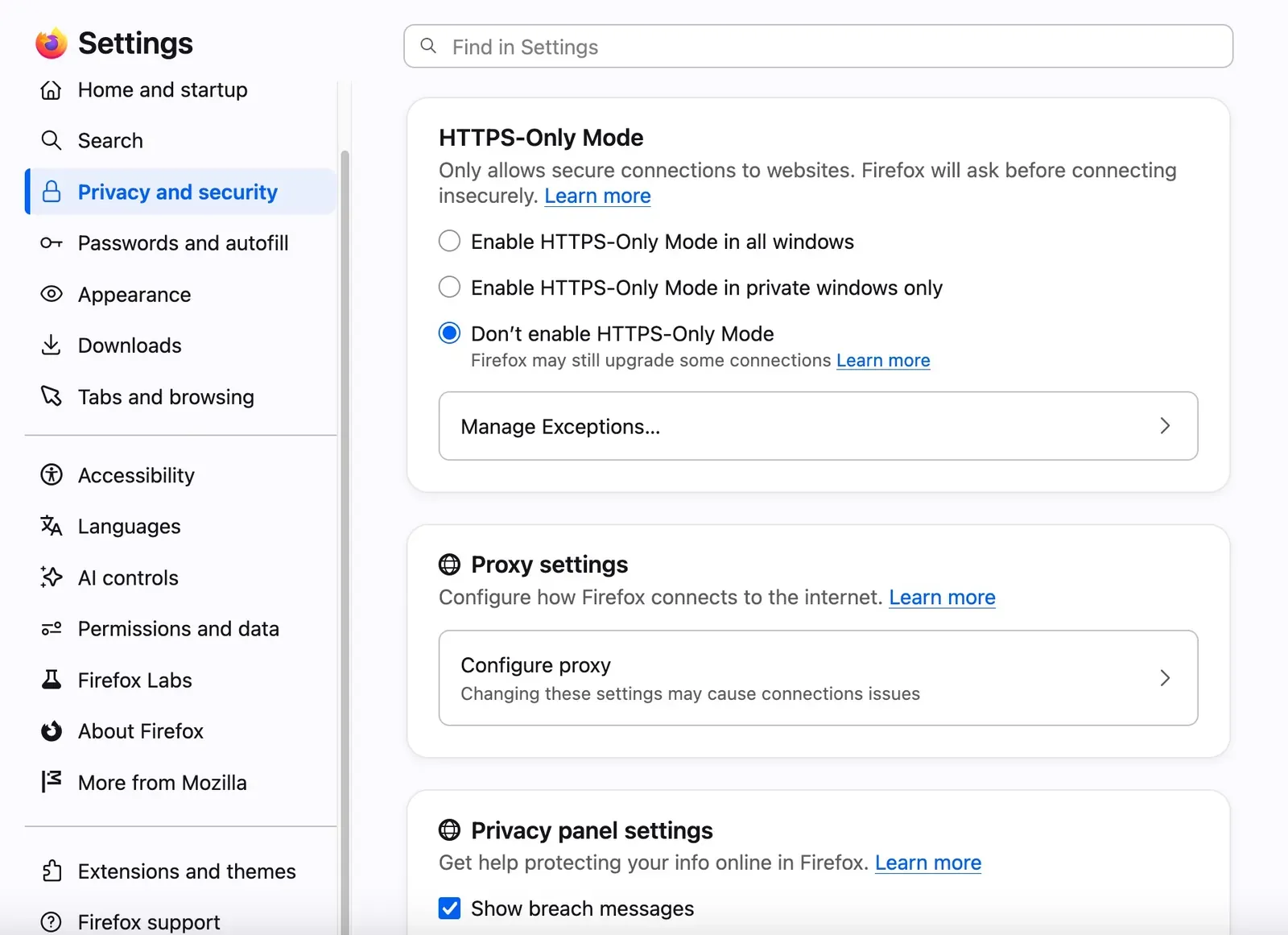
If your Firefox still uses the old layout, look for Network Settings at the bottom of the General page. The English interface below only retains the Firefox settings area.
Which Rola IP Product Should You Choose Before Configuring Firefox?
Before choosing a product, first decide whether you need a stable identity, frequent rotation, fine-grained regions, or lower traffic cost — “it can be entered into Firefox” doesn’t mean every proxy type is equally suited to the current task.
Dynamic Residential Proxies Suit Regional Browsing and Multi-Location Verification
Residential proxies suit checking regional differences on public pages, verifying search results, reviewing price and stock pages, and testing multiple independent locations. Rola IP’s current product page lists capabilities like country and city targeting, rotation, and sticky sessions; actual available regions, ports, and session rules should follow the purchase page and dashboard.
Good fit: opening public pages separately for each country or city; expanding exit coverage; tasks that don’t share login state with each other.
Not suited for rotating by default: a multi-step flow after login, a shopping cart, checkout testing, or any operation that depends on continuous cookies. In these cases, use a sticky session instead of switching IPs on every page request.
Static Residential Proxies Suit Long-Term Consistent Browser Sessions
Static residential proxies are better suited to authorized account testing, a long-term fixed region, continuous operations on the same site, and team workflows that need a predictable exit. They avoid a sudden address change during pagination, redirects, or resource loading, but they aren’t suited to sampling tasks that need a large number of different exits.
When Should You Consider Datacenter and Mobile Proxies?
Datacenter proxies usually emphasize speed, fixed infrastructure, and cost efficiency, suiting low-risk public-page testing or internal QA; if the target site is more sensitive to datacenter ASNs, the success rate may not match a residential network. Mobile proxies are better suited to authorized mobile-network rendering, carrier, or mobile-app scenarios, but the price is usually higher, and shouldn’t be treated as the default option for ordinary browsing.
| Firefox Use Case | Priority Choice | Session Recommendation | Reason for the Choice |
|---|---|---|---|
| Sampling public pages across different countries | Dynamic residential | An independent session per task | More flexible regional coverage and rotation |
| A continuous flow after login | Static residential or sticky residential | A fixed exit | Reduces mid-session IP-change inconsistency |
| High-frequency, low-sensitivity QA | Datacenter proxy | Fixed or rotated by batch | Usually fast and easy to control cost |
| Mobile carrier page verification | Mobile proxy | Fixed by device or test case | The network identity is closer to a cellular network |
What Proxy Parameters Do You Need to Prepare in Rola IP?
Before you start setting up, you need at least Host, Port, Protocol, and Authentication; if you’re using a dynamic network, you also need to clarify Location and Session.
Required Connection Information
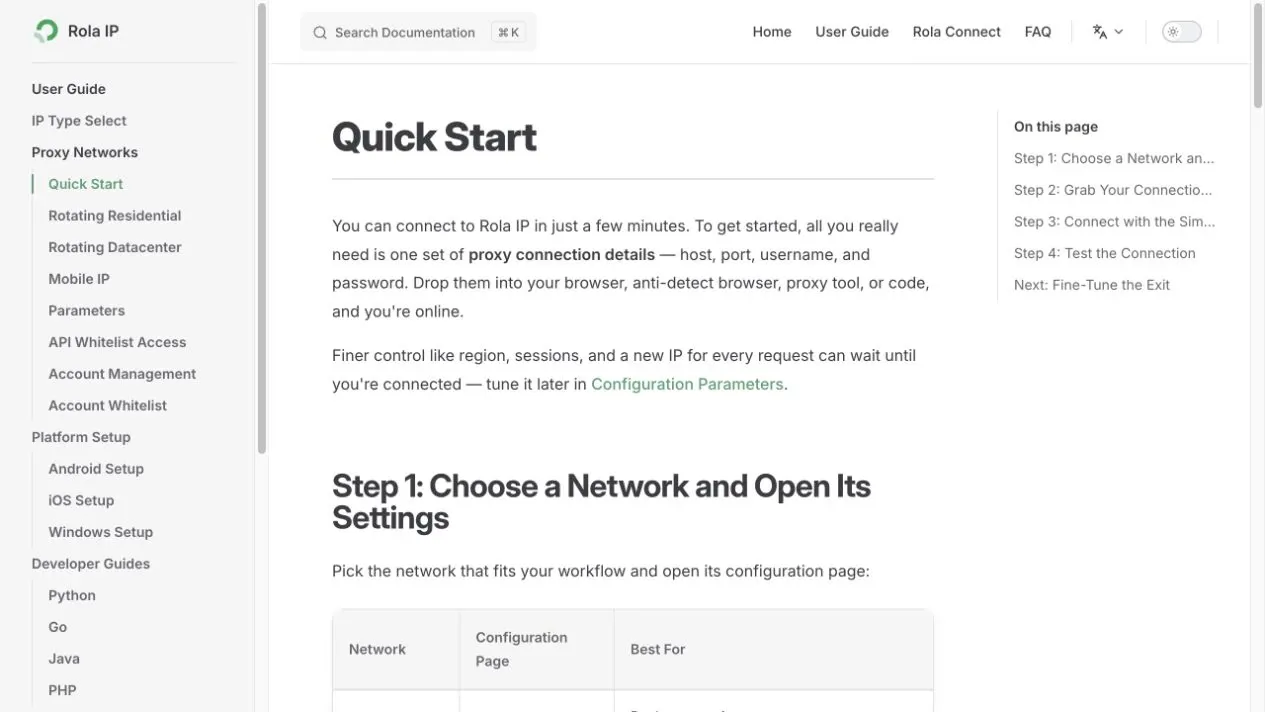
Following Rola IP’s proxy quick start, copy the following information from the configuration page of your chosen network:
| Parameter | What to Enter | Common Mistake |
|---|---|---|
| Host | The gateway domain or proxy IP | Adding http://, a path, or spaces |
| Port | The numeric port given by the product | Using a port for a different protocol |
| Protocol | HTTP/HTTPS or SOCKS5 | Guessing the protocol just because the target site is HTTPS |
| Username | The proxy account plus any necessary region or session parameters | Using your dashboard login email |
| Password | The proxy password | Copying it incompletely or exposing it in a screenshot |
Region and Session Parameters
Rola IP’s proxy parameters can express country, state, city, session identifier, or session duration through the proxy username. Firefox doesn’t recognize these business parameters individually — it just hands the complete username to the proxy server, so you must first generate the correct format in the Rola IP dashboard or documentation.
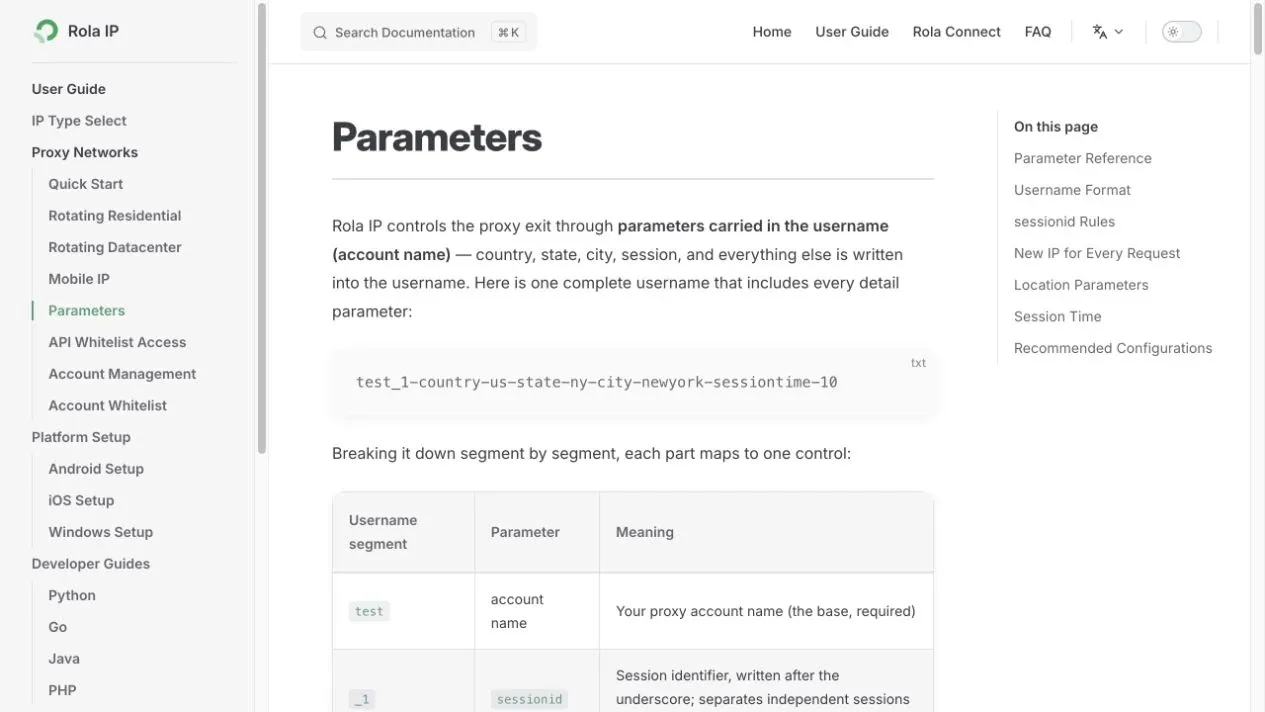
Configuration principle: first set only the country and verify connectivity, then add state, city, or session parameters. Adding too many variables at once makes it hard to distinguish an authentication failure, a lack of regional inventory, and a field-spelling problem from each other.
Username and Password, or IP Whitelist?
For manual browsing in Firefox, username and password authentication is most common: after saving the connection, the browser pops up an authentication window on the first request. IP whitelisting suits office networks with a fixed public exit IP, since the proxy server identifies the source directly; if your local public IP changes often, the whitelist may suddenly stop working.
How to Set Up a Proxy in Firefox with Rola IP
The exact steps depend on your Firefox version, but the logic for filling in Connection Settings is basically the same.
Step 1: Confirm Your Firefox Version and Settings Path
Click Help > About Firefox in the menu to check your version. Firefox 152 and newer interfaces go through Privacy & Security first; older interfaces go through General > Network Settings. Whichever path you use, you should end up at Connection Settings.
Step 2: Open Connection Settings
The new path:
- Open Settings.
- Choose Privacy & Security.
- Scroll to Connection and software security.
- Click Advanced settings.
- Under Proxy settings, click Configure proxy.
The old path:
- Open Settings.
- Choose General.
- Scroll to Network Settings.
- Click Settings.
Step 3: Choose Manual Proxy Configuration
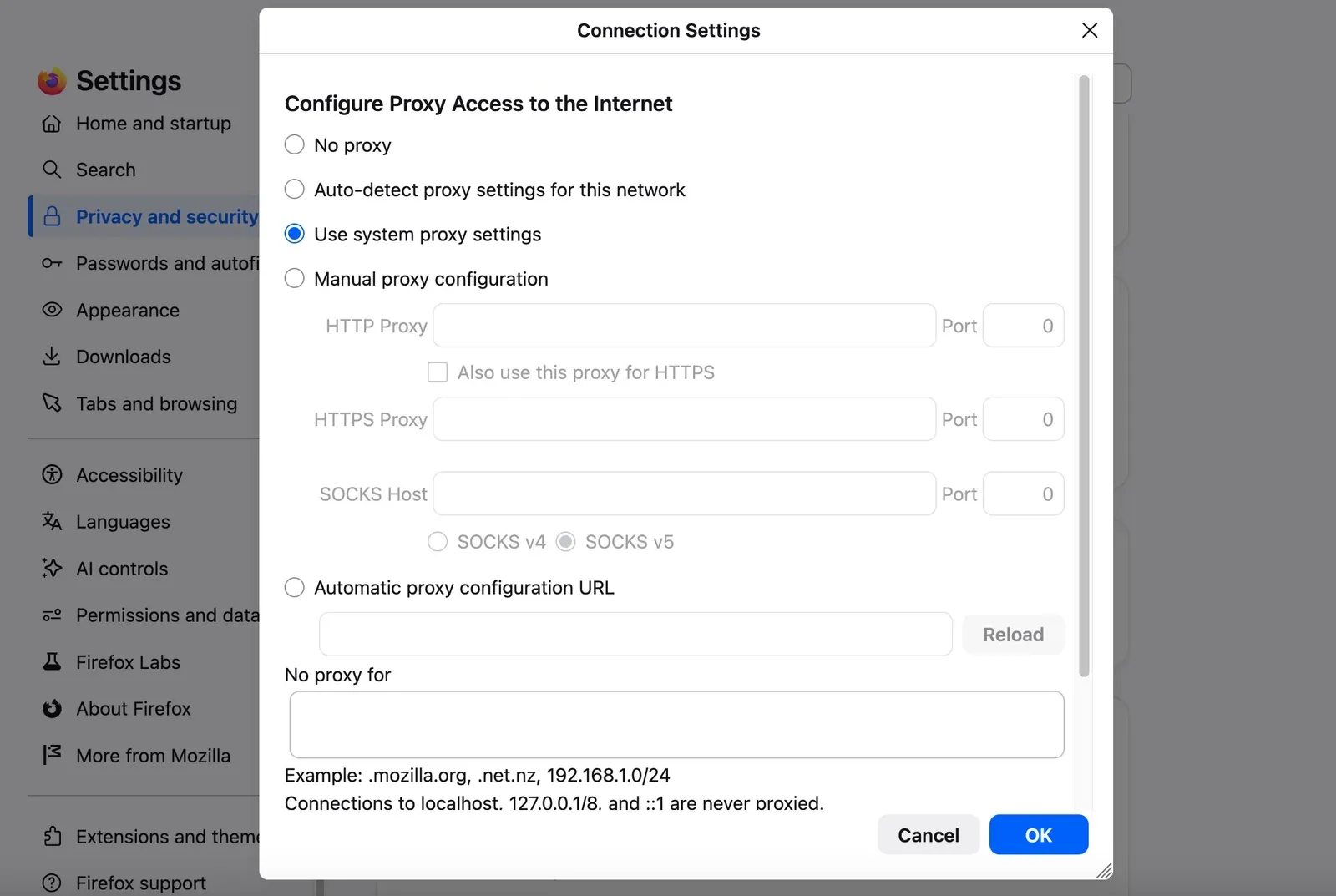
Connection Settings usually shows five modes: No proxy, Auto-detect proxy settings for this network, Use system proxy settings, Manual proxy configuration, and Automatic proxy configuration URL. When configuring a single Rola IP endpoint, choose Manual proxy configuration.
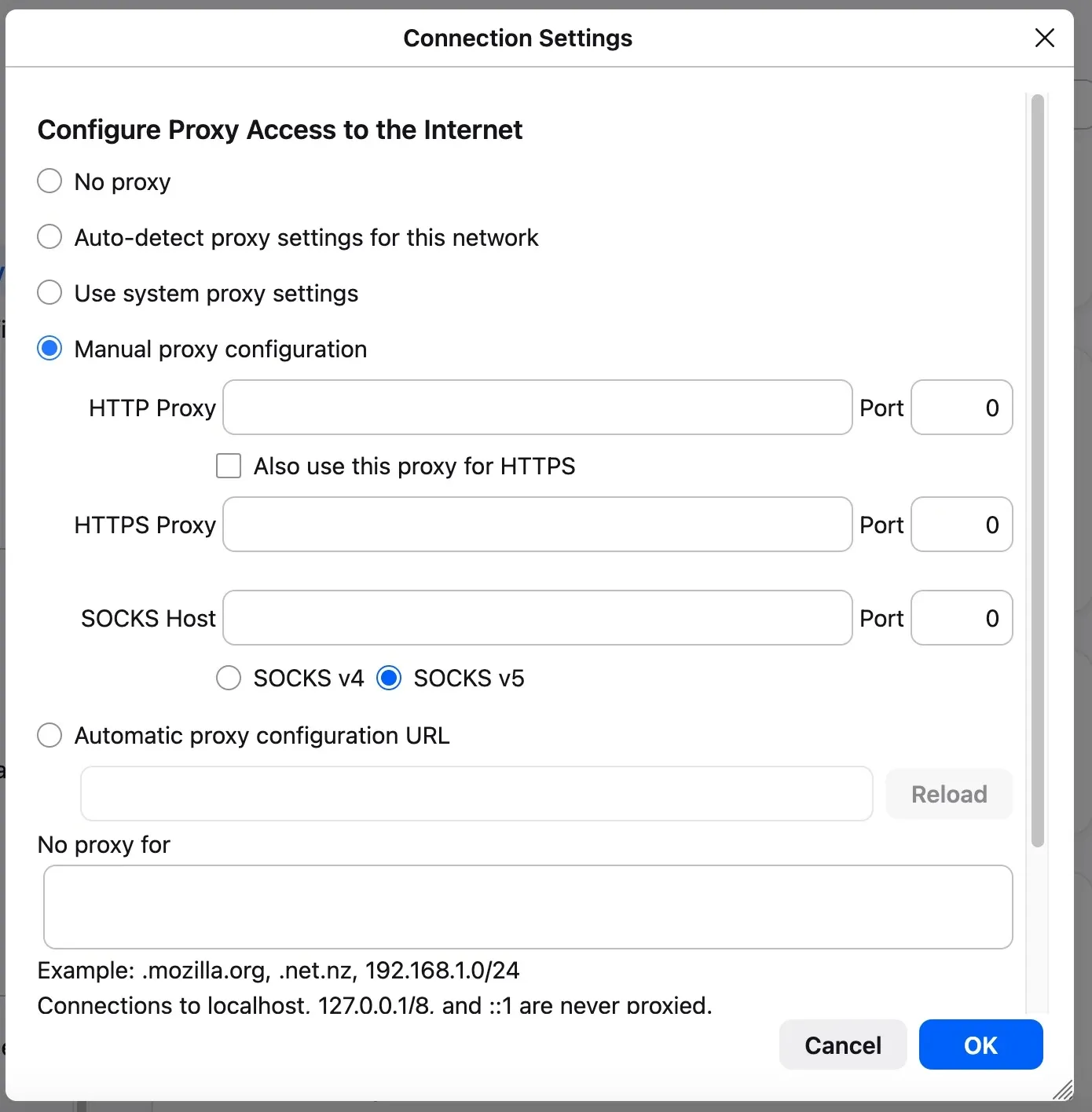
Step 4: Fill in the HTTP or HTTPS Proxy
When the Rola IP dashboard gives you an HTTP/HTTPS endpoint:
- Enter the Host into HTTP Proxy, without
http://. - Enter the port number into the adjacent Port field.
- If the same endpoint is used for HTTPS, and the interface shows Also use this proxy for HTTPS, enable it.
- If your version provides a separate HTTPS Proxy field, fill in the same or a separate endpoint according to the product’s instructions.
HTTPS sites are usually carried through an HTTP proxy’s CONNECT tunnel, so “you’re visiting an HTTPS site” doesn’t mean you should mistakenly put the HTTP endpoint into the SOCKS Host field. Always go by the proxy protocol your provider specifies.
Step 5: Fill in the SOCKS5 Proxy
When the endpoint explicitly supports SOCKS5:
- Leave HTTP Proxy and HTTPS Proxy empty, unless the product documentation says otherwise.
- Enter the Host into SOCKS Host, and the corresponding port into Port.
- Choose SOCKS v5 — don’t mistakenly choose SOCKS v4.
- If you need domain resolution to follow the proxy, enable Proxy DNS when using SOCKS v5.
The HTTP and SOCKS5 fields aren’t duplicate entry points. Filling in the same endpoint across all fields at once can cause some requests to take a different path, and it also makes troubleshooting harder.
Step 6: Check No Proxy For
Addresses listed under No Proxy for will bypass the proxy and connect directly. localhost and 127.0.0.1 should usually be kept, to avoid sending local development pages to the proxy. Mozilla also supports using <local> to bypass local hostnames with no dot in them.
Separate multiple domains or IPs with commas. Don’t put your target verification site into this list, or that site will show the original exit, which will look like “the proxy isn’t taking effect.”
Step 7: Save and Complete Authentication
Click OK, and open a new ordinary tab. If the endpoint uses account/password authentication, Firefox will pop up a “Proxy Authentication Required” or similar window. Enter your Rola IP proxy username and proxy password — don’t enter a website account, and don’t use your dashboard login email in place of the proxy account.
If you’re using IP whitelisting and your current public IP is already authorized, an account/password window usually won’t pop up. Repeated pop-ups mean authentication is failing — that’s not a signal to keep resubmitting.
Which Firefox Proxy Mode Should You Choose?
For individuals and small teams, Manual proxy configuration is clearest; system proxy, auto-detect, and PAC should only be used under a clearly defined network architecture.
| Mode | Traffic Source | Best-Fit Scenario | Main Risk |
|---|---|---|---|
| No proxy | Direct connection | Temporarily disabling the proxy, establishing a baseline | Shows the original exit |
| Auto-detect | Auto-discovered via WPAD | An enterprise network that provides auto-discovery | Not recommended to enable blindly on an uncontrolled network |
| Use system proxy settings | Inherited from the OS | Wanting Firefox to match other applications | Easy to confuse with a manual tutorial |
| Manual proxy configuration | A manually entered Firefox endpoint | Rola IP, single-browser testing | Protocol and authentication must be matched correctly |
| Automatic proxy configuration URL | A PAC file routes traffic by rule | Centralized enterprise policy | More complex deployment, updates, and authentication |
A PAC URL isn’t an ordinary proxy address. If you don’t already have a working PAC file, don’t put a Rola IP gateway URL directly into Automatic proxy configuration URL.
Which Field Should HTTP, HTTPS, and SOCKS5 Go Into?
The proxy protocol determines how Firefox communicates with the proxy gateway; the target webpage’s protocol only determines how the proxy subsequently forwards the request.
| Rola IP Endpoint Type | Firefox Field | Recommended Setting | DNS Note |
|---|---|---|---|
| HTTP/HTTPS proxy | HTTP Proxy, also used for HTTPS if needed | Host with no scheme, Port as a number only | DNS behavior depends on the proxy connection and browser |
| A separate HTTPS proxy | HTTPS Proxy (if shown in your version) | Strictly use the corresponding Host and Port | Don’t swap the HTTP/HTTPS ports yourself |
| SOCKS5 proxy | SOCKS Host + SOCKS v5 | Can enable Proxy DNS when using SOCKS v5 | Better suited to having DNS follow the SOCKS path |
When Should You Prioritize HTTP/HTTPS?
For ordinary web browsing, page verification, and most browser tasks, an HTTP/HTTPS endpoint is usually enough. It’s straightforward to configure, the authentication prompt is clear, and it’s easy to judge whether a given site is going through the proxy.
When Should You Prioritize SOCKS5?
Consider SOCKS5 when the product explicitly provides it, when you need more general TCP forwarding, or when you want to use Firefox’s SOCKS5 DNS option. SOCKS5 doesn’t automatically make the exit “cleaner” — IP quality is still determined by the underlying residential, datacenter, ISP, or mobile network.
How Do You Correctly Configure Rotation and Sticky Sessions?
Browser tasks usually need a longer session than script requests, since one page simultaneously loads HTML, images, scripts, and API calls.
When Should You Choose a Sticky Session?
- Page redirects, forms, a shopping cart, or checkout testing after login.
- Continuously checking multiple related pages in the same region.
- An authorized workflow that needs cookies, session, and exit address to stay consistent.
A sticky session isn’t a permanently static IP. It usually maintains the same exit for a configured duration, and can still change after a timeout, network unavailability, or when the session is regenerated. Important business tasks should log the actual exit and design a re-authentication process.
When Should You Choose a Rotating Exit?
- Sampling independent public pages across multiple countries or cities.
- No account, cookie, or transactional dependency between tasks.
- Needing to spread out requests, without requiring one browsing flow to keep using the same IP.
If a single page’s different resources frequently change IPs during loading, you may see inconsistent language, currency, CAPTCHAs, or session state. Manual browsing in Firefox isn’t recommended to default to “a new IP per request,” unless the task is genuinely a stateless verification.
How Do You Verify a Firefox Proxy Actually Works?
A reliable verification includes at least four layers: endpoint connectivity, exit change, location accuracy, and consistent session behavior.
Layer 1: Record a Baseline Before Enabling the Proxy
Before enabling the proxy, record your current public IP, country, and network type. Don’t publicly post a screenshot containing your personal IP. The baseline is used to judge whether the proxy actually changed the browser’s exit.
Layer 2: Check the Proxy Endpoint
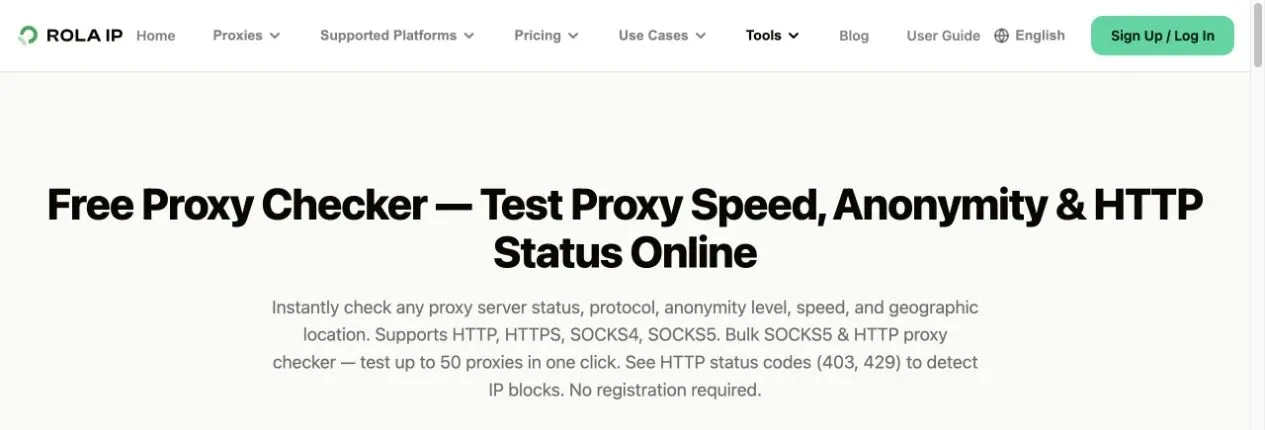
Use Rola IP’s Proxy Checker or another trusted IP-lookup page to confirm the Host, Port, Protocol, and Authentication all pass the check. If the endpoint test fails, fix the connection parameters first — don’t move on to modifying Firefox’s DNS or cookies.
Layer 3: Verify the Exit and Region in Firefox
After saving the settings, open a new tab and visit an IP-lookup page. Check:
- Whether the IP is different from the baseline.
- Whether the country, state, or city matches the Rola IP parameters.
- Whether the ASN or network type matches your chosen product.
- Whether the IP change after a refresh matches your rotation or sticky-session expectation.
Layer 4: Verify the Proxy’s Scope
Check the exit separately in Firefox and in another browser with no proxy configured. If only Firefox changes, that shows the browser-level setting is correct; if every application changes, a system proxy or VPN may also be enabled at the same time.
Layer 5: Verify the Business Outcome With a Real Target Page
A successful IP check only proves the network layer is working. You should also open an authorized target page, and verify whether the language, currency, stock, ad version, or search results match expectations. Log the final page result — not just that the HTTP connection succeeded.
How Should You Handle DNS over HTTPS, SOCKS DNS, and WebRTC?
A correct exit IP doesn’t mean every network-related signal is consistent — DNS and WebRTC need to be understood and verified separately.
SOCKS5’s Proxy DNS
After enabling Proxy DNS when using SOCKS v5, Firefox will try to resolve domain names through the SOCKS5 path. This only relates to a SOCKS5 configuration — it shouldn’t be treated as a general switch for an HTTP Proxy.
Firefox’s DNS over HTTPS
Firefox’s DNS over HTTPS protection level is a separate area from your proxy setting. If a test requires the DNS region to match the proxy exit, check whether DoH is using a local or a specified resolver. Don’t change the proxy, DoH, and system DNS all at once without testing — changing one variable at a time makes it easier to pinpoint the problem. Mozilla’s proxy help page also separately links to the DNS over HTTPS settings documentation.
Why Might WebRTC Show a Different Address?
The network path WebRTC uses and your browser’s privacy settings may differ from an ordinary web request. A proxy shouldn’t be advertised as automatically blocking all WebRTC leaks. When you need privacy verification, check the page exit, DNS, and WebRTC separately, and adjust Firefox’s permissions or policy based on business needs — don’t rely on a single “anonymity score.”
Why Isn’t a Firefox Proxy Working?
Troubleshoot in the order “entry point and mode → protocol → endpoint → authentication → exceptions → DNS → target site.”
“The Proxy Server Is Refusing Connections”
This usually means Firefox tried to connect to the proxy, but there’s a problem with the Host, Port, Protocol, network status, or endpoint availability. First confirm the product is valid in the Rola IP dashboard, then test the same endpoint with the Proxy Checker. If the check tool also fails, prioritize fixing the endpoint — don’t clear browser data first.
The Authentication Window Keeps Reappearing, or You Get HTTP 407
HTTP 407 means the proxy requires authentication, but the current credentials weren’t accepted. Check the proxy Username and Password, account status, product authorization, IP whitelist, and any spaces left over from copying. Don’t put the entire username:password@host string into the Host field — Firefox handles credentials in a separate window.
HTTP Pages Open, but HTTPS Pages Fail
Check whether Also use this proxy for HTTPS is enabled, or whether the current version’s HTTPS Proxy field is filled in correctly. Then confirm the proxy endpoint supports CONNECT and the target’s TLS. Don’t “fix” the proxy by ignoring certificate warnings — this can mask a wrong endpoint or a man-in-the-middle risk.
Firefox Still Shows the Original IP
Confirm you’ve selected Manual proxy configuration, that the target domain isn’t in No Proxy for, and that no extension is overriding Connection Settings. Close old check tabs and reopen them, to avoid a cached result. If Use system proxy settings is selected, Firefox will follow the operating system instead of using the manual endpoint.
Wrong Region, or the City Keeps Jumping
Check whether the country, state, city, and session parameters in the username match Rola IP’s documentation, then confirm that region currently has available resources. A dynamic residential network may return different carriers or nearby locations within the same target city, so business acceptance should define an allowed geographic range.
The Connection Is Slow but Shows No Error
First compare the time-to-first-byte and full-load time without a proxy, with a fixed proxy, and across different regions. Long-distance routing, target-site resources, proxy type, and browser cache can all affect speed. Don’t judge overall network quality from a single speed test.
Some Sites Fail While Others Work Fine
This is more likely a target site’s policy, account status, regional restriction, TLS, or page-level risk control — not an overall Firefox configuration error. First confirm the IP-lookup page is stable, then check the target site’s messages and terms of service within your authorized scope.
An Extension Is Controlling the Proxy
Connection Settings may show that an extension is controlling the browser’s connection. When you need manual configuration, disable that extension or use the same configuration within the extension, to avoid two sets of rules competing. Don’t rely on both the manual fields and multiple proxy-switching extensions at the same time.
How Should You Choose Between Firefox Proxy Extensions, PAC, and a Separate Profile?
Manual configuration suits a single proxy and clear troubleshooting; frequent switching or team policy is what actually calls for an extension, PAC, or a separate profile.
Manual Configuration
The advantage is no extension installation needed, a clear scope of permissions, and easy reproducibility. The drawback is that frequent switching requires repeatedly editing the fields, and the setting affects the entire Firefox profile.
Proxy Extensions
Extensions can save multiple configurations, switch by rule, or toggle quickly, but they need permission to read and control proxy settings. Check the developer, update history, permissions, and privacy policy before installing. An extension page showing “enabled” doesn’t mean the endpoint is usable — you still need to verify the exit.
If you decide that rule-based switching is a better fit than Firefox’s built-in manual settings, see how to use foxyproxy for a practical setup walkthrough before importing or creating profiles.
PAC Automatic Configuration
A PAC file can return DIRECT, PROXY, or another route based on domain, suiting centralized enterprise management. It’s not the first choice for ordinary users, since a rule error can unexpectedly send some traffic direct, and account/password authentication still needs to be handled separately.
A Separate Firefox Profile
Different profiles can isolate proxy settings, cookies, extensions, and history, making them better suited to a QA team managing test environments by project or region. Each profile should still use a clear name, and record the corresponding Rola IP product, region, and session rules.
Do the Same Steps Work on Firefox for Android and iOS?
Don’t assume mobile Firefox has the same Connection Settings as desktop. Different platforms, versions, and release channels vary significantly in about:config, system proxy, and extension support.
This article’s steps are aimed at desktop Firefox on Windows, macOS, and Linux. Mobile devices should prioritize the operating system’s Wi-Fi proxy, an enterprise-managed configuration, or a proxy app that explicitly supports that platform, and should follow Mozilla’s current version documentation. Don’t copy an old tutorial to modify Android internal preferences unless your currently installed version explicitly allows it and you understand how to restore it.
How Do You Turn Off, Change, or Reset a Firefox Proxy?
Go back to Connection Settings, and either choose No proxy to restore a direct connection, or choose Use system proxy settings to have Firefox follow the system again. When switching Rola IP endpoints, change the Host and Port, and enter the new credentials at the next authentication prompt.
Check the exit IP again once done. If Firefox is still using the old proxy, check proxy extensions, saved authentication information, and organizational policy. On a shared team device, also revoke credentials that are no longer used — don’t just clear the interface fields.
Firefox Proxy Configuration Security Checklist
A proxy touches connection metadata, so credentials, authorization, and auditing should be treated as part of the configuration.
- Only use a proxy service with clear terms of service, a privacy policy, and a support channel.
- Don’t use an unknown free proxy for logins, payments, or sensitive business.
- Don’t expose the complete Host, Username, or Password in articles, support tickets, or chat screenshots.
- Teams should use separate sub-accounts, least privilege, and revocable credentials.
- Turn off the proxy after testing and verify the exit has been restored.
- Only use the proxy for legal, authorized browsing, testing, and public data access.
Conclusion
The key to Firefox proxy configuration is first identifying the version’s entry point, then matching Rola IP’s product type, protocol, authentication, region, and session strategy to your browsing task. Newer Firefox goes in through Privacy & Security; older versions go in through General’s Network Settings — both eventually complete manual configuration in Connection Settings.
After saving your settings, don’t treat “the page opened” as the only conclusion. Check endpoint connectivity, exit change, regional accuracy, session stability, and the target page’s result in sequence, to confirm the proxy genuinely fits the current task. Use a stable or sticky exit for long-term logins, use controlled rotation for independent multi-region verification, and always keep credential security and site authorization inside your configuration process.