Twitch Black Screen? Diagnose and Fix It Step by Step

Sep 30, 2026 · Guides · 10 min read
A Twitch black screen does not point to one universal failure. It can come from a browser extension, corrupted site data, video decoding, DRM, an unstable connection, a single broadcaster’s configuration, or a rerouted network path. The quickest fix is to isolate the failing layer instead of changing several settings at once.
Start by opening another live channel. Then try a private browser window, another device, and another network. Those four checks help reveal whether the problem belongs to one stream, your browser profile, your device, or the network route. Only investigate a proxy or IP after the screen changes when you switch networks.
TL;DR
- Refresh Twitch and open a different live channel.
- Try a private window with extensions disabled.
- Use an updated, supported browser and clear Twitch site data if the profile checks do not resolve the issue.
- Test the same channel on another device and on mobile data.
- Disconnect VPN, proxy, or traffic-routing software during diagnosis.
- If playback fails only through one route, investigate that route. After the browser and network comparisons, follow the graphics branch only if Error 3000 or other decoding evidence points there.
- For TV or mobile, restart the app and device, update the app, then reinstall only if simpler checks fail.
Why is my Twitch screen black?
Your Twitch screen can be black because the failure is in the channel, browser profile, video decoder or DRM path, device, or network route. Test another channel first, then use a private window, another device, and another network. A proxy is relevant only when the same playback test changes with the route; it cannot fix a broadcaster encoder, browser extension, GPU decoder, or account issue.
First, identify which Twitch black screen you have
Use the symptom to choose the right branch:
| What you observe | Most useful first test | What it suggests |
|---|---|---|
| One channel is black, others play | Open two more live channels | The broadcaster’s encoder, bitrate, codec, or upload may be involved |
| Every channel is black in one browser | Open a private window | Extension, cache, cookie, or browser-profile conflict |
| Video is black but chat or audio works | Record the player error, then compare a clean browser session and another network | Decode, DRM, GPU, extension, or media-request failure |
| Twitch is black on every device using Wi-Fi | Try mobile data | Router, DNS, ISP, VPN, proxy, or route issue |
| OBS preview looks normal but viewers see black | Watch from another device/account | Broadcaster output or Twitch ingest path |
| Only the TV app is black | Restart and update the TV app | App, device memory, firmware, or home-network issue |
This separation matters. Clearing a browser cache cannot repair a broadcaster’s broken encoder, and switching IPs cannot fix a local GPU decode error.
How to fix a Twitch black screen in your browser
1. Refresh, then test another live channel
Reload the page once. If the player stays black, open at least two other live channels. When only one channel fails, avoid changing system-wide settings. Twitch notes that broadcaster-side bitrate, keyframe, codec, or upload problems can affect an individual stream.
If every channel fails, continue with the browser and network checks below.
2. Open Twitch in a private window
A private window gives you a cleaner browser profile. In Chrome or Edge, press Ctrl+Shift+N on Windows or Command+Shift+N on macOS. In Firefox, use Ctrl+Shift+P or Command+Shift+P.
Before testing, check whether any extensions are allowed to run in private mode and disable them for this comparison. Private mode also changes cookies and sign-in state. If Twitch works there, it suggests a browser-profile or session difference; it does not identify the exact extension or setting. Return to the normal profile and change one variable at a time. Start with content-blocking, privacy, ad-blocking, or developer extensions, testing the same channel after each change.
3. Clear Twitch site data and update the browser
Clear cookies and cached files for twitch.tv, then sign in again only if your viewing workflow uses a Twitch account. Update to a browser that Twitch currently lists in its Supported Browsers guidance. Twitch recommends disabling extensions before clearing cache and cookies, so stale extension data is not immediately recreated.
4. Record the player error code before choosing a branch
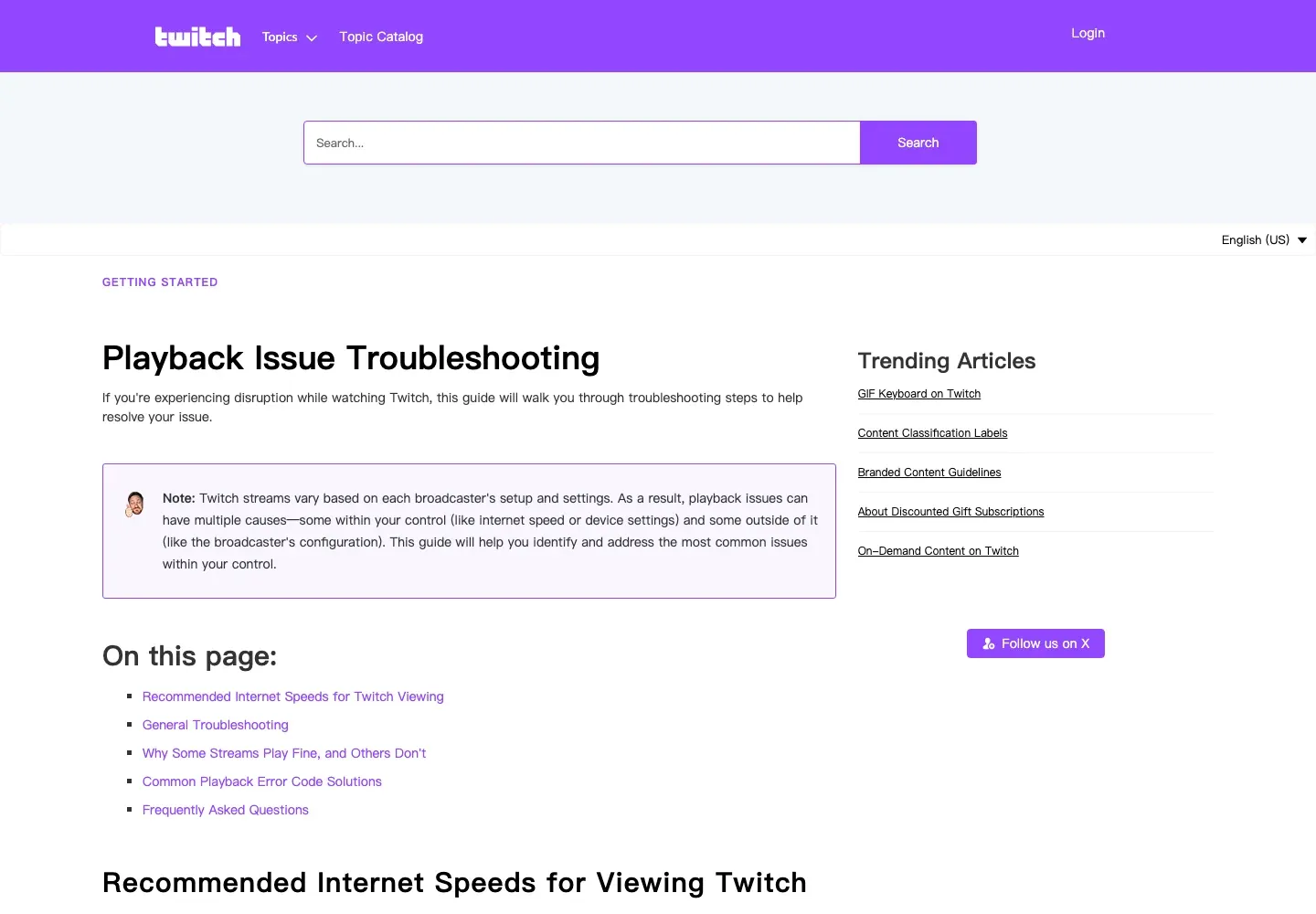
Twitch’s current Playback Issue Troubleshooting guide uses these codes as troubleshooting directions. Confirm the code and device in the current guide before changing browser, DRM, or hardware settings:
| Error | Likely layer | First actions |
|---|---|---|
| 1000 | Browser compatibility | Update the browser, disable extensions, try a private window |
| 2000 | Network delivery | Check stability, restart the router, set quality to Auto, disable extensions |
| 3000 | Video decoding | Complete the browser and network comparisons, then use the decoding-specific graphics checks below |
| 7005 | DRM | Enable protected-content playback and test another supported device |
An error code is more useful than a generic black screen because it narrows the failing layer. Record it now, then complete the network comparison below before changing graphics settings or drivers. A black screen without decoding evidence is not, by itself, a reason to update the graphics driver.
Test the network path before changing DNS or drivers
Run a controlled A/B test:
- Play the same live channel on your normal connection.
- Disconnect any VPN, proxy, or traffic-routing application and test again.
- Test the same channel on the same device using a mobile hotspot.
- If possible, test another device on the original Wi-Fi.
- Record which combinations work.
If Twitch works on mobile data but fails on Wi-Fi across multiple devices, the home network or upstream route becomes the leading suspect. If it fails only in one browser, stay with the browser branch.
Record the test date, channel, device, browser and version, direct or routed path, exit region, protocol, error code, load time, and whether video, audio, and chat worked. Success means the same authorized channel produces the expected video and audio after changing one variable. An HTTP 200 from the homepage alone is not a successful playback result, and one passing run does not establish long-term route stability.
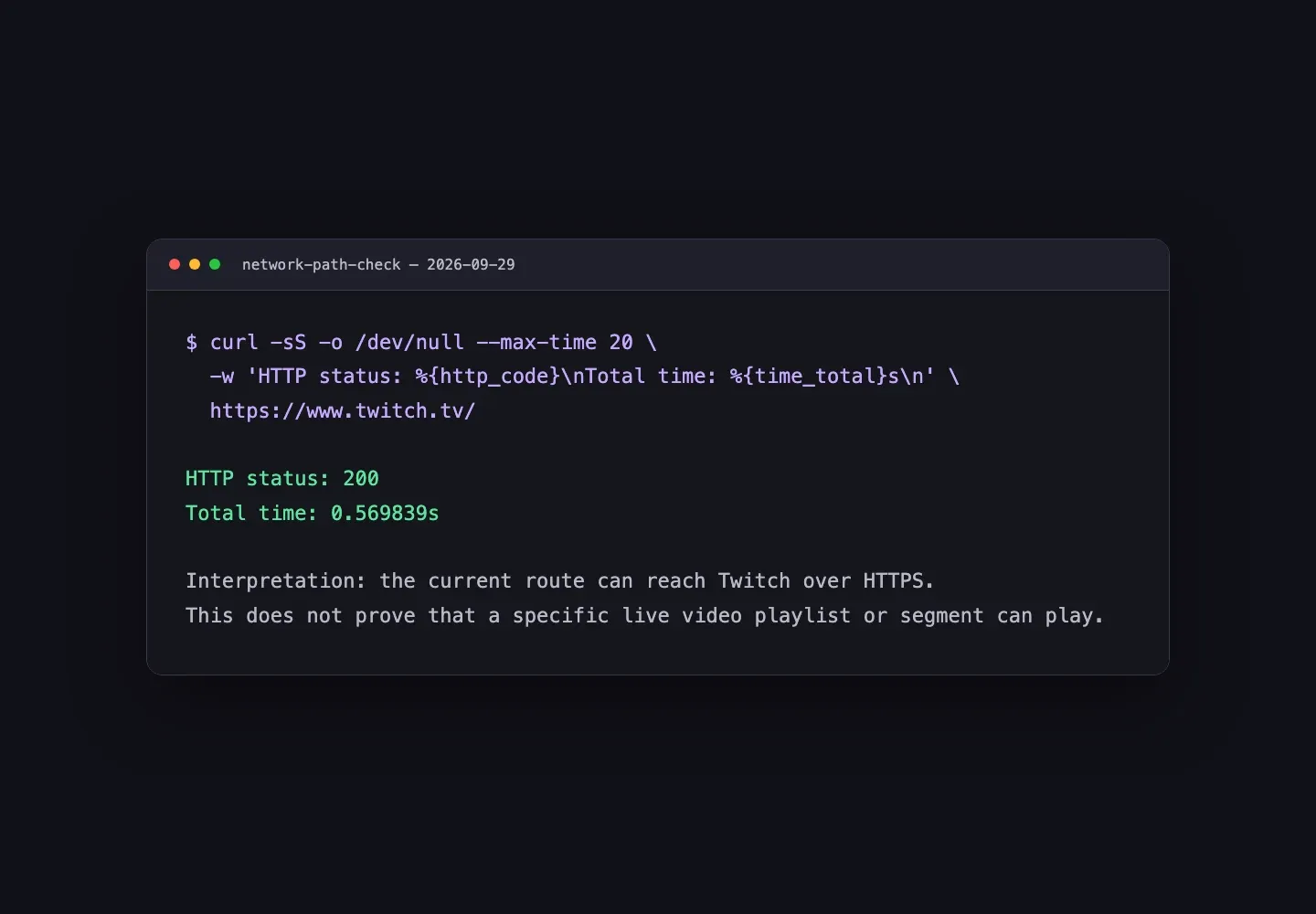
On macOS, Linux, or WSL, use Bash to confirm basic HTTPS reachability with a bounded request:
curl -sS -o /dev/null --max-time 20 \
  -w 'HTTP status: %{http_code}\nTotal time: %{time_total}s\n' \
  https://www.twitch.tv/
On Windows, run the equivalent command in PowerShell:
curl.exe -sS -o NUL --max-time 20 -w "HTTP status: %{http_code}`nTotal time: %{time_total}s`n" https://www.twitch.tv/
An HTTP 200 shows that the route reached the Twitch homepage. It does not prove that a live playlist, video segment, DRM exchange, or browser decoder works.
Decoding-specific branch: Check graphics settings only when the evidence points there
After comparing channels, a supported browser and its profile settings, devices, and network paths, use this branch if Error 3000 or other diagnostic evidence points to video decoding. If the failure follows one network or proxy route, investigate that path first. Do not treat a generic black screen as evidence that the graphics driver needs updating.
For a decoding issue, follow Twitch’s Playback Issue Troubleshooting guide for the affected browser and device. Record the current hardware-acceleration setting, temporarily disable it, relaunch the browser, and retest the same channel. If there is no improvement, restore the original setting and relaunch before trying another change.
If decoding errors persist and the evidence still points to the graphics path, check for an applicable driver update through the operating system or GPU manufacturer’s official update channel. Retest after that single change. Avoid third-party driver utilities and do not change several GPU settings together; a driver update is a targeted decoding check, not a default fix for every Twitch black screen.
Can a proxy or IP address cause a Twitch black screen?
Yes, a routed network path can contribute to playback failure, but a black screen alone does not prove that Twitch restricted the IP route.
Twitch’s browser guidance recommends logging out of VPNs and other software that reroutes requests during troubleshooting. A proxy can also fail because of authentication, unstable throughput, DNS behavior, session changes, or incomplete application routing. Those conditions are testable. A universal claim that Twitch automatically rejects all datacenter IPs at its CDN is not established by Twitch’s public troubleshooting material.
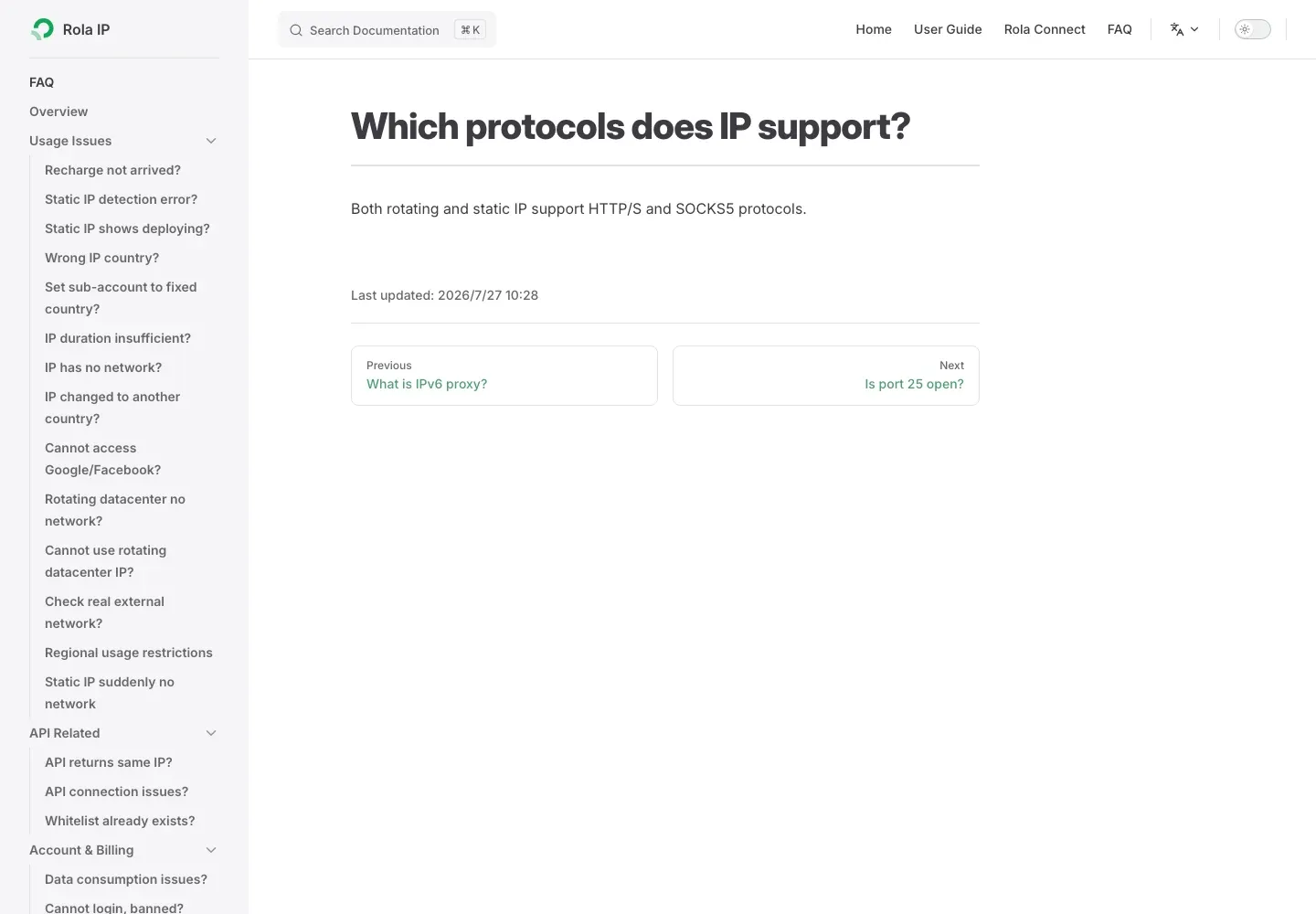
The same caution applies to protocol claims. Rola IP documents HTTP(S) and SOCKS5 support. That documentation does not establish that Twitch browser video requires UDP through the proxy, nor does it guarantee Twitch-specific WebSocket behavior. Browser playback should be diagnosed from actual requests and error codes, not from an assumed protocol failure.
Where Rola IP fits after a route-dependent failure is confirmed
Rola IP is relevant when you have an authorized need to test how Twitch behaves through a documented, stable regional route. It should not be the first fix for every black screen.
For browser playback tests, keeping a consistent exit context makes results easier to compare than rotating the IP on every request. A sticky session requests the same exit for its configured session window, but continuity still depends on the documented session duration and route availability. Verify the exit before and after each test. A session setting does not guarantee Twitch playback or override platform controls.
If you use Rola Connect, follow its system-proxy setup for your installation, then verify that the browser actually uses the selected route. Applications that ignore the operating-system proxy will need their own supported configuration.
What should you check when the proxy route fails?
Check the actual error before changing IPs. A 407 response points to proxy authentication, so verify credentials or IP allowlisting. For a 403, identify whether the target service or an intermediate gateway rejected the request and review the applicable access rules. A 429 indicates rate limiting: pause requests and honor Retry-After when the server provides it. Do not rotate IPs to evade a rate limit.
Resolve DNS and TLS errors separately. For a refused TCP connection, check the endpoint, port, service availability, and firewall, then use the proxy connection refused troubleshooting guide for that specific failure. A timeout requires checking connection and response timing; by itself, it does not prove that an IP is low quality.
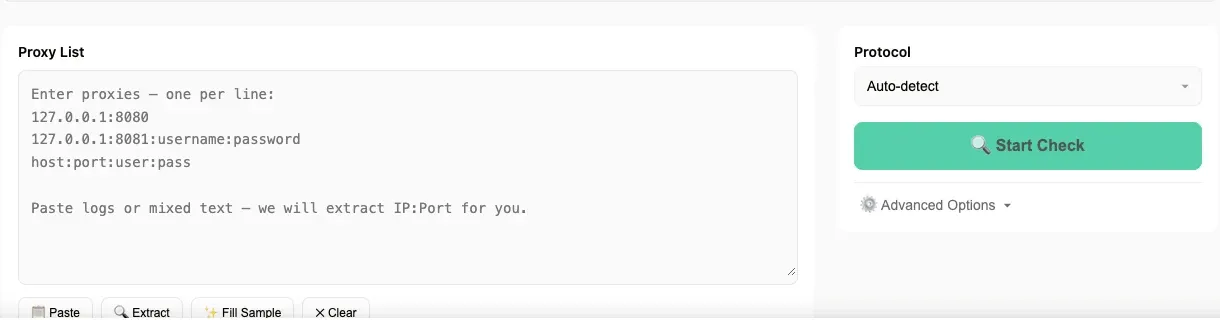
Use the Rola IP proxy checker for the checks documented by the tool, and verify the browser’s actual route separately. A reachable proxy endpoint does not prove that Twitch video plays or that every browser request uses that proxy. Never paste production credentials into screenshots or public logs.
For authorized Twitch regional QA, keep the route stable and compare the same Twitch workflow against a direct connection. Match the product to the permitted task and record the observed result without treating one successful test as a guarantee.
How to fix a Twitch TV or mobile black screen
Fix a Twitch black screen on mobile
Start with the Twitch app and change one variable at a time:
- Force-close Twitch, reopen it, and test the same channel.
- Update the Twitch app and the phone’s operating system.
- Compare the same channel on Wi-Fi and mobile data.
- Disconnect any VPN or system proxy during diagnosis. If you are testing Twitch in Safari on an iPhone with iCloud Private Relay enabled, compare with it disabled; do not assume that a Safari result explains the native Twitch app.
- On Android, clear the Twitch app cache from system settings. On iOS, reinstall the app only after the simpler checks fail because iOS does not provide the same per-app cache control.
- Record the phone model, OS and app version, channel, error message, network, and whether video, audio, and chat worked after each change.
If the app fails but Twitch plays in a supported mobile browser, the app or its local data becomes the stronger suspect. If both fail only on one network, continue with the network-path checks rather than repeatedly reinstalling the app.
Fix a Twitch black screen on a smart TV
For a Twitch TV black screen, start with the app rather than desktop browser settings:
- Force-close Twitch and reopen it.
- Play a different channel.
- Restart the TV or streaming stick.
- Update the Twitch app and device firmware.
- Compare Wi-Fi, Ethernet, or a mobile hotspot when the device supports those connections.
- Reinstall the app only after the simpler checks fail.
On Apple TV, follow Twitch’s current device-specific guidance for reporting playback issues if that option is available in your installed app version. Include the affected channel, device and app version, time, and reproducible steps. Do not assume the same reporting menu exists on every smart TV or streaming device. If every streaming app fails, investigate the device or home connection rather than Twitch alone.
Broadcaster-only branch: OBS looks normal, but Twitch is black
If your OBS preview is correct but viewers see a black stream, ask someone to check the channel from another device first. Then verify that the intended source is visible in the active scene, the capture source is not covered by another layer, and OBS is sending to the correct Twitch account.
Next, review bitrate, resolution, frame rate, codec, and keyframe settings against current Twitch broadcast guidance. A stable local preview only confirms local composition; it does not prove that the encoder, upload path, Twitch ingest, and viewer delivery stages are healthy. The official Twitch Inspector guide explains how to review bitrate, codec, keyframe, and ingest health. Contact Twitch Support for persistent broadcaster-side failures.
Conclusion
The reliable way to fix a Twitch black screen is to isolate the failure before replacing anything. Test another channel, a private window, another device, and another network in that order. Error codes then point toward compatibility, delivery, decoding, or DRM.
If the problem follows one VPN, proxy, Wi-Fi network, or routed IP, investigate that path. A stable, appropriately located Rola IP route can support authorized QA after the route is proven relevant, but it cannot guarantee playback or bypass Twitch controls.
Disclosure: This article is published by Rola IP. Product examples should be checked against current official documentation and used only for authorized testing that follows Twitch’s terms and applicable rules.