Yandex Proxy: Set Up and Verify a Proxy for Yandex Search

Sep 23, 2026 · Guides · 13 min read
TL;DR
A Yandex proxy is an ordinary proxy used to reach Yandex Search or route traffic from Yandex Browser; it is not a proxy service operated by Yandex. Choose an endpoint that matches your device and protocol, check that it connects and performs adequately before using it, then configure Windows, an Android Wi-Fi network, or a trusted browser-specific client. Compare the browser’s public IP before and after, and check Yandex’s separate search-region setting. An IP in the target country does not guarantee a city, ranking, or unrestricted access.
What Does “Yandex Proxy” Mean?
The term has two common meanings, which the Webshare guide and Rayobyte guide both address: a proxy used while visiting the Yandex search engine, or a proxy configured in Yandex Browser. The search engine is a website; the browser is an application that can open Yandex and other websites. Installing Yandex Browser is not required merely to visit Yandex Search through a proxy in another browser.
In either case, the destination normally sees the proxy’s exit IP for traffic that actually follows that route. The proxy does not change your Yandex account, cookies, browser language, location permissions, or search preferences. Nor does it grant access to services that restrict your connection. The useful question is therefore not “Which special Yandex proxy do I need?” but “Which route can I configure, and what result am I trying to verify?”
| Goal | First choice | Verification |
|---|---|---|
| Manually check a regional Yandex result | A supported proxy in a dedicated browser profile | Exit IP, Yandex location setting, same query and profile |
| Browse consistently while signed in | A stable, authorized exit where available | Exit IP remains the same during the session; account security checks remain in force |
| Diagnose a failed browser connection | Direct-versus-proxy comparison | Protocol, host, port, authentication, TLS, and extension settings |
| Programmatically collect search results | Review Yandex’s current terms and an approved data route first | Written permission, documented interface, and bounded logs—not IP rotation |
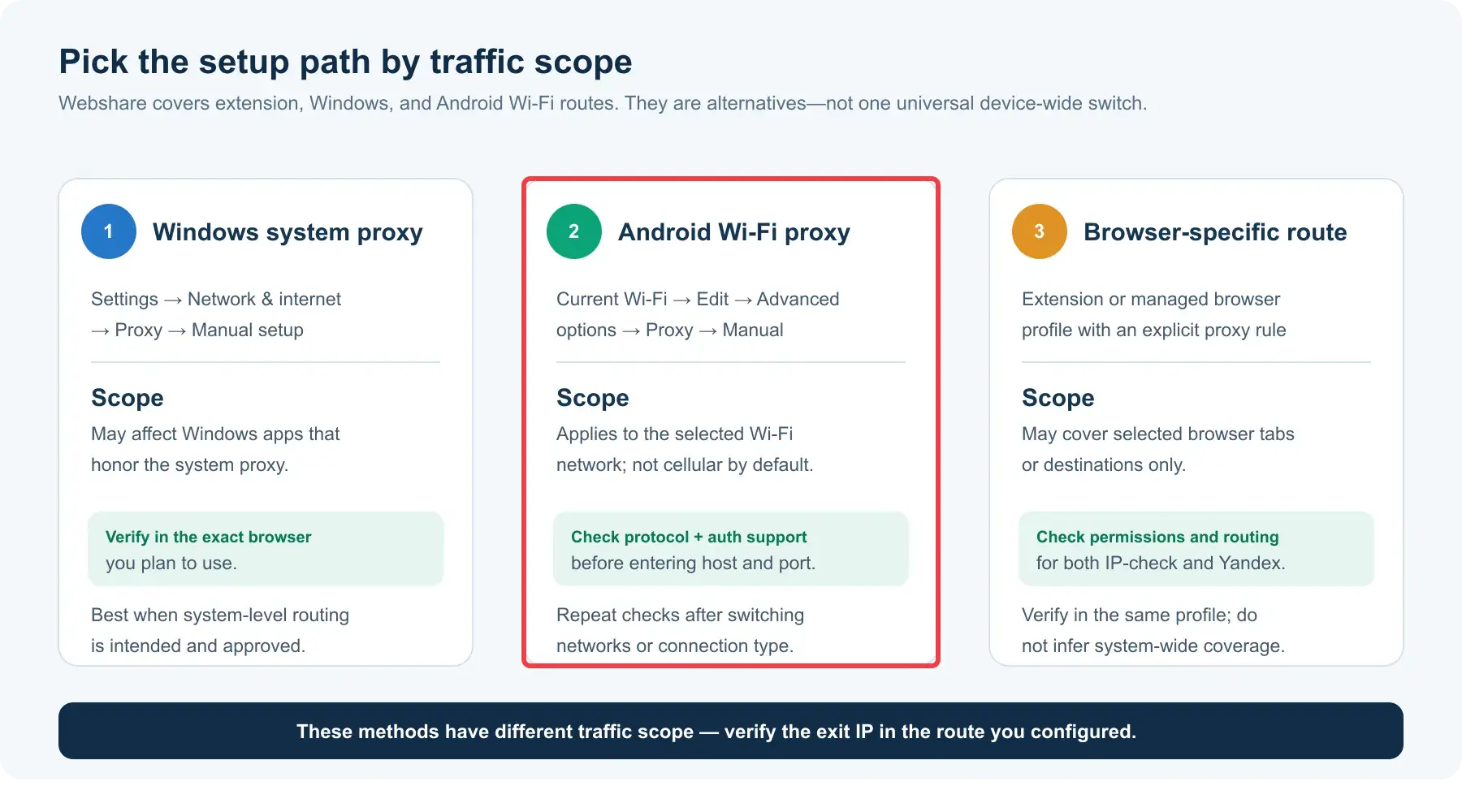
The configuration method also determines scope: a Windows manual proxy can affect other Windows applications, a browser extension can apply to selected browser traffic, and an Android Wi-Fi proxy is tied to the configured Wi-Fi network. None should be assumed to cover mobile data or every app.
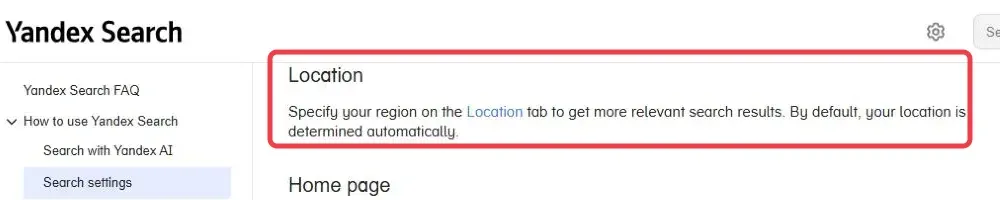
Yandex says search location can be set explicitly and that settings may be stored with an account or browser cookies. It also says IP address is one way it estimates a city. A proxy can alter that IP signal, but a saved region can still affect what you see. This is why a “Yandex proxy works” check needs both a network test and a search-settings check.
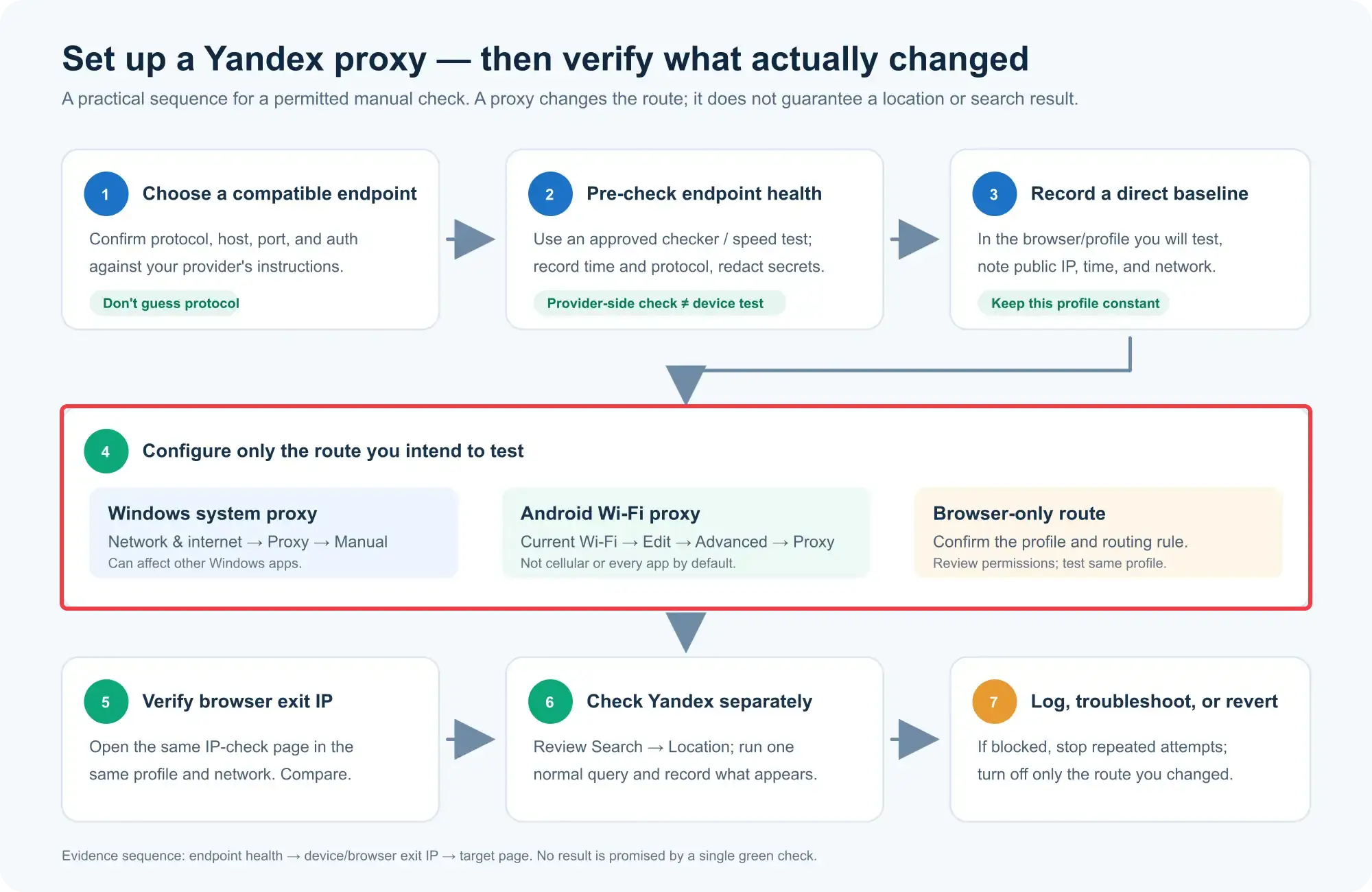
Choose the Proxy Before Changing Settings
Write down the exact proxy protocol, host, port, and authentication method from your provider. Do not infer the protocol from a marketing label. HTTP/HTTPS proxy endpoints and SOCKS5 endpoints are not interchangeable in every Windows or browser setting; if a panel has no field for the protocol you purchased, use a compatible, trusted client or your provider’s documented configuration rather than pasting SOCKS5 details into an HTTP-only field.
For a manual regional check, a residential exit may be useful because you can test the page from a selected network location. Rola IP’s residential proxy page describes location targeting and session options, but confirm the precise country or city and endpoint available in your own account before planning a Yandex test. Do not assume that a product page’s global coverage proves an IP is available in your desired Russian city. A datacenter exit can be adequate for basic connectivity testing; neither type guarantees a particular SERP or fewer verification prompts.
If you already have Rola IP credentials, use its residential proxy setup guide to identify the current endpoint and authentication format. Keep credentials out of screenshots, shared profiles, URLs, and shell history. For a signed-in Yandex workflow, avoid changing exit IP repeatedly mid-session; a stable route makes troubleshooting easier, but it does not waive Yandex account-security checks.
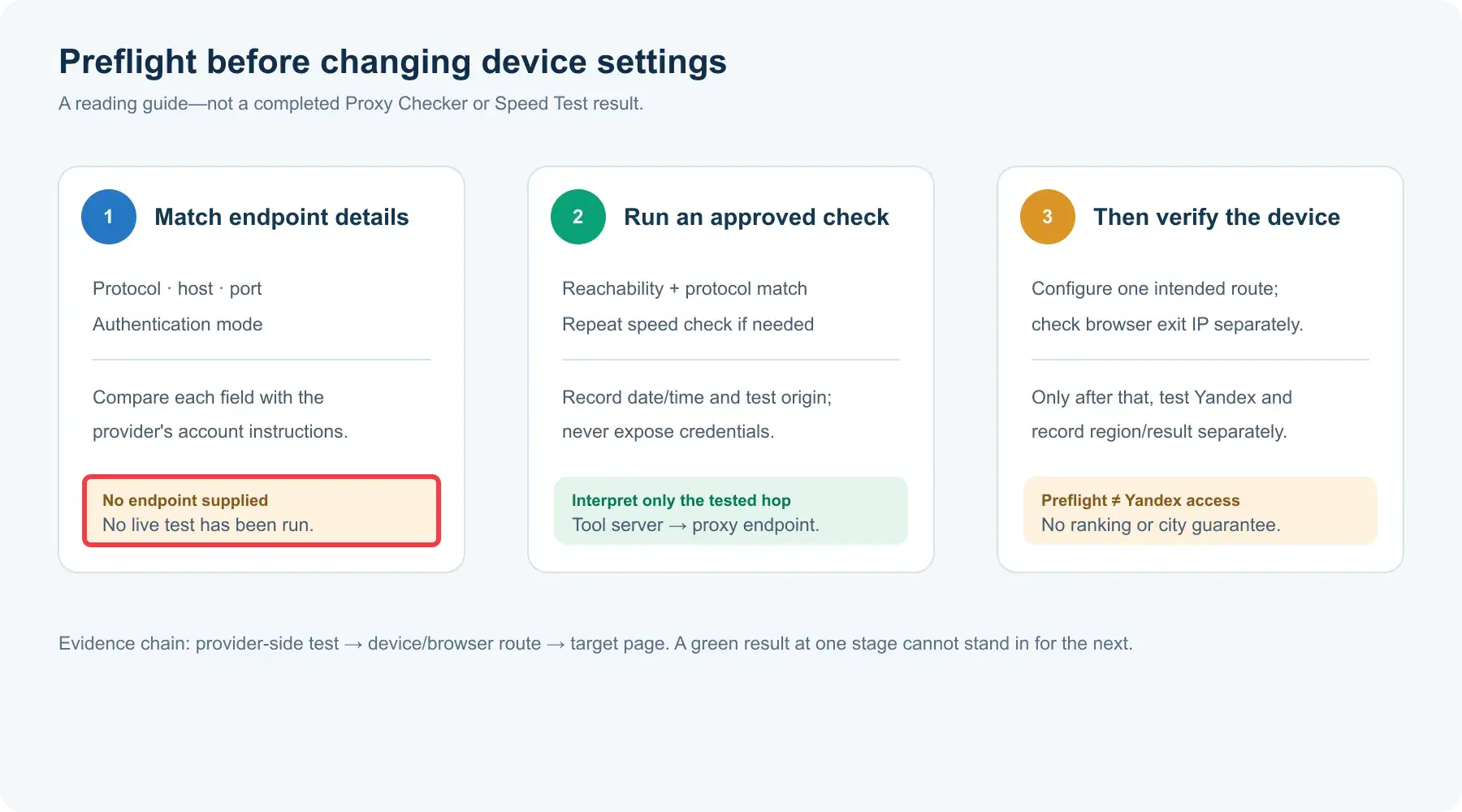
Check the endpoint before putting it in a browser
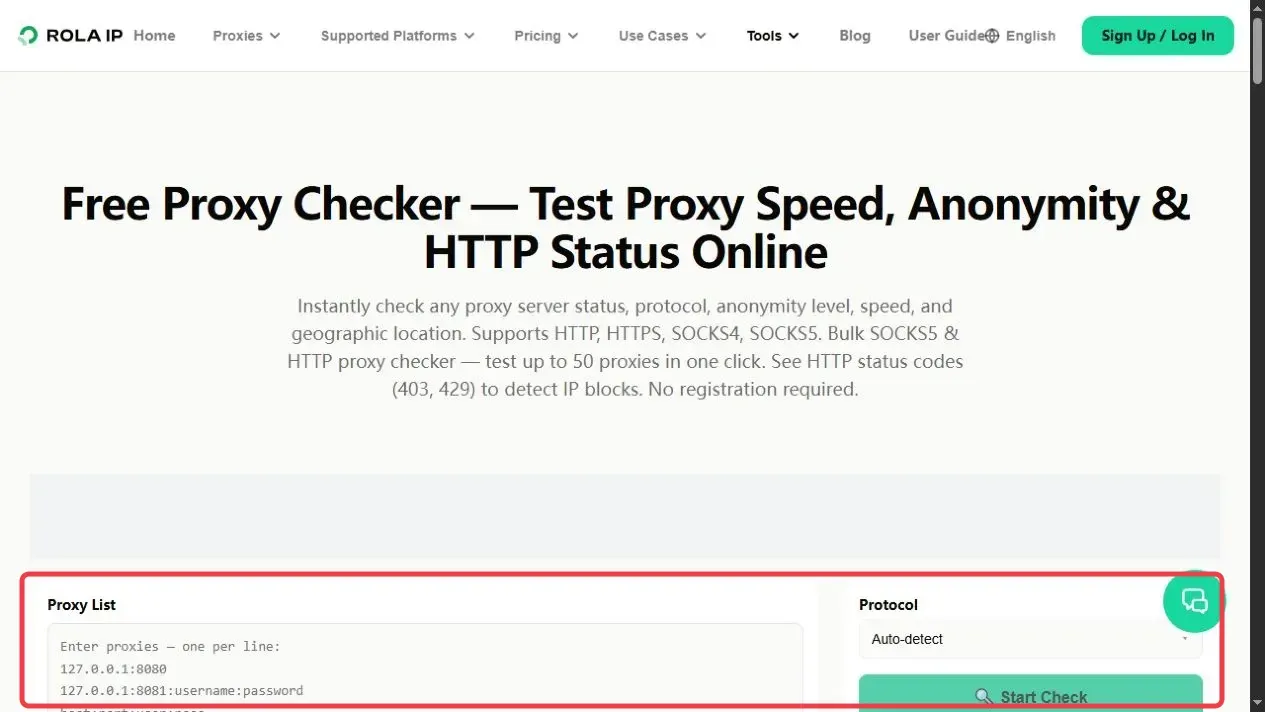
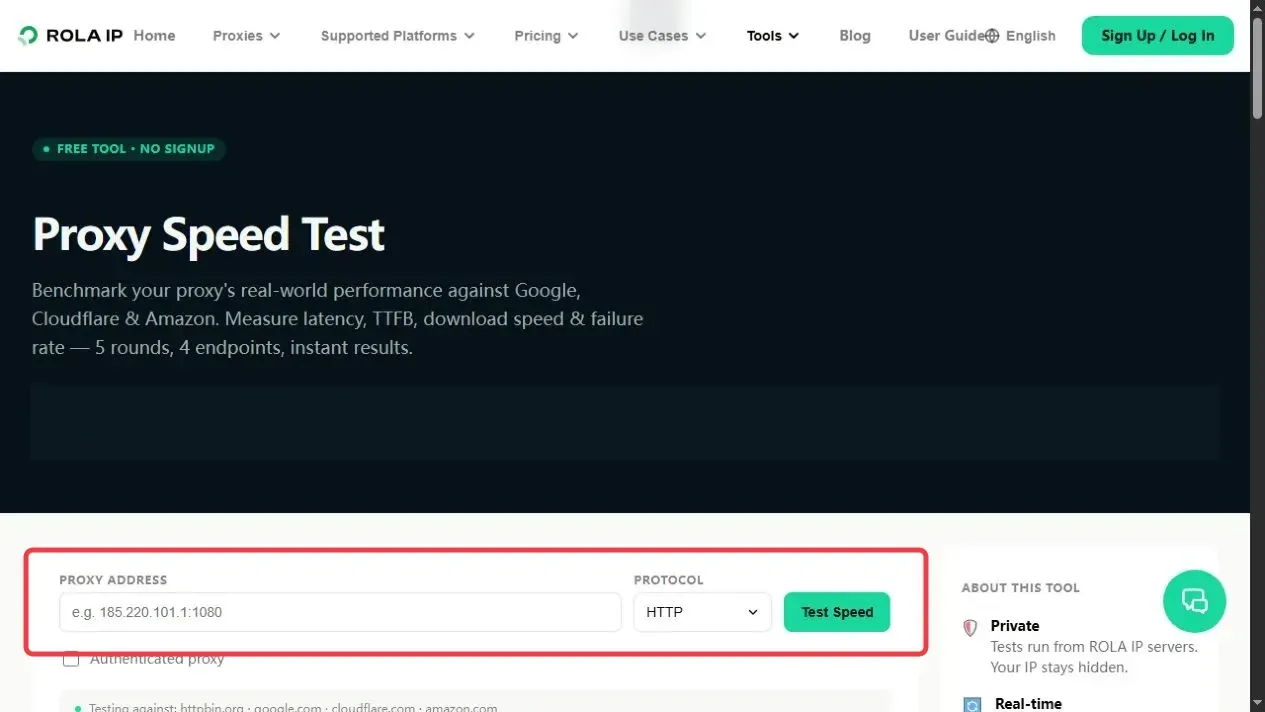
The first checkpoint is proxy health, not a Yandex result. An expired endpoint, wrong protocol, or unusably slow route should be identified before it is added to a device-wide setting. If your organization permits using a hosted diagnostic service, Rola IP’s Proxy Checker can test reachability, protocol, exit location, and a basic response-speed signal. Its page states that checks run from Rola IP’s servers; that result is therefore a server-to-proxy check, not proof that your Windows PC or Android phone is configured correctly. An authenticated check may transmit proxy credentials to the testing service. Use only an approved service and endpoint, and never place credentials in a published screenshot.
For a candidate that connects, Rola IP’s Proxy Speed Test reports latency, time to first byte (TTFB), download speed, and failed rounds against its listed test destinations. Record the test time, protocol, proxy identifier, and several repeated results. A fast score against those destinations is useful for screening but does not measure Yandex’s response time or promise that Yandex will accept the connection. If the route is too slow for normal browsing or fails repeatedly, resolve it with the provider before changing browser settings.
| Pre-use check | Pass signal | What it cannot establish |
|---|---|---|
| Endpoint details | Protocol, host, port, and authentication mode match the account | That the target app supports the mode |
| Proxy Checker | Test connects and reports the expected exit country | That this device or Yandex uses the proxy |
| Proxy Speed Test | Repeat tests complete with usable latency and few failures | Yandex-specific speed, ranking, or access |
| Device/browser check after setup | Public IP changes in the same browser and network | That every request or app uses the route |
Do not publish a claimed “good” threshold as universal: latency depends on the test origin, exit location, target, time of day, and your workload. This pre-check is a screening step, followed by the on-device test below.
How to Use a Proxy With Yandex Browser on Windows
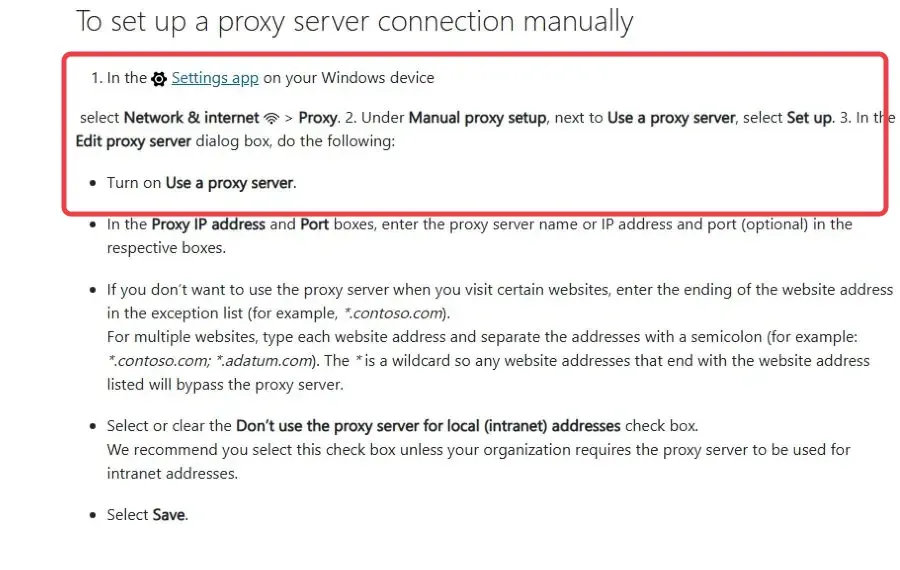
The path below follows Yandex Browser’s proxy troubleshooting documentation and Microsoft’s Windows proxy settings. The exact labels can differ with OS and browser version. These are documented setup steps, not a claim that a live Yandex Browser/Rola session was run for this article.
- Record a baseline. In the browser profile you will use for the check, open a reputable IP-information page and note the displayed public IP, country, and time. Keep the page available for comparison.
- Open the proxy panel. In Yandex Browser, go to Settings → System → Proxy server settings. On Windows 11, you can also open Settings → Network & internet → Proxy directly.
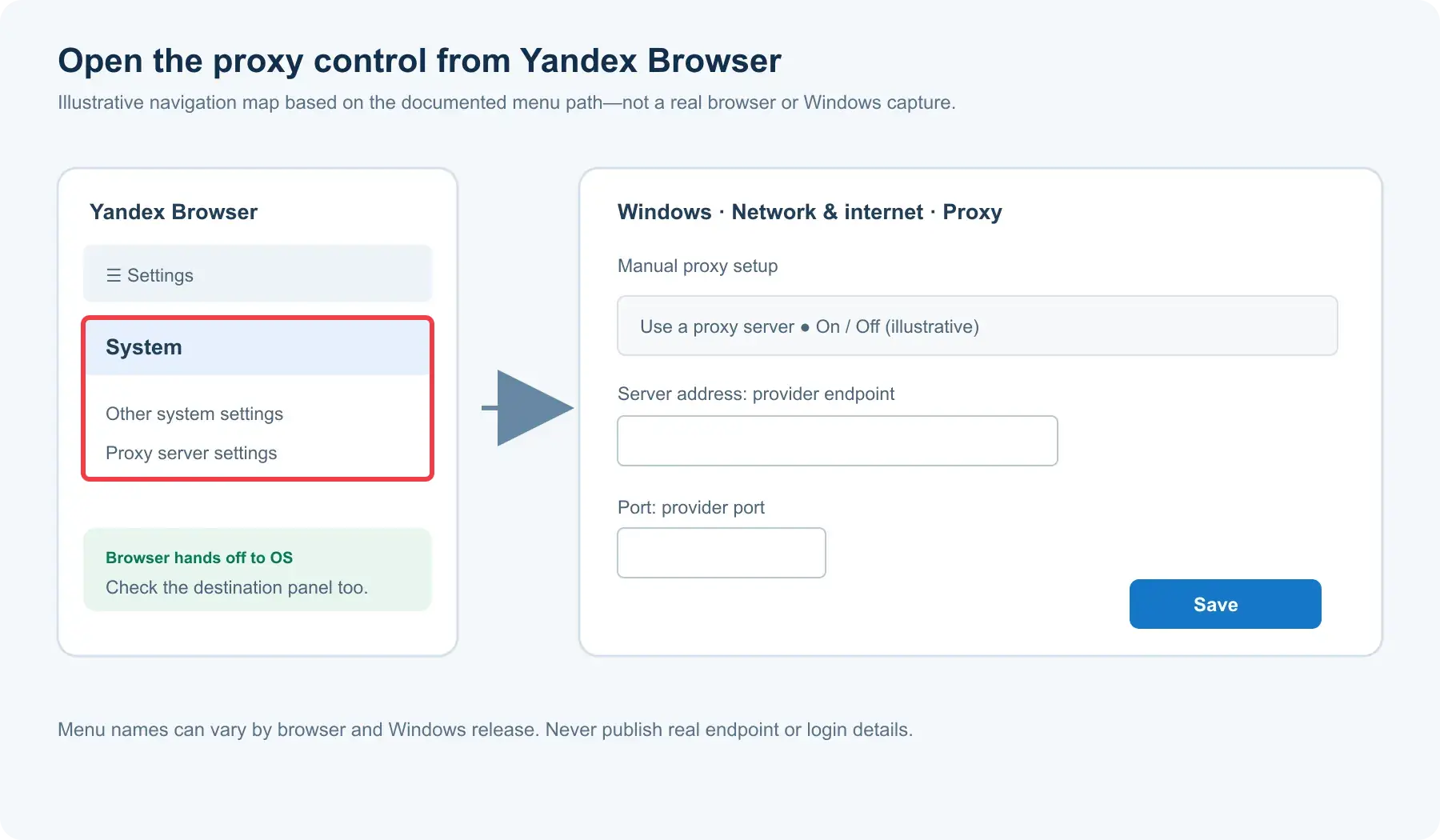
- Configure the supported endpoint. Under Manual proxy setup, choose Set up, turn on Use a proxy server, and enter the provider’s host and port. Save. If your organization uses a PAC script or managed configuration, follow that policy instead of replacing it.
- Complete authentication if prompted. Enter the provider-issued username and password through the browser or approved client prompt. If your endpoint uses source-IP allowlisting, confirm that the current originating IP is registered. Do not share a screenshot showing credentials or tokens.
- Recheck the route. Open the same IP-information page in Yandex Browser. A changed public IP consistent with the provisioned exit is the first positive signal. If it is unchanged, check whether an extension, bypass rule, VPN, or existing PAC script overrides the manual setting.
- Open Yandex Search once. Run one normal query and record the query, time, visible search region, signed-in state, language, and exit IP. If the page displays a challenge or denial, stop and investigate the allowed access path; do not rotate identities to defeat it.
Because this uses a Windows proxy setting, other applications may also be affected. Microsoft documents exception entries and separate VPN proxy settings; check both before interpreting a test. The rollback path is summarized below. Do not remove a managed organizational proxy without your administrator’s approval.
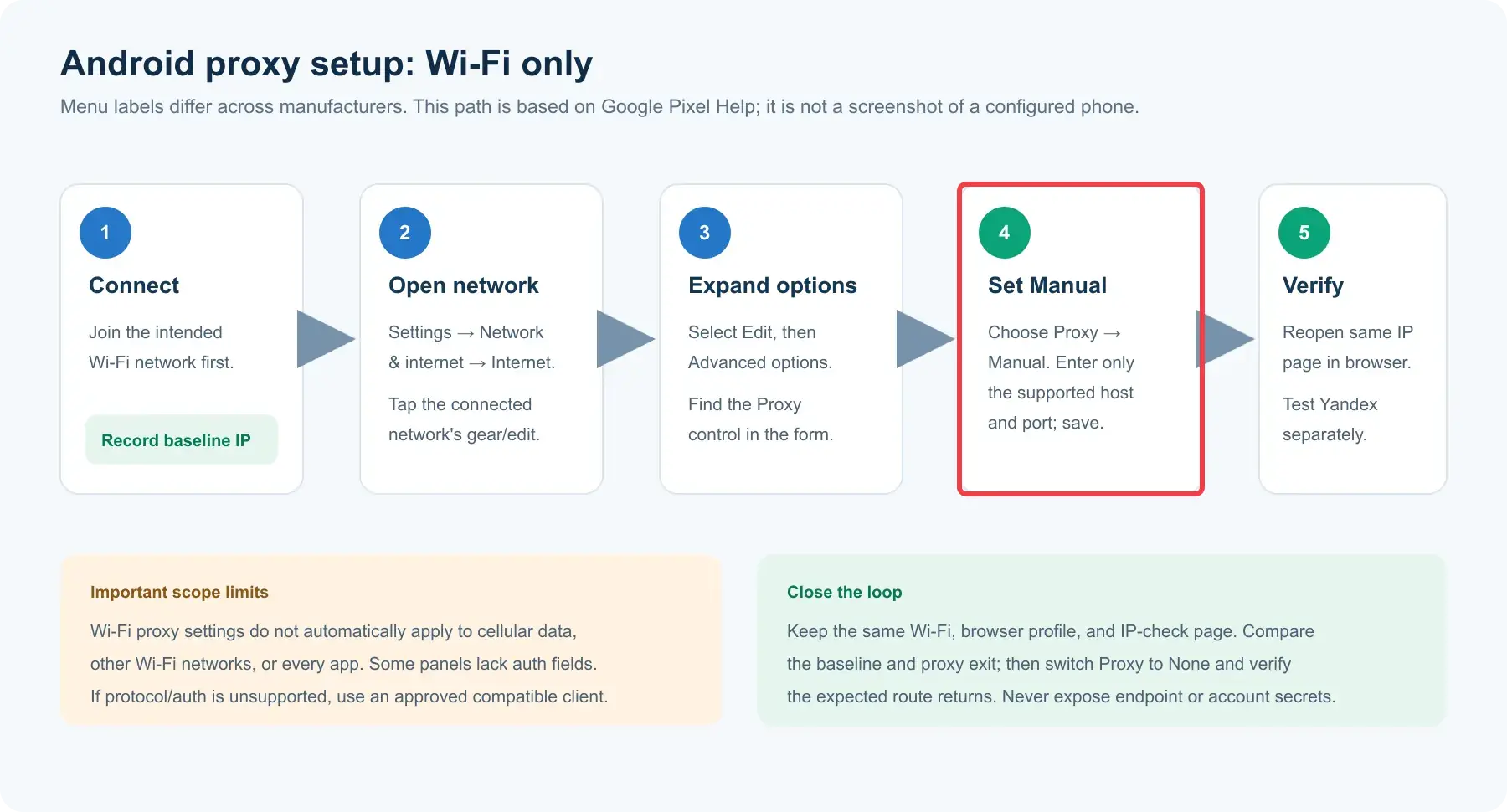
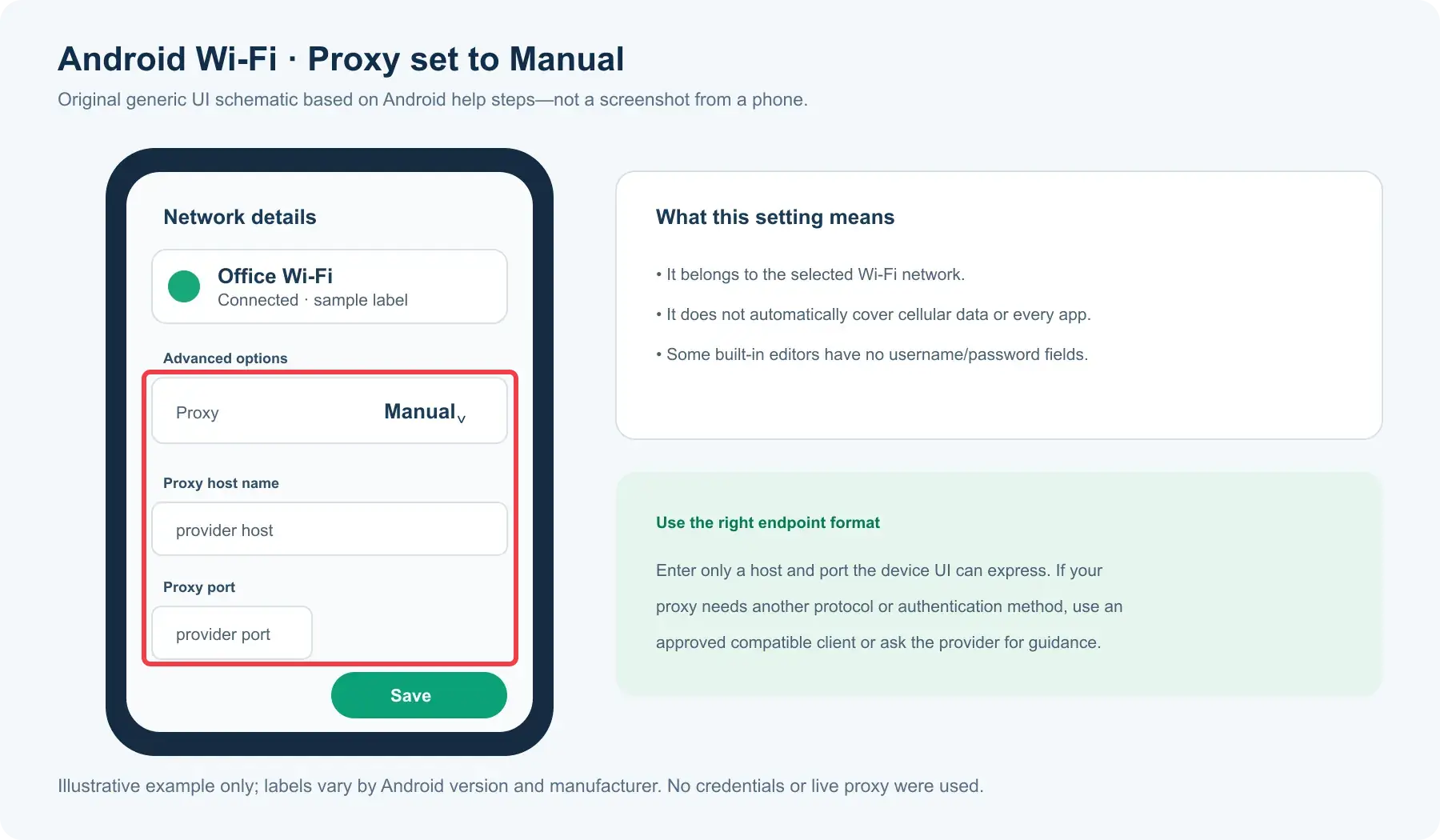
Use the schematic below to identify the fields, then copy endpoint values from your own provider account. Do not publish a real host, username, or password.
Yandex Proxy for Android: Wi-Fi Setup
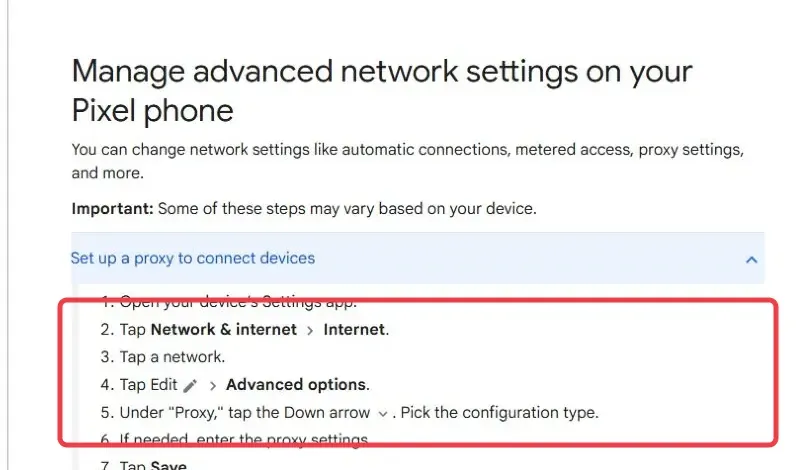
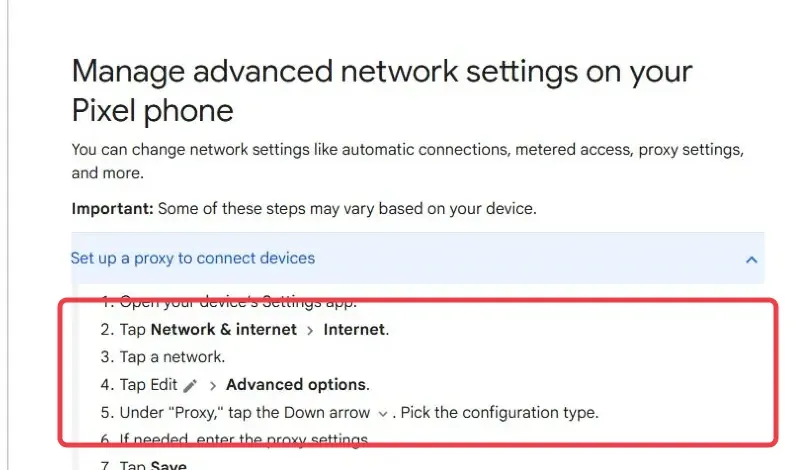
The Pixel Phone Help instructions give a concrete Android path: Settings → Network & internet → Internet → [current network] → Edit → Advanced options → Proxy. Other manufacturers may label or place these controls differently. Treat this as a per-Wi-Fi-network method, not a phone-wide mobile-data setting, and verify in the Android browser you will actually use.
- Connect to the intended Wi-Fi network and record the current public IP in Yandex Browser or another browser on the phone.
- Open the connected network’s settings. On a Pixel, choose Edit → Advanced options → Proxy → Manual. Enter the supported HTTP proxy host and port from your provider; save the network configuration.
- Reopen the browser and load the same public-IP page. If the exit IP has not changed, do not assume the proxy is active. Recheck the selected Wi-Fi network, proxy host/port, and whether the browser honors the network setting.
- Open Yandex Search with one ordinary query. Record the exit IP, search-region setting, time, and any error separately. A working IP-check page is not evidence that Yandex accepted the session or that its results changed.
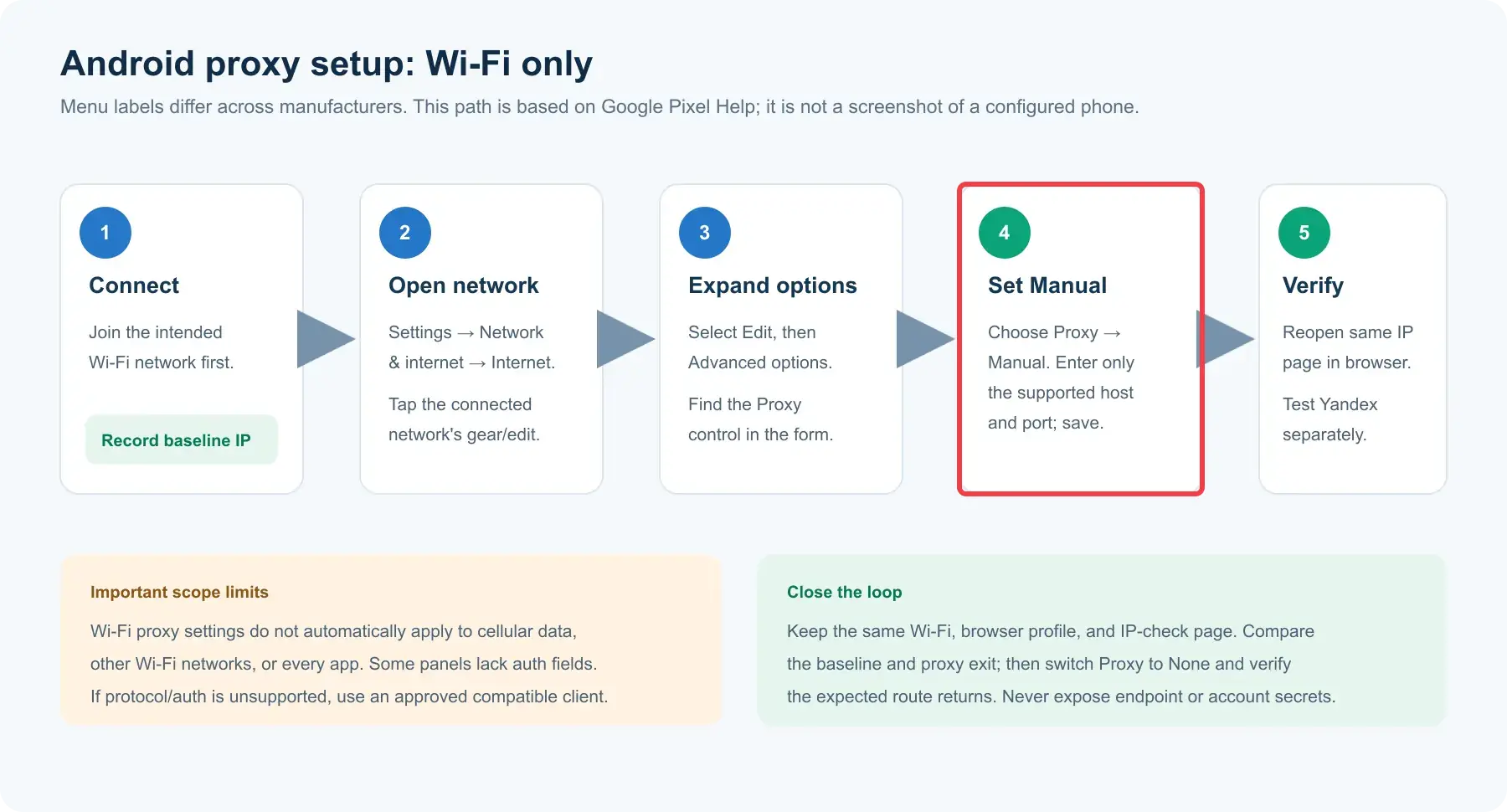
The Wi-Fi editor may offer no username/password fields and is not a general SOCKS5 configuration screen. Do not put credentials into a host field or assume an authentication prompt will appear. If your proxy requires a mode the phone’s Wi-Fi panel cannot express, use an approved client that explicitly supports that protocol and authentication method, or ask the provider for a compatible endpoint. A Wi-Fi proxy is not automatically carried over to cellular data, another Wi-Fi network, or every app; test each intended path instead of claiming device-wide coverage.
Using Yandex Search in Chrome or Another Browser
You do not need Yandex Browser to reach Yandex Search. The Webshare guide shows a Chrome-extension route, while the Rayobyte guide distinguishes browser configuration from visiting the search website. If you need a browser-only route rather than changing Windows settings, choose a trusted proxy extension or managed browser configuration that explicitly supports your endpoint protocol and authentication. Inspect its permissions and privacy policy before giving it access to browser traffic or credentials; do not install an arbitrary “Yandex proxy” extension just because of its name.
Create a dedicated browser profile for the check, select the intended proxy rule, and open the same IP page in that profile. If the extension has per-site routing, ensure the IP-check site and Yandex are both covered. A successful IP check in one browser does not validate another browser, a different profile, or a separate mobile app. To turn the extension route off, use its own disconnect control and retest the IP; uninstalling the browser should not be necessary.
How to Test a Yandex Proxy
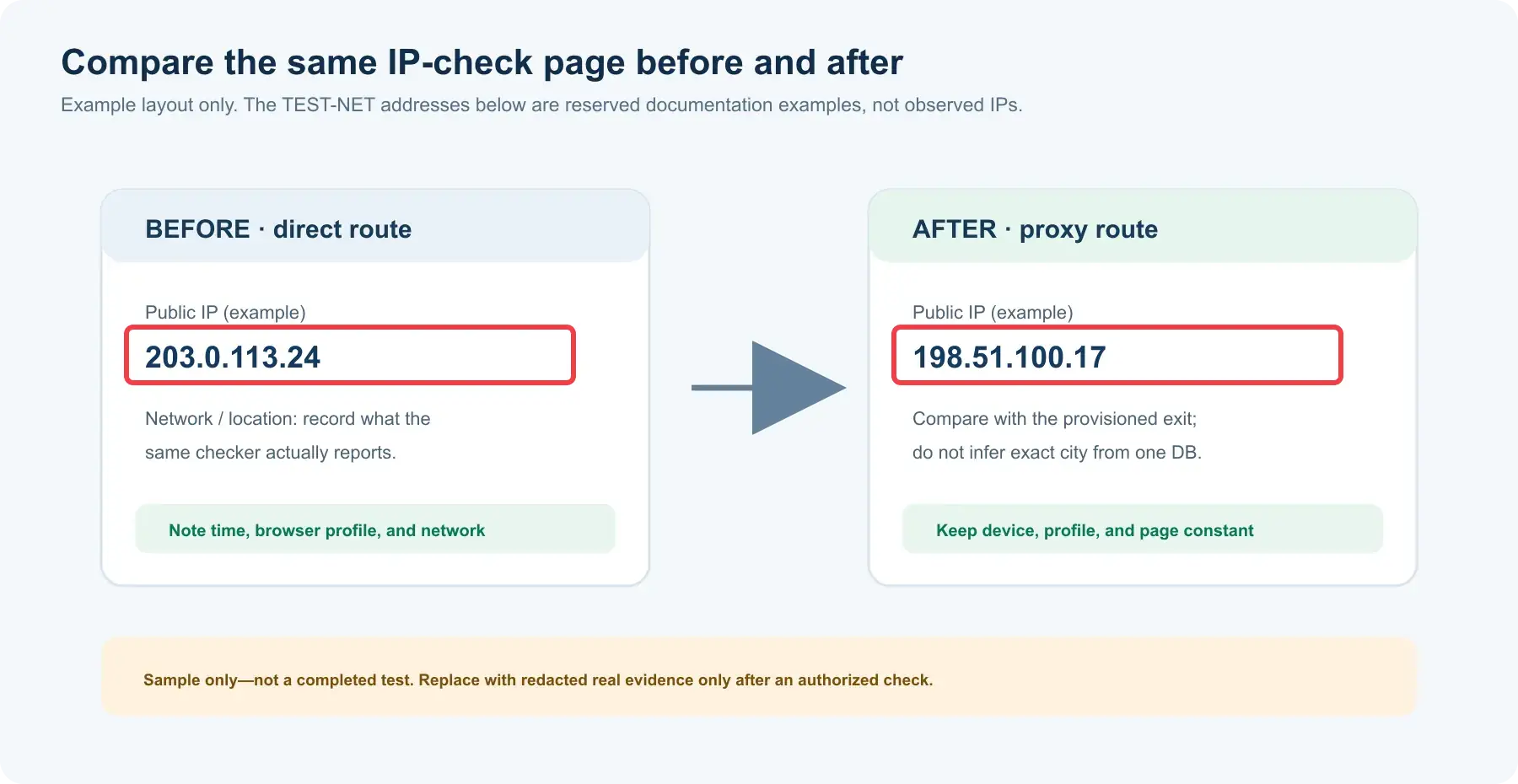
After the pre-use endpoint check and device setup, test in this order. Rola IP’s What’s My IP page can show the public address, approximate location, and network information seen from the browser opening that page. Capture a direct baseline first, then the proxied result in the same browser or phone and on the same network. Confirm that the displayed exit address is the one expected from your configured session. GeoIP city labels can be approximate or inconsistent across databases; a country match alone does not prove exact city targeting.
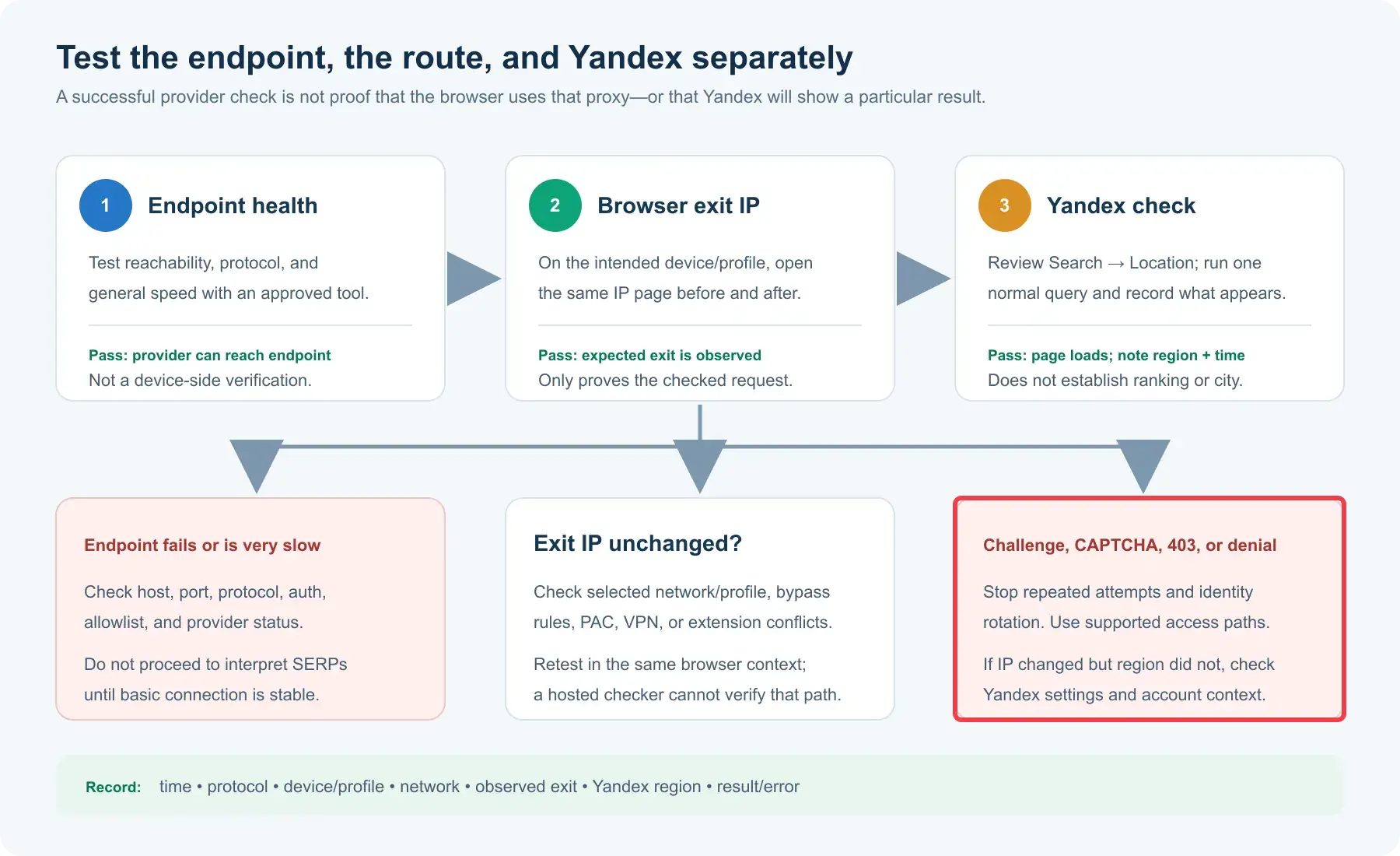
Next, open Yandex Search once and perform a normal manual query. If it loads, log the visible region and any sign-in or verification state. If it fails, compare the result with the IP-check page: if neither loads through the proxy, diagnose the endpoint, protocol, and authentication first; if the IP-check page loads but Yandex does not, stop repeated requests and investigate target-side or account-specific rules through supported channels. Finally, repeat the IP check after disabling the proxy to verify that the browser returned to the baseline route. This is a three-stage test—endpoint, browser exit, target page—not a single green checkmark.
Verify a Local Yandex Result Without Overclaiming
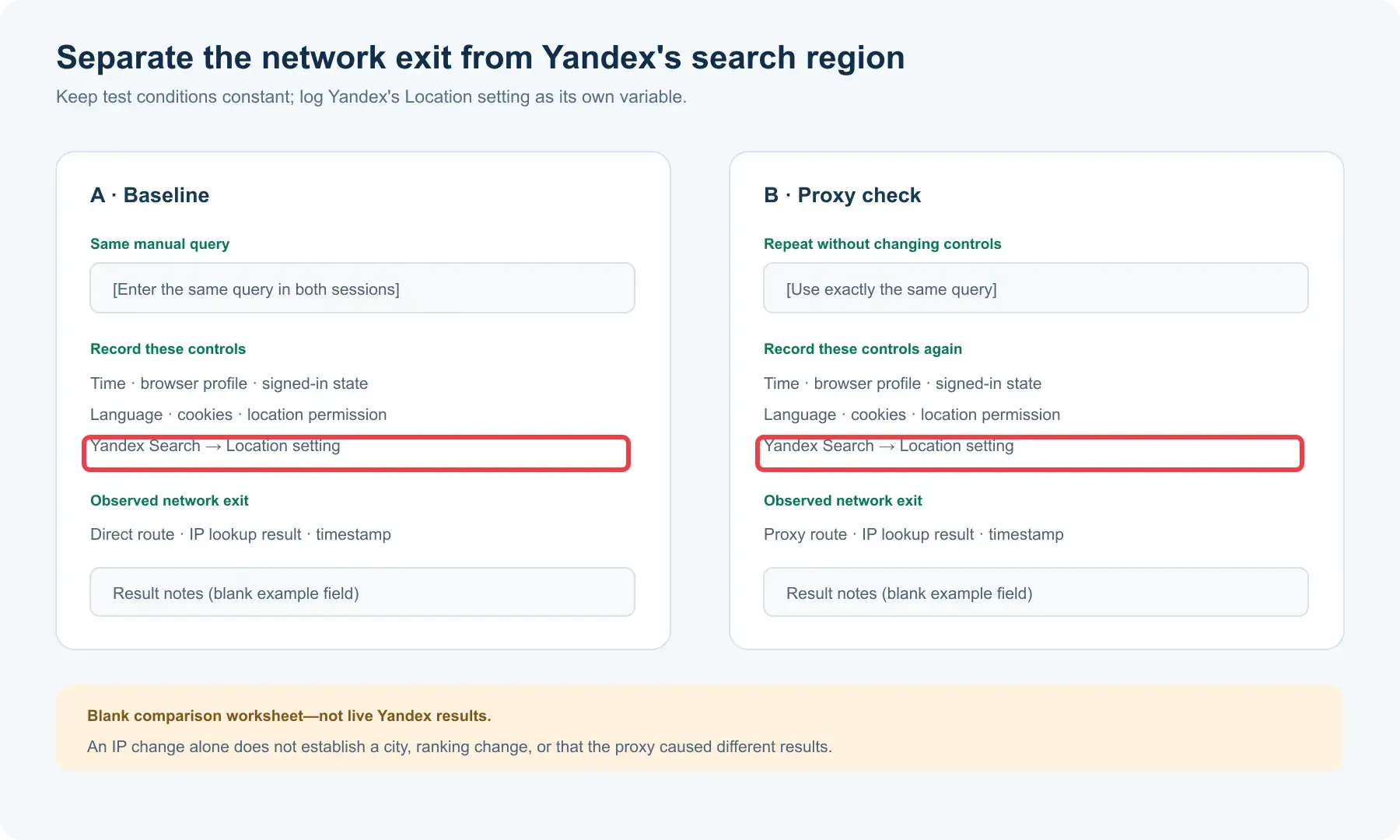
An exit-IP change proves only the tested request’s route. It does not prove every tab, DNS lookup, extension request, or app uses that route, and it does not prove Yandex chose the same city as the IP lookup service. Use a small comparison record instead of a “works everywhere” claim:
| Field | Baseline | Proxy test |
|---|---|---|
| Time and query | Record exact values | Repeat as closely as possible |
| Browser profile and sign-in state | Record | Keep unchanged |
| Language, cookies, location permission | Record | Keep unchanged |
| Yandex search-region setting | Record | Record again; do not assume it follows IP |
| Public exit IP and reported location | Direct route | Configured proxy route |
| Result or error | Screenshot/notes | Screenshot/notes |
Yandex explains that location-dependent queries can favor sites associated with the search region, while location-independent queries may not change much. Its search settings allow the user to select a region manually. If you want to isolate the proxy effect, keep the selected region, account, query, language, and browser profile constant while changing only the route. If the goal is to test a specific region setting instead, change that setting deliberately and log it as a separate variable. Search results can still change over time for reasons unrelated to the proxy.
How to Turn Off a Yandex Proxy
Turn off only the route you configured, then repeat the same browser-based IP check. A disabled toggle is not enough evidence if a second proxy layer or VPN remains active.
| Setup method | Rollback | Check afterward |
|---|---|---|
| Windows manual proxy | Settings → Network & internet → Proxy → Manual proxy setup → Use a proxy server: Off, then save | Browser IP returns to the expected direct or managed route |
| Android Wi-Fi proxy | Reopen the same Wi-Fi network’s Proxy menu and select None or the prior managed setting, then save/reconnect | Browser IP on that Wi-Fi reflects the intended route; cellular is tested separately |
| Browser extension | Use its Disconnect/Off control for the active profile and rule | The IP-check and Yandex tabs no longer use the extension route |
If a company supplied the original configuration, restore that configuration rather than replacing it with None. If the IP is still unexpected, inspect VPN, PAC, extension, and per-app settings one at a time. Avoid browser reinstalls or broad network resets for an ordinary proxy toggle.
Where Rola IP Fits—and Where It Does Not
Rola IP is the network layer in this workflow: it can provide a configured exit route for a manual regional check when the selected endpoint is available. Its diagnostic tools can screen an endpoint, benchmark general network performance, and show the browser’s observed public IP. These are separate observations, not a combined guarantee that Yandex will load or rank pages in a particular way. The current Yandex Search license describes the service as intended for personal, non-commercial use and reserves the right not to process requests that violate its terms. Review the governing terms and obtain the necessary authorization before planning commercial collection or automation. Legal applicability also depends on jurisdiction and the concrete use.
Do not promise that an IP in a country produces identical results to a local resident. Yandex can take account of explicit region settings, cookies, history, language, and other signals; a proxy changes only part of that context. Do not treat 403, a login challenge, or a CAPTCHA as an invitation to increase rotation. For a legitimate blocked workflow, resolve account, endpoint, policy, and network issues through documented channels.
Yandex Proxy Troubleshooting
| Symptom | Check first | Safe next step |
|---|---|---|
| Browser cannot load the IP-check page | Wrong host/port, wrong protocol, expired endpoint | Compare provider settings and test one approved endpoint; revert the OS proxy if necessary |
Proxy authentication repeats or shows 407 |
Username/password, account status, IP allowlist | Correct the credential method; avoid embedding secrets in a URL or screenshot |
| Android Wi-Fi proxy has no credential field | Device UI supports host/port but not the provider’s auth mode | Use a compatible approved client or endpoint; do not put passwords in the host field |
| IP is unchanged | Extension/PAC override, bypass list, wrong browser profile, VPN | Check each routing layer one at a time; retest the same page |
| Hosted checker passes, browser still fails | Different test origin, device settings, allowlist, or browser routing | Test the exit IP on the actual device and network; a server-side pass is not a device-side pass |
| Speed test looks good, Yandex is slow | Test target and Yandex differ; time and routing can change | Measure the permitted Yandex page separately and avoid universal speed claims |
| IP changed but Yandex region did not | Saved search region, cookies, account or location permission | Inspect Yandex Search settings → Location and record it; do not infer a network failure from SERP alone |
| SSL/certificate error | TLS interception, wrong endpoint or proxy software | Keep certificate validation on; seek provider or IT support rather than disabling security controls |
| Yandex shows an access challenge | Account or service-side decision | Stop repeated attempts; use supported access or contact support |
Yandex’s browser connection-error guide specifically points to proxy configuration and extensions as possible causes. Diagnose the route before interpreting the search result. If direct access works but the proxied IP-check page fails, the problem is likely upstream of Yandex Search. If IP verification succeeds but a particular query differs, inspect Yandex settings and account context before changing providers.
Conclusion
The best Yandex proxy setup is the one you can configure, verify, and explain. Distinguish Yandex Search from Yandex Browser, match the endpoint’s actual protocol, record the exit IP, and check Yandex’s separate region setting before interpreting results. Use Rola IP as a routing option when its available location and session fit an authorized workflow; do not present routing as a guarantee of rankings, anonymity, or permission to automate. This guide’s setup mockups and worksheets are illustrative, not live test evidence; add real device or result captures only after those checks have actually been performed.