
How to Find an Element by XPath in Selenium Python

Sep 7, 2026 · Guides · 16 min read
Quick answer
TL;DR: If you searched for find element by xpath selenium python, use driver.find_element(By.XPATH, xpath) for the first match or driver.find_elements(By.XPATH, xpath) for all matches. Prefer stable relative XPath expressions, add explicit waits for dynamic elements, and switch into the correct iframe or open shadow root before searching.
Import By, then pass By.XPATH and an XPath expression to find_element():
from selenium.webdriver.common.by import By

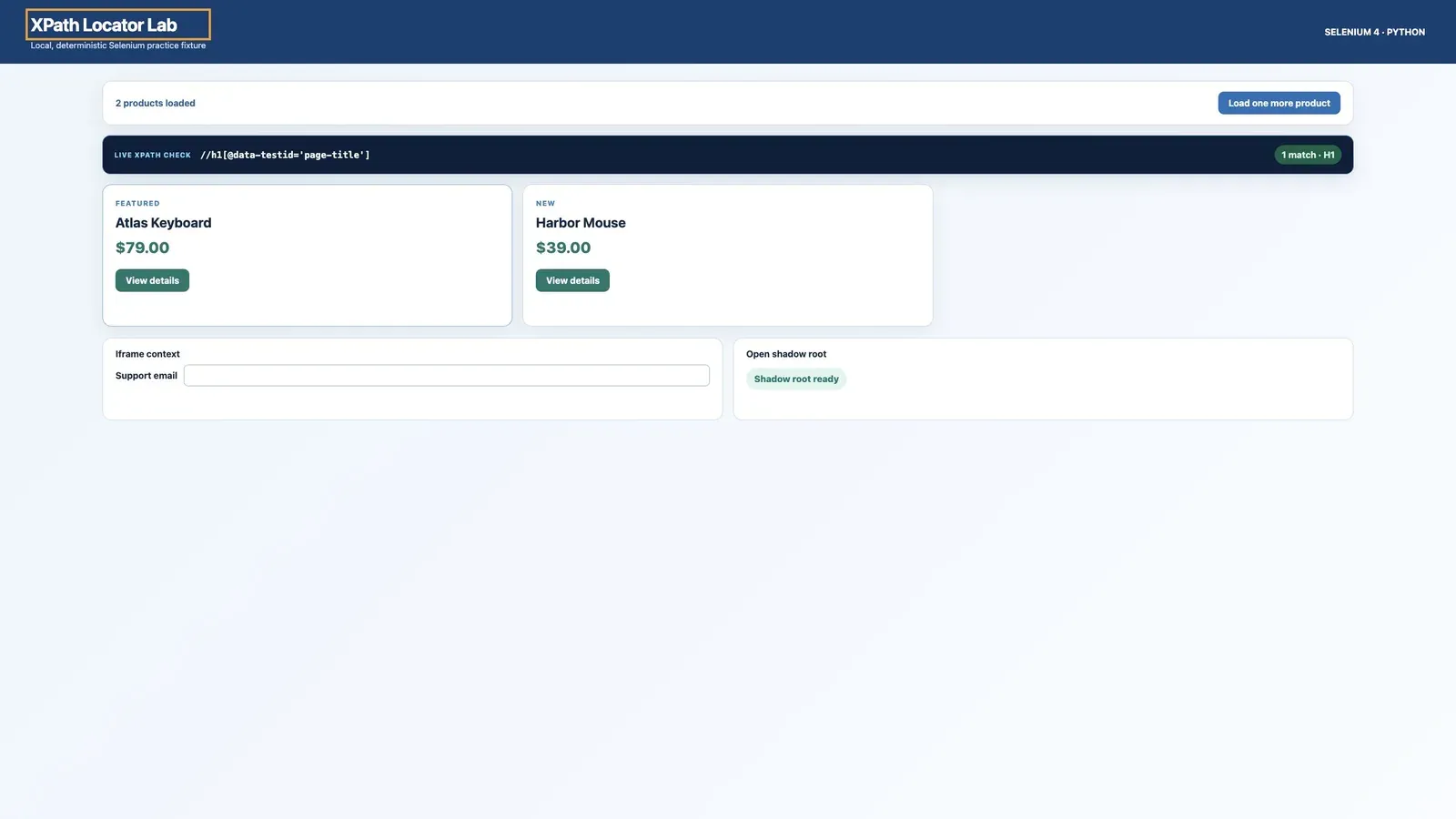
heading = driver.find_element(By.XPATH, "//h1[@data-testid='page-title']")
print(heading.text)
find_element() returns the first matching WebElement. If no element matches, it raises NoSuchElementException. Use the plural method when you want all matches:
cards = driver.find_elements(By.XPATH, "//article[@data-product-id]")
print(len(cards))
find_elements() returns a list in document order and returns an empty list when there are no matches. It does not return None, and the returned list itself cannot be clicked or queried for text.
This guide focuses narrowly on reliable XPath location. For the larger workflow—browser configuration, navigation, extraction, pagination, export, and cleanup—see how to use Selenium for web scraping.
Set up the local Selenium XPath demo
The companion project deliberately avoids an external target. It starts a temporary HTTP server on 127.0.0.1, opens a fictional product catalog, and shuts the server down when the run ends. That gives every reader the same DOM and makes the XPath results deterministic.
Prerequisites
- Python 3.10 or newer.
- A supported local browser; the complete demo uses Chrome.
- The supplied
codedirectory, includingfixtures,tests, andrequirements.txt. - Network access the first time Selenium Manager must obtain a compatible driver. An offline environment needs a preinstalled driver configured through
Service.
Important: Selenium syntax and browser behavior can change across releases. Test locators against the target application’s current DOM, verify the installed Selenium and browser versions, and do not use XPath automation to bypass authentication, CAPTCHAs, or other access controls.
Create and activate a virtual environment, then install the pinned dependencies:
python -m venv .venv
source .venv/bin/activate          # Windows: .venv\Scripts\Activate.ps1
python -m pip install -r requirements.txt
The supplied requirements.txt contains:
selenium==4.48.0
lxml==6.1.1
The examples are intended for Python 3.10+ and should be tested against the Selenium version pinned by your project. Selenium 4.48.0 is this package’s reproducibility pin, not a permanent latest-version recommendation. It was the current PyPI release when rechecked on September 4, 2026. Before publication or a later rerun, recheck the current Selenium release, browser and driver compatibility, and the linked official documentation. In a normal connected environment, Selenium Manager can usually resolve a compatible Chrome driver automatically:
from selenium import webdriver

driver = webdriver.Chrome()
Selenium Manager is invoked when Selenium needs to discover or obtain a compatible driver. A separate webdriver-manager package is not required for the normal setup. Offline or tightly controlled environments can pass a preinstalled driver through a Service object, but new examples should not use the removed executable_path= constructor argument.
Run the complete local demo from the code directory:
python xpath_demo.py
python -m unittest discover -s tests -v
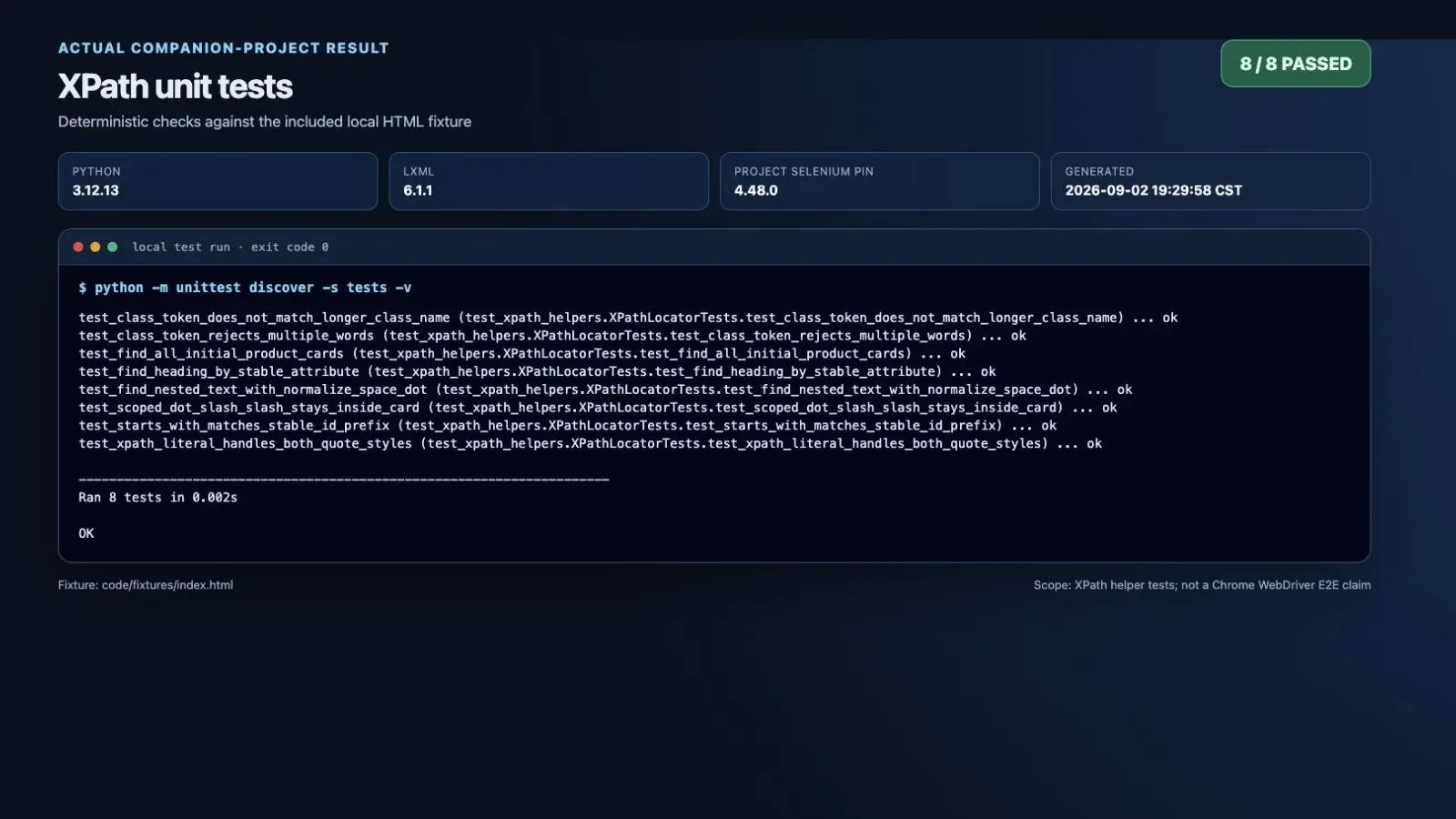
Results depend on the pinned dependencies and included fixture. Rerun the supplied commands in the code directory to reproduce them.
The expected console prefix is:
XPATH_DEMO_OK heading='XPath Locator Lab' initial=2 final=3
This is an expected result, not a claim that the browser ran in every reader’s environment. The demo also writes output/matches.json and saves before-and-after screenshots when Chrome executes successfully.
How XPath works in Selenium
XPath selects nodes from the browser’s current DOM. Selenium sends the expression to the browser in the current search context, then returns matching element references. Three path prefixes matter most:
| Prefix | Meaning | Example |
|---|---|---|
/ |
Start at the document root and follow an exact hierarchy | /html/body/main/section/article[1] |
// |
Search descendants from the document context | //article[@data-product-id] |
.// |
Search descendants of the current WebElement |
.//*[@data-testid='price'] |
An absolute XPath encodes the full route from the root. It may work today but break when a wrapper, banner, or sibling is inserted. A relative XPath usually anchors to a stable ID, name, data-* attribute, accessible label, or nearby relationship. Relative does not mean vague: //section[@id='catalog']/article[@data-product-id='SKU-101'] is both specific and independent of unrelated wrappers.
The leading dot becomes important after you locate a container. Suppose card is one product <article>:
card = driver.find_element(
    By.XPATH,
    "//article[@data-product-id='SKU-101']",
)

price = card.find_element(
    By.XPATH,
    ".//*[@data-testid='price']",
)
The .// expression stays inside card. Using // in an element-scoped search can unexpectedly evaluate from the document and return a price from another card, depending on the remote end’s XPath handling.
Selenium generally supports XPath 1.0-compatible expressions. Functions such as contains(), starts-with(), normalize-space(), substring(), and string-length() are commonly available, while XPath 2.0 functions such as ends-with() should not be assumed across browser implementations. For a simple suffix match, CSS is clearer:
item = driver.find_element(
    By.CSS_SELECTOR,
    "[data-product-id$='303']",
)
XPath examples for Selenium Python
The following expressions use the included XPath Locator Lab fixture. Each example returns elements, not text or attribute nodes.
| Goal | XPath expression |
|---|---|
| Find a tag | //h1 |
| Match an exact attribute | //h1[@data-testid='page-title'] |
| Require two attributes | //button[@type='button' and @data-action='load-more'] |
| Match an attribute prefix | //article[starts-with(@data-product-id, 'SKU-')] |
| Match exact normalized text | //h2[normalize-space(.)='Atlas Keyboard'] |
| Match partial normalized text | //button[contains(normalize-space(.), 'View details')] |
| Find an ancestor | //span[normalize-space(.)='Featured']/ancestor::article[1] |
| Find a following sibling | //*[@id='status']/following-sibling::button[1] |
| Find the first match overall | (//article[@data-product-id])[1] |
Find an element by an attribute
Stable attributes normally produce the shortest useful locators:
title = driver.find_element(
    By.XPATH,
    "//h1[@data-testid='page-title']",
)
Add conditions only when one attribute is not unique:
load_more = driver.find_element(
    By.XPATH,
    "//button[@type='button' and @data-action='load-more']",
)
Do not use an expression such as //a/@href with Selenium. It returns attribute nodes, while WebDriver element-location commands require element nodes. Locate an element and read its attribute afterward. In the local fixture:
card = driver.find_element(By.XPATH, "//article[@data-product-id]")
product_id = card.get_attribute("data-product-id")
Match a complete class name token
This compact expression looks tempting:
//article[contains(@class, 'product-card')]
It also matches a class such as product-cardinality. Treat the class value as a space-separated token list instead:
cards = driver.find_elements(
    By.XPATH,
    "//article["
    "contains(concat(' ', normalize-space(@class), ' '), ' product-card ')"
    "]",
)
If the application team controls the markup, a stable data-testid or domain-specific data-* attribute is usually easier to maintain than a visual class name.
Find an element by exact or partial text
Use normalize-space(.) when whitespace may vary or the visible label contains nested elements:
atlas = driver.find_element(
    By.XPATH,
    "//h2[normalize-space(.)='Atlas Keyboard']",
)
In the fixture, Atlas is inside a child <span> while Keyboard is a separate text node. text()='Atlas Keyboard' does not see that combined string, but . uses the element’s complete string value. For a substring:
buttons = driver.find_elements(
    By.XPATH,
    "//button[contains(normalize-space(.), 'View details')]",
)
Text-based locators can be appropriate when the displayed wording is the behavior under test. They are less suitable when content is localized or frequently edited. Prefer a stable attribute in those cases.
Handle dynamic attributes
If only a documented prefix is stable, XPath 1.0 provides starts-with():
products = driver.find_elements(
    By.XPATH,
    "//article[starts-with(@data-product-id, 'SKU-')]",
)
Do not turn random generated text into a locator merely because contains() can match it. First establish which portion of the attribute is a stable contract. A selector that succeeds once but has no stable semantic anchor is not maintainable automation.
Navigate with XPath axes
XPath is especially useful when the target has no helpful attribute but a nearby element does:
featured_card = driver.find_element(
    By.XPATH,
    "//span[normalize-space(.)='Featured']/ancestor::article[1]",
)

load_button = driver.find_element(
    By.XPATH,
    "//*[@id='status']/following-sibling::button[1]",
)
Useful axes include ancestor::, parent::, following-sibling::, and preceding-sibling::. An axis must include a node test. Write parent::* or the abbreviation ..; parent:: by itself is invalid XPath.
Use XPath indexes deliberately
XPath indexes start at 1, not 0. Parentheses also change their meaning:
first_overall = driver.find_element(
    By.XPATH,
    "(//article[@data-product-id])[1]",
)
(//article)[1] selects the first article from the complete result set. //article[1] can select every article that is the first matching article child of its own parent. Prefer a stable attribute to either expression; use an index only when order is part of the page’s intended behavior.
Quote arbitrary text safely
XPath has no backslash escape inside string literals. A value containing a single quote can be wrapped in double quotes, and vice versa. A value containing both quote styles requires concat(). The supplied helper builds an XPath 1.0 literal safely:
from xpath_helpers import xpath_literal

label = "Bob's \"special\""
button_xpath = (
    f"//button[normalize-space(.)={xpath_literal(label)}]"
)
button = driver.find_element(By.XPATH, button_xpath)
This is also safer than inserting untrusted text directly into a formatted XPath expression. The companion unit tests cover values containing both quote styles.
Find one element versus multiple elements
The singular and plural APIs differ in both return type and zero-match behavior:
| Method | Successful return | No matches | Typical use |
|---|---|---|---|
find_element(By.XPATH, value) |
First matching WebElement |
Raises NoSuchElementException |
A unique heading, field, or button |
find_elements(By.XPATH, value) |
list[WebElement] in document order |
Returns [] |
Cards, rows, links, or optional groups |
Use the singular method when exactly one element should exist and a missing result is an error. Use the plural method when zero, one, or many results are legitimate:
heading = driver.find_element(*TITLE)

for card in driver.find_elements(*PRODUCT_CARDS):
    name = card.find_element(By.XPATH, ".//h2").text
    print(name)
Here TITLE and PRODUCT_CARDS are locator tuples:
TITLE = (By.XPATH, "//h1[@data-testid='page-title']")
PRODUCT_CARDS = (
    By.XPATH,
    "//section[@id='catalog']/article[@data-product-id]",
)
The star unpacks each tuple into the by and value arguments. Locator tuples are easy to reuse with find_element(), find_elements(), and Selenium expected conditions.
Wait for an XPath element on a dynamic page
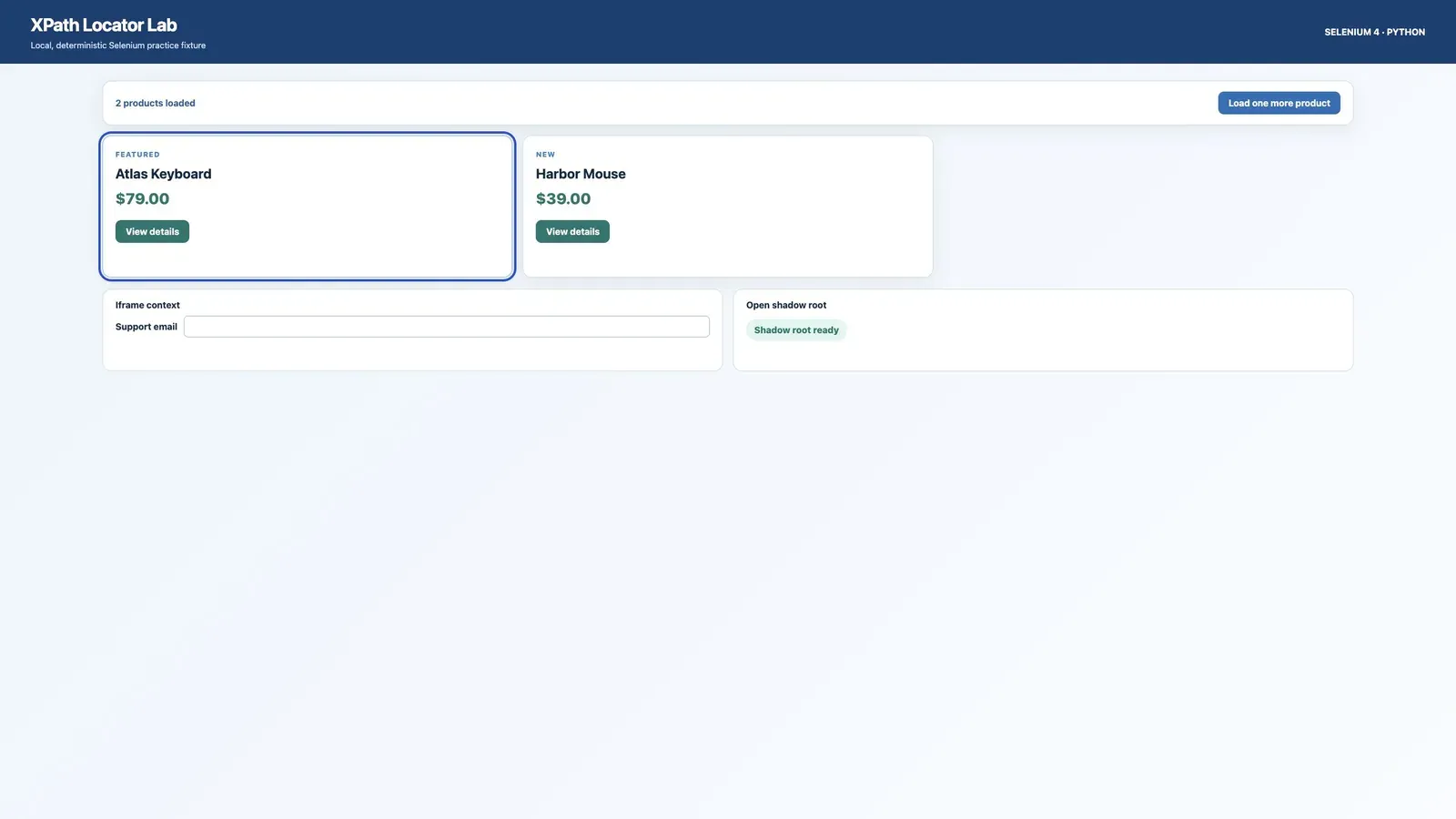
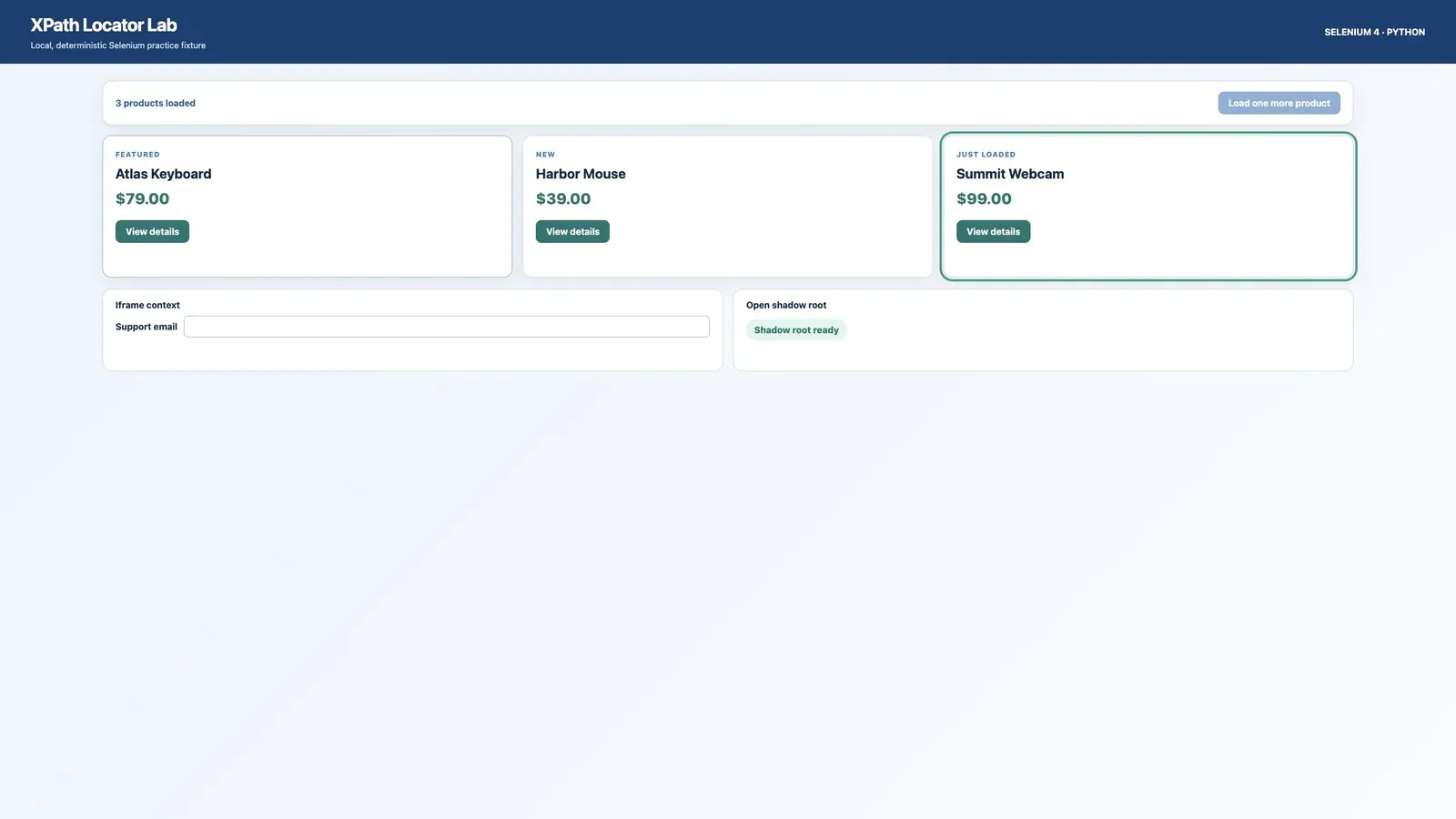
driver.get() waits for the configured document-ready state, but JavaScript can insert or replace elements afterward. The fixture demonstrates this: clicking “Load one more product” schedules a third card after 450 milliseconds. An immediate lookup can race the page.
The next two images show the included local fixture before and after its own 450-millisecond transition, captured September 2, 2026. They document the page states used by the example; they are not evidence of a completed Chrome WebDriver end-to-end run.
Use WebDriverWait with the condition that matches the next action:
from selenium.webdriver.support import expected_conditions as EC
from selenium.webdriver.support.ui import WebDriverWait

wait = WebDriverWait(driver, 10)

load_more = wait.until(
    EC.element_to_be_clickable(
        (By.XPATH, "//button[@data-action='load-more']")
    )
)
load_more.click()

wait.until(
    lambda current: len(
        current.find_elements(By.XPATH, "//article[@data-product-id]")
    ) == 3
)
Choose the condition deliberately:
| Condition | What it proves | Suitable next action |
|---|---|---|
presence_of_element_located |
The element exists in the DOM | Read a nonvisual attribute or inspect markup |
visibility_of_element_located |
It exists and has a visible box | Read visible content |
element_to_be_clickable |
It is visible and enabled | Attempt a click |
text_to_be_present_in_element |
Expected text has appeared | Validate an asynchronous status update |
presence_of_all_elements_located |
At least one matching element is present | Begin processing a collection |
A fixed time.sleep(5) always pauses for five seconds when the page is fast and can still fail when it is slow. An explicit wait finishes as soon as its condition succeeds and reports a TimeoutException if the intended state never appears. Selenium also warns against mixing implicit and explicit waits because the combined timeout can become unpredictable.
Before changing a correct locator, confirm whether JavaScript creates the element after navigation. The guide to scraping dynamic web pages with Python explains this wider rendering problem.
Search within a parent element
Narrowing the search context improves clarity and prevents one card’s data from being paired with another card. The local demo first finds every product card, then searches inside each card:
products = []

for card in driver.find_elements(*PRODUCT_CARDS):
    products.append(
        {
            "id": card.get_attribute("data-product-id") or "",
            "name": card.find_element(
                By.XPATH,
                ".//h2[contains("
                "concat(' ', normalize-space(@class), ' '), "
                "' product-name ')]",
            ).text,
            "price": card.find_element(
                By.XPATH,
                ".//*[@data-testid='price']",
            ).text,
        }
    )
Notice .// in both child locators. Store the locator tuple when the DOM can change, not a long-lived WebElement. After navigation, refresh, or a framework re-render, locate the element again rather than retrying an old reference.
Find elements inside iframes and shadow DOM
A valid XPath still returns nothing when the target lives in another browsing context. Iframes and shadow roots require an explicit context change.
Switch into an iframe
The fixture contains a local support form inside an iframe. Wait for the frame and switch before looking for its input:
FRAME = (By.XPATH, "//iframe[@title='Support form']")

wait.until(EC.frame_to_be_available_and_switch_to_it(FRAME))
try:
    email = wait.until(
        EC.visibility_of_element_located(
            (By.XPATH, "//input[@name='email']")
        )
    )
    email.send_keys("[email protected]")
finally:
    driver.switch_to.default_content()
The XPath for the input is evaluated inside the frame only after the switch. Always return to the parent or default content before locating elements in the main page again.
Enter an open shadow root
An XPath evaluated in the document does not automatically cross a shadow boundary. Current Selenium exposes an open shadow root as a search context:
shadow_host = driver.find_element(By.CSS_SELECTOR, "demo-badge")
shadow_root = shadow_host.shadow_root

status = shadow_root.find_element(
    By.CSS_SELECTOR,
    "[data-testid='shadow-status']",
)
print(status.text)
This replaces old tutorials that use JavaScript as the default way to obtain element.shadowRoot. A selector such as pierce/shadow-dom/selector is not a standard Selenium CSS locator. The supplied fixture deliberately uses an open shadow root; do not assume that a site’s closed implementation exposes the same search context.
Troubleshoot Selenium XPath errors
Most “XPath does not work” reports come from timing, context, or assumptions about the DOM rather than XPath syntax alone.
Fast diagnosis: Check the current URL and window -> wait for the required DOM state -> switch into the iframe or open shadow root -> count matches -> inspect selector changes.
| Symptom | Likely cause | Useful check | Fix |
|---|---|---|---|
InvalidSelectorException |
Malformed XPath, unsupported function, or a non-element result | Test the exact expression; look for ends-with(), parent::, or /@href |
Use XPath 1.0 syntax and return elements |
NoSuchElementException |
No current match | Confirm URL, DOM, locator, window, frame, and shadow context | Correct the context or add an appropriate wait |
TimeoutException |
The expected state never arrived before the deadline | Capture the page, current URL, and matching count | Fix the condition or diagnose the application state |
StaleElementReferenceException |
JavaScript replaced a previously found node | Compare before and after the action | Store the locator and find the element again |
ElementClickInterceptedException |
Another element covers the target | Inspect overlays and scroll position | Wait for the overlay to disappear or correct the UI state |
find_elements() gives [] |
The collection is absent or searched too early | Log len(...) and inspect the current context |
Wait for the collection or handle an optional empty result |
The XPath works in DevTools but not Selenium
Check these causes in order:
- Selenium may be on another URL, tab, or window.
- The element may be inserted after
driver.get()returns. - The element may be inside an iframe or shadow root.
- A consent dialog or authentication state may produce a different DOM.
- The attribute copied from DevTools may be generated per session.
- The page may have replaced the element after you stored it.
Use the Elements panel search to test the expression against the same page state. Then log the current URL, take a screenshot, and count matches with find_elements() before attempting interaction. Do not respond to a timing or context problem by making the XPath longer.
The element exists but cannot be clicked
Presence alone does not mean visibility or clickability. Wait for element_to_be_clickable, then verify that no modal, sticky header, or loading overlay covers the target. If a click triggers a re-render, treat any stored child elements as potentially stale and locate them again.
XPath versus CSS selectors
XPath is not automatically the best locator merely because it can express a complex path. Selenium recommends a unique, predictable ID when one exists and otherwise favors a compact, well-written CSS selector. XPath becomes valuable when the relationship itself matters.
| Requirement | Usually clearer choice | Example |
|---|---|---|
| Stable unique ID | By.ID |
By.ID, "status" |
Stable data-* attribute |
CSS | [data-testid='price'] |
| Exact or partial element text | XPath | //button[normalize-space(.)='Save'] |
| Find an ancestor from a label | XPath | //span[.='Featured']/ancestor::article[1] |
| Navigate to a sibling | XPath | //*[@id='status']/following-sibling::button[1] |
| Attribute suffix | CSS | [data-product-id$='303'] |
Avoid broad performance promises. The practical cost of a remote WebDriver command, browser rendering, and network latency often matters more than a tiny selector difference. Favor a locator that is unique, stable, readable, and tied to the application’s intended contract.
Replace outdated Selenium XPath code
Many pages returned for the query find element by xpath selenium python still contain legacy or invalid patterns. Use this migration table when updating an old script:
| Old or incorrect pattern | Current replacement |
|---|---|
driver.find_element_by_xpath("//h1") |
driver.find_element(By.XPATH, "//h1") |
driver.find_elements_by_xpath("//article") |
driver.find_elements(By.XPATH, "//article") |
webdriver.Chrome(executable_path=path) |
webdriver.Chrome() or webdriver.Chrome(service=Service(path)) |
| Download ChromeDriver manually for every basic setup | Let Selenium Manager handle the normal case |
result = find_elements(...); result.click() |
Use find_element() or choose an item from the list |
//a[@id='menu']/parent:: |
//a[@id='menu']/parent::* or //a[@id='menu']/.. |
//*[ends-with(@id, '_field')] |
Prefer CSS [id$='_field'] or an XPath 1.0 substring() expression |
//a/@href |
Locate //a[@href], then call get_attribute("href") |
Cache a WebElement across re-renders |
Cache the locator tuple and re-find the element |
Use ASCII quotation marks in Python code. Smart quotes copied from formatted prose are different characters and cause a syntax error before Selenium ever receives the XPath.
Keep XPath locators maintainable
A locator is part of the test or extraction contract. Treat it like production code:
- Prefer a stable ID or purpose-built
data-testidover styling classes. - Anchor the shortest locator that is still unique.
- Use
.//for child searches inside a known component. - Use
normalize-space(.)when visible text contains nested markup. - Avoid absolute paths and numeric positions unless structure or order is the behavior being tested.
- Centralize reusable locator tuples in a Page Object or component class.
- Test complex XPath expressions against a small fixture in CI.
- Re-find elements after navigation or DOM replacement.
- Record the page state when a locator fails instead of silently returning blank data.
For data extraction, reliable locators form part of a complete Selenium web scraping workflow that also handles pagination, validates exported records, and closes the browser after success or failure.
The companion package tests the XPath-specific logic without launching a browser. lxml loads the same fictional fixture and verifies the heading, nested text, complete class token, scoped .// query, ID prefix, and quoted string helper. The browser demo is designed to cover the WebDriver-only behavior: waiting, clicking, iframe switching, an open shadow root, screenshots, and cleanup.
Use Rola IP for authorized regional Selenium QA
A proxy changes the route used by authorized browser traffic. It does not make malformed XPath valid, move Selenium into the correct iframe or shadow root, or complete JavaScript. A different exit may receive another regional, language, redirect, consent, or denial page with a different DOM. Treat that difference as a page-state variable, not a locator fix.
When Rola IP is useful in Selenium QA
Use Rola IP only when a permitted test must compare regional pages, language redirects, CDN responses, or approved exit locations. The target must be a page you own or have permission to automate. Start with one page and a small test matrix. Follow applicable law, contracts, platform rules, request limits, and access controls, and stop on an explicit denial or CAPTCHA.
Configure an optional proxy without hard-coding credentials
The following Chrome template reads an IP-allowlisted proxy or a secured local forward from environment variables:
import os

from selenium import webdriver
from selenium.webdriver.common.by import By

proxy_scheme = os.getenv("ROLA_PROXY_SCHEME", "http").lower()
proxy_host = os.environ["ROLA_PROXY_HOST"].strip()
proxy_port = int(os.environ["ROLA_PROXY_PORT"])
authorized_url = os.environ["AUTHORIZED_QA_URL"]
critical_xpath = os.getenv(
    "CRITICAL_XPATH",
    "//*[@data-testid='regional-content']",
)

if proxy_scheme not in {"http", "https", "socks5"}:
    raise ValueError("Unsupported proxy scheme")
if not proxy_host or any(part in proxy_host for part in ("://", "@", "/")):
    raise ValueError("ROLA_PROXY_HOST must contain only a host name or IP")
if not 1 <= proxy_port <= 65535:
    raise ValueError("ROLA_PROXY_PORT must be between 1 and 65535")

options = webdriver.ChromeOptions()
options.add_argument(
    f"--proxy-server={proxy_scheme}://{proxy_host}:{proxy_port}"
)

driver = webdriver.Chrome(options=options)
try:
    driver.get(authorized_url)
    matches = driver.find_elements(By.XPATH, critical_xpath)
    print(driver.current_url, driver.title, len(matches))
finally:
    driver.quit()
ROLA_PROXY_SCHEME, ROLA_PROXY_HOST, and ROLA_PROXY_PORT are example variable names. Copy the current protocol, host, port, and authentication settings from the Rola IP dashboard and proxy Quick Start. The available protocol and location options depend on the selected product and current account configuration.
Chrome does not accept a username and password embedded in the --proxy-server argument. This example therefore requires an IP-allowlisted endpoint or a secured local forward that does not open a browser authentication dialog. Here, a secured local forward means a localhost-only proxy process you control that handles upstream authentication and is not exposed to untrusted networks. If the issued endpoint requires credentials, use the authentication method documented for that endpoint. Never hard-code, print, or place live credentials in screenshots. Confirm current location and session syntax in Rola IP’s proxy parameters documentation.
Verify the exit and compare page state
Establish a direct baseline first. Then close that driver, create a fresh proxied session, visit an approved IP-check endpoint, and open the same authorized page. Rola IP’s https://rola-ip.co/tools/what-is-my-ip/ page can display the browser’s observed public IP and network metadata, but do not publish the resulting IP or other sensitive test data.
Record the same fields for both runs:
| Field | Direct baseline | Proxied run |
|---|---|---|
| Timestamp and run label | Record in UTC | Record in UTC |
| Final URL | Record during the test | Record during the test |
| HTTP status and source | Record or use N/A |
Record or use N/A |
| Page title | Record during the test | Record during the test |
| Key-element count | Record during the test | Record during the test |
| Exit IP | Store securely | Store securely |
| Country or region and ASN | Record if returned | Record if returned |
| Elapsed time | Record during the test | Record during the test |
Standard Selenium WebDriver navigation does not expose the main document’s HTTP status through one portable property. Obtain it from approved browser network logging or a separate authorized HTTP check. Record N/A when it was not measured instead of inferring a value.
When a test requires another approved exit, quit the current browser, update the documented location or session parameters, and start a new WebDriver session. Requesting another session does not guarantee a particular IP, so verify the observed exit before collecting results. Keep one stable exit during a stateful multi-page flow; per-request rotation can break cookies, login continuity, and regional consistency.
Conclusion
The current answer to find element by xpath selenium python is the unified Selenium 4 API: driver.find_element(By.XPATH, value) for the first match and driver.find_elements(By.XPATH, value) for a list. Reliable automation then depends on more than the expression itself: use stable attributes, keep element-scoped queries inside .//, wait for the state required by the next action, and switch contexts before searching an iframe or shadow root.
Avoid legacy convenience methods, manual-driver boilerplate in the default setup, copied absolute paths, XPath 2.0-only functions, and cached element references after a re-render. A short locator tied to a stable application contract will outlast a complicated locator tied to today’s exact DOM.
For authorized regional Selenium QA, review Rola IP’s web scraping proxy. Start with one approved page and a small direct-versus-proxy matrix, verify the observed exit and page state, and expand the test only after confirming the target site’s terms and request limits.