
How to Use Selenium for Web Scraping: 6 Steps

Aug 13, 2026 · Guides · 16 min read
To use Selenium for web scraping, install the Python package, start a WebDriver, open the target page, wait for the required elements, extract each record, and close the browser in finally. Selenium is the right tool when JavaScript or a browser interaction creates the data you need; use a direct HTTP client when the initial HTML or an authorized API already contains it.
This practical tutorial builds a runnable Selenium web scraper for a JavaScript-rendered practice site. It collects quote text, authors, tags, and source URLs across 10 pages, validates the records, exports UTF-8 CSV, and saves evidence when a run fails.
In testing, the scraper collected 100 valid records from 10 pages in both visible and headless Chrome. The complete workflow was rerun on October 25, 2026, on Windows build 26200 with Python 3.12.14, Selenium 4.46.0, Chrome 155.0.8059.85, and ChromeDriver 155.0.8059.84.
Scope: Scrape only public content or content you are authorized to automate. A proxy changes the network route; it does not grant permission, remove rate limits, or justify bypassing access controls.
TL;DR
Use Selenium for web scraping when an authorized page requires JavaScript rendering or browser interaction. Wait for a specific observable element, extract fields inside each record container, bound pagination, validate every row, and close the driver in finally. Prefer direct HTTP or an authorized API when it already provides the required data. A proxy can change the network route, but it does not solve selector, cookie, fingerprint, permission, or rate-limit problems.
| Test result | Verified value |
|---|---|
| Dynamic target | https://quotes.toscrape.com/js/ |
| Extraction | Quote, author, tags, and source URL |
| Pagination | 10 pages, bounded by --max-pages |
| Output | 100 unique UTF-8 CSV rows |
| Quality checks | 0 duplicates and 0 missing required fields |
| Debug evidence | Timestamped screenshot; optional HTML |
In this guide: six-step workflow · quick start · tool choice · project setup · complete scraper · CSV validation · headless debugging · proxy setup · FAQ
How to Use Selenium for Web Scraping in Python
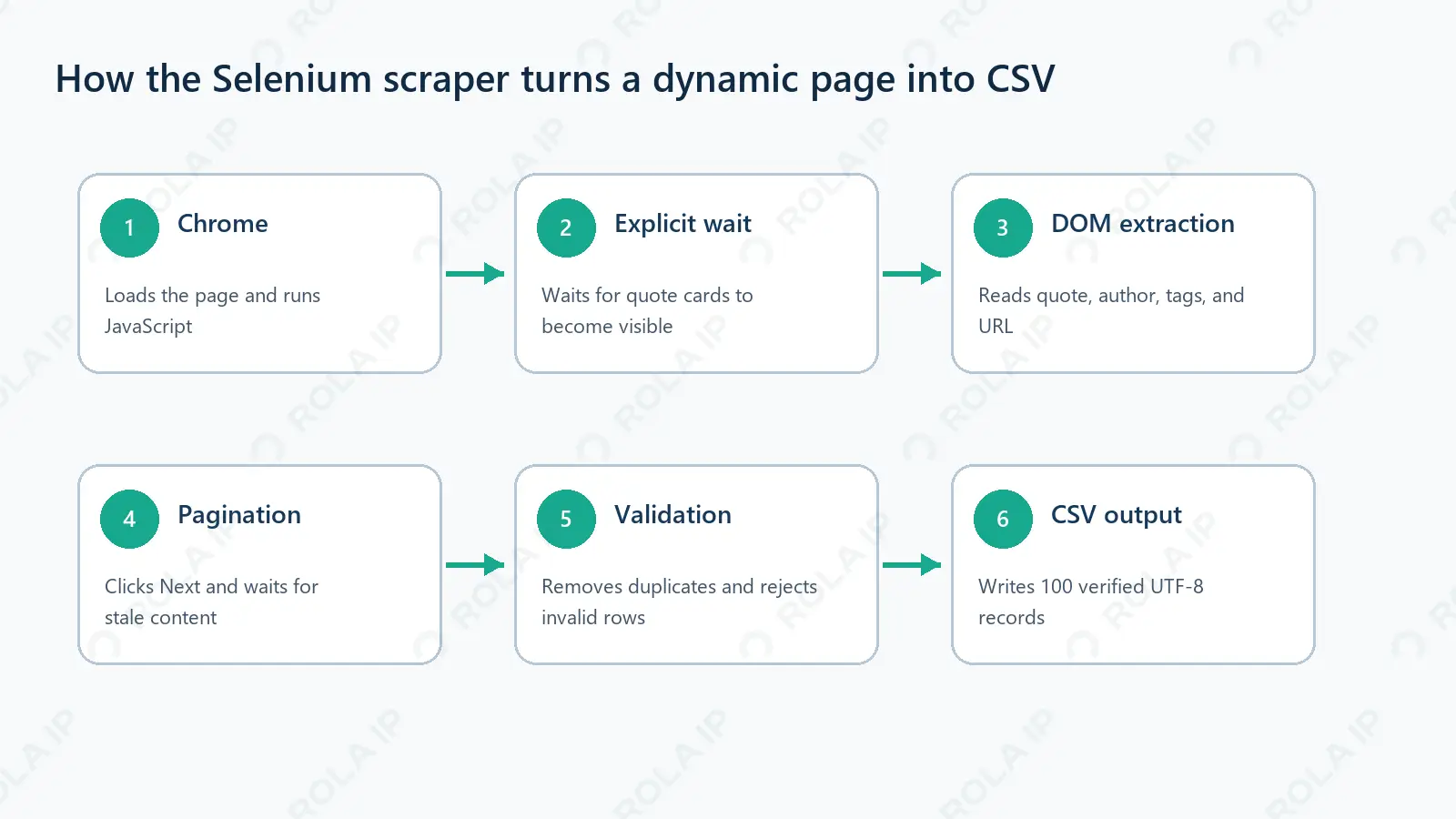
The reliable workflow has six steps:
- Install Selenium in an isolated Python environment.
- Start Chrome with
webdriver.Chrome()and set a page-load timeout. - Open the page with
driver.get(). - Wait for a specific rendered element with
WebDriverWait; do not rely on a fixed sleep. - Locate each record container, extract its child fields, and repeat with bounded pagination.
- Validate and export the records, then call
driver.quit()infinally.
The quick-start script below proves the first four steps with one record. The complete example then adds pagination, CSV output, validation, logging, and failure screenshots.
Quick Start: Scrape a JavaScript Page with Selenium
If Python is already installed and python resolves in PowerShell, create the environment like this:
python -m venv .venv
.\.venv\Scripts\python.exe -m pip install selenium==4.46.0
Using the virtual environment’s executable directly avoids PowerShell activation-policy problems. On macOS or Linux, create the environment with python3 -m venv .venv and replace .\.venv\Scripts\python.exe with ./.venv/bin/python in the commands below.
Save this as quick_start.py:
from selenium import webdriver
from selenium.webdriver.common.by import By
from selenium.webdriver.support import expected_conditions as EC
from selenium.webdriver.support.ui import WebDriverWait

URL = "https://quotes.toscrape.com/js/"

driver = webdriver.Chrome()
try:
    driver.get(URL)
    first_quote = WebDriverWait(driver, 10).until(
        EC.visibility_of_element_located((By.CSS_SELECTOR, ".quote"))
    )
    quote = first_quote.find_element(By.CSS_SELECTOR, ".text").text
    author = first_quote.find_element(By.CSS_SELECTOR, ".author").text
    print(f"Quote: {quote}")
    print(f"Author: {author}")
finally:
    driver.quit()
Run it with:
.\.venv\Scripts\python.exe quick_start.py
The verified output was:
Quote: “The world as we have created it is a process of our thinking. It cannot be changed without changing our thinking.”
Author: Albert Einstein
webdriver.Chrome() can remain this simple because Selenium Manager is bundled with Selenium. When a suitable driver is not already available, it can discover the browser, resolve a compatible driver, and cache it. First-time resolution may need network access, so restricted or offline environments need a cached driver or explicit driver configuration.
When Should You Use Selenium for Web Scraping?
Use Selenium when the required, authorized data depends on JavaScript, a click, scrolling, or another real browser interaction. Examples include client-rendered search results, “Load more” controls, paginated widgets, and permitted browser workflows.
Do not start with Selenium simply because the target is a website. A browser uses more CPU and memory than a direct request. If an official API or the original HTML already contains the data, a lighter client is normally faster and easier to maintain.
| Tool | Best fit | Main limitation |
|---|---|---|
| Requests | APIs and static responses | Does not execute browser JavaScript |
| BeautifulSoup | Parsing HTML already retrieved | Does not load or interact with pages |
| Selenium | Dynamic content and browser actions | Heavier than direct HTTP |
| Playwright | New interaction-heavy browser projects | Different API and migration cost |
When scraping with Selenium, navigation completion does not prove that your target element is ready. JavaScript may replace the DOM later, an overlay may intercept a click, or the browser may show an unexpected page. Reliable code waits for observable state and validates the extracted records before writing them. If you are choosing between browser automation tools, compare Selenium with Playwright and Cypress against the target site’s rendering, browser, and maintenance requirements.
Before launching a browser, inspect the original HTML and the browser’s Network panel. If the records already exist in HTML or an authorized JSON endpoint supplies them, use that source directly. Selenium should solve a rendering or interaction requirement, not become the default transport layer. For a broader decision tree covering XHR endpoints, Playwright, and Selenium, see this guide to scrape dynamic web pages with Python.
Set Up and Inspect the Project
Use this structure:
selenium-scraper/
├── scraper.py
├── quick_start.py
├── requirements.txt
├── validate_output.py
├── output/
├── artifacts/
└── logs/
Pin the tested dependency in requirements.txt:
selenium==4.46.0
Version 4.46.0 is pinned because it is the exact version used for the October 25 rerun; it is not presented as the newest Selenium release. Check the current Selenium release and repeat the visible, headless, validation, and failure tests before changing the pin.
Ignore local environments, logs, and potentially sensitive debug artifacts:
.venv/
__pycache__/
artifacts/
logs/
.env
Tested environment
| Component | Verified value |
|---|---|
| Operating system | Windows build 26200.8037 |
| Python | 3.12.14 |
| Selenium | 4.46.0 |
| Chrome | 155.0.8059.85 |
| Target | https://quotes.toscrape.com/js/ |
| ChromeDriver | 155.0.8059.84 |
| Last verified | October 25, 2026 |
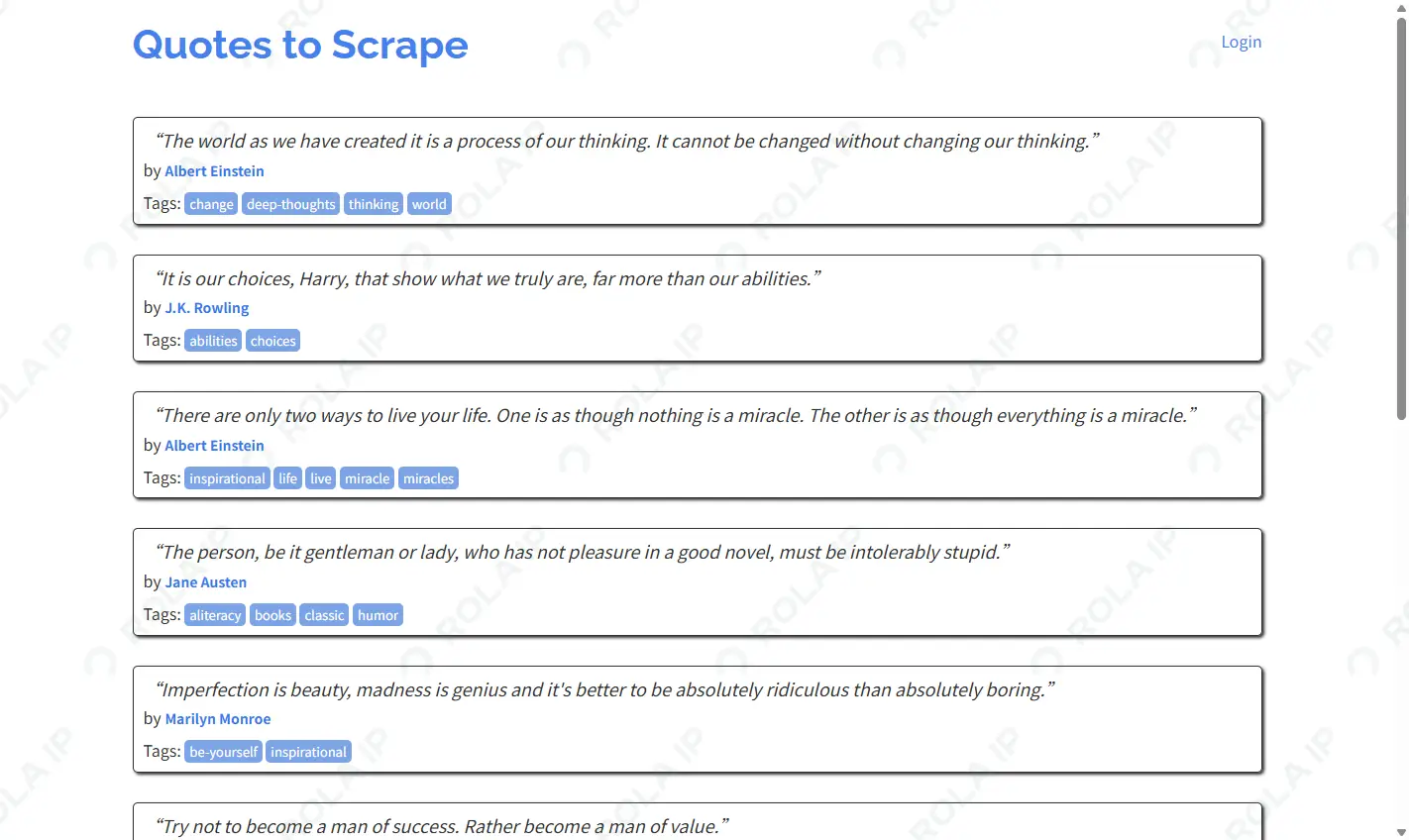
The target is a practice site whose /js/ route renders quote cards through JavaScript. Inspect a card in Chrome DevTools, then test candidate CSS selectors in the Elements panel with Ctrl+F:
SELECTORS = {
    "quote": ".quote",
    "text": ".text",
    "author": ".author",
    "tags": ".tags .tag",
    "next": "li.next a",
}
The screenshot below is a Selenium-captured browser view with the first matched .quote card highlighted. It proves what the record selector targets; it is not presented as a DevTools screenshot.
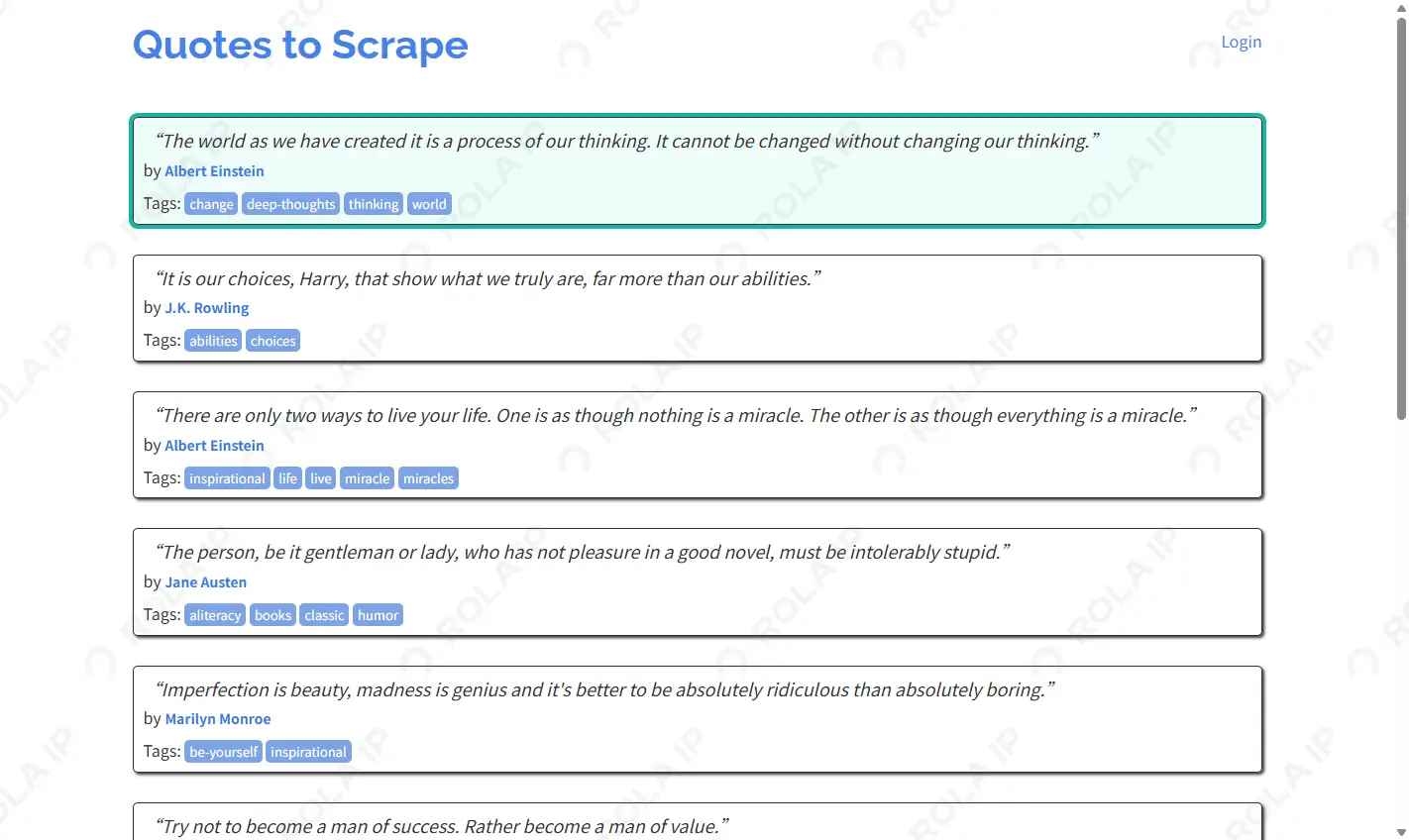
Prefer stable IDs when available. Otherwise, short selectors tied to meaningful components are usually easier to maintain than absolute XPath. Find child fields inside each card rather than joining independent page-wide lists by position; one missing author could otherwise misalign every following record.
For XPath-specific Selenium examples, see find an element by XPath in Selenium Python. Use XPath when it expresses a stable relationship that CSS cannot express clearly; do not switch to long absolute XPath just because it matches once.
Choose the pagination pattern before coding
This target has a Next link, so the scraper waits for the current card to become stale after each click. Do not copy that loop unchanged onto every dynamic site:
| Page pattern | Reliable completion signal |
|---|---|
| Next-button pagination | Old content becomes stale and new cards become visible |
| “Load more” button | Visible card count increases after the click |
| Infinite scroll | Item count stops increasing after bounded scroll attempts |
| Predictable page URL | Navigate to the next authorized URL and validate its content |
| Authorized JSON endpoint | Prefer direct HTTP over browser pagination |
For infinite scroll, bound both the number of scrolls and the no-growth attempts. An endless while True loop can keep a browser running after the page has stopped producing data.
Build the Complete Selenium Web Scraper
The following is the complete tested scraper.py, not a partial excerpt. The downloadable package also includes scraper.py, quick_start.py, validate_output.py, requirements.txt, the generated CSV, and redacted run evidence. It includes driver creation, explicit waits, card-level extraction, pagination, schema validation, deduplication, spreadsheet-safe CSV export, file logging, failure artifacts, command-line arguments, and cleanup attempted through finally.
import argparse
import csv
import logging
import os
from datetime import datetime
from pathlib import Path

from selenium import webdriver
from selenium.common.exceptions import NoSuchElementException, TimeoutException
from selenium.webdriver.common.by import By
from selenium.webdriver.support import expected_conditions as EC
from selenium.webdriver.support.ui import WebDriverWait

URL = "https://quotes.toscrape.com/js/"
SELECTORS = {
    "quote": ".quote",
    "text": ".text",
    "author": ".author",
    "tags": ".tags .tag",
    "next": "li.next a",
}
if os.getenv("BROKEN_SELECTOR_TEST") == "1":
    SELECTORS["quote"] = ".quote-does-not-exist"
FIELDS = ["quote", "author", "tags", "source_url"]
ACCESS_SIGNALS = (
    "access denied",
    "too many requests",
    "rate limit exceeded",
    "verify you are human",
)
LOGGER = logging.getLogger(__name__)


def configure_logging():
    log_dir = Path("logs")
    log_dir.mkdir(parents=True, exist_ok=True)
    formatter = logging.Formatter("%(asctime)s %(levelname)s: %(message)s")
    root_logger = logging.getLogger()
    root_logger.handlers.clear()
    root_logger.setLevel(logging.INFO)

    console_handler = logging.StreamHandler()
    console_handler.setLevel(logging.WARNING)
    console_handler.setFormatter(formatter)
    root_logger.addHandler(console_handler)

    file_handler = logging.FileHandler(log_dir / "scraper.log", encoding="utf-8")
    file_handler.setLevel(logging.INFO)
    file_handler.setFormatter(formatter)
    root_logger.addHandler(file_handler)


def create_driver(headless=False):
    options = webdriver.ChromeOptions()
    options.add_argument("--window-size=1440,1000")
    if headless:
        options.add_argument("--headless=new")
    driver = webdriver.Chrome(options=options)
    driver.set_page_load_timeout(30)
    return driver


def wait_for_quotes(driver, wait):
    try:
        return wait.until(
            EC.visibility_of_all_elements_located(
                (By.CSS_SELECTOR, SELECTORS["quote"])
            )
        )
    except TimeoutException as wait_error:
        try:
            visible_text = driver.find_element(By.TAG_NAME, "body").text.lower()
            title_and_url = f"{driver.title} {driver.current_url}".lower()
        except Exception:
            raise wait_error
        if any(
            signal in visible_text or signal in title_and_url
            for signal in ACCESS_SIGNALS
        ):
            raise RuntimeError(
                "The browser displayed a possible access-control page."
            ) from None
        raise


def scrape_current_page(driver, wait):
    records = []
    for card in wait_for_quotes(driver, wait):
        try:
            records.append(
                {
                    "quote": card.find_element(
                        By.CSS_SELECTOR,
                        SELECTORS["text"],
                    ).text.strip(),
                    "author": card.find_element(
                        By.CSS_SELECTOR,
                        SELECTORS["author"],
                    ).text.strip(),
                    "tags": [
                        tag.text.strip()
                        for tag in card.find_elements(
                            By.CSS_SELECTOR,
                            SELECTORS["tags"],
                        )
                    ],
                    "source_url": driver.current_url,
                }
            )
        except NoSuchElementException:
            LOGGER.warning(
                "Skipped one incomplete quote card on %s",
                driver.current_url,
            )
    return records


def go_to_next_page(driver, wait):
    try:
        old_first_quote = driver.find_element(
            By.CSS_SELECTOR,
            SELECTORS["quote"],
        )
        next_link = driver.find_element(
            By.CSS_SELECTOR,
            SELECTORS["next"],
        )
    except NoSuchElementException:
        return False
    next_link.click()
    wait.until(EC.staleness_of(old_first_quote))
    wait_for_quotes(driver, wait)
    return True


def validate_and_deduplicate(records):
    unique = {}
    invalid_count = 0
    for record in records:
        valid = (
            record.get("quote")
            and record.get("author")
            and isinstance(record.get("tags"), list)
            and record.get("source_url")
        )
        if not valid:
            invalid_count += 1
            missing_fields = [
                field
                for field in ("quote", "author", "source_url")
                if not record.get(field)
            ]
            if not isinstance(record.get("tags"), list):
                missing_fields.append("tags")
            LOGGER.warning(
                "Rejected record missing fields: %s",
                ", ".join(missing_fields),
            )
            continue
        unique.setdefault((record["quote"], record["author"]), record)
    return list(unique.values()), invalid_count


def spreadsheet_safe(value):
    if isinstance(value, str) and value.startswith(("=", "+", "-", "@")):
        return "'" + value
    return value


def save_to_csv(records, output_path):
    if not records:
        raise ValueError("No valid records were collected; CSV was not written.")
    output_path.parent.mkdir(parents=True, exist_ok=True)
    with output_path.open("w", encoding="utf-8-sig", newline="") as csv_file:
        writer = csv.DictWriter(csv_file, fieldnames=FIELDS)
        writer.writeheader()
        for record in records:
            row = {**record, "tags": "|".join(record["tags"])}
            writer.writerow(
                {
                    key: spreadsheet_safe(value)
                    for key, value in row.items()
                }
            )


def save_failure_artifacts(driver, artifacts_dir, save_html=False):
    artifacts_dir.mkdir(parents=True, exist_ok=True)
    stamp = datetime.now().strftime("%Y%m%d-%H%M%S")
    driver.save_screenshot(str(artifacts_dir / f"error-{stamp}.png"))
    if save_html:
        html_path = artifacts_dir / f"error-{stamp}.html"
        html_path.write_text(driver.page_source, encoding="utf-8")


def try_to_save_failure_artifacts(driver, artifacts_dir, save_html=False):
    try:
        save_failure_artifacts(driver, artifacts_dir, save_html=save_html)
    except Exception as artifact_error:
        LOGGER.error(
            "Could not save failure artifacts (%s).",
            type(artifact_error).__name__,
        )


def run(headless=False, max_pages=10, debug=False):
    driver = None
    raw_records = []
    pages_scraped = 0
    try:
        driver = create_driver(headless=headless)
        wait = WebDriverWait(driver, 12)
        driver.get(URL)
        while pages_scraped < max_pages:
            page_records = scrape_current_page(driver, wait)
            if not page_records:
                break
            raw_records.extend(page_records)
            pages_scraped += 1
            if not go_to_next_page(driver, wait):
                break
        unique_records, invalid_count = validate_and_deduplicate(raw_records)
        output_path = Path("output/quotes.csv")
        save_to_csv(unique_records, output_path)
        summary_lines = [
            f"Pages scraped: {pages_scraped}",
            f"Raw records: {len(raw_records)}",
            f"Unique records: {len(unique_records)}",
            f"Missing required fields: {invalid_count}",
            f"CSV saved to: {output_path.as_posix()}",
        ]
        for line in summary_lines:
            print(line)
            LOGGER.info(line)
    except Exception:
        if driver is not None:
            try_to_save_failure_artifacts(
                driver,
                Path("artifacts"),
                save_html=debug,
            )
        raise
    finally:
        if driver is not None:
            try:
                driver.quit()
            except Exception as quit_error:
                LOGGER.error(
                    "Chrome cleanup failed (%s).",
                    type(quit_error).__name__,
                )


def parse_args():
    parser = argparse.ArgumentParser(
        description="Scrape JavaScript-rendered quotes."
    )
    parser.add_argument(
        "--headless",
        action="store_true",
        default=os.getenv("HEADLESS") == "1",
        help="Run Chrome without a visible window.",
    )
    parser.add_argument(
        "--max-pages",
        type=int,
        default=int(os.getenv("MAX_PAGES", "10")),
        help="Maximum number of pages to scrape (default: 10).",
    )
    parser.add_argument(
        "--debug",
        action="store_true",
        default=os.getenv("DEBUG_ARTIFACTS") == "1",
        help="Save page HTML as well as a screenshot after failure.",
    )
    return parser.parse_args()


if __name__ == "__main__":
    configure_logging()
    args = parse_args()
    run(
        headless=args.headless,
        max_pages=args.max_pages,
        debug=args.debug,
    )
Why the wait and pagination logic work
The scraper uses an explicit wait for visible quote cards instead of time.sleep(). A fixed sleep is simultaneously wasteful on a fast response and unreliable on a slow one. Selenium’s waiting strategies guide also warns against mixing implicit and explicit waits because the combined duration becomes difficult to predict.
The access-page check runs only after the expected quote selector times out. Its text markers are a diagnostic heuristic, not a universal block detector; adapt them to a page you control or are permitted to automate. If inspecting the fallback page also fails, the original TimeoutException remains the reported failure.
After clicking Next, the scraper waits for the old first card to become stale. That proves the old DOM was replaced before the next page is processed. The loop also stops when the next link disappears or max_pages is reached. For a larger authorized job, add a visited-URL set and stop after a page contributes no new stable record IDs.
For a hotel-review workflow, scraping Tripadvisor reviews with Python combines browser interaction with review-text expansion, pagination, deduplication, and CSV/JSON export.
Why validation and cleanup are defensive
Each record is built inside one .quote container. Tags may be empty, but quote, author, tag-list type, and source URL are validated before export. Duplicate (quote, author) keys are collapsed for this practice site; production data should use a stable source ID or canonical URL when available. Before writing the CSV, text beginning with =, +, -, or @ is prefixed with an apostrophe so spreadsheet software does not interpret untrusted scraped text as a formula.
The driver begins as None and is created inside try, so a driver-start failure cannot trigger quit() on an undefined object. Failure evidence is also wrapped separately: a full disk or dead browser cannot replace the original scraping exception with a screenshot error. finally attempts browser cleanup and logs a cleanup failure instead of claiming cleanup is infallible.
Run the Scraper and Validate the CSV
From the project directory, install and run the visible browser:
.\.venv\Scripts\python.exe -m pip install -r requirements.txt
.\.venv\Scripts\python.exe scraper.py --headless --max-pages 1
.\.venv\Scripts\python.exe scraper.py
The one-page headless command is a smoke test. Run all pages only after selectors, output permissions, and browser startup succeed.
Run headlessly with the same viewport:
.\.venv\Scripts\python.exe scraper.py --headless
The October 25, 2026, visible and headless reruns each produced:
Pages scraped: 10
Raw records: 100
Unique records: 100
Missing required fields: 0
CSV saved to: output/quotes.csv
The same summary is written to logs/scraper.log. Save the following as validate_output.py so you can verify the exported file instead of trusting terminal totals:
import csv
from pathlib import Path

EXPECTED_HEADERS = ["quote", "author", "tags", "source_url"]
REQUIRED_FIELDS = ("quote", "author", "source_url")


def validate_csv(csv_path=Path("output/quotes.csv")):
    with csv_path.open(encoding="utf-8-sig", newline="") as csv_file:
        reader = csv.DictReader(csv_file)
        headers = reader.fieldnames
        rows = list(reader)

    if headers != EXPECTED_HEADERS:
        raise ValueError(f"Unexpected headers: {headers}")

    duplicate_count = len(rows) - len(
        {(row["quote"], row["author"]) for row in rows}
    )
    missing_count = sum(
        not all(row.get(field) for field in REQUIRED_FIELDS)
        for row in rows
    )
    if not rows or duplicate_count or missing_count:
        raise ValueError(
            "Validation failed: "
            f"rows={len(rows)}, duplicates={duplicate_count}, missing={missing_count}"
        )

    print(f"Rows: {len(rows)}")
    print(f"Headers: {','.join(headers)}")
    print(f"Duplicate keys: {duplicate_count}")
    print(f"Missing required fields: {missing_count}")
    print("Validation passed")


if __name__ == "__main__":
    validate_csv()
Run the validator:
.\.venv\Scripts\python.exe validate_output.py
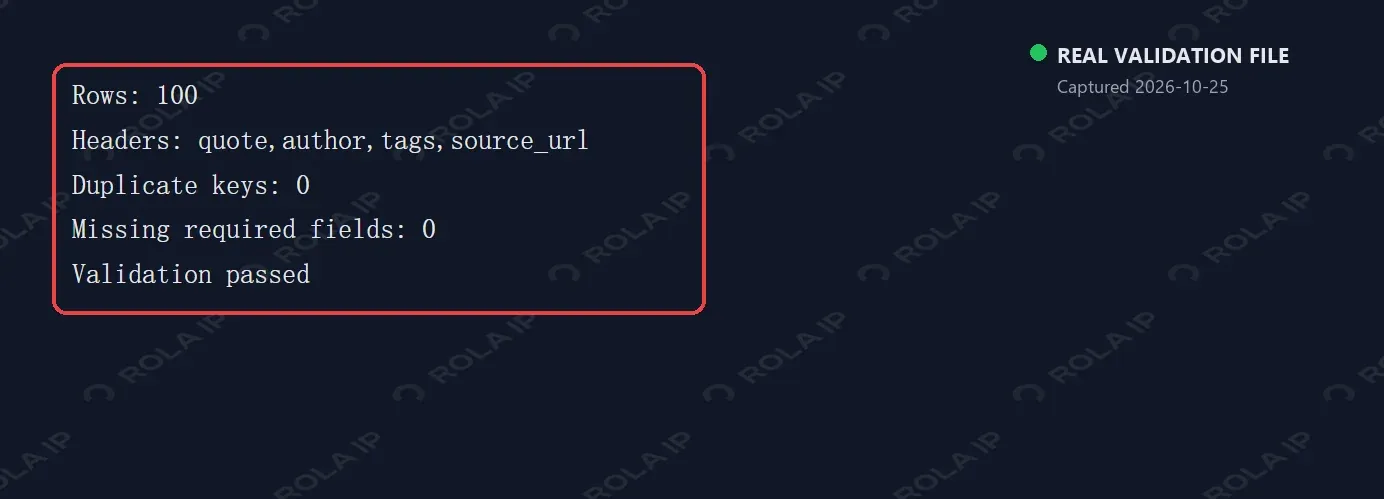
The validator reopens the file with Python’s csv.DictReader, checks the exact header order, counts duplicate (quote, author) keys, and rejects blank quote, author, or source URL values. The verified output was:
Rows: 100
Headers: quote,author,tags,source_url
Duplicate keys: 0
Missing required fields: 0
Validation passed
The screenshot below shows Chrome rendering the saved evidence/validation-output.txt file from that real validation run. It is not a mock terminal or a reconstructed result.
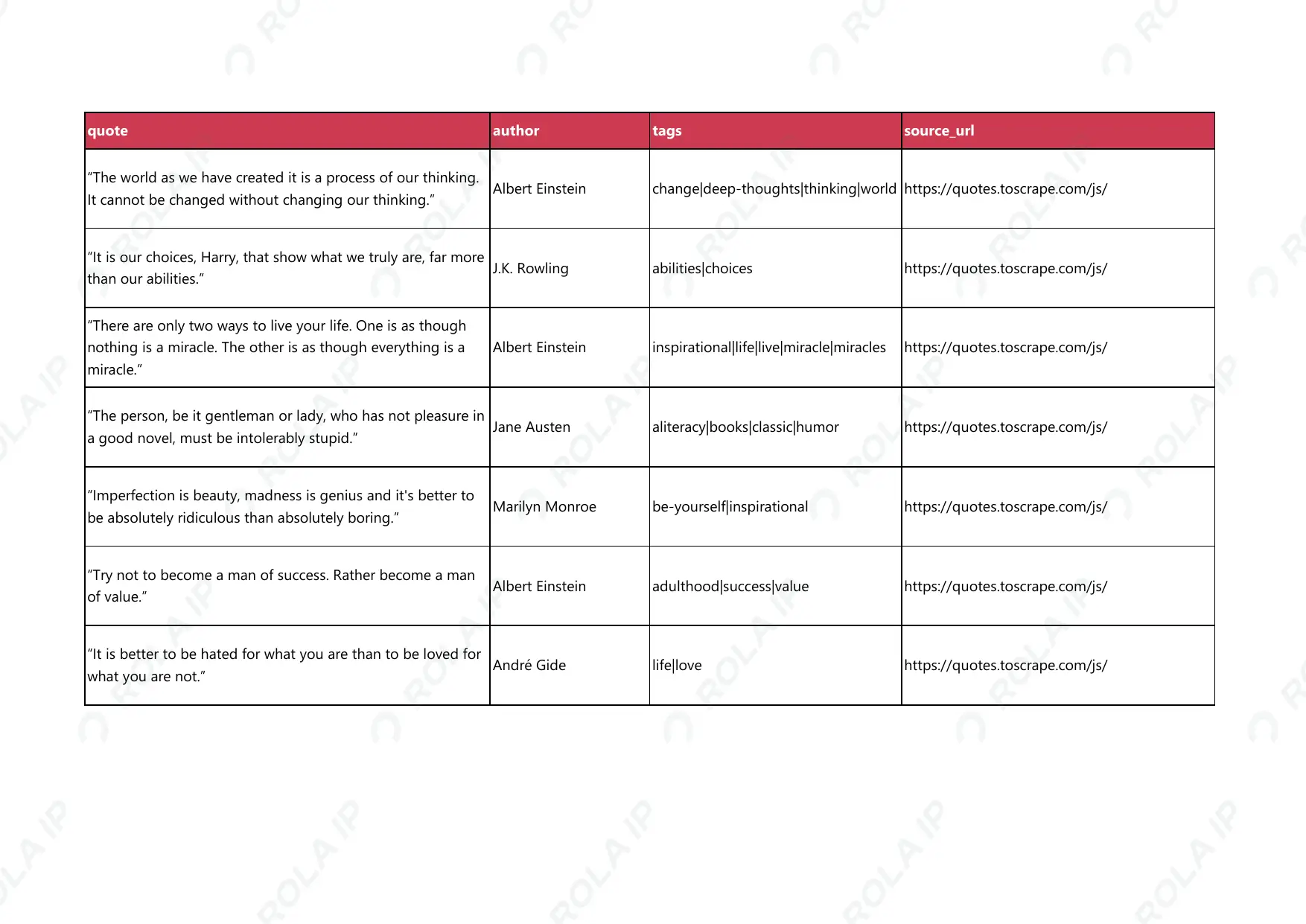
The next image is an Excel-rendered preview of the generated output/quotes.csv. The downloadable output/quotes.csv, logs/scraper.log, and evidence/validation-output.txt provide the reproducible row, schema, duplicate, and missing-field evidence.
Debug Headless Selenium Failures
Headless Chrome is useful for scheduled jobs and servers, but it is not an anti-detection feature and does not solve CAPTCHA. Keep the same viewport in visible and headless tests, then diagnose failures in a consistent order:
Current URL → page title → screenshot → saved HTML
→ selector count → wait condition → overlay or iframe → unexpected page
Do not answer every TimeoutException by increasing the timeout. A wrong selector will still be wrong 60 seconds later.
To test the failure-evidence path without editing source code, deliberately enable the broken-selector mode:
$env:BROKEN_SELECTOR_TEST = "1"
.\.venv\Scripts\python.exe scraper.py --headless --debug
Remove-Item Env:BROKEN_SELECTOR_TEST
This intentionally fails; it should produce a timestamped PNG and HTML file under artifacts/ before re-raising TimeoutException. HTML may contain page or account data on a real target, so keep the directory out of version control, capture HTML only when needed, and redact files before sharing.
| Symptom | Verify first | Likely response |
|---|---|---|
| Driver cannot be obtained | Chrome path and Selenium Manager network access | Fix the path, cache, policy, or compatibility |
NoSuchElementException |
Current URL and selector count | Correct the locator or page context |
TimeoutException |
Screenshot, HTML, and waited condition | Fix state or selector before extending time |
StaleElementReferenceException |
Whether the DOM was replaced | Locate the element again |
| Click intercepted | Overlay, banner, animation, scroll position | Wait for or remove the obstruction you control |
| Headless returns no data | Screenshot, viewport, DOM difference | Match dimensions and inspect page state |
| CSV is empty | Record count before validation | Check selectors and rejection logs |
| Access-denied or rate-limit page | Visible page and authorization | Stop, lower load, and review permission |
Standard WebDriver does not expose response.status_code like Requests. Check reliable user-visible page state instead. Exact status collection needs a network-level method such as a programmable proxy, DevTools/Performance logging, or WebDriver BiDi, which is outside this beginner project.
Retry only failures likely to be transient, use bounded attempts and backoff, and log each attempt. Do not loop on CAPTCHA, rate-limit messages, or explicit denial. Use a test hook in an application you control or stop for approved human review.
Use a Proxy for Authorized Selenium Workflows
A proxy may be appropriate for authorized regional availability checks, isolated test sessions, or a stable egress IP. Do not add one when the direct connection already provides the authorized data and required location; it adds latency, cost, and another failure point. For Chrome, one practical route is a ROLA IP endpoint authorized by IP allowlist, which avoids a browser authentication dialog. ROLA IP’s proxy quick start documents username/password as the default and allowlist access as the passwordless alternative.
After allowlisting the machine’s current public IP, keep the extracted host and port in environment variables:
import os
from selenium import webdriver

proxy_host = os.environ["ROLA_PROXY_HOST"]
proxy_port = os.environ["ROLA_PROXY_PORT"]

options = webdriver.ChromeOptions()
options.add_argument(f"--proxy-server=http://{proxy_host}:{proxy_port}")
driver = webdriver.Chrome(options=options)
try:
    driver.get("https://rola-ip.co/tools/what-is-my-ip/")
    print(driver.title)
finally:
    driver.quit()
Save the preceding code as proxy_allowlist_example.py. Then set the allowlisted endpoint for the current PowerShell process and run it:
$env:ROLA_PROXY_HOST = "YOUR_PROXY_HOST"
$env:ROLA_PROXY_PORT = "YOUR_PROXY_PORT"
.\.venv\Scripts\python.exe proxy_allowlist_example.py
Use socks5:// only when the dashboard endpoint is SOCKS5. Open the ROLA IP public IP checker through the configured browser and confirm the expected egress location; that verifies routing, not permission to automate another site. Choose the proxy type according to the authorized target, required location, session duration, traffic volume, and the options currently available in your ROLA IP account. Verify the exit IP, location, and session behavior before scaling because product availability and parameters may change.
| Workflow | Session choice |
|---|---|
| Direct access already meets the requirement | No proxy |
| One multi-page browser flow | Sticky session |
| Independent regional checks | Separate rotating sessions |
| Login continuity, when permitted | One stable egress IP |
For this paginated example, a sticky exit is normally easier to reason about than changing the IP for every request. Never put proxy credentials or endpoints in screenshots, source code, or logs.
For a dashboard-to-browser walkthrough, see ROLA IP’s residential proxy setup guide. It also explains why exit IP, session mode, region, DNS, WebRTC, timezone, and browser language should be evaluated together.
Conclusion
This guide demonstrates how to use Selenium in Python for web scraping without hiding the operational details. The October 25, 2026, rerun produced 100 validated records from 10 JavaScript-rendered pages in visible and headless Chrome. Its reliability comes from explicit waits, container-based extraction, stale-element pagination, bounded execution, schema checks, spreadsheet-safe CSV output, file logging, failure evidence, and defensive cleanup.
Use Selenium only when a browser is necessary. For authorized regional or session routing, validate a ROLA IP endpoint separately and choose sticky or rotating behavior according to the workflow rather than treating rotation as a universal fix.