
How to Make DuckDuckGo Your Default Search Engine in Chrome, Firefox, and Safari

Oct 14, 2026 · Guides · 13 min read
TL;DR: To make DuckDuckGo your default search engine, choose it in your browser’s search settings and test a new address-bar query. No extension or proxy is required. This guide covers Chrome, Firefox and Safari, then shows SEO and research teams how to configure and verify a Rola IP route for regional search checks. Changing the default engine and changing the network exit are separate tasks.
Find the steps for your browser
| Browser | Where to begin | What confirms the change |
|---|---|---|
| Chrome desktop | Settings → Search engine → Change | A fresh address-bar search opens DuckDuckGo |
| Chrome on Android or iOS | Chrome’s own Settings → Search engine | The check succeeds inside Chrome |
| Firefox desktop | Settings → Search → Default Search Engine | The check succeeds in the selected profile |
| Firefox on mobile | Firefox’s search settings; follow the device-specific steps below | The check succeeds inside Firefox |
| Safari on Mac | Safari → Settings → Search | Check regular and Private Browsing choices where applicable |
| Safari on iPhone/iPad | Settings → Apps → Safari → Search Engine on the Apps layout | A new search succeeds inside Safari |
The mobile rows are a shortcut only. Use the device-specific steps below for the exact menus.
- Chrome on desktop, Android, iPhone, and iPad
- Firefox on desktop, Android, iPhone, and iPad
- Safari on Mac, iPhone, and iPad
- Verify the change
- Fix missing options or settings that keep changing
- Check regional results with Rola IP
Before you start
Make sure you are changing the browser and profile you actually use. A work profile, personal profile, and second device may each need their own setup. On a managed device, your administrator may control the available search engines.
Four settings are easy to confuse:
- Default search engine: Where that browser sends ordinary address-bar searches.
- Default browser: Which application opens web links from other apps.
- Homepage, startup page, and new-tab page: What appears when you open the browser, press Home, or create a tab. These can be separate settings.
- Proxy: The network route used by traffic configured to pass through it.
Choosing DuckDuckGo changes the first setting. It does not automatically change the other three, install the DuckDuckGo browser, or redirect searches inside unrelated apps. The change is reversible, so you can try DuckDuckGo on your everyday searches and switch back at any time.
The screenshots below come from DuckDuckGo’s official help pages. They show real interface examples, including older layouts, and are not our own captures from every current browser version. The menu paths were checked against the official help pages cited in each section on October 13, 2026. Follow the written steps if your controls look different.
How to make DuckDuckGo your default search engine in Chrome
Chrome on Windows, Mac, or Linux
- Open the Chrome profile you want to configure.
- Click the three-dot menu in the upper-right corner and open Settings.
- Select Search engine in the sidebar.
- Click Change beside the current engine, select DuckDuckGo, and confirm if prompted. Older versions may show a dropdown instead.
- Open a new tab and enter a normal search in the address bar.
Google’s current desktop instructions use the Change button. If you need to inspect the engine list, open Manage search engines and site search from the same settings area. On work or school devices, an administrator may manage the selection. Source: Google Chrome Help.
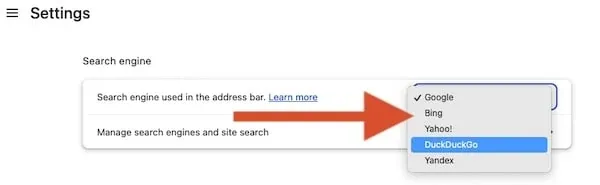
Chrome on Android
Open Chrome > three-dot menu > Settings > Search engine, then tap DuckDuckGo. The Search engine option appears under Basics in the documented layout. Return to Chrome and search from its address bar.
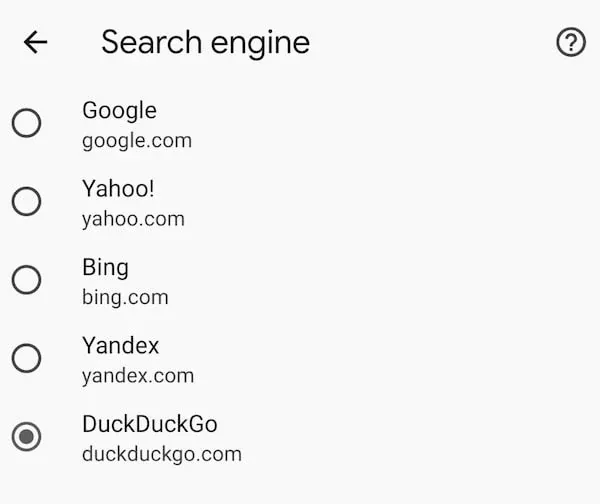
Chrome on iPhone or iPad
Open Chrome > three-dot menu > Settings > Search Engine > DuckDuckGo. Tap Done if displayed. Test a new query in Chrome afterward; changing Safari’s setting in the iOS Settings app does not configure Chrome.
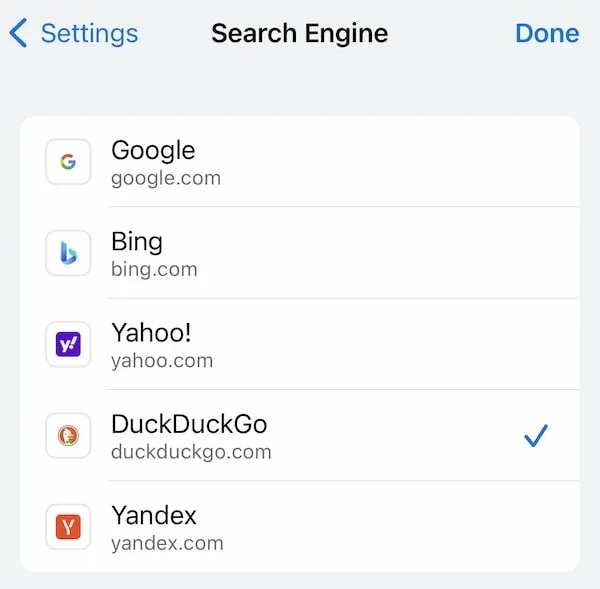
If DuckDuckGo is missing, go to the troubleshooting section before installing anything. A browser extension is not required when the engine is already available in settings.
How to make DuckDuckGo your default search engine in Firefox
Firefox on desktop
- Open the three-line menu, then choose Settings.
- Select Search in the left sidebar.
- Find Default Search Engine and choose DuckDuckGo.
- Open a new tab and search from the address bar.
Selecting an engine for one search from Firefox’s address-bar menu is different from changing this default. If you previously removed a built-in engine, look for Restore Default Search Engines in Search settings. The section label varies across Firefox versions. Source: Mozilla Firefox Help.
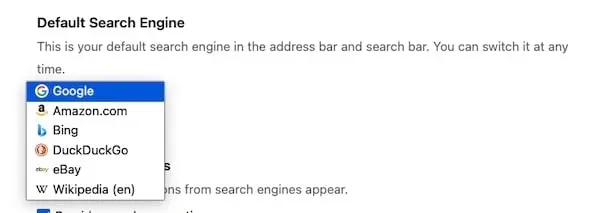
Firefox on Android
Tap the search-engine icon to the left of the address field. Open Search settings > Default search engine, then select DuckDuckGo. Return to the address bar to verify your choice.
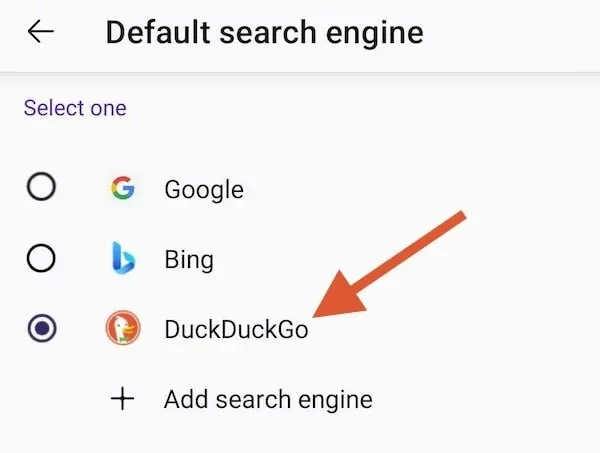
Firefox on iPhone or iPad
Open the three-line menu > Settings. Under General, select Search, open the default-engine control, and choose DuckDuckGo. Return to Firefox and run a new address-bar search. These controls belong to Firefox, even when Safari is still your device’s default browser. Source: DuckDuckGo’s Firefox instructions.
How to make DuckDuckGo your default search engine in Safari
Safari on Mac
- Open Safari.
- In the Mac menu bar, choose Safari > Settings.
- Open Search.
- Set Search engine to DuckDuckGo.
- Enter a fresh query in Safari’s Smart Search field.
Older Safari versions may call the settings window Preferences. Apple also documents a separate Private Browsing search engine control. Check that selection if you want private windows to use DuckDuckGo too. Source: Apple Safari Search settings.
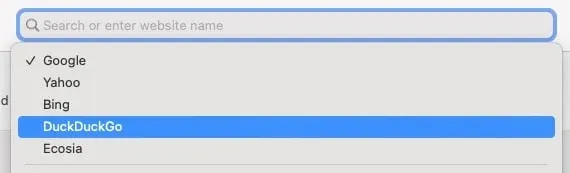
Safari on iPhone or iPad
On devices using the Apps settings layout, open Settings > Apps > Safari > Search Engine > DuckDuckGo. If Safari appears directly in the main Settings list on your older device, use Settings > Safari > Search Engine > DuckDuckGo instead.
Apple’s current iPhone guide confirms the Apps > Safari > Search Engine path. Return to Safari to test it; the search box at the top of the Settings app is not a browser search test. Source: Apple iPhone User Guide.
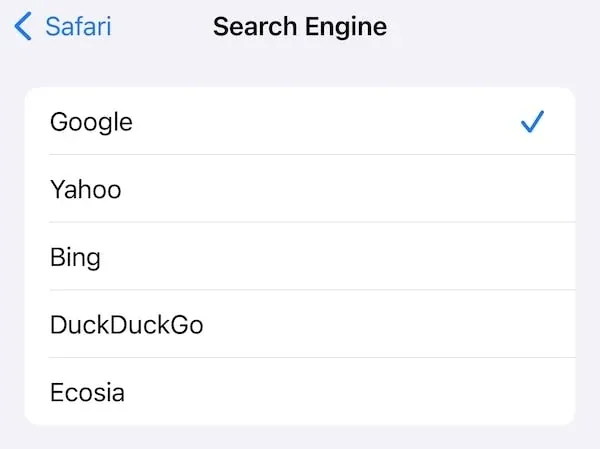
How to check that DuckDuckGo is now your default
Use the entry point you want to change: the browser’s address bar.
- Open a new tab in the same browser profile.
- Type a fresh query, such as how do tides work, and submit it as a search. Avoid selecting a previously visited page from the suggestions.
- Confirm that DuckDuckGo search results open. Check the site address if the provider is unclear.
- Close and reopen the browser, then repeat the check.
- Test private windows and other devices separately if you use them.
Visiting duckduckgo.com directly only confirms that the website loads. It does not prove your browser’s default changed. Also avoid bang shortcuts such as !g during this test: they intentionally send a search to another service. Source: DuckDuckGo bang shortcuts.
Troubleshooting DuckDuckGo is missing or the setting will not stick
DuckDuckGo does not appear in the list
Check the browser version and search-engine management page. Available options can vary with region or organizational configuration. In Firefox, a removed built-in engine may be recoverable through Restore Default Search Engines. In Chrome, inspect Manage search engines and site search. Follow the current browser documentation if you need a custom entry; mobile and desktop menus are not interchangeable.
The setting is locked or keeps changing
A greyed-out control or management notice is a reason to contact your administrator. A proxy cannot unlock that setting.
If the selection changes after you save it, inspect extensions that can control search and any management notices. Check one possible cause at a time, then repeat the address-bar test. Avoid assuming every unexpected change is malware or synchronization. Mozilla notes that some extensions can change the default engine. Source: Firefox search settings.
A new tab still shows another search brand
The new-tab page can retain its existing appearance. Test the address bar before changing anything else. A search box inside a website, a system search widget, or a homepage may follow different settings.
One browser or private window behaves differently
Make the change inside the browser you are actually using. Safari settings do not automatically configure Chrome or Firefox. Where a separate private-search option is available, check it independently.
The page fails to load or results show another country
A loading failure calls for a connection, DNS, or service-availability check. A country mismatch calls for checking region, language, and location signals. Neither symptom necessarily means the default-engine setting failed. Avoid resetting the browser or clearing all browsing data before identifying the cause. If you are routing the browser through a proxy, use the proxy troubleshooting table below to separate authentication, connection, exit and result problems.
Does making DuckDuckGo default hide your IP address?
No. Choosing DuckDuckGo changes where your searches go; it does not replace your network exit IP. Search privacy and network routing are separate controls.
DuckDuckGo Search, its browser, and its extensions are different products. Selecting the search engine does not automatically enable the other products’ protections across every website you visit.
A correctly configured proxy can present a different exit IP for traffic routed through it. Its scope matters: do not assume every app, DNS lookup, or WebRTC connection follows a browser’s proxy setting. HTTPS protects the encrypted connection’s contents, but it does not remove all network metadata. SOCKS5 itself does not provide application-traffic encryption.
For ordinary searches, you can finish after selecting and verifying DuckDuckGo. For an SEO or market-research task that needs a controlled regional route, add the following workflow.
How to check regional DuckDuckGo results with Rola IP
This section applies only to regional search checks. Use a proxy only when your task requires a controlled network exit. For a regional search review, Rola IP supplies the routing component; the browser still controls its search provider, cookies and permissions. First choose a test market and a session policy. Then verify the browser’s observed exit and record the actual DuckDuckGo result. A successful proxy connection does not guarantee a particular ranking, advertisement or answer module.
You can perform these checks by visiting DuckDuckGo directly. Making it the default is useful for reducing accidental searches on another engine when several people follow the same testing procedure.
1 Define the comparison
Suppose your team wants to compare the search results shown for wireless headphones in US and UK testing environments. Choose one main item to observe: the organic listings, an Instant Answer, a map module, or an approved advertising placement. Treat anything else as an extension. A given query may not trigger a map or an ad at all, so do not assume either will appear. This is a workflow example, not a measured ranking result.
Record the query, target market, browser and OS versions, device type, interface language, DuckDuckGo region, and Safe Search setting before starting.
Decide in advance what counts as success. Three separate checks apply:
- Default setting: The address bar opens DuckDuckGo for a fresh query.
- Proxy configuration: Requests from the chosen browser leave through the configured exit, and the observed exit changes as expected.
- Regional check: You saved the specific query, conditions and actual result, whether or not the result differs between markets.
2 Match the IP behavior to the task
| Task | Routing approach to evaluate | Keep constant | Verify before starting |
|---|---|---|---|
| Repeat a review through one assigned exit | Static residential IP | Browser profile, query and search settings | Allocation period, location and whether the order is dedicated |
| Complete one short review using a pool | Documented sticky session | Session identifier and browser state | Expiry and reconnection behavior |
| Compare independent market or query batches | Controlled rotation between batches | Settings within each batch | Requested country and observed exit for each observation |
For repeated checks that need the same exit, evaluate Rola IP’s static residential IPs. A consistent exit makes it easier to compare a result page with its landing page while keeping the network variable steady.
A sticky session is a temporary routing arrangement, not a promise of a permanently assigned IP. Do not rotate halfway through a comparison that requires one consistent exit. For the difference in practice, see sticky vs rotating proxies.
Check the selected order’s billing unit, validity and session limits before running a larger set of observations. Rola IP’s static residential page lists pricing per IP, while rotating residential plans are sold by data volume (GB), so a test budget works differently for each.
3 Configure one browser profile
Browser search settings are not proxy settings. Rather than describing three browsers at once, this section follows one desktop path: Firefox with an HTTP proxy. Get the actual values from your selected product’s dashboard or account documentation.
| Configuration field | What to enter | Common mistake |
|---|---|---|
| Host | The endpoint hostname or IP issued for the selected Rola product | Using the website address as the proxy host |
| Port | The port issued with that endpoint | Assuming 8080 or 1080 works for every product |
| Protocol | The protocol supported by both endpoint and client | Treating a protocol label as proof of authentication compatibility |
| Authentication | The issued proxy account or an authorized source-IP whitelist | Using a website login or omitting the required source-IP authorization |
| Location/session | The dashboard-generated setting for the selected product | Inventing username suffixes or assuming every product uses the same syntax |
| Routing scope | The tested browser profile or documented client scope | Assuming every application now follows the proxy |
For rotating products, Rola IP’s parameter documentation (checked October 13, 2026) carries country and session settings in the proxy username. The session ID follows an underscore after the account name, and session time is set in minutes, from 1 to 120. State and city targeting is listed only for rotating residential. Use the complete username exactly as your account generates it, and do not apply these rules to static residential IPs or other products the documentation does not cover. Example accounts in documentation are not working credentials.
Client support matters as much as the endpoint. Chromium’s networking documentation states that Chrome’s native SOCKS5 support does not handle authentication, so “the provider supports SOCKS5” does not mean Chrome can use a credentialed SOCKS5 endpoint. See Chromium proxy documentation.
Configure one Firefox desktop profile (HTTP proxy)
This applies when your Rola endpoint uses the HTTP proxy protocol, supports HTTPS destination connections, and you hold valid credentials. For SOCKS5, TLS-to-proxy or mobile setups, follow the product documentation instead.
- Record your Firefox version and original connection settings.
- Search Firefox Settings for “proxy” and open Connection Settings. The menu location varies by version.
- Select Manual proxy configuration. Enter the issued host and port in the HTTP Proxy fields.
- Enable Also use this proxy for HTTPS only when the endpoint supports those destination connections.
- Save. If prompted, enter the issued proxy credentials. For source-IP authentication, confirm that the current source address is authorized.
- In the same profile, check the observed public IP, then submit your chosen DuckDuckGo query.
- Save the actual result and restore the original settings after testing.
Also use this proxy for HTTPS means HTTPS destinations are sent through the same proxy. It does not upgrade a plain HTTP proxy connection to TLS. Keep local addresses in Firefox’s exclusion field as listed unless you have a reason to change them. See Mozilla: Firefox connection settings.
This walkthrough is compiled from Mozilla and Rola IP documentation and has not been tested against a live Rola endpoint. For the complete settings walkthrough, see how to set up a proxy in Firefox.
Keep passwords out of screenshots and test records. Do not treat a generic gateway example as a complete working configuration.
4 Verify the observed exit
In the test browser, record a direct-connection baseline. Enable the chosen proxy, then check your public IP. Record the exit and location fields the tool actually displays.
That check describes the request received by the IP-check service. It does not establish that every application uses the same route, or that DuckDuckGo will show particular results. Geolocation database labels are also not proof of precise physical location.
5 Keep other location signals consistent
Use the same query, language, DuckDuckGo region setting, device, and window type when isolating the effect of the route. Record cookie state and browser location permissions in a dedicated test profile.
DuckDuckGo can use browser location for local results when the user chooses to share it. An exit IP is therefore only one variable. If you change both the region filter and the proxy country, describe the result as a comparison of two market configurations, not an IP-only experiment. Source: DuckDuckGo local-results help.
6 Record what actually appears
Use this record for each observation:
- Context: UTC timestamp; browser and OS versions; profile reference; device.
- Search: Query; requested market; search region; language; Safe Search.
- Environment: Location permission; cookie state; proxy type; authentication method; routing scope; session mode; observed exit reference and country.
- Outcome: Result module; observed result; screenshot or configuration evidence; error or limitation; result of a repeat check after reopening the browser.
Keep full IPs in controlled internal records where needed and redact public screenshots. Never record proxy passwords. An absent ad or answer module is a valid observation; a proxy cannot guarantee either will appear. Use authorized checks and avoid generating invalid ad clicks.
7 Troubleshoot proxy and result problems
Change one thing at a time and repeat the same check after each fix.
| Symptom | Check | Action and repeat check |
|---|---|---|
| HTTP 407 or repeated proxy login prompts | Issued proxy credentials, endpoint protocol and source-IP authorization | Correct the configuration, then repeat one request; do not keep submitting failing credentials |
| SOCKS negotiation or authentication failure | SOCKS version and client support for the required authentication | Use a documented compatible combination; do not label every SOCKS error as HTTP 407 |
| Connection refused or timeout | Host, port, account status, network reachability and client configuration | Correct the identified cause, then test the IP-check page again |
| Proxy hostname cannot be resolved | Host spelling and DNS resolution for the proxy endpoint | Verify the hostname before changing the exit country |
| Observed public IP does not change | Profile scope, bypass rules, extensions and direct fallback | Confirm that this browser request is actually routed; repeat the same check |
| Exit is as expected but results are not | Query, region, language, location permission, cookies and time | Keep or document those settings, then repeat; results need not differ across exits |
| HTTP 403 or 429 is visible in the response | Which service returned it and any accompanying message | Review access rules or reduce request rate; respect Retry-After when supplied and do not rotate to evade restrictions |
The browser may not display the raw status code, so you will not always see these numbers. Their meanings follow RFC 9110 (403 and 407) and RFC 6585 (429).
Need a controlled route for regional search reviews? Explore the Rola IP DuckDuckGo proxy solution, choose the session behavior your task requires, and verify one browser setup before expanding the test.
Conclusion
To make DuckDuckGo your default search engine, select it in the browser you use, submit a fresh address-bar query, and repeat the check after reopening the browser. Configure each browser and device separately, and check private-window settings where available. If the change does not stick, inspect the relevant search settings, extensions, and management policies before resetting the browser.
For everyday searches, that completes the setup. If your work also involves regional search comparisons, Rola IP can provide the routing component of a separate testing workflow. Verify the observed exit, keep query and browser conditions consistent, and record the results that actually appear. Changing the default engine confirms where searches are sent; verifying the route and reviewing regional results remain separate checks.