
What Does the Green Dot on Snapchat Mean?

Oct 19, 2026 · Guides · 11 min read
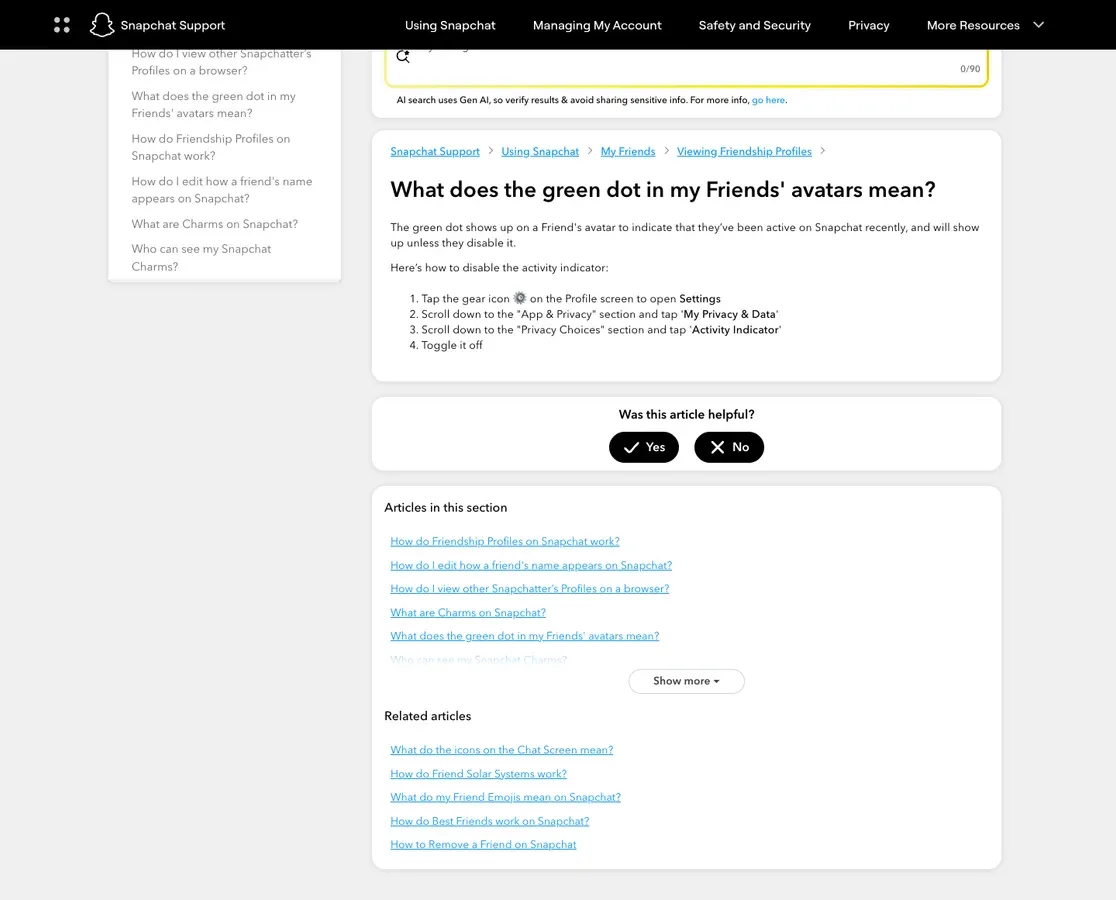
If you are asking, “What does the green dot on Snapchat mean?”, the short answer depends on where the dot appears. A green dot beside a friend’s avatar is Snapchat’s Activity Indicator. It means that person has been active on Snapchat recently. It does not prove that they are online now, reading your message, or talking to someone else.
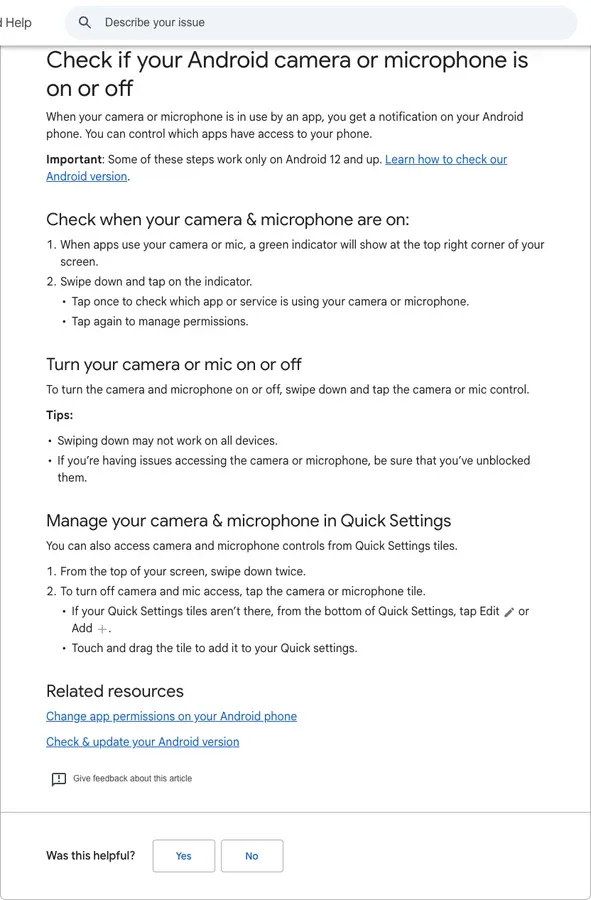
A green dot at the top of an iPhone or Android screen has a different job. It is an operating-system privacy indicator showing that an app is using the camera, or on some devices the camera and microphone. Snapchat opens to a camera view, so this second dot often appears as soon as you launch the app.
TL;DR
- Beside an avatar: the person was active on Snapchat recently.
- At the top of the phone screen: an app is using the camera or microphone.
- The avatar dot is not a live online tracker and says nothing about a person’s exact location.
- To hide your own avatar dot, turn off Activity Indicator in Snapchat’s privacy settings.
- To hide your position on Snap Map, use Ghost Mode or change the app’s location permission. That is a separate control.
What Do the Green Dots Mean on Snapchat in Different Places?
The two green indicators are easy to confuse because they can appear during the same session. Their position tells you which one you are seeing.
| Where the green dot appears | What it means | What it does not tell you |
|---|---|---|
| Beside a friend’s avatar or profile suggestion | Snapchat says the person was active recently | Whether they are online this second, viewing your chat, or available to reply |
| At the top of an iPhone screen | An app is using the camera, or the camera and microphone | Another person’s Snapchat activity |
| At the top-right of an Android screen | An app is using the camera or microphone | A friend’s online status or Snap Map location |
Snapchat’s own support page deliberately avoids an exact minute count. Treat the avatar dot as a broad recency signal. If a message matters, send it and wait for the normal delivery or opened status instead of trying to infer intent from a small icon.
The phone-level privacy dot is more immediate. On Android 12 and later, you can swipe down and tap the indicator to see which app or service is using the camera or microphone. On iPhone, Control Center shows recent camera and microphone access. If the indicator remains after you leave Snapchat, check which app is responsible and review its permissions.
What the avatar dot can and cannot prove
The avatar dot supports one modest conclusion: Snapchat recorded recent use and the account has not hidden the indicator. It cannot establish what the person did inside the app. They might have opened the camera, watched a Story, changed a setting, or left the app shortly afterward.
It also should not be combined with Snap Map, Snap Score, or Story activity to monitor another person. Those signals update for different reasons and at different times. A location timestamp shows when a shared location was updated under the user’s selected permission. A Snap Score follows a separate system. Neither turns the green dot into a precise presence record.
Green dot, Snap Map, and proxy terms at a glance
| Feature or signal | Data source | What it can tell you | What it cannot prove |
|---|---|---|---|
| Activity Indicator | Snapchat account activity | The account was used recently and has not hidden the indicator | That the person is online now, viewing your chat, or ready to reply |
| Phone’s green privacy dot | iOS or Android sensor controls | An app is using the camera, or on some devices the camera and microphone | Another person’s Snapchat activity or location |
| Snap Map location | Device location permission plus the user’s sharing settings | An authorized location or the last location update available under those settings | That the green Activity Indicator is live or that a proxy changed GPS |
| Proxy exit IP | Network route | The public IP and approximate IP-based region visible to a web destination | The phone’s GPS position, Snap Map coordinates, or account permission |
How to Turn the Green Dot Off on Snapchat
Snapchat’s current support path is short:
- Open your Profile screen and tap the gear icon to enter Settings.
- Scroll to App & Privacy, then tap My Privacy & Data.
- Under Privacy Choices, tap Activity Indicator.
- Toggle the setting off.
Menu labels can shift slightly between app versions or staged releases. If you do not see the control, update Snapchat first, reopen Settings, and search within the privacy area. Turning off Activity Indicator hides the avatar-based recent-activity signal. It does not disable read receipts, typing indicators, camera access, or location sharing.
This separation matters. Someone who wants less visibility may need to review several controls, not just one switch:
- Activity Indicator controls the green dot beside an avatar.
- Ghost Mode controls whether friends can see the user’s location on Snap Map.
- Device location permission controls when Snapchat can obtain location from the phone.
- Camera and microphone permissions control access to those sensors and trigger the phone’s privacy indicators when used.
Do not disable camera access merely to remove the phone’s green privacy dot. Snapchat’s core camera features need that permission. If you do not recognize the app shown by the phone’s privacy panel, close it and review its permissions instead.
The Green Dot and Snap Map Use Separate Privacy Controls
The Activity Indicator does not reveal a person’s position. Snap Map is a separate feature with its own audience and permission choices. Snapchat says location sharing is off by default, and users can choose My Friends, My Friends, Except…, Only These Friends…, or Ghost Mode.
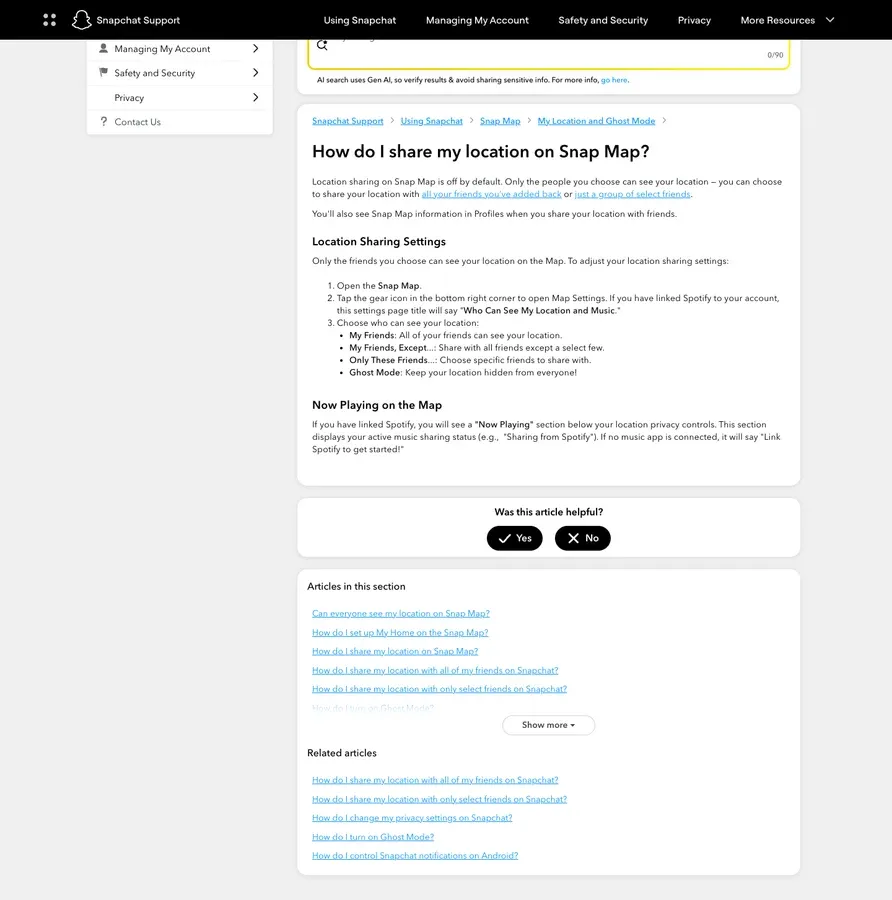
To stop friends from seeing your map position, open Snap Map, tap the gear icon, and enable Ghost Mode. Some accounts also show timers for three hours, 24 hours, or until the setting is turned off. Snapchat notes that Snaps submitted to the public Snap Map can still appear there regardless of your personal location-sharing choice.
For a tighter boundary, also open the phone’s system settings and change Snapchat’s location access from background or “Always” access to Only While Using, if that option fits your needs. With while-using access, Snap Map can show the last position recorded while the app was open, but it will not continue updating in the background. Share live or background location only with people you trust.
How to change location on Snapchat Map safely
There are three legitimate meanings of “change location”:
- Change who can see it. Use the audience controls in Snap Map settings.
- Stop sharing it. Enable Ghost Mode and adjust the phone’s location permission.
- Correct an inaccurate reading. Confirm that precise location is enabled if you want accuracy, check the phone’s GPS and network connection, then reopen Snapchat.
These steps change privacy or help the app refresh an authorized location reading. They do not fabricate a different physical position.
Can a Proxy Change Snapchat’s Location? What It Can and Cannot Do
A proxy does not directly change the GPS coordinates supplied by an iPhone or Android device. It routes network traffic through another internet address. Websites and web services may estimate a rough region from that exit IP, but Snap Map can rely on device location permissions and sensor-derived coordinates. An IP route and a GPS position are different data sources.
That distinction prevents a common setup mistake. A successful proxy connection can prove that web traffic exits through a different IP. It does not prove that Snapchat’s mobile app will display a different place on Snap Map. Device settings, app permissions, account state, cached data, and platform checks can all remain independent of the network route.
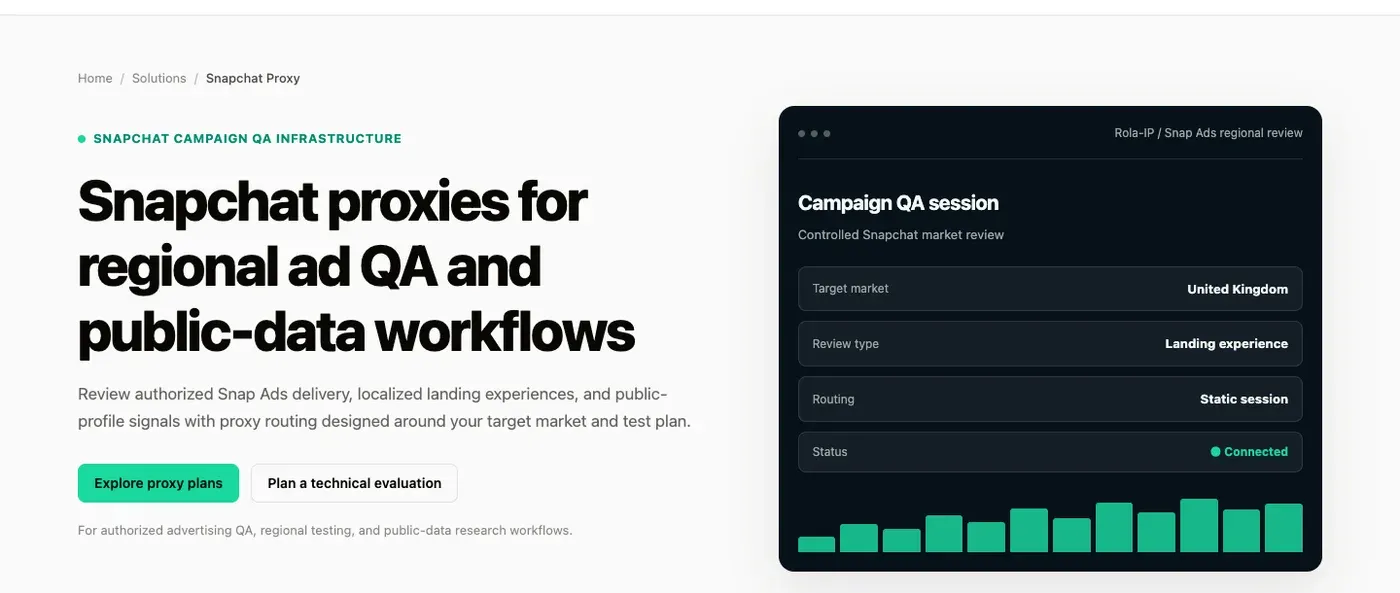
For an authorized business test, such as reviewing regional Snap Ads landing experiences or permitted public information, Rola IP’s Snapchat proxy workflow provides a network-routing option. Keep the goal narrow: document the approved market, test URL, session behavior, and expected result. A proxy does not grant access, override Snapchat controls, or guarantee that a platform will accept a session.
If the task truly needs IP-based regional web testing, first read the residential proxy setup guide and compare mobile and residential proxy behavior. Use the smallest capability that fits the authorized test. Logged-in personal accounts and GPS-dependent features are poor places to experiment with rapidly changing network identities.
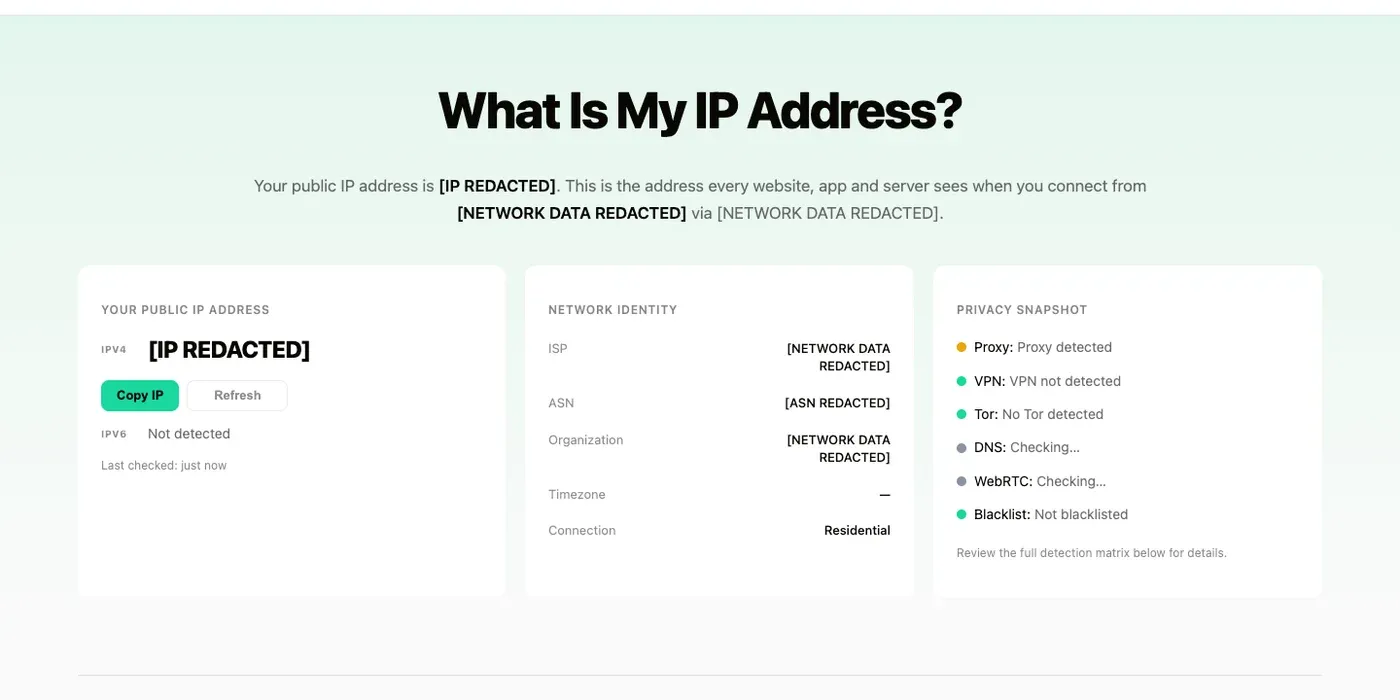
After changing a permitted browser or test-environment route, verify only what the check can establish. The What Is My IP tool can show the visible exit IP and an approximate IP-based region. It cannot validate Snap Map coordinates.
Reproducible workflow for authorized regional QA
Use this workflow only for a Snap Ads landing page, localized marketing page, or public source that your team is allowed to test. Keep personal Snapchat accounts, private content, and access-controlled pages out of the run.
Before starting, create one test record with the authorized URL, expected region, expected page text, maximum requests, and stop condition. Then follow the same sequence for the direct and proxied checks:
- Capture a direct baseline. Record the time, URL, HTTP status, page title or expected regional text, response time, and visible exit IP.
- Copy current connection details from the Rola dashboard. Use the displayed host, port, username, and password. Do not assume a fixed port or invent a username suffix.
- Choose the documented protocol and session behavior. Use HTTP(S) or SOCKS5 according to the current product guide. For a multi-page journey, document whether the route must remain stable for the session.
- Verify the proxy exit separately. Open Rola’s What Is My IP tool through the test route and record the redacted exit IP plus its approximate IP-based region. This confirms the network path, not GPS.
- Repeat the authorized page check. Use the same URL, browser profile, and expected result. Record HTTP status, page title or regional text, response time, and any 407, 403, 429, DNS, timeout, or content-mismatch result.
- Compare only like-for-like evidence. A changed exit IP demonstrates a changed route. The expected localized page content demonstrates one successful page check under those conditions.
- Stop at the approved sample or request limit. Do not repeatedly rotate IPs to work around a platform restriction, challenge, or rate limit.
The following command template makes the two HTTP checks comparable. Set AUTHORIZED_TARGET_URL and ROLA_PROXY_URL securely in the test environment first; do not paste credentials into shared logs, tickets, or screenshots.
: "Direct baseline"
curl --silent --show-error --location \
  --output /dev/null \
  --write-out 'http_code=%{http_code} total_seconds=%{time_total} remote_ip=%{remote_ip}\n' \
  "$AUTHORIZED_TARGET_URL"

: "Same authorized URL through the configured Rola route"
curl --silent --show-error --location \
  --proxy "$ROLA_PROXY_URL" \
  --output /dev/null \
  --write-out 'http_code=%{http_code} total_seconds=%{time_total} remote_ip=%{remote_ip}\n' \
  "$AUTHORIZED_TARGET_URL"
The template intentionally omits real credentials and does not log response bodies. If the password contains reserved URL characters, use the connection format shown in the current Rola documentation rather than manually rewriting the credential.
How to interpret the result
| Observed result | What the test can support | What it cannot support |
|---|---|---|
| Exit IP changes to the intended IP-based region | The browser or test client’s network route changed | The phone’s GPS or Snap Map location changed |
| The authorized page shows the expected regional content | That one page check matched the expected content under the recorded conditions | Long-term ad delivery, account permission, or every visitor’s experience |
| HTTP 407 | Proxy authentication or connection details need review | A Snapchat account restriction |
| HTTP 403 or a challenge page | The destination rejected or challenged that request; review permission, frequency, and page rules | That every failure is caused by “poor IP quality” |
| HTTP 429 | The destination is rate-limiting the test | Permission to increase rotation or bypass the limit |
| DNS error, timeout, or connection failure | The route, DNS resolution, or destination response needs isolation | That buying more IPs will solve the problem |
| Correct status but wrong regional content | The route worked, but content selection may depend on cookies, account state, language, cache, or other signals | That the proxy failed to change the visible exit IP |
The practical answer to “how to fake Snapchat location with proxy” is therefore: a proxy alone is the wrong tool for changing Snap Map. Use Snapchat’s own privacy controls when the goal is to limit sharing. For regional advertising or public-web QA, use a proxy only inside an authorized, documented test plan.
What to Remember
Beside an avatar, the green dot means recent Snapchat activity; at the top of a phone, it means camera or microphone access. Manage Activity Indicator, Snap Map, device permissions, and proxy routing as separate controls, and never treat an IP change as proof of a GPS change.
Disclosure: This article is published by Rola IP. Product examples should be checked against current documentation and used only for authorized workflows.